This update is for the SteamOS Beta and Preview channels, and includes new features that are still being tested. You can opt into this in Settings > System > System Update Channel.
These notes contain all changes since the current stable SteamOS 3.8 release, with the changes added since the previous 3.9 preview releases noted below
New in SteamOS 3.9.3
General
Fixed performance issues in STAR WARS: Galactic Racer on resume from suspend on Steam Machine
Fixed an issue that could lead to GPU errors in The Crew Motorfest
Fixed audio issues on hotplug of certain monitors in a multi-monitor setup
Improved support for Steam Frame wireless adapter
Security and stability updates
Developer
Reintroduce support for Android binder IPC
SteamOS 3.9
General
Updated Arch Linux base
Updated Desktop Mode from Plasma 6.4.3 to Plasma 6.7.3
We're starting a beta for Steam Achievement Sets, a new feature aimed at improving the achievement experience on Steam.
Games today live longer than ever, continuing to receive updates through new DLC, expansions, and seasons. But achievements added with new game content can be hard to discover and can accidentally break the completion status of players who have already finished the game.
We have designed Achievement Sets to help address these types of issues. You can try them out in today's Steam Client beta and in a growing set of games that have already added support.
Introducing Achievement Sets
This beta enables developers to group their game's related achievements together in collections we are calling Achievement Sets. Devs can specify the number of sets and the purpose of each to match their game's specific needs. You can imagine one game grouping its achievements into single-player and multiplayer sets, or another into 8 class-based sets.
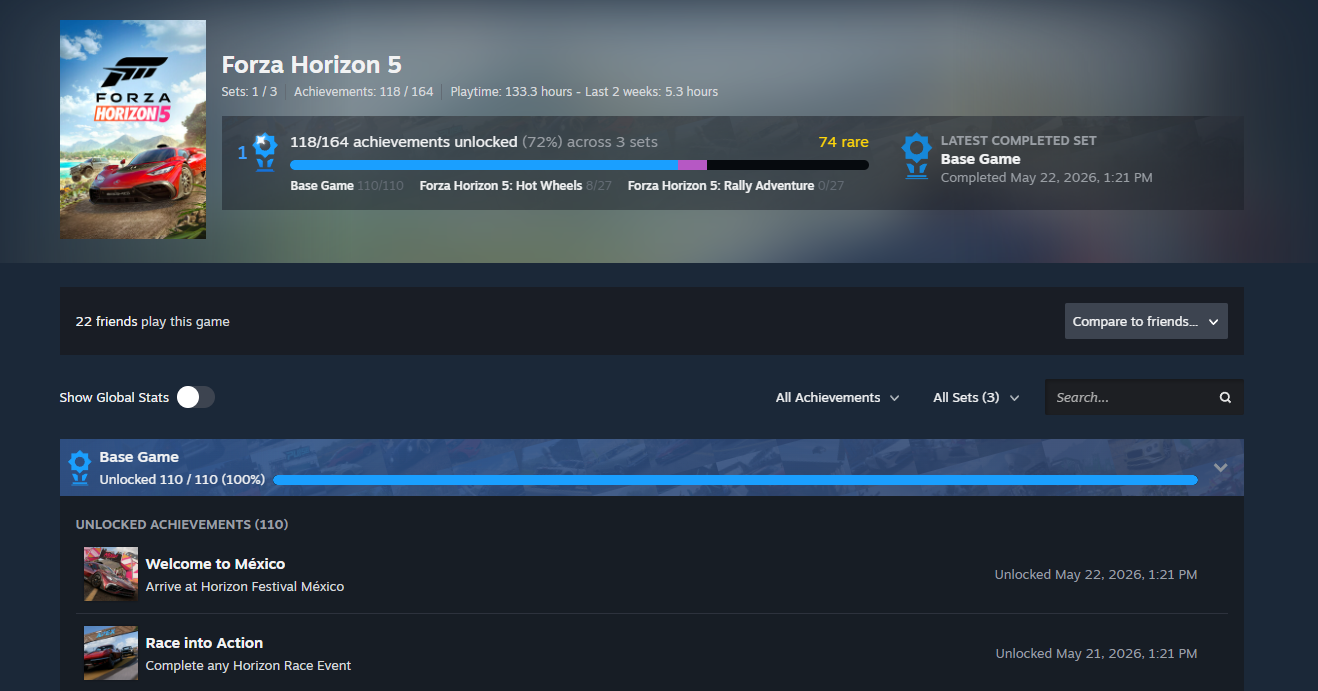
In games that support sets, you still unlock achievements by playing the game as usual. But when you browse what you have unlocked afterward, Steam will break the long list of game achievements into the developer-created sets, making it easier to see what you have completed and to find other related achievements you can unlock next.
Each Achievement Set also has its own progress bar showing how far along you are in that area. Once you have unlocked every achievement in a set, Steam will commemorate the moment and add a "set complete" trophy to your profile. If new achievements are later added to the set, your completion is preserved.
As a game grows, developers can create new sets to hold achievements for the added content. These new sets make it easy for returning players to see what new things they can unlock, while also preserving their prior completion status until they play again.
There are two types of Achievement Sets.
Base Game Achievement Sets
Base Game sets contain achievements that can be earned by all players who play a game. Their progress and trophies are displayed in blue on your achievements page.
DLC Achievement Sets
Some games contain achievements that can only be earned once you have purchased additional content (DLC) for that game. These achievements can now be grouped into new DLC sets, allowing you to separately track what you have unlocked in the new content.
DLC achievements are not included in your overall game progress until you have access to the content. Once acquired, they will be displayed as purple progress and trophies on your achievements page.
All possible achievements for a game can be explored from the new achievements page, so if you are curious, give the page a skim to see what the game's DLC has added.
Seasonal Achievements
We are also introducing the ability for game developers to archive individual achievements or entire Achievement Sets. We think there are a lot of fun ways games can take advantage of the temporary nature this can add, such as adding achievements to season-based games or enabling time-limited holiday achievements.
Once archived, users who had already unlocked the achievement or set will still see it on their profile. However, archived achievements won't show up on the profile pages of users who missed the unlock nor block their progress toward completing a set or game. Anytime an achievement can no longer be unlocked by users, it should be archived.
A New Achievements Page
Bringing this all together is an updated achievements page, accessible from your Games List on the web and from games in your Steam Library. The new page gives you a summary of your overall progress, progress in each achievement set, and details on individual achievements.
Global Stats, or the per-achievement completion rates, are now available as a toggle here rather than on a separate page.
Search has also been expanded with filters for specific achievement sets and for locked or unlocked achievements. Plus, there's a little extra joy when you complete all your achievement sets.
You can now compare your game progress with up to three friends, including rare achievements, completed sets, and progress in DLC sets. You'll see both the number of achievement sets you've completed and a new, more accurate total achievement count, making it easier to compare your progress with friends. This total is based on achievements each player can actually earn, which may vary depending on the add-on content they have and whether certain achievements are time-limited or archived. As a result, the total can differ from friend to friend.
And More
We've rebuilt a few areas where achievements are displayed, to show off your overall achievement and set progress throughout Steam. You'll see your completed sets on your profile in the Recently Played section, your Games List, your Library, and more.
The Perfect Games tab is now called Completed and expands to show both completed games and games with completed achievement sets.
Games with completed achievement sets can now be added to the Completionist Showcase, in addition to completed games.
Games played via Family Sharing are now displayed in the Games List.
Friends with playtime in a game through Family Sharing are now eligible for friend comparison.
Store and Library game pages will now show if a game has achievement sets.
We have just shipped an updated Steam Client update to the Stable channel.
Home Screen
Added a new 'Big Art Mode' option for the home screen. This can be enabled in Settings > Home.
Added Personal Calendar to the Recommended tab on the home screen.
[carousel][/carousel]
Screensavers
Added a new screensaver feature, accessible in Settings > Customization. There are two screensavers available:
The default is a game art slideshow that can be configured to show artwork from recently played games and your recent in-game screenshots.
A retro inspired bouncing logo screensaver
Custom screensavers are also supported. Similar to startup movies, they can be placed in directories at ~/.steam/root/config/uioverrides/screensavers/. You can use the bouncing logo screensaver (in the steamui/screensavers directory) as an example to get started.
[carousel][/carousel]
General
Added notification about the current user when waking from sleep, if there have been multiple recent users. The notification can be activated to switch users and dismisses immediately on any other input. This notification can be toggled from the Notification Settings.
Added confirmation step to "exit VR" and "switch to desktop mode" power menu actions, and removed it from "sleep".
Added explicit warning text to power menu confirmation dialogs when proceeding will shut down an active game.
Added confirmation dialog/user switching ability when waking from sleep would require kicking an active session elsewhere.
Added "Default to Desktop Mode" toggle to System settings.
Added support for keyboard glyphs in the footer when using mouse/kb to interact with Big Picture Mode
Added delaying dimming the screen or displaying the screensaver when the Steam Store, web browsers or other apps request to disable monitor sleep and screensavers while playing video.
Added a setting to disable the screensaver when in game
Updated default artwork when an app does not have library or hero artwork.
Improved the layout of the QAM Voice Chat tab, added a mute toggle to the volume sliders, and fixed the link from the tab to the active chat to focus the textbox when opening to the chat window
Improved the text layout in achievement notifications when the name, description or both wrap across multiple lines.
Improved download speeds on high latency connections.
Reorganized the idle timer settings when on battery and AC power
Pressing the controller's system button will request the TV to switch to the Steam Machine as the active source (the connected TV must support HDMI CEC)
The 'System Report' dialog is now more responsive when displaying and uploading the gathered system report.
Windows binaries registered as non-steam games will now run in Proton by default.
Using a physical mouse to click on text input will no longer bring up the On-Screen Keyboard
When waking from sleep with a game running but the account now playing elsewhere:
Provide an option to exit the local game.
Go back to sleep if there is no input for 60 seconds.
The "Select compatibility tool" dropdown is now always visible.
The recommended compatibility tool, or steam runtime for native games, now shows at the top of the list as the "Default" option.
Compatibility tool aliases, e.g. "Proton Stable", can now be selected from this dropdown.
Fixed a case where Windows games would show as 'Not Compatible' in the library view until a manual Proton version was selected for this app.
Fixed "Suspend Download Throttle" not properly updating on the downloads page.
Fixed an issue where virtual gamepads were torn down temporarily when a game called the ISteamUtils::SetGameLauncherMode api, which could cause titles that don't support controller hotplugging to lose input
Fixed the on-screen keyboard not popping up in non-Steam games after toggling wifi or suspending the machine
Fixed the Recordings & Screenshots dialog not showing all games that have related screenshots in the game filter dropdown.
Fixed some cases of header/footer flicker and invisibility during the first seconds after waking from sleep.
Fixed issues with trackpad typing if the trackpad is touched while the onscreen keyboard is opening
Fixed the onscreen keyboard not working the first time it is invoked on desktop.
Fixed clicking the buttons in the footer causing the glyphs to change back to gamepad
Fixed a clicking the back button in the footer not working if nothing on the page had digital navigation focus
Fixed the Steam logo spinner moving during the login flow
Fixed a bug that sometimes caused an empty "Steam Family Activity" group to appear in notification settings
Fixed cases where users with older CPUs could have the client hang/crash when starting downloads for games with many identical files
Fixed desktop shortcuts always using the default launch option rather than your saved option
Fixed some cases where the onscreen keyboard would drop presses during dual trackpad typing
Fixed the diacritic options menu interactions during dual trackpad typing
Fixed a case where non-steam games would fail to launch after changing the Target binary via the Browse button.
Fixed a case where the 'Stop' button would fail to close the game if it was launched by an external tool.
Fixed a case where library playtime could temporarily show an incorrect value.
Fixed an issue where deleting an uploaded screenshot would only delete the local copy.
Fixed hovering DLCs not working in some places.
Desktop Mode
Fixed rendering the overlay and using other overlay related features (screenshots, game recording, etc.) in Vulkan games that create multiple windows.
Fixed crash when Vulkan games recreate their swapchain.
The SteamOS compatibility dialogs will now show when installing games not verified for that HW.
In the desktop overlay the desktop config will now be applied. For most gamepads this will not be a difference in behavior because they have a blank desktop config, but Steam Controllers or devices that have setup a custom desktop config will have mouse input to click on things in the overlay.
Game Recording
Fixed some cases where playback would jump to an unexpected point in the timeline when reaching the end of a play session or clip.
Steam Input
Added a new view in the configurator for Steam Input API games that lists out actions and their bindings rather than inputs to actions along with streamlined binding interface.
Added a new multi-binding page in the configurator for authoring button combinations that visualizes the timeline of command outputs and their settings.
Added information about which configurations are compatible in the configurator browser when using a game that requires Steam Input API.
Added the missing settings for adjusting emulated joystick adaptive centering on trackpad.
Added support for inverting button chord bindings.
Added support for the user-invoked On-Screen Keyboard in the desktop overlay.
Added a landing page to the configurator when no file on disk could be loaded and give you the option to select a new configuration. This was one of the causes of a blank configurator.
Improved CPU performance at runtime and in configuration loading.
Improved the consistency of trackpad sensitivity between Steam Deck and Steam Controller.
Implemented a version of the "Reorder Controller" dialog for Steam Input API games. Note - this disconnects the controllers temporarily so older games which do not handle hot plugging properly can lose controller input.
Switch to reshuffling gamepad input when the last running game exits instead of on game launch to avoid issues when running multiple apps at the same time.
Improve the display of cloud sync status in the configurator and give you the option to skip and proceed to the configurator. This was another common cause of a blank configuration because the layout was broken and the info offscreen.
By default, Steam Frame controllers will now use gamepad input in VR games that don't support VR inputs. The preferred mode can be changed for any VR game in either the game's Steam Input settings or in VR Controller settings on the Now Playing page. Please report any titles that do not work out of the box. Note: both Frame and the PC must be on the beta channel for Steam and SteamVR.
Fixed the controller support widget showing "This game doesn't support controllers" for unreleased games that don't have controller support information yet.
Fixed controllers not using the desktop configuration on the desktop UI login window.
Fixed older-unnamed Virtual Menus showing up as "Create Virtual Menu" in some views.
Fixed the glyphs shown for the Xbox Elite Controller paddle buttons.
Fixed cases where the Virtual menu modes could show the wrong activation type if it was created in the standalone menu vs from a controller source.
Fixed issues with button and slider sizing in the configurator when opened in the desktop overlay.
Fixed pairing the 2015 Steam Controller.
Fixed glyphs for Switch controllers in Heavy Rain.
Fixed a bug on the "Reorder controller" screen on Linux where sometimes swapping controllers would not work.
Remote Play
Added an experimental video codec, Pyrowave, which allows high bandwidth, low latency video streaming. You can find out more on the Steam Remote Play discussion group.
Added the -pyrowavestats command line option to log Pyrowave encoding performance
Automatically fall back to H.264 if HEVC isn't available.
Disabled HDR when streaming to the OLED Steam Deck.
A PIN is no longer required to download an app to a remote device. A PIN is still required to Install and Stream from a remote device.
Added a Download Complete notification for a remote download if you initiated the download on your current device.
Fixed EULA acceptance when starting a Remote Stream.
Fixed streaming launch failing if the host client had a cloud conflict.
Added a dialog to recover if your network isn't able to handle current streaming settings.
Steam Controller Firmware
Added a 2nd BLE pairing slot - to pair hold L1 + B + Steam when powering on the controller. To switch between slots hold either L1 + B + Steam at start up or R1 + B + Steam at start up.
Improved rumble emulation and added configurable intensity levels.
Improve the time needed to fully connect the device in Steam.
Fixed an issue where certain thumbsticks could lose the ability to reach full range.
Fixed an issue where some Bluetooth BLE connections could disconnect repeatedly, especially on Steam Deck.
Fixed an issue where pairing via a puck connection could fail.
Fixed an issue where switching to BLE mode would stick, even if the host device could not be found.
A new Steam Client update has been released and will be automatically downloaded.
Homescreen - Big Picture Mode
Added a new 'Big Art Mode' option for the home screen. This can be enabled in Settings > Home.
Added Personal Calendar to the Recommended tab on the home screen
[carousel][/carousel]
Screensaver - Big Picture Mode
Added a new screensaver feature, accessible in Settings > Customization. There are two screensavers available:
The default is a game art slideshow that can be configured to show artwork from recently played games and your recent in-game screenshots.
A retro inspired bouncing logo screensaver
Big Picture mode can also load custom screensavers. Similar to startup movies, they can be placed in the config\\uioverrides\\screensavers directory in your Steam install directory (e.g. C:\\Program Files (x86)\\Steam or ~/.steam/root). You can use the bouncing logo screensaver (in the steamui\\screensavers directory) as an example to get started.
[carousel][/carousel]
General
Improved Steam Client startup performance.
Avoid stealing focus when the Steam main window opens, if another window was activated during startup/login.
Improved the text layout in achievement notifications when the name, description or both wrap across multiple lines.
Dialogs that appear for serious error conditions now stay above the main window.
On Windows, using the systray menu to exit while the Steam window is minimized will no longer flash the window visible briefly.
Fixed the onscreen keyboard not working the first time it is invoked on desktop.
Fix cases where users with older CPUs could have the client hang/crash when starting downloads for games with many identical files.
Fixed desktop shortcuts always using the default launch option rather than your saved option.
Fixed a case where library playtime could temporarily show an incorrect value.
Fixed a case where after server maintenance some users might fail to auto-reconnect to Steam.
Fixed bug where being prompted to refresh credentials more than once could trigger an immediate restart.
Fixed "Suspend Download Throttle" not properly updating on the downloads page.
Fixed the Recordings & Screenshots dialog not showing all games that have related screenshots in the game filter dropdown.
Fixed a crash at launch on Windows with EZFRD64.DLL installed
In-Game Overlay
Improved scaling of Performance Monitor FPS line graph for various text scaling settings values.
Fixed crash when Vulkan games recreate their swapchain.
Fixed frame rate hitches in D3D11 and D3D12 games when taking screenshots on Windows.
Fixed rendering the overlay and using other overlay related features (screenshots, game recording, etc.) in Vulkan games that create multiple windows.
Library
Fix hovering DLCs not working in some places.
Game Recording
Fixed some cases where playback would jump to an unexpected point in the timeline when reaching the end of a play session or clip.
Decreased performance impact of game recording for some D3D12 games on Windows.
Big Picture Mode
Added delaying dimming the screen or displaying the screensaver when the Steam Store, web browsers or other apps request to disable monitor sleep and screensavers while playing video.
Added a setting to disable the screensaver when in game.
Added explicit warning text to power menu confirmation dialogs when proceeding will shut down an active game.
Added support for keyboard glyphs in the footer when using mouse/kb to interact with Big Picture Mode.
Using a physical mouse to click on text input will no longer bring up the On-Screen Keyboard.
Improved the layout of the QAM Voice Chat tab, added a mute toggle to the volume sliders, and fixed the link from the tab to the active chat to focus the textbox when opening to the chat window.
Updated default artwork when an app does not have library or hero artwork.
Reorganized the idle timer settings when on battery and AC power.
The mouse is now hidden in the overlay until there's mouse movement.
Wifi strength and connection type are now shown in the header on Windows.
Fixed clicking the buttons in the footer causing the glyphs to change back to gamepad.
Fixed a clicking the back button in the footer not working if nothing on the page had digital navigation focus.
Fixed the Steam logo spinner moving during the login flow.
Fixed cases on Windows where guide buttons presses would go to the main BPM window instead of opening the overlay in the game.
Fixed cases where the main BPM window would not get focused when quitting a game.
Fixed some cases where the onscreen keyboard would drop presses during dual trackpad typing.
Fix the diacritic options menu interactions during dual trackpad typing.
Fixed the on-screen keyboard not popping up in non-Steam games after toggling wifi or suspending the machine.
Fixed issues with trackpad typing if the trackpad is touched while the onscreen keyboard is opening.
Steam Input
Added a new view in the configurator for Steam Input API games that lists out actions and their bindings rather than inputs to actions along with streamlined binding interface.
Added a new multi-binding page in the configurator for authoring button combinations that visualizes the timeline of command outputs and their settings.
Added support for the user-invoked On-Screen Keyboard in the desktop overlay.
Added information about which configurations are compatible in the configurator browser when using a game that requires Steam Input API.
Added the missing settings for adjusting emulated joystick adaptive centering on trackpad.
Added support for inverting button chord bindings.
Added support for switching into Lizard mode on the new Steam Controller when interacting with UAC windows or other places where Windows blocks Steam Input.
Added a landing page to the configurator when no file on disk could be loaded and give you the option to select a new configuration. This was one of the causes of a blank configurator.
Implemented a version of the "Reorder Controller" dialog for Steam Input API games. Note - this disconnects the controllers temporarily so older games which do not handle hot plugging properly can lose controller input.
Improved the display of cloud sync status in the configurator and give you the option to skip and proceed to the configurator. This was another common cause of a blank configuration because the layout was broken and the info offscreen.
Improved CPU performance at runtime and in configuration loading.
Improved the consistency of trackpad sensitivity between Steam Deck and Steam Controller.
In the desktop UI overlay the desktop config will now be applied. For most gamepads this will not be a difference in behavior because they have a blank desktop config, but Steam Controllers or devices that have setup a custom desktop config will have mouse input to click on things in the overlay.
On Linux switch to reshuffling gamepad input when the last running game exits instead of on game launch to avoid issues when running multiple apps at the same time.
By default, Steam Frame controllers will now use gamepad input in VR games that don't support VR inputs. The preferred mode can be changed for any VR game in either the game's Steam Input settings or in VR Controller settings on the Now Playing page. Please report any titles that do not work out of the box.
Fixed pairing the 2015 Steam Controller.
FIxed glyphs for Switch controllers in Heavy Rain.
Fix a bug on the Linux "Reorder controller" screen on Linux where sometimes swapping controllers would not work.
Fixed issues with button and slider sizing in the configurator when opened in the desktop overlay.
Fixed Windows handheld controllers having priority over docked controllers in Steam Input API games.
Fixed the controller support widget showing "This game doesn't support controllers" for unreleased games that don't have controller support information yet.
Fixed controllers not using the desktop configuration on the desktop UI login window.
Fixed older-unnamed Virtual Menus showing up as "Create Virtual Menu" in some views.
Fixed showing doubled Xbox style controllers on Windows.
Fixed showing doubled Steam Controllers on macOS.
Fixed the glyphs shown for the Xbox Elite Controller paddle buttons.
Fixed cases where the Virtual menu modes could show the wrong activation type if it was created in the standalone menu vs from a controller source.
Remote Play
Added an experimental video codec, Pyrowave, which allows high bandwidth, low latency video streaming. You can find out more on the Steam Remote Play discussion group.
Added the -pyrowavestats command line option to log Pyrowave encoding performance
Automatically fall back to H.264 if HEVC isn't available.
Disabled HDR when streaming to the OLED Steam Deck.
A PIN is no longer required to download an app to a remote device. A PIN is still required to Install and Stream from a remote device.
Added a Download Complete notification for a remote download if you initiated the download on your current device.
Fixed EULA acceptance when starting a Remote Stream.
Fixed streaming launch failing if the host client had a cloud conflict.
Added a dialog to recover if your network isn't able to handle current streaming settings.
Linux:
The "Select compatibility tool" dropdown is now always visible.
The recommended compatibility tool, or steam runtime for native games, now shows at the top of the list as the "Default" option.
Compatibility tool aliases, e.g. "Proton Stable", can now be selected from this dropdown.
Windows binaries registered as non-steam games will now run in Proton by default.
Fixed a case where non-steam games would fail to launch after changing the Target binary via the Browse button.
The SteamOS compatibility dialogs will now show in desktopUI when installing games not verified for that HW.
On Desktop Linux we will now show the SteamOS unsupported dialog when installing games that are known to not work with Proton.
Improve download speeds on high latency connections.
Improve distro information collection for hardware survey, preferring data from /etc/os-release.
Fixed an issue where virtual gamepads were torn down temporarily when a game called the ISteamUtils::SetGameLauncherMode api, which could cause titles that don't support controller hotplugging to lose input.
Fixed a case where the 'Stop' button would fail to close the game if it was launched by an external tool.
Steam Controller Firmware
Added a 2nd BLE pairing slot - to pair hold L1 + B + Steam when powering on the controller. To switch between slots hold either L1 + B + Steam at start up or R1 + B + Steam at start up.
Improved rumble emulation and added configurable intensity levels.
Improve the time needed to fully connect the device in Steam.
Fixed an issue where some Bluetooth BLE connections could disconnect repeatedly, especially on Steam Deck.
Fixed an issue where pairing via a puck connection could fail.
Fixed an issue where switching to BLE mode would stick, even if the host device could not be found.
Fixed an issue where certain thumbsticks could lose the ability to reach full range.
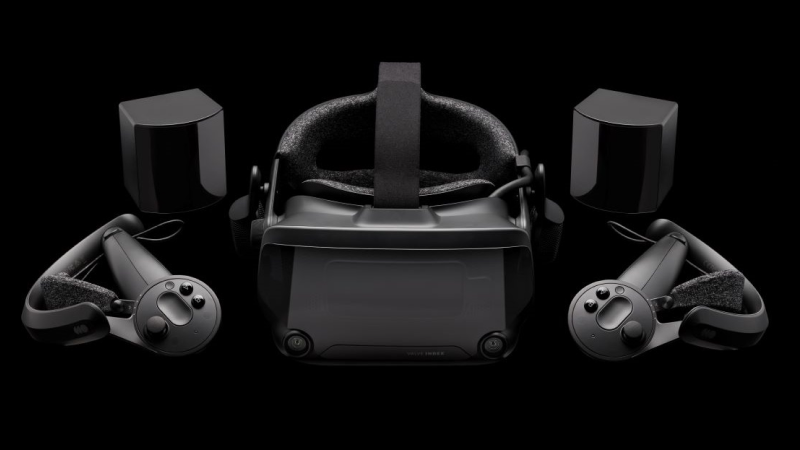
Please note that the items listed are sold separately and are not a complete kit. A full set of components is required to use Valve Index, including the headset, controllers, and base stations.
If you already own an Index, nothing changes - it is still supported on Steam and SteamVR. If you need help with your hardware, Steam Support is here.
Steam Cooking Fest is just begging for us to use cooking puns, but we're way too mature for that.
(Except for our headline here. OK and also our trailer.) The rest of this post, though? Pun-free!
Are there cooking games of all kinds on sale for the week? Definitely. Run a restaurant, operate a food truck, cook for giant onions and rats and all kinds of things!
Join us now for Steam Cooking Fest, on through October 19th at 10 am Pacific on Steam.
We have just shipped an updated Steam Client to the Preview/Beta channel.
General
Improved the layout of the QAM Voice Chat tab, added a mute toggle to the volume sliders, and fixed the link from the tab to the active chat to focus the textbox when opening to the chat window
Steam Input
By default, Steam Frame controllers will now use gamepad input in VR games that don't support VR inputs. The preferred mode can be changed for any VR game in either the game's Steam Input settings or in VR Controller settings on the Now Playing page. Please report any titles that do not work out of the box. Note: both Frame and the PC must be on the beta channel for Steam and SteamVR
Remote Play
Fixed streaming launch failing if the host client had a cloud conflict.
Fixed dropping to a very low bitrate when hardware decoding is disabled.
Fixed the network health dialog popping up at the beginning of the stream.
Enable Vulkan video decoding when using the SteamRT3C Linux beta.
Automatically fall back to H.264 if HEVC isn't available.
Disabled HDR when streaming to the OLED Steam Deck.
The Steam Client Beta has been updated with the following changes:
Steam Input
By default, Steam Frame controllers will now use gamepad input in VR games that don't support VR inputs. The preferred mode can be changed for any VR game in either the game's Steam Input settings or in VR Controller settings on the Now Playing page. Please report any titles that do not work out of the box. Note: both Frame and the PC must be on the beta channel for Steam and SteamVR
Big Picture Mode
Improved the layout of the QAM Voice Chat tab, added a mute toggle to the volume sliders, and fixed the link from the tab to the active chat to focus the textbox when opening to the chat window.
Remote Play
Fixed streaming launch failing if the host client had a cloud conflict.
Fixed dropping to a very low bitrate when hardware decoding is disabled.
Fixed the network health dialog popping up at the beginning of the stream.
Enable Vulkan video decoding when using the SteamRT3C Linux beta.
Automatically fall back to H.264 if HEVC isn't available.
Disabled HDR when streaming to the OLED Steam Deck.
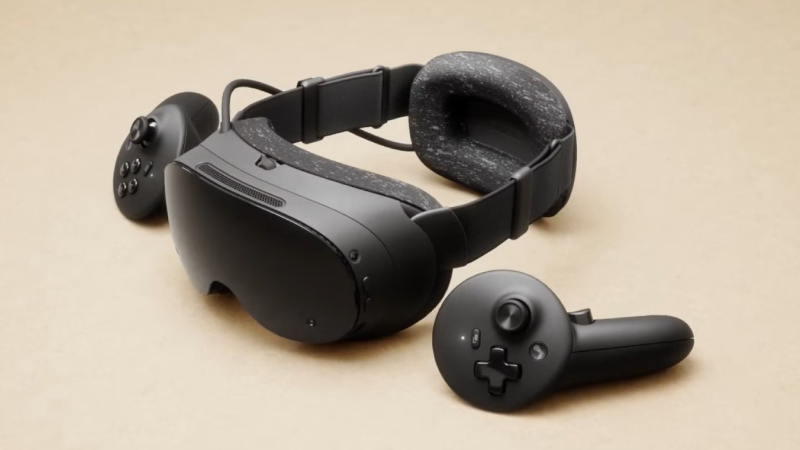
We launched Steam Frame last month, and with the reservation queues and waitlist in place we wanted to give folks a better idea of when they can expect to see an email with the option to purchase.
We're also releasing the CAD files today, and have a number of additional updates we've shipped since launch. You'll find details on all of that below.
Reservation updates and timing:
We opened up signups for Steam Frame on September 14th, and did a one-time randomization of that list on September 17th. Based on the order in which folks landed after that shuffle, we began fulfilling orders on September 18th.
If you have a reservation
You can now check on your expected order window by going directly to the Steam Frame product page while logged in to your Steam account. Once there, you'll see confirmation that you'll receive your order email either by December, or in 2027. Those in the 2027 camp will receive further (more detailed) information on their expected order timing by January.
For everyone receiving a purchase email: You must complete your purchase within 72 hours or we will move to the next person in line.
If you are on the waitlist
As we work our way through the reservation queues, we will let you know ifspots open up there. Anyone interested in purchasing Steam Frame can still join the waitlist, and will be placed at the end in the order they join.
Please note that there are separate queues for each region, so there could be some regions pulling from the waitlist sooner than others. Importantly, no one on the waitlist is leapfrogging over anyone currently holding a reservation; we're only dipping into waitlists in a region when we reach the end of its reservation queue.
CAD and electrical interface files:
Steam Frame CAD files and electrical interface information are now available for non-commercial use.For commercial use, please follow the instructions at the link and reach out to us. We’re looking forward to seeing what our customers and partners will make. View the files here
Steam Frame Software Updates:
We've shipped several updates since launch. Here's a summary:
Power:
Improved power efficiency and battery lifetime during both streaming and local gameplay, with gains of up to 12%. Note: Result vary depending on framerate and content.
Added user setting to control Presence Sensor Sensitivity (VR Settings -> Startup / Shutdown -> Presence Sensor). New "high sensitivity" option keeps displays on under a wider range of conditions, such as when using glasses spacers.
Streaming:
Improved color clarity during VR streaming
VR streaming reliability improvements, including fixes for “Error 17.”
Fixed steam frame wireless adapter connectivity issues that affected users in some countries.
Improved audio reliability while streaming.
Fixed rare cases of other network interfaces causing disruption of wireless dongle connection.
Spectator view now uses smoother motion, by default. Spectator view can be accessed on PC via Steam > Settings > Remote Play, or any device that supports Steam Link to preview what the Steam Frame user is seeing in headset.
Fixed the keyboard not appearing while streaming.
General
Fixed an issue that prevented controller bindings from loading for certain games, including Google Earth VR and Thumper.
Added user setting to control Presence Sensor Sensitivity (VR Settings -> Startup / Shutdown -> Presence Sensor). New "high sensitivity" option keeps displays on under a wider range of conditions, such as when using glasses spacers.
Improved focus behavior when interacting with grab/resize handles
Improved focus handling and gamepad navigation in the dashboard.
Fixed a case of dashboard panels flickering.
Fixed "Return to Gaming mode" when starting up directly into Desktop mode.
Added option to disable spectator view smoothing under VR Settings > Developer (in headset).
Fixed an issue where the dashboard would recenter unnecessarily for some users.
Updated embedded browser (CEF) with crash fixes and Linux H.264 detection fixes.
Miscellaneous performance and stability improvements.
Audio:
Audio downmix and binaural rendering now have matching volume across all formats.
Accessibility
Added accessibility option for users who want to limit eye tracking to a single eye. VR Settings -> General -> Track Dominant Eye Only. (requires enabling "show advanced settings")
Users can now specify their Dominant Eye in VR Settings. This controls which eye is used for spectator view, screenshots, etc.
Steam Client updates:
Improved color accuracy when streaming non-VR games from a Windows PC
Support for "Show Battery Percentage" in Dashboard Bar
Support for gamepad navigation in the Streaming menu
Streaming Menu shows spectating status, and a stop button.
VR Quick Access Menu opens on click (instead of hover)
Steam Frame Wireless Adapter manual configuration now shows the correct list of Wi-Fi channels in all regions.
SteamOS 0.4 for Steam Frame has just been released for all users with the following changes:
Power:
Improved power efficiency and battery lifetime during both streaming and local gameplay, with gains of up to 12%. Note: Result vary depending on framerate and content.
Added user setting to control Presence Sensor Sensitivity (VR Settings -> Startup / Shutdown -> Presence Sensor). New "high sensitivity" option keeps displays on under a wider range of conditions, such as when using glasses spacers.
Streaming:
Improved color clarity during VR streaming (fixed headset chroma regression)
VR streaming reliability improvements, including fixes for “Error 17.” Note: On the PC, you must also opt into SteamVR 2.18.2 or later to reduce “Error 17” connection issues. At the time of this release, SteamVR 2.18.2 is available on the SteamVR \[beta] branch.
Fixed steam frame wireless adapter connectivity issues that affected users in some countries.
Improved audio reliability while streaming
Fixed rare cases of other network interfaces causing disruption of wireless dongle connection.
Spectator view is now smoothed by default. Spectator view can be accessed on PC via Steam > Settings > Remote Play, or any device that supports Steam Link to preview what the Steam Frame user is seeing in headset.
Fixed the keyboard not appearing while streaming.
General
Fixed an issue that prevented controller bindings from loading for certain games, including Google Earth VR and Thumper.
Improved focus behavior when interacting with grab/resize handles
Improved focus handling and gamepad navigation in the dashboard.
Fixed a case of dashboard panels flickering.
Fixed "Return to Gaming mode" when starting up directly into Desktop mode.
Added option to disable spectator view smoothing under VR Settings > Developer (in headset).
Fixed an issue where the dashboard would recenter unnecessarily for some users.
Updated embedded browser (CEF) with crash fixes and Linux H.264 detection fixes.
Miscellaneous performance and stability improvements.
Improved tooltip sort ordering
Audio:
Audio: downmix and binaural rendering now have matching volume across all formats.
Accessibility
Added accessibility option for users who want to limit eye tracking to a single eye. VR Settings -> General -> Track Dominant Eye Only. (requires enabling "show advanced settings")
Users can now specify their Dominant Eye in VR Settings. This controls which eye is used for spectator view, screenshots, etc.
SteamOS 0.4.5 (for Steam Frame) has just been released. This update is for the Steam Frame Beta channel, and includes new features that are still being tested. You can opt into this in Settings > System > System Update Channel.
New in 0.4.5:
Improved color clarity during VR streaming (fixed headset chroma regression)
Previous SteamOS 0.4 Releases
Power:
Improved power efficiency and battery lifetime during both streaming and local gameplay, with gains of up to 12%. Note: Result vary depending on framerate and content.
Added user setting to control Presence Sensor Sensitivity (VR Settings -> Startup / Shutdown -> Presence Sensor). New "high sensitivity" option keeps displays on under a wider range of conditions, such as when using glasses spacers.
Streaming:
VR streaming reliability improvements, including fixes for “Error 17.” Note: On the PC, you must also opt into SteamVR 2.18.2 or later to reduce “Error 17” connection issues. At the time of this release, SteamVR 2.18.2 is available on the SteamVR \[beta] branch.
Fixed steam frame wireless adapter connectivity issues that affected users in some countries.
Improved audio reliability while streaming
Fixed rare cases of other network interfaces causing disruption of wireless dongle connection.
Spectator view is now smoothed by default. Spectator view can be accessed on PC via Steam > Settings > Remote Play, or any device that supports Steam Link to preview what the Steam Frame user is seeing in headset.
Fixed the keyboard not appearing while streaming.
General
Fixed an issue that prevented controller bindings from loading for certain games, including Google Earth VR and Thumper.
Improved focus behavior when interacting with grab/resize handles
Improved focus handling and gamepad navigation in the dashboard.
Fixed a case of dashboard panels flickering.
Fixed "Return to Gaming mode" when starting up directly into Desktop mode.
Added option to disable spectator view smoothing under VR Settings > Developer (in headset).
Fixed an issue where the dashboard would recenter unnecessarily for some users.
Updated embedded browser (CEF) with crash fixes and Linux H.264 detection fixes.
Miscellaneous performance and stability improvements.
Improved tooltip sort ordering
Audio:
Audio: downmix and binaural rendering now have matching volume across all formats.
Accessibility
Added accessibility option for users who want to limit eye tracking to a single eye. VR Settings -> General -> Track Dominant Eye Only. (requires enabling "show advanced settings")
Users can now specify their Dominant Eye in VR Settings. This controls which eye is used for spectator view, screenshots, etc.
Steam Client (for Steam Frame) has just been released for all users with the following changes:
Steam Frame
Settings shows the user-visible serial number instead of the SOC serial.
Guided Tour now shows for any new account logging into the device, not just the first
Steam Frame Wireless Adapter manual configuration now shows the correct list of WiFi channels in all regions.
Streaming Menu shows spectating status, and a stop button.
General
Fixed the Recordings & Screenshots dialog not showing all games that have related screenshots in the game filter dropdown.
Improved the text layout in achievement notifications when the name, description or both wrap across multiple lines.
Fix some cases of header/footer flicker and invisibility during the first seconds after waking from sleep.
When waking from sleep with a game running but the account now playing elsewhere:
Provide an option to exit the local game.
Go back to sleep if there is no input for 60 seconds.
Fixed clicking the buttons in the footer causing the glyphs to change back to gamepad
Fixed a clicking the back button in the footer not working if nothing on the page had digital navigation focus
Fixed a regression that would cause the client to crash when interacting with Compatibility Tool selection dropdown if the default compatibility tool has been uninstalled.
Fix "Suspend Download Throttle" not properly updating on the downloads page.
Fixed regression causing crash in native Linux version of some games.
Remote Play
Improved color accuracy when streaming an OpenGL game.
We have just shipped an updated Steam Client to the Preview/Beta channel.
General
Fix cases where users with older CPUs could have the client hang/crash when starting downloads for games with many identical files
Fix desktop shortcuts always using the default launch option rather than your saved option
Fix some cases where the onscreen keyboard would drop presses during dual trackpad typing
Fix the diacritic options menu interactions during dual trackpad typing
Steam Input
Added a landing page to the configurator when no file on disk could be loaded and give you the option to select a new configuration. This was one of the causes of a blank configurator
Improve the display of cloud sync status in the configurator and give you the option to skip and proceed to the configurator. This was another common cause of a blank configuration because the layout was broken and the info offscreen.
Fix pairing the 2015 Steam Controller
FIxed glyphs for Switch controllers in Heavy Rain
Remote Play
The adjust bitrate option of the network health dialog behaves more intuitively
The Steam Client Beta has been updated with the following changes:
General
Fix cases where users with older CPUs could have the client hang/crash when starting downloads for games with many identical files
Fix desktop shortcuts always using the default launch option rather than your saved option
Steam Input
Added a landing page to the configurator when no file on disk could be loaded and give you the option to select a new configuration. This was one of the causes of a blank configurator
Improve the display of cloud sync status in the configurator and give you the option to skip and proceed to the configurator. This was another common cause of a blank configuration because the layout was broken and the info offscreen.
Fix pairing the 2015 Steam Controller
FIxed glyphs for Switch controllers in Heavy Rain
Remote Play
The adjust bitrate option of the network health dialog behaves more intuitively
Big Picture
On Windows start showing wifi vs ethernet and wifi strength in the header
Fix some cases where the onscreen keyboard would drop presses during dual trackpad typing
Fix the diacritic options menu interactions during dual trackpad typing
SteamOS 0.4.4 (for Steam Frame) has just been released. This update is for the Steam Frame Beta channel, and includes new features that are still being tested. You can opt into this in Settings > System > System Update Channel.
New in 0.4.4:
Added user setting to control Presence Sensor Sensitivity (VR Settings -> Startup / Shutdown -> Presence Sensor). New "high sensitivity" option keeps displays on under a wider range of conditions, such as when using glasses spacers.
Improved tooltip sort ordering
Previous SteamOS 0.4 Releases
Power:
Improved power efficiency and battery lifetime during both streaming and local gameplay, with gains of up to 12%. Note: Result vary depending on framerate and content.
Streaming:
VR streaming reliability improvements, including fixes for “Error 17.” Note: On the PC, you must also opt into SteamVR 2.18.2 or later to reduce “Error 17” connection issues. At the time of this release, SteamVR 2.18.2 is available on the SteamVR \[beta] branch.
Fixed steam frame wireless adapter connectivity issues that affected users in some countries.
Improved audio reliability while streaming
Fixed rare cases of other network interfaces causing disruption of wireless dongle connection.
Spectator view is now smoothed by default. Spectator view can be accessed on PC via Steam > Settings > Remote Play, or any device that supports Steam Link to preview what the Steam Frame user is seeing in headset.
Fixed the keyboard not appearing while streaming.
General
Fixed an issue that prevented controller bindings from loading for certain games, including Google Earth VR and Thumper.
Improved focus behavior when interacting with grab/resize handles
Improved focus handling and gamepad navigation in the dashboard.
Fixed a case of dashboard panels flickering.
Fixed "Return to Gaming mode" when starting up directly into Desktop mode.
Added option to disable spectator view smoothing under VR Settings > Developer (in headset).
Fixed an issue where the dashboard would recenter unnecessarily for some users.
Updated embedded browser (CEF) with crash fixes and Linux H.264 detection fixes.
Miscellaneous performance and stability improvements.
Audio:
Audio: downmix and binaural rendering now have matching volume across all formats.
Accessibility
Added accessibility option for users who want to limit eye tracking to a single eye. VR Settings -> General -> Track Dominant Eye Only. (requires enabling "show advanced settings")
Users can now specify their Dominant Eye in VR Settings. This controls which eye is used for spectator view, screenshots, etc.
Pyrowave manual bitrates can be increased up to 1 Gbit/s (more bandwidth increases latency!)
Pyrowave bitrate has been reset to the automatic default
Fixed gradually increasing video latency when using Pyrowave on slow network links
Reduced audio dropouts when using Pyrowave
Added a dialog to recover if your network isn't able to handle current streaming settings
Added a Steam menu option to stop desktop streaming
Steam Input
On Linux switch to reshuffling gamepad input when the last running game exits instead of on game launch to avoid issues when running multiple apps at the same time
Game Overlay
Fixed crash when Vulkan games recreate their swapchain
Steam Controller Firmware
Fixed an issue where some Bluetooth BLE connections could disconnect repeatedly, especially on Steam Deck
Improve the time needed to fully connect the device in Steam
Fixed an issue where pairing via a puck connection could fail

 Log in






 [/carousel]

 [/carousel]

 [/carousel]

 [/carousel]