 Log in
Steam Beta Client Update: August 18th
We have just shipped an updated Steam Client to the Preview/Beta channel.
General
Fixed a issue where sometimes uninstalling a game would not remove it from the download queue

We have just shipped an updated Steam Client to the Preview/Beta channel.
General
Fixed a issue where sometimes uninstalling a game would not remove it from the download queue
The Steam Client Beta has been updated with the following changes:
General
Fixed a issue where sometimes uninstalling a game would not remove it from the download queue

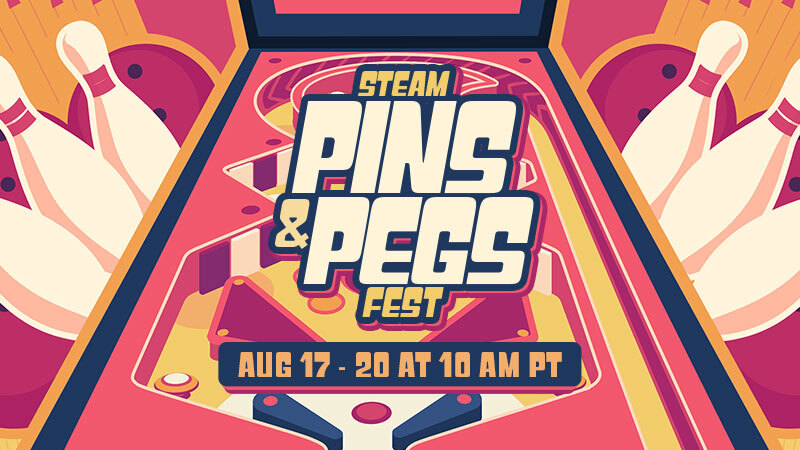
Steam Pins and Pegs Fest is August 17th through 20th, with loads of games on sale that have you playing with pins or pegs. Or pins AND pegs (why not get a lil' crazy?)!
Master pinball and pinball-like games, knock down actual bowling pins, and break some bricks. Try your hand at deckbuilding pegs, roguelike pegs, and more. There are plenty of discounted titles to explore and add to your library.
Steam Pins and Pegs Fest is on now through August 20th at 10 a.m. Pacific. Check it out!
The Steam Client Beta has been updated with the following changes:
General
Fixed another issue where legacy Steam Workshop items were not being updated properly.
SteamRT3 Experimental Beta
Fixed a case where games could fail to launch.
We have just shipped an updated Steam Client to the Preview/Beta channel.
General
Fixed another issue where legacy Steam Workshop items were not being updated properly.
SteamRT3 Experimental Beta
Fixed a case where games could fail to launch.
We have just shipped an updated Steam Client to the Preview/Beta channel.
General
In the Web Browser, the left trackpad of Steam Deck/Steam Controller is now bound to scroll wheel for navigating non-Steam websites
Fixed a bug where a single pixel line would sometimes appear above the header on the home screen
Desktop Mode
Fixed some keys not typing properly in Steam Overlay.
Remote Play
Fix a case where streaming could show a black window.
The Steam Client Beta has been updated with the following changes:
Big Picture Mode
In the Web Browser, the left trackpad of Steam Deck/Steam Controller is now bound to scroll wheel for navigating non-Steam websites.
Fixed a bug where a single pixel line would sometimes appear above the header on the home screen.
Remote Play
Fix a case where streaming could show a black window.
Linux
Fixed some keys not typing properly in Steam Overlay when in Big Picture Mode.
This update is for the SteamOS Beta and Preview channels, and includes new features that are still being tested. You can opt into this in Settings > System > System Update Channel.
Known Issues - Beta
There is a known issue with degraded performance in some cases when composition is required (such as when having FSR enabled).
This issue is fixed in the latest SteamOS stable release (3.8.16). Affected users may wish to switch to the stable update channel while we work on bringing this fix to the beta channel.
General
Added support for waking up from the Steam Controller Wireless Adapter (2015)
Improved battery indications when the device is charging in but using more power than the charger can provide
Preliminary support for the Steam Frame Wireless Adapter
Added support for Steam Controller (2026) to the built-in [c]hid_steam[/c] controller driver, enabling use with native controller applications when Steam is not running
Fixed an issue where hotplugging HDMI displays could cause lockups in Desktop Mode
Fixed an issue where TVs supporting an HDMI "Game Mode" would display the initial boot logo before engaging said mode, causing unnecessary delay and flashing
Fixed some cases of slow or stuck Wi-Fi connections with certain adapters
Fixed an issue causing previous SteamOS updates to fail to apply for some users
Security and stability fixes
Steam Machine Firmware 108
Fixed an issue where the system could occasionally wake up immediately after going to sleep
Fixed a rare issue where CPU performance could be degraded until reboot after waking up from sleep
Audio
Fix for HDMI audio dropouts with some game and TV combinations
Improve reliability of HDMI hotplug detection
Add option to prefer lower latency audio codecs for Bluetooth devices
Non-Valve Devices
Improve support for MSI Claw and OneXPlayer device variants
Improve support for devices with external or no Wi-Fi adapters
Fixed an infrequent bug where some 3rd party handhelds would have input ignored when held
Added initial gamepad support for MSI Claw 8 EX AI+
Added initial gamepad support for Konkr FIT
Added initial gamepad support for AYANEO Pocket S2
Updated gamepad support for OneXPlayer Apex with new firmware
Developer
Updated the Linux kernel to 6.18.42
The Steam Client Beta has been updated with the following changes:
General
Fixed issues where some Steam Workshop items were not being updated properly.
We have just shipped an updated Steam Client to the Preview/Beta channel.
General
Fixed issues where some Steam Workshop items were not being updated properly.
We have just shipped an updated Steam Client to the Preview/Beta channel.
General
Fixed requesting a PIN reset while signed in as a different account restarting with the wrong account signed in.
Steam Input
Make controller configurations that are shared with other devices or unique to a device more clear in the configurator UI and add an option to split Steam Controller configurations so they are no longer shared with Steam Deck
Desktop Mode
Fixed game server browser filtering out multiple servers being hosted from a single public IP.
The Steam Client Beta has been updated with the following changes:
General
Fixed game server browser filtering out multiple servers being hosted from a single public IP.
Steam Input
Make controller configurations that are shared with other devices or unique to a device more clear in the configurator UI and add an option to split Steam Controller configurations so they are no longer shared with Steam Deck
There are lots of features we're excited about when it comes to Steam Controller, and Grip Sense is one of them.
Grip Sense is what we're calling the two capacitive touch sensors inside the handles of Steam Controller. They sense when your fingers are touching the locations highlighted in the image below.

Because it's, like, cool! Actually, our driving motivation in building these was to provide another way to activate/deactivate Gyro quickly when you've moved it past your comfortable zone and need to recenter it (called "ratcheting").
It's similar to when you're using your mouse and reach the end of your mousepad: you naturally pick it up and put it back down in the middle. With ratcheting, when you get to the "edge" of your comfortable zone while using Gyro, you can lift your fingers up off the back of the controller, recenter the controller, and then put your fingers back on the controller.

The threshold for activation is adjustable. You can make it so a very slight lift of the fingers will deactivate gyro; or you can make it so you almost need take your whole hand off the controller (like in the animation above). We outline more on how to do that later in this article.
While the original intent was for ratcheting (and it does work for that!) we have found a few other cool use cases, like using it to bring up a weapon wheel, map, or menu. You can lift your fingers off the controller, the weapon wheel will pop up, then you can make your selection and put your fingers back to lock it in. We'll show you how to do that too.
Navigate to the layout editor for a game in the Steam App or in Big Picture Mode (we outline this in our blog post on the Steam Input Configurator). Once there, ensure Gyro is set to "Gyro to Mouse", then click on the Gyro Behavior settings gear


Once in here, you will see the Gyro to Mouse settings. The first option is "Choose Gyro Button(s)". It will default to right trackpad touch and right thumbstick touch. Click in the box to the right to access the button selector menu:

This window will show all options for activating Gyro. If you are unsure what an icon means, you can hover over it and a text description will appear on top. The Grip Sense sensors are the two circled in the image below. When a button is selected, it will turn blue. To deselect, click on the button again; it will turn gray.


Once the button is selected, it will work to disable/enable gyro in game. In this example, when you lift your right fingers off of the controller, gyro will be disabled. When your fingers are on the controller, gyro will be enabled.
Multiple activation buttons
If there are multiple buttons selected (see example below where both grip sensors were picked), an option will appear to let you choose whether Any or All buttons are required to Enable, Suppress or Toggle the gyro. By default, it will choose Any. For grip sense, "Any" means you need to extend the fingers on both hands to disable gyro. "All" would mean you only need to extend the fingers on one hand.

In order to use Grip Sense like you would a "press and hold" button to bring up things like weapon wheels, menus, maps, etc, you need to access it a little bit differently.
Within the game of your choice, navigate to the Layout Editor (read more in our "How to make the most of the Steam Input Configurator" blog post). Once inside the layout editor, in the Buttons section, navigate down to the grip buttons.

Pick whichever one you want to use and assign it to the button that opens up menu, weapon wheel, etc.

Here's the tricky part: Grip Sense looks like a pressed button when your fingers are touching the grip, and we want the opposite. We want it to look like a pressed button when your fingers lift off of the grip. To do that, click on the gear icon next to the button; click on settings; then towards the bottom of the settings screen you will see an "Invert Input" toggle. Turn that on (blue).


Now, whenever the grip is released, it will activate as a button press and hold until the grip is touched again!
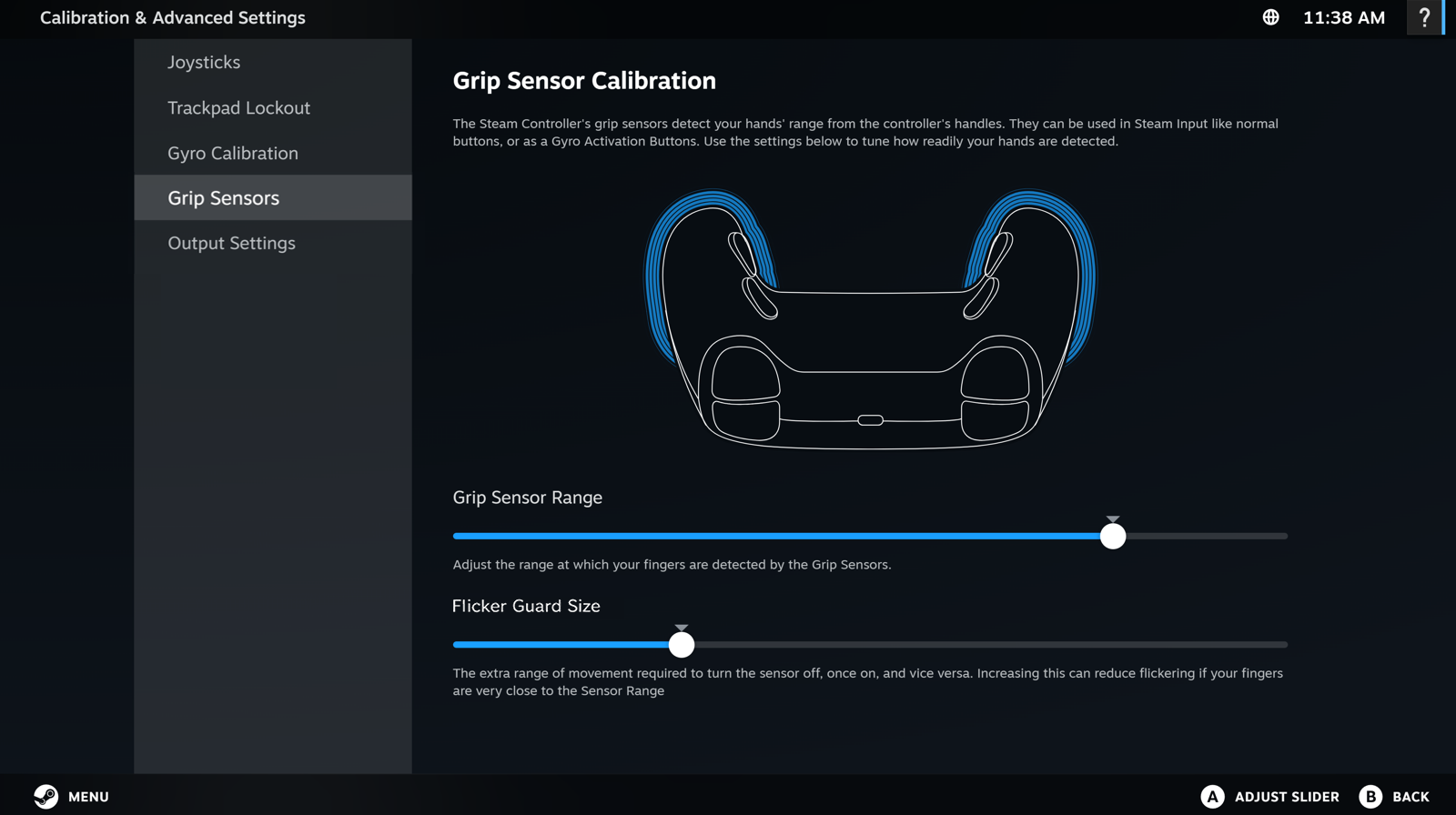
Everybody's hands and preferences are different, so we provided a way to adjust the Grip Sense sensitivity. If you want to change the sensitivity, you can do so by navigating to Calibration and Advanced settings for the controller.
From the Steam App
From the menu in the top left, click Steam > Settings > Controller > Click "details" for the controller you want to modify > Scroll down until you see "Calibration & Advanced Settings" and click on "Open" > Navigate down to "Grip Sensors" where you will see the sensor adjustment interface.


From Big Picture Mode
Hit Steam to open the Steam menu > Settings > Controller > Click "details" for the controller you want to modify > Scroll down until you see "Calibration & Advanced Settings" and click on "Open" > Navigate down to "Grip Sensors" where you will see the sensor adjustment interface.

Adjusting the sensitivity
On the Grip Sensor Calibration page, you will see two sliders:
Grip Sensor Range - The further the slider is to the left, the closer your fingers need to be to the controller grips for them to be sensed. If you want slight lifts of the fingers to turn off the sensor, move it to the left. If you want to move your fingers substantially before deactivating the sensor, move it to the right.
Flicker Guard Size (aka Hysteresis) - This makes the states (on vs off) a bit more sticky around your sensor range. The further this slider is to the right, the more sticky the sensor state is. Meaning, if the sensors are on and the slider is far to the right, you need to move your fingers further to turn them off. If you're looking for very snappy quick response, keep this low. If you're looking for very stable performance with no accidental activations, put it higher.
As you adjust, the UI will provide real time feedback when the sensor is "on" (blue line on grips) vs "off"
Note: if you move the Flicker Size Guard slider all the way to the left, you may have issues with the grip sense flickering or responding to touch events on the trackpads or thumbstick. Moving it slightly to the right can help resolve this issue.
Learn more about Steam Controller on its product page, and keep an eye on the Steam Hardware Blog for other how-to guides and closer looks.
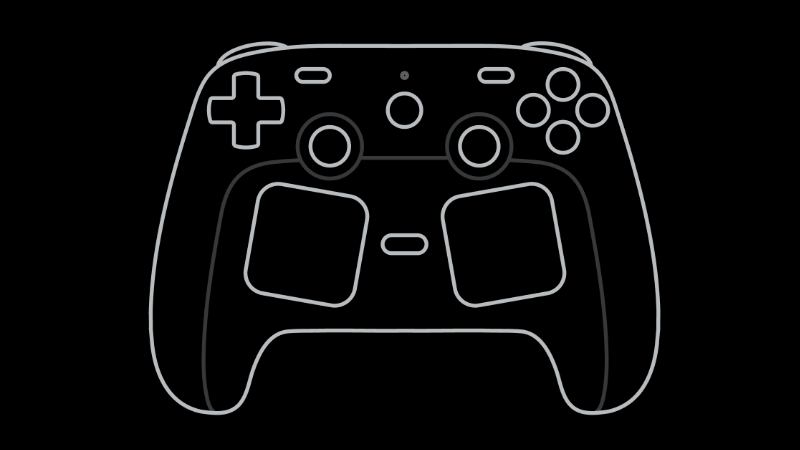
The Steam Controller has a gyroscope inside - a highly accurate sensor for detecting the controller's rotation. It allows you to do things in-game like:
Control cameras in an exploration game
Aim precisely in an FPS
Move a mouse cursor around the screen for casual mouse focused games
Turn a car's steering wheel/plane's yoke in driving/flying games
And much more just by turning the controller!
The past several years have seen a growing, avid userbase discovering the benefits of the gyroscope, showing that it has a high skill ceiling. When mastered, it can be as good as using a mouse - and often more fun!
It's worth noting that setting up the Gyro can sometimes require a lot of adjusting/testing and is generally game dependent as well, meaning you might need to tweak further for each game.
This initial guide is meant to help you get started without too much tweaking needed. We'll also be doing a deeper dive on some of this sometime in the near future.
You can enable Gyro by choosing a Gyro Behavior Mode, either from the Quick Settings Menu:

...or inside the Edit Layout->Gyro screen:
The Gyro dropdown in the Controller Settings Quick Menu gives us 3 modes to play with (there are others which you can access in the gyro screen within Edit Layout, but this guide will focus on the three in the quick menu).
These translate gyro motions into virtual mouse or joystick movements
Gyro to Mouse
Used to mimic a mouse cursor, or to control a camera (aiming)
Gyro to Joystick (Camera)
Gyro Speed is used to rotate a standard joystick-driven camera.
Gyro to Joystick (Deflection)
Turn the controller to simulate vehicle steering controls, or an airplane's yoke, via a virtual joystick.
Generally, Gyro to Mouse is recommended for the best game feel. There are two exceptions:
If you want to simulate vehicle steering controls we recommend Gyro to Joystick (Deflection).
If a game doesn't handle mixed input (simultaneous mouse and gamepad input)
You can tell if this is a problem if the game behaves strangely when both gyro and joystick are moved at once: UI glyphs may flicker, or the camera's movement may stutter.
We have a couple of work-arounds to fix this:
Keep using Gyro to Mouse, but set up your configuration to mimic Keyboard and Mouse buttons only - the downside is that game may not display the gamepad button prompts.
If you want to keep the gamepad button glyphs, use Gyro to Joystick (camera). The downside is that this tends to take more setup to get the feel right, since every game treats the joystick response differently.
All three Gyro Modes give you options to temporarily turn off the gyroscope in order to "reset" your hands back to center after rotating too far - much like lifting a mouse to reset its position on your desktop. This is also known as "ratcheting".
We allow you to set this up with any button combination you like. We also provide some settings to adjust exactly how this works. You can get to this setting by clicking the gear next to the Gyro behavior drop down.

This will take you to the Gyro settings menu, at the top you will see the gyro activation buttons options.

Choose Gyro Button(s) - this is the button that will enable/disable gyro when pressed down. By default it is set to the touch sensor in the right trackpad and the touch sensor in the right thumbstick - same as the Steam Deck. As long as your finger is touching one of those things, the gyro will be enabled.
Gyro Enable/Suppress/Toggle - by default the button you chose for item 1 will turn Gyro ON while the button is activated. You can set it to Suppress - meaning Gyro is always on UNLESS the button is currently activated. Or you can set it to Toggle, which will switch Gyro from on to off (or vice versa) on an activation.
Multiple Gyro Button Behavior - if you have multiple buttons selected, this determines whether you need to be pressing/holding all of them or just one (any) of them.
Here is a quick set of instructions to get set up with our suggested options:
Select the Choose Gyro Button(s) button (item 1 above).
The Gyro Buttons popup appears: Select the button you'd like to control the gyro's activity. You can pick any combination. We recommend using both grip sensors for this; but triggers, trackpads or the capacitive stick sensors are also commonly used.

Choose whether you want the buttons to Enable, Suppress, or Toggle the gyro by clicking on Gyro Enable/Suppress/Toggle (number 2 above). For this recommended set up, we suggest "Hold to Enable Gyro"

(Optional) When you have multiple Gyro Buttons selected, you can choose "Any" or "All" buttons to Enable/Suppress/Toggle the gyro. When using the Grip Sensors, we recommend "All". Click in item 3 above to open up the options.
A note about Gyro haptics: Grip sensors don't have any physical feedback of their own (by design - holding in a button for a long time can be fatiguing!) but you can turn on a haptic effect to help physically confirm that they've registered a grip or release.
You can also turn on a haptic effect that will activate each time the controller rotates through an assigned angle, this gives you physical feedback as you rotate the controller.
At the bottom of the Gyro settings screen you will see a haptics menu. They will be defaulted to "Off".

If you turn item 1 or 2 to anything other than "off" new options will open up (see items 3 and 4 below):

In items 3 and 4 you can adjust the settings for these haptics.
All three gyro modes have these settings in common. Again, you can access these settings by clicking on the gear next to the Gyro behavior drop down. The sections that primarily affect sensitivity and other output modulations are shown below:

Gyro Angles to Mouse Pixels: (Advanced) This setting is used to make real world angles line up with in-game angles - this takes some fine tuning so we recommend skipping for now.
Gyro Sensitivity: Higher values will make the camera (or mouse) move faster in response to your turns. This is going to be a new gyro user's primary slider to adjust when getting into a new game. We've found people gradually increase this as they start to get the hang of gyro.
Invert X/Y: Toggle these on to invert the Horizontal (X) or Vertical (Y) outputs.
Vertical/Horizontal Output Mixer: Moving the bar to the left will reduce vertical output, whereas moving it to the right will reduce horizontal output. Your wrists have more freedom of movement vertically than horizontally when holding the controller with both hands, so we recommend setting the slider toward the left side (reduced vertical output). Again, tune to taste.
Gyro Speed Deadzone: this is option 1 of 2 that can help you reduce tremors/shakes. This will entirely stop gyro output if the gyro moves slower than the given speed value. A high Deadzone will cause the gyro to feel a little unresponsive - most proficient users turn it to 0. It's still useful in "Drag and Drop" interfaces, so that you don't accidentally drag when you mean to click. Think of it as a way to simulate the friction of a mouse against a mouse pad.
Gyro Precision Speed: this is option 2 of 2 that can help you reduce tremors/shakes. Adjust this if you feel like your fast motions are good, but your fine/precise motions are too fast or a bit shaky. This will merely reduce the output movement when moving slower than the given speed. This can help you with fine movements, without a loss of perceived responsiveness.
We'll share details about the advanced options and more in an advanced Steam Input setup guide coming soon.
As mentioned above, instead of setting your Gyro to mouse, you can also use one of the two Joystick modes.

Both modes mimic a joystick:
Gyro to Joystick Camera: This maps the speed of the controller's rotation to the joystick's position. Turning your controller pushes the joystick in a direction; keeping your controller still brings the joystick back to its center.
Gyro to Joystick Deflection: This mode maps the controller's relative rotation to that of the joystick. In this mode, rolling your controller left/right is like turning a steering wheel - the stick's position matches how far you've turned the controller from a starting point.
Unlike Gyro to Mouse mode, these modes won't trigger "Mixed Input" issues like "Button-Glyph Flickering" in a typical game.
The downside is that it can be difficult get a good feeling Gyro to Joystick mapping - this is dependent on how each game translates joystick input into camera movement, and how patient you are with tuning.
The most important value to tweak is the Minimum Joystick Output.

You are trying to make this line up with the game's joystick deadzone setting. A typical game will have a deadzone of anywhere between 20% to 45%. When correctly lined up, your smallest gyro movements should convert into the smallest detectable joystick readings in the game. This will take a lot of tweaking, but we suggest starting at around 30%.
While tweaking Gyro to Camera Joystick: small movements might be suppressed by the default gyro deadzones, and it's useful to turn the "Gyro Speed Deadzone" and "Gyro Precision Speed" to Zero so that even small movements are coming through. Once you have found the right joystick remapping values, remember to revert the “Gyro Speed Deadzone” and “Gyro Precision Speed” back to your preference.

In some games, you can find joystick deadzone settings - for the best gyro feel, we recommend that you reduce the in game deadzone as close to zero as it will go. If you do so, you may want to increase Steam Input's joystick deadzones to compensate, as a more sensitive in game joystick deadzone will result in more phantom movement from your joysticks.
For Gyro to Joystick Camera: We've seen some awesome community-made tutorials around this, and recommend looking around and learning from each other. We'll have more detailed guides covering more advanced aspects of gyro remapping in the future.
If your gyro is active and you're holding the controller still, but notice that your aim continuously drifts in one direction over time, you may be witnessing "Gyro Drift" - a very common phenomenon in gyro controllers, but also easily fixed.
Find the "Calibrate" button at the bottom of the Controller Settings-> Edit Layout-> Gyro Page
 ...Or at the bottom of the Controller Settings Quick Settings, or, alternatively, inside the Steam Controller Calibration settings.
Calibration requires you place the controller on a stable surface so that the drift can be detected and subtracted. Follow the wizard and within a few seconds, the drift should be gone.
 If you still encounter drift, double check that the source of the drift isn't coming from your joysticks - you can temporarily set your Joystick mode to "None" to make sure.
A new Steam Client update has been released and will be automatically downloaded.
Note: This release was updated with an additional change:
Fixed login dialog showing at startup when auto account login has already started.
General
Fixed additional cases preventing local network game transfers from starting.
Fixed user chooser appearing on startup even when not requested.
We have just shipped an updated Steam Client update to the Stable channel.
Note: This release was updated with an additional change:
Fixed login dialog showing at startup when auto account login has already started.
Downloads
Fixed additional cases preventing local network game transfers from starting.
Desktop Mode
Fixed user chooser appearing on startup even when not requested.
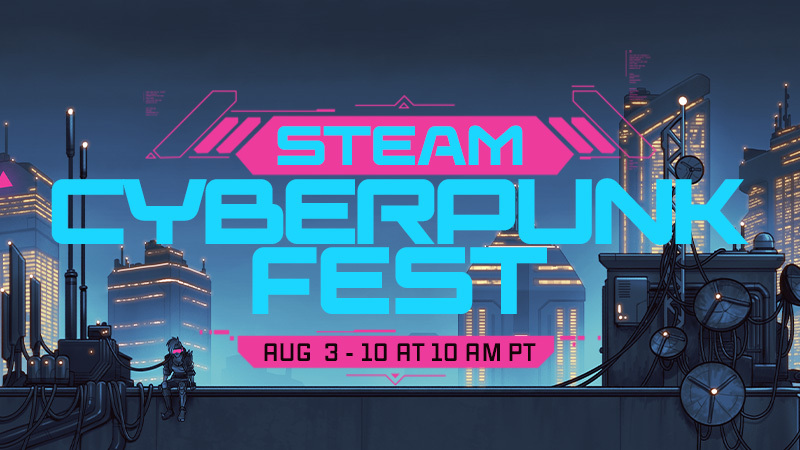
Head to the future to hunt down serial killers and join rebel groups. Build futuristic cities, go on co-op spy adventures, and participate in booze-em-ups. It's all here all week long with Steam Cyberpunk Fest!
Check out the trailer for a taste, or head straight to the sale now to get started on gathering discounts on every type of cyberpunk futuristic game you can imagine.
Steam Cyberpunk Fest: The future is here and NOW, with deals through August 10th at 10 am PT. See you there!
We have just shipped an updated Steam Client to the Preview/Beta channel.
General
Fixed additional cases preventing local network game transfers from starting.
Remote Play
Improved video color range.
Added support for HDR streaming on Steam Deck OLED.
Added support for AV1 video streaming when using the experimental SteamRT3 Steam Client.
The Steam Client Beta has been updated with the following changes:
General
Fixed user chooser appearing on startup even when not requested.
Fixed additional cases preventing local network game transfers from starting.
Remote Play
Improved video color range on all platforms.
Added support for HDR streaming on Steam Deck OLED.
Added support for AV1 video streaming on Steam Deck when using the experimental SteamRT3 Steam Client.
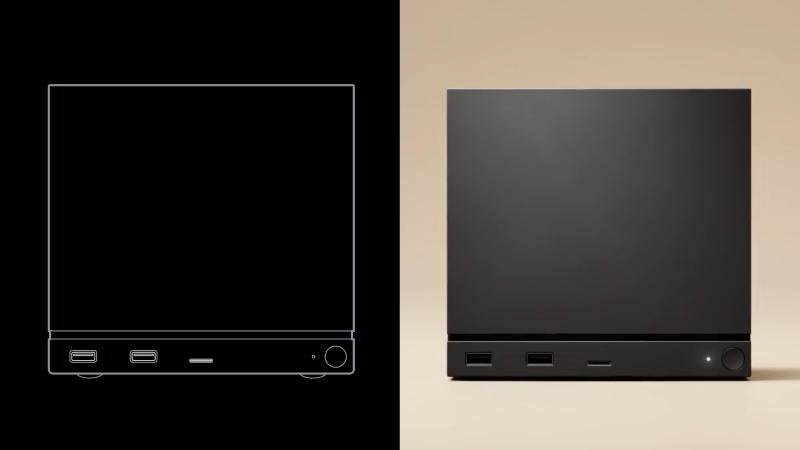
We began shipping Steam Machine at the end of June and now that we’re a few weeks in, we wanted to share more information both on Steam Machine itself and the status of the reservation queue and waitlist as it stands today.
Quick Steam Machine updates:
FSR4.1 is now available on Proton Experimental for titles supporting FSR upgrade.
The CAD file for Steam Machine external geometry is available for download here
Reservations and Waitlist updates
We’re fulfilling orders on a daily basis, sending out emails to reservation holders with the option to purchase in the order in which they landed on the list post-randomization. We expect everyone in the reservation queue will have the option to purchase by the end of this year.
With each reservation queue and corresponding waitlist being per-product, per-region, they can move at different speeds based on demand. This means for some products in some regions, we've reached the end of the reservation queue and have started inviting folks from the waitlist. We unintentionally skipped a step with this group by automatically sending the option-to-order email; moving forward, anyone who comes off the waitlist will first receive a message from us confirming you've been added to the reservation queue and can expect an option-to-purchase email sometime after that.
Importantly, no one on the waitlist is leapfrogging over anyone currently holding a reservation; we're only dipping into waitlists if and when we reach the end of the reservation queue for that product and region.
What's next
If you have a reservation, you can expect an email offering you the chance to purchase by the end of the year. If you have a spot on one of the waitlists, there is a chance you could be moved into reservations depending on which product you're on the list for; in those instances we will email you about your new reservation status first, with a purchase email to follow once your spot in that queue comes up.
For everyone receiving a purchase email: You must complete your purchase within 72 hours or we will move to the next person in line.
Learn more about Steam Machine here.
We have just shipped an updated Steam Client update to the Stable channel.
Downloads
Fixed local game transfers no longer working.
Fixed Proton games with mixed case paths failing to install or update with Disk Write Errors.
Desktop Mode
Fixed login dialog showing when Steam client is started with -silent.
A new Steam Client update has been released and will be automatically downloaded.
General
Fixed login dialog showing when Steam client is started with -silent.
Downloads
Fixed local game transfers no longer working.
Linux
Fixed Proton games with mixed case paths failing to install or update with Disk Write Errors.
We have just shipped an updated Steam Client to the Preview/Beta channel.
General
Allow changing account while a game is running. In this case, the change account dialog shows a warning that proceeding will close active games.
Steam shutdown now waits for just-exited games to finish cloud sync.
Added "Ask which account to use on startup" toggle to startup account chooser.
Eliminated "change account" confirmation dialog in most cases. Changing account while Steam is running now brings up the account chooser directly, then restarts as the chosen account.
Downloads
Fixed local game transfers no longer working.
The Steam Client Beta has been updated with the following changes:
General
Allow changing account while a game is running. In this case, the change account dialog shows a warning that proceeding will close active games.
Steam shutdown now waits for just-exited games to finish cloud sync.
Added "Ask which account to use on startup" toggle to startup account chooser.
Eliminated "change account" confirmation dialog in most cases. Changing account while Steam is running now brings up the account chooser directly, then restarts as the chosen account.
Downloads
Fixed local game transfers no longer working.
Linux
Fixed Proton games with mixed case paths failing to install or update with Disk Write Errors.
The Steam Client Beta has been updated with the following changes:
Downloads
Fix bug negatively affecting the efficiency of the Steam content delivery system.
We have just shipped an updated Steam Client to the Preview/Beta channel.
Downloads
Fix bug negatively affecting the efficiency of the Steam content delivery system.
A new Steam Client update has been released and will be automatically downloaded.
Downloads
Fix bug negatively affecting the efficiency of the Steam content delivery system.
With so many amazing games on Steam, players are wishlisting more and more titles. Existing options like ranking and filtering are great, but players have asked for even more ways to manage their Steam wishlists. Today we're adding categorization as well as improved search and sharing to the wishlist. Read the full post below for the details, then try out all the new tools on your own wishlist.
First and foremost is the ability to create and assign custom categories to games on your wishlist. You might want to create a custom category for games you saw featured in a cool event, games best played with a controller, or even games you have in mind for someone else.
Adding custom categories is quick and easy...
Filter to a category by simply clicking on the category name at the top of your wishlist or next to the My Categories area of each game
Quickly add to your frequent categories from the "On Wishlist" dropdown on store pages

Customize wishlist notifications to only be sent for certain categories 
We've improved the search experience on the wishlist page and enabled autocomplete for faster results

We now highlight when a game on your wishlist has a demo available. You can also be notified when a demo is released for a game in your wishlist.

Microtrailers are now shown when hovering each games capsule image
Navigating to/from your wishlist in a browser, mobile, Steam Client, or Steam OS does a better job of bringing you back to what you were looking at
Plus we've made some tweaks to the wishlist page to improve contrast and legibility
You can already share a link to your wishlist, now you can share a link to a specific category on your wishlist, or even a filtered view of your wishlist.
Clicking on the share button at the top of your wishlist gives you a unique URL to share with friends and family. People with the link can view the shared list even if your wishlist is set to private. Links can be revoked at any time. 
This sharing link will only show the games in the your current filtered view. For example: you might want to share 'My Birthday List' with your family. From that shared link, your family can gift games directly to you, even if they don't have a Steam account...

As we hinted at above, we suspect one common new category for wishlists will be games you want to buy for a friend or family member. With that in mind, we paired this wishlist change with a big update to gift purchasing on Steam. Check out all the gift improvements here!

Steam gifts are a popular way to send copies of games and digital gift cards to friends and family. Today we’re shipping some great new features that improve the gifting experience, making it easier to send both digital gift cards and games. These features pair nicely with the Wishlist categories and other improvements that are also now available.
In 2024, we added guest checkout, which lets a family member or friend make a gift purchase without needing to create a Steam account. This feature was limited to digital gift cards and hardware purchases at the time.
Now guest checkout can be used to buy any game on Steam.
You can send a wishlist share link to a friend or family member and they can purchase gifts directly from that list without needing a Steam account themselves. If a guest wants to send a gift as a surprise they can send it to any email address instead.
Don't know your nephew's Steam account? No problem, both digital gift cards and games can now be sent directly to email recipients. And don't worry if your nephew's email address is the same one they use for their Steam account. The email will include a link to let them sign in to their account and accept the gift.
Please note that any gift email not accepted within 30 days will be automatically refunded, so they cannot be scheduled for future delivery. The recipient of the gift must also live in the same country as the purchaser.

Buying a gift for a friend in a higher-priced region? In the past, digital gift cards were the solution for gifting, but that required you to know the full price of the game in your friend's region.
Now you can gift games directly to your friend. Steam will match the increased price in your friend's region at checkout. Your friend needs to be on your Steam friends list to send this type of gift.
Sending a friend or family member a link to your wishlist is a great way to help them choose a great gift for your birthday or holiday. We have made a number of share link improvements, including:
You can now send a digital gift card or gift a game directly from someone's wishlist
You no longer need to be friends on Steam to send gifts
You can create a shared wishlist link that is filtered to specific games
When a friend or family member clicks on your shared wishlist link, if they choose to gift you a game, the gift recipient in the cart will be pre-populated with your information.
And remember from above, your friend or family member can checkout as a guest, without needing to create a Steam account


That wraps it up for today's gift related updates. Check out our Steam Wishlist announcement to learn about wishlist categories and other improvements that are now available.
We have just shipped an updated Steam Client update to the Stable channel.
General
Improved notification settings layout in some languages
Restored the full set of options to the 'Maximum Game Resolution' dropdown. They can be found under the 'More Options' sub-menu.
Fixed a case where the 'Patch Notes' preview box in Settings->System would incorrectly show an event for the wrong channel. E.g. showing Beta Channel notes when the client is opted in to the Stable Channel.
Fixed a crash when manually starting a game recording.
Fixed mouse cursor changing to resize cursor at screen edges.
Fixed a case where the controller pairing screen could pop up during controller firmware updates.
Desktop Mode
Fixed incorrect UI scale being used when in Big Picture Mode.
Steam Machine
Show Steam Machine Verified information on the game capsules in home, and on the game details screen.
Added 'Great on Machine' section to the Library
Steam Workshop
Re-worked system that managed what subscribed items needed to be updated.
Remote Play
Added 59.94 FPS as an available framerate limit
Reduced frame drops when the framerate limit is set to automatic
Fixed offline devices showing as streamable when they aren't.
Fixed overloading the client video decoder when unlimited bandwidth is enabled
Fixed mouse coordinates for input-only streaming
Fixed very low refresh rate on some systems, introduced in the last beta
Steam Input
Steam Controller: The Gyro Calibration Threshold has been set to 50% of the previous value so that it is less likely to trigger while in hand.
Steam Controller: Gyro Calibration threshold is now available in Steam->Settings->Controller->Details->Calibration & Advanced (Open)->Gyro Calibration.
Steam Controller: You can choose to disable hardware calibration and rely on the standard Steam Input Gyro Calibration tools instead, by using the "Enable Software Calibration for Steam Controller" toggle.
Steam Controller: Fixed Gyro stutter due to IMU timestamp being ignored.
Added support for both the wired and wireless versions of the PDP Afterglow Wave Controller for Nintendo Switch.
Added support for Turtle Beach controllers for Nintendo Switch 2.
Steam Controller Firmware
Fixed occasional repeated trackpad samples that caused issues with momentum during trackball mode.
Fixed an issue with unintentionally waking host devices while shutting down the controller.
Fixed an issue with occasional repeated button presses on the B Button.
