Lees weergave

Chrome Sets Browser Speed Records on M5 MacBook Pro

Google's Chrome browser hit new records on browser benchmarking tools Speedometer 3.1 and JetStream 3, Google said today.


Chrome earned a score of 61 on Speedometer, a five percent improvement since last year. It earned a 469 on JetStream 3, a 10 percent improvement since the beginning of 2026. Tests were done on an M5 MacBook Pro running macOS 26.0.1.

Google says it holds a dual record across all browsers, beating every other Mac browser, including Safari.

Google reworked JavaScript handling to boost its benchmarking scores, skipping unnecessary execution steps and inlining asynchronous operations. Inlining "fast paths" for common operations resulted in speed gains across multiple daily tasks.

Improvements were also implemented for WebAssembly workloads and the Blink rendering engine, with details available on Google's Chromium blog.

Google says the benchmarking wins translate into a "meaningfully faster" browsing experience for Chrome users.
Related Roundup: MacBook Pro
Tag: Chrome
Buyer's Guide: MacBook Pro (Buy Now)
Related Forum: MacBook Pro

This article, "Chrome Sets Browser Speed Records on M5 MacBook Pro" first appeared on MacRumors.com

Discuss this article in our forums

  •  

CalDigit TS5 and Element 5 Hub Review: Two Thunderbolt 5 Docks for Apple's Latest Macs

CalDigit is best known for its docks and hubs, and it has two options designed for Apple's latest Macs. I reviewed the larger $500 20-port TS5 Plus last summer, and for the last couple of weeks, I've been testing the $400 15-port TS5 that launched a bit later than the premium model, and the smaller $250 Element 5 Hub.
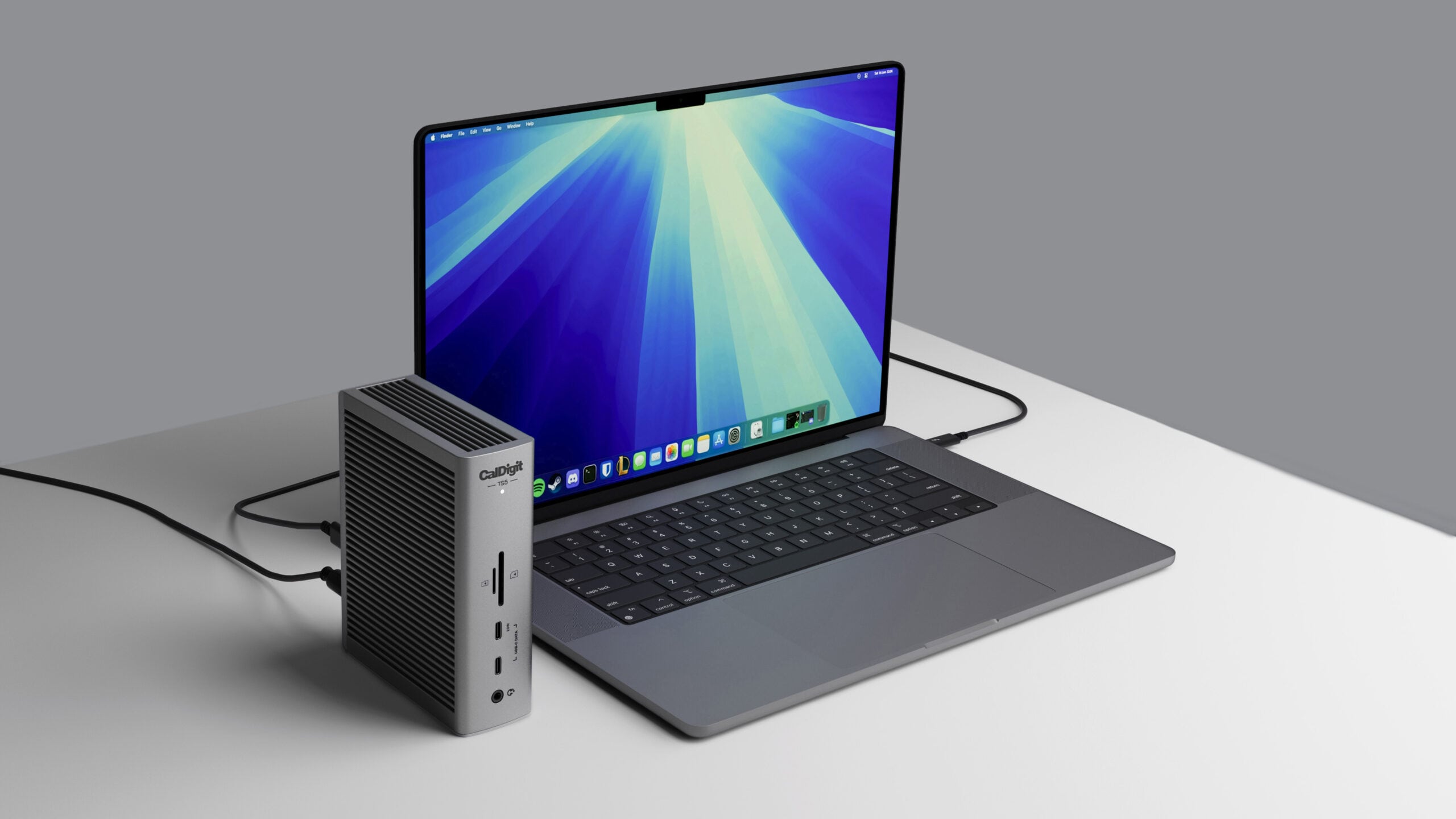

TS5


The TS5 is probably the Thunderbolt 5 dock that I would recommend if someone on the street came up to me and asked which Thunderbolt 5 dock to buy. It's smaller and takes up less space on a desk than the TS5 Plus, it has no fans like some competing docks, and it has a useful port selection. With some exceptions, it'll meet the needs of most people.
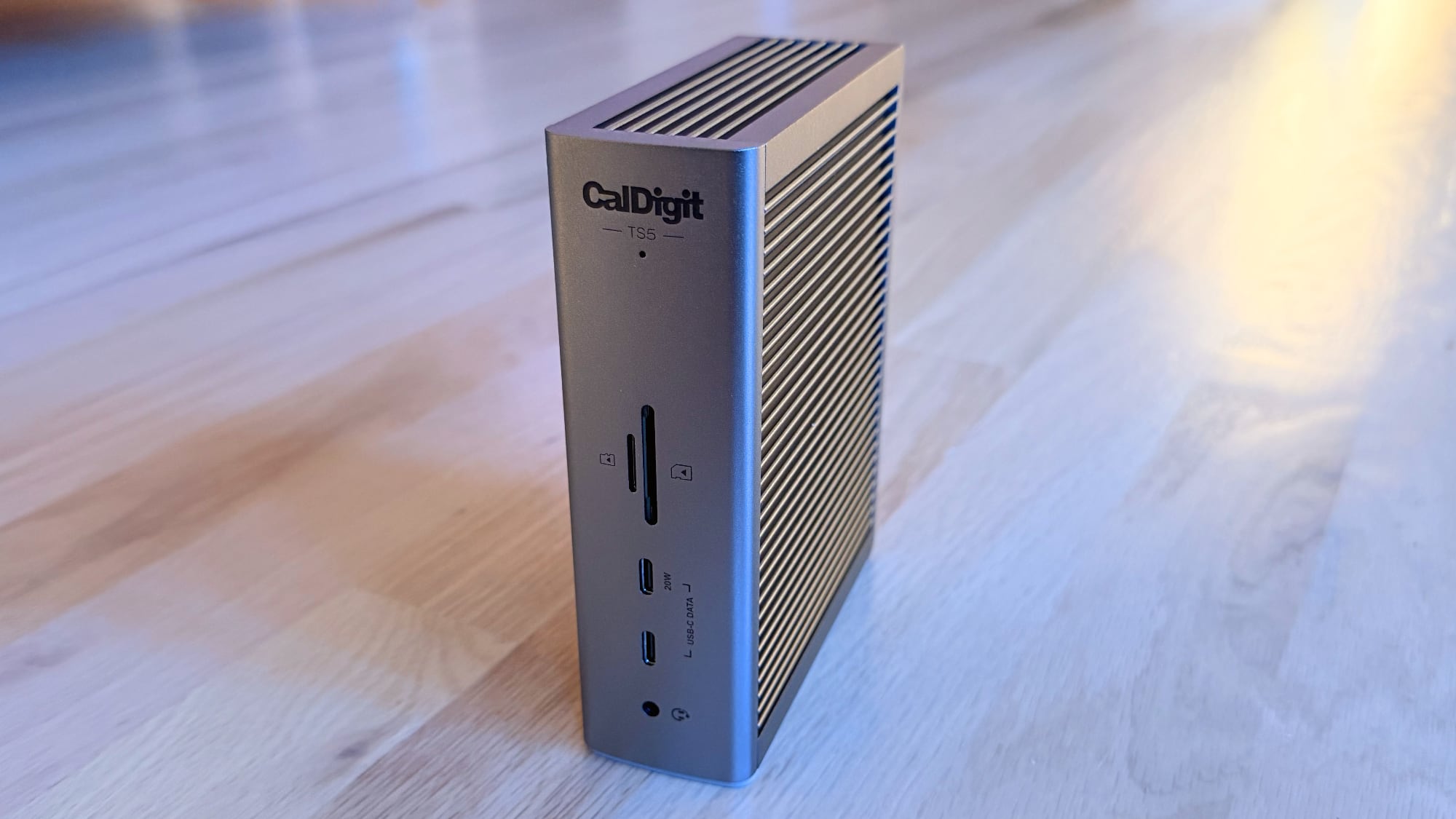

Thunderbolt 5 docks are ideal for Apple's Thunderbolt 5 Macs (the M4 Pro, M4 Max, M5 Pro, and M5 Max), but they're also backwards compatible with Thunderbolt 3 and Thunderbolt 4 Macs, so you can use the TS5 with almost any Mac to add ports for displays and accessories.

Ports on the front:

  • Audio jack

  • USB-C with 10Gb/s speeds and 7.5W

  • USB-C with 10Gb/s speeds and 20W

  • MicroSD card slot (UHS-II)

  • SD card slot (UHS-II)


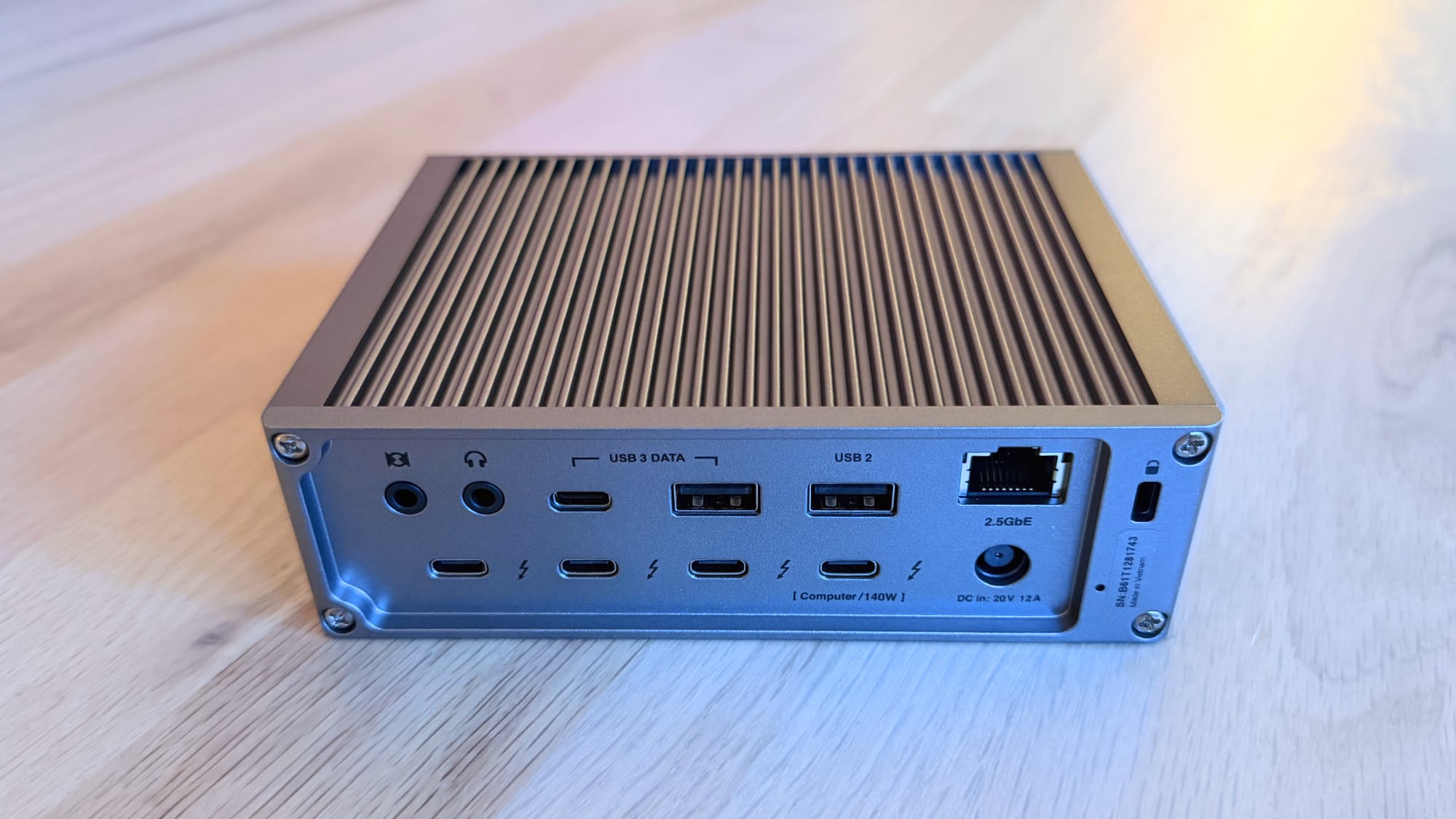
Ports on the back:

  • Audio in/out

  • USB-C port with 10Gb/s speeds and 7.5W

  • USB-A port with 10Gb/s speeds and 7.5W

  • USB-A port with 480Mb/s speeds and 7.5W

  • 2.5 GbE

  • Three downstream Thunderbolt 5 ports with 15W charging

  • One upstream Thunderbolt 5 port with 140W charging


The TS5 does not have dual USB controllers like the TS5 Plus, it has 2.5 Gigabit Ethernet instead of 10GbE, it doesn't have DisplayPort, and it has three fewer USB-A ports and two fewer USB-C ports than the TS5 Plus. The TS5 has three downstream Thunderbolt 5 ports instead of two, so it beats the TS5 Plus (which only has two), but the higher-end TS5 Plus has more charging power. The front USB-C port on the TS5 Plus is 36W, as are the two downstream Thunderbolt 5 ports at the back.

The TS5 has the same general design that CalDigit has used for its last several docks. It's made from a space gray aluminum material with ribbing on the top and sides for dissipating heat. Though it has no fan, it never got beyond lukewarm in my testing, and I was surprised at how cool it stayed. The TS5 Plus ran much warmer when I tested it, but the smaller TS5 wouldn't keep me cozy on a freezing night.

The dock's design blends in well with a desk setup, but like most Thunderbolt 5 docks, it's not going to turn any heads. I don't have space gray equipment so the color doesn't match my MacBook or my Studio Display, but it doesn't look too out of place. I wish accessory makers would adopt bolder, brighter colors, but I'm guessing gray and black are what sell.

CalDigit's TS5 dock is about 5.5 inches tall, 4.5 inches wide, and a little under two inches thick. It fits well under a display, and it can be positioned either upright or on its side. There is a separate 240W power brick, and that's typical for most Thunderbolt 5 docks. Along with the power supply, CalDigit includes a braided 1-meter Thunderbolt 5 cable, and I appreciate the cable upgrade because not all docks come with nice cables.

One thing I appreciate about CalDigit over some other dock makers is the info the website provides. I think the average person probably finds hubs and docks somewhat confusing, especially when it comes to determining which displays and how many external displays a dock supports with a given Mac. CalDigit has an extensive chart with all Apple silicon Macs listed, so it's fairly easy to see what your Mac will support. Thunderbolt 5 supports up to 80Gb/s speeds with bandwidth boost up to 120Gb/s for displays, twice that of Thunderbolt 4.
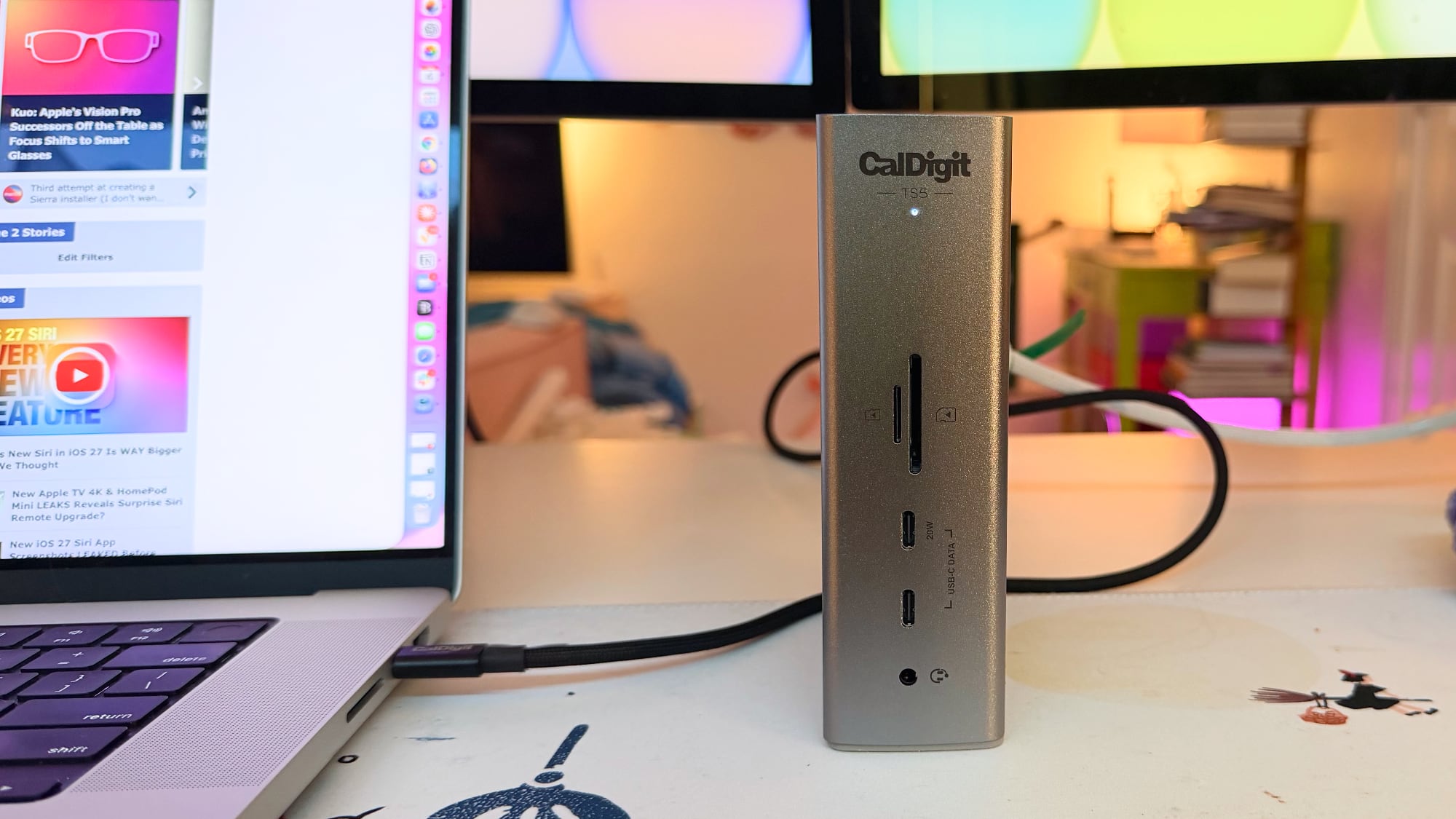

The TS5 supports up to four 6K 60Hz displays, but only if you're using a Mac with an M5 Max chip. It'll also run dual 8K 60Hz displays, dual 4K 240Hz displays, or four 4K displays with up to a 144Hz refresh rate. When used with an M5 Pro Mac, the dock supports up to three 6K 60Hz displays, and for Macs with earlier Pro/Max chips, the dock is limited to dual displays. You can power dual 8K 60Hz displays using the TS5 with an M4 Max or M5 Max Mac, while other machines cap out with two 6K 60Hz displays. The base M-series chips have different support depending on generation too. The M4 and M5 chips can support two external displays up to 6K at 60Hz with the TS5, but M1 and M2 chips only support one. The M3 is a special exception because it supports two displays when the Mac is in clamshell mode, or one with the display open.

I tested with a ‌Studio Display‌ and a ‌Studio Display‌ XDR, both of which are 5K displays. I also tested with a ‌Studio Display‌ and a 32-inch 120Hz OLED display, and I didn't run into any issues with either setup.


There is one 5K display limitation that potential buyers should be aware of, and that's support for the LG UltraFine 5K monitors. The dock does not support dual LG UltraFine 5K displays unless used with an M5 Max MacBook Pro.

I used every port at once and performance was as expected, but I did run into an issue with the TS5 not recognizing SSDs. SSDs that I plugged into the two USB-C ports weren't popping up, but a Thunderbolt 5 SSD was fine. Unplugging the dock and plugging it in again didn't work, but restarting my Mac did. I've had the same problem intermittently, but after the first time, unplugging the dock and then plugging it back in seemed to work. It doesn't happen every time, but losing SSD connectivity through the USB-C ports is a hassle.
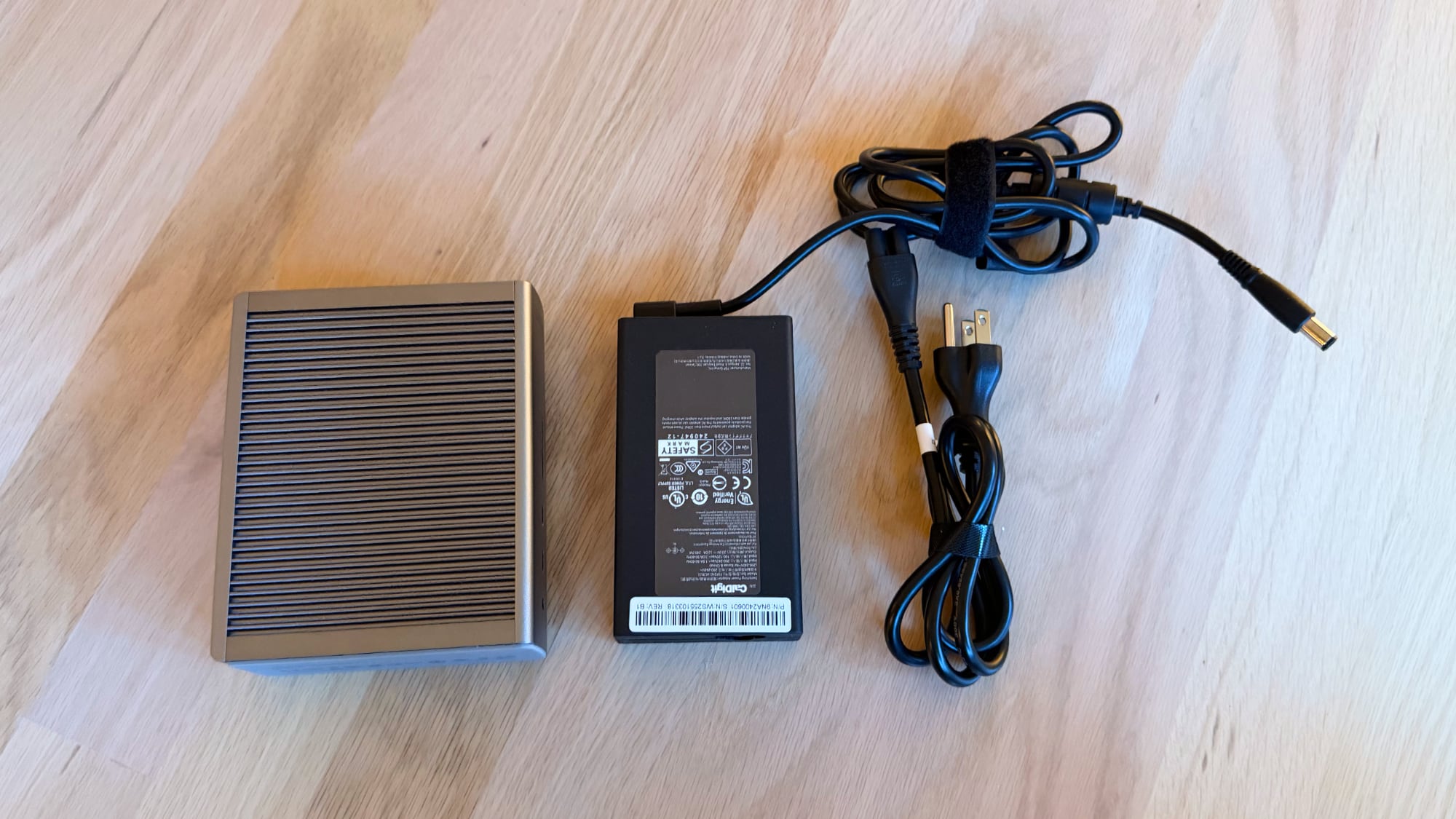

The TS5 has 140W host charging, which is more than enough for all of Apple's notebooks. The Thunderbolt 5 ports and the 10Gb/s USB-C and USB-A ports have offline charging so you can charge accessories with the dock when your Mac isn't connected.

Element 5 Hub


I also spent a short amount of time with CalDigit's $250 Element 5 Hub, which is an impressive little device. It's as small as the 180W power brick it comes with, and it's the Thunderbolt 5 option to get if you need minimal ports.
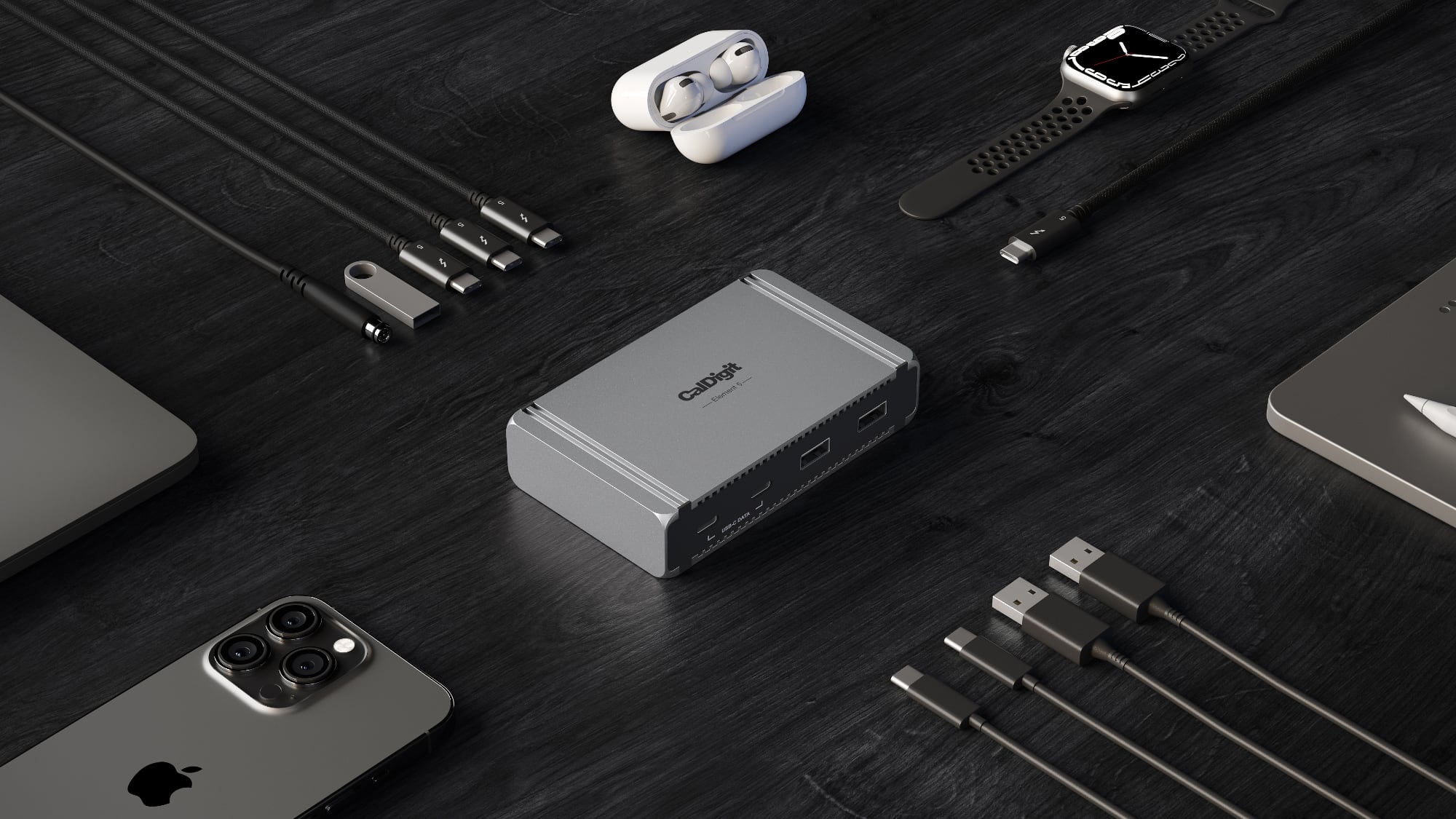

The Element 5 Hub has four Thunderbolt 5 ports (one upstream, three downstream), two USB-C ports, and three USB-A ports. 90W host charging is available for a connected Mac, which is enough to keep my 16-inch ‌MacBook Pro‌ charged. The downstream Thunderbolt 5 ports have 15W for accessories, and the USB-C ports offer 7.5W. Like the TS5, the ports work even when the hub isn't connected to a host computer.

Since there are three Thunderbolt 5 ports, the Element 5 Hub can drive the same number of displays as the TS5. It doesn't have as many USB-C ports, no SD card slots, and no audio jack, but if all you need is Thunderbolt and a couple of USB-C/USB-A ports, this is the way to go.


I love how little space the Element 5 takes up on my desk, so much so that I may adopt one for long-term use. I do use SD card slots, but the smaller size may be worth the sacrifice. The Element 5 is 2.75 inches wide, 4.5 inches long, and an inch thick. It's about the same size as my Thunderbolt 5 SSD, and smaller than an iPhone. If you want compact, get this dock.

Bottom Line


I prefer the TS5 over the TS5 Plus because of the extra Thunderbolt 5 port on the TS5. I can connect two displays and still have a port for a Thunderbolt 5 SSD, which isn't the case with the TS5 Plus. Unfortunately, I'm continually running into problem where SSDs connected to the USB-C ports on the dock don't work, and that makes it hard to recommend to someone who needs to use it for storage purposes. I can just restart the dock, but I shouldn't have to. TB5 SSDs are fine, so are USB-C SSDs connected through a Thunderbolt port.

CalDigit's more expensive TS5 Plus is a better option than the TS5 if you need DisplayPort 2.1, 10GbE, or an absurd number of USB-A ports (five for the TS5 Plus vs two for the TS5). The TS5 Plus also has dual 10Gb/s USB controllers, which is useful if you want to run multiple high-speed SSDs or drives at the same time.

If you only need a limited number of ports, I'd definitely recommend checking out the Element 5 Hub. It's compact, but still includes four Thunderbolt 5 ports, three USB-A ports, and two USB-C ports. I didn't seem to have the same SSD problem with the TS5 Plus or the Element 5.

I like CalDigit's Thunderbolt 5 docks over competing docks from Anker and Satechi, mainly because CalDigit doesn't include fans and its docks operate silently. The SSD problem might be my particular dock or my ‌MacBook Pro‌, but if you pick up a TS5, get it from a place with a return policy just in case.

I like all of the docks I've tried so far, though, and they've all been good options with no major problems. I'd pick Anker's Prime Thunderbolt 5 dock if I wanted a dock with no external power supply, or Satechi's CubeDock if I wanted a built-in SSD or had a Mac mini and wanted to match it.

Thunderbolt 4 docks are cheaper than Thunderbolt 5 options, but if you have a Thunderbolt 5 Mac or are planning to get one in the next year or two, it's worth going for Thunderbolt 5 for the upgraded bandwidth.

How to Buy


The CalDigit TS5 can be purchased from the CalDigit website or from Amazon for $400.

The Element 5 Hub is available from the CalDigit website or from Amazon for $250.

Note: CalDigit provided MacRumors with a TS5 and Element 5 Hub for the purpose of this review. No other compensation was received.
This article, "CalDigit TS5 and Element 5 Hub Review: Two Thunderbolt 5 Docks for Apple's Latest Macs" first appeared on MacRumors.com

Discuss this article in our forums

  •  

5+ New Features Coming in macOS 27

iOS 27 has been the star of the rumors we've been hearing ahead of Apple's WWDC 2026 event, but there have also been a few tidbits about the next version of macOS, macOS 27. We don't know as much about ‌macOS 27‌ as we do about ‌iOS 27‌, so there will be some surprises in store.


Liquid Glass Revision


Hate Liquid Glass on the Mac? It's not going anywhere, but Apple is planning a "slight redesign."

Liquid Glass transparency and shadows don't work as well on the Mac as they do on the iPhone, and Apple has some revisions in mind. Don't expect Apple to revert to the pre-Tahoe design, but minor improvements are likely.

Siri


Most people probably never use Siri on the Mac, but that could change with ‌macOS 27‌. The smarter, more capable version of ‌Siri‌ that we've been hearing about endlessly isn't just for iOS. ‌Siri‌ is also coming to macOS, with a new ‌Siri‌ interface planned and, presumably, a standalone ‌Siri‌ app for the Mac.

We don't know as much about the ‌macOS 27‌ ‌Siri‌ interface as we do about the ‌iOS 27‌ interface, but it'll probably parallel what's coming in iOS. On the iPhone, ‌Siri‌ will be integrated in the Dynamic Island. Will Apple somehow carry that over to the Mac's notch? Who knows, but it's possible. ‌Siri‌ on iOS has a dark interface that's hinted at in WWDC graphics, and we could get that same style in ‌macOS 27‌.

If you want to read more about the changes coming to ‌Siri‌, check out our iOS 27 roundup.

AI App and Feature Updates


Most of these rumors are for ‌iOS 27‌, but a lot of what's available on iOS is also available on macOS.

  • Photos - The Photos app will include new Extend and Reframe options. Extend generates image content beyond the original frame of the photo, and Reframe lets users change the perspective of an image after it's captured. There's also a tool for natural language photo edits, but it might not be ready to go when ‌macOS 27‌ launches.

  • Image Playground - Apple is testing new models that produce more lifelike images, plus there could be some updates to the app interface.

  • Wallpaper - ‌iOS 27‌ is getting a wallpaper-generating feature that uses Image Playground, so it makes sense for it to be available in ‌macOS 27‌ too.

  • Shortcuts - The Shortcuts app will let users ask ‌Siri‌ to generate a shortcut using natural language. With a short statement on what a shortcut should do, AI will whip it up and add it to the app. It'll make shortcuts much easier for the average person to use.

  • Writing Tools - In addition to spell check, there will be a grammar check feature. Writing Tools will also support expanded rewriting and text generation capabilities.

  • Safari - Safari is getting a feature for automatically organizing browser tabs into groups, which will be useful for tab addicts who like to see just how many tabs their Mac can handle before it starts to feel sluggish.


Bug Fixes and Performance Improvements


Bug fixes and performance improvements will be a focus in both ‌iOS 27‌ and ‌macOS 27‌. In fact, Bloomberg's Mark Gurman said Apple is working on a "Snow Leopard-style update" for ‌iOS 27‌ and ‌macOS 27‌.

Apple wants to improve the underlying quality and performance of macOS.

Touchscreen Support


There is a MacBook Pro with a touchscreen OLED display that's going to come at some point during the ‌macOS 27‌ release cycle, so there could be hidden touch-based tweaks. This isn't a device that we're expecting until late 2026 at the earliest (and 2027 is more likely), but researchers who like to dig into macOS code might find some hints of touchscreen support.

No More Intel Macs


It's the end of the road for Intel Macs. If you're still using a Mac with an Intel chip, you won't be able to upgrade to ‌macOS 27‌. macOS Tahoe is the last version of macOS that runs on Intel Macs, and ‌macOS 27‌ will require an M1 Apple silicon chip or later.

Apple has phased out all Intel Macs, and it stopped selling the last Mac with an Intel chip in 2023.

Speaking of phasing things out, Apple is ending support for Rosetta 2 after ‌macOS 27‌. Rosetta will still be available in ‌macOS 27‌, but not macOS 28. If you're still using an app that relies on Rosetta, it will need an Apple silicon update by fall 2027 or it's not going to work anymore.

macOS Name


One detail that rarely leaks ahead of WWDC is Apple's name for the next version of macOS. Apple uses California landmarks for its Mac software, and there are still plenty to choose from. "Project Big Bear" is the name of the hashmoji file that Apple shared on X, so macOS Big Bear is a possibility. If ‌macOS 27‌ focuses on bugs and is a "Snow Leopard" update, Apple could pick macOS Emerald after Emerald Bay.

Emerald Bay is a small bay off of Lake Tahoe, and it would be a fitting choice. "Snow Leopard" followed "Leopard," and using the same kind of linked name would be a strong signal of Apple's commitment to performance improvements in the ‌macOS 27‌ update.

Launch Date


‌macOS 27‌ will be available for developers after the June 8 WWDC keynote event. A public beta will follow in July, and the software will see a public launch in the fall.
Related Roundup: macOS 27

This article, "5+ New Features Coming in macOS 27" first appeared on MacRumors.com

Discuss this article in our forums

  •  

macOS 27 Wishlist: What Do You Want From Apple at WWDC 2026?

We have four days to go until Apple's WWDC keynote event begins on Monday, June 8. iOS 27 has been the focus of most of the rumors, but we're also going to get a new version of macOS, macOS 27.


Some of the same features that are coming in ‌iOS 27‌ will come to ‌macOS 27‌, like the new version of Siri and the dedicated ‌Siri‌ app, but we want to hear from MacRumors readers. What are you hoping to see in ‌macOS 27‌?

Do you want updates to Liquid Glass? Changes to multitasking? Bug fixes? Better external display support? Improved memory management since no one can afford RAM anymore?

Guessing the name Apple will choose for the next version of macOS is always fun. There are still plenty of California landmarks for Apple to choose from, and the filename of Apple's hashmoji for the event on X hints that macOS Big Bear is a possibility.

Let us know what name you think Apple will pick, and tell us your most wanted features in the comments below.
Related Roundups: macOS 27, WWDC 2026

This article, "macOS 27 Wishlist: What Do You Want From Apple at WWDC 2026?" first appeared on MacRumors.com

Discuss this article in our forums

  •  

Ugreen MagFlow Air and Nexode Air Review: A Power Bank and Charger Built for iPhone

iPhone accessory maker Ugreen recently came out with a new Nexode Air charger and MagFlow Air power bank, two products that are designed for Apple users.


MagFlow Air


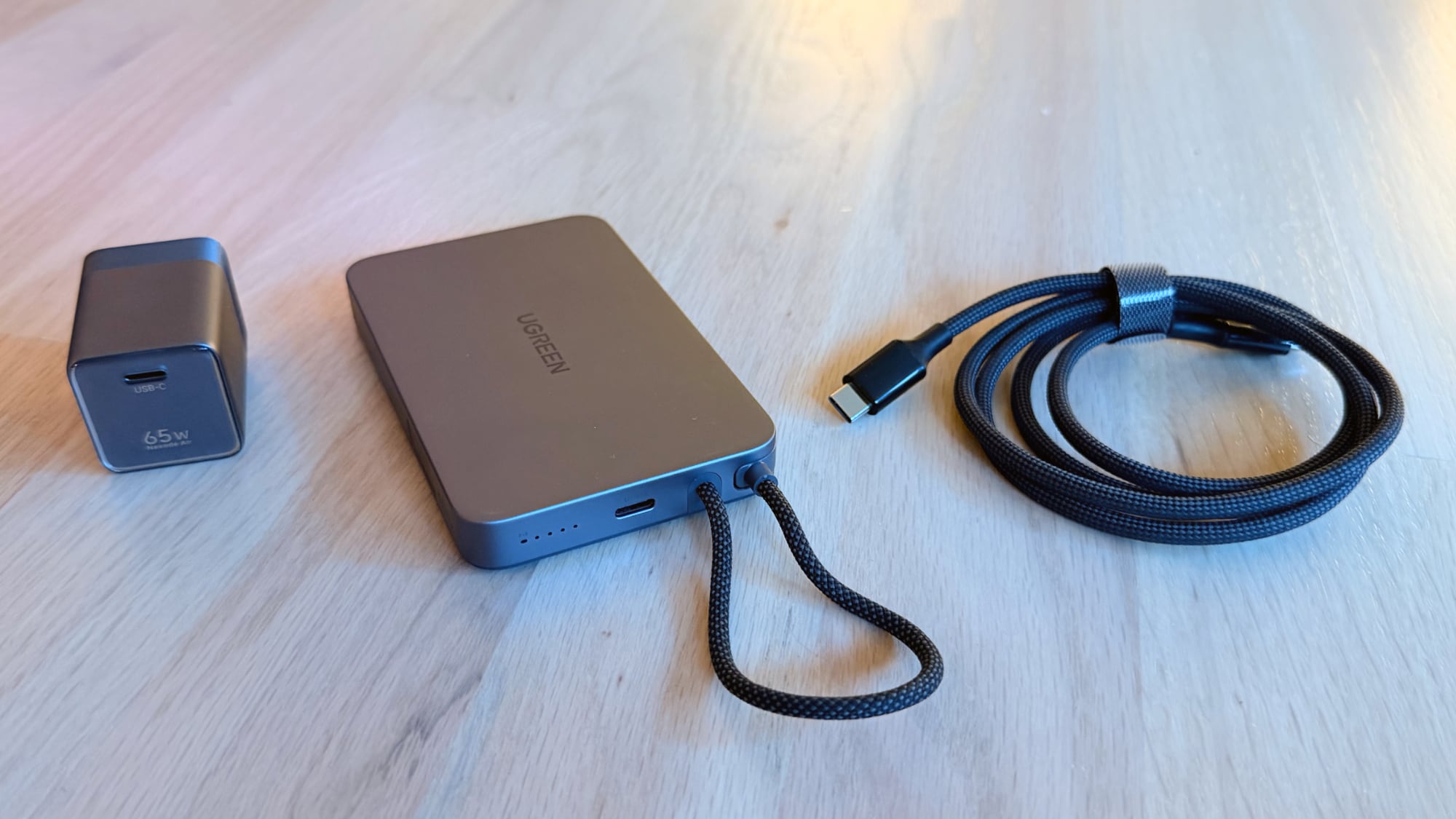
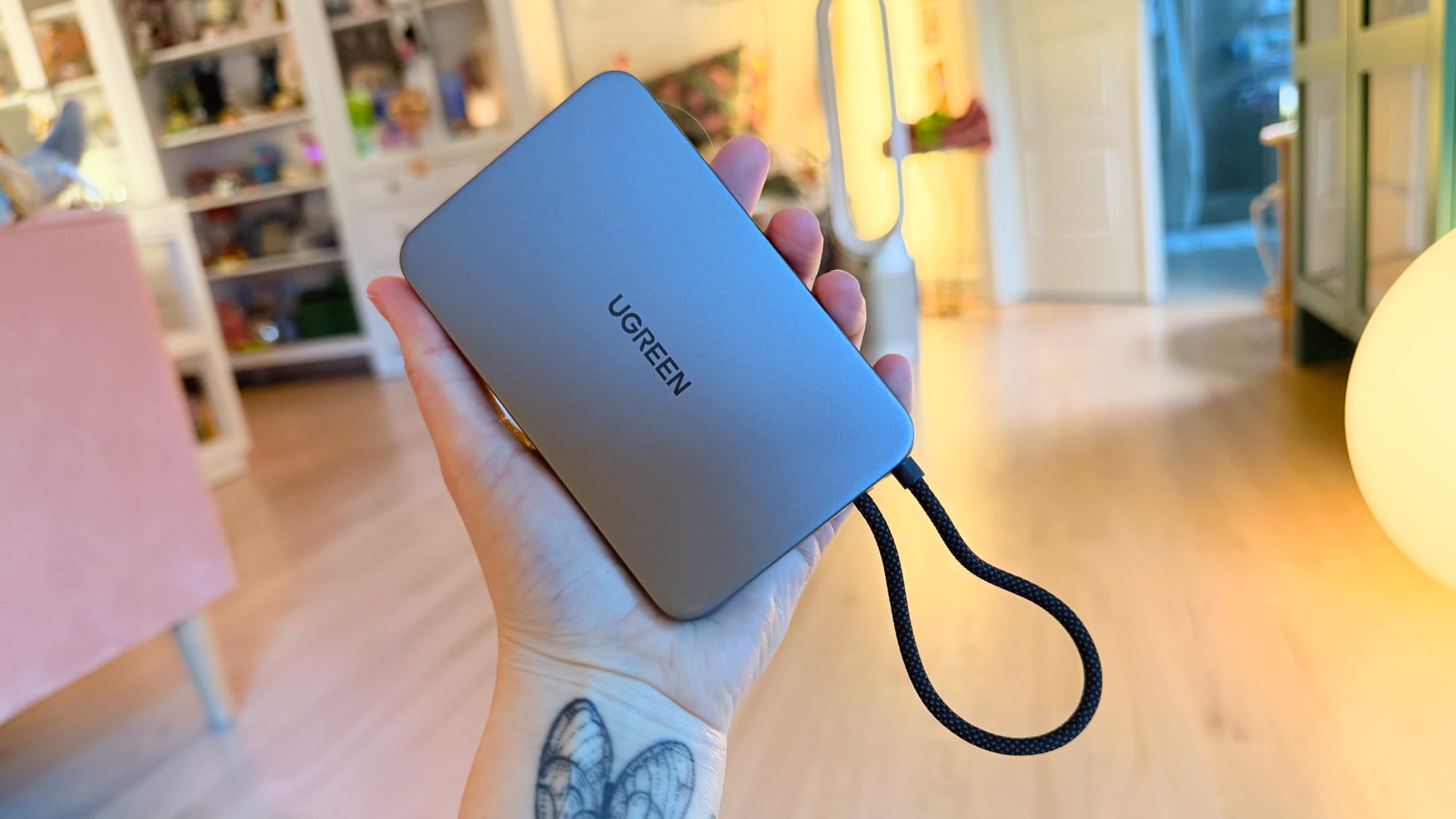
The $60 MagFlow Air is a 10,000mAh Qi2 power bank that also has a built-in USB-C cable. The power bank is 4.4 inches long, 2.75 inches wide, and 0.55 inches thick. It has some weight to it, and feels like a good quality device. It's about the same weight as the iPhone 17 Pro Max. It's close in size and design to Anker's MagGo, which is $20 more expensive at $80.


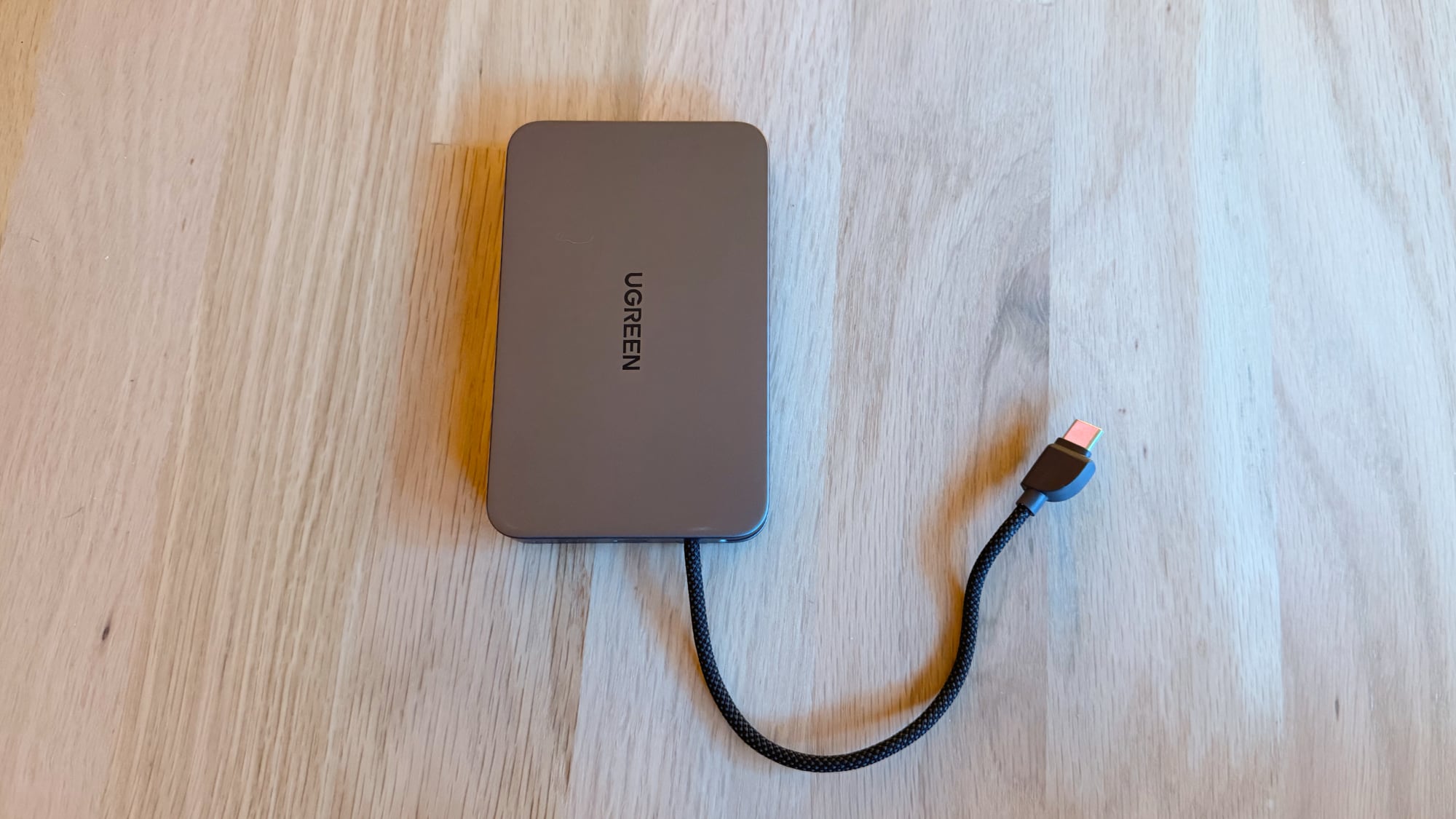
The MagFlow Air has a clever design. It's a Qi2 charger so you can charge your iPhone wirelessly, but there's also a pull-out braided USB-C cable that unclips from the bottom corner. When it's clipped in, it serves as a lanyard. There's another USB-C port at the bottom for charging the power bank or charging a third device (though you can also charge it with the built-in cable). It does support passthrough charging, so you can connect it to a power adapter and then plug in an iPhone. With this setup, the iPhone charges first and then the power bank charges.

I would not choose Qi charging over USB-C charging when there's a choice, but it's useful to have both in case you need to charge two devices at one time. I am a fan of built-in cables, and this one seems well-attached. It takes some force to pull the cable out, so it stays in place when it's used as a carrying strap. The cable is not removable, and it is not replaceable. Ugreen says it has been bent over 10,000 times in testing with no issue.

Qi2 charges a compatible iPhone at up to 15W, and it's not the fastest wireless charging available. You can get up to 25W with one of Apple's MagSafe chargers or a Qi2.2 charger. The magnets in the MagFlow Air are strong, making for a secure connection to an iPhone. It stayed in place when pulling my iPhone out of a pocket.


USB-C charging is faster at 30W, and if you use the USB-C cable instead of the Qi2 charger, you can fast charge your iPhone. You can attach the charger via ‌MagSafe‌ and plug it in, which is useful because it combines USB-C charging speeds with the convenience of a magnetic attachment. An iPhone plugged in via the USB-C cable won't charge wirelessly, but the connection remains available.

I have an ‌iPhone 17 Pro‌ Max, so 10,000mAh isn't quite enough for two full charges, but it is sufficient for a full charge and then some. The MagFlow Air gets warm when charging an iPhone wirelessly, which is not unusual for a Qi charger.

I tested the space gray aluminum color, but the power bank also comes in blue and white. The back has a soft touch material that won't scratch an iPhone, and that provides grip. A button on the side lights up four LEDs to let you know the charge level. It takes about two hours to charge the MagFlow Air from empty to full over USB-C.

Ugreen says the power bank has "Dymondcell ATL cells with 13-layer protection," "intelligent safety protection," and "Thermal Guard temperature control," which will hopefully keep it from exploding on an airplane (it is under the airline limit of 100Wh). The 13-layer protection is supposed to prevent "overheating, overcurrent, and short circuits" for safer charging.

Ugreen doesn't explain what Dymondcell is, but it has partnered with battery maker Amperex Technology Limited (ATL) and is using ATL lithium-ion batteries. Ugreen's UK site has a little more information, but it doesn't detail what the 13 layers are. The battery cells can apparently withstand a 4mm tungsten steel nail penetration test and survive a 1.43-ton crush resistance test. I can't test those claims, but it sounds impressive.

Nexode Air


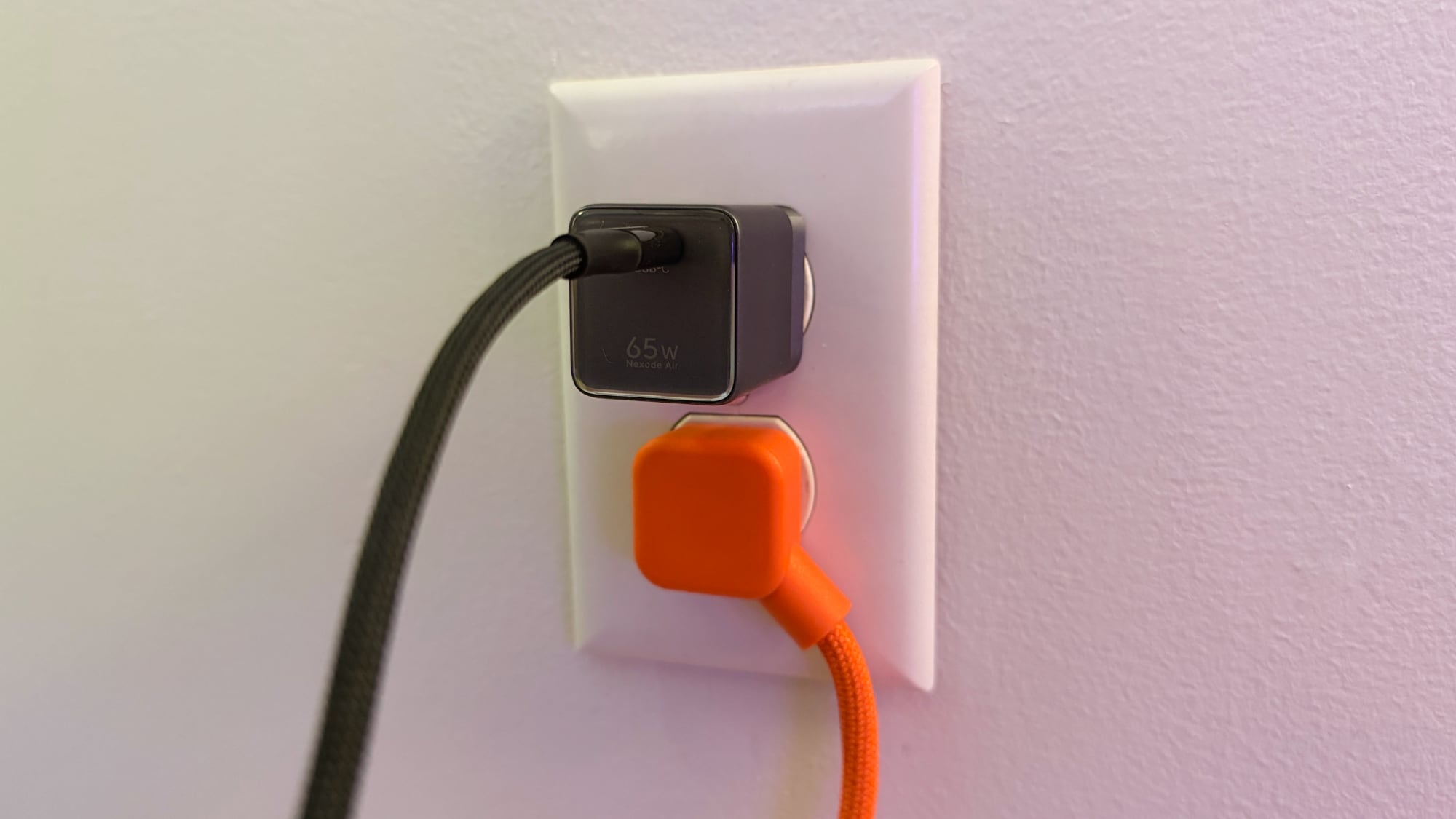
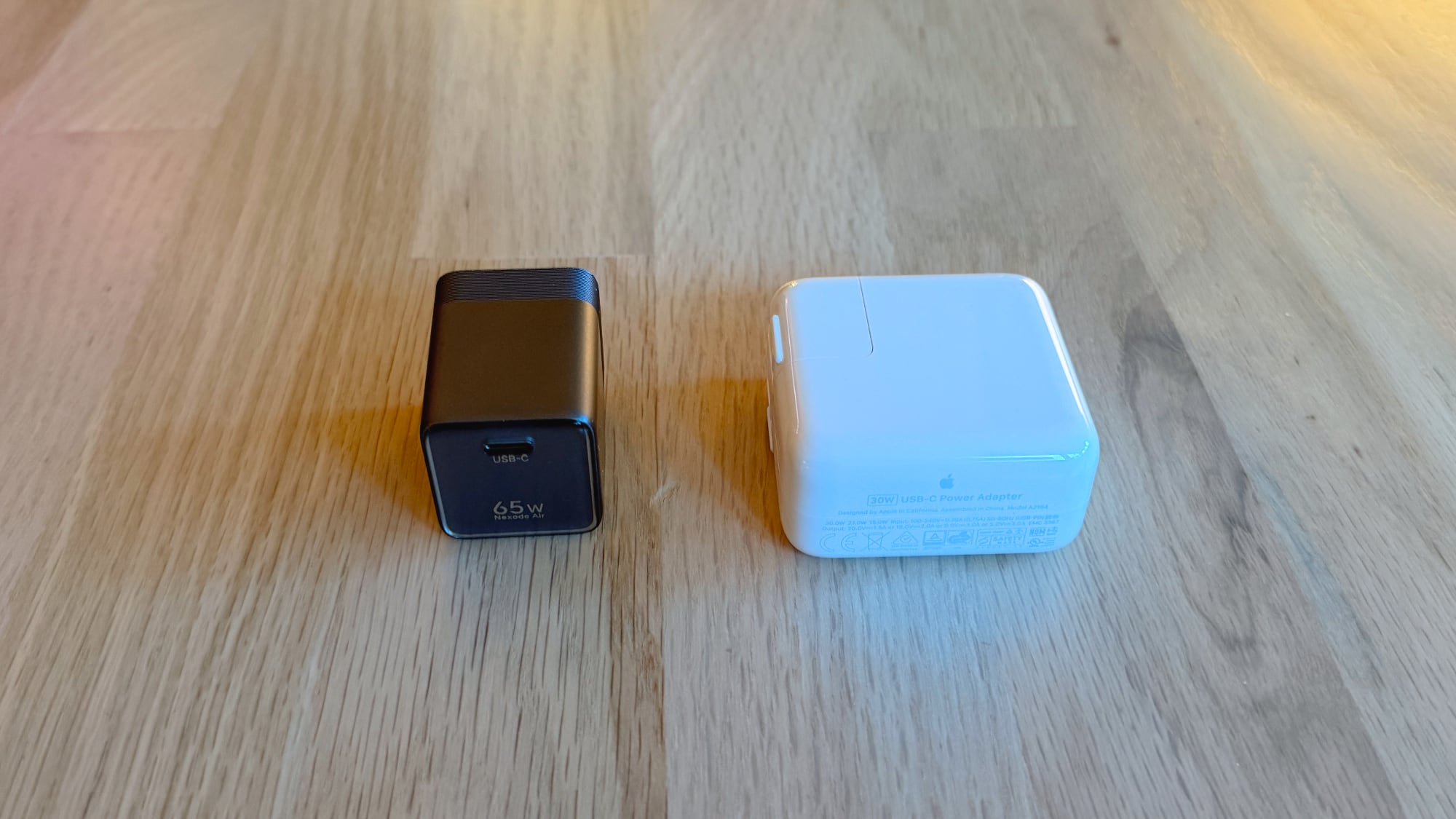
Priced at $25, the USB-C Nexode Air is the slimmest 65W charger I've seen to date. It uses GaN, and it's not too far off from the size of the tiny power bricks that Apple used to provide with the iPhone.


The Nexode Air is just over 1.6 inches long, 1.2 inches wide, and 1.3 inches deep. The prongs fold in when it's not in use, making it more compact for travel. I tend to prefer multi-port chargers so I can charge more than one device at a time, but if you need a single charger for a Mac or another device, it's a good option.

Ugreen's 65W Nexode Air next to 30W Apple USB-C charger

I tested a space gray version that charges at 65W, but it also comes in 45W and in orange, white, and blue to match Apple's ‌iPhone 17 Pro‌ models. 65W is enough to fast charge a MacBook Air, and it also works for iPhones and iPads. It fit well in a plug, left plenty of space to plug in something else, and it charged as expected.

Ugreen includes a color-matched braided USB-C to USB-C cable that feels like it's made well. The cable is 3.3 feet, which is a standard size that usually comes with accessories.

Bottom Line


There are a ton of power banks out there, so the MagFlow Air has a lot of competition. This little Anker Nano is my favorite 10K option, but the MagFlow Air is growing on me. I like the magnetic connection with the option to charge over USB-C because it's a combo that most power banks don't offer.

$60 is on the high side for a 10K power bank, but with the built-in cable and the Qi2 magnetic charging, it's priced competitively with other trusted brands.

As for the Nexode Air, it's a good little USB-C power adapter if you need a pocketable single-device charging option.

How to Buy


The 65W Nexode Air is available from Amazon for $25. The MagFlow Air is available from Amazon for $60.

Note: Ugreen provided MacRumors with an MA320UG for the purpose of this review. No other compensation was received.
This article, "Ugreen MagFlow Air and Nexode Air Review: A Power Bank and Charger Built for iPhone" first appeared on MacRumors.com

Discuss this article in our forums

  •  
❌