❌

Lees weergave

Python 3.15 delivers a native-by-default experience on Windows on Arm

Windows on Arm has been ready for Python development for some time. With Python 3.15, the broader ecosystem has matured significantly, with more package maintainers publishing native Arm64 wheels, allowing Windows on Arm to support mainstream Python development across a broad and growing set of workloads. A native Python experience Windows on Arm is now a Tier 2 CPython platform, backed by continuous testing and CPython’s release-quality commitments. That readiness extends beyond the runtime. Widely used packages such as NumPy, SciPy, pandas, scikit-learn, Django, and FastAPI are available, while Jupyter, VS Code, Ruff, and pytest support everyday development workflows. GitHub-hosted Windows on Arm runners also let open-source maintainers build and test their projects natively. This did not happen with a single release. Native Windows on Arm builds of CPython have been available for several versions. What changes with Python 3.15 is the maturity of the experience. Windows on Arm is now a regular CPython target; the native runtime is selected by default on Windows on Arm devices, and CPython’s Tier 2 requirements call for platform failures to be fixed or the responsible changes reverted. Package maintainers now have practical infrastructure for native Windows on Arm validation, and many widely used projects publish native Arm64 wheels. Windows on Arm is now a practical platform for many mainstream Python development scenarios. As of September 2026, a scan of the 1,000 most-downloaded PyPI projects shows about 94% of the projects’ latest releases published either a native Windows on Arm wheel or a platform-independent wheel. This measures published wheel availability, not end-to-end application compatibility. Anaconda’s main channel also includes more than 2,500 packages published for Windows on Arm. Platform readiness does not mean every Python application is automatically ready for Windows on Arm. The runtime and a broad set of mainstream development workflows are established, but application readiness still depends on the complete dependency graph, particularly when packages rely on native extensions. Developers should confirm native Arm support for their dependencies during migration and testing.

A native Python experience by default

Windows on Arm is a PEP 11 Tier 2 platform. This designation reflects a strong support commitment; the platform has reliable continuous integration and active core developers, and platform-breaking changes must be addressed promptly. Windows on Arm CI results are considered as part of CPython’s release process. This is a clear measure of how far Windows on Arm support has progressed. Installation is now simpler. With Python Install Manager 26.4, Windows on Arm devices default to the Arm64 platform, so requesting Python 3.15 selects the native Arm64 runtime unless configuration or an explicit architecture tag overrides it. Python 3.15 ships a complete set of Windows on Arm component packages alongside the x64 packages. CPython runs tests on Windows on Arm, including the standard interpreter and free-threaded configuration. These jobs run as part of the normal Windows build matrix. You can confirm the architecture of the running interpreter by launching Python and inspecting its startup banner. A native Windows on Arm interpreter includes 64-bit (ARM64) in the compiler information; an x64 interpreter includes 64-bit (AMD64). Running Python natively keeps the interpreter and native package dependencies on the same Arm64 architecture. Python on Windows on Arm Applications that still depend on x64 packages can continue to run through Windows emulation, providing a practical transition path while those dependencies add native Arm support.

An ecosystem for mainstream development

The runtime is only one part of the developer experience. A useful platform also needs packages, editors, build tools, and CI capacity. Windows on Arm now supports a broad set of Python development scenarios. PyPI and packaging. Among the 1,000 most downloaded PyPI projects about 94% are available for Windows on Arm, either as native Arm wheels or platform-independent Python wheels that work across architectures. Much of the Python ecosystem uses platform-independent wheels, while many packages with compiled extensions now publish native Windows on Arm wheels. Windows on Arm package coverage pip, venv, virtualenv, setuptools, build, and modern tools such as uv are available on the platform, either as Arm native or platform-independent. Several widely used Rust-based packages publish native Windows on Arm wheels, including pydantic-core, Ruff, orjson, tokenizers, and other widely used projects. A platform-independent top-level package can still depend on a native extension, so applications should test their complete pinned dependency graph. Scientific computing and notebooks. NumPy and SciPy now publish native Windows on Arm wheels, backed by native OpenBLAS and Fortran support. pandas, Polars, Matplotlib, scikit-learn, Pillow, h5py, statsmodels, and XGBoost have also shipped Arm64 wheels. Numba and llvmlite add native JIT compilation to the scientific and machine learning stack. These packages exercise complex compiled build systems and native numerical toolchains rather than simple platform-neutral Python code. JupyterLab, Notebook, ipykernel, pyzmq, and psutil make the local notebook experience practical with platform-independent wheels. Developers can use browser notebooks or the Jupyter experience in VS Code with a native kernel. Web, cloud, and database development. Django, Flask, FastAPI, Requests, and HTTPX publish platform-independent wheels compatible with Windows on Arm. Several cloud SDK packages like AWS Boto3, Azure Storage Blob, and Google Cloud Storage publish platform-independent wheels that can run under Windows on Arm subject to their dependencies. SQLAlchemy is platform-independent, while database support includes libpq packages in Anaconda main, Microsoft’s Arm64 ODBC Driver 18, and native Windows on Arm wheels for python-oracledb. Developer tools and native builds. VS Code, Pylance, the Python and Jupyter extensions, and JetBrains PyCharm, IntelliJ, WebStorm, and Rider have support for Windows on Arm. Ruff, Black, mypy, pytest, and coverage are available. MSVC and LLVM support native compilation, while Rust with PyO3 and maturin supports the growing set of Rust-based extensions. CMake, Meson, Ninja, vcpkg, OpenSSL, SQLite, libffi, and other common foundations are available for maintainers building binary packages. A broad and growing ecosystem

Anaconda and Conda are moving native support forward

Anaconda now publishes packages for Windows on Arm to its production main channel, which includes more than 2,500 packages for Python 3.12 through 3.14. What's available today: NumPy, SciPy, and pandas for numerical computing and data analysis, backed by native OpenBLAS; XGBoost for machine learning; llama.cpp for local model inference; cryptography for security; Flask and Django for web development; and PostgreSQL and ODBC connectivity through libpq, psycopg, psycopg2, and pyodbc. These packages are available as Windows on Arm builds.   Anaconda main also includes PyTorch 2.14 CPU packages and CUDA packages for Python 3.12 through 3.14, built using the Windows on Arm Clang and OpenBLAS toolchain. CUDA Toolkit 13.4.1, cuda-python 13.4.3, and CUDA 13.4 builds of llama.cpp are also available. "Anaconda and Microsoft share a commitment to giving developers the best possible Python experience wherever they work. Bringing Windows on Arm to maturity means data scientists and AI builders can now rely on a native, trusted stack on Arm devices and our teams are proud to have built that stack together." says Laura Sellers, Chief Product & Technology Officer, Anaconda. Beyond Anaconda's own channel, conda-forge has stood up a Windows on Arm repository and has begun an experimental Windows on Arm migration, initially focused on bootstrapping package-management and build tools.   Anaconda is working toward conda and a Windows on Arm Miniconda installer, giving developers a supported path to conda on Windows on Arm. Together, these efforts expand native Windows on Arm package coverage across Anaconda's main channel and conda-forge.  Anaconda plans to add Windows on Arm support for Kilo Desktop, helping AI developers and data researchers start working in minutes with ready-to-use environments and Python packages on Windows on Arm devices, including Surface devices.

GitHub runners for Windows on Arm

The availability of Windows on Arm runners for continuous integration has been an important enabler for this progress. GitHub Actions provides the windows-11-arm and windows-11-vs2026-arm hosted runners for eligible public and private repositories. Open-source maintainers can use these runners to compile packages and run test suites on Windows on Arm. CPython uses this runner for its own native Arm64 Windows jobs. Package projects can use the same infrastructure to produce wheels and exercise installation from a clean environment to catch architecture-specific failures before publishing. Before hosted Windows on Arm runners, projects generally needed self-hosted Arm hardware or emulation for Windows on Arm CI. GitHub-hosted runners reduce that barrier by making native build and test infrastructure available on demand. From source to a native Windows on Arm wheel GitHub-hosted runners are especially useful for open-source projects because maintainers can add native Windows on Arm CI without operating their own runner infrastructure. A native runner turns Windows on Arm support into a change that can fit into an existing build matrix. It also allows maintainers to test Windows on Arm continuously rather than relying on a one-time build. "Arm is working with industry partners including Microsoft and community organizers to expand access to native Arm infrastructure and improve upstream support," said Grant Likely, Fellow at CoreCollective and Senior Director at Arm. "Our goal is to make Arm a standard part of how developers build, test and ship software. With the latest Python release, developers can build and run Python natively on Windows on Arm, making it easier to bring their existing workflows to Arm."

Work that continues

Our next focus is broader native wheel coverage to close gaps for PyArrow, gRPC, OpenCV, and database clients. We are working closely with maintainers to close these gaps. Windows on Arm builds of PyTorch and NVIDIA CUDA components are publicly available for validation. Anaconda provides CUDA Toolkit 13.4.1 packages for Windows on Arm. Anaconda plans to add CUDA Toolkit 13.4.2 packages after the corresponding conda-forge release followed by CUDA-enabled packages, with llama.cpp and PyTorch among its first targets. ONNX Runtime publishes native Windows on Arm CPU packages, and Windows ML supports Arm64 with compatible CPU, GPU, and NPU execution providers. On supported Snapdragon devices, ONNX Runtime's QNN provider can target Qualcomm CPU, GPU, and HTP/NPU backends. AI execution paths on Windows on Arm "Developers thrive when their tools just work, which is why a strong and comprehensive Python ecosystem is so important for Snapdragon X Series platforms. Working closely with Microsoft, Anaconda, and ecosystem partners, we continue to advance native support across the Python stack, making it easier for developers to build, test, and deploy applications on Windows on Snapdragon. This further enables developers to take advantage of superior performance, power efficiency, and AI capabilities of Snapdragon powered Windows devices." says Milan Plavsich, VP, Engineering, Qualcomm Technologies, Inc.
Call to action

If you maintain a Python project, add native Windows on Arm wheel builds and tests to your GitHub Actions matrix. The GitHub Actions Windows on Arm wheel builder custom agent in awesome-copilot can help automate this work. Add the agent profile to your repository, create an issue requesting Windows on Arm support, and assign the issue to the custom agent. If you are an application developer or researcher, test your dependencies with native Python on Windows on Arm and report any gaps to the relevant package repositories. This milestone reflects sustained work across CPython, package projects, CI infrastructure, Anaconda, Arm partners, and the Windows developer ecosystem. Our thanks to Qualcomm, Arm, CoreCollective, and the many package maintainers whose work across packages, infrastructure, testing, and issue investigation helped advance native Python support on Windows Arm.
  •  

Announcing new builds for 7 October 2026

Hello Windows Insiders, Today, we’re releasing new Windows 11 Insider Preview builds to the Beta and Experimental channels! Coming straight off the back of our Windows + Surface event, we have some exciting new features entering the Windows Insider Program. New builds this week Select your channel below to view its release notes: For those on other specific Windows build versions, here are today’s new builds and release notes:

Notable new features:

[Windows Search]

Release channel: Experimental, Experimental (26H1)
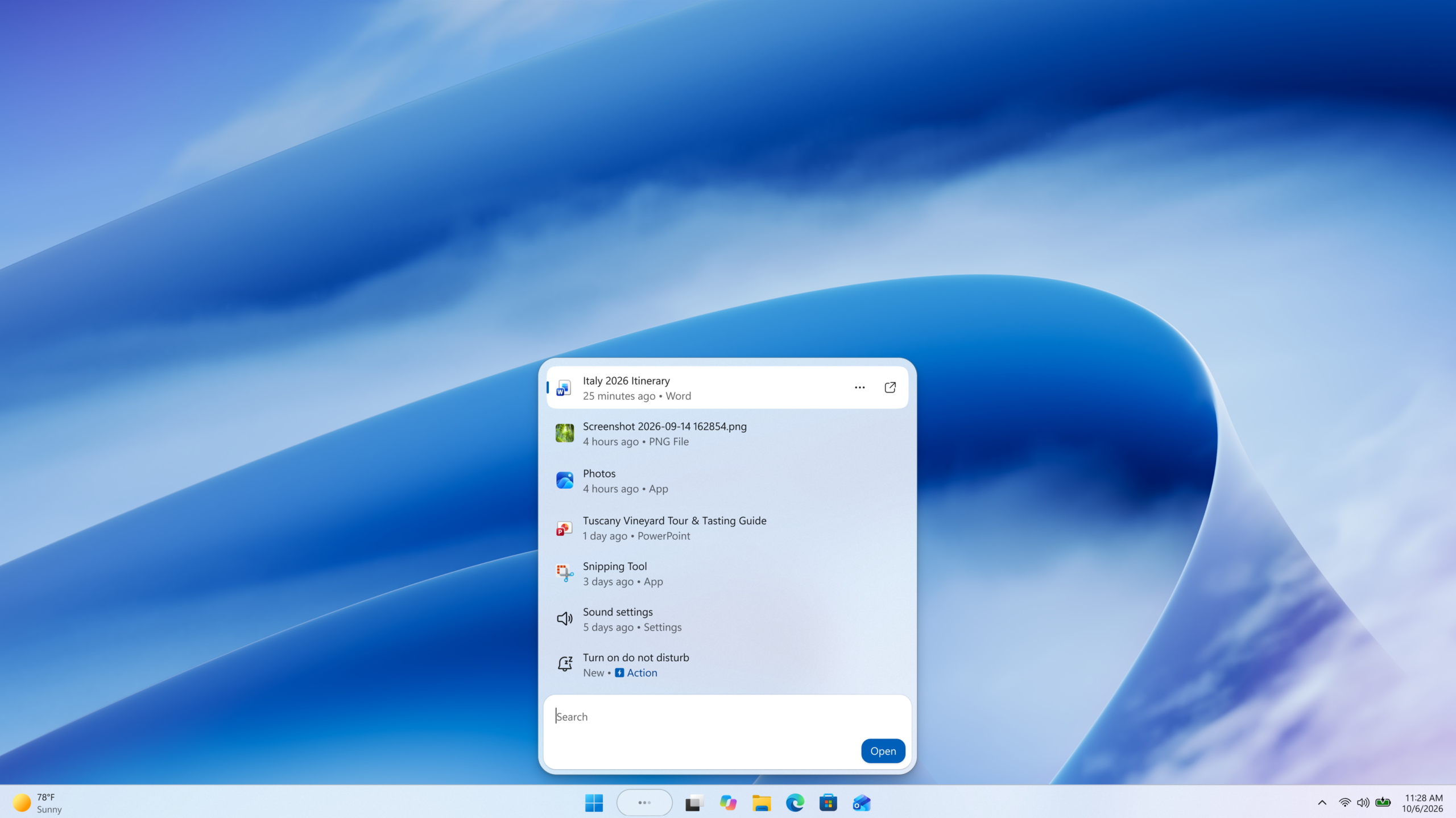
  • New Windows Search experience with inline actions: We're beginning to roll out a new Windows Search experience built on WinUI 3 that is faster, more efficient, and features a streamlined design that makes results easier to scan. We're also introducing inline actions, allowing you to quickly complete tasks directly. Turn on dark mode or Bluetooth, adjust your screen brightness, mute your device, or arrange windows from Windows Search.
  • We're improving how Windows Search understands what you're looking for, including better matching for typos and synonyms. We'll continue fine-tuning these improvements over the coming weeks. For more information detailing the new changes, check out the dedicated Windows Insider Blog.
[caption id="attachment_179190" align="aligncenter" width="2560"]Screenshot of the new Windows Search experience Screenshot of the new Windows Search experience[/caption]

[Battery Status widget]

Release channel: Experimental
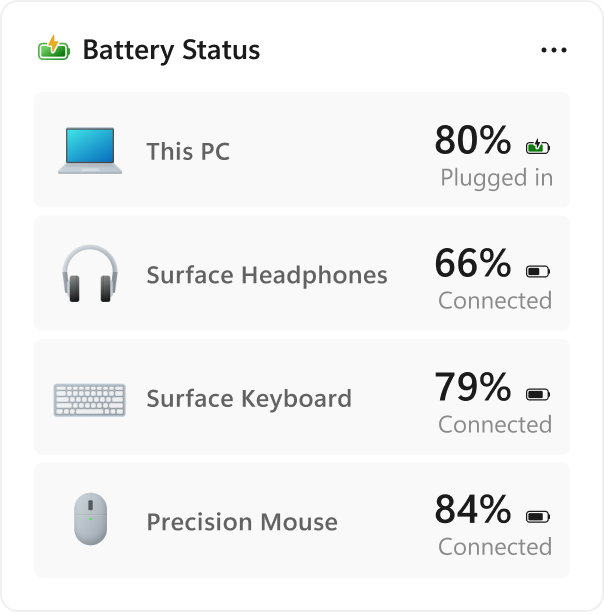
  • As part of our continued commitment to making Widgets more useful for everyday moments, we're introducing the Battery Status widget for Insiders on newer builds. This widget provides a unified view of battery levels for your PC and peripheral devices, helping you quickly assess power status without hunting through multiple UI locations. Add it by going to Widgets board > Add widgets > Battery Status.
[caption id="attachment_179221" align="aligncenter" width="604"]UI showing the new Battery Status widget, providing a unified view of battery levels across your PC and connected devices. UI showing the new Battery Status widget, providing a unified view of battery levels across your PC and connected devices.[/caption] Thanks, Stephen and the Windows Insider Program team
  •  

Pre-order our most powerful Surface devices ever

For more than a decade, Surface has been shaped by the people pushing technology further. Creators rendering complex scenes. Developers building what doesn't exist yet. Designers moving between ideas, models, code, and content. Makers whose work demands more from their devices because they're constantly pushing boundaries. Over time, we've learned something important: the people who choose Surface aren't just using technology for tasks; they're shaping what's next. Today, we're opening pre-orders for two new devices built for that reality: Surface Laptop Ultra and Surface RTX Spark Dev Box. These new Surface devices bring to life the broader Windows vision for hybrid intelligence we’re sharing today, combining the power of the PC and the cloud to help people do more with AI.

Surface Laptop Ultra: Made for world makers

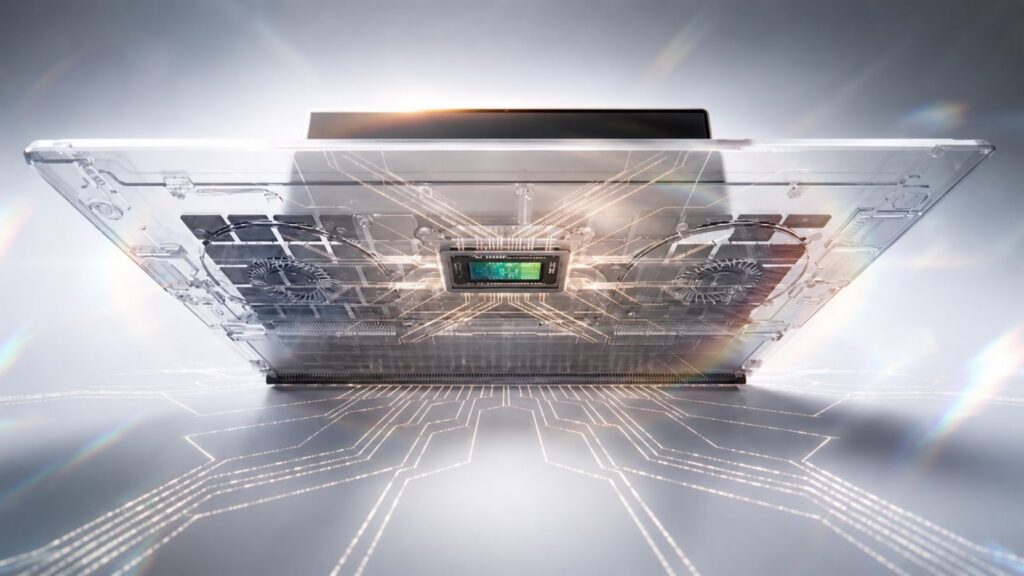
Surface Laptop Ultra started with a clear ambition: How can we better serve the needs of creators, developers, and AI builders? The answer wasn’t simply a faster laptop. It meant fundamentally rethinking what a high-performance Windows PC could be. It started with a deep partnership to optimize Windows to take full advantage of NVIDIA’s RTX Spark™ Superchip. We then designed an entirely new device around the platform from the ground up. Mechanical, electrical, thermal, acoustic, material engineers, and industrial designers worked together from the beginning to fully realize the potential of the RTX Spark. The result is our most powerful Surface Laptop ever, built for demanding creative, technical, and AI workloads.

One superchip. One complete system.

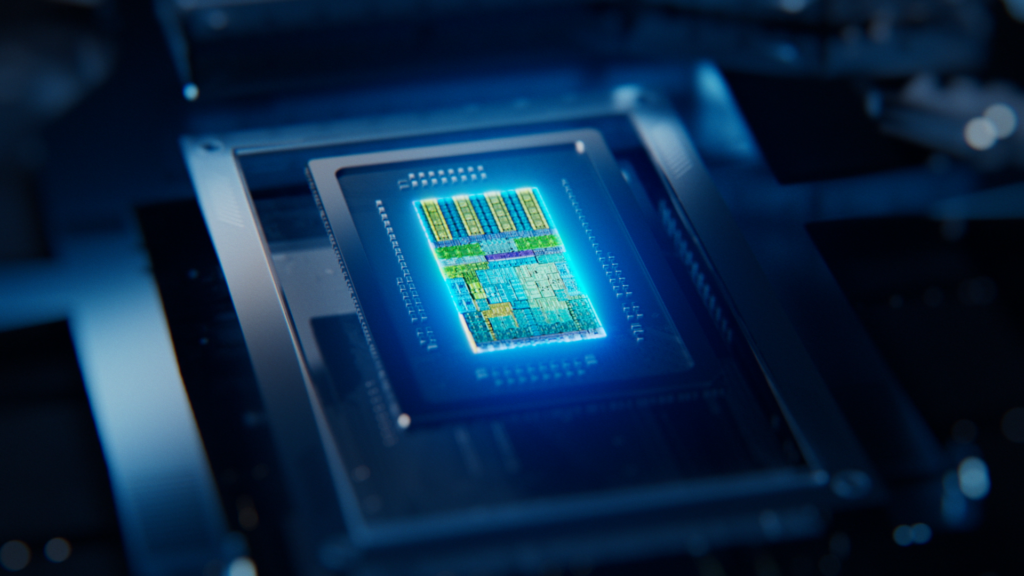
Designed around NVIDIA RTX Spark, Surface Laptop Ultra unites an NVIDIA Blackwell RTX GPU with up to 6,144 cores, an NVIDIA Grace CPU with up to 20 cores, and up to 128 GB of unified memory.1 Run AI models exceeding 120B parameters locally, with up to 1 petaflop of AI performance.2 Move between creative work, development, and immersive gaming without missing a beat. Keep more of your work on-device, with less reliance on the cloud and access to the CUDATM ecosystem and full Windows AI stack.3

Power is only the beginning

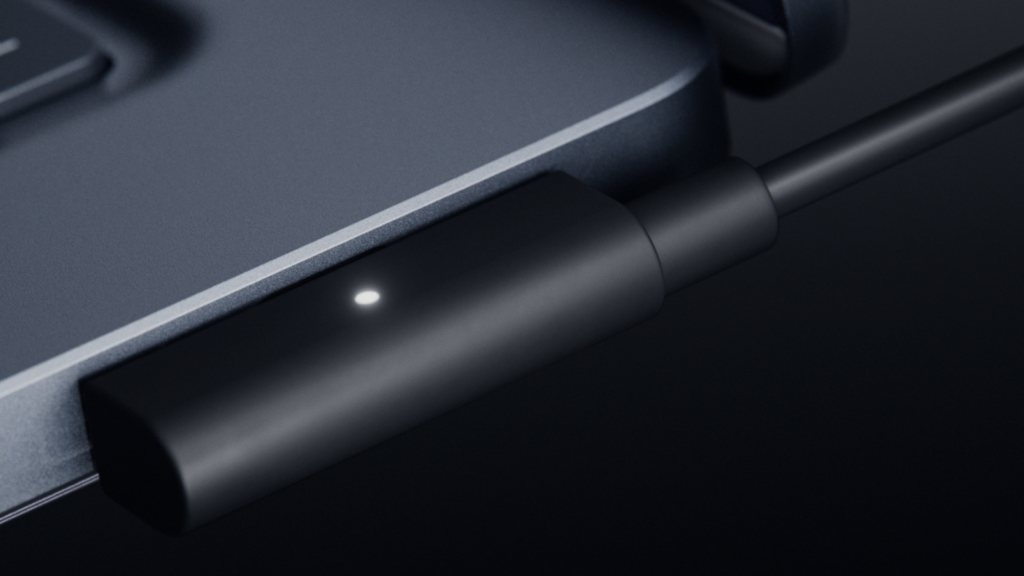
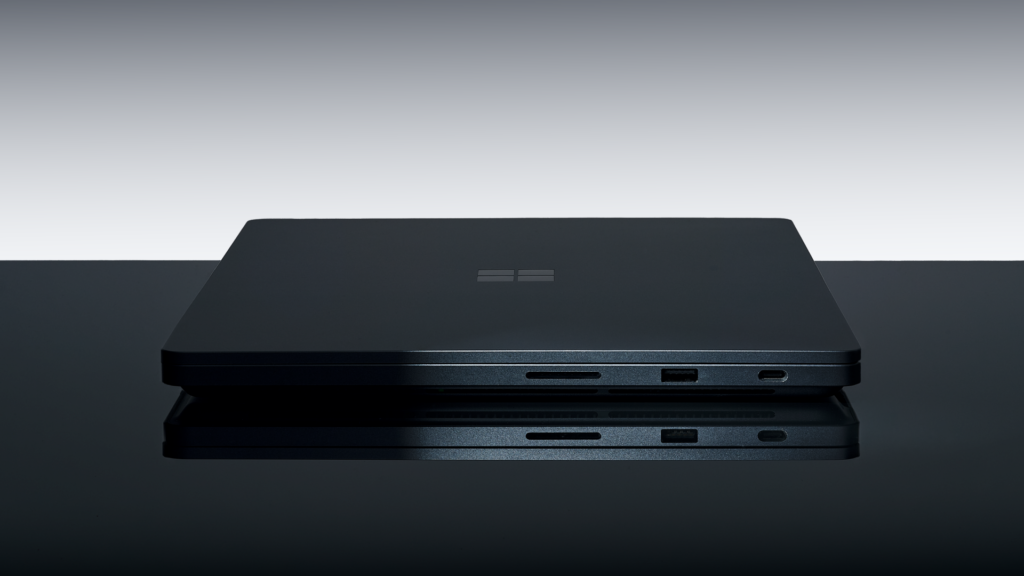
Power only matters if it lasts. That's why we designed a new thermal architecture that delivers up to 2.5x more thermal power capacity than our current Surface Laptops. In a chassis less than 18 mm thin and under 4.5 lb4, Surface Laptop Ultra was built for sustained performance. The 15-inch PixelSense™ Ultra touchscreen is the brightest, sharpest, and most vivid display we've ever put on a Surface Laptop.5 It’s designed to empower professionals to review footage frame by frame, annotate designs, explore datasets, and interact directly with their work. It delivers the brightest peak HDR of any laptop6, up to 25% brighter peak HDR than MacBook Pro M57, and the color accuracy creators trust. The touchpad is 30% larger, with advanced haptics for precise control across demanding creative workflows.8 Storage is user-removable, so you can upgrade, replace, or secure your own storage.9 Surface Laptop Ultra is available in Platinum and Nightfall, so it looks as sleek and sophisticated as it runs.10 It also features our most complete port selection yet, led by something entirely new: Magnetic Connect, the world’s first built-in magnetic USB-C® charging on a laptop. The included charging cable attaches magnetically to the right-side USB-C port and releases easily. The port remains fully functional for video, data, and other USB-C devices. Other ports include: · Two additional USB-C ports · HDMI · USB-A · An SD card reader · A 3.5 mm headphone jack Drive up to three 4K displays11. Import footage without adapters. One device. Every connection you need.

Built for real work. Always ready to play.

Creative professionals get a display they can trust, graphics acceleration when projects get demanding, and up to 128 GB of unified memory to provide headroom for multitasking across demanding creative and local AI workflows. Developers can use local models with GitHub Copilot to bring agentic coding on device. They can prototype agents, review code, test larger models, and keep development tools running side by side. When the work is done, the same RTX Spark architecture that accelerates creative and AI workloads also powers a great gaming experience. Ray tracing, DLSS and NVIDIA Reflex in supported titles, together with the deep and growing catalog of games on Windows on Arm, mean the machine you rely on during the day can keep delivering when it’s time to play.

Surface RTX Spark Dev Box

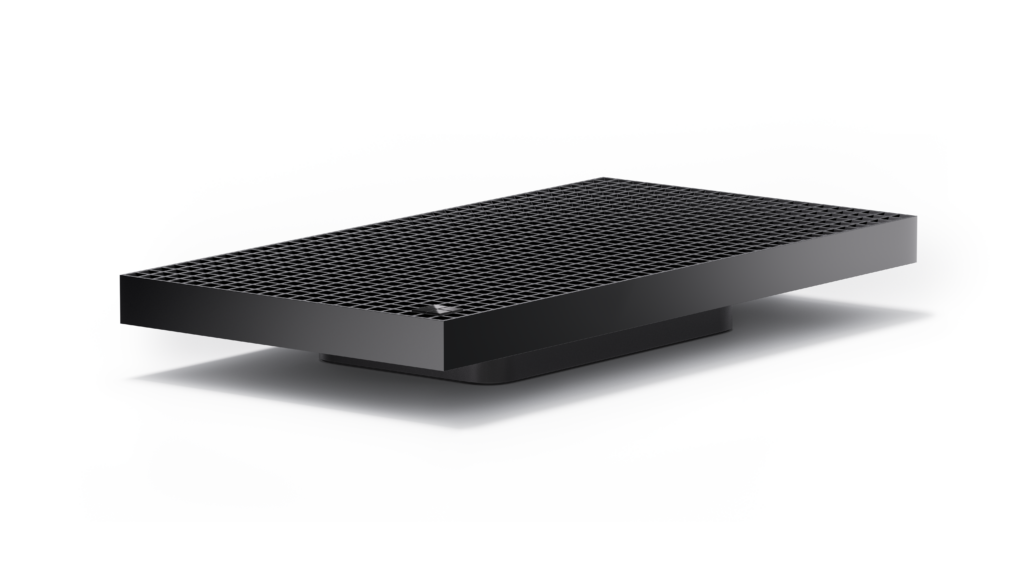
Surface Laptop Ultra moves with you. Surface RTX Spark Dev Box gives developers, AI engineers, and technical teams powerful AI compute at their desks. Also built around NVIDIA RTX Spark Superchip, this developer-first powerhouse brings massive local AI compute to a compact small form factor, giving developers more control over where workloads run and how resources are used. When experimentation happens locally, teams can iterate faster, reduce cloud dependency, and reserve cloud resources for the workloads that truly need them. Dev Box offers developers:
  • Up to 1 petaflop of AI performance and 128 GB of unified memory on your desk
  • Support for AI models exceeding 120B parameters with large context windows2
  • Local inference, evaluation, and experimentation at interactive speeds
  • The same powerful NVIDIA RTX Spark platform that powers Surface Laptop Ultra
Ready to go out of the box The goal is simple: less time configuring your environment, more time building. As part of the Project Zenith family of devices, Surface RTX Spark Dev Box comes ready with the tools, runtimes, and environments developers use most, including Visual Studio Code, Git, GitHub CLI, GitHub Copilot, WSL, Python, Node and more.

Run AI agents where they work best

Give developers the freedom to move faster with agents, while keeping access, compute, and cost under control. Windows is the OS for agents, and Surface is the hardware for Windows. Microsoft Execution Containers provide containment for agents, while upcoming Windows capabilities will use Microsoft Entra to distinguish agent activity from user activity and extend Microsoft Agent 365 controls to local agents on-device. With NVIDIA RTX Spark and up to 128 GB of unified memory, Surface Laptop Ultra and Surface RTX Spark Dev Box can run demanding models and agent workflows locally, including GitHub Copilot tasks that investigate builds and propose fixes, while Microsoft Dev Box adds cloud capacity when needed.1 The result is governed, scalable AI development without spending a cloud token on every step. Commercial configurations of Surface Laptop Ultra are available for pre-order today.

Break up with your MacBook

If you've outgrown the compromises of a traditional professional laptop, we'll help make the switch. Level up to Surface Laptop Ultra and get up to $1,000 cash back when you trade in an eligible MacBook Pro.12 We're confident that once today's creators and developers experience everything Surface Laptop Ultra has to offer, they won't look back. Learn more about the offer here.

Reserve yours today

Starting today, pre-order Surface Laptop Ultra starting at $2,599 (MSRP) from Microsoft.com or select retailers worldwide, with availability beginning October 16. At Microsoft Store, explore the full lineup of configurations and accessories, with free shipping, easy returns, flexible payment options, and Microsoft support. If you’re looking for a commercial device, explore Surface Laptop Ultra for Business. Surface RTX Spark Dev Box is available for pre-order for $5,999 (MSRP), exclusively on Microsoft.com in the U.S. and will begin shipping to customers this November.
1 Memory varies by configuration. 128GB total system memory in a unified memory architecture dynamically shared between CPU and GPU. Maximum amount addressable by the GPU depends on system configuration and workload and is less than the total. 2 Based on theoretical FP4 performance of 1 petaflop using the sparsity feature. See: NVIDIA Corporation - NVIDIA and Microsoft Reinvent Windows PCs for the Age of Personal AI. 3 CUDA™ is a registered trademark of NVIDIA Corporation. 4 Might vary depending on manufacturing processes. 5 Surface display has rounded corners within a standard rectangle. When measured as a standard rectangular shape the screen is 15” diagonally (actual viewable area is less). Touchscreen is optimized for touch interaction only. Pen input and compatibility with Surface Pen, Surface Slim Pen, or similar accessories is not supported. 6 Peak HDR brightness of 2,000 nits, measured over a 10 percent window with HDR content. Comparison against laptops commercially available as of October 2026. Sustained and SDR brightness are lower. Actual brightness varies with content, settings, and conditions. 7 Based on peak HDR brightness comparing Surface Laptop Ultra to MacBook Pro M5 Pro published specifications as of October 1st, 2026. 8 Compared to Surface Laptop 8th Edition 9 Replacement components and service options vary by market and over time. Repairs should follow the Microsoft Service Guide. Device damage caused during repair may not be covered by warranty unless required by law. 10 Colors available on selected models only. Available colors, sizes, finishes, and processors may vary by store, market, and configuration. 11 External monitor support requires compatible displays, cables, and accessories. See Surface tested peripherals page for compatibility information. 12 Offer valid with purchases of qualifying new Surface Laptop Ultra device between October 7, 2026 - November 23, 2026 after trade-in of a qualifying device, where customer submits the online trade-in claim for their used device, plus proof of purchase for new device, during the Promotion Period. Available only through the Microsoft Store online in the United States and Canada. Amount of additional cash back varies depending on device purchased and value of trade in; see FAQ for more details. To be eligible for the cash back, customer must mail in the qualifying trade-in device within 15 days of completing the online trade-in process. To be eligible for trade-in, (i) customer must own the qualifying device, (ii) the device must power on, (iii) the battery must hold a charge (the device must not be required to be plugged in to operate), and (iv) the device must be in fully functional, working condition and not have broken or missing components, a cracked display or screen, liquid damage, modification(s) or the device warranty seal broken. The device cannot be password protected and must include its original chargers, accessories, and hard drive. Trade-in value depends on device type and condition after inspection by Teladvance. All trade-ins and reimbursements are subject to Teladvance's sole discretion and approval. Devices determined to not meet eligibility criteria may be shipped back to the customer or recycled. Recycled devices are not eligible for cash back. All trade-ins are final. See Microsoft Store Trade-in Program for steps and requirements. Not valid on prior orders or purchases; cannot be transferred or otherwise redeemed for cash or gift cards, or credit towards other devices or products. May not be combined with other offers. Void where prohibited or restricted by law. Microsoft reserves the right to modify or discontinue offers at any time. Limit of 1 offer per customer.
  •  

Microsoft Execution Containers: Policy-driven containment for AI agents

Agents are unlocking enormous productivity gains for customers, but their ability to work across files, networks, and applications can introduce new security risks. This can leave customers feeling like they only have two choices: give agents unrestricted access and hope nothing goes wrong or block them and lose the productivity benefits they provide. Neither option is acceptable. That’s why we’re building Windows platform capabilities to help run and manage agents more securely, starting with:
  • Containment: limiting what an agent can access and do.
  • Identity: distinguishing an agent’s activity from a person.
  • Manageability: giving organizations the tools to govern access and monitor agent activity.
Microsoft Execution Containers (MXC), now generally available, provides the containment layer. Developers and IT administrators define the resources, like files and network destinations an agent can use and MXC uses the appropriate container to enforce those policies at runtime.   Windows will also soon enable Microsoft Entra to help distinguish agent activity from user activity, ensuring users can remain productive even when agent access needs restrictions and extend Microsoft Agent 365 controls to local agents on-device, enabling IT teams to manage MXC containers, apply policies, and monitor agent activity.

Why agents need a managed execution boundary 

An agent cannot be its own security authority. It must run within a boundary defined by the developer or organization and enforced independently of the agent itself. Consider a coding agent asked to update a website. The agent needs read and write access to the website repository and access to the development tools required to build and test the change. It may need to read production server configuration to understand how the application is deployed, but it should not be able to modify that configuration. Without a managed execution boundary, the agent may decide that changing the server configuration is the fastest way to complete the task and potentially break the production site. The action can be reasonable from the agent's perspective and still exceed the authority the developer intended to grant. Containment creates that managed boundary: the agent can read and write the repository, read the server configuration, but is not authorized to access anything else unless access has been granted. If the agent attempts to modify the server configuration, the containment environment is designed to prevent the operation regardless of what the model, generated code, plugin, or tool decides to do.

What is Microsoft Execution Containers (MXC)? 

Microsoft Execution Containers (MXC) is a policy-driven execution layer for untrusted code or dynamically generated workloads. In agentic scenarios, developers can use MXC to contain model-generated output, plugins, tools, agent harness, or the entire agent. This limits what the agent workload can access by containing the scope of the impact if something goes wrong.   Developers declare the resources a workload requires, such as files and network destinations, and MXC enforces the resulting boundary with the appropriate container. The policy remains outside the agent workload’s control, so the agent or generated code cannot grant itself additional access. MXC also separates workload requirements from platform-specific containment details, greatly simplifying the developer experience. Developers integrate with a unified JSON configuration schema and multi-language SDK, while MXC maps the requested controls to the selected backends on Windows, macOS, or Linux. Developers can apply the same containment model wherever an agent needs to run – from a local device to the cloud. With Windows 365 support for MXC now generally available, developers can run agents alongside their existing work on Cloud PCs, using the right isolation model to help keep agent execution separate and secure.

Choose the containment level that fits the workload 

Different workloads require different levels of isolation. A coding agent working in a repository may prioritize low latency and responsiveness, while an agent processing sensitive data or running untrusted code may require stronger isolation. MXC provides a spectrum of containment options so developers and organizations can select the right level of isolation for each workload. Only Windows supports a session container, which runs an agent on the user’s device in a separate, OS-isolated session with its own local agent identity and isolated desktop, clipboard, UI, and input boundaries.
Backend  Availability  Best suited for  Important characteristics 
Process container  Windows 11, macOS, and Linux   Lightweight containment for responsive workloads, including model-generated code and tool execution.  Uses the platform-appropriate process sandbox, including AppContainer on Windows, Seatbelt on macOS, and Bubblewrap on Linux.
Session container  Windows 11 only  Long-running agents and automation that need a desktop or stronger separation from the interactive user.  Runs under a distinct Windows account and session, separating the agent's desktop, clipboard, UI, input, and active session from the user. 
WSL container (WSLc)  Windows 11 only  Linux-first agent toolchains and workloads that depend on the Linux package and development ecosystem. Provides a Linux execution environment through WSL.  
MicroVM  Windows 11 and Linux, experimental  Higher-risk workloads that benefit from a hardware-backed virtualized boundary.  Provides hardware-enforced isolation and full Linux workload compatibility.  
Each containment backend has distinct security properties and workloads should be evaluated for fit with containment backend.

How MXC policy defines workload boundaries 

MXC helps users and organizations delegate more work to agents while limiting them to the resources required for each task. Instead of giving an agent the full authority of the signed-in user, developers and IT can define an OS-enforced boundary around the agent’s workload.  For the website scenario, an MXC policy could give a coding agent read and write access to its local source-code repository and access to required development tools such as Git, while preventing access to personal locations such as the user’s Documents folder. The policy could also block inbound and outbound network connections and access to the interactive desktop.  
Policy area  What it controls 
Containment  The isolation environment in which the workload runs, such as a process or session container. 
Process  The command, arguments, working directory, environment, and other settings used to start the workload. 
File system  Locations the workload can modify, locations it can read without changing, and locations it cannot access. 
Network  Inbound and outbound connectivity, including whether the workload can connect to services through the host’s loopback interface. 
User interface  Whether the workload can access or interact with the desktop and related UI resources.  
Adding MXC support is straightforward for agent developers – you can easily use your favorite coding agent to integrate the MXC SDK and draft an initial workload policy, then review, test, and refine the resulting controls.

How workload and organizational policy work together 

Agent developers declare the resources their agentic workloads may need. Organizations can also apply additional constraints through management policy, like with Microsoft Intune management policy. This allows the same agent to operate within different enterprise boundaries without requiring the agent developer to encode the organization's security posture into the application. Containment becomes more valuable when organizations can apply it consistently. Intune policy will soon be available to manage MXC process containers used by MXC-integrated agents on Windows 11. These policies will offer IT administrators control over how Windows evaluates container creation requests made by agents, and the resource boundaries that are enforced by those containers. Agent developers should design their workloads to operate within boundaries that may be more restrictive than the default configuration. If organizational policy blocks a resource, the agent should explain that the task could not be completed within the available permissions, request an appropriate user or administrator action when supported, or choose a safe alternative. It should not silently fail.

Observe and refine policy before enforcing it 

Writing a least privilege policy can be difficult when you do not yet know every resource an agent workload requires. Only on Windows, MXC process containers can produce an agent activity report showing which resources a workload attempted to use to help craft a least-privilege policy. MXC supports three operating modes:  
Mode  Ungranted access  Activity Report  Intended use 
Enforcement  Blocked  No  Run the workload with its production policy 
Learning  Blocked and recorded  Yes  Diagnose failures and verify that the policy grants only required access 
Permissive  Allowed and recorded  Yes  Observe agent activity without enforcing policy 
In Enforcement mode, MXC applies the policy without activity report. Granted operations proceed, and operations outside the boundary are restricted. In Learning mode, MXC continues to enforce the configured boundary. An operation that has not been granted is blocked and recorded in a JSON activity report. This lets developers or IT reproduce containment failures and understand which resources the workload attempted to access. In Permissive mode, MXC records access that the policy would have denied but allows the operation to continue. This is useful during policy authoring because the workload can be completed while developers or IT collect evidence about the resources it uses. Permissive mode does not bypass other applicable operating system or organizational restrictions. When you bring an agent into an MXC container for the first time, the policy may block capabilities that the workload legitimately needs. These denials reveal where the boundary needs adjustment, helping you grant the required access without unnecessarily expanding the agent’s reach.

Agent identity & attribution 

Containment answers what an agent may do. Identity helps determine which agent performed an action. Coming soon, Windows will allow Microsoft Entra to distinguish agent activity from user activity in Microsoft Agent 365. This separation will allow security teams to evaluate an agent's behavior and risk independently from the person using the device. If an agent becomes compromised or violates policy, security controls will target the agent's access to protected resources without blocking the employee’s access. As organizations deploy more agents, one misbehaving agent does not have to interrupt the employee’s access or productivity. Agent-level attribution also improves investigation and governance. Administrators will be able to use Agent 365 to understand which agents are running, associate activity with a specific agent, investigate risky behavior, and apply policy to individual agents or groups of agents instead of relying only on user-level or device-level context.

Agents using MXC today 

NVIDIA has integrated OpenShell into MXC, complementing MXC with policy controls for agent access to files and inference services; advanced network controls; credential management, and for enterprises, OCSF auditing. Leading agents and agent frameworks already support MXC, including GitHub Copilot, OpenClaw, OpenAI Codex, Replit, LM Studio, and Unsloth AI. Many others will be releasing support for MXC: Anthropic Claude Code, Box, Egnyte, Heidi Health, Hermes Agent by Nous Research, Manus, Perplexity, Raycast, and Simular amongst others. For people using AI every day, these safeguards are part of the agent experience itself, giving users a more secure way to work with these tools. GitHub Copilot, Codex, and Replit agent scenarios demonstrate how MXC supports a demanding developer workflow. A coding agent needs access to the project repository, development tools, and commands required to complete a task, but it should not automatically gain access to unrelated files or network destinations. MXC preserves the capabilities the agent needs while enforcing clear boundaries around the rest of the system. Learn more about how GitHub Copilot uses MXC for sandboxed execution in this blog post. 

Get started and share feedback 

With containment, identity, and manageability built into the platform, Windows helps agents run more securely while giving developers and IT control over what they can access and do. MXC continues to improve as we expand containment backends, policy authoring, manageability, observability, and more supported scenarios in the containers. You can get started today with the MXC SDK, configuration schema, documentation, and samples in the MXC repository. If you encounter unexpected behavior or have ideas for improving the experience, open an issue on GitHub and help shape what comes next.
  •  

Building Windows for hybrid intelligence

Building Windows for hybrid intelligence Agents are creating a foundational shift in how people get things done, unlocking new levels of productivity and capability on the PC. As agents become part of everyday work, they also raise the bar for compute, security, and control.   That’s why we’re building Windows as the home for hybrid intelligence: a platform where agents can run locally when it makes sense, reach the cloud when they need to, and operate with the security and manageability organizations expect.  Hybrid intelligence expands what’s possible. Windows makes it practical, secure, and ready for broad adoption. And powerful new silicon, devices and models unlock local compute. Together, they define the next chapter of the PC: 
  • Windows is the most secure platform for agents. With containment, identity, and manageability built into the platform, Windows helps you control what agents can access, know which agent acted, and govern them at scale. Microsoft Execution Containers (MXC), now generally available for Windows and integration with Microsoft Agent 365, are key steps in making that real.   
  • Hybrid intelligence brings frontier capability to Windows locally. With intelligent routing, powerful local models, and a performant runtime, Windows lets work run in the right place for each task — local or cloud. We’re bringing frontier-class capabilities to local PCs and enabling services like GitHub to route intelligently on Windows. 
  • Copilot gets supercharged with Windows hybrid intelligence. With your permission, Copilot will be able to use local context from your PC, take action on your behalf, and tap into local models, bringing you more capability while helping your tokens go further. 
  • A new generation of PCs built for these possibilities. From always-on mini desktop PCs to deskside supercomputers powered by DGX Station for Windows, we are bringing a broad range of devices to unlock hybrid intelligence. Surface Laptop Ultra, powered by NVIDIA RTX Spark™, is available for pre-order today, alongside new devices from ASUS, Dell, HP, Lenovo, and MSI. 
  • Windows gets more capable across everyday tasks including new ways to take action directly from Windows Search on the taskbar and enhancements in gaming. 

Windows is the most secure platform for agents

https://www.youtube.com/watch?v=MzhMPCeFc5w Agents don’t work like traditional apps. They can run around the clock, use tools, write code, access files, and act across systems, often without someone watching every step. That requires a new security model built for how agents actually operate. On Windows, that model comes together through containment, identity, and manageability. Containment controls what an agent can access. Identity makes clear which agent acted, so IT can distinguish agent activity from the person using the device. And manageability connects that activity into tools like Agent 365 and Intune, so organizations can set policy, monitor risk, and govern agents across the organization1.  Together, these primitives allow organizations to secure, observe, and govern agents with confidence.

Expanding the ecosystem of agents on Microsoft Execution Containers, now generally available

Microsoft Execution Containers Traditional sandbox solutions weren’t designed for agents, where containment needs can change with every prompt and tool call. We built Microsoft Execution Containers (MXC) to meet that need. Today, Microsoft Execution Containers (MXC), becomes generally available on Windows 11, enabling organizations to define which files and networks agents can access, with those policies enforced at runtime. For individuals using AI on their personal PC2, these safeguards are part of the agent experience itself, giving users a more secure way to work with these tools. While MXC works across operating systems, its deep integration with Windows gives organizations more control of their data and a broader range of containment options, from process and session isolation to WSLc, virtual machines, and Windows 365 for Agents. Leading agents already support MXC, including Codex from OpenAI, GitHub Copilot, OpenClaw, Replit, LM Studio, OpenShell from NVIDIA, and Unsloth AI. Many others will be releasing support for MXC: Anthropic Claude Code, Box, Egnyte, Heidi Health, Hermes Agent by Nous Research, Manus, Perplexity, Raycast, and Simular amongst others. Microsoft Execution Containers Partners We’re also excited to share that Muse for Windows, a personal AI agent from Meta, is coming soon as a native app on Windows with MXC integration, bringing another leading AI experience to Windows and providing more choice in the agents people can use on their Windows PC. To learn more about how developers can integrate their agents with MXC, visit: Microsoft Execution Containers: Policy-driven containment for AI agents. 

Bringing hybrid intelligence to Windows

Hybrid intelligence As AI models grow in size and capability, customers’ needs are outpacing what their cloud budgets can support. They want to make every AI token count without giving up frontier capabilities. Hybrid intelligence brings local and cloud AI together, helping customers stretch their budgets while preserving access to the intelligence they need.   To bring this to life requires powerful local models, intelligent orchestration, a performant runtime, and capable silicon, all working together to create a meaningful experience.

Frontier coding intelligence, running locally on your PC

At Build, we introduced MAI Code 1.1 Flash, a 137 billion total and 6.8 billion active parameters, designed for real-world coding workloads. Today, we’re bringing that intelligence to your device, using 3-bit precision to reduce the model size by nearly 80% while preserving coding quality and supporting a 256K context window locally.  In addition to MAI Code 1.1 Flash, we are bringing other powerful models like an upcoming Nemotron model from NVIDIA – with over 70 billion parameter and quantized in 2-bit to use just over 20GB of memory and DeepSeek V4 Flash, a 284B parameter model, and others for optimal speed and intelligence running locally on RTX Spark.  With optimization and tuning, these models bring what was frontier-class capabilities to local PCs while preserving accuracy and performance — using less memory and fewer system resources.  The goal is to keep AI responsive while leaving room for everything else you do on your PC.

Introducing intelligent routing on Windows with GitHub HydraFusion

https://youtu.be/yzBVjfwgWw8 Earlier this year, GitHub launched HydraFusion, which routes each task to the right model in the cloud.   Today, we’re extending that intelligence to Windows, enabling HydraFusion to tap into models running locally on device, making your tokens go further.   Hybrid intelligence on Windows, powered by HydraFusion is coming to the GitHub Copilot app, GitHub Copilot CLI and Visual Studio Code in experimental preview later in October.   To learn more about how we’re working with GitHub to make this possible on Windows, read: Bringing local models and sandboxed tools to Windows and GitHub Copilot. 

Bringing llama.cpp to Windows ML to provide easier access to open-source models

To power this growing ecosystem of highly capable local models, you need a performant runtime. Windows ML is a scalable runtime to deploy models across GPU, NPU, and CPU, and we’re continuously evolving it.   Today, we’re also announcing llama.cpp support in Windows ML, giving developers more open-source model choices, and the ability to experiment quickly with emerging models as they land.  To learn more, visit AI Development on Windows: from PyTorch and llama.cpp to Windows ML. 

Supercharging Copilot on Windows with hybrid intelligence

Copilot with Hybrid intelligence Recently, we introduced the new Copilot built around three experiences: Home, Code, and Autopilot. Today, we’re announcing that on Copilot+ PCs, Copilot will get supercharged with Windows hybrid intelligence, providing three key local capabilities.   
  • Local context. With your permission, Copilot can understand relevant content on your PC, including files and recent activity, bringing local context into the flow of work. 
  • Local actions. Copilot can take action on your behalf across Windows, helping complete tasks like organizing files, assessing device diagnostics, troubleshooting issues, coding, and carrying out workflows directly on your device. 
  • Local models. Copilot can tap into AI models running on your PC, using local compute for the right tasks while combining it with cloud intelligence when needed. 
Across Home, Code, and Autopilot, hybrid intelligence makes Copilot more useful on Windows.  In Home, Copilot can use local context from your PC to pull in the files you’ve been working on and help turn them into collaboration-ready artifacts.  In Code, hybrid intelligence helps you create native Windows apps from a single prompt, run code more securely with MXC support, and use local models when appropriate so projects can move faster and token costs can be managed.  And hybrid intelligence will make Autopilot, a persistent, proactive and personal agent, even better. Hybrid intelligence brings local context, local models and PC actions into the agent flow, enabling more grounded personal agent experiences that can continue working on your behalf, even while you focus on other things.  This is the next step for Copilot on Windows, powered by hybrid intelligence. Copilot understands your PC, takes action with your permission, and uses local models when it makes sense, with you in control at every step. Copilot features powered by hybrid intelligence are expected to begin rolling out on Copilot+ PCs in the coming months.3

Offering a range of PCs for agentic work

To bring our vision of hybrid intelligence and new experiences to every desk and every home, you need a broad range of silicon and Windows PCs, from mini desktops up to deskside supercomputers.

Mini desktop PCs, with a simplified out-of-box setup for running agents 

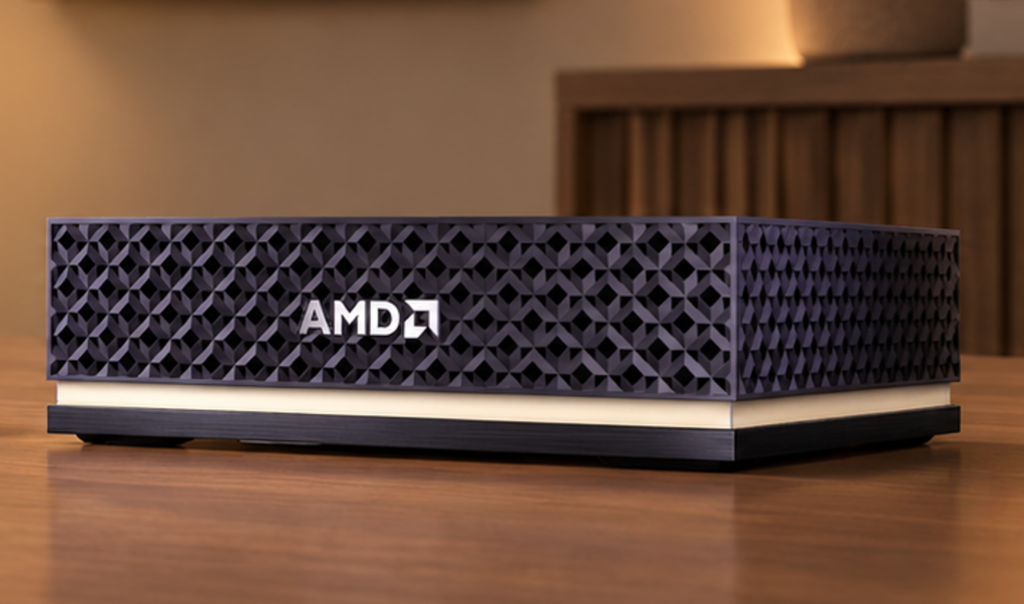
https://youtu.be/DsLkQ04iECA People are already using mini desktop PCs as always-on machines for long-running agents. But too often, getting started requires terminal-based setup, complicated configuration, and security trade-offs that weren’t designed for agent workloads.  Today, we’re announcing a simpler way to set up popular agents on mini desktop PCs in just a few clicks, right out of the box. For OpenClaw users, we’re introducing a native Windows gateway that simplifies setup, along with MXC integration to help keep agents securely contained in a sandbox.  This is just the beginning. Over time, we intend to bring these experiences to more Windows devices, guided by customer feedback, so more people can securely run and work with the agents they choose.

Copilot+ PCs, with hybrid intelligence

Copilot+ PCs established a new class of thin, light and powerful Windows PCs designed to deliver advanced AI experiences on device. Across all Copilot+ PCs, over 2 trillion inferences are run locally per month, improving customers’ experience across search, imaging, and video calls, and today, over 40% of laptops being built for business are Copilot+ PCs. With fast performance, great battery life, and built-in AI features, Copilot+ PCs are your PC for everyday tasks, with even more capability on the way with the new Copilot and hybrid intelligence. See the latest Copilot+ PCs from Acer, ASUS, Dell, HP, Lenovo and Microsoft Surface, at: https://www.microsoft.com/en-us/windows/shop-pcs.   Copilot features powered by hybrid intelligence are expected to begin rolling out over the coming months on Copilot+ PCs4.

Builder PCs, for a new way to create with cloud and local AI

We’re designing new PCs for the builders – the developers, creators, and makers who are pushing the limits of what they can do with their PC. They bring together high-performance local compute and intelligence so people can build, iterate, and create with the right AI capability for the task. Builder’s PCs require powerful silicon, unified memory, and optimized AI experiences built for demanding local workloads. In June, Microsoft and NVIDIA introduced RTX Spark to help usher in this category. Windows will continue partnering with NVIDIA and other silicon vendors to expand these capabilities across more devices. Today, we’re excited to announce pre-order of new Windows PCs powered by RTX Spark from ASUS, Dell, HP, Lenovo, MSI and Microsoft Surface.

Surface Laptop Ultra and Surface RTX Spark Dev Box, available for pre-order

Surface Laptop Ultra Surface Laptop Ultra, our most powerful Surface ever, brings the vision of hybrid intelligence to life for creators, developers and AI builders. Designed around the RTX Spark, it combines up to 128 GB of unified memory with the ability to run AI models exceeding 120 billion parameters locally, bringing powerful AI compute to demanding creative and technical workflows. Alongside Surface Laptop Ultra, Surface RTX Spark Dev Box brings powerful local AI compute to the desk, helping developers and AI engineers experiment, evaluate models and iterate locally. Both devices are available for pre-order today, with Surface Laptop Ultra available beginning October 16 and Surface RTX Spark Dev Box shipping to customers in the U.S. November.

An ecosystem of Builder PCs, powered by RTX Spark

With Windows on RTX Spark, we're bringing last year’s frontier capabilities to your laptop. New Windows PCs powered by NVIDIA RTX Spark were designed as an ecosystem to maximize performance in tasks like local inference, image and video generation. We’re proud to support our device partners as they meet the unique needs of our customers. Across Windows PCs with RTX Spark, builders can see significant local AI performance gains compared with an Apple MacBook Pro 16-inch with M5 Pro, including up to5:
  • 2.1x faster time to first token6
  • 4.3x faster AI image generation7
  • 6.2x faster AI video generation8
Today you can pre-order the following PCs: 
  • ASUS ProArt P16 and ASUS ProArt P14: Combines powerful AI performance, ASUS Lumina Pro OLED displays and big capacity battery life in slim, lightweight 16- and 14-inch designs built for creators on the go.
  • Dell XPS 16 Creator Edition: The first XPS laptop powered by NVIDIA RTX Spark, giving creators and developers studio-grade performance, professional display accuracy, and local AI development in a premium, portable design.
  • HP OmniBook Ultra 16: Combines an ultra-thin premium design with breakthrough thermal innovation, delivering sustained performance for the most demanding AI workloads.
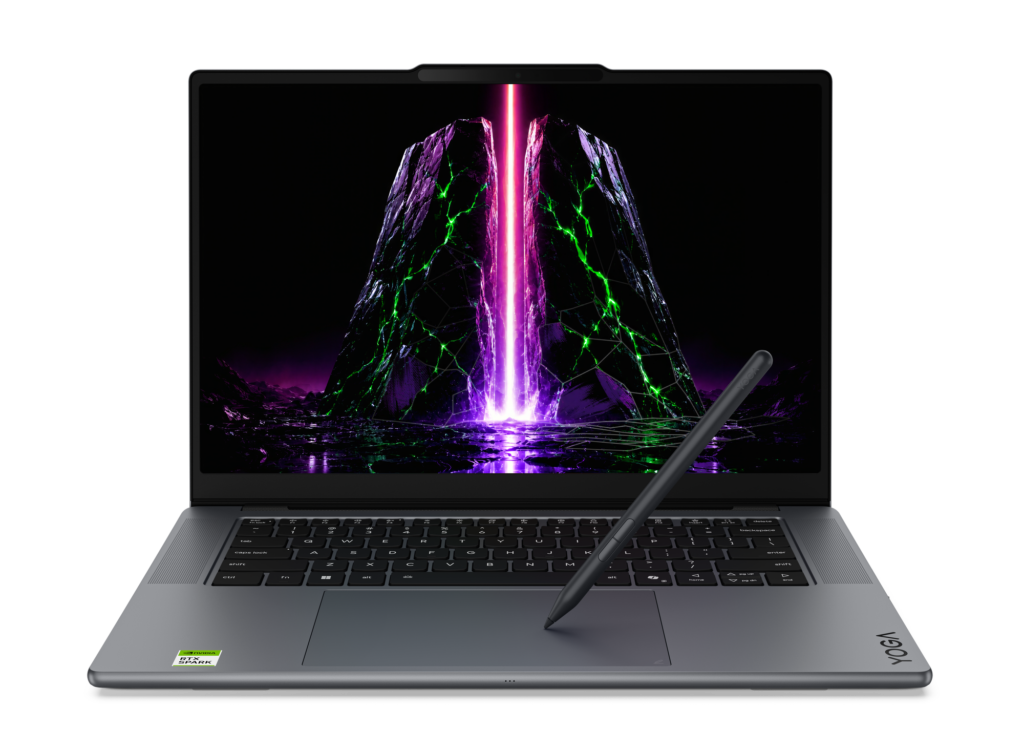
  • Lenovo Yoga 9n 2-in-1: A versatile convertible that combines NVIDIA RTX Spark with a 360-degree design and dual-surface pen input for creators who need high performance and flexibility to work independently or collaborate.
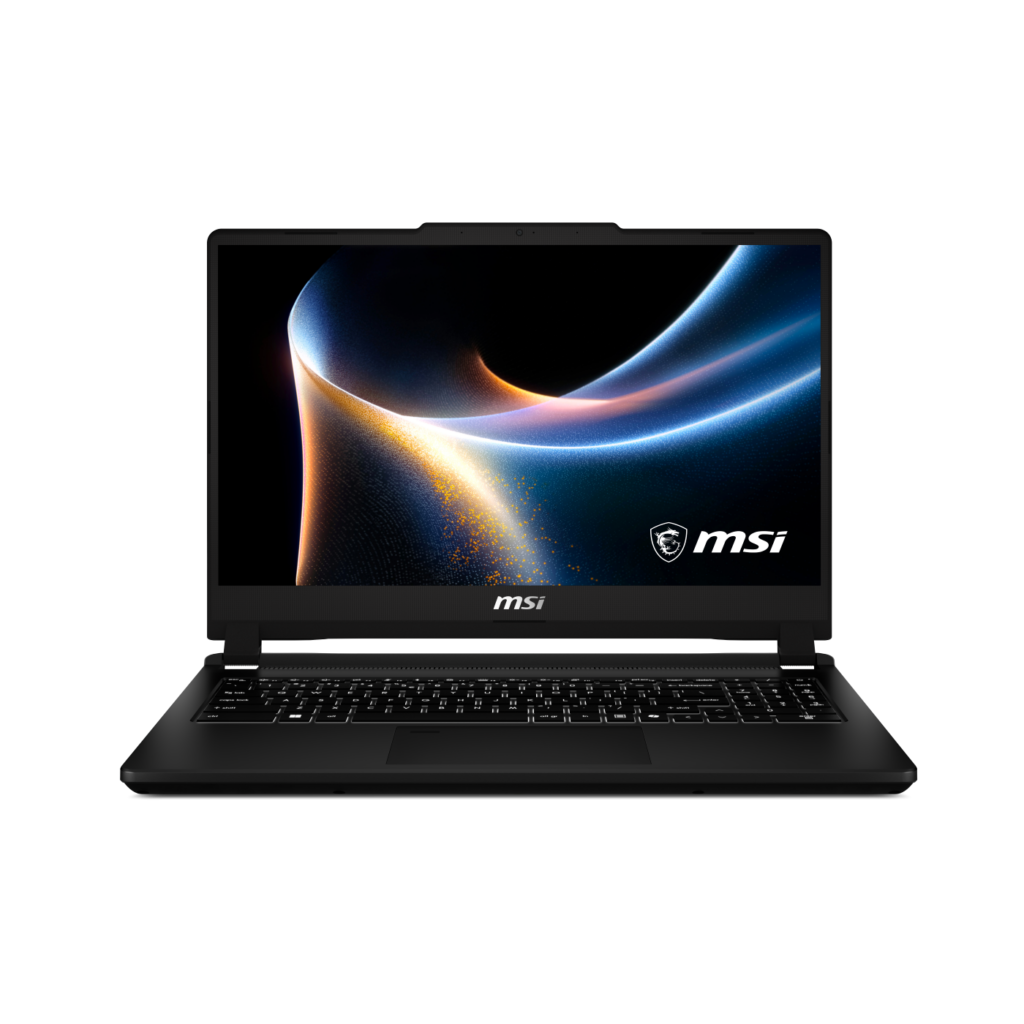
  • MSI Prestige N16 Flip AI+: Combines a thin-and-light 2-in-1 design with a 16-inch UHD+ Tandem OLED display, NVIDIA AI acceleration and a 99.9Wh battery for creators, professionals and gamers on the go.
  • Surface Laptop Ultra: The most powerful Surface Laptop ever, built around NVIDIA RTX Spark with up to 128GB of unified memory, a 15-inch touchscreen and a new thermal architecture engineered for sustained performance. 
All of these RTX Spark Windows PCs are available for pre-order starting today and begin shipping October 16. The RTX Spark based dev boxes and mini desktops will be coming later this year.

AI supercomputers, with DGX Station for Windows

With Windows on DGX Station we're bringing last quarter’s frontier capabilities to your desktop. At the top of the range, we’re excited to announce that new supercomputers powered by NVIDIA DGX Station will be available on Windows later this year. Utilizing the NVIDIA GB300 Grace Blackwell Ultra Desktop Superchip, DGX Station for Windows brings data-center-class performance together with enterprise grade security and manageability. This unlocks the power to run frontier-class models locally, from Llama 4 Maverick and Kimi K2.6 to DeepSeek V4 Pro, at more than a trillion parameters9. Capabilities that once required renting a cluster, now in a deskside supercomputer. This brings a new level of AI compute to Windows, enabling developers, engineers, scientists and organizations everywhere to run frontier-class models and agentic workloads on devices that were previously limited to the cloud or data centers. The DGX Station for Windows enables 2 key customer scenarios:
  • Personal AI Supercomputer: For the most demanding engineering, scientific, and research workloads, DGX Station for Windows enables a generation of powerful Windows applications accelerated by multimodal agents that can model, perceive, and design for the physical world.
  • Scalable Windows Token Factory: DGX Station for Windows can also serve as powerful token factory for teams, supporting 32 or more simultaneous agents serving teams of developers, engineers, or researchers, helping reduce cloud token consumption.
By keeping inference local, organizations can keep sensitive data and IP within their own environment and manage their AI Supercomputers and Token Factories using the same trusted tools they use across their Windows fleet today. The result is a shared AI resource on Windows that helps lower operating costs, improve responsiveness, and give teams greater control over how and where their AI workloads run. Paired with MXC, it’s never been easier to build, govern, secure, and trust end-to-end agentic loops on Windows. Today we welcome the Dell Pro Precision with GB300, and HP ZGX Fury AI Station, both coming later this year, alongside more from our other OEM partners, running the Windows platform organizations know and trust.

Windows gets more capable across everyday tasks

Hybrid intelligence opens up an entirely new chapter for Windows, but innovation isn’t only about what’s next. It’s also about making the experiences you rely on every day faster, easier and better, from getting things done to how you play. 

Introducing actions in Windows Search: Go from finding to doing

https://youtu.be/Nj5KL9yDlwE Search has always been about quickly helping you find what you need. Today, we’re introducing a new Windows Search experience that is faster, more efficient, and enables richer experiences, beginning with thousands of new actions that will be available directly from the taskbar.  These new actions help you finish tasks right where you started, without opening another app or navigating through additional screens. We’re starting with familiar tasks where saving a few steps can make a meaningful difference in everyday use.    Here are a few things to try:  
  • Turn something on or off. Try phrases such as “switch to dark mode, “turn on Do Not Disturb,” or “enable Airplane mode.” 
  • Make a quick adjustment. Try “dim my screen” or “mute.”
  • Manage your workspace. Try “minimize all my windows,” or “arrange my windows.”
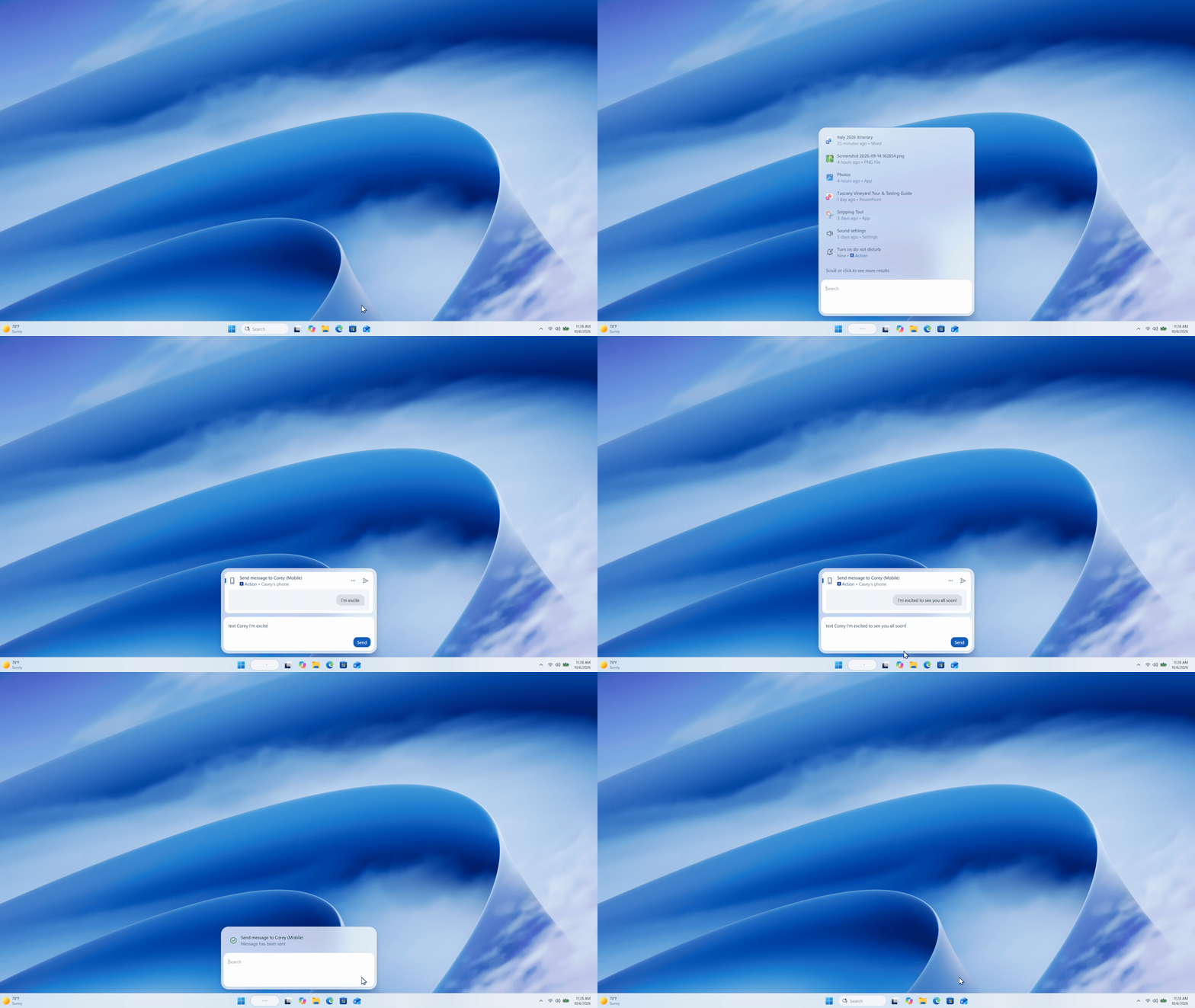
  • Send a message. Try “Text Elisa I’ll be there soon.” 
We will also begin adding the option to integrate the new Copilot with Search on the taskbar, so you can get quick answers inline from Search, and if you want to have a richer conversation, you can jump from Search directly to the full Copilot app. This experience will be opt-in, and will first start rolling out to select markets later this year. New actions will begin rolling out to Windows Insiders in the experimental channel today. Visit to read more: From searching to doing: Building a faster, more streamlined Windows Search . 

Advancing gaming across the Windows PC ecosystem

Gaming is a fundamental part of Windows, and with new Windows PCs powered by RTX Spark, we’re continuing to expand where and how people can play the games they love.  Over the past several years, we’ve made significant investments to improve the gaming experience on Arm-based Windows PCs with expanded availability of Prism, support from leading anti-cheat providers, and XBOX PC app compatibility.   RTX Spark™ now raises those investments to new levels for gaming performance and graphics capabilities, showcased by Gears of War: E-Day, with support for features like DirectX raytracing, variable rate shading, and DirectStorage. Gears will also be the first to offer expanded support for Advanced Shader Delivery, cutting first-launch shader compilation from minutes to seconds and helping reduce in-game stutter, so players spend less time waiting, and more time playing.  Combined with growing support from game developers and publishers such as Electronic Arts, Embark, Tencent and Ubisoft joining KRAFTON, NetEase, Riot Games, Epic Games and more, players now have access to a deep and growing catalog of PC games on Windows on Arm, including Fortnite, Alan Wake 2 and the new World of Warcraft: Forever, and other top titles coming soon, like League of Legends, Valorant, PUBG: Battlegrounds, Genshin Impact and other top titles on Arm-based Windows PCs.  And we’re super excited to announce that in 2027, Call of Duty will be coming to RTX Spark™.   Windows is the home for PC gaming and together with our partners, we’re making Windows on Arm continue that heritage. That means more of the games players love, richer graphics, and less time waiting to get into the action.

Innovation built on a foundation of quality

Innovation only matters when the foundation underneath is great. Over the past year, the team has been hard at work improving Windows quality, and we continue to invest in everyday performance, reliability, and craftmanship that have meaningful impact on the way people experience Windows. This work has spanned giving customers more personalization and control in places like Windows updates, Start and taskbar, Search, the Windows Insider program, as well as deep investments with our partners to enhance driver quality, reliability and security with our ecosystem. It has also included significant efforts to make Windows the best destination for developers, including optimizations specific to the developer experience. In July we shared how this work continues as we deliver ongoing improvements customers can feel across each of these areas, which will only grow in importance with the new capabilities we’ve shared today. The way forward for Windows   This is the future we’re building: agents that can work securely on your behalf, intelligence that moves seamlessly between local and cloud, and devices that become more capable than ever before. At the same time, Windows will continue to get better at the everyday experiences people rely on — from Search to gaming and everything in between. From the edge to the frontier, Windows is the home for hybrid intelligence — helping individuals and organizations get more done, more efficiently, with security built in.  Explore the new Windows PCs powered by NVIDIA RTX Spark and join us at Microsoft Ignite in November to learn more about putting hybrid intelligence to work for your organization.
[1] Governance at scale may require additional services. [2] Windows Update required. Features will roll out over time, and availability and timing may vary by device, market, and silicon platform. [3] Windows Update required. Features will roll out over time, and availability and timing may vary by device, market, and silicon platform. [4] Availability and timing may vary by device, market, and silicon platform. [5] Compared with an Apple MacBook Pro 16-inch with M5 Pro and 64 GB of memory, tested Windows PCs with NVIDIA RTX Spark. [6] Based on Microsoft-commissioned testing conducted in September 2026, comparing a selection of preproduction Windows PCs with NVIDIA RTX Spark (64 GB) and a preproduction Microsoft Surface Laptop Ultra with NVIDIA RTX Spark (64 GB) against an Apple MacBook Pro 16-inch with M5 Pro (64 GB). Tested in llama.cpp using the Qwen3.5 27B model (Q4K-Medium) with a fixed 8,192-token prompt. Performance varies significantly by device configuration, usage and other factors. [7] Based on NVIDIA testing conducted in September 2026, comparing a selection of preproduction Windows PCs with NVIDIA RTX Spark (64 GB) and an Apple MacBook Pro 16-inch with M5 Pro (64 GB). Tested in ComfyUI using FLUX.2 Klein 4B at NVFP4 precision, four sampling steps, and an output resolution of 1024 × 1024. Performance varies by device. [8] Based on NVIDIA testing conducted in September 2026, comparing a selection of preproduction Windows PCs with NVIDIA RTX Spark (64 GB) and an Apple MacBook Pro 16-inch with M5 Pro (64 GB). Tested in ComfyUI using LTX 2.3 22B at NVFP4 precision, 121 frames at 25 fps, eight steps, and an output resolution of 1280 × 720. Performance varies by device. [9] Powered by the NVIDIA GB300 Grace Blackwell Ultra Desktop Superchip with up to 748 GB of coherent memory and 20 petaflops of FP4 AI compute, it delivers data-center-level performance, supporting large AI models up to 1 trillion parameters.
  •  

From searching to doing: Building a faster, more streamlined Windows Search

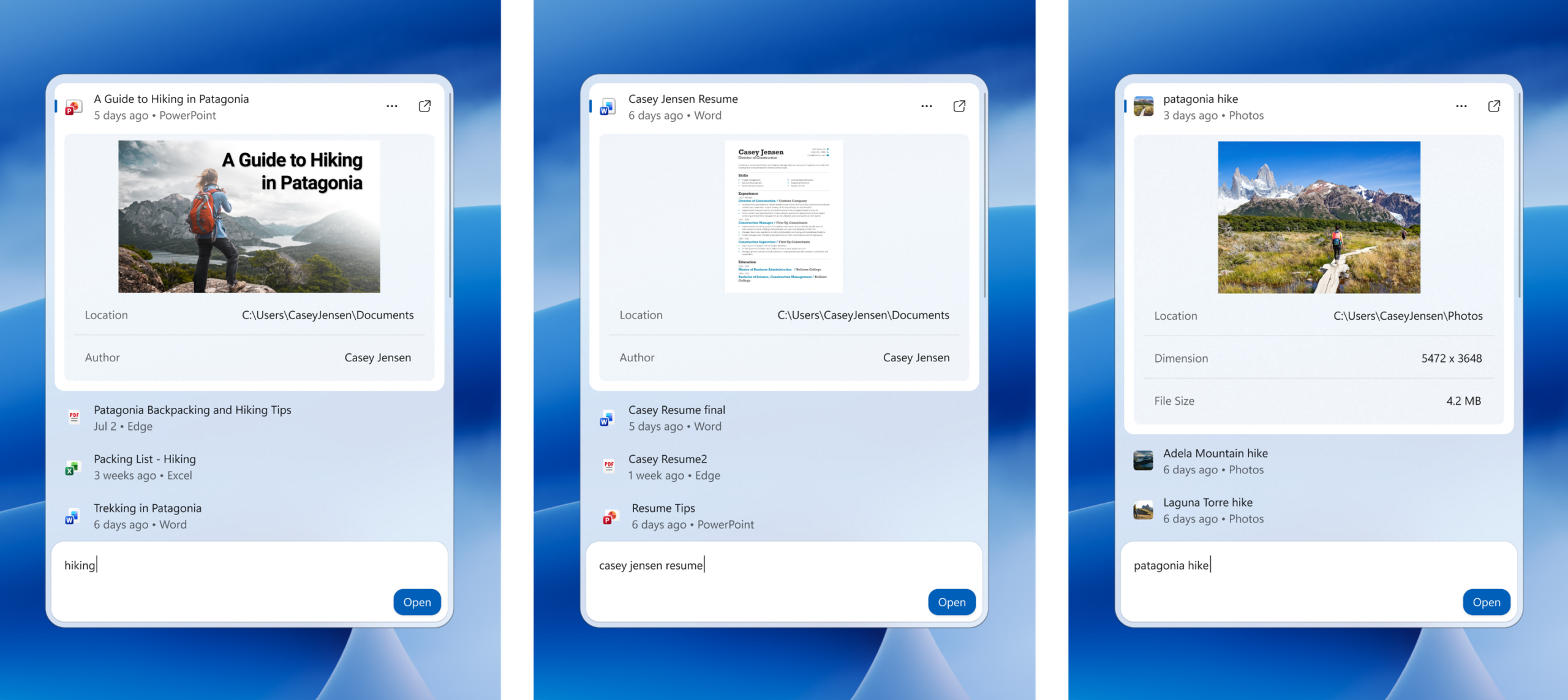
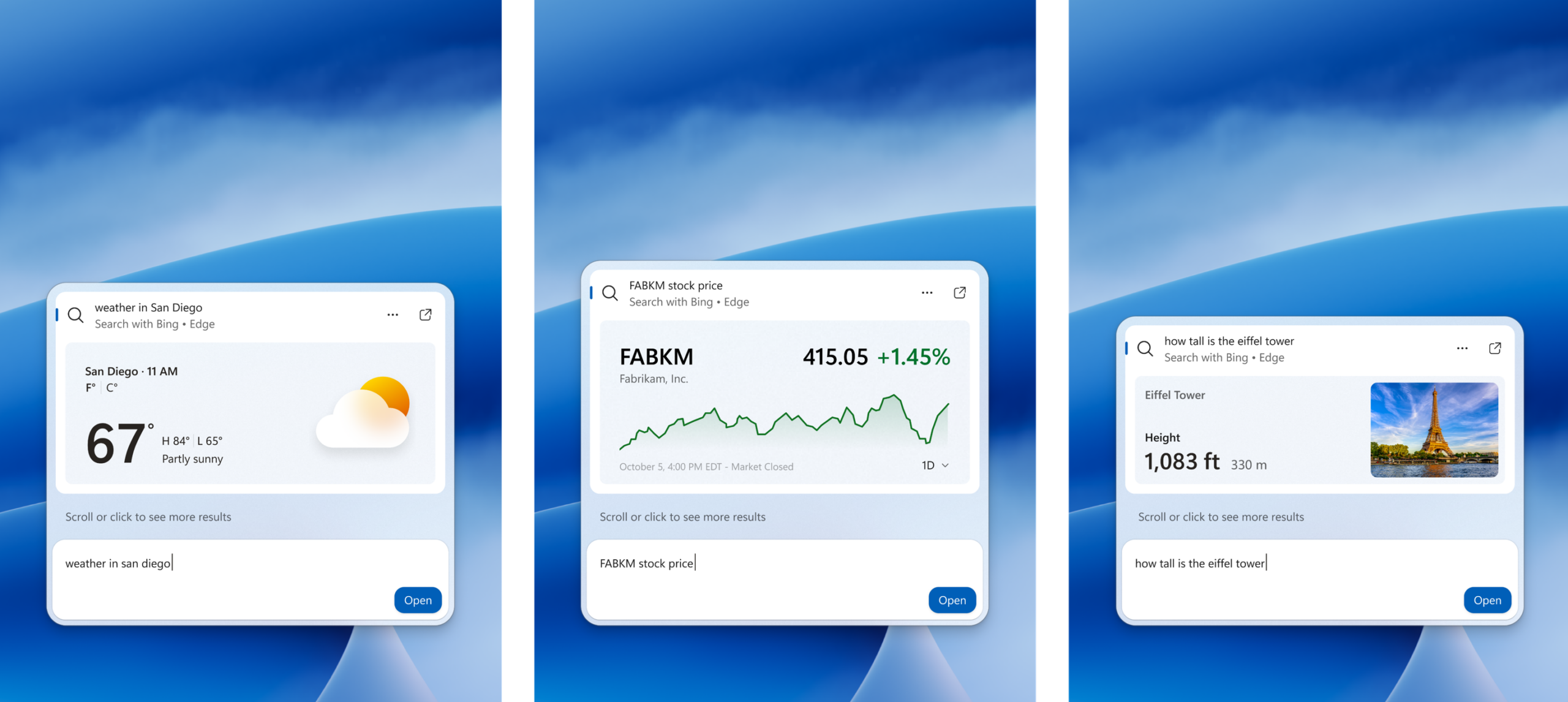
Hello Windows Insiders, Search is one of the most familiar ways to get around a Windows PC. It is how you may open an app, find a file, change a setting, or simply look for information. As Insiders, you have also been clear about what you expect from it: search should be fast, focused, and help you find what you need without friction. In July, we shared how we are improving the Windows Search Box with less clutter and more control. We introduced a calmer home screen, removed promotional content from web results, and gave you more choice over whether web and Microsoft Store suggestions appear. Today, we’re carrying those investments forward with a new Windows Search experience built on WinUI 3. This modern foundation makes Windows Search faster and more efficient with resources, while delivering an even more streamlined and focused design. [caption id="attachment_179190" align="aligncenter" width="2560"]Screenshot of the new Windows Search experience Windows Search showing recent files, apps, settings, and an inline action to turn on do not disturb[/caption] Beginning 10/7, we’re rolling out this new experience on the taskbar for Windows Insiders. We are sharing this version early and intentionally so your feedback can help us fine-tune the experience, improve result relevance, identify stability issues across real-world hardware and workflows, and shape the UX before we expand the preview. Below, we’ll share what you can try today in the Experimental channel, what’s coming later this year, and what we’re building toward in the year ahead. First, this new Windows Search experience is built for speed. It’s built on WinUI 3 and is part of our broader investment in modernizing our core Windows experiences. Early testing shows substantial improvements in performance and memory usage, so it feels faster and more efficient from the moment you open it. Next, we’ve streamlined the UI into a single list to make it easier to scan and focus on what matters. Data shows that nearly all clicks in the current UX come from the results list on the left, rather than the large preview pane on the right. Informed by this behavior and your feedback, the new design brings results together in a single, easy-to-scan view that reduces visual clutter and puts the information you need in one place. We’re also improving how Windows Search understands what you’re looking for, including better matching for typos and synonyms. We’ll continue fine-tuning these improvements over the coming weeks. Later this year, inline previews and richer file details will make it easier to differentiate similar results and give you more context before opening a file. [caption id="attachment_179199" align="aligncenter" width="2560"]Screenshots of inline previews of documents and photos Windows Search showing inline previews for a PowerPoint presentation, a Word document, and a photo directly in search results[/caption] Rich inline web previews will bring answers to queries like “weather in San Diego” or “How tall is the Eiffel Tower?” directly into Windows Search, helping you get useful information without leaving the experience. [caption id="attachment_179201" align="aligncenter" width="2560"]Screenshots of rich inline web previews Windows Search showing rich web previews for weather in San Diego, a stock price, and the height of the Eiffel Tower[/caption] You’ll also be able to narrow results with filters when exploring a category like files. These are experiences you may already be familiar with today but will be brought together in a more streamlined, single-pane layout. Lastly, we are expanding what search can help you accomplish. Search has always been about quickly helping you find what you need, and we’re turning Windows Search into a more capable starting point for getting things done in Windows with inline actions.

Actions: From finding to doing

We’re introducing inline actions to help you finish tasks right where you started, without opening another app or navigating through additional screens. We’re starting with familiar tasks where saving a few steps can make a meaningful difference in everyday use. Here are a few things to try:
  • Turn something on or off. Try phrases such as “switch to dark mode," “turn on night light,” or “turn on Bluetooth.”
  • Make a quick adjustment. Try “dim my screen” or “mute.”
  • Manage your workspace. Try “minimize all my windows,” or “arrange windows on screen.”
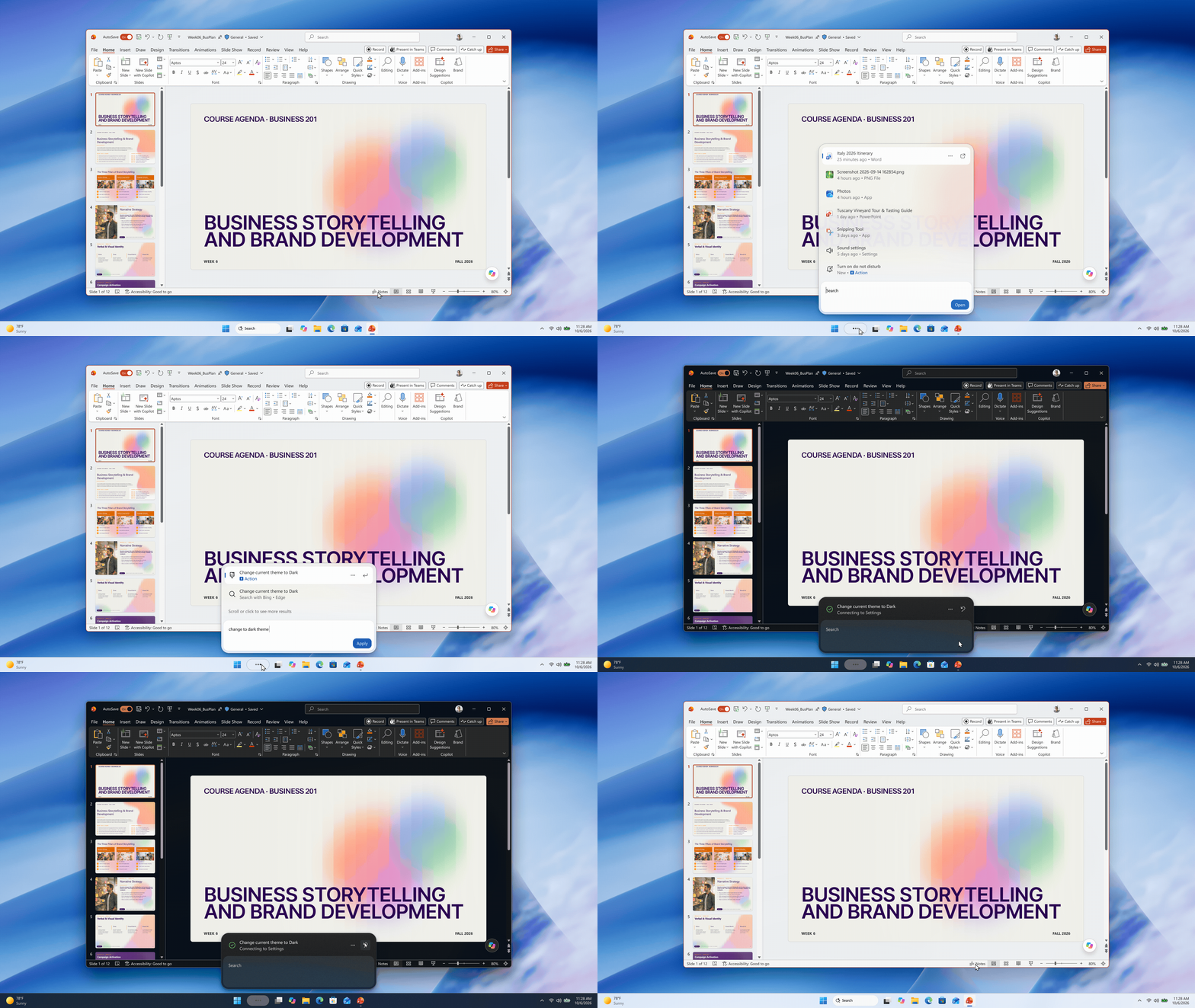
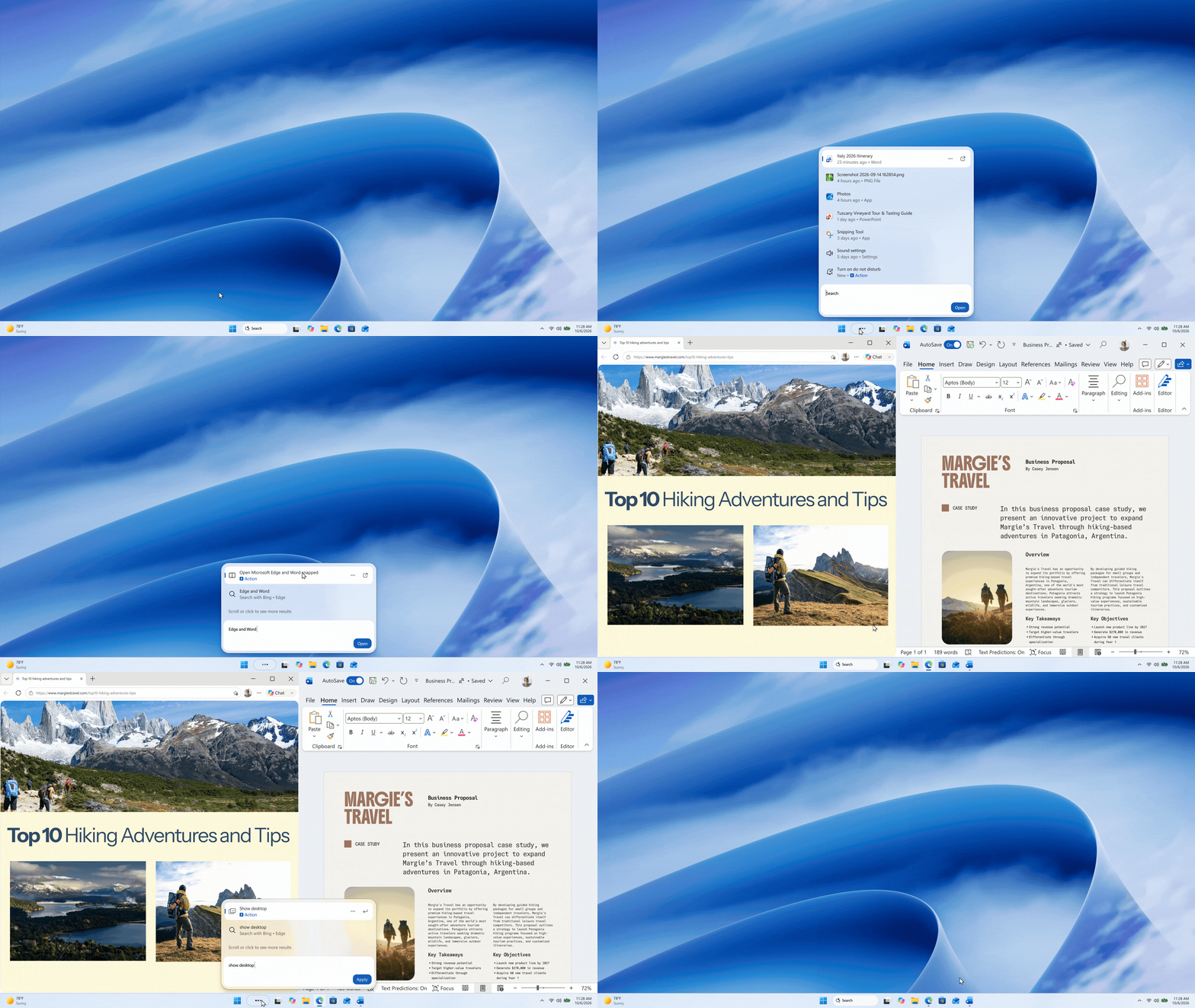
[caption id="attachment_179195" align="aligncenter" width="1920"]GIF showing dark mode being enabled form the new search experience Windows Search demonstrating an inline action to change the system theme to dark mode.[/caption] [caption id="attachment_179228" align="aligncenter" width="1920"]Windows Search demonstrating an inline action to snap Edge and Word Windows Search demonstrating an inline action to snap Edge and Word[/caption] Coming soon, you’ll also see phone actions to complete quick tasks with your Phone Link connected device. [caption id="attachment_179197" align="aligncenter" width="1920"]GIF showing phone actions in the new Search experience Windows Search demonstrating an inline action to send a text on a Phone Link connected device[/caption] We’re starting with the actions people rely on most and will continue building on that foundation over time. Every piece of feedback helps us improve how search understands intent and expand the range of tasks you can complete directly from Windows Search.

What's ahead

Looking to next year, work is already underway to bring the new Windows Search experience to the Start menu and have it adapt naturally to different taskbar positions and Windows configurations. In our initial previews, you’ll continue to see the existing search experience when searching from the Start menu while we learn and refine the new experience with your feedback. Our goal is to make Windows Search more capable, with more natural ways to express what you need, richer information in context, and more ways to get things done directly from search – including thoughtful integrations with experiences like Copilot. Together, these improvements will help reduce the distance between finding something and getting it done, while preserving the speed and familiarity you expect today.

Try the new Windows Search and give us feedback

This search experience with inline actions is gradually rolling out to Windows Insiders starting today in the Experimental channel, with English as the supported language for this initial release. If you’d like to preview it sooner, you can also enable this experience in Settings > Windows Update > Windows Insider Program > Feature flags. After upgrading to build 26340.9616 in the Experimental channel, or build 28120.3181 in the Experimental (26H1) channel, you’ll need to click the "Check for updates" button in Windows Update, and restart your device before the ‘New Windows Search Experience’ feature flag is visible. If you are moving a device to a Windows Insider build for the first time, please see Get started with the Windows Insider Program - Windows Insider Program | Microsoft Learn. Share your feedback in Feedback Hub (WIN + F) under Desktop Environment > Search. Your feedback will help us tune the experience and shape what comes next. Anshul
  •  

Announcing new builds for 2 October 2026

Hello Windows Insiders, Today, we’re releasing new Windows 11 Insider Preview builds to the Beta and Experimental channels. New builds this week Select your channel below to view its release notes: For those on other specific Windows build versions, here are today’s new builds and release notes: Also a reminder that next week October 7, we have our Windows and Surface event at 10AM Pacific time! Tune in to watch live via the Windows YouTube channel.  Thanks, Stephen and the Windows Insider Program team
  •  

WSL containers is now generally available

WSL is central to our commitment to making Windows the best place to build, run and manage Linux workloads. As AI, cloud-native development, containers, and open-source ecosystems continue to converge on Linux, more developers are choosing to perform these workloads directly on Windows devices. We’re continuing our journey towards this goal with a new feature in WSL: WSL containers, which is generally available today. To try it out,  simply runwsl --update in your terminal or download the latest release from GitHub and you will gain access to:
  • WSL containers CLI: wslc.exe to directly build, run and deploy Linux containers on Windows, or use its built-in alias container.exe to run the same familiar container commands
  • WSL containers API: Access functions to run Linux containers programmatically in your native Windows apps – unlocking scenarios like running local AI workloads or using cloud-based containerized applications locally.
PowerShell WSL Containers Screenshot For a deeper look at how WSL containers are built, how they work with WSL, and the architecture behind the platform, see our WSL containers architecture blog. Let's get into what's new with GA.

New commands and capabilities

Since public preview, we've continued to evolve WSL containers and our focus has been on making every day container workflows simpler, improving visibility into running environments, and adding the flexibility needed to manage containers at scale. As part of the GA release, we've introduced several new commands and capabilities across container lifecycle, networking, and observability. Here are a few highlights, and you can view the full change logs on our releases page:
  • wslc container restart — restart a running container
  • wslc container cp — copy files in and out via tar archive
  • wslc system info — see the state of your container environment at a glance
  • wslc network connect and wslc network disconnect — attach and detach containers from networks
  • wslc network create now supports arbitrary network driver options
  • wslc events – Streams real time container activity
  • Container health checks are now supported
  • --stop-timeout on wslc create and wslc run, including -1 for an infinite timeout
  • --mount support during wslc create and wslc run
  • A configurable storage path for the default wslc session, so you can put your container storage on the drive you want.
Alongside new commands and platform enhancements for developers, we've also focused on helping organizations adopt WSL containers with the governance and security controls required for production environments.

Enterprise manageability for WSL containers

This release extends Microsoft Intune and Microsoft Defender for Endpoint (MDE) integrations in WSL to include container workflows as well. MDE’s existing plugin for WSL has been augmented to also include support for containers. MDE can surface process, file and network activity from WSL containers and connect that activity back to Windows host, helping security teams investigate suspicious activity without creating a separate security workflow. Microsoft Intune has also added controls to enable or disable WSL container and restrict image pulls to approved registries. Additionally, on your Intune dashboard you will see new settings specific to the WSL container feature:
  • Allow WSL containers access - Control access to the entire WSL containers feature.
  • WSL containers registry allow list - For WSL containers enterprise adoption, organizations need stronger controls over the container images that can be introduced into their environment. With container registry allow lists, administrators can define approved registries and help ensure developers only pull container images from that list, that meet organizational security and compliance requirements.
You can view the WSL enterprise doc pages to learn more on how to set up WSL for your company.

Partner and community integrations

Partners and community contributors are bringing WSL containers into the editors, terminals and desktop tools developers already use, adding support for WSLc into existing projects or creating new ones. We're grateful for the fantastic community contributions that continue to expand the ecosystem around WSL containers.
  • VS Code dev container support: Use wslc as your default driver for creating and interacting with VS Code dev containers
  • Aspire: Aspire can use WSL Containers as first-class container runtime
  • VS Code container extension: A popular extension to manage your containers in VS Code, now supports wslc.
  • Lazywslc: A TUI dashboard to manage your WSL containers
  • WSL Container Desktop: WinUI 3 desktop app for managing WSL containers, Kubernetes (k3s) and container registries.
  • WSLc remote: A short wrapper script to run wslc from within WSL distros

What's next for WSL

Over time, we see Linux on Windows evolving beyond a development environment into a strategic execution platform for AI and cloud-native workloads, participating in the same enterprise security, management, and governance frameworks as Windows. We will continue to invest in the broader WSL experience, and in context of this release wanted to highlight two WSL specific items on our roadmap.

Adding wslc compose

Our top feature request for WSLc is adding compose support, and this will be our focus for our next iterations.   Our aim is for wsl compose up to work with your existing compose.yaml files, unchanged. We’ve started on this and hope to share more soon.

WSL fundamental improvements

We are also actively investigating how to better improve some of the core platform capabilities for WSL including networking, cross-OS file performance and more. You can see some of this work today with wslc, supporting up to 2x faster performance when accessing Windows files from Linux environments, helping reduce one of the most common cross-OS bottlenecks. It also introduces the new consomme network mode, enabled for container workflows which improves networking compatibility across developer and enterprise scenarios. These foundational improvements benefit WSL distributions, WSL containers, and other container technologies built on WSL, reflecting a broader effort to make Linux on Windows feel increasingly seamless and integrated.

Building the future of Linux on Windows, together

Thank you to the developers who tested the preview, shared feedback and helped improve WSL containers.  You can file any technical issues and feature requests at the WSL GitHub repo microsoft/wsl, and you can learn more about WSL at the WSL docs. We invite you to bring your next project to WSL containers and help shape what comes next. We will continue investing in the performance, compatibility and integration that make Windows a great place to build with Linux.
  •  

How to get the Windows 11 2026 Update

Windows powers how people around the world work, learn, create, and connect every day. Today, we're announcing the availability of the Windows 11 2026 Update, also known as Windows 11, version 26H2. Built on the same servicing foundation as recent Windows 11 releases, version 26H2 delivers the latest Windows innovations with a streamlined update experience designed to minimize disruption and help you stay secure, productive, and up to date. As organizations and individuals continue to expect faster deployments and less downtime, Windows 11, version 26H2 takes advantage of the same modern servicing technologies that have simplified recent feature updates. For many eligible devices, moving to version 26H2 is as simple as installing a small enablement package, allowing people to start using this new release with minimal download size, quick installation, and a single restart.

A predictable and low-disruption update

Windows 11, version 26H2 is delivered as an enablement package for eligible devices running Windows 11, versions 25H2 and 24H2. An enablement package is a lightweight update that activates new features already included in the operating system through previous monthly servicing updates. Because versions 26H2, 25H2, and 24H2 share a common servicing branch and underlying codebase, many of the components required for version 26H2 are already present on devices before the feature update becomes available. This approach enables a significantly faster update experience compared to a traditional operating system upgrade. For eligible devices, installation is similar to a monthly update, requiring only a small download and a quick restart to transition to Windows 11, version 26H2. As with every Windows release, version 26H2 includes the latest quality, reliability, and security improvements designed to help protect people and organizations while delivering a dependable Windows experience.

How to get it

Windows 11, version 26H2 is now available for eligible devices running Windows 11, versions 25H2 and 24H2. To be among the first to receive the update, go to Settings > Windows Update and turn on Get the latest updates as soon as they're available. Once your device is eligible, you'll see the option to download and install Windows 11, version 26H2. As always, we take a measured and data-driven approach to broad availability and will be releasing version 26H2 using a controlled feature rollout. During rollout, we might place safeguard holds on devices where we detect a known compatibility issue that could impact the update experience. We will continue expanding availability over time and provide updates through the Windows release health hub.

Information for commercial and education customers

Windows 11, version 26H2 is available now through the tools organizations use to manage Windows updates, including Windows Autopatch and the Microsoft 365 admin center[i]. Existing management tools, update rings, policies, and deployment practices can continue to be used. We recommend that commercial and education customers begin targeted deployments to validate applications, devices, and business-critical workflows before expanding deployment more broadly throughout their organizations. Windows 11, version 26H2 continues the annual Windows feature update cadence, with a new Windows 11 feature update released during the second half of the calendar year. As with previous annual releases, installing version 26H2 resets the support lifecycle for supported editions of Windows 11. That means 24 months of support for Home and Pro editions and 36 months of support for Enterprise and Education editions. Select features and enhancements initially released as disabled by default in version 25H2 will be enabled by default in version 26H2. You can find more information on these features, plus guidance to help with planning and deployment, in the Windows IT Pro Blog.

Staying protected and productive

We recommend updating eligible devices to Windows 11, version 26H2 to take advantage of the latest Windows innovations, quality improvements, and security enhancements. We'll continue to closely monitor the rollout and share information about known issues, safeguards, and rollout progress through the Windows release health hub and official Windows communications channels. Thank you for your feedback and partnership as we continue to improve Windows for people and organizations around the world. We love to hear about your experience, so please keep your comments and suggestions coming in via Feedback Hub.
[i] Downloads in the Microsoft 365 admin center and similar channels may be delayed. 
  •  

Announcing new builds for 25 September 2026

Hello Windows Insiders, Today, we’re releasing new Windows 11 Insider Preview builds to the Beta and Experimental channels. New builds this week Select your channel below to view its release notes: For those on other specific Windows build versions, here are today’s new builds and release notes:
  • Beta (26H1): Build 28020.3112
  • Experimental (26H1): Build 28120.3122
  • Experimental (Future Platforms): We do not have a release for Experimental (Future Platforms) today.

Notable new features:

[Start menu - Phone companion]

Release channel: Experimental
  • See more of your latest activities at a glance: Phone companion for the Start menu now shows more of your recent activity, with a scrollable side pane so you can view even more without leaving the Start menu.
[caption id="attachment_179178" align="aligncenter" width="1920"]The phone companion in Start with a scrollable pane for viewing more recent mobile activity. The phone companion in Start with a scrollable pane for viewing more recent mobile activity.[/caption]

[Settings]

Release channel: Experimental
  • Windows Insiders will now see Energy Recommendations directly in Quick Settings, making it easier to discover and take actions that can help reduce energy consumption and improve device sustainability.
[caption id="attachment_179179" align="aligncenter" width="550"]The Power & battery settings page showing Energy Recommendations, including suggested actions. The Power & battery settings page showing Energy Recommendations, including suggested actions.[/caption] Thanks, Stephen and the Windows Insider Program team
  •  

Introducing the next Surface Pro 12-inch and Surface Laptop 13-inch with Snapdragon X2 Plus: Greater performance that travels light

Today at Snapdragon Summit, we introduced the next Surface Pro 12-inch and Surface Laptop 13-inch, built on the Snapdragon X2 Plus® processor, alongside the new Surface Mouse with integrated haptic feedback1. Surface Pro 12-inch and Surface Laptop 13-inch are two of our most versatile Surface devices, designed to deliver the performance and battery life people need in PCs they can comfortably carry all day. This generation brings up to 18% more efficient battery performance2, over 60% faster graphics3, and 95% faster on-device AI4 — all in the same lightweight design.

What defines Surface laptops?

Surface is hardware built to bring the best of Microsoft to life — Windows, Copilot, and Microsoft 365 experiences that make a PC feel more useful, more personal and more responsive.  That work starts long before the chip is finished. Surface engineers partner with Qualcomm Technologies, Inc. during silicon development to help make sure Snapdragon X2 is tuned for the realities of thin, light PCs: sustained performance, efficient power use, quiet thermals and responsive on-device AI.  It’s the innovation role Surface has always played: turning what’s possible in Windows into products people can hold, carry and use every day. We did it with touch, pen5, and haptics. We’re doing it now with AI on the PC. With Snapdragon X2 Series and Windows, you shouldn't have to choose where that AI runs. Supported experiences can use the device, the cloud, or both, so you get lower latency, less dependence on cloud calls and tokens, and more privacy when your data stays with you.  The result is more than a processor upgrade. Compared to previous generations, Surface Pro 12-inch and Surface Laptop 13-inch with Snapdragon X2 Plus offer: 
  • Up to 17% faster in Office productivity workloads6,7 
  • Up to 18% more efficient battery performance8  
  • More than 60% faster graphics performance2,9 
  • Up to 95% faster local AI inferencing on the NPU3,8
Peak numbers only tell part of the story. What matters is hour six — twenty tabs, a call running, something rendering — and the machine still calm and quiet in your hands.  Surface Device Showcase

Surface Pro 12-inch: big ideas start here

Surface Pro 12-inch is the most portable and versatile Surface Pro we make — a thin, light and fanless Windows PC that moves from tablet to laptop as quickly as your day changes. Attach Surface Pro 12-inch Keyboard to write, code or respond to email. Pick up the magnetically stored Surface Slim Pen when an idea is easier to sketch than type.5 With Snapdragon X2 Plus, Pro feels more responsive for everyday work like summarizing notes, editing photos and annotating designs, and adds an extra hour of active web browsing10. A 25% brighter, 500-nit PixelSense™ touchscreen and new Black color bring more clarity and choice11, while an enclosure made with 86% recycled content reflects the craft behind a design built for wherever work moves.12 Surface Pro 12-inch starts at $1149.99 MSRP, available starting October 13 in select markets. Microsoft Ink Canvas Surface Pro 12-inch introduces Microsoft Ink Canvas, an AI-powered, pen-first experience for sketching, annotating, generating images and summarizing text directly on the canvas. Built for the moments before an idea becomes a document or prompt, Ink Canvas lets customers use Slim Pen to express intent visually, spatially and in their own handwriting — giving Copilot richer context and helping rough thoughts become useful creations faster.5 Ink Canvas will be pre-installed on the new Pro 12-inch, and will also be available to download from the Microsoft Store on other supported Surface and Windows devices on October 13.13 Surface Laptop

Surface Laptop 13-inch: think big, travel light

Surface Laptop 13-inch is the classic Surface laptop refined — a thin, light Windows PC built around the details that people notice every day: a full-size backlit keyboard, precision touchpad, premium aluminum body and taller 3:2 PixelSense™ touchscreen.14,16 Snapdragon X2 Plus keeps everyday experiences feeling smooth, whether you’re streaming a movie or designing a presentation. With a 25% brighter, 500-nit display, 22.5 hours of battery life15 and a new Black color9, Surface Laptop is designed to feel polished, personal and easy to carry every day. Surface Laptop 13-inch starts at $1,199 MSRP, available starting October 13th in select markets. Surface Mouse

Surface Mouse: feedback you can feel

We also introduced Surface Mouse, a new mouse designed to make everyday interactions feel more precise. Its haptic feedback adds a small, purposeful physical response to the moment you usually only see on a screen: a click registering, a window snapping into place or an object aligning just right. It is subtle by design, but noticeable within seconds — and hard to give up once you have it. Surface Mouse brings a redesigned ambidextrous shape for comfortable all-day use, a customizable action button for Copilot16 and everyday shortcuts, and Bluetooth 6.0 so you can pair with multiple devices and move between them easily. It’s also made with 30% recycled content, including the most post-consumer recycled plastic of any Surface mouse.17 Surface Mouse starts at $79.99 and will be available in Black and Platinum beginning October 13th in select markets.

Built for business, ready for AI

Surface Pro 12-inch, Surface Laptop 13-inch and Surface Mouse will also be available to commercial customers through Surface for Business beginning October 13. Pro 12-inch will also offer an optional 5G configuration18 — one of the most requested additions to this form factor — helping mobile teams stay connected without relying on public Wi-Fi. Across both PCs, Snapdragon X2 Plus gives organizations a consistent foundation for supported local AI experiences.  Security and manageability are built in from chip to cloud. Microsoft-designed protections include Secured-core PC safeguards, Microsoft Pluton with TPM 2.0, and Surface UEFI built with Secure Patina Core and Project Mu open-source components available through the Open Device Partnership. Surface Tools for Business — including Surface Management Portal, Surface Support Portal, Surface IT Toolkit and Surface Repair Tool — help IT teams manage, protect, support and recover devices throughout their lifecycle.  Together, these devices extend the Surface for Business lineup with thin, light Windows PCs and accessories built for mobility, AI and modern endpoint management.

Find your next Surface at Microsoft Store

Choose Surface Pro 12-inch if you want one device that moves from tablet to laptop, with pen-first flexibility for notes, sketches and ideas in motion. Choose Surface Laptop 13-inch if you want a thin, light touchscreen laptop with a full-size keyboard built for long days and long documents.  Visit Surface.com to explore the new Surface Laptop, 13-inch (2nd edition) and Surface Pro, 12-inch (2nd edition).  When you shop at Microsoft Store, you can get: 
  • Up to $400 in additional value with an eligible device trade-in19
  • Fast, free shipping and 60-day free returns 
  • Flexible payment and financing options 
  • Expert support from Microsoft 
  • A one-year limited hardware warranty20
Surface has been shaped for more than a decade by the people who use it — architects, developers, students, creators and anyone turning an idea into something real. Together, Surface Pro 12-inch, Surface Laptop 13-inch and Surface Mouse carry that work forward with devices and accessories built for how people create, move and get things done today.
1 Snapdragon is a product of Qualcomm Technologies, Inc. and/or its subsidiaries. Snapdragon is a trademark or registered trademark of Qualcomm Incorporated. 2 Compared to Surface Pro 12-inch (1st Editon) with Snapdragon X Plus based on UL Procyon Office Productivity benchmark and power testing conducted by Microsoft. Performance varies significantly by device and with workload, settings and other factors. 3 Tested by Microsoft September 2026 using 3DMark Steel Nomad Lite benchmark comparing Surface Pro 12-inch (2nd Edition) with Snapdragon X2 Plus to Surface Pro, 12-inch (1st Edition) with Snapdragon X Plus. Performance varies by configuration. 4 Tested by Microsoft September 2026 using Procyon AI benchmark comparing Surface Pro 12-inch (2nd Edition) with Snapdragon X2 Plus to Surface Pro 12-inch (1st Edition) with Snapdragon X Plus devices. Performance varies by configuration. 5 Slim Pen and Surface Keyboard are sold separately. 6 Tested by Microsoft September 2026 using Procyon® Office Productivity Benchmark comparing Surface Pro 12-inch (2nd Edition) with Snapdragon X2 Plus with Surface Pro, 12-inch (1st Edition) with Snapdragon® X Plus devices. Performance varies by configuration. 7 Tested by Microsoft September 2026 using Procyon® Office Productivity Benchmark comparing Surface Laptop 13-inch (2nd Edition) with Snapdragon® X2 Plus with Surface Laptop, 13-inch (1st Edition) with Snapdragon® X Plus devices. Performance varies by configuration. 8 Compared to Surface Laptop 13-inch (1st Edition) with Snapdragon X Plus based on UL Procyon Office Productivity benchmark and power testing conducted by Microsoft. Performance varies significantly by device and with workload, settings and other factors. 9 Tested by Microsoft September 2026 using Procyon AI benchmark comparing Surface Laptop 13-inch (2nd Edition) with Snapdragon® X2 Plus with Surface Laptop, 13-inch (1st Edition) with Snapdragon® X Plus devices. Performance varies by configuration. 10 Based on a web browsing test. Testing conducted by Microsoft in August 2026 using preproduction software and preproduction Surface Pro with Snapdragon X2 Plus 16GB, 256GB devices. Testing consisted of full battery discharge while accessing twelve popular websites over multiple open tabs through the browser. All settings were default except screen brightness set to 150 nits with auto-brightness disabled. Wi-Fi was connected to a network. Battery life varies significantly with settings, usage, and other factors. 11 Colors available on selected models only. Available colors, sizes, finishes, and processors may vary by store, market, and configuration. 12 Device (excluding power supply) contains 3.7% recycled content, consisting of 100% recycled rare earth metals in magnets, 100% recycled tin in solder, 100% recycled copper and 100% recycled gold in the motherboard. Based on validation performed by Underwriters Laboratories, Inc. using Environmental Claim Validation Procedure (ECVP) for Recycled Content, UL ECVP-2809-2, Second Edition, dated June 2024 Recycled Content is defined in accordance with ISO 14021. 13 Microsoft Ink Canvas requires Windows 10 version 18362.0 or higher and integrated touch support. Microsoft 365 Personal, Family, Premium or Pro subscription required for AI features. AI usage limits apply. Learn more about AI credits and limits. Minimum age limits may apply for use of AI features. See Copilot Frequently asked questions. 14 Surface display has rounded corners within a standard rectangle. When measured as a standard rectangular shape the screen is 13” diagonally (actual viewable area is less). 15 For local video playback. Battery life varies significantly based on usage, settings and other factors. See aka.ms/SurfaceBatteryPerformance 16 Customization requires the Surface app on Windows. Functionality varies by operating system. 17 Contains 30.8% recycled content, consisting of post-consumer recycled plastics ranging from 9% to 50% by components, including 50% recycled plastic in the Top Case Inner, Bottom Case, Skirt, Battery Door, and Top Button Frame; 25% recycled plastic in the Battery Case and Power Pairing Button; and 9% recycled plastic in the Light Pipe. Based on validation performed by Underwriters Laboratories, Inc. using Environmental Claim Validation Procedure (ECVP) for Recycled Content, UL ECVP-2809-2, Second Edition, dated June 2024. Recycled Content is defined in accordance with ISO 14021. 18 Wi-Fi+5G Models only. Support may vary by market and carrier.   19 Offer valid with purchase with purchase of any new Surface Pro or Surface Laptop made between August 3rd, 2026 – September 30th, 2026 (the “Promotion Period”) after trade in of qualifying device where the customer submits the online trade-in claim for their used device, plus proof of purchase for new device during the Promotion Period, while supplies last. Available only in Microsoft Store online in the United States. See Microsoft Store Trade-in Program for terms, conditions, steps and requirements. 20 Without prejudice to any legal (statutory) rights to which you may be entitled under your local law, Microsoft Limited Hardware Warranty covers your device for one year from the date of original purchase from Microsoft or an authorized reseller. Restrictions apply. Please refer to Microsoft Limited Hardware Warranty & Agreement.
  •  

Beyond the Build – September 2026

Beyond the Build is a monthly update from Marcus Ash, CVP Design and Research across Windows & Devices, on what’s happening across the Windows Insider Program. Plus, read on to see how you can register to attend our next Windows Insider event on October 15 in Brooklyn, NYC.  Earlier this month, we kicked off the next leg of our Windows Insider meetup tour with stops in Berlin, Cologne, and Prague. [caption id="attachment_179172" align="aligncenter" width="1024"]A group of Windows Insiders from the Windows Insider meetup in Cologne A group of Windows Insiders from the Windows Insider meetup in Cologne[/caption] [caption id="attachment_179173" align="aligncenter" width="1024"]A group of Windows Insiders from the Windows Insider meetup in Berlin A group of Windows Insiders from the Windows Insider meetup in Berlin[/caption] [caption id="attachment_179174" align="aligncenter" width="1024"]A group of Windows Insiders from the Windows Insider meetup in Prague A group of Windows Insiders from the Windows Insider meetup in Prague[/caption] These meetups were smaller by design. That gave us more time for direct conversations, questions, and feedback. Many of you shared that you can feel the improvements in Experimental builds, especially in overall system responsiveness. That feedback came with a clear ask to keep rolling these improvements out to everyone so your friends, family, and other people in your life can experience them too. Some of that is already underway. Start and taskbar improvements have started rolling out broadly, and you can expect more as we head into the fall. You also asked us to explore new ways of sharing our work, including early design concepts and ideas. We recently held a feedback session where we shared the design for the File Explorer context menus that recently shipped to Experimental builds. You can expect more lightweight, early sharing sessions so we can hear your feedback before improvements make their way into Experimental builds. We also heard that it can be difficult to understand what’s happening with the feedback you submit. You want similar feedback grouped together and a clearer view of what we’re considering and actively working on. We’re increasing our investment in this area and will have more to share soon. A consistent theme across the meetups was the strength of the Insider community. Across each stop, attendees reconnected in person, met people they had previously only known online, and shared tips with one another. It was great to be together, swap insights, and spend time with this community. The feedback and energy we feel from Insiders help us shape Windows. We’re looking forward to keeping the conversation going as the tour continues. Marcus Windows Community Connection in Brooklyn, NYC on October 15: Register for a chance to attend an exclusive Windows Insider event on October 15 in Brooklyn: https://www.aka.ms/windowsfans. Hear from Microsoft leaders and the Windows Insider team, share your thoughts on the program, and get a closer look at what's ahead for Windows. Space is limited.
  •  

New in Edge for developers – Create better components and make your site agent-ready

Welcome back to New in Edge for developers, our recurring roundup of recent web platform updates in Microsoft Edge. In this edition, we'll look more closely at some of the newest additions to Microsoft Edge and the Chromium project, such as the OpaqueRange API, to highlight and interact with ranges of text in input fields, the referenceTarget property, to make your custom web components more accessible, and the aria-actions attribute, to expose your widgets' secondary actions to assistive technologies. We'll then round up other useful additions, including media-state pseudo-classes, relative alpha colors, and PWA drag regions, and go over early features that are ready for testing such as WebMCP, to unlock browsing agent scenarios.

OpaqueRange API: highlight and interact with text ranges in form inputs

The OpaqueRange API demo page, showing a textarea. The user has entered a colon character, and a popover menu which contains emojis is displayed next to the character. The new OpaqueRange API provides live access to ranges of text within form inputs, such as <textarea> and <input> elements. You can use these ranges for operations like getBoundingClientRect() and getClientRects(), and therefore position UI at specific places within form inputs. The OpaqueRange API also works with the CSS Custom Highlight API, making it possible to create personalized highlights within editable text regions. To learn more about the OpaqueRange API, checkout our intro video, explainer, and live demos.

Reference Target: improve your web components' accessibility

The reference target demo page, showing multiple inputs in shadow dom trees, linked to labels or other elements, via ID-reference attributes. A common pain point developers face when creating web components with Shadow DOM is making them accessible. A problem also known as cross-root ARIA. The referenceTarget property of a ShadowRoot object, which can also be set via the shadowrootreferencetarget HTML attribute on elements, solves this. It makes it possible to forward ID reference attributes, such as for or aria-labelledby, to elements that are inside the shadow DOM of a component. For example, you can use this to link a <label for> element to the right <input> element, even if that <input> is inside the shadow DOM of a web component.
<label for="custom-checkbox">Checkbox value</label>
<custom-checkbox id="custom-checkbox">
  <template shadowrootmode="open" shadowrootreferencetarget="real-checkbox">
    <input id="real-checkbox" type="checkbox">
  </template>
</custom-checkbox>
To learn more, read our explainer, and use our live demos.

aria-actions: make composite widgets accessible

The aria-actions demo page, which is showing a tab bar. Each tab has a tab title and a three-dot menu icon which, when clicked, opens a popover menu to move or close the tab. Complex UIs often contain composite widgets with multiple actionable parts. For example, a tab widget may also include another button. These composite interactive widgets can be hard to make accessible to assistive technology users. The new HTML aria-actions attribute makes it possible to expose your widgets' secondary actions to screen readers. For example, you can expose the close button of a tab widget as follows:
<button class="tab" aria-actions="close-tab">
    <span class=”tab-title”>Tab 1</span>
    <span id="close-tab">Close</span>
</button>
To learn more, check out the tabs with action buttons example from the ARIA Authoring Practices Guide.

And many other features

The above features, which our team added to Microsoft Edge and contributed to Chromium, are only a part of what's been added over the past few releases. Below are other additions that might simplify your daily life as a web developer. For even more, check out the Edge web platform release notes.
  • Media pseudo-classes allow you to style media elements, such as <video> and <audio>, based on their playback state, by using the new :playing, :paused, :buffering, :muted, and :stalled pseudo-classes.
  • The window-drag CSS property is a new standardized way to make installed PWA windows draggable, which is helpful when using the Window Controls Overlay API. In addition, starting with Microsoft Edge 151 on Windows, when you use the Window Controls Overlay API, the PWA app title bar is now hidden by default, giving you more control over the look and feel of your app.
  • New JavaScript Iterator methods make it easier to work with iterators:
    • Iterator.join() returns a string that's the concatenation of all elements that are produced by the iterator.
    • Iterator.zip(), and Iterator.zipKeyed() create new iterators that aggregate elements from multiple iterable objects. These methods zip the input iterables together, allowing simultaneous iteration over the input iterables.
  • The soft-navigation and interaction-contentful-paint performance entries help you improve performance of modern single-page web apps by measuring soft navigations that update the page without triggering a traditional page browser history changes.
  • The alpha() CSS function creates a new color by adjusting another color's transparency.
  • textStream() is now available on Response, Request, and Body objects, making it more convenient to process text incrementally without manually decoding byte chunks.
  • The <camera> and <microphone> HTML elements are browser-provided buttons that let users toggle camera or microphone streams and, when needed, connect the permission request directly to an explicit user action.

Ready for testing

We're already hard at work on what's coming next. Here are upcoming features that are available for your early testing and feedback. You can test these new features either by enabling them locally, or on your production website with your own users, by registering for an origin trial. Your feedback is crucial to help us shape these next features and ensure they meet your needs as developers, and the needs of your users.

WebMCP: unlock browsing agent scenarios on your site

The Contoso Pizza demo site in Edge, with the WebMCP Explorer sidebar extension. The extension shows a prompt to order a pizza from the site, and logs that show the agent is running on the site. The site has a popup on top saying WebMCP Explorer is creating your order. We have been actively involved with the Web Machine Learning Community Group, specifying WebMCP: a web API that helps you create efficient, fast, and trusted human-agent collaboration workflows for your site. Using WebMCP, you can reuse your existing front-end code, and expose it as structured tools which a browsing agent can then use to help users accomplish tasks on your site. Our implementation of the WebMCP spec in Microsoft Edge is ready for testing. To get started, we created a few samples and a browser extension to run and debug your WebMCP tools. Find out more on the webmcp-labs repo.

JS Self-Profiling markers: see what the browser is doing during a trace

The Self-Profiling Markers demo page, with a button to run some workload, and a timeline showing the different samples that were recorded by the API during the workload. Some samples represent layout, others style, script, gc, and paint. The JS Self-Profiling API is a great way to measure your app's performance in production, on real user devices. But it only samples your page's JavaScript, which often leaves unexplained gaps in a trace, moments where the browser was styling, laying out, painting, or running garbage collection. We're adding sample markers to fill those gaps. Each sample can now carry a marker that identifies what the browser was doing at capture time. Now, an unexplained gap shows up clearly as, for example, a run of layout markers, so you can pinpoint the real cause of a slow trace and optimize the right thing instead of guessing. To learn more, read the feature explainer, see the markers in action by running our live demo, and register for the origin trial to test it with your own users and share feedback.

New network debugging tools: edit and resend requests

The Network tool in Microsoft Edge DevTools. A request is selected, and the contextual menu shows, among other items, the Edit and Resend, and Resend actions. Starting with Edge 153, the Network tool in DevTools now includes two new actions, available on each request via the contextual menu:
  • Resend: this action resends a request such as XHR or Fetch.
  • Edit and resend as fetch: this action creates a Fetch API call but doesn't send it right away. Instead, it writes it to the input of the Console tool. You can then modify the new request, such as by changing the request headers or parameters, and send it.
Learn more about these new features on our Network tool reference documentation at Resend a request and Edit and resend a request as a fetch call. These features are planned to replace the experimental Network Console tool. Try them out and share your feedback.

navigator.install() and <install>: install other web apps

The install element store demo. Multiple PWAs are listed, each with their name, description, and a browser-provided install button next to them. Updated versions of the Web Install API and the <install> element are available for testing. Both navigator.install() and the <install> element now take a direct link to the target manifest file of the app you're installing. For example:
// Install the current app
navigator.install();

// Install a cross-origin web app
navigator.install( { manifest: https://example.com/manifest.json });
<!-- Install the current app -->
<install>

<!-- Install a cross-origin web app -->
<install manifest="https://example.com/app/manifest.webmanifest"></install>
To learn more about these web app installation features, check out the Web Install API and <install> element demos and resources. You can also start using the <install> element on your own site by registering to the origin trial.

News from across the web platform

Before closing, here are a couple of updates from the broader web ecosystem.

The Interop 2027 call for proposals closes soon

The Interop 2027 call for proposals is open, submit your ideas now! If there's a web feature you care about and would like to see more consistently supported across browsers, now is the time to make your case. Submit your idea and help shape the priorities for Interop 2027. Learn more by reading our blog post: Calling for Interop 2027 proposals.

Microsoft Edge sponsors Open Web Docs for the 7th consecutive year

The Open Web Docs website, displaying an article titled Thank you, Microsoft Edge! High-quality and up-to-date technical web platform documentation continues to play a key role in making the web the most universal application runtime in history. This is why, at Microsoft Edge, we have been sponsoring Open Web Docs. This year marks our 7th consecutive year funding OWD, enabling the collective to continue creating and maintaining the documentation and data that all web developers need.

A native menu element is coming

The menu element demo page on the Open UI website. The page shows a horizontal app-style menu bar with File, Edit, View, and Help items. The File item is selected and a submenu dropdown is visible, showing submenu items such as New, Open, Save, etc. Web developers have long needed a browser-provided way to build menus that don't require re-implementing accessibility, keyboard navigation, focus management, and positioning from scratch. The Open UI community is working on a new native menu element that aims to provide these capabilities out of the box, while remaining flexible enough to fit modern design systems. We're excited about this work because it reflects a broader trend toward more powerful, customizable built-in web platform components. Great work from the Google team for implementing the <menubar> element. To test the element, enable the "Experimental Web Platform features" flag on the about://flags page. We can't wait to see what you build.

Do you have feedback? We're listening

On the Microsoft Edge web platform team, we're always listening to what users and web developers need and work toward a better, more capable web. We hope these recent additions help you build experiences that are easier to use, easier to measure, and easier to maintain. Try the features that matter to your projects, tell us where the APIs fall short, and share the use cases the platform still doesn't solve. Your feedback helps us improve Edge, Chromium, and the web platform for everyone.
  •  

Announcing new builds for 18 September 2026

Hello Windows Insiders, Today, we’re releasing new Windows 11 Insider Preview builds to the Beta and Experimental channels. New builds this week Select your channel below to view its release notes: For those on other specific Windows build versions, here are today’s new builds and release notes:

Notable new features:

[Accessibility - Mouse indicator]

Release channel: Experimental
  • We're introducing a sleeker new animation for the Mouse indicator. This can be enabled under accessibility settings. We've also added the option to keep the indicator activated until the user presses the escape key.

[Magnifier]

Release channel: Experimental
  • A new contrast theme toggle for a lower-glare screen. If bright screens are uncomfortable, many people use color inversion to reduce glare. However, inversion changes everything on screen, including photos, charts, and videos. With this update, we're introducing a new contrast theme toggle in Magnifier. Check out the release notes link for more information.
[caption id="attachment_179168" align="aligncenter" width="1079"]UI showing the new contrast theme toggle in Magnifier UI showing the new contrast theme toggle in Magnifier[/caption]

[Cloud rebuild]

Release channel: Experimental
  • We're updating Cloud rebuild, the recovery option that restores a Windows 11 PC to a clean, known-good state by performing a full OS reinstall, with two additions. Cloud rebuild can now sanitize the device's drives as part of the rebuild and IT administrators can now configure and start Cloud rebuild remotely through the Recovery CSP. See release notes for more information.
[caption id="attachment_179169" align="aligncenter" width="1481"]UI showing new Cloud rebuild file removal options. UI showing new Cloud rebuild file removal options.[/caption] Thanks, Stephen and the Windows Insider Program team
  •  

Build anywhere, stay in flow: How Windows 365 is redefining the developer experience

Development teams are under increasing pressure to ship software faster, even as the environments they rely on grow more complex. However, modern development has only become harder to provision and maintain with AI-assisted development, cross-platform toolchains, tighter security demands and specialized compute requirements. As a result, developers still spend too much time configuring machines, troubleshooting environment drift, and waiting for access instead of building and shipping software. Windows 365 provides secure, flexible Cloud PCs that can complement local development and give teams an easier path from access to first commit. Developers can select an environment suited to each workload while IT applies consistent identity, security, management and governance.

Five ways Windows 365 supports modern development

1. Give developers a ready-to-code, customizable environment

A ready-to-code Windows 11 developer configuration provides developers with a prepared environment from day one. Autopilot device preparation can install required applications and scripts before first sign-in, while Azure Compute Gallery integration supports standardized custom images. Planned VM customization will provide additional flexibility to configure project-specific SDKs, tools, scripts, and dependencies within enterprise guardrails.

2. Scale compute and run local AI directly on the Cloud PC

Cloud PC configurations up to 32 vCPU and GPU-enabled options give teams the right compute for memory-intensive development, graphics, AI, data and visualization workloads. Select local language models can run directly on appropriately sized Cloud PCs, providing more predictable costs while preserving access to hosted models when greater scale or performance is required. https://www.youtube.com/watch?v=M-WDKwkGuZc See how a ready-to-code Windows 365 Cloud PC uses Foundry Local and local language models to build and run an AI meeting-summary app without consuming cloud tokens. 3. Contain agent activity during development Developers increasingly use coding and autonomous agents to generate code, execute tasks and maintain long-running workflows. With Windows 365 support for Microsoft Execution Containers (MXC) becoming generally available in the coming months, customers will be able to run supported agent workloads, from coding agents such as GitHub Copilot CLI to autonomous agents such as OpenClaw on managed Cloud PCs. Process and session isolation help contain agent activity, while familiar enterprise security and governance controls allow organizations to manage these workloads with confidence.

4. Build and run enterprise agents securely

AI agent builders have different needs. As agents move from development into sustained enterprise workflows, they may require dedicated environments that operate independently from users’ devices. Windows 365 for Agents provides Microsoft Entra-joined, Microsoft Intune-managed, and policy-enforced Cloud PCs where agents can perform computer-use tasks across browsers, desktop applications, and legacy systems. New preview capabilities extend secure access to on-premises applications and help IT manage agent pools at scale.Companies such as Login VSI, WorkspaceDNA, and Simular are already building AI agents that can run on Windows 365 for Agents.

5. Protect sensitive development work

Organizations need to give developers flexibility without exposing source code or confidential data. Windows 365 works with Microsoft Entra, Microsoft Intune, and Microsoft security capabilities to apply consistent identity, access, compliance and endpoint controls. For example, context-based redirection, now in preview can restrict clipboard, drive, printer or USB redirection based on security conditions, while output protection helps safeguard on-screen information.

Why modern development needs an environment that responds to change

As development workflows evolve in the era of AI, developers need different environments based on workloads. Local devices remain essential for developers when direct hardware access, offline work, or specialized local performance matters. Pairing the latest in hardware innovation with software optimized for development helps developers build breakthrough experiences. Project Zenith offers a ready-to-code distraction-free Windows experience on developer-class devices with 64+ GB unified memory and 250+ GB/s memory bandwidth, so developers can get started. And cloud-based environments can complement local development when continuity across devices, workload isolation, flexible compute, or secure access creates a better outcome.  Developers should be able to choose the environment best suited to their work while maintaining a consistent, trusted development experience. A developer may move between coding, compute-intensive builds and testing, AI-augmented application development, and work in a secure customer environment. Each workload benefits from an environment optimized for its specific requirements.  

Windows 365 brings the right environment to developers

A modern developer environment should allow developers to begin coding on day one, support customization for specific projects and provide secure governance without limiting developer flexibility. Windows 365 brings these capabilities together in a personalized Cloud PC that developers can access through the Windows App or a browser, while their applications, code, settings and project state remain securely managed in the Microsoft Cloud.  With Windows 365, developers can start with a Windows 11 developer configuration featuring familiar tools such as Visual Studio Code, Git, GitHub Copilot CLI, Python, Node.js and Windows Subsystem for Linux with Ubuntu. Meanwhile, platform engineering and IT teams can standardize environments with reusable images and automated preparation while centrally managing identity, security, policy, monitoring, and lifecycle controls.  The result is more than a desktop in the cloud: it is a faster path from access to first commit. Customers are already seeing this balance of developer flexibility and enterprise control in practice: LSEG LogoLondon Stock Exchange Group increases developer productivity with Windows 365. “Windows 365 gives us the ability to provide different types of performance and development environments plus access to GitHub Copilot, where we’ve seen an increase in developer productivity and efficiency.” says Sandra Lee, Group Chief Information Security Officer, LSEG.Siemens LogoSiemens uses Windows 365 for scenarios that include developers who need specialized digital tools, as well as employees requiring temporary access. “In all these cases, we need a trustworthy device and a verified identity in our IT landscape—even if the access is only intended to be temporary,” says Hendrik Harder, Global Service Owner Virtual Client at Siemens. ABN AMRO logo ABN AMRO transforms the workplace for 3,500 offshore developers with Windows 365. Developers reported smoother performance, faster onboarding and more productivity, while IT teams benefited from simplified operations and scalability. “The first time I used Windows 365, I thought I was using my own laptop—the performance was that smooth,” says Peter Witmond, Product Owner Virtual Workplace at ABN AMRO.

Advancing developer experiences with Windows 365 on a unified platform 

Microsoft is bringing cloud development environments together on a single platform. With the retirement of Microsoft Dev Box, Windows 365 becomes Microsoft's strategic platform for virtualized developer environments, AI and agent workloads, and the broader workforce. While existing Dev Box customers can continue using their deployments according to the official service timeline, Windows 365 offers a broader, unified foundation for developers and organizations moving forward. Dev Box proved what developers need: environments that combine developer flexibility with enterprise control. Windows 365 carries these promises forward and extends them across developers, information workers, AI builders and agents through a shared foundation for identity, security, management, and access models. That shared foundation is what makes the next generation of developer Cloud PCs possible.​‌ 

Turning workload choice into a modern developer workflow 

With Windows 365, organizations can start with a ready-to-code environment, match compute to each workload, contain agent activity during development, provide dedicated environments for enterprise agents and apply consistent controls to protect sensitive work. Start with a scenario where setup delays, hardware constraints or security requirements slow delivery, and measure improvements in onboarding, time to first commit, support requests, or build performance. Explore Windows 365 developer resources and review the official Microsoft Dev Box guidance. 
  •  

More choice and possibility with Windows PCs at IFA

This year at IFA, I saw the Windows ecosystem doing what it does best: bringing innovation to life through products and experiences for every person, purpose, and price point. Our partners introduced new Windows PCs, spanning dependable everyday devices, beautifully crafted premium designs, new and immersive gaming systems, commercial devices designed to help organizations work securely and productively, and powerful tools for developers, creators, and AI power users. Together, these announcements demonstrated the breadth of what’s possible with a Windows PC. This matters because people are being thoughtful about when, where, and how they spend. We know that a new PC is a meaningful purchase, and that customers want to feel confident that they choose the right PC for them. They want to know that it will deliver a better experience today while continuing to meet their needs for years to come. Windows PCs from our partners give people more ways to find the right device without compromising on what matters most to them.

Innovation available today

For more than 40 years, our goal has been to put a computer on every desk and in every home. We know the PC is personal and the place you go to play, create, build, connect and learn. Some prioritize battery life and portability, while others need greater performance for gaming or creative work. And increasingly, people are also looking for useful AI experiences that are easy to use and fit seamlessly into their existing workflows. And of course, everyone needs to find the right device at the right price for them. IFA showed how our partners are meeting those different needs. The strength of Windows is choice, and the latest Windows PCs bring together modern design, stronger performance, built-in security and useful AI experiences available at different price points. For those who have been holding on to an older PC, the choice and value available today makes it a good time to find the right device.

Building the next era of the PC

IFA also demonstrated how Windows is evolving for the next era of computing. The latest OpenClaw Windows App makes it easier to configure and run AI models locally on supported NVIDIA RTX Spark Windows PCs. It builds on the secure agent-execution foundation we introduced at Microsoft Build, helping agents work within defined boundaries while taking advantage of the computing power available on the device. We are also making it easier for developers to turn ideas into reality with new ready-to-code Windows experiences for next-generation devices. By pre-installing the essential tools and pre-configuring Windows settings for development on developer class devices with 64GB+ unified memory and 250gbps memory bandwidth, developers can jump right in. Project Zenith devices enable developers to run capable coding models locally and unmetered, helping lower token costs, experiment more freely, and stay in their flow. Project Zenith shows how Windows and our ecosystem partners are bringing these innovations together to create more capable, purpose-built experiences. 

Windows at IFA 

Check out the latest announcements and activity from our partners at IFA.

Acer

Acer launched the new Acer Vero 16 laptop, a Copilot+ PC designed to reduce waste and environmental impact throughout its lifecycle. As the fourth-generation Vero consumer laptop, the device debuts a new chassis design incorporating post-industrial recycled aluminum, low-carbon aluminum, and PCR plastic, along with greatly expanded repairability features. For uncompromising performance and all-day productivity, it is powered by Intel Core Ultra Series 3 processors with up to 180 platform TOPS.  [caption id="attachment_263915" align="alignnone" width="1024"]Acer Vero 16 Acer Vero 16[/caption] Acer’s Windows compute lineup at IFA 2026 also included the Swift Blade 14, a 799-gram ultra-lightweight laptop for ultimate mobility; the Acer SFF RTX Spark reference design powered by the NVIDIA RTX Spark superchip for the age of personal AI agents; the Acer Veriton RI110 AI Mini Workstation, a Copilot+ PC designed for agentic AI workflows; the Aspire G 3D 16 laptop, powered by the AMD Ryzen AI Max+ 395 processor and offering Acer’s naked-eye 3D technology; the Swift Air 16 laptop with a premium aluminum chassis and Intel Core Series 3 processors; the Predator Atlas 7 gaming handheld; and the refreshed Aspire S series all-in-one desktops.
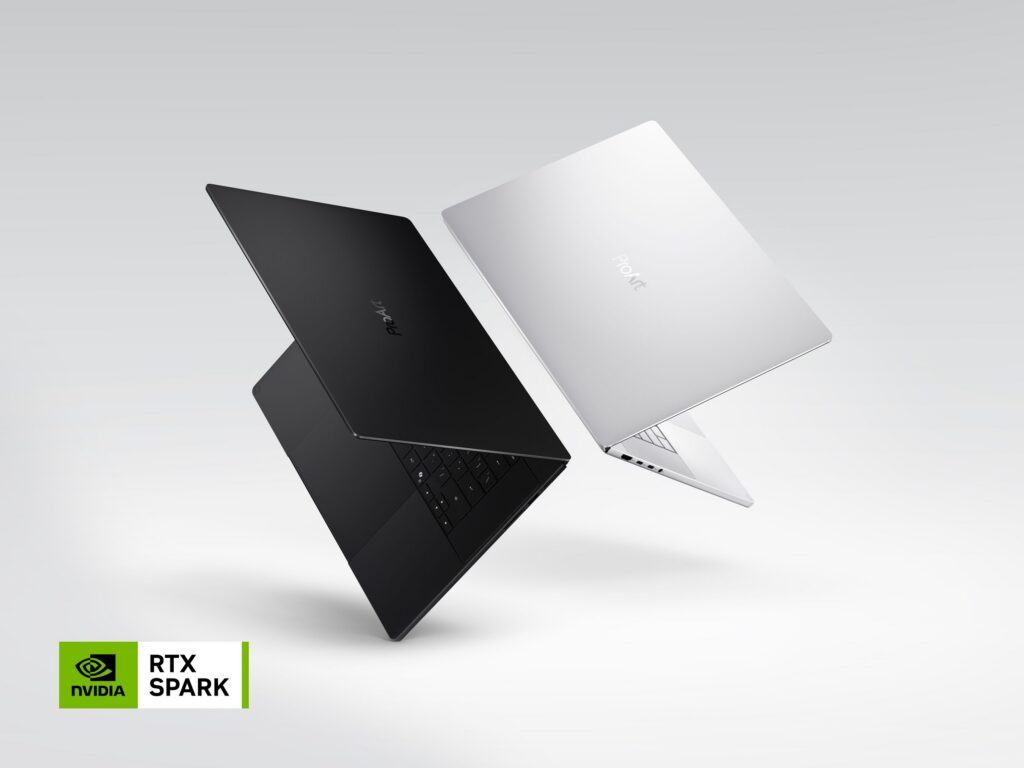
ASUS

At IFA, ASUS showcased the new ProArt P16 and P14, powered by NVIDIA RTX Spark and running Windows 11. Designed for creators who need both performance and mobility, the ProArt P16 is the thinnest 16-inch RTX Spark laptop at just 12.9 mm, while the P14 is the lightest ProArt laptop ever at 1.48 kg, complemented by large 99Wh and 90Wh batteries and ASUS Lumina Pro OLED displays with up to 1,600-nit brightness and professional-grade color accuracy. The new lineup also introduces two distinctive ProArt expressions — Nano Black and Neo White — combining refined design with creator-focused functionality. ASUS brought these capabilities to life through its first global live showcase of agentic AI solutions for creators and developers, demonstrating how ProArt PCs can connect local AI, ASUS applications, and customizable workflows to transform creation, development, and production. [caption id="attachment_263917" align="alignnone" width="1024"]ProArt Laptop ProArt Laptop (Nano Black & Neo White)[/caption]
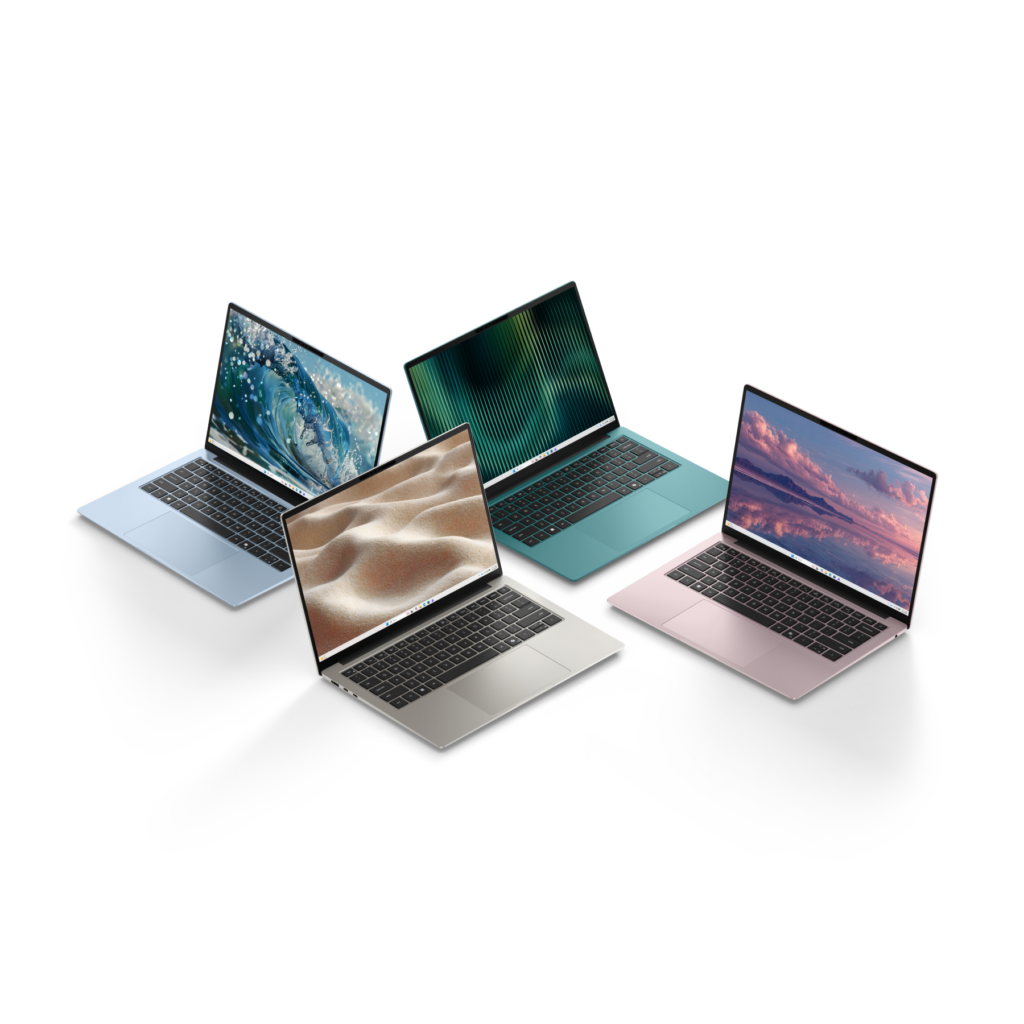
Dell

Dell introduced the new Dell 14S, a stylish, portable and dependable everyday Windows laptop built for students, young adults and anyone who wants a device that keeps up with their day. It comes in four expressive colors, Linen, Dusty Rose, Washed Denim and Velvet Green, so you can pick the one that reflects your personality and lifestyle. At just 1.15 kg and 13.5 mm thin, the refined aluminum build slips easily into a bag and travels well from class to coffee shop to couch. Two 16:10 panel options meet different priorities: a 2.8K 120Hz display for the sharpest, smoothest experience and a 2K 60Hz display for those prioritizing battery life and value. Both panel options are bright and provide vibrant, accurate colors. The Dell 14S offers up to 21 hours of Netflix streaming on a single charge1. That's enough to carry you through a full day of classes, browsing, and everything in between, no scrambling for an outlet required. [caption id="attachment_263922" align="alignnone" width="1024"]Dell 14S Laptop Dell 14S Laptop[/caption]

HP

HP showcased new OmniBook PCs powered by NVIDIA RTX Spark, combining the flexibility of Windows 11 with powerful local AI capabilities. Built for developers, creators, entrepreneurs, and advanced users, the HP OmniBook Ultra 16 and HP OmniBook X 14 are designed to support intelligent assistants, emerging agentic workflows, advanced content creation, and AI application development. By bringing together premium hardware, on-device AI performance, and the Windows ecosystem, HP is helping customers move from AI experimentation to real-world productivity and creation. [caption id="attachment_263935" align="alignnone" width="1024"]HP OmniBook X 14 HP OmniBook X 14[/caption]

Lenovo

Lenovo expanded its Yoga portfolio with two premium devices powered by NVIDIA RTX Spark. The Yoga Pro 9n is built for creators and developers, supporting demanding local AI, software development, content creation, and 3D rendering with up to 128GB of unified memory. The versatile Yoga Pro 9n 2-in-1 pairs substantial local performance with a flexible convertible design and a dual-surface pen experience, allowing creators to write and draw on either the OLED display or haptic Force Pad. [caption id="attachment_263919" align="alignnone" width="1024"]Yoga Pro 9n (15”, 11) Yoga Pro 9n (15”, 11)[/caption] For students, families, and everyday users, the new IdeaPad Vibe series combines bold colors and lightweight designs with responsive performance and Copilot+ PC experiences. Available in 14- and 15-inch configurations, the lineup offers a choice of Snapdragon X or AMD Ryzen AI 400 Series processors. Lenovo also introduced the compact, cluster-ready ThinkCentre X Ultra for advanced business AI workloads, the streamlined IdeaCentre AIO i, and the ultra-slim ThinkBook 14 Gen 9 for mobile, AI-enhanced productivity. [caption id="attachment_263918" align="alignnone" width="1024"]IdeaPad Vibe IdeaPad Vibe[/caption]
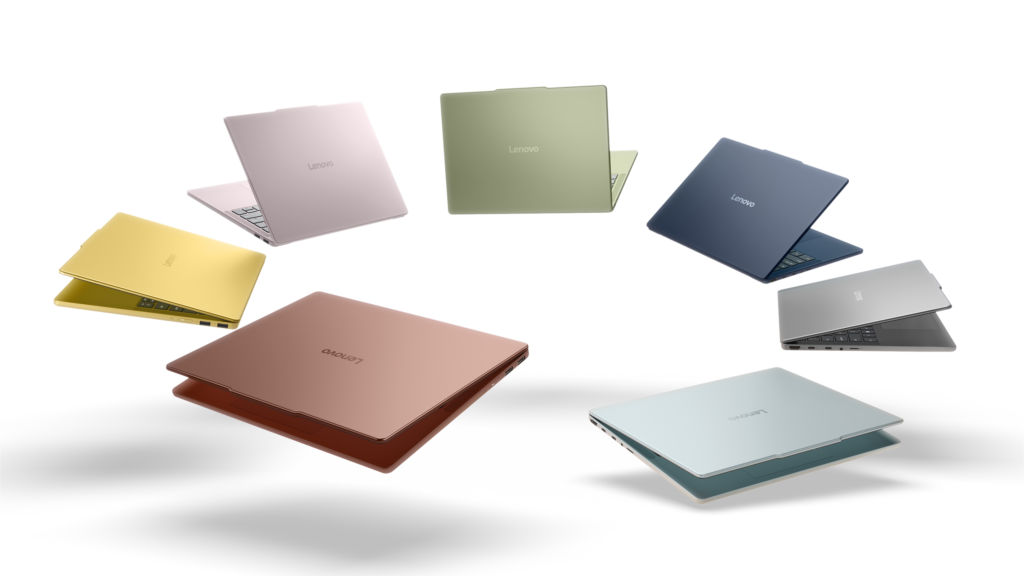
MSI

MSI announced the new Venture 15 AI+ B3M at IFA. Featuring a highly efficient Intel Core Ultra X7 358H processor, a 144Hz 100% sRGB display, comprehensive I/O connectivity, and Windows 11, the Venture 15 AI+ B3M is a versatile productivity laptop that also handles gaming needs with ease. [caption id="attachment_263921" align="alignnone" width="1024"]Venture 15 Venture 15[/caption]

AMD

AMD Senior Vice President and General Manager Jack Huynh delivered the event’s opening keynote on "The Era of Personal AI," exploring how agentic, on-device intelligence can make technology more personal, private, and adaptive. AMD announced that Ryzen AI Halo systems will support Microsoft’s Project Zenith out of the box, providing developers with a ready-to-code Windows experience that includes Visual Studio Code, WSL, GitHub Copilot CLI, and PowerShell. AMD also previewed the Threadripper Halo Station, a prototype desktop workstation designed to bring datacenter-class AI compute to developers. New AMD-powered OEM systems announced at IFA included Acer’s Aspire G AGB110 mini-PC and Aspire G 3D 16 notebook, alongside Lenovo’s ThinkCentre X Ultra, ThinkCentre M75s Gen 6, ThinkCentre M75q Gen 6, and IdeaPad Slim 3, all powered by AMD Ryzen AI Max 400 Series processors. [caption id="attachment_263916" align="alignnone" width="1024"]AMD Ryzen AI Halo Ryzen AI Halo[/caption]

NVIDIA

This year at IFA, NVIDIA showcased how it’s accelerating local AI and new ways to make local AI agents easier and faster to run on Windows. Highlights include simplified local model setup coming in Hermes Agent, OpenClaw and Perplexity Portable Computer; inference optimizations delivering up to 1.9x faster performance; and NVIDIA PAIR, a new open-source tool that distributes AI workloads across compatible PCs. NVIDIA and its partners also announced that NVIDIA RTX Spark Windows PCs will arrive in October 2026. [caption id="attachment_263920" align="alignnone" width="1024"]NVIDIA RTX Spark Superchip NVIDIA RTX Spark Superchip[/caption]
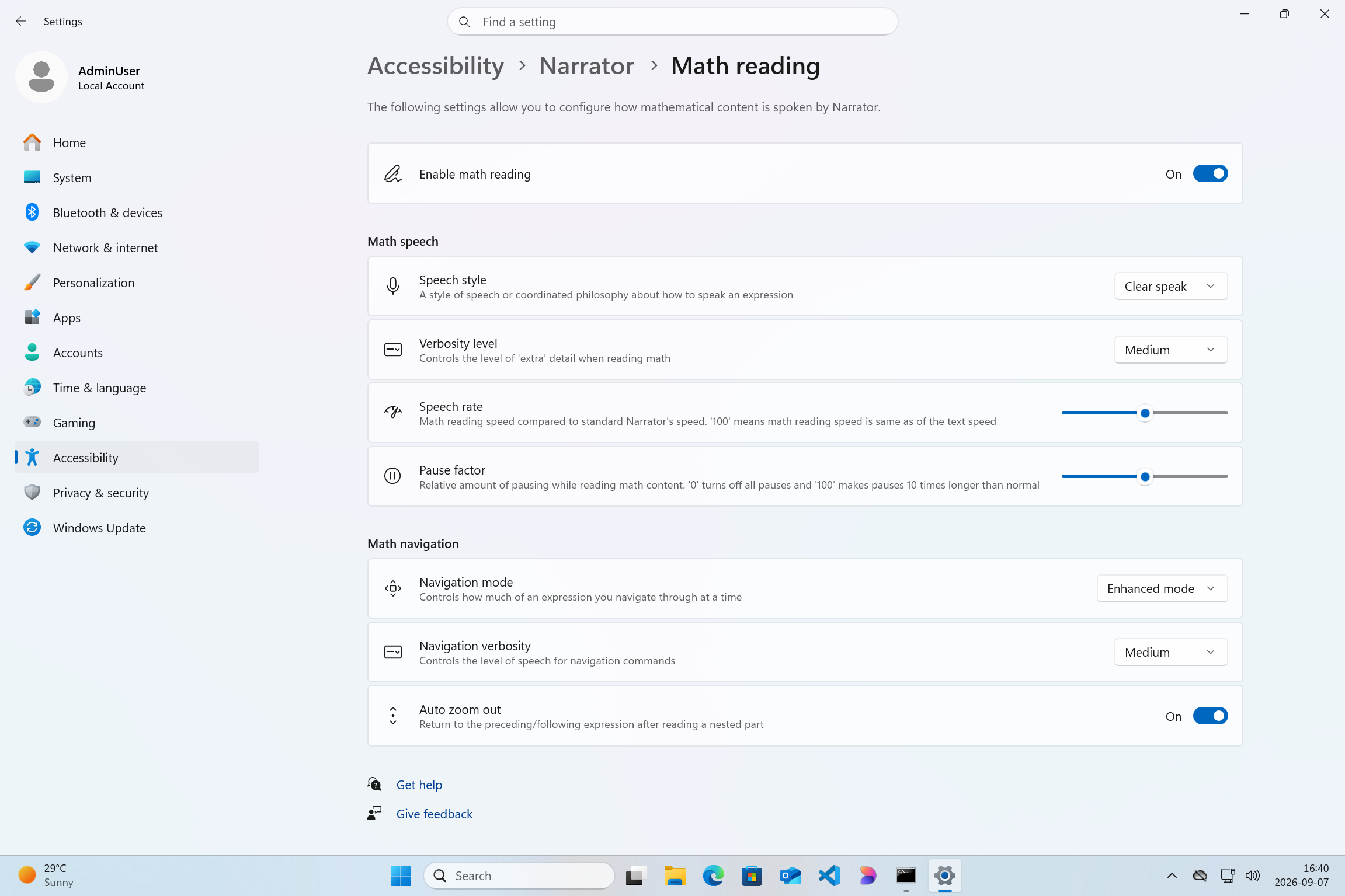
Innovating together for what comes next

I want to thank our partners across the Windows ecosystem for the ingenuity, investment, and collaboration they bring to customers every day. IFA reflected what is possible when Windows, silicon, hardware and software innovation come together. The momentum we saw in Berlin was only the beginning. As computing becomes more personal and intelligent, our ecosystem will continue to turn new technology into practical experiences that help empower people and organizations to do more. I am excited about what we are building together and, even more importantly, about what our customers will do with it.
1. Netflix Streaming Video Playback: Dell 14S tested with Intel®  Series 3 Intel® Core™ 5 320 Processor, Intel Graphics, FHD, 8GB and 256GB SSD. Testing conducted by Dell labs in Aug 2026 with display brightness set to 150 nits and wireless enabled. Based on streaming Netflix Streaming Video Playback. Actual battery life may be significantly less than the test results and varies depending on product configuration and use, software, usage, operating conditions, power management settings and other factors. Maximum battery life will decrease with time. The stated Watt Hour (WHr) is not an indication of battery life.
  •  

Announcing new builds for 11 September 2026

Hello Windows Insiders, Today, we’re releasing new Windows 11 Insider Preview builds to the Beta, Experimental, and Release Preview channels. New builds this week Select your channel below to view its release notes: For those on other specific Windows build versions, here are today’s new builds and release notes: We also have the Windows 11, version 26H1 Release Preview going out today:

Notable new features:

[Context menu]

Release channel: Experimental Building on the work we've been doing to improve the context menu experience:
  • We've added a new teaching tip you might see as a first-time experience to help you learn about the customization options.
  • In theme with giving you more control, you can also now turn off the customize context menu entry in the new context menu settings.
  • We've fixed a few small issues with the Send To option in the context menu not working as expected.

[File Explorer search]

Release channel: Experimental
  • Search from This PC in File Explorer is now indexer-based, making it much faster and consistent with search from File Explorer Home.
Thanks, Stephen and the Windows Insider Program team
  •  

Announcing Windows 11 Release Preview Builds 26100.9539/26200.9539

Hello Windows Insiders, Today we’re releasing build Builds 26100.9539/26200.9539 for Release Preview for Windows 11, version 24H2/25H2. Release notes can be found over in the Windows Insider Documentation Hub as usual, as well as below: Highlights  This update is available through two release phases: gradual rollout and normal rollout. A gradual rollout delivers an update in phases, so features reach devices over time instead of all at once, meaning availability varies by device.​​​​​​​​​​​​​ A normal rollout is the broad release to all eligible devices at the same time, usually when it reaches general availability (GA). Gradual rollout This section highlights some new features and enhancements for Windows 11 PCs, including AI-powered capabilities, continuous innovation, and performance improvements. File Explorer
  • New! This update adjusts how the preview pane handles files downloaded from the web. For HTML files, a new Preview anyway button lets you acknowledge the warning and preview the file. Non-HTML files, such as PDFs, are now previewed automatically.
  • New! File Explorer Home now preserves the state of sections (expanded or collapsed), so you can pick up where you left off.
  • New! This update improves the reliability of thumbnail previews for cloud files in the Details pane. The pane has also been reorganized so file properties are easier to find and review at a glance.
  • New! The update addresses an issue that could clear the address bar contents when entering edit mode by clicking near the right side of the address bar.
Emoji
  • New! This update adds support for Emoji 17.0, including new emoji such as distorted face, fight cloud, and hairy creature. To insert them, press the Windows key + Period (.) to open the emoji panel.
  • New! This update also refines the design of several existing emoji for better consistency across platforms, including saluting face, face with peeking eye, goose, lotus, and kissing cat.
Widgets
  • New! This update introduces the Tips widget, which provides short, helpful guidance about Windows features. To add it to your Widgets board, open the board, select Add widgets, and then choose Tips. To add it to your lock screen, go to Settings > Personalization > Lock screen and add Tips to your lock screen widgets.
Personalization
  • This update includes a variety of improvements to desktop background experiences.
  • This update improves the reliability of the Personalization > Background page in Settings.
  • This update adds support for using DIB image files as desktop backgrounds.
  • This update improves reliability of desktop slideshow transitions on newly created accounts.
  • This update improves resolution of previews when selecting a desktop background in Personalization > Background.
  • This update improves desktop background preview display in Settings for users with portrait mode monitors.
  • This update improves reliability of processing desktop wallpaper changes when they happen in quick succession.
  • This update adds support for using slideshow wallpapers with multiple desktops, so that it won’t automatically switch you back to Picture.
Bluetooth
  • This update contains several enhancements to improve reliability and experience when connecting to and using Bluetooth devices:
  • During voice calls, the Windows shell volume flyout now appears when adjusting the volume of a Bluetooth Classic Audio accessory via the volume controls on the accessory, providing visual feedback of the new volume level.
  • This update improves the accuracy of the connection state displayed by Windows for accessories that have disconnected from the PC.
  • This update improves stability of the Bluetooth and devices page in Settings when managing Bluetooth and audio devices.
  • This update resolves an issue where the Bluetooth radio could be turned off, but the state of the radio control toggle in the Bluetooth and devices page in Settings shows as on.
  • This update improves Bluetooth audio stability and compatibility.
  • This update improves microphone compatibility with certain Bluetooth Classic audio accessories.
  • This update resolves an issue that could result in a crash (error code 0x139) while streaming Bluetooth audio.
  • This update improves reliability and performance with LE Audio accessories.
Accessibility
  • New! This update introduces Open apps maximized, an accessibility setting that automatically maximizes app windows as they open. It removes a bit of everyday friction whether you use a screen reader or magnification, work in tablet mode, or simply prefer a consistent, full-screen workspace. To turn it on, go to Settings > Accessibility > Visual effects and turn on Open apps maximized.
  • This update improves navigation of the Bluetooth quick settings page when using keyboard input, gamepad input, or Narrator.
Magnifier
  • New! This update brings a modernized visual refresh to the Magnifier taskbar.
  • Updated icons. Magnifier's toolbar icons align with Windows 11 visual design, giving the tool a cleaner, more modernized feel.
  • Refined spacing and padding. The padding is adjusted with spacing across the toolbar for a more polished, consistent layout.
  • Views, zoom controls, keyboard shortcuts, and Read Aloud all behave exactly as they did in earlier versions.
Settings
  • This update improves the reliability of Settings when interacting with the contents of the Settings > Bluetooth & Devices > Printers & Scanners page.
  • This update updates Settings > Apps > Installed apps to show the version number at the top level for packaged apps, as it already does for other apps.
  • This update improves the time picker control in Settings so that it reflects your preferred time format when you switch between 12-hour and 24-hour. This applies in places such as setting active hours and scheduling night light.
  • This update improves persistence of the Allow multiple apps to use camera at the same time option in Settings > Bluetooth & Devices > Camera settings.
Touchpad
  • New! Additional gesture controls for precision touchpads are available in Settings > Bluetooth & devices > Touchpad:
  • Single-finger scrolling — Scroll vertically with one finger starting from the left or right side of the touchpad.
  • Automatic scrolling — Keep scrolling without lifting your fingers by moving them near the edge of your touchpad while scrolling.
  • Previously, gesture controls for scroll and zoom speed and accelerate scrolling were released in the July 2026 update (KB5101684).
Copilot key
  • New! This update introduces a new Windows 11 setting that lets you remap the Copilot key to function as the Right Ctrl or Context Menu key, helping preserve familiar keyboard shortcuts and accessibility workflows. For more information, see Understand updates to the Copilot key on Windows devices.
Cameral roll
  • New! This update introduces Camera roll backup in Settings, helping eligible users protect their photos with OneDrive. You can turn on the feature from the Settings Home or Accounts page and complete setup on their mobile phone using a QR code. 1
Fonts
  • New! This update adds support for the Garay and Beria Erfe scripts to the Ebrima font, the first Microsoft font to support both. Garay was encoded in Unicode 16.0 and Beria Erfe in Unicode 17.0.
  • New! This update also refines the Adlam glyph designs in Ebrima to align with the current Unicode standard and improve consistency.
Windows Recovery (WinRE)
  • New! This update enables WinRE to automatically reuse eligible Wi-Fi profiles already saved in Windows, including supported certificate-based networks. Devices can now get online automatically during recovery scenarios such as quick machine recovery or cloud rebuild, without preconfiguring Wi-Fi credentials in WinRE. This capability is on by default, and IT admins can disable it. For more information, see Windows Recovery Environment (Windows RE).
  • New! This update adds recovery remote management plug-in for extending WinRE management capabilities for MDM providers. For more information, see Recovery Remote Management Overview.
Kiosk mode
  • The Windows key plus Tab keyboard shortcut is now disabled when using a restricted UX kiosk.
  • The Windows key plus A and Windows key plus C keyboard shortcuts are now disabled when using single app kiosk mode.
Windows Backup 
  • PC-to-PC Migration is no longer available. This feature, introduced through a phased rollout, previously allowed you to transfer files and settings directly from your previous PC when setting up a new Windows PC. To back up and restore your files, settings, and other supported items when moving to a new PC, use Windows Backup. For more information, see Back up and restore with Windows Backup.
1Feature availability depends on your device and market.
  •  

Announcing new builds for 8 September 2026

Hello Windows Insiders, Today, we’re releasing new Windows 11 Insider Preview builds to the Beta and Experimental channels. New builds this week Select your channel below to view its release notes: For those on other specific Windows build versions, here are today’s new builds and release notes:

Notable new features:

[Cross-device resume improvements]

Release channel: Experimental We're making it easier to continue where you left off on your PC. When you resume a webpage from your phone and the phone's browser isn't installed on your PC, the Resume hovercard now gives you two options: open the page directly in your PC's default browser or install the phone's browser for a native experience. This update helps you continue your work immediately without requiring an app installation first. [caption id="attachment_179156" align="aligncenter" width="864"]The Resume hovercard provides an option to open the webpage in the PC's default browser. The Resume hovercard provides an option to open the webpage in the PC's default browser.[/caption] [caption id="attachment_179157" align="aligncenter" width="684"]The Resume hovercard provides an option to install the originating phone browser. The Resume hovercard provides an option to install the originating phone browser.[/caption]

[Narrator]

Release channel: Experimental Read and explore math equations with Narrator We are adding math reading and navigation support in Narrator, bringing clearer and more natural math experiences to users who are blind or have low vision. Math is at the heart of STEM education and learning, and this update helps students and professionals independently read, understand, and explore equations, formulas, and scientific notations with confidence. Read more in release notes link above. [caption id="attachment_179158" align="aligncenter" width="2303"]Screenshot of Windows settings page with Narrator Math reading settings page open Screenshot of Windows settings page with Narrator Math reading settings page open[/caption]

[Magnifier]

Release channel: Experimental Magnifier now understands each of your displays
  • Every screen keeps its own view, at its own zoom. In earlier versions of Magnifier, zooming in stretched a single magnified view across all of your displays, so one screen's zoom followed you everywhere and screen edges blurred together. With this update, each monitor's boundary is respected, and each monitor can hold its own zoom percentage. Your writing screen can sit at 300% while your reference screen stays at 150%, and the magnified view no longer spills from one display into the next. This matters because different tasks, and different screen resolutions, often call for different levels of magnification to stay comfortable to read. Read more in release notes link above.
[caption id="attachment_179159" align="aligncenter" width="758"]UI showing Magnifier settings with Zoom per display enabled, allowing each monitor to maintain its own zoom level. UI showing Magnifier settings with Zoom per display enabled, allowing each monitor to maintain its own zoom level.[/caption] [caption id="attachment_179160" align="aligncenter" width="1041"]UI showing Magnifier's multiple display controls, including independent zoom and view locking options. UI showing Magnifier's multiple display controls, including independent zoom and view locking options.[/caption] Thanks, Stephen and the Windows Insider Program team
  •  

Listening to families. Improving Microsoft Family.

The latest Windows Family Safety improvements are part of a broader effort to create safer, age-appropriate digital experiences for kids and families. As we’ve recently outlined, Microsoft Family has been on a focused journey to raise the quality of the everyday offering that parents and kids rely on — and that journey started by listening to you. We gathered feedback from families and let it guide our priorities, month after month.   The result is a steady stream of meaningful fixes we continue to iterate on:  
  • Parental approvals for offerings like screen-time extensions, app access, and purchases now happen faster, so kids aren’t left waiting and parents stay in control.
  • We restored clear visibility into web and app activity so parents can trust what they see in their reports.
  • Made spending more transparent, with wallet balances.
  • We also gave adults in a family more control over their own experience, making it far easier to add, manage, or leave a family group 
We know these areas have presented pain points, and while we've made progress, we know some of you may still run into issues. We're continuing to improve and will continue to listen to your feedback as we improve the experience.  

Parental control: Faster and reliable approval flows 

Parents and children may have experienced inconsistent and noticeable delays while approving children requests such as app access, screen time extensions, and purchase approvals. During these delays, children are unable to access the requested content or continue their activities, while parents are left uncertain whether their approval has been received and applied.  Parental approvals for app access, screen time extensions, and purchases now happen faster than before, reducing wait times and frustration for parents and kids alike.  

Activity reporting: full app coverage 

Some parents noticed that certain apps were missing from activity reports, making it difficult to fully understand how their child was using their device. Activity reporting now includes broader app coverage across all applications used on a child's PC, providing a more complete and trustworthy view. Additional improvements to usage time accuracy are also on the way.  Both parent and children will have the broader view of apps used and time spend.  

Family funding balance after top-up 

Family funding balance was not reflecting proper updated balance but now this issue has been addressed, and parents can now easily manage the funds for their children.   Family Safety Spending Each of these improvements came from a real family experience — from issues parents told us mattered most: speed, accuracy, control, transparency, and peace of mind.  This is the compounding effect of a team that treats every piece of customer feedback as a commitment to do better. Thank you to every parent who shared their voice; you’ve shaped this product, and we’re just getting started.  All of the above fixes are available in the latest versions of the Family Safety mobile app both iOS and Android are available. You can also access Family Safety on the web by visiting: https://account.microsoft.com/family/  

What’s next 

We also know the journey is not over. While we have made important progress, some families may still run into issues, and we want to hear about them.  If something is not working the way you expect, please reach out to us at familysafetyfeedback@microsoft.com. That inbox is more than a contact point — it is an open invitation from our team to yours. Your feedback helps us understand what families are facing today so we can fix issues at the earliest and keep improving.  Thank you to every parent who shared their voice. You have shaped this product, and you will continue to shape what comes next.  We have been listening. We have been fixing. And we will keep going.
  •  

Helping families and educators support safer experiences and healthier habits on Windows

Our children and teens are growing up in a digital world where apps, games, and AI-powered tools are part of how they learn, play, create, and connect. For parents and educators, that brings both opportunity and responsibility: digital experiences should help young people explore with confidence while supporting their wellbeing, building healthy habits, respecting their privacy, and providing protections that are appropriate for their age.  At Microsoft, we believe safety should be easier for families to understand and easier for developers to build into experiences for children to use. On Windows, that starts with the account. Microsoft account is a trusted foundation through which Windows brings age-appropriate protections and parental choices into more of the digital experiences encountered by children and teens every day. A child’s account should help unlock safer, more age-appropriate experiences wherever they use Windows. This is the first in a series of posts on family safety on Windows. Over the coming months I’ll share what we're building — in the account, in the platform, and in the tools we provide to parents, educators, and developers. As Pavan recently shared, Family is a key focus area in our commitment to improving Windows quality. We'll build in the open: shipping new capabilities, listening closely to what families tell us, and refining as we learn. 

From account to safer experiences 

Every experience on Windows starts with identity, and for consumers, that foundation is the Microsoft account (MSA).  MSA enables Windows to understand key context about the user in a consistent and privacy-conscious way: 
  • Whether the user is a child, teen, or adult 
  • Whether parental controls or consent apply 
  • Whether age verification has been completed 
This creates a simple, scalable model:  User account → age signal → age-appropriate experience and controls  Because this foundation is tied to the account, protections are designed to follow the user across Windows and apps, creating safer experiences consistently, not just in individual features. This enables product experiences to support a user’s stage of life. Protections are matched to children, teens, and adults. 

Extending safety across the ecosystem with the Windows Age APIs 

As experiences expand across apps, services, and AI, one challenge becomes clear: how can these experiences consistently understand and respect a user’s age?  To address this, Windows is introducing a new platform capability: the Windows Age API.  This API brings age awareness beyond the operating system by making it available across the entire Windows ecosystem so that apps and services can deliver age-appropriate experiences using the same trusted foundation. By making age awareness available as a platform capability, Windows helps developers build safeguards into experiences from the start rather than placing the burden on children and families to manage protections app by app.  The Windows Age API offers the following capabilities: 
  • GetUserAgeRangeAsync: Provides non-personally identifiable age group categories for apps to utilize in providing safe and age-appropriate user experiences, while protecting the date of birth data and overall privacy of users. Age groupings available via the API include- under 10, 10-12, 13-15, 16-17, 18+.
  • GetAgeVerificationStatusAsync: Provides verified age status for scenarios when self-reported age is not sufficient.
  • CheckAgeStatusAsync: Extends the functionality of the legacy CheckUserAgeConsentGroupAsync API to offer child, minor, or adult classification globally and as defined by regional policies.
These signals are designed to protect privacy: 
  • Apps receive only the age-related signal needed for the experience and not sensitive personal data such as full date of birth
  • Users remain in control through consent and platform-level controls
  • Age information is handled consistently at the platform level to reduce unnecessary sharing and fragmentation 
This enables a new level of consistency across Windows experiences. Apps can recognize when a user is under a certain age and adjust features accordingly, helping create safer, more appropriate interactions without requiring manual setup. This platform approach also helps make protections more consistent and accessible, so safer experiences do not depend on whether a family discovers or configures controls in each individual app.  Just as importantly, this extends to emerging experiences, including AI, where applying age-appropriate safeguards is increasingly important as innovation continues to evolve.  By making this a platform capability, Windows drives safety which is built-in and available across apps, services, and new scenarios.   For more details, including developer guidance, check out the Windows Age API documentation found at https://aka.ms/windows-age-api. 

Building toward high-confidence age assurance 

In many cases, understanding age is not enough. Increasingly, certain experiences require high confidence that a user is an adult.  To support this, Microsoft is expanding age assurance through the Microsoft account using Microsoft Age Verification (MAV), a centralized platform that enables users to verify their age once and use that status across Microsoft experiences. Developers can access this verified status through Windows Age APIs.   Age verification is already available in Microsoft Storefronts in Singapore, Brazil, and Australia. As more regions around the world expand regulatory requirements for age verification, Microsoft will add support for those geographies and product scenarios.  MAV creates a simple, consistent model:  Verify once → use everywhere  Verified status is stored with the Microsoft account and can be used across Windows and apps to enable appropriate experiences, helping reduce friction while improving safety.  

Making safety clearer from the start 

We’re also improving how parental controls are surfaced during device setup, so families can more easily understand available protections and make informed choices from the very beginning.  In regions such as France and others, Windows is raising the visibility of parental controls and consent experiences during setup, designed to increase awareness of the available offerings and enabling early application by parents.   Image of Family Safety built into Windows

Family Safety and Parental Controls 

With Family Safety built into Windows, parents can set up a child's device and manage screen time, apps, and content in one place. Over the past six months, we’ve focused on making those everyday moments more dependable – faster parental approvals, clearer activity reporting, and more overall control – guided by what parents told us mattered most. You can read more about what’s improved and what’s coming next here: Listening to families. Improving Microsoft Family. 

Raising the bar for digital safety 

Digital safety must be built into the platform—not added on later.  With Microsoft account as the foundation, and with investments like the Windows Age API expanded age assurance, and available parental controls, Windows is working to support a safer digital environment that is also age-appropriate, privacy-conscious, and easier for families to navigate.  Our goal is to help create experiences where safety, privacy, and participation can work together across the Windows ecosystem. 

Availability 

The Windows Age APIs are broadly available to Windows Insiders now and will be available to all Windows users soon. The CheckAgeStatusAsync API will be available with a future update.
  •  

Faster reviews and quality recognition for Microsoft Edge extensions

Building an extension has never been easier. Rapid adoption of AI-assisted coding is enabling developers to build extensions faster than ever. We have seen that momentum on the Edge Add-ons site. More developers are building, iterating, and submitting extensions, which is great for the ecosystem and ultimately gives users more choice. It also creates a challenge: how do we keep up with the pace at which the ecosystem is growing, while maintaining a high bar for quality?

Speeding up extension reviews

We know time matters to developers. Whether launching an extension, fixing an issue, or making improvements, waiting for a review can slow progress. Last year, we introduced an expedited review process for high-quality and high-value extensions. Since then, submission volumes have continued to increase, and our review pipeline has experienced additional strain, causing an increase in extension review turnaround time. At the same time, at Edge we have always held a very high bar on quality. So, the challenge in front of us was to reduce the turnaround time for extension updates while ensuring the quality of extensions is maintained. To address this challenge, we've introduced automation for many of the repeatable validation checks that are part of the review process and streamlined how reviews move through our pipeline. This doesn't change our review standards or reduce the checks an extension must pass. Instead, it helps us identify known policy violations and security issues more consistently while allowing reviewers to spend more time on complex cases that benefit from human judgment. The result is a more efficient review process that helps extensions move through the pipeline faster while maintaining the high quality and security standards developers and users expect from the Edge Add-ons site. For developers, this mean bug fixes and new features reach your users sooner. Our objective is to make Edge the easiest place to build, publish, and grow an extension. Faster reviews are just one part of that investment. We continue to look for ways to reduce friction across the developer journey while maintaining a trusted marketplace for users.

Recognizing quality as it improves

As more extensions become available on the Edge Add-ons site, helping users discover extensions they can trust is equally important. The Featured badge has long helped users identify high-quality extensions in the Edge Add-ons site. It serves as a trust signal, highlighting extensions that demonstrate a strong commitment to quality, reliability, security, and user experience. Featured badge The Featured badge is awarded to select extensions that align with Best practices for extensions. Our evaluation considers more than 60 quality signals across multiple dimensions of an extension. Today, much of our evaluation process is automated to make it more consistent, objective, and scalable as the ecosystem expands. But quality is not static. As we continue to refine our badging criteria, and as developers continuously improve their extensions by fixing issues, refining experiences, and responding to user feedback, we automatically update badges on the Edge Add-ons site. And now, to more quickly recognize quality improvements, we're refreshing Featured badges every 15 days. With this more frequent cadence, high-quality extensions can earn recognition sooner, and developers receive faster feedback on their investments in quality. At the same time, users benefit from a more up-to-date view of the extensions that meet our quality standards. Our goal is simple: make it easier for users to find extensions they can trust while ensuring developers who invest in quality are recognized more quickly.
  •  

Announcing Project Zenith: The ready-to-code Windows experience on developer-class devices

Breakthroughs in computing become real through the experiences developers create. Our goal is to have Windows be the best platform for developers. That means pairing the latest in hardware innovation with software optimized for development. At Build 2026, we introduced a developer-optimized Windows 11 experience to build and ship faster and shared how Windows is becoming the open platform for secure agentic experiences. Today, we're taking the next step with Project Zenith, a ready-to-code distraction-free Windows experience on developer-class devices with 64 GB+ unified memory and 250+ GB/s memory bandwidth, so developers can jump right in. Project Zenith will first become available with AMD’s Ryzen AI Halo, with more devices from our OEM and silicon partners available in the coming months. Project Zenith devices come with a preconfigured Windows setup for development, and a set of tools curated for what developers reach first.  On these devices, developers can run 30B+ parameter models locally and unmetered - accelerating experimentation while helping reduce reliance on metered cloud tokens. Project Zenith represents Windows at its best - listening to developers, responding with purpose and working across our ecosystem to raise the bar for what a developer PC can be.

Improving the baseline Windows 11 experience

Since the beginning of this year, we’ve been dedicated to making Windows 11 more performant, reliable and refined across day-to-day experiences. From Search to File Explorer, and everyday memory usage, Windows is becoming faster, calmer, and more polished with more control over the experiences you care about most. Project Zenith devices will benefit from all these improvements, while delivering an optimized developer environment you’ve been asking for.

Ready to code out of the box

Project Zenith comes with a set of pre-installed tools spanning languages and runtimes, source control, and productivity tools. Windows Terminal and Visual Studio Code are pinned to the Taskbar by default, putting your favorite tools within immediate reach. Chart showing pre-installed tools We’ve also pre-configured Windows Settings for coding across File Explorer, Search, Start, and the Taskbar. File Explorer shows file extensions, hidden files, the full path in the title bar, and the details pane, with long-path support enabled. Recently used files and folders and sync provider tips are turned off for a cleaner workspace. In Search and Start, Command Palette is enabled, while Start menu tips and account notifications are turned off to reduce distractions. Windows Subsystem for Linux (WSL) has become foundational for running Linux workloads on Windows. Last year we open-sourced WSL. Building on that momentum at Build 2026, we integrated WSL more deeply into Windows with WSL containers to provide a built-in way to create, run, and interact with Linux containers directly on Windows. Together, with Project Zenith, these choices create a calm, and meaningful starting point for development. Project Zenith is not about prescribing a single workflow. You can continue to configure, extend, and personalize your environment around the tools, languages, and frameworks you prefer. It is about beginning from a better baseline, shaped by the settings and tools developers reach for first, so a new device works with you to accelerate your workflows.

Secure platform for agents on developer-class hardware

We’re entering a new era of software development. Agentic applications are becoming more common, and developers need a secure foundation for building and running them. At Build 2026, we shared how Windows is evolving to provide exactly that – combining OS-enforced identity, containment with Microsoft Execution Containers (MXC), and enterprise-grade manageability for agents.  Project Zenith devices will benefit from these platform investments from day one, providing a secure environment for developing and running agents. As AI models become more powerful, agentic coding workflows demand continuous compute. By shifting some of that intelligence to the edge, we are achieving token economics and transforming the developer experience: frontier models tackle frontier problems, while everything else runs locally at scale. With 64 GB+ of unified memory and 250 GB/s+ of memory bandwidth, Project Zenith devices enable developers to run capable coding models locally and unmetered, helping lower token costs.

Project Zenith is just the beginning

Over the past year, we have continued to evolve Windows around how development happens today. From WSL and Windows Developer Configurations to Intelligent Terminal and expanded on-device AI capabilities, each investment is focused on helping developers stay in control and build faster.  Project Zenith brings together the work happening across the Windows platform into a tailored experience on new developer-class PCs. Project Zenith also reflects how Windows moves forward with our ecosystem. By working with our OEM partners, we give developers choice across devices and performance tiers while preserving the ready-to-code experience. The hardware may vary, but the developer promise is consistent - powerful for modern development, thoughtfully configured and ready for developers from the start. Project Zenith is the result of listening to developers about what they need from Windows today, and where they want the platform to go next. As AI continues to transform software development, we are committed to evolving Windows alongside the community that builds on it. We are excited to see what you will build, making Windows the platform where the next generation of applications, agents, and AI experiences come to life.
  •  

Calling for Interop 2027 proposals

The Interop 2027 call for proposals is open, submit your ideas now! Over the past six years, the Interop project has helped bring key web platform features to a state where developers can rely on them across browsers. Technologies such as CSS layout and utilities, View Transitions, anchor positioning, popover, and shadow DOM have all benefited from the focused effort that Interop makes possible. This year, browser vendors have continued to work across a broad set of focus areas including View Transitions, Navigation API, CSS Anchor Positioning, WebRTC, WebTransport, Dialogs and Popovers, custom highlights, container style queries, and more. These efforts are helping move the web platform toward a future where developers can spend less time working around browser differences and more time building great experiences. Interoperability remains one of the most important challenges facing the web. New capabilities are constantly being standardized and implemented, but they're most valuable when they work consistently everywhere. That's why the Interop project continues to evolve each year, guided by input from developers, framework authors, browser vendors, and standards communities. Today, we're opening the proposal process for Interop 2027. If you've encountered a web platform feature that behaves differently across browsers, a standards-based capability that's difficult to rely on today, or an area where better interoperability would unlock new opportunities, we want to hear from you. The proposal submission period is open now and will remain open through September 23, 2026. The Interop team will review submissions and evaluate them using the Interop selection process, with the goal of publishing the final Interop 2027 scope early February 2027.

What makes a strong proposal?

The strongest Interop proposals share a few common traits:
  • They solve a real developer problem. Make sure you explain how inconsistent browser behavior or missing support affect developers in practice.
  • They have ecosystem impact. Evidence from developers, frameworks, libraries, issue trackers, surveys, or real-world sites helps demonstrate that a problem is worth solving.
  • They're about standards-based features. Features with a stable specification and broad standards support are better candidates for Interop.
  • They can be measured. Interop relies on Web Platform Tests (WPT) to track progress, so proposals should either have strong existing test coverage or a clear path to adding it.
  • They are scoped for meaningful progress. A focused, concrete proposal is often easier to evaluate and more likely to succeed than a broad request such as "improve CSS" or "fix forms everywhere."
For more information, check the Interop Proposers Guide.

Submit your proposals now

Submit your ideas now, even if you're unsure they qualify. Even proposals that aren't selected can help us understand where you're experiencing pain and where future interoperability work is needed. On the Microsoft Edge team, we're always listening to developer signals, and unselected Interop proposals often constitute clear needs from developers. We track these needs, and others, on our Top Developer Needs dashboard to influence progress on the highest-impact, long-running issues. We'll be refreshing this dashboard early next year.
  •  

Releasing Windows 11, version 26H2 to the Release Preview Channel

[Update 31 August 2026: ISOs are now available] Hello Windows Insiders! Today, we are making this year’s annual feature update, Windows 11, version 26H2 (Build 26300.9278),  available in the Release Preview Channel for customers to preview ahead of general availability later this calendar year. Windows 11, version 26H2 will be delivered as an enablement package (eKB). This means that Windows 11, versions 24H21, 25H2, and 26H2 use a shared servicing branch. It also means that they share the same new features and enhancements delivered through our continuous innovation efforts. As a result, many of the features and improvements available in Windows 11, version 26H2 might already be familiar, as they have been gradually introduced through monthly updates. For commercial customers, Windows 11, version 26H2 enables several experiences that were introduced in earlier releases but not previously enabled by default for commercial devices. This includes Windows settings backup, app-specific actions from the taskbar, and some File Explorer enhancements. For guidance on how to prepare for Windows 11, version 26H2 in your organization, see Get ready for Windows 11, version 26H2. Windows Insiders in the Release Preview Channel can install Windows 11, version 26H2 via our “seeker” experience in Windows Update. This means if you are an Insider currently in the Release Preview Channel on a PC that meets the Windows 11 hardware requirements, you can go to Settings and Windows Update and choose to download and install Windows 11, version 26H2. Once you update your PC to Windows 11, version 26H2, you will continue to automatically receive new servicing updates through Windows Update (the typical monthly update process). For instructions on how to join the Windows Insider Program and enroll your PC in the Release Preview Channel, click here. If you are a commercial2 customer enrolled in the Windows Insider Program for Business, you can deploy and begin validating Windows 11, version 26H2 on PCs in your organization using Windows Update client policies and Windows Server Update Services (WSUS). Azure Marketplace will be available later today. Should any issues arise, IT admins in organizations deploying Release Preview updates can request Microsoft Support. And finally, ISOs will be available for download for Windows 11, version 26H2 via the Windows Insider ISO download page in the near term. Thanks, Windows Insider Program Team 1Windows 11, version 24H2 Home and Pro editions will reach end of updates on October 13, 2026. Enterprise and Education editions remain supported until October 12, 2027. 2We consider a device a commercial device if it is not running the Windows 11 Home edition AND is being managed by an IT administrator (whether via Microsoft Intune or other management solution), or has a volume license key or commercial ID, or is joined to a domain.
  •  

Expanding the Windows on Arm app ecosystem across key workloads

In a significant milestone for the platform, Microsoft and NVIDIA recently announced NVIDIA RTX Spark. These new devices are the most powerful and efficient, thin-and-light Windows PC ever, built with the Arm architecture. In the fall of 2026, devices from Microsoft Surface, ASUS, Dell, HP, Lenovo, and MSI will be available. NVIDIA's entry into the Windows on Arm silicon family joins the Qualcomm Snapdragon X series of chipsets that have already established Windows on Arm as the premium experience across Microsoft Surface Copilot+ PCs. The market is sending a clear signal: more silicon providers and more OEM partners are investing in Windows on Arm because customer demand is growing for these powerful and efficient Windows devices and experiences.   Alongside the expanding PC landscape, the Windows app ecosystem continues to grow rapidly. As powerful Arm-based devices reach more customers, this motivates developers to build and optimize for the platform. Consequently, as the app catalog grows, customers have even more reason to choose Windows on Arm hardware. That virtuous cycle is now clearly in motion. The app catalog growth is evident in the Works on Windows on Arm site. This site catalogs over 7000 verified apps and games available for Windows on Arm and is built with compatibility data from Microsoft. Given the breadth of Arm-capable hardware available from multiple silicon providers and the depth of the app catalog, Windows on Arm has become a first-class platform for any workload.   App Assure, Microsoft's app compatibility program, with its dedicated Arm Advisory Service, continues to expand the Windows on Arm ecosystem. We continue working side by side with a diverse set of software development companies to bring their apps to the Windows on Arm catalog, ensuring that no customer is left behind. The goal of this blog is to share App Assure's latest progress report: a roundup of some of the most notable new additions to the Windows on Arm app portfolio since our previous update. 

STEM and education apps

This is a rapidly expanding category that demands its own section. Science, Technology, Engineering, and Mathematics (STEM) as well as education tools all play a critical role in how people learn in classrooms, research environments, or via independent study. As Windows on Arm devices become more prevalent, developers in this space now recognize the opportunity to reach learners and professionals who value portable, power-efficient devices without sacrificing performance. The growing number of STEM and education apps now available reflects increasing investment aligned with these needs and the growing adoption of Windows on Arm devices by educational customers. [caption id="attachment_57881" align="alignnone" width="931"]Chart showing recent STEM and education apps available on Windows on Arm devices Recent STEM and education apps available on Windows on Arm devices[/caption]

Security apps

Security remains foundational for Windows customers, and it spans far more than a single tool or workload. Modern environments require layered protection across endpoints, consistent device management, and secure connectivity, especially as work increasingly happens across hybrid, mobile, and distributed environments.  Arm-based devices are designed with security at the core, integrating hardware, firmware, and software protections to help defend against modern threats. In addition to the built-in security features, strong support for Windows on Arm in endpoint protection, endpoint management, VPN and Zero Trust solutions helps ensure that customers can adopt these devices without compromising their security posture.   Our previous update showcased well-known apps from companies including Norton, CrowdStrike, and McAfee in the Endpoint Protection space; VMware, Beyond Trust, and Cisco in the Endpoint Management space; and Nord, Zscaler, and Palo Alto Networks in the VPN and Zero Trust space. The continued expansion of the Windows on Arm security app ecosystem, as seen below, highlights how software vendors are aligning with customer expectations for secure, manageable Arm‑based deployments. [caption id="attachment_57875" align="alignnone" width="967"]Recent security apps available on Windows on Arm devices Recent security apps available on Windows on Arm devices[/caption]

Productivity apps

Productivity apps remain the cornerstone of how people get work done on Windows. Whether managing projects, collaborating with teammates, organizing information, or communicating across teams, these apps are essential to our customers’ daily work. The growing list of productivity apps now available reflects both customer demand and increasing momentum from developers building with Arm as a first-class Windows platform. The new apps listed below join those previously announced from industry leaders such as Google, Adobe, Slack, Trello, and Dropbox. [caption id="attachment_57868" align="alignnone" width="1024"]Chart of recent productivity applications available on Windows on Arm devices Recent productivity apps available on Windows on Arm devices[/caption]

Creativity, social media and entertainment apps

Windows devices are as important for work as they are for expression, connection and entertainment. From creative tools to social platforms and media experiences, these apps enable users to create, share and unwind throughout their day. Developers continue to bring rich, engaging experiences to Arm-based devices, ensuring users don’t have to choose between productivity and creativity. Our previous update saw brands such as Camtasia, Blender and Figma release Arm apps. Below are the latest additions. [caption id="attachment_57869" align="alignnone" width="1368"]Chart of recent creativity, social media and entertainment applications available on Windows on Arm devices Recent creativity, social media and entertainment apps available on Windows on Arm devices[/caption] The takeaway is clear: Windows on Arm is no longer defined by potential, but by a rapidly expanding ecosystem of devices with apps available across workloads that customers depend on most. As developers continue to invest in Arm-native experiences and compatibility, customers gain more choices, flexibility, and confidence in adopting the next generation of Windows devices. As the ecosystem continues to expand, the Microsoft App Assure team is ready to assist software developers interested in bringing their apps to Windows on Arm. Through our Arm Advisory Service, we offer expert guidance, technical workshops, code samples, and an escalation path to Microsoft engineers ready to assist with software development. Reach out to us here to learn more. Finally, don’t forget to bookmark https://worksonwoa.com/ for a comprehensive and continuously updated list of all the apps available on Windows on Arm devices.
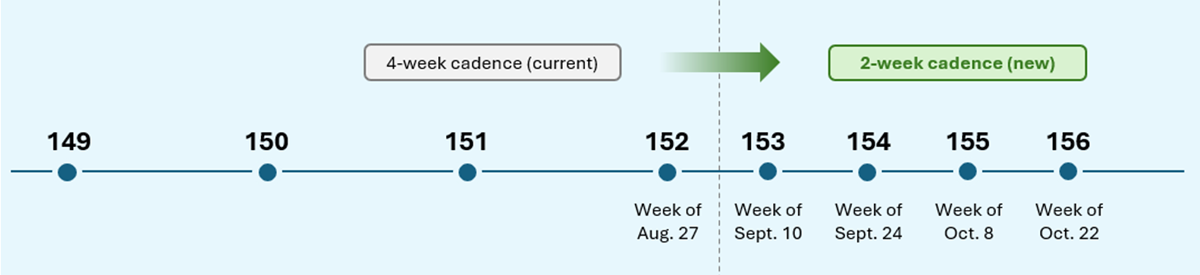
Reading and resources on the expanding Windows on Arm ecosystem

  •  

WebView2 is moving to a 2-week release cadence

Microsoft Edge is moving to a two-week release cycle, and the WebView2 Runtime is moving right along with it. Starting with 152, the WebView2 Runtime will align with Edge's new two-week major-release cadence, instead of the previous four-week cadence, for faster security fixes, platform improvements, and other capabilities. Timeline showing the shift from 4-week releases (current) to 2-week releases (new) for the WebView2 Runtime, starting with version152.
  • On the week of August 27, the WebView2 Runtime version 152 will be last major version to be released 4 weeks after the previous version.
  • On the week of September 10, version 153 will be the very first version to be released only two weeks after the previous version.
  • After that point, a new major version will be released about every two weeks, aligned with the Edge release cadence.
The WebView2 SDK release cadence will also be updated. Instead of the monthly releases, SDK versions will be released when there are new features, bug fixes, security updates, and other improvements to share. When we do ship an SDK, it will be released on the same date as the corresponding Runtime release.

What this means for your app

If you use the Evergreen Runtime distribution mode, which is the default, there's nothing you need to do. Your users' machines will start getting security and platform fixes at the more frequent cadence. If you ship a Fixed Version Runtime instead, you stay in control of when you update, but new major versions arrive more often. Plan to validate and pick up new versions more frequently, so you don't fall behind on security fixes.

Recommended actions

We recommend that you test your WebView2 app by using the Beta preview channel of Microsoft Edge to catch any bugs before they roll out to your users. Early testing is the best way to catch app-specific issues before they reach Stable. To learn more, see Prerelease testing using preview channels. We also recommend automating the validation of your app's core workflows with the WebView2 preview channels. You can automatically test your app by using Microsoft Edge WebDriver. See Automate and test WebView2 apps with Microsoft Edge WebDriver. Finally, report regressions early so we can address them before the Stable release. You can report bugs by using the WebView2Feedback GitHub repository.

Stay current

Moving with Edge means your users get a safer, more capable web platform sooner, and you get a single, predictable release train to plan around. We're grateful for the partnership of the WebView2 developer community, and we'll keep sharing details as the new cadence rolls out. To learn more, read our recent announcement, check out our release notes, and review the release schedule. And, as always, feel free to share feedback with us.
  •  

Announcing new builds for 21 August 2026

Hello Windows Insiders, Today, we’re releasing new Windows 11 Insider Preview builds to the Beta and Experimental Channels. Experimental Feature Flags We’ve fixed the issue causing the Feature Flags list to show empty for Insiders in the Experimental channel. You should now see Feature Flags reappear after installation of the latest Experimental build. New builds this week We’re releasing new Windows 11 Insider Preview builds today. Select your channel below to view its release notes: For those on other specific build versions, here are today’s new builds and release notes:

Notable new features:

[Modernized Autoplay experience]

Release channel: Experimental
  • We've updated the AutoPlay dialog that helps you choose the preferred experience when devices are connected to your PC (e.g., a phone, camera, or removable drive). Rebuilt with WinUI, the refreshed experience is more consistent with the rest of Windows, supports dark mode, and continues to provide the familiar AutoPlay actions you use today. The experience is also more responsive to text scaling and display settings. Notifications for this dialog will now be docked in the notification center for easy access.
[caption id="attachment_179139" align="aligncenter" width="1024"]The new AutoPlay experience, shown in dark mode. The new AutoPlay experience, shown in dark mode.[/caption]

[Accessibility]

Release channel: Experimental, Beta A simpler way to open apps maximized
  • We are introducing a new accessibility setting, “Open apps maximized”, that automatically maximizes app windows when they open — so you no longer have to do it yourself every time. This is a small change that removes a bit of everyday friction, whether you use a screen reader or magnification, work in tablet mode, or simply prefer a consistent, full-screen workspace.
  • To turn it on, go to Settings > Accessibility > Visual effects and switch on Open apps maximized. Once enabled, Windows maximizes app windows for you as they open. Give it a try and let us know how it works for you.
[caption id="attachment_179140" align="aligncenter" width="1024"]UI showing the new "Open apps maximized" accessibility setting in Settings > Accessibility > Visual effects. UI showing the new "Open apps maximized" accessibility setting in Settings > Accessibility > Visual effects.[/caption] Thanks, Stephen and the Windows Insider Program team
  •  
❌