Lees weergave

Announcing new builds for 19 June 2026, version 26H2 for Experimental

Hello Windows Insiders, We have new releases today with builds across Beta and Experimental, including Windows 11, version 26H2 for Experimental. Windows 11, version 26H2 Windows 11, version 26H2 represents our yearly second half major update as part of our standard annual Windows 11 update cadence. As Windows 11, version 26H2 shares the same servicing branch as Windows 11, version 25H2, the update is implemented through an enablement package (eKB). This means your device will be updated to the next version through a single restart – providing a familiar, fast, and reliable update experience. Devices already enrolled in the Experimental channel will begin seeing their versioning updated to version 26H2 under Settings > System > About (and winver). If you are in the Beta channel and would like to switch to the Experimental, you can easily do so under Settings > Windows Update > Windows Insider Program. Remember, you can easily switch back to Beta at any time, without having to do a full Windows reinstall. Not currently enrolled in the Windows Insider Program and wanting to preview version 26H2? Register for WIP selecting the Dev channel, while it's transitioning to Experimental. Once the transition is complete, the new channel name to preview version 26H2 will appear as Experimental. For more information on Windows 11, version 26H2, especially for IT professionals, please see Get ready for Windows 11, version 26H2. Note: Devices running Windows 11, version 26H1 will not be able to update to version 26H2. Instead, they’ll have a path to update to a future Windows release. This is because Windows 11, version 26H1 is based on a different Windows core than Windows 11, versions 24H2, 25H2, and 26H2. Here’s What to know about Windows 11, version 26H1. New builds this week Today we are releasing new Windows 11 Insider Preview Builds. As a reminder, all Insiders can find the release notes for your device based on the new channel system, even if you haven’t moved yet. This is to make finding build information as easy as possible during the transition. See your channel release notes here: • Beta: Build 26220.8690 • Experimental: Build 26300.8697 For those on other specific build versions, here are today’s new builds and release notes: • Beta (26H1): Build 28020.2308 • Experimental (26H1): Build 28120.2315 • Experimental (Future Platforms) – Including Canary 29600 series: Build 29613.1000 Thanks, Stephen and the Windows Insider Program team
  •  

Introducing the next Surface Pro and Surface Laptop, built for performance and flexibility

For more than 13 years, Surface has been shaped by the people who use it. Architects sketch buildings, developers train models, students build startups and field engineers solve problems that rarely make headlines. We didn't intend to design for one audience, but the people who’ve chosen Surface have defined it through their work. They build, shape, solve and ship, often before anyone else sees what’s coming. That pattern is now the platform: new devices, new features and a continued commitment to the makers who show us what Surface means by how they use it.

Expanding Surface for the work ahead

2026 has brought important updates for Surface. We delivered our broadest Surface for Business lineup to date, with new enterprise features including an integrated privacy screen. Later this year, we’ll deliver Surface Laptop Ultra, our most powerful Surface Laptop ever, built for developers and creative professionals pushing their work further. We’ll also deliver Surface RTX Spark Dev Box, an entirely new category of Surface hardware purpose-built for AI developers who need sustained local compute. Surface is investing everywhere: from entry points to ultra-premium performance, from the enterprise to the individual maker. Today, we’re introducing the next Surface Pro and Surface Laptop, powered by Snapdragon X2 processors. https://www.youtube.com/watch?v=hsles7xMMFA

New: Surface Pro and Surface Laptop with Snapdragon X2

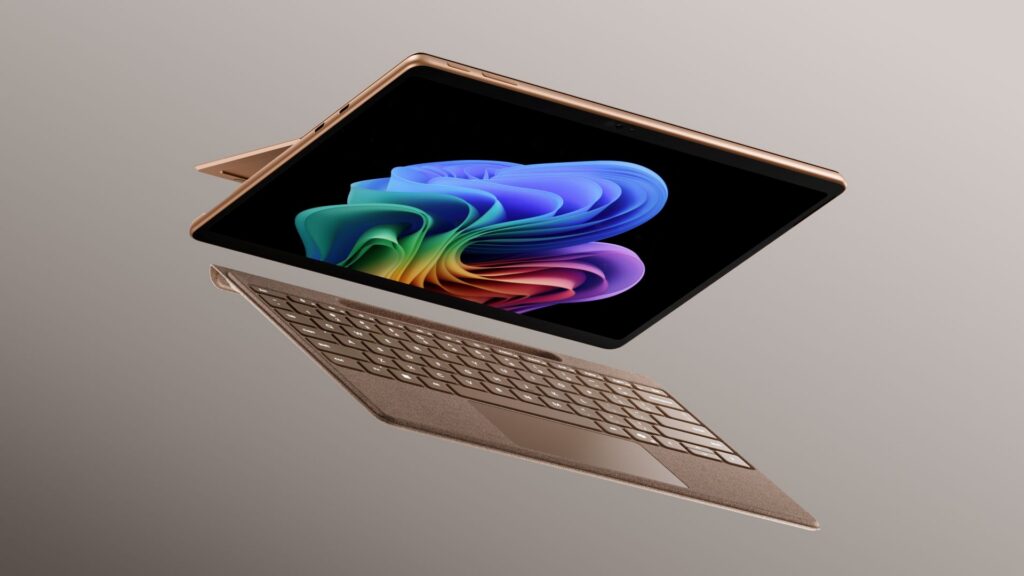
The next Surface Pro and Surface Laptop ship with Snapdragon X2 processors, delivering more performance for the work people do every day. These new PCs are available starting June 16, with Surface for Business availability beginning July 14. Surface Pro floating with keyboard separate

Surface Pro 13-inch: The most versatile 2-in-1 PC

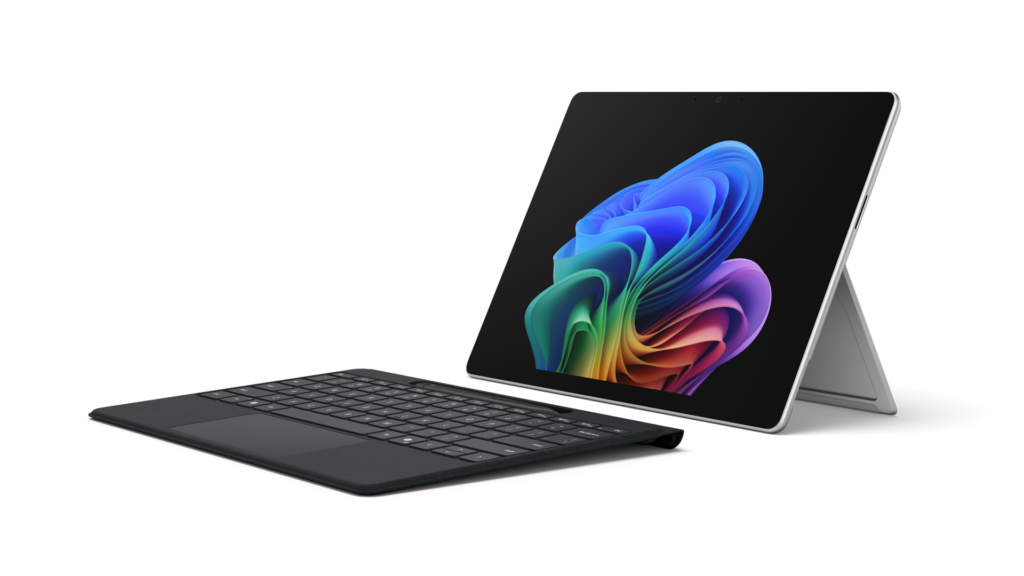
Available in Platinum, Black and Dune [1], the new Surface Pro combines the flexibility of a tablet with the capability of full Windows, so you can move from sketching and notetaking to real desktop work on one device. Starting at $1,499 (MSRP), the new Surface Pro 13-inch with Snapdragon X2 delivers up to 53% faster graphic performance than the previous generation [2], up to 15.5 hours of battery life [3] and a 1440p Quad HD camera with ultrawide field of view for clear video and natural framing on screen. With a stunning optional OLED display, it delivers deeper blacks, higher contrast and greater color accuracy, so you can trust what you’re seeing without second guessing. Paired with the optional Surface Pro Flex Keyboard, now available in Dune, this is the 2-in-1 for the makers who want a lightweight tablet without stepping down from the power and flexibility of Windows. No tradeoffs required. Surface Laptop open and floating with screen facing left

Surface Laptop 13.8-inch and 15-inch: All-day performance

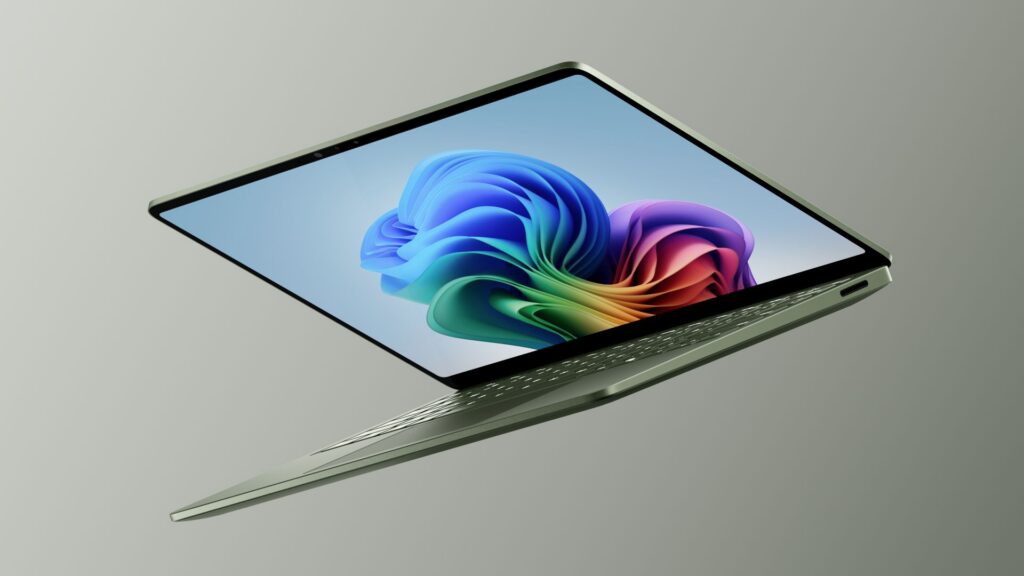
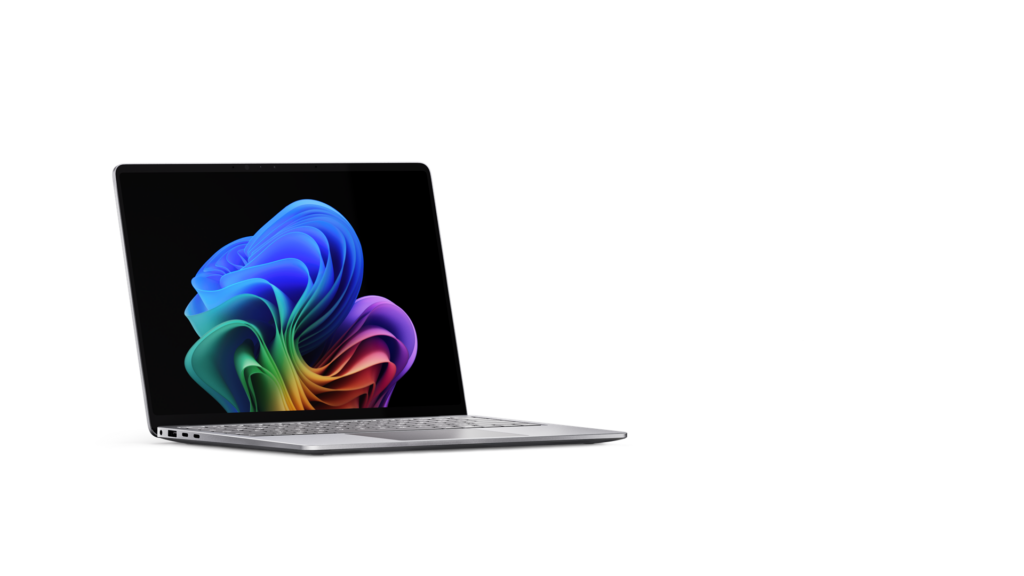
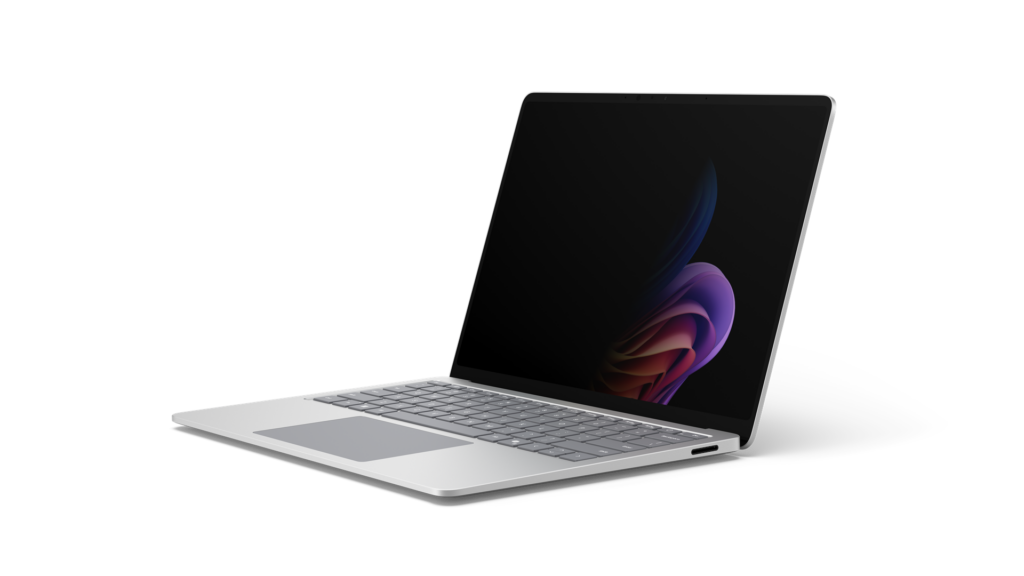
Starting at $1,599 (MSRP), the Surface Laptop pairs the premium build quality Surface is known for with the power of Snapdragon X2 with up to 58% more graphics performance than the previous generation [4]. The new Laptop delivers up to 20 hours of battery life on the 13.8-inch and up to 19 hours on the 15-inch [5]. Whether you're running local models, collaborating across time zones or deep in a creative workflow, it keeps up when the work stacks up. That focus carries through to the display. Both models feature bright, color-accurate LCD screens, and the new Surface Laptop 15-inch display gets sharper, jumping from 201 PPI to 262 PPI for greater detail and clarity. In addition to Platinum, Black and Dune, the 13.8-inch Surface Laptop comes in a beautiful new color: Jade. Round it out with the No.1 ranked laptop camera by DXOMARK [6], and Surface Laptop holds its place as the everyday workhorse of the lineup.

Making AI work for real work

We don't believe AI should be confined to one place. Some workloads belong on device: processed locally, fast always available. Others need the scale of the cloud. Most real work moves between both, sometimes in the same session. Surface is built for that reality. With dedicated NPU silicon, optimized Windows integration and full cloud connectivity, every new Surface device is designed to run AI workloads wherever they make the most sense. On-device inference. Cloud-scale processing. Create hybrid workflows that can move seamlessly between both. Wherever the work moves, Surface is built to move with it.

Feedback you can feel

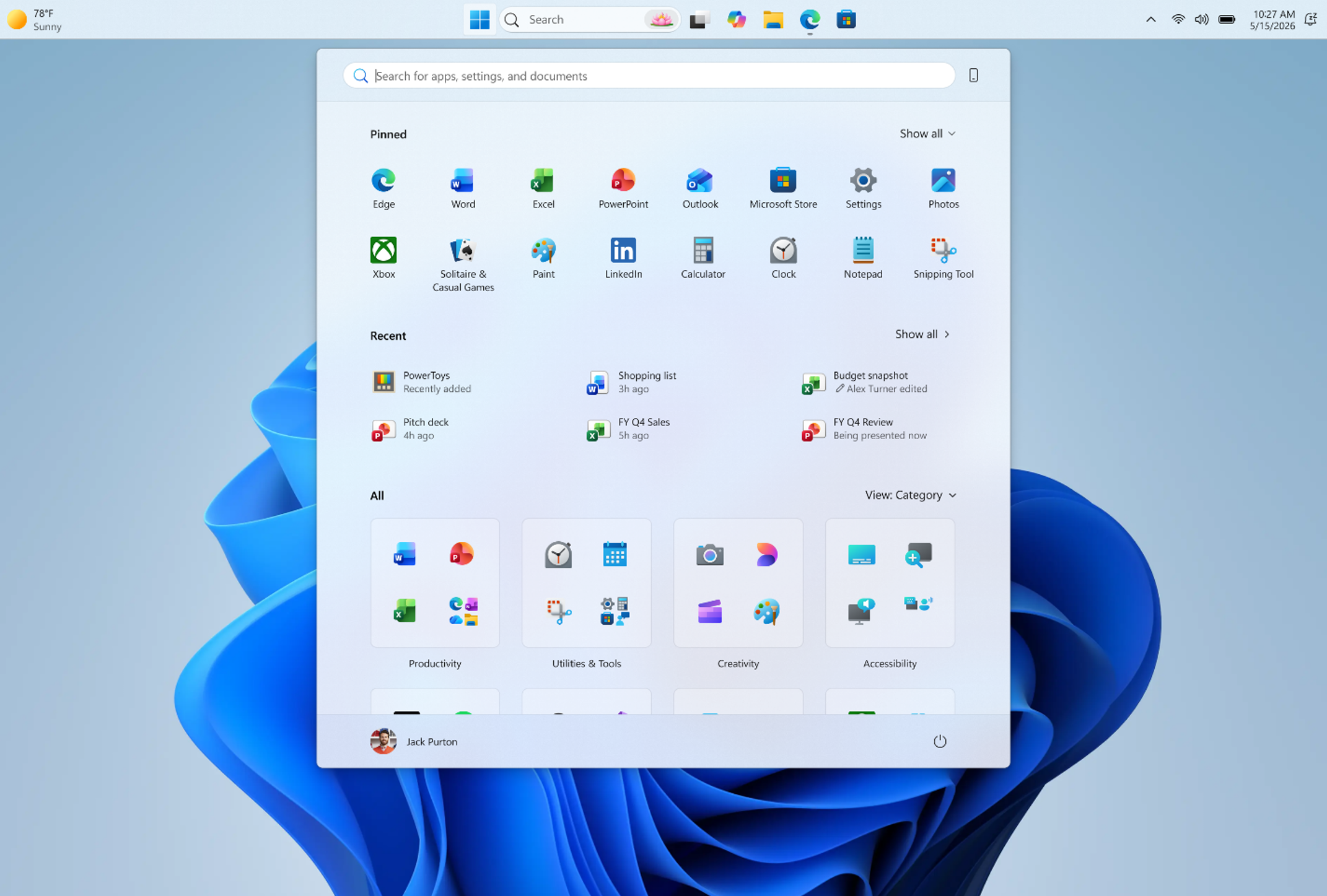
A good interface gives back more than you put in. Across the touchpad on the new Surface Laptop and Slim Pen with Surface Pro, feel subtle haptic feedback across Windows and the apps you use every day. Snap a window into place. Scrub through a video. Create in Affinity. Every move lands. This isn't a feature for the spec sheet. It's clarity, so actions feel certain. Inclusion, so feedback reaches past what you can see and hear. Delight, so the small moments feel made for you. Learn more at Microsoft Design about how advanced haptics in Windows 11 bring clarity, inclusion and delight to everyday interactions. Illustration of green sandy pattern Our partnership with Affinity runs deeper than a touchpad gesture. Surface Pro and Surface Laptop ship with Affinity pinned to the Start menu [7], ready the moment you sign in with professional-grade design, photo and publishing tools, tuned to take full advantage of Surface hardware for a smooth and responsive experience.

Designed with sustainability and repair in mind

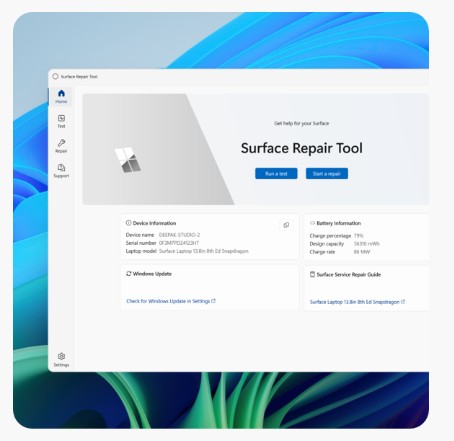
Surface devices are built with sustainability in mind. Surface Laptop 13.8-inch and 15-inch and Surface Pro 13-inch are made with a durable 100% recycled aluminum enclosure, reducing reliance on virgin materials [8]. These devices are also built for high performance and energy efficiency. Each device is certified by ENERGY STAR, all outperforming the efficiency baseline by at least 50% [9]. The new Surface Repair Tool gives you guided repair workflows designed by Microsoft. From one screen, you can see your device’s model and key device information, run tests on supported components (including the battery, display, or camera) and walk through guided repairs for eligible parts like the battery, display, touchpad or motherboard. Screenshot showing Surface Repair Tool

Find your next Surface on Microsoft.com

Discover the new Surface lineup and find the one that’s right for you at Microsoft.com. For a limited time, customers in the U.S. can take advantage of our exclusive hero offer from June 16 through June 30, including a free Surface Pro 13-inch Keyboard when purchasing a Surface Pro 13-inch or a free Surface Arc Mouse when purchasing a Surface Laptop 13.8-inch or Surface Laptop 15-inch, plus 50% off Microsoft Complete for added protection. When you shop at Microsoft Store, you’ll also benefit from added value. Our trade-in plus-up offer can save you up to $900 when you trade in your old device. Our 60-day return policy provides additional peace of mind and a one-year manufacturer warranty included with every device makes it easier than ever to upgrade with confidence.

What you make next

Thirteen years in, we’re driven by the same goal we’ve always been: empowering people to realize their vision and create new worlds. We’ll keep building. The rest is yours. Visit Surface.com to explore the new lineup. [1] Colors available on selected models only. Available colors, sizes, finishes and processors may vary by store, market and configuration. [2] Tested by Microsoft April 2026 using 3DMark Steel Nomad benchmark comparing Surface Pro, 13-inch (12th Edition) with Snapdragon X2 Elite to Surface Pro 13-inch (11th Edition) with Snapdragon X Elite devices. [3] Based on local video playback test. Battery life varies significantly based on usage, network and feature configuration, signal strength, settings and other factors. See aka.ms/SurfaceBatteryPerformance for details. [4] Tested by Microsoft April 2026 using 3DMark Steel Nomad Lite benchmark comparing Surface Laptop, 13.8 -inch and 15-inch (8th Edition) with Snapdragon to Surface Laptop, 13.8-inch and 15-inch (7th Edition) with Snapdragon. [5] Based on local video playback test. Battery life varies significantly based on usage, network and feature configuration, signal strength, settings and other factors. See aka.ms/SurfaceBatteryPerformance for details. [6] Based on commissioned testing by DXOMARK in April 2026 of Surface Laptop, 13.8-inch with Snapdragon X2 M10 16GB/256GB and the DXOMARK laptop camera ranking as ofJune 16. 2026. Claim applies only to devices with the same camera hardware, firmware and settings as tested. Rankings may change. More information: Laptop Ranking - DXOMARK [7] On Surface for Business devices, Affinity app requires installation. [8] Surface Pro, 13-inch enclosure includes bucket, kickstand. 86% recycled content in the enclosure, consisting of 100% recycled aluminum alloy in bucket, and 100% recycled rare earth metals in the magnets. Surface Laptop, 13.8-inch and 15-inch, enclosure includes A Cover and C Bucket. 64% recycled content in the enclosure, consisting of 100% recycled aluminum alloy in A Cover and C Bucket, and 100% recycled rare earth metals in the magnets. Based on validation performed by Underwriter Laboratories, Inc. using Environmental Claim Validation Procedure (ECVP) for Recycled Content, UL ECVP 2809-2, Second Edition, dated June 2024. [9] Comparison based on product energy consumption vs. ENERGY STAR certification limits for personal computers. Actual performance varies by configuration and usage.
  •  

Announcing new builds for 12 June 2026

Hello Windows Insiders, We have a number of releases today with new builds across Beta, Experimental and Release Preview. Release notes for inbox Windows 11 apps Windows 11 inbox apps are now getting their own release notes section on the Windows Insider Program Documentation Hub site. This is to help make finding app updates easier, with each inbox app getting its own dedicated page as new updates rollout. Check out some of the app updates rolling out to Experimental across Calculator, Camera, Clock, Media Player, Paint, Photos and Sound Recorder. More apps will be added over time. New builds this week Today we are releasing new Windows 11 Insider Preview Builds. As a reminder, all Insiders can find the release notes for your device based on the new channel system, even if you haven’t moved yet. This is to make finding build information as easy as possible during the transition. See your channel release notes here: For those on other specific build versions, here are today’s new builds and release notes:
  • Beta (26H1): Build 28020.2298
  • Experimental (26H1): Build 28120.2302
  • Experimental (Future Platforms) – Including Canary 29600 series: Build 29610.1000
    • Note: The issue affecting AMD machines supporting System Guard has been resolved meaning these devices will be offered the Experimental (Future Platforms) build as usual
We also have Release Preview builds today for 24H2/25H2 and 26H1:

Notable new features

[Windows Update]

Release channel: Experimental
  • As announced in the Windows Update announce blog, we are rolling out a new unified update experience to reduce the number of reboots you see per month. We are starting by coordinating driver, .NET, and firmware updates to align with the monthly quality update, reducing the update experience to a single monthly restart. See the blog for more information.

[Search]

Release channel: Experimental
  • Finding apps is more forgiving. Search is better at handling typos, dropped letters, extra letters, and partial words for apps. Queries like “utlook” can still find Outlook.
  • Settings results are improving. We’ve made ranking improvements to help more relevant settings appear higher in results.
Thanks, Stephen and the Windows Insider Program team
  •  

Faster updates, enterprise-friendly schedule: the new Microsoft Edge release cycle

Microsoft Edge is moving to a two-week release cycle, bringing new features and improvements to users and organizations faster than ever. This is great news for teams that thrive on innovation: instead of waiting a full month for the next update, you get a steady, continuous stream of new capabilities to put to work sooner. For organizations that prefer a more deliberate pace, Extended Stable is not changing. We introduced it in 2021 to provide a longer, predictable rhythm, and that commitment remains firmly in place. Extended Stable remains unchanged in timing.

Changes to the release schedule

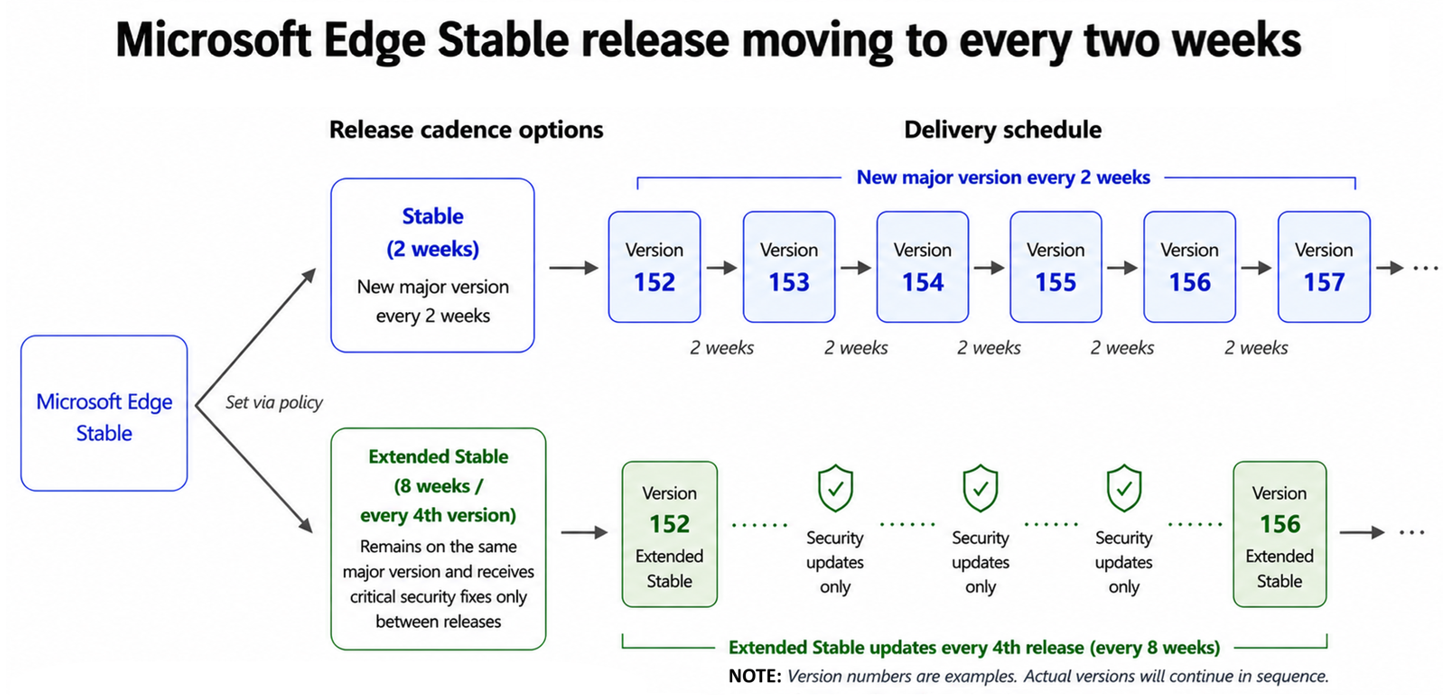
Starting with Microsoft Edge 152 (Stable on August 27), Edge will move to a 2-week release cycle. Extended Stable will now receive updates every fourth release (for example, 156, 160, 164). The time between Extended Stable updates stays the same, at every eight weeks. Microsoft Edge Stable release moving to every two weeks. Diagram showing the schedule for Stable, and Extended Stable. For customers on Stable, the practical effect of the new cycle is smaller, steadier change. Each release brings about half as much new content as before, delivered twice as often. Security and platform improvements reach your users faster, and each change set is smaller, which can make validation more manageable. Both channels receive critical security updates. The difference is how quickly new features arrive: Stable delivers them on the new 2-week cycle, while Extended Stable spaces feature updates over an 8-week window for organizations that prefer a longer planning rhythm.

Recommended action

In summary, here is what to do, depending on the channel you run:
  • If you are on Extended Stable: no action needed. Your 8-week cycle and the same support model continue.
  • If you are on Stable: plan for smaller, more frequent change sets and faster delivery of security improvements.
  • Whichever channel you run: add a pilot group to Beta and start testing from day one to maximize your validation time.
Early testing gives you more time to identify issues, provide feedback, and address them before the Stable release reaches your organization. Enterprise Preview is our supported path for piloting Beta, with setup guidance built for IT admins, which helps you stay ahead of the faster cadence. To prepare for the transition, please refer to the updated Microsoft Edge release schedule and the Microsoft Edge Lifecycle page. We will continue to share updates through the Microsoft Edge Blog and the Microsoft 365 Message Center. The pace of Edge is accelerating, and your users get to enjoy the payoff: more features, more improvements, arriving sooner and more often. And whatever pace suits your organization, you stay in control of it. We appreciate the partnership of our customers, and we are committed to supporting every team, on every channel, as Edge keeps getting better, faster.
  •  

Computex 2026: Empowering a billion users with Windows across the ecosystem

Computex has always been one of the most important moments of the year for the PC industry — a stage where our partners come together to show what is next for hardware, silicon and the experiences they unlock. This year our partner ecosystem is shaping the future of the PC for more than a billion daily users around the world. Partners unveiled a new wave of Windows 11 PCs that span every form factor and customer need. Together, these announcements reflect the deep collaboration across the Windows ecosystem and how it is accelerating industry‑wide transformation — delivering greater performance, more efficiency and thoughtful new designs for the way people work, create and play. The power of the Windows platform means that there’s a Windows device for every person and purpose no matter what price point. Let’s look at a selection of the key announcements from our partners at Computex 2026.

New Windows 11 PCs from across the ecosystem

Acer

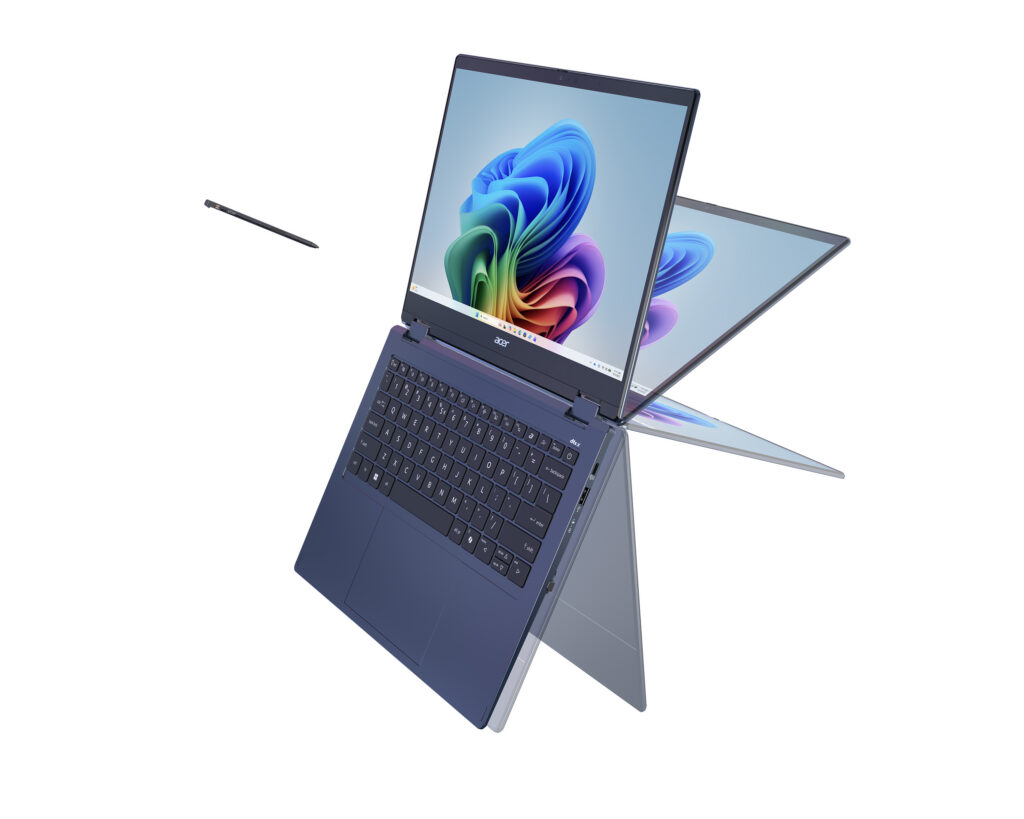
Acer announced a comprehensive lineup of innovation, with all new laptops running on Windows 11. The lineup featured Copilot+ PCs prominently, including several new entries to Acer’s mainstream Aspire product line: the high-powered Aspire X 16 AI laptop for prosumers, the Aspire 18 AI laptop with greater screen space for creative workflows and productivity and the Aspire C AI Series all-in-one desktops with an innovative new ErgoStand design. Acer also added two new Copilot+ PCs to the premium Swift line with two versions of Swift Spin 14 AI one powered by Intel Core Ultra Series 3 processors and the other by Snapdragon X2 Series processors — also marking Acer’s first convertible 2-in-1 laptops under the Swift line. [caption id="attachment_263872" align="alignnone" width="1024"]Floating laptop with stylus also floating in front of it, with display in various positions Acer Swift Spin 14 AI[/caption]

ASUS

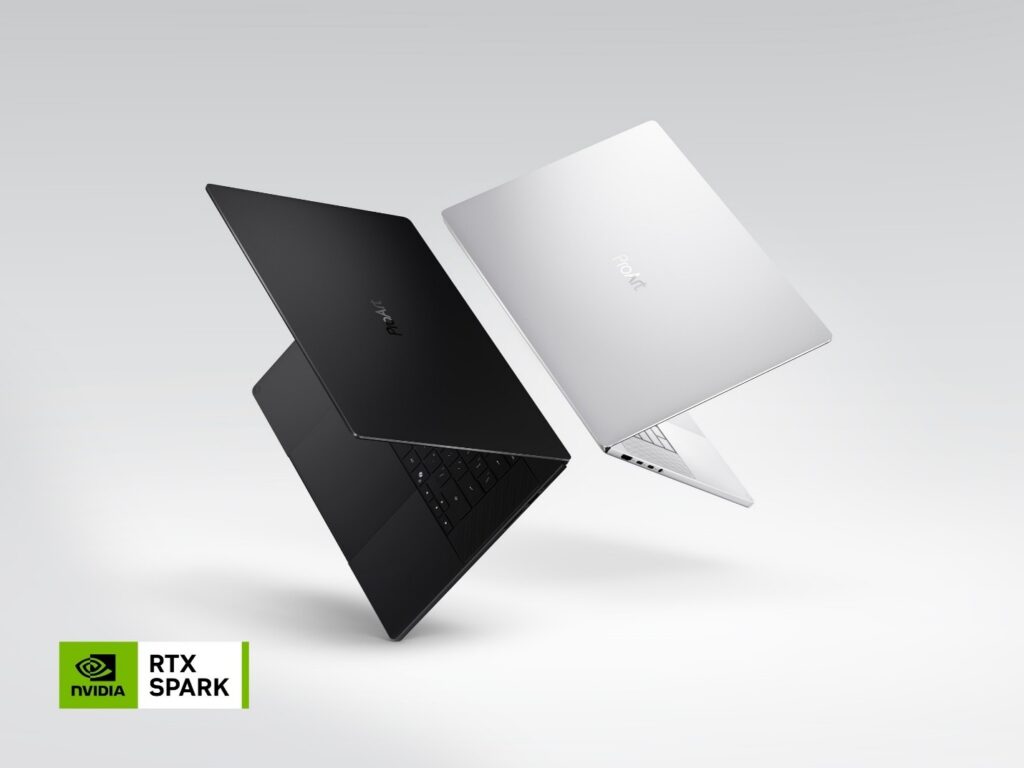
ASUS showcased its latest AI PC portfolio designed to make AI more practical and accessible for every user. The new ProArt P16 and P14, powered by NVIDIA RTX Spark, bring next-generation agentic AI workflows and powerful local AI capabilities to creators and developers. For mainstream consumers, the new Zenbook 14 delivers a Windows experience with premium design, all-day mobility and fresh new Ceraluminum colors, while the Snapdragon-powered Vivobook S series expands AI-enhanced productivity to an even broader audience. Together, these innovations demonstrate ASUS’ vision of bringing advanced AI experiences across every category of personal computing. [caption id="attachment_263865" align="alignnone" width="1024"]Two laptops open and floating back to back Asus ProArt Laptop[/caption] The 2026 ROG Strix SCAR 18 redefines the gaming flagship laptop with up to 320W total system power, powered by up to an Intel Core Ultra 9 processor 290HX Plus and an NVIDIA GeForce RTX 5090 Laptop GPU, and featuring the world’s first 18-inch 4K 240Hz Mini LED ROG Nebula HDR display with ROG Nebula Extreme Low Motion Blur (ELMB) for uncompromising gaming and creator experiences [1].

Dell

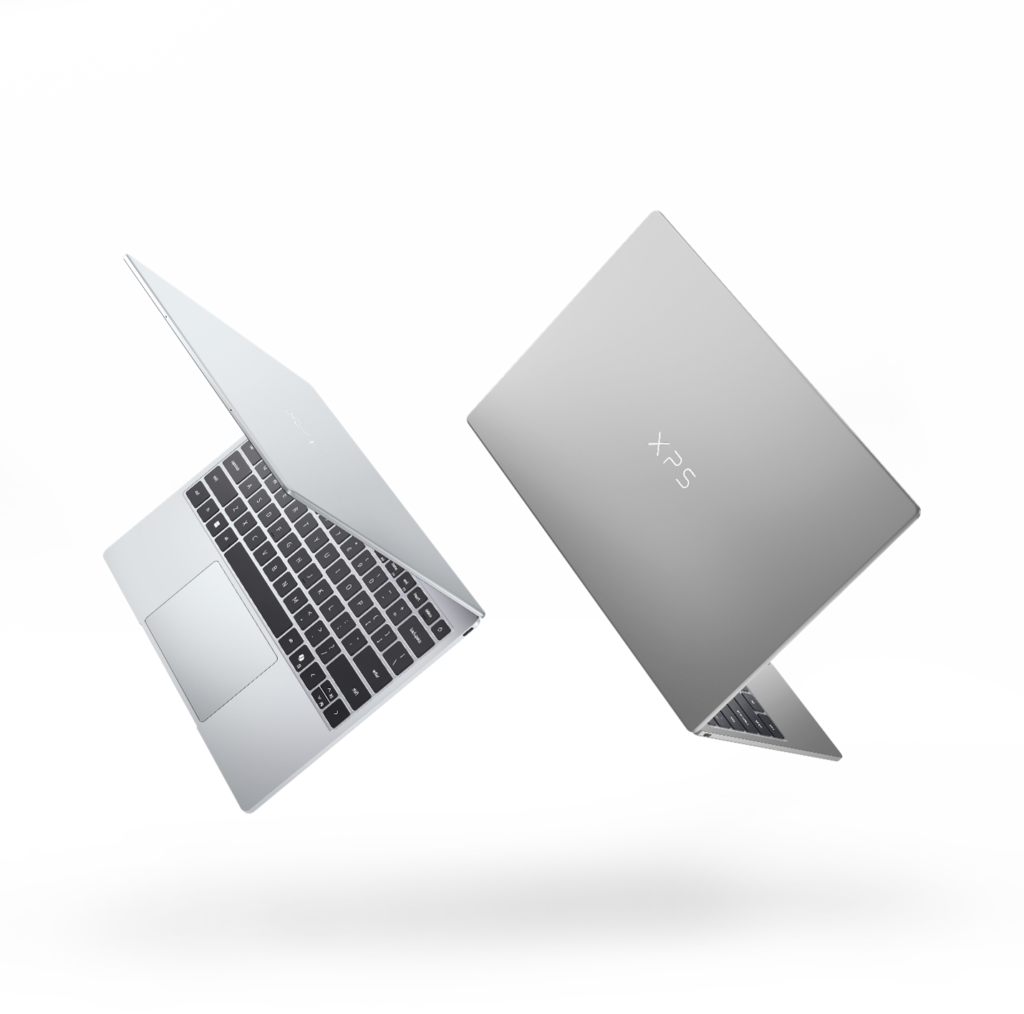
The new XPS 13 starting at $699 proves that a lower price doesn't mean accepting less. As Dell's thinnest and lightest laptop yet, with up to 17 hours of streaming battery life, it delivers true all-day portability. Every detail reflects XPS craftsmanship – from the durable CNC aluminum chassis to the 2.5K touchscreen, backlit keyboard and Intel Wi-Fi 7 that all come standard, redefining what a premium laptop can be at this price.

“With XPS 13, we’re proving that a lower price doesn’t mean accepting less. It's the thinnest and lightest XPS we've ever built. This reflects where XPS is headed: more power, more innovation and stronger competition across price points.” - Donnie Oliphant, XPS Product Lead, Dell Technologies

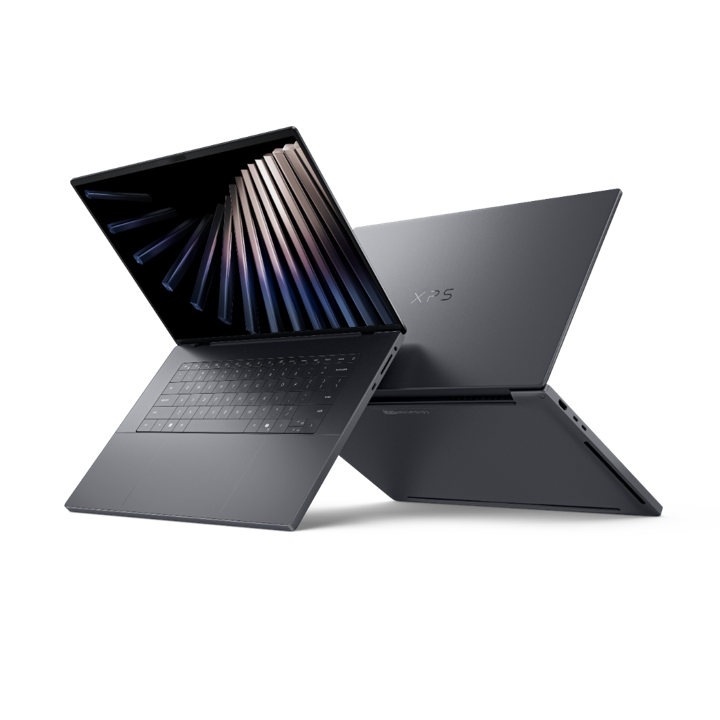
[caption id="attachment_263866" align="alignnone" width="1024"]Two laptops open and floating back to back Dell XPS 13[/caption] The XPS 16 Creator Edition is a creator-class laptop built for the most demanding creative and developer work on the go. Powered by NVIDIA RTX Spark with a powerful RTX GPU and ultra-efficient CPU, it's the first XPS laptop to deliver NVIDIA's full stack AI platform and complete suite of NVIDIA RTX technologies in a portable form factor. It delivers smoother playback on 4:2:2 4K timelines, faster exports, more responsive multitasking across complex 3D scenes and compositing work, and a more fluid experience with AI-assisted creation. [caption id="attachment_263864" align="alignnone" width="720"]Two laptops open and floating back to back Dell XPS 16 Creator Edition[/caption]

HP

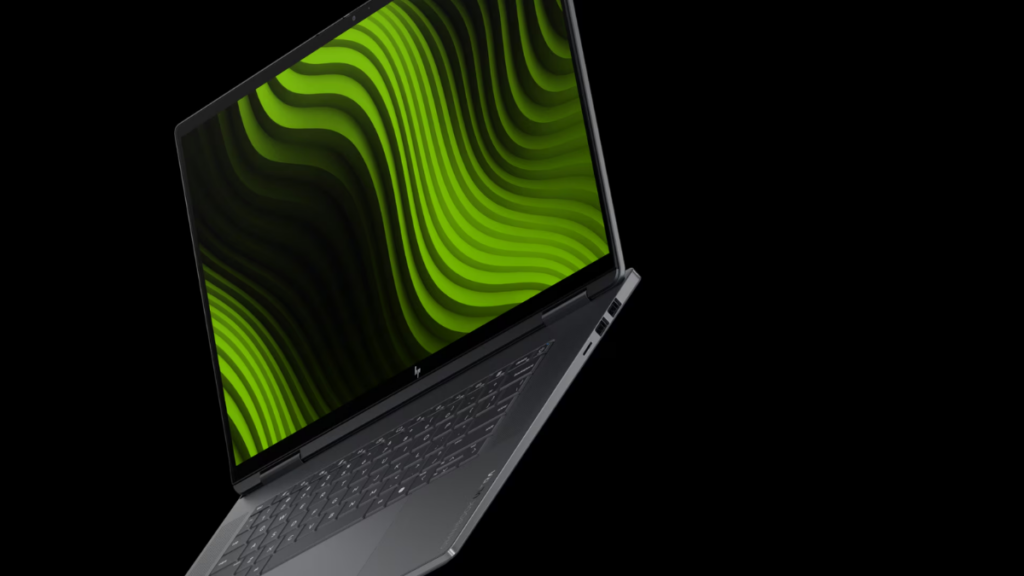
Beginning later this year, HP will bring RTX Spark to its HP OmniBook Ultra 16 and HP OmniBook X 14 laptops, built for powerful performance. The company is also planning to expand its RTX Spark offerings with a compact desktop, bringing new choices to creators, AI enthusiasts and developers. RTX Spark is designed for creators, gamers and AI developers, bringing NVIDIA’s full-stack AI platform and suite of RTX technologies to slim laptops with all-day battery life. [caption id="attachment_263873" align="alignnone" width="1024"]Laptop floating in black background HP OmniBook Ultra 16[/caption]

MSI

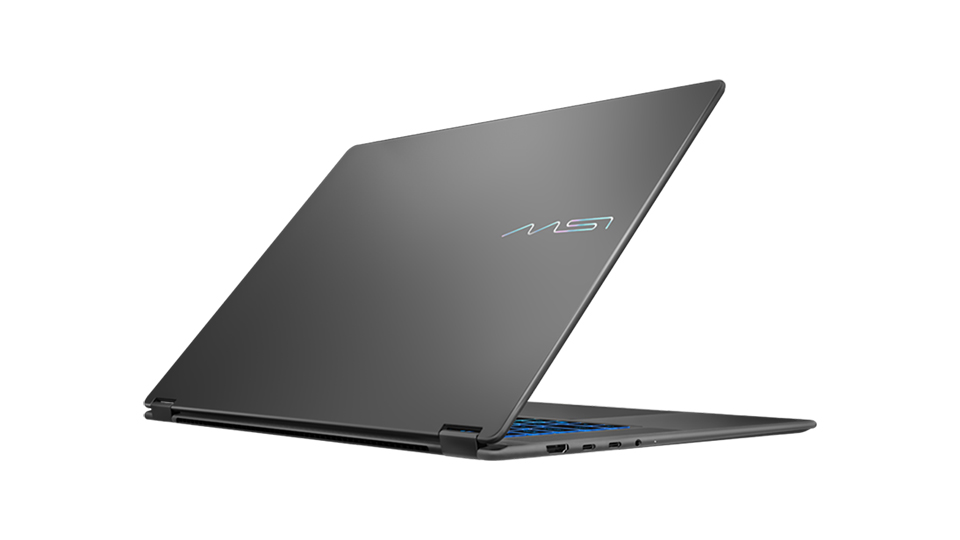
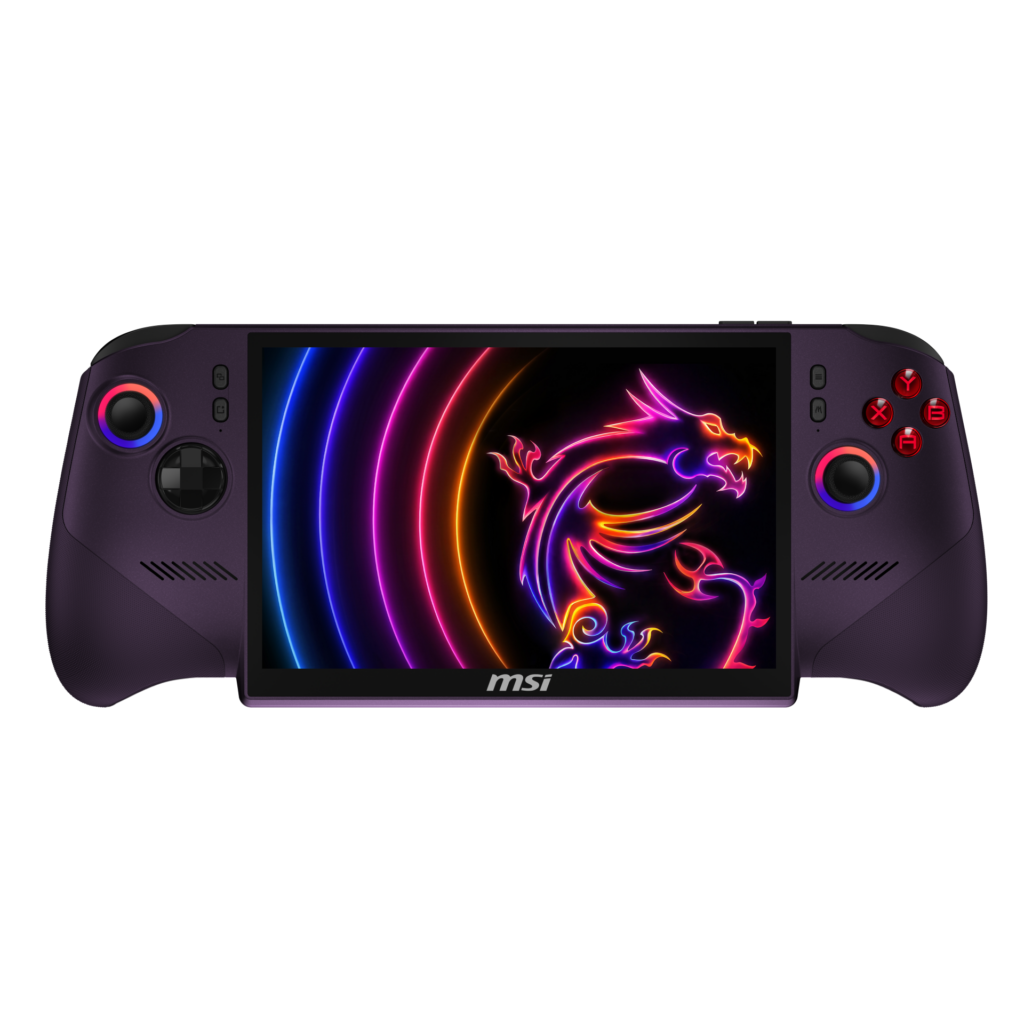
MSI unveiled the Prestige N16 Flip AI+, the company’s first laptop developed in collaboration with NVIDIA powered by the new RTX Spark. It reinvents personal computing, combining advanced content creation, AI development and high-performance gaming in a new platform engineered from the ground up for the next wave of Windows PC experiences. It features a 16-inch UHD+ Tandem OLED display with a dual-layer emissive structure that stacks two OLED layers to share light output. This advanced panel technology delivers over 1000 nits of peak brightness while improving display longevity and power efficiency. Designed for versatile everyday use, the 2-in-1 flip design allows seamless transitions between laptop, tablet, tent and presentation modes, adapting easily to different workflows and environments. [caption id="attachment_263874" align="alignnone" width="960"]Laptop open with back of device at an angle Prestige N16 Flip AI+[/caption] MSI also announced its latest innovation in handheld gaming, the Claw 8 EX AI+, powered by Intel Arc G3 Extreme processors. It delivers a significant leap in graphics performance, enabling exceptional AAA gaming on handheld devices while maintaining strong power efficiency for extended play sessions. Designed for sustained gaming on the go, the Claw 8 EX AI+ features an 8-inch 120Hz VRR display, delivering fluid visuals. [caption id="attachment_263887" align="alignnone" width="1024"]Closeup of Claw handheld device Claw 8 EX AI+[/caption]

Surface

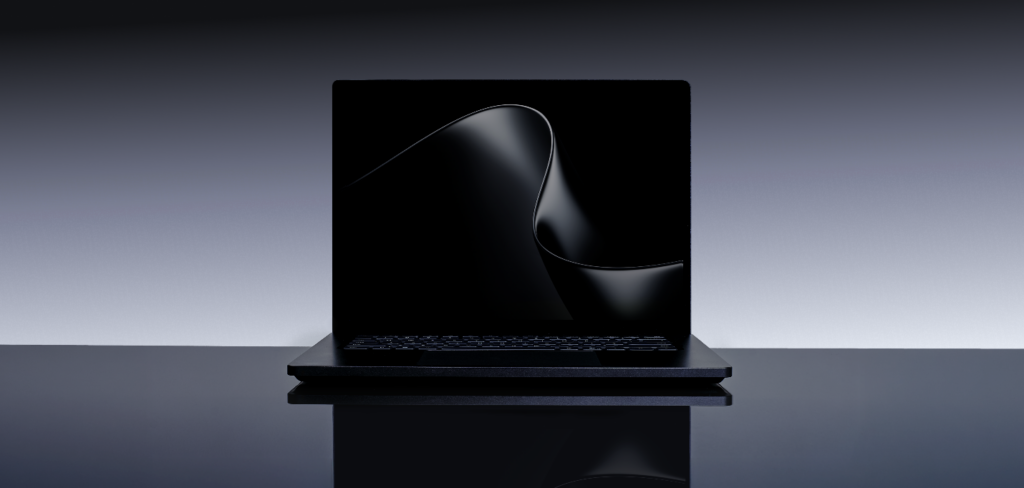
The Surface Laptop Ultra is the most powerful Surface Laptop ever built, designed for world makers, creative pros, developers and AI builders. Powered by an NVIDIA RTX Spark superchip, Surface Laptop Ultra combines a powerful NVIDIA Blackwell RTX GPU, full CUDA support and up to 128GB of unified memory to help creators and developers take on demanding local AI, rendering, compiling and multi-model workflows in a thin, precision-engineered laptop. Surface Laptop Ultra brings uncompromising craft and raw power to the people creating what’s next, with up to 1 petaflop of AI compute, capable of running up to 120B parameter models with 1 million token context locally [2]. It pairs that performance with the hardware world makers need on the go: a 15-inch mini-LED PixelSense Ultra touchscreen, all-day battery life and creator-ready ports. To learn more, visit the Devices blog by Brett Ostrum, Corporate Vice President, Surface. [caption id="attachment_263860" align="alignnone" width="1024"]Image of black Bloom on screen of Surface Laptop Ultra Surface Laptop Ultra[/caption]

Next generation silicon powering AI PCs

Intel

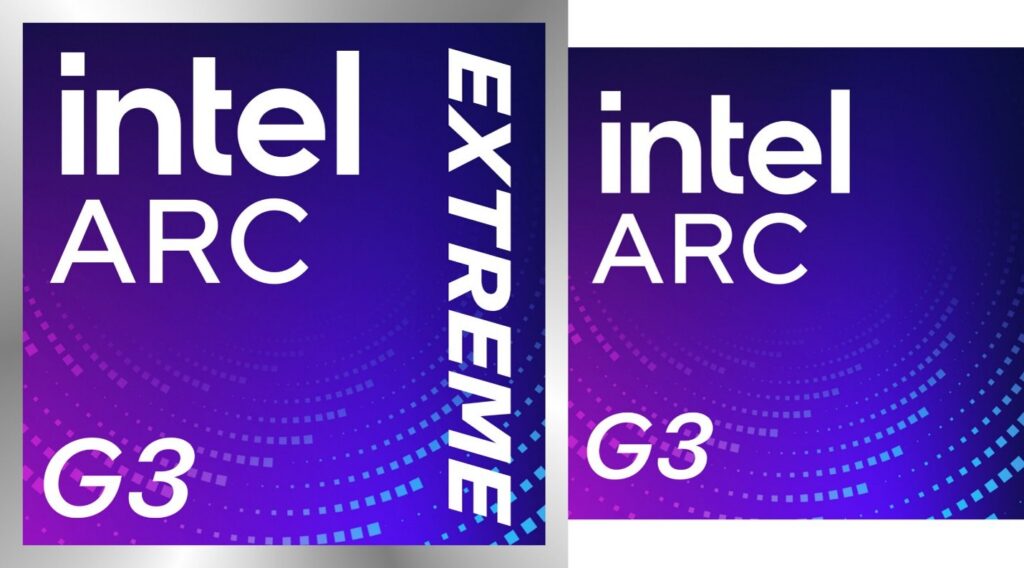
Intel introduced Intel Arc G-Series processors, a new family of products designed for next-generation handheld gaming systems. Launching with Intel Arc G3 and Intel Arc G3 Extreme processors running on Windows 11, the series builds on the architecture of Intel Core Ultra Series 3 to bring optimized performance and power efficiency to portable play. Designed for handheld with optimized core counts, power management and software, Intel Arc G3 processors deliver leadership performance and efficiency for smooth, immersive gameplay and exceptional battery life without compromise. Handheld designs from leading partners will launch in the coming months, beginning with Acer’s Predator Atlas 8, MSI Claw 8 EX AI+ and OneXPlayer. closeups of Intel ARC G3 Extreme chip and G3 chip

"Intel Arc G-Series represents years of focused innovation and a deep commitment to gaming. It delivers uncompromising PC performance in the palm of your hand, combined with the console-like accessibility and immediacy gamers expect. With cutting-edge graphics technologies like XeSS 3 and breakthrough efficiency for longer unplugged play, Intel Arc G-Series proves that while others make tradeoffs, gamers don't have to." – Dan Rogers, Vice President and General Manager, PC Product, Client Computing Group

NVIDIA

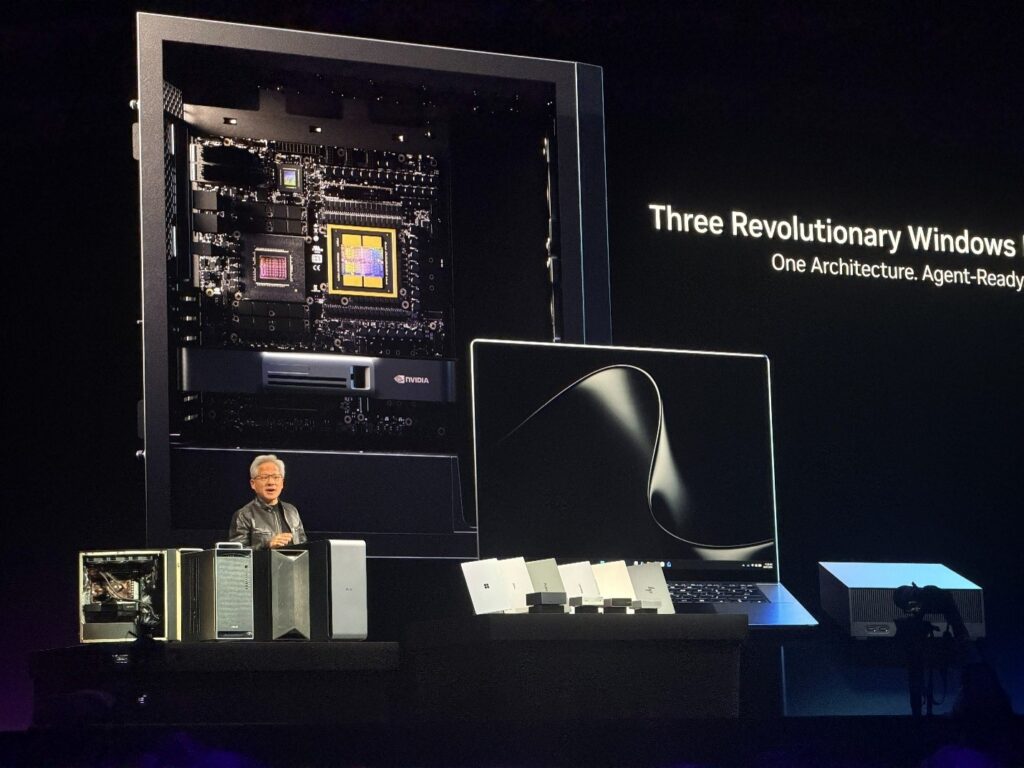
At Computex 2026, NVIDIA CEO Jensen Huang announced the RTX Spark, a new Arm-based AI superchip developed in collaboration with MediaTek and Microsoft, designed to run personal AI agents locally on Windows laptops and compact desktops. It is designed for AI, creating and gaming, delivers up to 1 petaflop of AI performance, Blackwell RTX cores, industry-leading power efficiency, full-stack NVIDIA AI and graphics technology and up to 128GB of unified memory. NVIDIA and Microsoft collaborated to bring NVIDIA OpenShell runtime to Windows, built on MXC. Integrating MXC through OpenShell provides an easy-to-integrate package for developers to deploy autonomous, always-on agents safely. Beginning this fall, RTX Spark will power a full range of Windows laptops and small form factor desktop PCs, with Microsoft Surface, ASUS, Dell, HP, Lenovo and MSI. Jensen also announced the NVIDIA DGX Station for Windows, a deskside AI supercomputer powered by the GB300 Grace Blackwell Ultra Desktop Superchip. It allows enterprise developers to run frontier AI models with up to 1 trillion parameters locally on Windows environments without cloud costs. [caption id="attachment_263879" align="alignnone" width="1024"]Photo of a man on a stage in front of a blown up photo of a chip Beginning this fall, NVIDIA RTX Spark will power a range of Windows laptops from Microsoft Surface, ASUS, Dell, HP, Lenovo and MSI, Surface RTX Spark Dev Box from Microsoft Surface, and small form factor desktop PCs from Acer, Asus, Dell, Gigabyte, HP, Lenovo and MSI. We're also introducing the NVIDIA DGX Station for Windows that puts a trillion-parameter AI supercomputer on every enterprise desk.[/caption]

Qualcomm

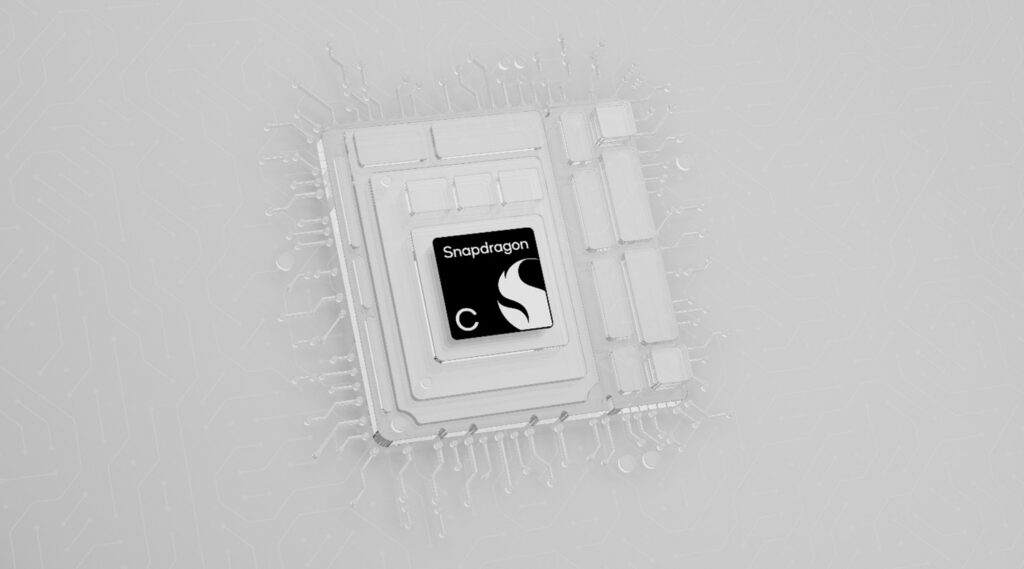
Ahead of Computex, Qualcomm Technologies, Inc. announced the Snapdragon C Platform, a new entry-tier processor designed to make modern, responsive computing more accessible for students, families and small businesses. It delivers efficient performance with cool, quiet designs and all-day battery life. In tandem with Qualcomm’s announcement, Acer unveiled the Acer Aspire Go 15, expanding access to capable laptops at more affordable price points, becoming the first PC maker to announce a device powered by the new Snapdragon C processor. The company also introduced the Acer Swift Spin 14 AI, powered by Snapdragon X2 Elite or X2 Plus, delivering up to 80 TOPS of AI performance. ASUS announced the ASUS Ascent QN10, the world’s first AI mini PC powered by the Snapdragon X2 Elite platform, featuring an 80 TOPS NPU. The device supports intelligent, agentic AI experiences and expands Snapdragon X2 Elite into a new mini PC form factor. Together, these announcements highlight a significant leap in performance and AI capability while broadening Qualcomm Technologies’ compute portfolio across tiers and form factors.

“As costs rise and customer expectations evolve, Snapdragon C brings together value-oriented computing, all-day battery life, AI capabilities and responsive performance in cool-quiet devices for expanded platform choice. We’re delivering modern computing experiences that help our ecosystem reach new audiences and expanding access to reliable, efficient technology for students, families, customer-facing small businesses and beyond.” - Kedar Kondap, Senior Vice President and General Manager of Compute and Gaming, Qualcomm Technologies, Inc.

“Acer’s announcements reflect the strength and breadth of the Snapdragon portfolio from premium AI experiences with the Snapdragon X2 Series to accessible, everyday computing with the new Snapdragon C Platform. Together, these platforms are helping expand the Windows ecosystem, while giving our partners new opportunities to reach more users.” - Nitin Kumar, VP, Product Management, SVP & GM, Compute and Gaming, Qualcomm Technologies, Inc.

close-up of Snapdragon chip with black logo on white/clear chip

Empowering a billion users together

These announcements and many more from our partners last week are a powerful reminder of what makes Windows special: an open ecosystem of partners pushing boundaries together, delivering performance, longer battery life, AI experiences and thoughtful design across more form factors than any other platform. From everyday productivity to premium consumer devices to commercial fleets and frontline workhorses, the Windows ecosystem is meeting customers wherever they work, create and play. Thank you to every partner who joined us in Taipei, to the teams who made it happen, and to the more than a billion daily users who continue to choose Windows. If you are looking for a new Windows 11 PC, there has never been a better time to explore the wide range of devices available from our partners and find the one that best fits the way you live and work. [1] Based on publicly available information as of April 2026, ROG Strix SCAR 18 is the only gaming laptop known to feature a 4K resolution and 240Hz refresh rate in a single 18" mini-LED panel with ELMB.  [2] Source: NVIDIA. Based on 1 Theoretical FP4 TOPS using the sparsity feature.
  •  

Announcing new builds 8 June 2026

[Update 6/11/2026: Release notes have now been published to Windows Insider release notes - Windows Insider Program | Microsoft Learn.]   Hello Windows Insiders,   Announcing several new builds today across Beta and Experimental, including a new build train for 26H1!  New build series for Windows 11 26H1  Today we are releasing a new Windows 11 Insider Preview Build train for Windows 11 version 26H1. As mentioned in previous blogs, Insiders in the Experimental (26H1) channel who had since selected to move to the Beta experience, were still receiving the same build version while we worked to introduce a new branch.   Starting today, Insiders in the Experimental (26H1) channel will begin receiving a new 28100 series build number, while we officially introduce a new Beta (26H1) channel based on the 28000 series builds. This enables our goal of giving Windows 11 26H1 Insiders the same choice between Beta and Experimental development branches, with the associated differences outlined in our original blog announcing the program changes. As part of that commitment, Insiders in Experimental (26H1) can easily switch to Beta (26H1), or vice versa, by simply switching the experience selection in Settings > Windows Update > Windows Insider Program. This entails a simple in place upgrade (IPU), meaning no clean reinstallation of Windows is required.   As a reminder, while Insiders do have the ability to specifically select Windows 11 version 26H1 under the Advanced options tab in the Windows Insider settings, Windows 11 26H1 is a targeted release of Windows supporting specific silicon launching this year, including Qualcomm Snapdragon X2 Series devices. It is generally otherwise recommended to stick with the default Windows core version selected within Advanced options.   New builds this week See below for today’s Insider Preview build numbers and detailed release notes:  
  • Beta: Build 26220.8575
  • Experimental: We do not have a new build for this channel today. Keep an eye out for future flights. 
For those on other specific build versions, here are today’s new builds and release notes:
  • Beta (26H1): Build 28020.2236
  • Experimental (26H1): Build 28120.2242
  • Experimental (Future Platforms) – Including Canary 29500 series:  We do not have a new build for this channel today. Keep an eye out for future flights.  
As a reminder, you can always find your build number in the watermark on bottom right-hand corner of your desktop.  Thanks,  Stephen and the Windows Insider Program team 
  •  

XBOX Games Showcase 2026 recap

If you weren’t able to catch the XBOX Games Showcase 2026 over the weekend, our colleagues over at XBOX Wire have you covered, with a recap of all the major news on titles, hardware and accessories – such as the XBOX Series X25 Limited Edition and XBOX Wireless Controller X25 Special Edition that commemorate the 25th anniversary of XBOX. Among the announcements were a bevy of PC-focused games: world premieres for Senua, Spyro: A Realm Beyond and DOOM: The Dark Ages | Revelations; a new trailer for Fable (and its lead villain, played by Hayley Atwell); release dates and brand new gameplay for Halo: Campaign Evolved and Minecraft Dungeons II; fresh looks at State of Decay 3 and Clockwork Revolution; and a peek at Call of Duty: Modern Warfare 4‘s DMZ experience. Head over to XBOX Wire to find out more about these and all the other reveals from the Showcase.
  •  

Building the next generation of devices for developers: Surface RTX Spark Dev Box

Software developers are some of the most ambitious makers we serve. They push devices harder, ask more of their tools and expect their environment to help define the pace of modern software creation. Development today means longer running jobs, larger models and a growing need to prototype and iterate locally rather than paying for every cloud call. That is why we embarked on a project to build two new Surface devices designed specifically for the needs of these makers. Earlier this week, we introduced Surface Laptop Ultra, a high-performance laptop built for developers, creators and technical professionals who need serious performance wherever they work. Today at Microsoft Build, we are introducing Surface RTX Spark Dev Box, a compact developer PC engineered with NVIDIA RTX Spark superchip and built on the Windows developer platform, designed for local-first AI development. Surface RTX Spark Dev Box is for developers who want to prototype, fine-tune and run capable models on their desk, and reach for the cloud when the work calls for it. Together, Surface Laptop Ultra and Surface RTX Spark Dev Box represent the next step for Surface: purpose-built devices for the people building what’s next. https://www.youtube.com/watch?v=VlAI1_JkXL4

A new category of Surface, built for developers

The way developers build software is fundamentally changing. AI models are growing in capability and complexity, agentic workflows demand sustained compute, and every iteration can incur cloud costs, even when the work doesn’t require state-of-the-art models. Surface RTX Spark Dev Box changes that equation. It’s a purpose-built Windows AI developer box that puts up to 1 petaflop of AI compute directly on the desk. By bringing powerful AI compute to the edge, developers can reserve frontier model calls for truly frontier problems and handle the rest on their own hardware. The result is a development workflow that can be more efficient and responsive, with developers in control of where their compute dollars go.

Sustained AI performance in a compact form factor

At the heart of this new developer machine is the NVIDIA RTX Spark superchip, combining a powerful NVIDIA Blackwell RTX GPU and an ultra-efficient NVIDIA Grace CPU to deliver up to 1 petaflop of AI compute with 128 GB of unified memory. That’s enough compute power to run 120B+ parameter models with 1 million token context locally at interactive speeds or fine-tune models that previously required cloud GPU instancesi. With an aluminum chassis engineered to double as a heatsink, Surface RTX Spark Dev Box is designed for the workloads that matter most to developers: long-running training jobs, large model inference and complex agentic pipelines that benefit from consistent, sustained performance.

Built for the tools and workflows developers already use, out of the box

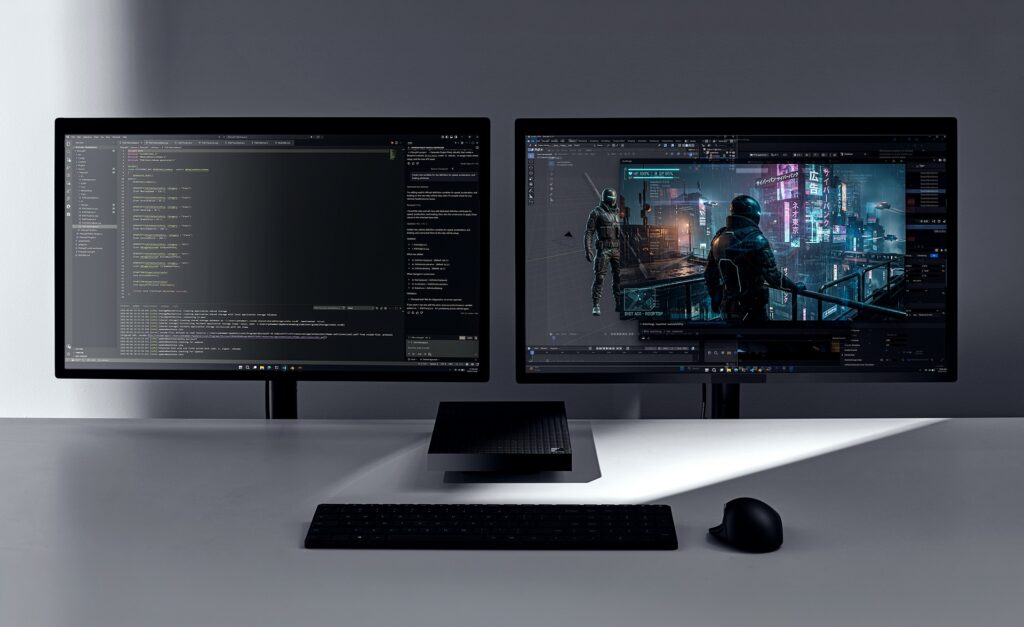
Surface RTX Spark Dev Box ships with Windows 11 Pro pre-configured for developers at the image level. This brings a purposeful set of defaults, preinstalled tools and tuned settings so the development environment is the default from first sign-in. Two monitors side by side with a box in between The setup keeps developers in their workflow: dark theme, taskbar simplified for development, Widgets removed, Do Not Disturb on. Developer Mode is enabled. PowerShell 7 is the default shell. Under the hood, WSL 2 is configured with GPU passthrough and CUDA support. VS Code, GitHub Copilot, Git, Python and Node.js are installed. Your favorite IDEs, agents, coding assistants, frameworks and libraries all work on Surface RTX Spark Dev Box, whether you prefer the Windows side or WSL. Surface RTX Spark Dev Box is also a world class entry point to the rest of the Microsoft AI stack. AI Toolkit for VS Code brings model conversion, fine-tuning and evaluation into the editor developers already use. Windows ML with TensorRT, and Windows Copilot Runtime give you a consistent local inference surface. Microsoft Foundry connects local prototyping to production deployment, so the model you tune locally ships through the same tools and identity you use every day. GitHub Copilot scales from CLI to enterprise on the same machine. That is what we mean by best Microsoft experience for developers: the local box, the OS, the developer tools and the cloud platform working as one stack.

Secure by design

For developers working with sensitive models, proprietary data and valuable IP, security isn’t optional. It’s foundational. The powerful GPU and unified memory mean more of your models and IP can stay local and lets developers keep more of their models and data local. Surface RTX Spark Dev Box is built on chip-to-cloud security aligned with Microsoft’s Zero Trust principles:
  • Secured-core PC architecture
  • BitLocker encryption
  • Microsoft Defender protection
For organizations, Surface RTX Spark Dev Box integrates with Entra ID and Intune for management and governance at scale. With Surface Laptop Ultra and Surface RTX Spark Dev Box, we’re expanding the Surface line with two products built specifically for makers. Surface Laptop Ultra is built for high-performance work that moves with you, from compiling and debugging to creative production and AI experimentation, while Surface RTX Spark Dev Box is built for the local compute developers need when models, agents and long-running workloads belong on the desk. Different form factors, same direction: giving developers the best option and more choice in where and how they build. Surface RTX Spark Dev Box will be available later this year in the U.S. exclusively on Microsoft.com. Learn more at microsoft.com/devboxii. i Source: NVIDIA. Based on 1 Theoretical FP4 TOPS using the sparsity feature.  ii Microsoft Surface RTX Spark Dev Box and Surface Laptop Ultra are pre-release products. Products and features are subject to regulatory certification/approval; actual sale and delivery is contingent on compliance with applicable requirements. 
  •  

Windows platform security for AI agents

Making Windows the trustworthy OS for agents

AI agents are no longer just answering questions, they are taking actions across systems with increasing autonomy. As they become persistent participants in how software runs, they introduce new risk to control and trust, challenging the security assumptions that have defined computing for decades. Developers are building agents that read files, invoke services, modify environments and chain operations together at increasing speed. That capability is powerful, but it raises a critical question: how do you ensure these systems remain trustworthy when they operate autonomously, at scale, on real data? This shift changes what developers, IT and security teams need from the platform. Security for agents must be built into the foundation by design so they can be developed, deployed and governed with confidence. When that foundation is in place, organizations can scale agent adoption while maintaining control and trust. Containment, identity and manageability are built as foundational primitives in Windows, extending security beyond the app and model into the OS. We’ve previously shared the principles guiding how we secure agent workflows on Windows. Then in May we announced how Microsoft Agent 365 was expanding its capabilities, including the ability to discover and manage local agents on Windows, starting with OpenClaw agents and expanding soon to other widely used agents like GitHub Copilot CLI and Claude Code.  We also announced that "beyond monitoring, organizations will be able to apply policy-based controls to set guardrails for what agents are allowed to do."  At Build 2026 we are sharing an update on how Agent 365 and Windows are working together to provide those capabilities with the introduction of Microsoft Execution Containers (MXC) SDK. For developers, Windows will provide the building blocks needed to implement agents that are more secure on both consumer and enterprise systems. For IT teams looking to balance deploying agents at scale while managing risks, Agent 365 and Windows provide the observability, governance and security capabilities that are critically needed. Illustration showing user and agents

Policy-based controls

Containment bounds what agents can access and do, so non-deterministic behavior doesn’t translate into uncontrollable risk. Unlike traditional applications, agent behavior is dynamic and often generated at runtime. The agent often uses models to generate complex code for each prompt that can read, act and chain multiple operations. Containment ensures agents can do useful work without being granted the full authority of the user’s session.

The Microsoft Execution Containers (MXC) SDK

To contain agent impact without limiting productivity gains, we’re introducing an early preview of the Microsoft Execution Containers (MXC) SDK, a cross-platform, policy-driven execution layer for agents on Windows and WSL. Developers define what to constrain in their apps and agents, and Windows enforces those constraints consistently at runtime through MXC. MXC provides an abstraction layer across isolation primitives, so developers do not have to manage low-level isolation details.

The composable sandbox and containment spectrum

The composable sandbox is how Windows applies isolation and containment in practice, with MXC as the control surface for developers. The same policy model and SDK can map to different isolation constructs depending on the workload and containment requirements. A coding agent and an enterprise data-processing agent may not need the same guardrails, but they do need one coherent trust story. The composable sandbox delivers the flexibility and control that developers and IT need. Agent 365's policy-based controls with Microsoft Entra and Intune will be used to apply those MXC constraints to a specific agent. Windows supports a range of containment options so that guardrails can match the nature and risk of the workload. Additional functionality and security enhancements will be added to subsequent releases. The following will be released in early preview shortly after Build to meet the needs of the agent ecosystem:

Process isolation

Windows is simplifying how developers enable process isolation for agents. Process isolation provides fast, lightweight containment within the user’s environment for scenarios like running model-generated code within a dedicated process boundary that restricts access to files and network domains outside defined policy. It is ideal for use cases like coding agents where the developer inner loop must stay responsive. GitHub Copilot CLI has adopted MXC process isolation to constrain what dynamically generated and executed code can do. We are excited to share the results of this deep partnership between Windows and GitHub with our shared customers.

Session isolation

Workloads that span across large numbers of long running processes or ones that need their own resources like a desktop to run automation may find process isolation overly limiting. Sessions in Windows separate the agent’s execution from the human user’s environment, such as the interactive desktop, clipboard, UI, input devices and active sessions. This mitigates UI spoofing, input injection and cross-session data leakage, and is suited for sustained workflows that run alongside the user’s own work. Sessions in Windows run with distinct user accounts, which enables isolation. Windows assigns a local ID or a cloud provisioned identity backed by Entra and attributes all activity from the container to that identity, so you can clearly differentiate human from agent. MXC session isolation paired with unique local ID on Windows enables precise control, least-privilege access and full auditability. Access policies can be applied to Windows session isolation so agents run independently with controlled local access and full lifecycle governance managed through Microsoft Entra and Intune in the cloud. Teams can use Intune policies to require MXC isolation with guardrails such as filesystem rules. Our initial release will support non-interactive sessions with additional capabilities targeted for future releases. As agents evolve, we are continuing to expand MXC containment capabilities and invite developers and the broader ecosystem to share feedback, including through engagement with the project on GitHub. Some other MXC containment capabilities currently on our roadmap are:

Micro-VM

Research at the cutting edge of agent security shows how LLMs are developing capabilities around escaping sandboxes. Is there a way to provide the desirable properties of process isolation like low overhead with a stronger isolation boundary? Micro-VMs that use hardware-backed isolation via the hypervisor with lightweight images can be well suited for higher-risk workloads. The micro-VM construct raises the bar against sandbox escapes by using a hypervisor while facilitating higher density than is possible with full VMs. They are desirable for agents processing sensitive data or running untrusted external code.

Linux containers

Will bring the containment model to Linux-first agent toolchains via WSL. This enables compatibility with Linux ML frameworks and package ecosystems with OS-enforced boundaries.

MXC integration for cloud VM Windows 365 for Agents

Windows 365 for Agents, now generally available, extends containment beyond the local device. The agent runs in an Intune-managed Cloud PC, fully separate from the user’s machine. If compromised, impact is contained to a disposable cloud instance. Suited for enterprise-managed agent fleets with centrally provisioned policy and compliance. To learn more, check out our Windows 365 blog. With the future addition of MXC integration, Windows 365 for Agents will scale from lightweight local isolation to stronger hardware-backed boundaries - through a single SDK and policy model. With the combination of these new Windows capabilities and Agent 365, Microsoft is continuing to expand its full stack offering to help enterprises to observe, govern, and secure their agents.

Innovating with partners in the ecosystem

We are partnering with leading innovators in the industry like Hermes, Manus, NVIDIA, OpenAI and OpenClaw, to ensure the containment we are building supports real developer needs. OpenClaw now runs the node and gateway securely on Windows leveraging MXC. You can use the new Windows companion app to easily set up your own claws or connect to existing ones. NVIDIA brings OpenShell to Windows, built on MXC. Integrating MXC via OpenShell provides developers with an easy-to-deploy package for autonomous, always-on agents safely. Hermes Agent will be integrating OpenShell and MXC in their new Windows application. "Continuously running local agents, like Hermes Agent, require intentional isolation. Developers need control over what an agent can access and trust that those controls will hold,” said Dillon Rolnick, CEO of Nous Research. “Microsoft Execution Containers (MXC), integrated with OpenShell, provides a policy-driven foundation for private, on-device agents on Windows.” "Working with Microsoft on the Microsoft Execution Containers (MXC) allows us to explore new patterns for AI agents to safely and efficiently generate and execute code. By combining Codex's capabilities with MXC's execution environment, we aim to help developers move from intent to reliable execution faster, while maintaining the security and control enterprises need," said David Wiesen, Member of Technical Staff, OpenAI “Manus is built to help users move from intent to completed work across tools, files, code and workflows,” said Tao Zhang. Chief Product Officer. “With Microsoft Execution Containers (MXC), Windows gives developers a policy-driven way to define what an agent can access and enforce those boundaries at runtime, so more autonomous agents can operate safely in enterprise environments.”

Built on a secure foundation by design

This agentic security model runs on a Windows platform designed to reduce risk by default. Decades of investment in Windows provide the foundation for everything running on top of it including agentic security capabilities. Under the Secure Future Initiative, continuously strengthening this foundation remains a company-wide priority. Windows reduces the attack surface and raises the security baseline by default – so agents inherit that protection without additional work. It shows up in capabilities like passwordless sign-in with passkeys, Hotpatch updates without restarts, production drivers written in Rust to reduce memory-safety vulnerabilities and post-quantum cryptography in Insider builds. Secure Boot enforces a hardware root of trust on every startup. Defender provides real‑time protection against prompt injection and other emerging agent threats. It uses advanced scanning engines and continuously updated intelligence to detect and respond to attacks. These protections are available to all Windows customers - including consumers using Windows Defender as their primary antivirus. Enterprise manageability has been a longstanding platform capability that IT and security teams depend on Windows to provide. Agent 365 now provides native integration of observability, governance and security capabilities for agents running on Windows OS environments, like MXC and Windows 365 for agents, so agents running on Windows can start secure and stay secure. Windows will continue to raise the bar for platform security with capabilities like our recently announced Baseline Security Mode. Together, these investments help provide the secure foundation on which trustworthy agentic computing is built.

Start building secure agents today

The value of an agent is not just what it can do, but whether it can be trusted in production. Windows enables agents that are secure, governable and ready for real-world deployment. Many of these capabilities are available today in Windows Insider builds, with more coming through our developer preview program. Windows continues to evolve so developers and organizations can move fast on AI while maintaining trust and security. We are excited to see what you build. To get started:
  •  

Build 2026: Furthering Windows as the trusted platform for development

Build is one of our favorite moments each year - a chance to connect with the global developer community and share what we’ve been building. Over the past year, we have connected with many developers pushing the boundaries of what’s possible on Windows. What we consistently hear is that you want a platform that meets you where you are, removes friction and gives you the flexibility to choose how and where you build across local and cloud, across platforms, languages and frameworks. That feedback has shaped everything we are announcing today. The foundation of great development starts with strong fundamentals, coupled with a great developer experience. We are continuing to raise the bar on Windows 11 quality and deeply focused on making Windows more secure, more reliable across the shell - from Explorer to Start to Search – with a simple goal to reduce cognitive load. Whether you are building modern applications or experimenting with agent-driven workflows, we are committed to making Windows more adaptable, capable and aligned with how development actually happens today. And as AI continues to reshape how software is built, we are investing deeply in enabling you to run your AI workloads securely where it makes the most sense on-device, in the cloud or across both without trade-offs. Our goal is simply to give you a platform that accelerates your ideas.

What’s new for Windows platform at Build?

  • Developer-optimized Windows 11 experience to build and ship faster.
    • Coreutils for Windows - a set of Linux-like command line utilities that run natively on Windows, now generally available.
    • WSL containers - a built-in way to create, run and interact with Linux containers using familiar CLI & API, coming soon to public preview.
    • Windows Development Skills - gives agents structured knowledge to build great native Windows apps end-to-end using WinUI3 skills and WinApp CLI, now generally available.
    • Intelligent Terminal – intentionally brings context-aware intelligence to your favorite agents directly into a terminal based experience to help debug errors, run multi-step tasks so you can stay in your flow, available in experimental preview.
    • Windows Developer Configurations - powered by WinGet, sets up a distraction-free dev environment with VS Code, GitHub Copilot, WSL, PowerShell 7 and developer-optimized settings with one command on any Windows 11 device, now generally available.
    • Windows 365 with Developer configuration – Windows 365 comes pre-configured with the same Windows developer configuration, available in public preview.
  • Secure Windows platform to build and run agents with OS-enforced agent identity, containment and enterprise-grade manageability.
    • Introducing Microsoft Execution Containers (MXC) SDK– A policy-driven execution layer that lets developers declare what an agent can access (e.g., files, network) with containment boundaries enforced at runtime. MXC offers a spectrum of isolation semantics that are dynamically composable based on intent and risk, available in early preview.
    • Agent 365 native integration with MXC enables agents running on Windows to start secure and stay secure. Integration will deliver Defender, Entra, Intune and Purview protections so security and IT teams can constrain and secure local agents to prevent enterprise risk, available in preview in July.
    • OpenClaw runs natively on Windows leveraging MXC - The Windows node and gateway run contained, so your system stays secure. You can easily install and use OpenClaw in Windows with its own companion app and set up your own claws or connect to existing ones, available in open-source. We are invested in continuing to make OpenClaw run securely on Windows.
    • NVIDIA is bringing OpenShell to Windows built on MXC - Integrating MXC via OpenShell provides developers with an easy-to-deploy package for autonomous, always-on agents safely.
    • Windows 365 for Agents - provides computer-using agents with secure, managed Cloud PCs to execute enterprise workflows, now generally available.
  • Unmetered intelligence on Windows powered by on-device AI
    • Introducing new on-device SLMs - Aion 1.0 Instruct, a smaller, faster and smarter on-device SLM, and Aion 1.0 Plan, a reasoning and tool-calling model that enables fully local agentic capabilities, available in the coming months.
    • Expanding Windows AI APIs to more Windows 11 PCs across CPU and GPU Speech-to-text recognition API available on NPUs and CPUs. On-device SLM expands to capable dGPUs enabling text-intelligence capabilities locally and Video Super Resolution available on CPUs so developers can deliver richer experiences without a cloud round trip.
  • Introducing Surface RTX Spark Dev Box – purpose-built for developers powered by NVIDIA RTX Spark silicon, delivering up to 1 petaflop of AI compute paired with 128 GB of unified memory shared across the CPU and GPU. Comes with all of the above developer optimized Windows 11 experience so developers can build, test and run AI and agent workloads locally without setup friction or unpredictable cloud costs.
  • Introducing DGX Station for Windows — the world’s most powerful deskside AI supercomputer for developing and running agents on Windows — powered by the NVIDIA GB300 Grace Blackwell Ultra Superchip. It is purpose-built to develop and run up to 1 trillion-parameter frontier AI models locally, as well as connect always-on, frontier AI agents to enterprise applications and workflows, coming in Q4 this year.
  • New capabilities in Microsoft Store – We are committed to making Microsoft Store a trusted platform for app distribution, delivering free and faster company onboarding with Entra ID support, accelerated app certification times, and new near real-time analytics and subscription insights for developers.

Introducing Project Solara

We're introducing Project Solara, a new platform built from the ground up to power agent-driven experiences, including two new concept devices that reimagine how this comes to life. With agents becoming a both a new unit of programming and an emerging new unit of human-to-machine interaction, the mission of Project Solara is to pioneer agent-first experiences that are shaped around you: your agents, your tasks, your environment, under your control.

Developer-optimized Windows 11 experience to build and ship faster

We have optimized the Windows 11 experience for developers, bringing frequently used command line utilities, a familiar comfort shell, faster setup experience, a built-in way to create and interact with Linux containers on Windows and a new experimental Intelligent Terminal.

Announcing general availability of Coreutils for Windows

Developers constantly move between platforms, but familiar commands don't work consistently, forcing workarounds, lost speed and context switching. To address this, we've built Coreutils for Windows from the uutils open-source project, a cross-platform reimplementation of GNU Coreutils in Rust. These are Linux-like command-line utilities that run natively on Windows. Whether you're moving between Linux, macOS, WSL, containers or cloud environments, the commands and workflows you've built over years just work in your Windows environment. Explore and get started with Coreutils for Windows. https://www.youtube.com/watch?v=_bcFOTI35gI

Announcing WSL containers, coming soon to public preview

Containers and Linux are core to modern development workflows. Windows Subsystem for Linux (WSL) has become foundational for running Linux workloads on Windows. Last year at Build 2025, we open-sourced WSL, and community contributions have grown to over 200 PRs per month. We're building on this momentum by integrating WSL more deeply into Windows with WSL containers. Modern container workflows on Windows often depend on third‑party tooling, adding setup overhead, licensing cost and limited enterprise control. IT teams also lack consistent visibility into what’s running and how containers interact with the underlying host. WSL containers provide a built-in way to create, run and interact with Linux containers on Windows. Whether you are working on local development, AI/ML workflows or containerized testing, Linux containers run out of the box. To enable you to build WSL containers, we are offering WSL containers CLI & API.
  • WSL containers CLI: Use the new exe binary to directly build, run and deploy Linux containers on Windows, out of the box.
  • WSL containers API: Access functions to run Linux containers programmatically in your native Windows apps - unlocking scenarios like running local AI workloads, testing pipelines, and Linux based processing.
For enterprises, WSL containers provide policy‑based enablement and management using familiar Windows controls. IT admins gain visibility into what Linux containers are running on developer machines, can control where images are sourced from, and can govern how containers interact with the host. WSL containers will be available in public preview in the coming months as a regular update to WSL. Since WSL is open source, you can view the team’s progress at our WSL GitHub. https://www.youtube.com/watch?v=c78ZMB7SgHM

Announcing general availability of Windows Developer Configurations

We understand that getting to a code-ready state quickly matters, regardless of your development workflow. Windows Developer Configurations enables you to go from a fresh machine to a ready-to-code environment in minutes. It includes:
  • dev-config.winget - a WinGet configuration file, to get an optimized, distraction free development environment with the right versions of essential developer tools installed – WSL, PowerShell 7, Git, GitHub CLI, Visual Studio Code, Python and more. It also applies developer-optimized settings — like Git version control in File Explorer, file extensions visible and hidden files shown. It’s fully customizable, so you can adapt it to your needs and add your favorite third‑party tools.
  • Workload-specific scripts for container, cloud and infrastructure development - make it easy to install the exact tools, libraries and dependencies you need for your specific use case.
  • WSL comfort setup scripts - enable you to bring your preferred tools and workflows to Windows - like homebrew, zsh, starship, and more.
Get started or tailor it to your needs by exploring Windows Developer Configurations. https://www.youtube.com/watch?v=YaR-JpaWFqw

Announcing Intelligent Terminal, available as experimental version

Developers spend a significant part of their workflow in the terminal, but today that experience lacks integration with agentic tools and context they rely on. They must leave the terminal to look up fixes, and copy suggestions from multiple sources, which leads to increased context switching. To address this, Intelligent Terminal provides context to your favorite agents via ACP (Agent Communication Protocol) so you can stay in the terminal and query, debug or complete any task on hand. It is based on the existing Windows Terminal experience, so you get everything it offers (tabs, profiles, themes, settings, shells) plus native agent CLI integration in the agent pane. If no agent is installed, GitHub Copilot is available for you to get started. In a typical scenario, when a command fails, Intelligent Terminal automatically surfaces the context and suggests fixes you can run immediately in the dedicated agent pane. Instead of debugging step-by-step across multiple tools, you can resolve issues, iterate and move forward quickly while staying in your flow. To learn more, check out the Intelligent Terminal blog. https://www.youtube.com/watch?v=o1DmM6_z4zk

Announcing general availability of Windows Development Skills

We are introducing Windows Development Skills to enable agents to directly leverage structured knowledge to execute across the full lifecycle of building a native Windows app using WinUI3 skills and winapp CLI. By powering agents with Windows specific application development knowledge, these skills help achieve token efficiency. To add Windows Development Skills to your favorite agents visit https://aka.ms/winui-skills. https://www.youtube.com/watch?v=7OK30hI5h-I

Announcing Windows 365 with Developer configuration, available in public preview

Alongside local development, enterprises often increasingly need a cloud-based option to standardize development environments across teams, scale on demand and to be ready to code from any device - without managing local infrastructure or setup. To address these needs, we are bringing new developer capabilities to Windows 365, a cloud-based service that securely streams a full Windows desktop experience to any device. Windows 365 with Developer configuration offers ready‑to‑code environments in the cloud. This image provides a consistent, preconfigured Windows 11 development experience from first sign‑in, with commonly used tools such as Visual Studio Code, Git, GitHub CLI and WSL already set up.  The environment can also be extended with additional SDKs, CLIs, packages and build tools based on project requirements, while remaining aligned with organization policies and controls. With flexible performance configurations and seamless access from any device, Windows 365 helps streamline development workflows, whether working on-site or remotely, across Windows and Linux (via WSL) environments, running AI models or moving between local and cloud setups. To learn more, check out the Windows 365 blog. All these improvements share a common goal: giving developers an environment they can rely on, one that stays out of the way and keeps them in the flow. And as AI becomes integral to how software is built and shipped, the platform must evolve too. That's why we're taking the next step: making Windows the best place to build and run agents.

Windows is the secure platform to build and run agents with OS-enforced containment, agent identity and enterprise-grade manageability

As agents become more capable and autonomous, they're delivering material productivity gains. But they're also introducing new risk, and the issue isn't just the agent. It's the entire system the agent operates across. Every interaction — between agents and humans, tools, apps, models and even other agents — exposes new attack surface and introduces different failure modes. This is a multi-layer systems problem. That's why we've built containment, identity and manageability as foundational primitives in the operating system — making Windows the most trusted platform to build and run agents. Illustration showing user and agents

Microsoft Execution Containers (MXC) — now available in early preview

It's critical to contain agent impact without limiting productivity gains. That’s why we are introducing Microsoft Execution Containers (MXC), a cross-platform, policy-driven execution layer for agents across Windows and WSL. Developers declare what an agent can access, like files and networking related policies configured in Intune, and MXC enforces those boundaries at runtime. Windows delivers a composable sandbox spectrum through MXC — a single SDK and policy model that maps to the right isolation construct for any agent workload.
  • Fast process isolation (adopted by GitHub Copilot CLI) and session isolation separates the agent's execution from the user's desktop, clipboard, UI and input devices, and critically, binds the agent to a strong user identity — mitigating UI spoofing, input injection and cross-session data leakage. Process isolation and session isolation will be available to Windows Insiders shortly after Build.
  • Windows 365 for Agents, now generally available, extends containment beyond the local device and agents run in an Intune-managed Cloud PC, fully separate from the user's machine.
  • Micro-VMs, Linux containers and MXC integration for Windows 365 for Agents are currently on our roadmap as additional MXC containment capabilities.
  • Agent 365 layers Entra and Intune policy on top so IT can govern containment centrally while developers choose the guardrail weight their workload demands.

OS-enforced Agent Identity and enterprise manageability on Windows

Beyond containment, every agent activity must be attributable and governed. Windows assigns agents a local ID or a cloud provisioned identity backed by Entra and attributes all activity from the container to that identity, so you can clearly differentiate human from agent. Native Windows integration with Agent 365 provides a common foundation for observability, security and governance, including native Intune integration to set policies that gate the agent runtime execution and control how agents run. Defender, Entra, Intune and Purview will provide runtime protections for evolving threats across access, sensitive data, malicious prompts and risky behavior so security and IT teams can prevent enterprise risk. Get started at: Microsoft Execution Containers. Learn more at: Windows Platform Security for AI Agents and aka.ms/BUILD_SecurityBlog.

Innovating with partners in the ecosystem

We are partnering with leading innovators in the industry like Hermes, Manus, NVIDIA, OpenAI and OpenClaw, to ensure the containment we are building supports real developer needs. OpenClaw now runs the node and gateway securely on Windows leveraging MXC. You can use the new Windows companion app to easily set up your own claws or connect to existing ones. NVIDIA brings OpenShell to Windows, built on MXC. Integrating MXC via OpenShell provides developers with an easy-to-deploy package for autonomous, always-on agents safely. Hermes Agent will be integrating OpenShell and MXC in their new Windows application. "Continuously-running local agents, like Hermes Agent, require intentional isolation. Developers need control over what an agent can access and trust that those controls will hold,” said Dillon Rolnick, CEO of Nous Research. “Microsoft Execution Containers (MXC), integrated with OpenShell, provides a policy-driven foundation for private, on-device agents on Windows.” "Working with Microsoft on the Microsoft Execution Containers (MXC) allows us to explore new patterns for AI agents to safely and efficiently generate and execute code. By combining Codex's capabilities with MXC's execution environment, we aim to help developers move from intent to reliable execution faster, while maintaining the security and control enterprises need." said David Wiesen, Member of Technical Staff, OpenAI. “Manus is built to help users move from intent to completed work across tools, files, code and workflows,” said Tao Zhang, Chief Product Officer.  “With Microsoft Execution Containers (MXC), Windows gives developers a policy-driven way to define what an agent can access and enforce those boundaries at runtime, so more autonomous agents can operate safely in enterprise environments.” Get started here: OpenClaw Windows Node.

Announcing Windows 365 for Agents generally available within Agent 365

Windows 365 for Agents provides Cloud PCs that enable AI agents to execute multi-step workflows across software, including opening apps, navigating interfaces, entering inputs and processing data. Today, we are making Windows 365 for Agents generally available within Agent 365, enabling Agent builders to build computer-using agents for a variety of enterprise use cases. To learn more, check out Windows 365 for Agents documentation | Microsoft Learn.

Unmetered intelligence delivered on Windows

We're entering a new era of software development. As AI models grow more powerful, agentic workflows demand continuous compute, escalating cloud costs. By shifting some of that intelligence to the edge, we are transforming the developer experience: frontier models tackle frontier problems, while everything else runs locally at scale. A new generation of on-device small language models (SLMs) on Windows is making this easier. Windows ML is the platform that unlocks unmetered intelligence on Windows, enabling developers to build, optimize and deploy AI at scale, across all silicon. Today we are bringing new capabilities to accelerate your local AI development.

A new generation of on-device models - Aion 1.0 Instruct and Aion 1.0 Plan in preview

We are introducing a new generation of models purpose-built for local execution, each designed for a specific tier of device capability. Together, they represent a clear progression: from efficiency at scale to local agentic reasoning, all running without cloud dependency or per-token cost.
  • Aion 1.0 Instruct: efficiency at scale. Aion 1.0 Instruct is our next-generation small language model, smaller, faster and more efficient than our current Windows OS SLM. Designed from the ground up for on-device workloads, Aion 1.0 Instruct powers everyday text intelligence (summarization, rewrite, intents, accessibility) and extends beyond Windows APIs with integration into the Edge browser and availability as open weights. Developers can start experimenting with Aion 1.0 Instruct in preview today in Edge Insider channels and as an open source model in July on Hugging Face.
https://www.youtube.com/watch?v=zkHWGFYNlLI
  • Aion 1.0 Plan: local agentic reasoning. Aion 1.0 Plan is a 14-billion parameter reasoning and tool-calling model with 32K context length that ships in-box as part of Windows on capable devices. It enables applications to reason over user intent, invoke tools, manage files and orchestrate sub-agents, bringing fully agentic workflows onto the device.

Announcing new Speech Recognition API

Last year at Build, we introduced Windows AI APIs powered by local on-device models. Today we are adding Speech Recognition API to this list. Speech Recognition API enables real-time or batch, on-device speech-to-text from live audio. Developers can enable their apps to produce transcripts from recordings or embed captions anywhere audio plays, using microphone, streamed or audio file inputs, with hardware-accelerated execution where available. By running locally, transcriptions can still be generated without network connectivity, saving on cloud costs. This unlocks new possibilities for modern text entry, audio-video applications, dictation-enabled workflows and accessibility tools that need reliable, low-latency transcription regardless of connectivity. The Speech Recognition API will enter public preview. The API will initially be limited to English-language speech recognition and will expand as it gradually roll outs across global markets. Learn more about the new Speech Recognition API when it becomes available this week at: aka.ms/speech-recognition-api.

Announcing Expansion of Windows AI APIs across GPUs and CPUs, now available

Windows AI APIs offer the fastest and easiest path for developers to integrate local AI into their apps using ready-to-use APIs powered by on-device models specializing in specific tasks. We are thrilled to share that Windows AI APIs are expanding beyond NPUs to CPUs and GPUs, bringing local AI experiences to a much broader set of Windows 11 devices. In addition to existing NPU support, our existing Windows inbox SLM is available on capable GPUs and Video super resolution and Speech Recognition on CPUs, all in public preview. https://www.youtube.com/watch?v=1mSUNPLDZNE https://www.youtube.com/watch?v=zWsBdlZsy_w This expansion gives developers a broader audience for their AI-powered applications with OS-optimized performance. Learn more about Windows API support and minimum hardware requirements here: aka.ms/WinAI/APIs The Windows inbox models that power the AI APIs are not automatically downloaded to every device. They are only acquired when an application on the device requests them, keeping storage and bandwidth impact minimal for users who do not need them. Many app developers are leveraging Microsoft Foundry on Windows to enable local AI in their applications.grid of logos https://www.youtube.com/watch?v=she5m9OTT7Q With Microsoft Foundry on Windows, local AI is no longer a compromise - it is a platform for breakthrough developer experiences. From efficient small models to agentic reasoning to frontier coding, this is unmetered intelligence on Windows.

Windows on next-generation hardware purpose-built for developers

We are bringing purpose-built developer devices which are the best expression of the full suite of advancements and new capabilities we are introducing today from developer optimized experience, secure platform to build and run agents to our local AI platform. With the increase in capability of agentic and coding models that run locally on this class of device, we can take the next step for hybrid compute – bringing the best of cloud and client together. In GitHub Copilot CLI we will enable developers to configure selective task delegation to subagents powered by a local model. Using /fleet, the primary agent running in the cloud builds a plan, assesses the complexity of each task, and routes appropriate ones locally based on the models’ size and capability. This approach harnesses available local compute to reduce cost without compromising on quality. With Windows 11 PCs powered by capable silicon from AMD, Intel, NVIDIA and Qualcomm including workstation-class machines powered by AMD Ryzen™ AI MAX+ 395, new NVIDIA RTX Spark, and data-center-class systems like NVIDIA DGX Station for Windows, developers now have access to unmetered, tiered AI capabilities tailored to specific needs, from everyday development to frontier-class tasks.

Announcing Surface RTX Spark Dev Box available later this year

Surface RTX Spark Dev Box delivers GPU-first AI performance with the new NVIDIA RTX Spark silicon, providing 1 petaflop of AI compute[i] and 128GB of unified memory shared dynamically across CPU and GPU in a single memory address space. This hardware foundation is designed for model optimization, fine-tuning and large inference workloads. By making these workloads practical to run locally, it reduces reliance on cloud only workflows, helping avoid recurring token costs and usage spikes while keeping iteration fast and predictable. Surface RTX Spark Dev Box ships with developer optimized Windows 11 experience - preconfigured with all your essential developer tools - Visual Studio Code, GitHub Copilot available inline in Windows Terminal, WSL, PowerShell 7 and Windows settings tuned for development - so you spend less time configuring your machine and more time building from the moment you sign in. To learn more, check out the Devices blog. Surface RTX Spark Dev Box will be available later this year in the U.S. exclusively on Microsoft.com. Learn more at microsoft.com/devbox [ii]. https://www.youtube.com/watch?v=vzD4OvMIECM

Introducing DGX Station for Windows, available later this year

For decades, we have partnered with NVIDIA to bring the most powerful computing experiences to the world. DGX Station for Windows is the next step in a multi‑year journey to bring the full power of Windows and unlock breakthrough AI performance on the Windows platform. Building on the NVIDIA DGX Station™ system design, DGX Station for Windows is the ultimate deskside AI supercomputer bringing NVIDIA GB300 Grace Blackwell-class AI infrastructure directly into the Windows ecosystem — providing the compute needed to build, run and connect powerful AI agents to the applications and infrastructure Windows users already harness.  It can run frontier AI models up to 1 trillion parameters locally.

Stronger Windows security, reducing risk by default

Windows is strengthening its security foundation to reduce risk by default. New capabilities strengthen this foundation across key layers by reducing legacy risk, enforcing code trust and advancing cryptography. This raises the security bar at the platform level, protecting earlier in the lifecycle, not just after code runs.
  • Prepare your applications for a post-quantum world on Windows. Windows continues to expand post-quantum cryptography (PQC) support across the platform, broadening algorithm coverage and integrating it more deeply into the platform. This includes PQ hybrid key exchange in the Windows TLS stack, support for composite PQC algorithms through Windows cryptography APIs (CNG) and certificate functions, and PQ certificate issuance via Active Directory Certificate Services (ADCS). Read more here.
  • Move away from legacy authentication to stronger, more secure defaults, reducing exposure to known attack paths. IAKerb and LocalKDC (in WIP Server and Client) are configurable via new registry keys, helping reduce NTLM usage and enable stronger Kerberos-based authentication across more scenarios. Read more here.
  • Ensure only trusted drivers run on your device by default. Driver signing now follows a higher security bar with an updated certification process. Windows is moving toward Windows Hardware Compatibility Program (WHCP) certified drivers as the default, with a staged transition from audit to enforcement and stronger trust requirements over time. Read more here.
  • Protect devices from untrusted apps without disrupting users. Smart App Control for consumers and App Control for Business are expanding in coverage across millions of devices, with stronger reputation-based enforcement, new integration APIs and policy-driven control for enterprise environments.

Looking ahead

Build is always a moment to pause, reflect and look forward. As development continues to evolve, Windows will continue to provide developers with the flexibility to choose their tools, shape their workflows and decide how intelligence runs. Whether you’re building applications, deploying AI models or experimenting with agents, our goal is the same: to make Windows the best place to build - today and into the future. We’re excited to see what you create next. Join us throughout Build to learn more, explore the sessions and dive deeper into the updates shaping the Windows developer platform. [i] Source: NVIDIA. Based on 1 Theoretical FP4 TOPS using the sparsity feature. [ii] Microsoft Surface RTX Spark Dev Box and Surface Laptop Ultra are pre-release products. Products and features are subject to regulatory certification/approval; actual sale and delivery is contingent on compliance with applicable requirements. 

  •  

Expanding on‑device AI in Microsoft Edge: New models and APIs for the web

At Build 2025, we introduced the Prompt and Writing Assistance APIs in Microsoft Edge with the Phi-4-mini language model. Since then, we've heard from web developers, incorporated your feedback, and expanded Edge's on-device AI capabilities with new models and APIs. Today, we're introducing three updates:
  1. A developer preview of the pre-release Aion-1.0-Instruct small language model for early testing and feedback.
  2. The Language Detector and Translator APIs in Edge 148, powered by on-device, task-specific models.
  3. Experimental on-device speech recognition with the Web Speech API, available in Edge Canary and Dev channels.

Developer preview of Aion-1.0-Instruct

For the past year, the Prompt and Writing Assistance APIs have used Phi-4-mini, a highly capable 4B-parameter language model, in Edge. While it delivers strong text understanding, reasoning, and instruction-following for web scenarios, the model's hardware requirements have limited its availability across devices. Today, we're introducing a developer preview of the pre-release Aion-1.0-Instruct small language model in Edge Canary and Dev channels. This language model is smaller, faster, and more efficient. It expands support to significantly more devices — including those with less capable GPUs and, through CPU-inference, devices without a GPU — while delivering strong quality for a wide range of web use-cases. https://www.youtube.com/watch?v=5RMUnykaFTY This preview allows you to evaluate Aion-1.0-Instruct in real-world web scenarios, test API interoperability, and provide feedback that will guide final optimizations, ahead of its planned open-source release on Hugging Face in July. To try out the model, explore the documentation for the Prompt API and Writing Assistance APIs, experiment with the playground samples, and share your feedback on GitHub.

Language Detector and Translator APIs in Edge 148

The Language Detector and Translator APIs enable websites and browser extensions to identify the language of text and translate between language pairs. These APIs are now available in Edge 148, powered by on-device, task-specific models built directly into the browser. They deliver fast, high-quality translation, support 145+ languages, and are optimized for translation workloads on the web. You can use these APIs from JavaScript in your site or extension, gaining improved user privacy, network independence, and zero translation costs compared to cloud-based services. In their simplest form, the Language Detector and Translator APIs can be used as shown:
// Create a Language Detector session.
const detector = await LanguageDetector.create();

// Detect the language of the text.
const results = await detector.detect(userText);

// Use the results.
for (const result of results) {
  // Show the full list of potential languages with their likelihood,
  // ranked from most likely to least likely.
  console.log(result.detectedLanguage, result.confidence);
}

// Create a Translator session.
const translator = await Translator.create({
  sourceLanguage: "es",
  targetLanguage: "en"
});

// Translate the text and wait for the translation to be done.
const translatedText = await translatorSession.translate(userText);

// Use the translation. 
console.log(translatedText);
https://www.youtube.com/watch?v=DRLG6jXEs50 To learn more, check out the documentation for the Language Detector API and Translator API, try our playground samples, and share your feedback in the Language Detector and Translator feedback issues on GitHub.

On-device speech recognition with the Web Speech API

The Web Speech API enables you to incorporate voice or audio input into websites and browser extensions. This API is typically backed by cloud-based services for speech recognition (speech-to-text) and synthesis (text-to-speech). In the latest Edge Canary and Dev channels, we're introducing a task-specific model that processes speech locally on the user's device. This on-device implementation improves user privacy, reduces latency, and unlocks low-connectivity scenarios that require network independence. Using the new on-device speech recognition capability requires only minor updates to your existing Web Speech API code, as shown:
// Create a SpeechRecognition instance.
const recognition = new SpeechRecognition();
recognition.lang = 'en-US';

// Use on-device speech recognition.
recognition.processLocally = true;

// Start speech recognition.
recognition.start();
https://www.youtube.com/watch?v=svw3dQn52YY To get started with on-device speech recognition, check out the documentation, try the playground demo, and share your feedback on GitHub.

Try it out and let us know

With the Aion-1.0-Instruct small language model, the new Language Detector and Translator APIs, and on-device speech recognition in Microsoft Edge, you can build AI-powered web experiences by leveraging models built into the browser, without relying on specialized hardware, cloud services, or domain-specific expertise. We invite you to explore these capabilities, experiment with the new models, and tell us what you build. Your feedback will shape the next iteration of on-device AI in Microsoft Edge, and we're excited to partner with you as we continue expanding what's possible for AI on the web.
  •  

Tune into XBOX Games Showcase June 7

On June 7, the annual XBOX Games Showcase returns, offering a look at what’s next from XBOX and its partners. This year marks 25 years of XBOX, and this Showcase is poised to be a true celebration, offering world premieres, new gameplay, fresh updates and more. Gears of War: E-Day Direct will stream immediately after Showcase. Find out how and when to watch on XBOX Wire.
  •  

Introducing Surface Laptop Ultra: Made for world makers

The world is full of makers. Only a few make the world. Surface Laptop Ultra is for them. For those building the systems, the breakthroughs and the infrastructure the world runs on and gets changed by. The ones who see limits as flaws and have the vision to push past them. Surface Laptop Ultra is the most powerful Surface Laptop ever built. Engineered with NVIDIA from the silicon up, optimized for RTX Spark, built on Windows. Made for a kind of work that does not fit in a standard laptop. The work from creators, developers and AI builders has a common shape: massive scenes, long compile cycles, local models and datasets that no longer sit politely in the background. We built Surface Laptop Ultra to meet that work without flinching. From the start, we channeled these makers, pushing through thermal and structural challenges, refining every detail from the inside out to create a device where uncompromising craft meets raw power. Surface Laptop Ultra is our first laptop to combine a powerful NVIDIA Blackwell RTX GPU with up to 128GB of unified memory and full CUDA support. Unified memory allows the pool of RAM to be dynamically allocated wherever your workloads need it most across CPU and GPU, so AI creation, 3D rendering and multi-model workflows run simultaneously, with 1 petaflop of AI compute, capable of running up to 120B parameter models locally[i]. No walls. No compromises. And it does all of it quietly. The ultra-efficient CPU architecture gives creators the headroom to push further. And with all-day battery life[ii], Laptop Ultra keeps moving when the work does. The kind of endurance that lets you finish the work. No matter how ambitious. No matter how demanding. Every detail was considered. We designed Surface Laptop Ultra from the inside out. Mechanical, electrical, thermal, acoustic, materials, industrial design and software engineers at the table from day one. The internal architecture and the external form built as one system. Our engineers designed it with the same discipline we know you bring to your craft, where every micron matters and every choice is deliberate. Precise and light. Available in two finishes: Platinum and Nightfall. The 15-inch mini-LED PixelSense Ultra touchscreen runs up to 2,000 nits of peak HDR brightness, 262 pixels per inch and high-precision color accuracy. The brightest display we’ve ever shipped. The haptic touchpad is the largest we’ve ever put on a Surface. Every port you actually use is on the device: HDMI, USB-C, USB-A, SD card, headphone. These are the ports creators need, and they were picked on purpose. This is Surface craft at its most considered. Performance, durability and repairability living together rather than trading against each other. Nothing wasted. Everything intentional. Surface Laptop Ultra was purpose-built for world makers, in a partnership between Windows, Surface and NVIDIA that approached every challenge with the same intention and the same standard. A machine like this should not sit still. It should be pushed. Taken to the edge. Used to make real what others call impossible. It belongs in the hands of world makers. Surface Laptop Ultra will be available later this year[iii]. Learn more at microsoft.com/ultra. https://www.youtube.com/watch?v=s1Oj792qc80 [i] Source: NVIDIA. Based on 1 Theoretical FP4 TOPS using the sparsity feature. [ii] Based on internal testing of pre‑release units. Battery life varies significantly based on usage, settings and other factors. [iii] Microsoft Surface Laptop Ultra is a pre-release product and features are subject to change and may vary by country/region. Product and features are subject to regulatory certification/approval; actual sale and delivery is contingent on compliance with applicable requirements.
  •  

Introducing a powerful new chapter for Windows PCs, accelerated by NVIDIA RTX Spark

Today at NVIDIA GTC, Microsoft and NVIDIA announced the world’s most powerful and efficient thin-and-light Windows PCs ever. Accelerated by NVIDIA RTX Spark, these new PCs unlock incredible momentum for developers, creators and power users, and are purpose-built for the new wave of agents. This marks a key milestone in the rich, full‑stack collaboration between Microsoft and NVIDIA spanning gaming, AI and cloud – from DirectX and RTX to NVIDIA‑accelerated AI workloads on Azure – driving end-to-end innovation for our shared customers. These next-generation Windows PCs represent the next step on that journey. Builders and creators today are reimagining how things get done, and they need reimagined hardware, silicon and platform capabilities to support them. They need PCs capable of running graphically intensive tasks efficiently, highly capable AI models, and a platform that simply and securely runs agents locally. It’s the combination of Windows’ platform and ecosystem leadership, with NVIDIA's silicon innovation and industry-leading graphics and AI leadership, that has resulted in a collection of powerhouse laptops that will redefine how developers and creators interact with their PCs.

“NVIDIA and Microsoft share a vision that agents are the future of personal computing,” said Jeff Fisher, senior vice president of personal computing at NVIDIA. “RTX Spark combines NVIDIA's full technology stack with Microsoft Windows and is purpose-built for creators, gamers and AI developers in the personal AI era.”

Taking Windows to the next level on RTX Spark

A computer chip visible from below a transparent laptop computer. RTX Spark delivers 1 petaflop of AI performance, industry-leading performance-per-watt, full stack NVIDIA AI and RTX graphics technology, with up to 6144 Blackwell RTX cores, up to 20 power-efficient cores built with the Arm architecture and up to 128GB of unified memory. Paired with Windows, it unlocks the capabilities creators and developers need to run advanced workloads, build with the tools they depend on and even play their favorite games. Bringing Windows to RTX Spark enables you to do the work that matters on silicon that delivers the performance you demand. Great silicon deserves deep platform work. We optimized Windows to bring out the full performance of RTX Spark.

Performance and power management

To get the most out of Windows on RTX Spark’s powerful, heterogeneous architecture, we implemented workload profile scheduling (WPS) and optimized it for RTX Spark, enabling the Windows scheduler to more efficiently scale workloads across all 20 cores. Whether you’re checking your email or running an agent locally to debug code, the Windows scheduler on RTX Spark will ensure you get the best performance and efficiency out of your CPU. We also worked with NVIDIA to enable the Microsoft Power and Thermal Framework (MPTF) on RTX Spark, to maximize performance and power on the go. MPTF standardizes one of the most complex parts of a modern PC and will enable RTX Spark based PCs to deliver industry-leading power efficiency while staying cool under intense workloads. Beyond its industry-leading performance per watt for creative, AI and gaming workloads, RTX Spark is positioned to take advantage of our advancements to DirectX 12, including support for neural rendering and optimized ray tracing performance, and has been tuned to maximize the performance of its Blackwell GPU, making it one of the best places to play on Windows. In addition, Microsoft and NVIDIA have worked to unlock the power of the GPU for local AI workloads through Windows ML, enabling AI developers to leverage TensorRT natively in Windows.

Unified memory optimizations

To realize the potential of up to 128GB of unified memory on RTX Spark, we have focused on improving how Windows supports unified memory systems, starting with a new higher, smarter limit on total system memory accessible by the GPU. This updated limit increases the memory available to the GPU on high-memory systems, unlocking the ability to load larger local AI models or render more complex projects. Memory intensive workloads across powerful creator apps, AI workloads and games put a variety of demands on the system and require a versatile memory system to achieve peak performance.  In addition to increasing the memory available to the GPU, we are also enhancing how Windows manages page sizes in shared memory regions on unified memory systems.  These changes ensure that larger memory pages are available for greater performance on heavier workloads, while giving developers the flexibility to optimize for the needs of their memory workloads between CPU and GPU.

Prism emulation enhancements

Prism, our emulator for running 32-bit and 64-bit x86 apps on Windows on Arm, will also be present and optimized for RTX Spark powered PCs.  Prism ensures apps run well on these devices even if those apps haven't been built for the Arm architecture. We have continued to enhance the Prism emulator with additional performance and compatibility features, building on the Prism optimizations delivered last year that added support for the AVX/AVX2 instruction set extensions. Prism has been tuned for the microarchitecture of RTX Spark and when combined with the raw power of the silicon, unlocks great performance for developers, creators and gaming workloads running under emulation.

Windows quality investments

This year, we've been laser focused on raising the bar on performance, reliability and craft across Windows 11. As the Windows foundation strengthens, we are also pushing forward on this next era of Windows computing and delivering meaningful improvements to system performance that will benefit all Windows 11 PCs including these new PCs powered by RTX Spark. This includes changes like more fluid and responsive app interactions by moving many core Windows experiences to the WinUI3 framework and elevating the Windows Subsystem for Linux (WSL) experience, along with baseline reliability improvements across the operating system and more control and personalization, including alternate taskbar positions. These quality-focused updates will continue to roll out throughout the year.

A computer screen displaying a vertical taskbar.Delivering a better platform for agents with Windows on RTX Spark

This week at Microsoft Build, you will see how we are optimizing the Windows platform for building and running agents securely with OS-enforced identity, containment and manageability. With a powerful GPU and up to 128 GB of unified memory, RTX Spark will be great hardware to build and run agentic workloads locally, with security and containment features designed to help protect users. NVIDIA is bringing NVIDIA OpenShell to Windows, built on new Windows security and containment primitives. Hermes Agent and OpenClaw will be integrating OpenShell and these new Windows primitives inside of their Windows application. This enables customers to run agents and integrate them into developer and creative workflows, with the performance headroom to reason over large contexts without round-tripping to the cloud. Control is a fundamental principle for AI on Windows. You choose when and how agents act on your behalf, with controls to help provide visibility into what they can access.

Enabling the Windows ecosystem for RTX Spark

From the app developers optimizing their software for this architecture, to our OEM partners building these new powerful PCs, the Windows ecosystem has come together to ensure RTX Spark delivers a complete, performant experience from day one.

App ecosystem growth

Three laptop computers displaying different apps.Silicon and OS optimization matters, but what you can actually run on the device is what customers experience. We have partnered across the ecosystem to ensure these new PCs powered by RTX Spark will launch with broad application support. Over the last two years, Microsoft and NVIDIA have worked with a breadth of app developers to make significant advancements to optimize the apps people want and rely on for Arm-based devices. As a result, PC users on RTX Spark will immediately benefit from an expansive ecosystem of native and performant apps. For creatives, top tools like Blender, DaVinci Resolve, Maxon Cinema4D, Maxon Redshift, Topaz Photo, CapCut, Cubase, Bitwig Studio, Affinity by Canva and more all run natively on Arm today, as do the audio, video, MIDI and control peripherals they require. Adobe’s flagship applications including Photoshop and Premiere are likewise native, and have partnered with NVIDIA and Microsoft on additional optimizations for the RTX Spark. Apps for technical creators are also optimizing for this platform, including MATLAB, one of the most popular, which now officially supports Windows on Arm via Prism. Across apps, RTX SPARK can unlock new capabilities and speed for workflows like video compositing, rendering complex 3D geometries, or using the latest AI-driven tools for content analysis and transformation. Game developers have also laid a strong foundation for RTX Spark’s arrival. Today, anti-cheat solutions from partners like Epic’s Easy Anti-Cheat and BattlEye, expanded Prism emulator compatibility, and XBOX PC app support means players will have access to a deep catalog of Windows PC games. RTX Spark will bring even higher levels of gaming performance to AAA titles on Arm. Riot Games, one of the world’s leading game developers and publishers, has confirmed that League of Legends and VALORANT are coming to the platform. PUBG: Battlegrounds, the iconic battle royale title from KRAFTON, will also be joining the expansive catalog of compatible titles including PRAGMATA, Alan Wake 2, Naraka: Bladepoint, War Thunder and more. Top agentic and AI developer workloads like GitHub Copilot, Claude Code, ComfyUI, Cursor and more now run across all modern PC silicon – making Windows the ideal platform for AI-assisted development, or for leveraging the power of the GPU to train, optimize and evaluate models. For developers, our partnership with NVIDIA on RTX Spark plans to bring additional exciting technologies like CUDA-accelerated PyTorch, Ilama.cpp, TensorRT, Hugging Face frameworks, Unsloth, Kohya and more.

PC ecosystem adoption

Windows and RTX Spark bring to life the most powerful and efficient thin-and-light PCs with all-day battery life1, optimized for developers and creators who need to trust that they can power through advanced workflows, in a portable package. These PCs will join the Copilot+ PC category, with powerful NPUs for local AI processing in addition to the GPU, unlocking rich AI-powered experiences. Beginning this Fall, RTX Spark will power a full range of Windows laptops and small form factor desktop PCs, starting with Microsoft Surface, ASUS, Dell, HP, Lenovo and MSI.

Introducing Surface Laptop Ultra

A laptop computer displaying a black graphic resembling a wave against a dark background.Surface Laptop Ultra. Built for world makers and creative pros, Surface Laptop Ultra brings cutting-edge AI performance into a thin, precision-engineered laptop designed for sustained high performance. From rendering to compiling to local AI workflows, this is uncompromising craft meets raw power – a new kind of performance for the people who create what's next. To learn more, visit the Devices blog by Brett Ostrum, Corporate Vice President, Surface. We are also proud to support the announcements of our PC partners:
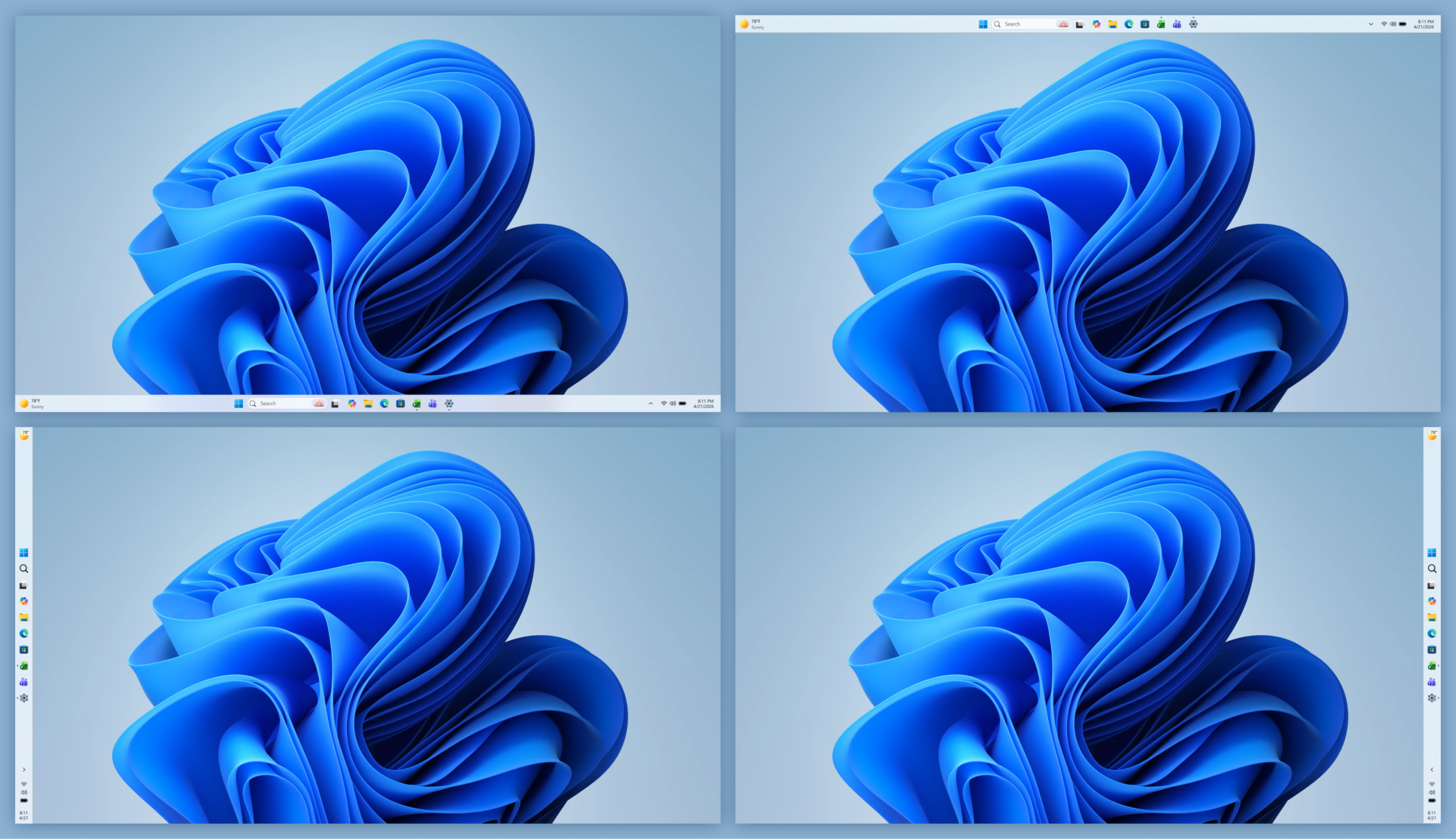
  • ASUS: The ASUS ProArt P16 and ASUS ProArt P14 combine powerful AI performance with slim and lightweight designs built for creators on the go. Available in 16-inch and 14-inch models with elegant Nano Black and new Neo White color options, the laptops feature ASUS Lumina Pro OLED displays and exceptional all-day battery life for premium creative experiences anywhere.
  • Dell Technologies: The XPS 16 Creator Edition delivers serious GPU power built for creative work with smoother playback on 4K timelines, faster exports and a more seamless experience with AI tools. The Tandem OLED display with True Black HDR 600 ensures your visuals look exactly as intended. Add in a built-in SD card reader and HDMI port, and you've got a machine that's as capable in the field as it is back at your desk.
  • HP Inc.: The HP OmniBook Ultra 16and HP OmniBook X 14 laptops are built for creators, gamers and AI developers, providing powerful local AI performance and experiences that help users accelerate workflows.
  • Lenovo: The Lenovo Yoga Pro 9n marries Lenovo Yoga's creator-focused features with NVIDIA's newest chip to deliver a laptop that is portable, powerful and can last for extended periods away from an outlet.
  • MSI: The Prestige N16 Flip AI+ combines a premium thin-and-light 2-in-1 design, a 16-inch UHD+ Tandem OLED display, NVIDIA AI acceleration and a 99.9Wh battery. It delivers immersive visuals, advanced AI experiences, and exceptional mobility for creators, professionals and gamers.
We can't wait for developers and creators to experience what's possible when stunning graphics, incredible performance and cutting-edge AI come together in these powerful, portable PCs.

Scaling the power of Windows to NVIDIA DGX Station

Today's announcement is an important step on our journey to unleash the full power of Windows to NVIDIA silicon, from powerful laptops to data center class workstations. Together with NVIDIA, we’re scaling Windows from RTX Spark through to DGX Station for Windows, up to a trillion-parameter AI supercomputer powered by the NVIDIA GB300 Grace Blackwell Ultra Desktop Superchip, later this year. This unlocks breakthrough AI performance on Windows, the platform enterprises trust for manageability, security and compatibility, with seamless access to the Linux AI ecosystem through Windows Subsystem for Linux (WSL). With NVIDIA GB300‑class capability on Windows, we are making a step‑function leap in performance, fundamentally changing where advanced AI work can happen – enabling developers and organizations to run frontier‑class models and agentic workloads locally that were previously primarily available in the cloud or data centers. Pairing the GB300 Superchip with an additional NVIDIA RTX PRO™ Blackwell Workstation GPU enables developers to combine frontier AI compute with ray-traced visualization and simulation in a single deskside system — delivering the performance needed for agents to perceive, simulate and interact with the physical world. By bringing AI on‑device, organizations can keep data close and shape how it’s used to meet their own compliance and data boundary requirements, complementing cloud workloads. This shift opens new possibilities, lowers the barrier to experimentation, and makes unmetered, always‑available AI compute a native part of Windows workflows. We are building toward a future where Windows provides a unified foundation for AI, from the device in your hands to the infrastructure behind it. Stay tuned over the next couple of days. We look forward to sharing more on our vision of Windows for developers at Microsoft Build. 1 Based on internal testing of pre‑release units. Battery life varies significantly based on usage, settings and other factors. 
  •  

Windows quality update: May

Hey Windows Insiders, One of the best parts of the work is hearing directly from the people using Windows every day. I was recently in Hyderabad and Taipei meeting with local Windows Insiders, and those conversations gave me a lot of energy heading into Build next week. The feedback we’re hearing from you continues to reinforce that we’re focused on the right places. For me, the theme this month is momentum. Some of that momentum is in performance. We’re making steady progress across core areas like File Explorer, search, and broader system responsiveness, backed by architectural improvements that are starting to unlock more consistent gains across Windows. Some of it is in craft: the small details that make Windows feel more polished, more predictable, and more personal. Address bar improvements in File Explorer. A modern Run experience. More taskbar positioning flexibility with app labels. These are the kinds of refinements we’re working through across Windows, and you’ll continue to see more of them in Insider builds throughout the coming year. Let’s get into what started showing up this month, including new experiences beginning to roll out in today’s flights.

Making Taskbar and Start more personal

Screenshot showing alternate taskbar positions This month, we began rolling out more personalization for Taskbar and Start, two of the most used and most personal surfaces in Windows. With these updates, you can move the taskbar to any edge of the screen, choose icon alignment based on its position, and use app labels across positions to make open windows easier to tell apart. There’s also a new smaller taskbar option to help reclaim screen space. We’re also making Start easier to shape around how you work. New controls let you independently show or hide sections like Pinned, Recommended, and All apps, adjust Start menu size, and hide your name and profile picture for more privacy. The Recommended section is also being updated to Recent, with better file relevancy, so surfaced content better reflects what you’re actually working on. These updates have started to roll out in the Experimental Channel. Read more about the considerations and improvements we’re bringing to taskbar and Start in the recent blog post from Diego Baca.

Improving driver quality, reliability, and security with the Driver Quality Initiative (DQI), and Cloud Initiated Driver Recovery

In March, we committed to delivering a smoother, more dependable Windows experience with our ecosystem of partners. Drivers are a critical part of that work. Drivers sit at the heart of Windows, connecting the OS to silicon, components, and peripherals. With thousands of partners contributing to tens of thousands of active driver families, improving driver quality is essential to making Windows more reliable over time. At WinHEC 2026, we introduced the Driver Quality Initiative (DQI), a comprehensive effort designed to improve driver quality, reliability, and security across Windows. We also rolled out new changes with Cloud Initiated Driver Recovery to improve how drivers are validated, delivered, and maintained. By catching issues earlier, targeting updates more precisely, and enabling automatic recovery when needed, devices can stay reliable over time with fewer disruptions and a better path back to a known-good state. This is part of our ongoing work with partners to make Windows more dependable over time.

File Explorer improvements across reliability, readability and usability

[embed]https://youtu.be/gZUDEBbZSp4[/embed] Building on last month’s improvements, we made several updates to File Explorer across reliability, readability, and usability, including the Address Bar, file size formatting, keyboard navigation, and renaming. The Address Bar now supports paths containing double backslashes and quotation marks, such as C:\Users\user or "C:\Users\user", improving compatibility with more of the paths people paste or type into File Explorer. We also improved reliability of the Address Bar suggestion dropdown so it consistently closes after an item is selected. In Details view, file sizes now use appropriate units like KB, MB, and GB instead of KB-only, making them easier to read at a glance. We also improved keyboard navigation in File Explorer context menu flyouts. We also fixed multiple renaming issues, including one where text could be repeatedly selected while renaming items in folder views, and another where updated names with case-only changes were not immediately reflected in folder views across local and cloud storage. These are small details, but they show up in places people use all day. The goal is fewer broken paths, clearer information, and File Explorer interactions that behave more predictably. These updates also began rolling out earlier this month in the Experimental Channel.

Making Windows easier to use with voice input, touch, and more personalization

[caption id="attachment_178981" align="aligncenter" width="1024"]Screenshot showing setup of voice isolation. Screenshot showing setup of voice isolation.[/caption] Accessibility work in Windows often shows up across many different parts of the experience, because people use their PCs in different ways and in different environments. For voice, one of the most common pieces of feedback we hear is sensitivity to background noise. With Voice Isolation in Voice Access, Windows can better focus on the speaker and reduce the impact of surrounding noise, helping commands come through more consistently without needing to change where or how you’re working. We’re also adding more ways to personalize how Windows looks and feels. New options like screen tint make it easier to adjust color and opacity based on preference or lighting conditions, giving people more control during longer sessions. We’re continuing to improve Magnifier as well, making it easier to set precise zoom levels and adjust zoom directly within the experience without needing to go into Settings. Finally, we added new gesture-related controls for precision touchpads in Settings, including automatic scrolling, gesture speed controls, accelerated scrolling, and optional single-finger scrolling support. These are areas we hear about regularly in feedback. The changes are gradual, but they help reduce friction and make Windows easier to use in more moments. These updates began rolling out in the Experimental channel earlier this month.

Build next week!

Next week is Microsoft Build, where we’ll share more about what we’re doing to elevate the developer experience across the Windows platform. We’ve got a lot in store, so tune in for the keynote at 9:30am PT on Tuesday. Earlier today, we also shared the first episode of Inside Windows, a podcast where Pavan Davuluri, Executive Vice President, Windows & Devices, sits down with members of the team to share more insight into the work and people behind Windows. I was honored to be the first guest and talk through some of the work we’ve been focused on over the past several months. For those attending our meetup next week in San Francisco, I look forward to meeting you and hearing how we can keep improving the Windows Insider experience, particularly for developers. More to come next week! Marcus
  •  

Announcing new builds for 29 May 2026

Hello Windows Insiders, This week we continue to expand the rollout of the new Windows Insider Program changes to devices in channels already announced. New builds this week Today we are releasing new Windows 11 Insider Preview Builds. As a reminder, all Insiders can find the release notes for your device based on the new channel system, even if you haven’t moved yet. This is to make finding build information as easy as possible during the transition. See your channel release notes here: For those on other specific build versions, here are today’s new builds and release notes:
  • Experimental (26H1): Build 28020.2207
  • Experimental (Future Platforms) – Including Canary 29500 series: Build 29599.1000
    • Please note: We have identified an issue internally causing crashes on AMD machines supporting System Guard, meaning these devices in WIP will not be offered this week's Experimental (Future Platforms) build. This should be fixed by the next flight.
As a reminder, you can always find your build number in the watermark on bottom right-hand corner of your desktop. Advanced core selection As mentioned in recent WIP blogs, we are in the process of releasing the Windows 11 version 26H1 build to those Insiders who have elected this version under Advanced options in the Windows Insider Program settings. We will begin releasing this version to those Insiders who have elected this change on June 5 2026. As outlined in our Windows IT Pro Blog, Windows 11 26H1 is a targeted release that supports some of the new device innovations coming in 2026, including devices with Qualcomm Snapdragon X2 Series processors. Devices running Windows 11, version 26H1 will not be able to update to the next annual feature update in the second half of 2026. This is because Windows 11, version 26H1 is based on a different Windows core than Windows 11, versions 24H2 and 25H2, and the upcoming feature update. These devices will have a path to update in a future Windows release. Insiders who have elected the 26H1 option in Advanced options but no longer wish to take this version, should reselect version 25H2 before version 26H1 is made available to these devices beginning June 5. Insiders who do take version 26H1 and want to move back to 25H2 will be able to do so through a complete reinstall of Windows.

Notable new features:

[Start menu]

Release channel: Experimental This update brings a number of improvements for the Start menu as first outlined in the Making Taskbar and Start more personal Insider blog. This includes:
  • Renamed "Recommended" section to "Recent" in Start and Settings page
  • Section-level toggles to independently show or hide Pinned, Recommended, and All.
  • Choose between a small and large Start menu, in addition to "Automatic (default)" setting option that's already available today
  • The option to hide your name and profile picture in Start
  • Redesigned Start menu settings page
[caption id="attachment_178960" align="aligncenter" width="1024"]Screenshot of the updated Start settings showing the new section-level toggles. Screenshot of the updated Start settings showing the new section-level toggles.[/caption]

[Windows Search]

Release channel: Experimental, Beta We're improving Windows Search results:
  • Search by Substring: Files with compound names or content (e.g., MeetingNotesApril, ProjectStatusReport) are now easily discoverable by typing “april” or “status”.
Thanks, Stephen and the Windows Insider Program team
  •  

Announcing new builds for 22 May 2026

Hello Windows Insiders, Today, we continue to expand the rollout of the new Windows Insider Program changes to devices in channels already announced. As a reminder, we have not yet begun moving devices in the Canary 29500 Series Channel to the new WIP experience.

New builds this week

Today we are releasing new Windows 11 Insider Preview Builds. As a reminder, all Insiders can find the release notes for your device based on the new channel system, even if you haven’t moved yet. This is to make finding build information as easy as possible during the transition. See your channel release notes here: For those on other specific build versions, here are today’s new builds and release notes: As a reminder, you can always find your build number in the watermark on bottom right-hand corner of your desktop.

Notable new features:

[Accessibility – screen tint]

Release channel: Experimental New Accessibility setting – screen tint We're introducing screen tint, a new accessibility setting that applies a color overlay across your entire display, softening its intensity so it's easier on your eyes throughout the day. If bright, saturated screens leave you with tired or sensitive eyes by the end of a long session, screen tint can help. [caption id="attachment_178980" align="aligncenter" width="1024"]UI showing screen tint in Accessibility, with color presets and a strength slider. UI showing screen tint in Accessibility, with color presets and a strength slider.[/caption] See release notes for more details on how to get started and provide feedback

[Narrator]

Release channel: Experimental Braille displays now connect instantly with Narrator We are making refreshable braille displays easier to use in Windows. Narrator now supports displays that use the HID standard — an open industry standard for braille displays. If your display supports HID, simply connect it via USB and start reading — true plug-and-play with no additional setup required. For Bluetooth, pair your HID braille display in Settings > Bluetooth & devices just like any other accessory, and you can work wirelessly without being tethered to your PC.

[Voice Isolation in Voice Access]

Release channel: Experimental We're introducing Voice Isolation, a new option in Voice Access that helps it focus on your voice, even when others are speaking nearby. Whether you're in a shared office, an open floor plan, or at home with family around, Voice Isolation filters out other voices and background noise so Voice Access can better understand you. All processing happens privately on your device. [caption id="attachment_178981" align="aligncenter" width="1024"]Screenshot showing setup of voice isolation. Screenshot showing setup of voice isolation.[/caption] See release notes for more details on how to get started. Thanks, Stephen and the Windows Insider Program team
  •  

New in Edge for Business: AI for work, safe from day one

TL;DR: Edge for Business adds agentic browsing in limited preview, a Copilot-inspired new tab page, and mobile availability for multi-tab reasoning and YouTube summarization. These experiences are built on a secure enterprise browser foundation with an IT-managed system of controls—policy-based enablement, tenant protections, and data loss prevention—so AI is safe for work from day one. AI is moving from answering questions to completing work—and the browser is where that shift becomes real. Business users want the latest AI capabilities to help with everyday work without adding another tool, and IT wants to deliver them—but the bar is higher: productivity must come with security, compliance, and IT control. Today, we're introducing agentic browsing in Edge for Business in limited preview and expanding AI experiences that help users get started faster, connect information across tabs, and make decisions more quickly—all on a secure enterprise browser foundation with IT-managed controls from day one. Here's a look at what's new:

Introducing agentic browsing with Copilot in Edge for Business

Agentic browsing lets Copilot complete multi-step tasks on approved sites, with IT controls and user oversight. Business users across your organization often spend time on repetitive, multi-step work in the browser—filling out forms, navigating sites to complete tasks, and pulling information across tabs. It's exactly the kind of work people want to shortcut. Available today in limited preview, agentic browsing with Copilot in Edge for Business brings multi-step task completion into a managed enterprise experience. Copilot can navigate pages, fill in information, and complete workflows—helping users save time without turning to unsanctioned AI. https://www.youtube.com/watch?v=mQv0EBvj2nI For IT, enabling Copilot to browse doesn't mean giving up control: you decide when to turn it on and exactly where it can run. You enable it through its own policy and is scoped to sites you designate, so you can roll it out deliberately. Purview continues to enforce data protection policies, such as copy/paste of sensitive data, while Copilot browses. For users, clear visual indicators show when Copilot is taking action, and they can pause or stop it at any time. For sensitive actions such as entering passwords or credit card numbers, Copilot pauses for user input. IT admins can request to join the limited preview. Available worldwide with a Microsoft 365 Copilot license, excluding the European Economic Area.

Quickly move from tabs to decisions

Beyond agentic browsing, we're expanding AI capabilities that help users get oriented faster, pull together information across tabs, and get to an answer—right in the flow of work.

Copilot-inspired new tab page

The Copilot-inspired new tab page brings calendar, files, and prompts into one work dashboard—generally available on desktop and mobile. Every day starts the same way: users open the browser, review their calendar, and track down files. A reimagined new tab page brings calendar, files, and Copilot prompts into one view, reducing the need to switch between tools. An intelligent box enables chat and search from one entry point, while work cards surface upcoming meetings, Microsoft 365 files, and suggested Copilot prompts for quick action. The experience becomes even more personalized with a Microsoft 365 Copilot license. Generally available today on desktop and mobile. Learn how to configure. Microsoft Edge new tab page.

Multi-tab reasoning and YouTube summarization

Multi-tab reasoning and YouTube summarization are now available on mobile, in addition to desktop, turning open tabs and videos into quick takeaways. Users live in tabs—jumping between docs, web pages, and videos just to piece together an answer. Multi-tab reasoning and YouTube summarization help turn that scattered information into quick answers, without adding yet another tool. Multi-tab reasoning analyzes open tabs to generate comparisons, summaries, and insights. For example, users can compare product specs across tabs, summarize vendor documentation, or pull key differences from multiple pages into one answer. And because it's Edge for Business, Purview policies exclude sensitive content from reasoning. https://www.youtube.com/watch?v=X87JA-sPz2Y When users only need a few key answers from a 15-minute video, YouTube summarization pulls out the takeaways and even answers questions—whether they're reviewing a product demo, an industry presentation, or a webinar. Learn how to configure multi-tab reasoning and YouTube summarization.

Deliver AI securely—without losing control

Edge for Business offers an IT-managed system of controls for AI—policies, tenant protections, and data protection enforcement—available from day one. AI in the browser is moving fast, and IT teams are under pressure to deliver new capabilities without becoming the team that slows everyone down. Most organizations don't want an "all or nothing" switch—they want to adopt AI in stages without changing their security posture or creating new exceptions. With Edge for Business, our mission is to offer AI experiences with enterprise-grade security and controls built-in from day one — through a system of controls that provides differentiated compliance and security for AI. That's what you should expect from an industry-leading secure enterprise browser. Edge for Business is the only major enterprise browser that protects company data in AI by enforcing data protection in the browser and keeping sensitive interactions within the tenant. Protections you rely on, such as blocking copy/paste, continue to be enforced on AI-assisted workflows. And because Microsoft 365 Copilot includes enterprise data protection, prompts, responses, and files stay within your tenant and are not used to train models. These protections apply natively when users sign into Edge for Business with an eligible Entra ID, no extensions required. A single policy enables AI features like summarization and multi-tab reasoning to help you get started quickly. For advanced AI, Copilot Mode is evolving into granular controls—so you can enable each feature individually instead of through a single toggle, making it easier to pilot and deploy advanced AI with more predictable outcomes. Existing configurations are honored for organizations that previously enabled Copilot Mode. The result: you can roll out AI on your terms—enabled by policy and fully under IT control. https://www.youtube.com/watch?v=9KFId0FzSfM

Protect against shadow AI in the browser

Purview data protections in Edge for Business can audit or block sensitive prompts and uploads on common consumer AI apps and redirect users to Copilot for protected work AI. What happens when users don't follow rules and use unsanctioned AI? Organizations need the ability to audit prompts and block sensitive uploads, especially on consumer AI tools. With Edge for Business, consumer AI doesn't have to be a gap. Shadow AI protections powered by Purview bring inline data loss prevention into the browser for the most common AI apps. Purview analyzes prompts and file uploads: when sensitive data is detected, the action is audited or blocked. Users receive a clear, policy notification and are redirected to Microsoft 365 Copilot, where enterprise data protection and DLP policies apply. These protections work on managed and unmanaged devices when users are signed into Edge for Business with their eligible Entra ID. Requires Microsoft 365 E5; pay as you go pricing applies. Learn more. https://www.youtube.com/watch?v=JIDs57MAXOo

Get started

IT admins can request to join the limited preview for agentic browsing in Edge for Business to experience how it works in a managed environment. Edge for Business plays a key role in delivering AI securely—where users already work and where controls are already in place. Request to join the limited preview for agentic browsing in Edge for Business to evaluate the experience and help shape what comes next.

Note: learn more about Microsoft 365 Copilot availability here.

  •  

Introducing new Surface devices built for business and AI acceleration

Every IT leader and partner we work with is navigating the same challenges: AI is changing the demands of how teams work, security threats are growing more sophisticated and agents are changing investment decisions for the future. All under greater scrutiny than ever before. The decisions organizations make now about their PC fleet will determine whether they lead through this transformation or spend years trying to catch up. Microsoft builds Surface to meet these demands. From silicon to software, Surface hardware brings security, hybrid AI capability and intentional design into one integrated platform, so customers do not have to compromise to meet their business outcomes. For customers and partners charting a path forward, Surface is the foundation that makes the rest of the strategy possible:

"At Flagstar, we're focused on equipping our teams with technology that's secure, flexible and ready for the next wave of AI. Surface brings together the hardware, security and Microsoft ecosystem in a way that just works, giving our teams the confidence to run AI-powered workflows on device while staying protected and productive wherever they are." — Jason Pope, Chief Technology Officer, Flagstar Bank

We have always believed that the hardware people use enables businesses and teams to achieve more. Surface was created to set the standard for what a premium Windows PC can be, and that standard has never been higher. Today, we are proud to announce the next generation of the Surface for Business portfolio, the new Surface Pro for Business and Surface Laptop for Business powered by Intel Core Ultra Series 3 processors are available today in select markets, delivering world-class performance and AI on the edge to accelerate productivity. Powered by Intel's next‑generation Core Ultra Series 3 architecture, the new Surface Laptop for Business and Surface Pro for Business deliver a meaningful leap in graphics performance, delivering up to 35% more graphics performance than MacBook Air with M5[1], and more than 90% faster performance than Laptop 5[2] on select configurations with Intel Core Ultra X7. From analyzing complex information to presenting to customers or creating content on the go, the Intel Core Ultra Series 3 GPU enables work to move in real time, delivering the sustained, fluid performance leaders expect from a premium business PC, without compromising mobility, battery life or security. Whether your teams are in the boardroom, at a customer site or working from anywhere, these AI PCs are built to perform at the speed of business. Later this year, we will extend the Surface for Business portfolio with models featuring the Snapdragon X2 processors, delivering up to 80% faster local AI inferencing than before[3] and uncompromising battery life[4].

Right facing laptop computer.The new Surface Laptop for Business 13-inch is the most portable Surface Laptop, available starting today in select markets in 16GB and 24GB configurations starting at $1,499 (MSRP), with an 8GB configuration coming later this year starting at $1,299.99 (MSRP). With on-device AI processing, Wi-Fi 7[5] and a removable Gen 4 SSD designed for enterprise serviceability, it brings the full Surface experience to the entry-premium tier without asking IT or employees to trade off performance and productivity for portability.

The new Surface Laptop for Business, available in 13.8-inch and 15-inch, is designed for knowledge workers who move fast and expect their technology to keep pace, available starting today in select markets, starting at $1,949.99 (MSRP). Featuring an advanced haptic touchpad, stunning high‑resolution touchscreen display and an optional integrated privacy screen with anti‑glare on select configurations, it delivers a premium productivity experience wherever work happens. With up to 23 hours of battery life[4], Surface Laptop provides the performance and mobility professionals need to stay productive across offices, client sites and everywhere in between. Left facing view of a Surface Pro for Business 13-inch with keyboard detached. The new Surface Pro for Business 13-inch is thin, powerful and engineered to think as flexibly as your people do, available starting today in select markets, starting at $1,949.99 (MSRP). The 2-in-1 form-factor combines touch, voice, pen or keyboard input alongside on-device AI processing and laptop-level performance to meet the needs of users working on the go or at their desks with 5G options to keep them connected.[6] Our team, relentless in building Surface PCs that meet the needs of businesses today and in the future, is driven by these three product-making principles.
  • Security and trust are fundamental and should be built into every aspect of a device.
  • Innovative devices are the platform that enables organizations to move faster with hybrid AI to accelerate workflows, productivity and end-to-end management.
  • Intentional, functional and human centered design is imperative for hardware that supports how businesses work, with PCs that are built with a focus on reliability, sustainability and repairability features designed to keep employees productive and in their flow.
At Surface, security is a design principle baked in from the very first line of firmware code. Every new Surface for Business device ships as a Secured-core PC: enabling chip-to-cloud protection that is current, enforced[7] and aligned with your Microsoft security stack. Firmware updates are delivered through Windows Update without third-party complexity.

Left facing view of a laptop computer with privacy screen enabled.For the first time ever on a Surface device, we are introducing an optional integrated privacy screen with anti-glare. Built directly into select configurations of the 13.8-inch display of our Surface Laptop for Business, this software driven visual privacy filter helps protect sensitive information from unintended viewers and can be centrally managed by IT or activated instantly by employees with a single keystroke. Once activated, the privacy screen provides immediate protection from prying eyes without the need of a third-party physical screen protector. Designed from the ground up as part of our security‑by‑design approach, this innovation is made possible only by the tight integration of Surface hardware and software.
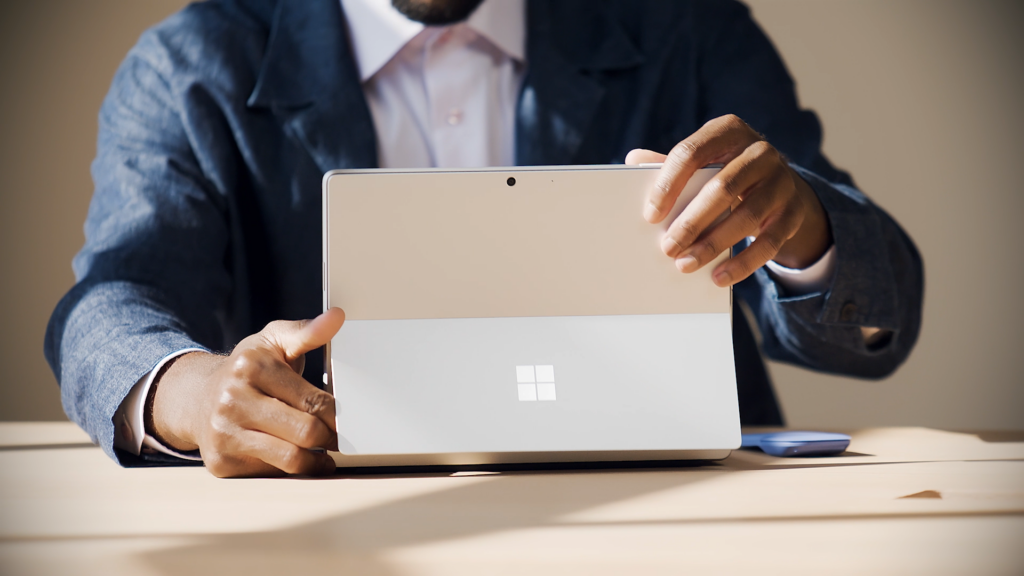
Surface is the first PC built on memory-safe firmware through our open-source Project Mu and Open Device Partnership (ODP) Unified Extensible Firmware Interface (UEFI), Rust-based drivers and secure embedded controller that is rooted in hardware-based protection, a direct response to one of the industry’s most persistent classes of vulnerabilities. When we say security is built in, we mean it at every layer of the stack. Surface for Business devices are built for the future of AI. Whether you are running models in the cloud or on device, Surface devices are built to take advantage of both. That means features like real-time meeting transcription, intelligent writing assistance, select on-device image generation and live translation that work whether your employee is in a server room, on a plane or in a hospital ward.[8] For customers putting AI to work in real-world environments, that flexibility is already proving essential:

Surface allows us to run AI where learning happens, on the device itself. The future of AI is not everything going to the cloud; it's AI at the edge." — Eric Sedore, AVP and Chief Technology Officer, Syracuse University

For organizations building and deploying enterprise AI applications, Surface is also the reference platform for Windows AI APIs and the Foundry platform. Surface is purpose-built for developers who need a trusted, consistent hardware baseline, helping to enable on-device AI processing that can help offload everyday workloads from the cloud and optimize overall AI infrastructure costs at scale. Surface for Business does not just transform the experience for employees, it transforms the experience for IT. From UEFI to browser, it can be managed through Microsoft Intune. Every device in this portfolio is built to support the end-to-end Microsoft stack: Microsoft Intune, Windows Autopilot and the Surface Management Portal give IT administrators a single, unified plane to provision devices at scale, enforce policies and manage the full device lifecycle including zero-touch deployment that gets people productive from day one.[7] When the hardware, the operating system, the management platform and the productivity suite are all built and optimized by Microsoft, the result is not just operational efficiency, it’s a level of assurance and confidence that benefits the end-customers and businesses. A person engaging the kickstand on a Surface device.Surface designs PCs for how businesses work. The materials we choose in every Surface for Business device are not for appearance alone; we build PCs with durability in mind. Each is validated through years-worth of reliability testing[9] designed to simulate the real conditions of everyday professional use: the drops, the pressure, the temperature changes, the open-and-close cycles. The result is a device that stays strong, stays functional and stays looking great. The Surface 3:2 display ratio is not an aesthetic choice, it is a productivity one. The vertical screen real estate from the display ratio means you can have two documents side by side without compromise, with multiple windows that give each app room to ensure productivity. Combined with anti-reflective display technology on select configurations. Surface displays are designed to reduce eye strain across long working days[10], because the best display is one that fades into the background, letting you focus on your work. A person's hand reaching out to a laptop keyboard.With advanced haptics, Surface Laptop for Business adds subtle, intelligent tactile feedback to the touchpad experience. From window snapping and resizing to dragging, dropping and navigating content, haptics reinforce intent across the operating system and through select third-party apps delivering a more precise, responsive and confidence inspiring experience. Surface for Business devices are built with sustainability in mind. Surface Laptop, 13.8-inch and 15-inch, and Surface Pro 13-inch are made with a durable 100% recycled aluminum enclosure, reducing reliance on virgin materials[11]. These devices are built for high performance and energy efficiency. Each device is certified by ENERGY STAR, all outperforming the efficiency baseline by at least 45%[12]. Automatic Keyboard Backlight, a new setting enabled on Surface Laptop 13-inch, 13.8 and 15-inch, and Surface Pro 13-inch Keyboards, can help reduce power usage[13]. Surface for Business PCs are also designed for repairability, meaning less glue, and more access. Nearly every major device component across the Surface for Business portfolio is replaceable, backed by a robust parts supply chain so IT teams can source what they need quickly and keep devices in service longer. Repairs are designed for simplicity, clear visual wayfinding guides technicians through each step, and the process is engineered to be completed with commonly available tools. When repair is used instead of replacement a device can stay in the field longer, which helps maximize your investment and helps reduce waste. [14] The AI PC cycle has already arrived. Organizations that move now will build the productivity advantage that compounds over time. Those that wait will find themselves closing a gap that only grows. Our team is continuing to innovate with devices designed for businesses to invest in an evolving future of computing. For a deeper dive on the newest Surface for Business PCs, read our Surface IT Pro blog. Surface for Business gives you the clarity to act: a secure, AI-ready, beautifully designed portfolio, available today in select markets with Intel Core Ultra Series 3 and expanding later this year with Snapdragon X2. It is the full Microsoft stack, realized in hardware, ready for what comes next. New Surface Pro for Business and Surface Laptop for Business are available today at Surface for Business and through Microsoft authorized commercial resellers. [1] Tested by Microsoft April 2026 using CineBench 2024 Multi-Core benchmark comparing Surface Laptop for Business, 13.8 and 15-inch with Intel Core Ultra X7 to MacBook Air, 13.5-inch, M5 Chip, 10 Core CPU. [2] Tested by Microsoft April 2026 using CineBench 2024 Multi-Core benchmark. Up to 95% faster comparing Surface Laptop, 15-inch with Intel Core Ultra X7 to Surface Laptop 5 15-inch with Intel Core i7. Up to 93% faster comparing Surface Laptop for Business 13.8-inch with Intel Core Ultra X7 processors to Surface Laptop 5 13.5-inch with Intel Core i7. [3] Tested by Microsoft April 2026 using Procyon AI benchmark comparing Surface Laptop, 13.8-inch and 15-inch (8th Edition) with Snapdragon to Surface Laptop, 13.8-inch and 15-inch (7th Edition) with Snapdragon. Performance varies by configuration. [4] Based on local video playback test. Battery life varies significantly based on usage, network and feature configuration, signal strength, settings and other factors. See aka.ms/SurfaceBatteryPerformance for details. [5] 6GHz band not available in all regions. [6] 5G not available in all areas. Compatibility and performance depend on carrier network, plan and other factors. See carrier for details and pricing. [7] Software license required for some features. Sold separately [8] Feature availability and performance may vary by device, configuration and region. Some AI experiences require internet connection, compatible hardware or Microsoft 365 subscription. [9] Reliability testing conducted under controlled laboratory conditions. Testing does not promise or guarantee future performance under the same conditions in the real world. Customer induced damage or use beyond normal use conditions is not covered under Microsoft’s Limited Hardware Warranty. [10] The Surface Laptop for Business with Intel displays has been designed to minimize unwanted reflections and has been certified by TÜV SÜD to meet the requirements of ISO 9241-307. [11] Surface Pro for Business, 13-inch enclosure includes bucket, kickstand. 86% recycled content in the enclosure, consisting of 100% recycled aluminum alloy in bucket, and 100% recycled rare earth metals in the magnets. Surface Laptop for Business, 13.8-inch and 15-inch, enclosure includes A Cover and C Bucket. 64% recycled content in the enclosure, consisting of 100% recycled aluminum alloy in A Cover and C Bucket, and 100% recycled rare earth metals in the magnets. Based on validation performed by Underwriter Laboratories, Inc. using Environmental Claim Validation Procedure (ECVP) for Recycled Content, UL ECVP 2809-2, Second Edition, dated June 2024. [12] Comparison based on product energy consumption vs. ENERGY STAR certification limits for personal computers. Actual performance varies by configuration and usage. [13] Compared to typical use without the feature enabled. Actual power savings vary based on usage, settings, ambient lighting and other factors. Not supported with wireless detach on Surface Pro 13-inch Flex Keyboard. [14] Replacement components available through Surface Commercial authorized device resellers. Components can be replaced on-site by a skilled technician following Microsoft’s Service Guide. Microsoft tools (sold separately) may also be required. Availability of replacement components and service options may vary by product, market and over time. See Surface service options - Surface | Microsoft Learn. Opening and/or repairing your device can present electric shock, fire and personal injury risks and other hazards. Use caution if undertaking do-it-yourself repairs. Unless required by law, device damage caused during repair will not be covered under Microsoft’s Hardware Warranty or protection plans.
  •  

XBOX Player Voice: A simpler way to share feedback

XBOX Player Voice is a new place for the gaming community to share and track their feedback and get a clearer sense of how that input is shaping XBOX’s future. Teams will review and organize the feedback and, in some cases, ideas will move forward. While not every piece of feedback will turn into a feature or result in a change, better visibility helps close the gap between what the community tells XBOX and what will happen next on it. Get more details at XBOX Wire.
  •  

Improving Windows quality: Making Taskbar and Start more personal

In our commitment to Windows quality, we outlined our plans to deliver improvements in performance, reliability, and craft. We are also committed to being transparent about the work behind those efforts, including what we are shipping, why we prioritized those features, and where we still have more work to do. Start and taskbar are some of the most visible and frequently used experiences in Windows, so we are focused on improving their quality and giving you more flexibility to personalize them to meet your needs. Let’s walk through where we're making meaningful progress against the feedback we’ve heard from you, rolling out to Windows Insiders in the Experimental channel over the coming weeks, including several rolling out today.

Bringing more personalization to the taskbar

The taskbar is where your PC experience comes to life. Just like a well-organized workspace, having it tailored to your needs helps you stay productive, so we’re introducing more ways to customize it.

Taskbar positions

Location, location, location. The ability to move the taskbar to the top or sides of the screen has been one of the most requested features, and we are bringing it to Windows 11. Starting today, Windows Insiders in the Experimental channel will be able to:
  • Position the taskbar on any edge of the screen: Top, bottom, left, or right (see figure 1).
  • Choose icon alignment for every taskbar position: Top-aligned or centered when the taskbar is on the left or right, and left-aligned or centered when the taskbar is on the top or bottom.
  • Use Start, Search, and other flyouts relative to the taskbar location: For example, when the taskbar is on the top, Start opens from the top (see figure 2).
  • See every window at a glance: When using a vertical taskbar with “Never combine” taskbar buttons and show labels enabled, each app window appears as a separate labeled button, making it easier to identify and switch between windows (see figure 3).
For people who value vertical screen space, like developers who want to see more of their code at once, moving the taskbar to the side can help reclaim precious room on the screen. If accessibility or ergonomics make the top of the screen easier to reach, you can place the taskbar there. If you rely on the taskbar to keep track of your work, a vertical layout with ungrouped icons can help you stay organized. The choice is yours. [caption id="attachment_178963" align="aligncenter" width="1024"]Screenshot of the taskbar in the left-aligned position. (Figure 1) Screenshot of the taskbar in the left-aligned position.[/caption] [caption id="attachment_178956" align="aligncenter" width="1024"]Screenshot of the taskbar in the top-aligned position, with Start opening from the top. (Figure 2) Screenshot of the taskbar in the top-aligned position, with Start opening from the top.[/caption] [caption id="attachment_178957" align="aligncenter" width="1024"]Screenshot of the taskbar in the left-aligned position with buttons never combined and labels shown. (Figure 3) Screenshot of the taskbar in the left-aligned position with buttons never combined and labels shown.[/caption] To change the taskbar position, go to Settings > Personalization > Taskbar > Taskbar behaviors, where you will find the new option alongside taskbar icon alignment. [caption id="attachment_178958" align="aligncenter" width="1024"]Screenshot of the new Settings > Personalization > Taskbar page showing the taskbar position options. (Figure 4) Screenshot of the new Settings > Personalization > Taskbar page showing the taskbar position options.[/caption] We’re excited to hear your feedback. We’re still working through additional visual polish, performance improvements, and a few known issues, and there are also some features that are not yet included in this release but are coming soon:
  • Auto-hide and tablet-optimized taskbar are not yet supported in alternate positions.
  • Touch gestures for alternate positions are still in progress.
  • Search boxes are not yet supported in alternate positions and will appear as a search icon for now.
We are also evaluating additional features like different taskbar positions per monitor and drag and drop. Our focus is to deliver the core functionality you need while keeping the experience simple, predictable, and free from accidental taskbar movement.

Smaller taskbar

Windows 11 introduced a roomier taskbar to support more states and features while also improving touch targets. On smaller screens, that extra height can take away from your usable workspace. We are adding the option to switch to a more compact taskbar for times when every pixel counts. With this update, when small taskbar is enabled, you get smaller icons, a shorter taskbar, and more vertical space for your apps (see video below). No restart or sign-out is required. This experience is rolling out today in the Experimental channel. To change your taskbar size, go to Settings > Personalization > Taskbar > Taskbar behaviors > Show smaller taskbar buttons. When set to Always, both the icons and the taskbar height become smaller. [embed]https://youtu.be/pvE2gyWnVHA[/embed]

Putting you in control of Start

There is a unique Start for everyone, whether you want a minimal experience with just your pinned apps, quick access to recent files, everything in one place, or something in between. We are making changes in two areas to support this. First, we are giving you easier ways to shape your Start menu. Second, we are improving the quality of what appears there by default.

More control over your layout

Today, customizing Start can require navigating multiple settings in different places. Turning off the Recommended section involves toggling several settings, and clearing pinned apps means unpinning them one by one. We are simplifying this experience. Over the coming weeks, Insiders will get:
  • Section-level toggles to independently show or hide Pinned, Recommended, and All. One toggle per section that is simple and clear.
  • A separate control for file recommendations. Today, turning off Recommended in Start also turns off jump lists and recent files in File Explorer. With this change, you can disable file recommendations in Start without affecting recent files in other places.
  • Start menu size settings that let you choose your preferred size. Today, Start adapts to your display. With this update, you can choose Small or Large so your preference stays consistent across displays whenever possible.
  • The option to hide your name and profile picture in Start for added privacy when sharing your screen, presenting, or streaming.
[caption id="attachment_178960" align="aligncenter" width="1024"]Screenshot of the updated Start settings showing the new section-level toggles. (Figure 5) Screenshot of the updated Start settings showing the new section-level toggles.[/caption] These controls are designed to work together. If you want a Start menu with just your pinned apps, you can turn off Recommended and All. If you want a full Start that shows everything, you can leave it all on. The goal is simple: it is your choice, and it should be easy to make. [caption id="attachment_178961" align="aligncenter" width="1024"]Screenshot showing Start in a minimal "pins only" configuration with hidden name and profile picture. (Figure 6) Screenshot showing Start in a minimal "pins only" configuration with hidden name and profile picture.[/caption]

Improving recommendation quality

We are also improving the content that appears in this section for people who choose to keep it on. We are renaming Recommended to Recent to better reflect what the section primarily shows, including recently installed apps and recently used files. We are keeping recently installed apps visible, as this remains one of the primary ways people discover newly installed apps alongside the Microsoft Store. Both users and developers have told us this visibility is important. In addition, we are improving file relevancy. We are refining which files appear and how they are ordered to reduce less relevant items and better reflect what you have been working on.

What’s next

Everything described will roll out to Windows Insiders in the Experimental channel over the coming weeks, including several in today's flight. We have talked about earning trust through steady and visible progress. Start and taskbar are where that trust is tested most, every time you sit down at your PC. Please share your feedback in Feedback Hub by pressing WIN + F. The Windows Insider community plays a critical role in shaping Windows, and as these features become available, we encourage you to explore them and share what is working and what is not. This work is ongoing, and our goal is to build it together with you. Thanks, Diego Twitter (X): @bacadd LinkedIn: Diego Baca | LinkedIn [caption id="attachment_178962" align="aligncenter" width="1024"]Screenshot showing top-aligned small taskbar with Start in a minimal "pins only" configuration. (Figure 7) Screenshot showing top-aligned small taskbar with Start in a minimal "pins only" configuration.[/caption]
  •  

Announcing new builds for 15 May 2026

Hello Windows Insiders, Today we will be expanding the rollout of the new Windows Insider Program changes to devices in the Beta Channel, which will be moved to the new Beta experience. Please see the announce blog for more information about what this entails.

New builds this week

Today we are releasing new Windows 11 Insider Preview Builds. As a reminder, all Insiders can find the release notes for your device based on the new channel system, even if you haven’t moved yet. This is to make finding build information as easy as possible during the transition. See your channel release notes here: For those on other specific build versions, here are today’s new builds and release notes: As a reminder, you can always find your build number in the watermark on bottom right-hand corner of your desktop. Please note, existing Beta Channel Insiders on Windows 11 version 26H1 are currently getting the same build version as Experimental (26H1). In the coming weeks we will be releasing separate builds for these channels, which is when we will have a new Beta (26H1) release notes section. Additionally, Insiders who move to the new Beta experience and are on the default 25H2 core version, and who elect to move to version 26H1 under the WIP settings Advanced options, will experience a delay in their device up taking the new version during this transition.

Notable new features:

[Taskbar improvements]

Release channel: Experimental Alternate Taskbar Position You can now change the position of taskbar on your screen. In Settings > Personalization > Taskbar > Taskbar Behaviors, you can select the side of the screen you want your taskbar on: bottom, top, left, or right. In these other positions, tooltips, flyouts, and animations will still come from the taskbar, and most customization settings like small taskbar and never combine taskbar icons will work with all locations. [caption id="attachment_178963" align="aligncenter" width="1024"]Screenshot of the taskbar in the left-aligned position. Screenshot of the taskbar in the left-aligned position.[/caption] Smaller Taskbar We’re introducing a smaller taskbar for users who want to maximize screen space, especially on smaller devices. While the default taskbar remains unchanged, this setting provides a more compact experience with smaller icons and a reduced taskbar height, giving you more room for your apps. Core elements like Start, Search, and the system tray scale appropriately to stay aligned and consistent. See the in-depth blog for more information about Taskbar improvement.

[Widgets]

Release channel: Experimental As we continue to make Widgets feel less distracting, we’ve made a small but meaningful visual update to taskbar badging. For those that have taskbar badging on, the badge color will now match your Windows accent color instead of always appearing red, reducing the sense of urgency that something needs your immediate attention. We’re also testing out quieting down a user’s experience based on their level of engagement. For example, a user who highly engages with Widgets likely have their settings set to a state that works best for them, as compared to a user who barely engages with it and would benefit from having the experience quieted down with taskbar badging turned off as it is for new users who experience it as quiet by default.

[Windows Search Box]

Release channel: Experimental We've started making changes to make Windows Search Box more relevant, starting with making it easier to find your files and apps:
  • Files and apps more reliably appear ahead of web suggestions when your content is a stronger match
You can expect to see additional relevance improvements in upcoming releases. Thanks, Stephen and the Windows Insider Program team
  •  

Announcing new Release Preview builds for 14 May 2026

[19 May 2026: Updated build numbers for new releases containing bug fixes - see release notes for details] Hello Windows Insiders, Today we're releasing new builds for Release Preview across our supported versions of Windows 11.  Please see the build numbers and links to the release notes below: As a reminder, Windows 11 version 26H1 is a targeted release of Windows to support specific device hardware and silicon. Read more in our IT Pro blog. Thanks, Stephen and the Windows Insider Program team
  •  

Raising the bar together. Introducing the Driver Quality Initiative at WinHEC 2026

There are moments in this industry when you can feel the ecosystem lean in. This week in Taipei was one of them. For two days at WinHEC 2026 (Windows Hardware Engineering Conference) — Microsoft’s first WinHEC since 2018 — we had the privilege of spending time alongside our OEM, silicon, IHV and ODM partners, and the engineers who build Windows, to talk honestly about where we are, opportunities to be better connected as an ecosystem and where we're going together. As we shared in March, a fundamental component to raising the bar on quality across areas such as system stability, driver quality and app reliability requires coordinated execution across the entire ecosystem. At WinHEC 2026, we shared how we’re addressing this at the driver level with our partners by introducing the Driver Quality Initiative (DQI), a comprehensive, ecosystem-wide effort designed to fundamentally raise the bar on driver quality, reliability and security across Windows.

“Great platforms aren’t built in isolation. Platform quality depends on early, honest collaboration across OEMs, ODMs, silicon partners and IHVs. WinHEC brings engineers together with Microsoft to align early, solve real problems and deliver higher‑quality solutions for our shared customers” — Syam Poluri, Distinguished Engineer, Dell Technologies

Raising the bar on quality takes all of us.

Drivers sit at the heart of every Windows experience. They connect the OS to the silicon, components and peripherals that make Windows one of the most versatile platforms in the industry. Today, thousands of partners contribute to tens of thousands of active driver families across the Windows install base. When drivers are high quality, customers experience reliable, secure, performant devices. When drivers fail, customers experience it as a device problem, regardless of where the root cause sits. Chart showing four pillars of the Driver Quality Initiative.DQI builds on the learnings and infrastructure established through the Windows Resiliency Initiative (WRI) and is organized around four pillars:
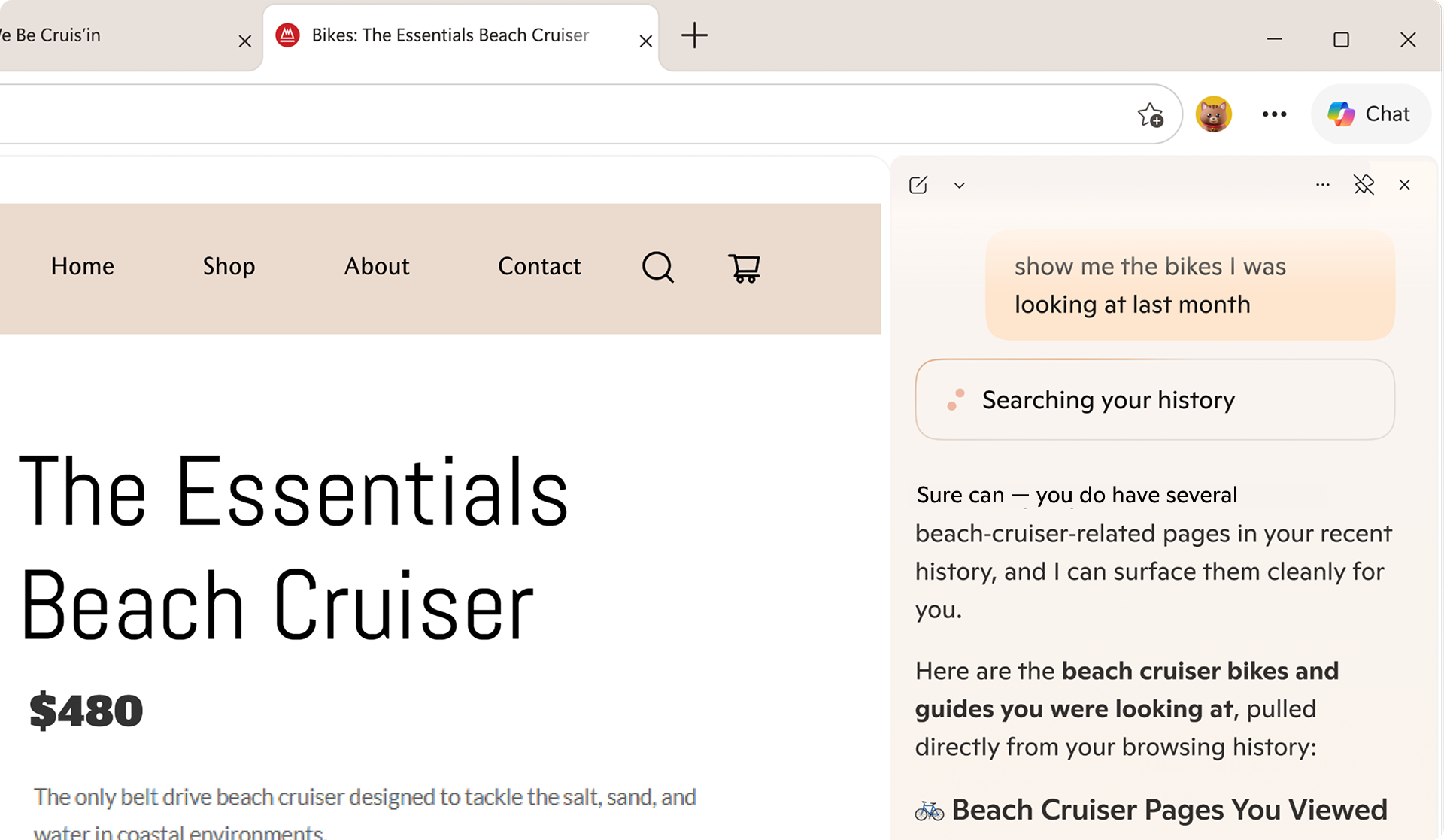
  • Architecture: We are heavily investing in hardening kernel mode drivers and enabling the third-party kernel mode driver transition to either user mode driver or Microsoft authored class drivers. This is to ensure higher driver security, reliability and resiliency. User-mode driver investments include performance updates to PCIe devices with DMA support as well as Wi-fi stack (coming soon). Class driver investments include Soundwire Device Class for Audio (SDCA), introduction of the I3C class driver, NCM USB ethernet class driver as well as continuous enhancements to existing first-party class drivers on Windows 11.
  • Trust: We are raising the bar for trusted partners and trusted drivers, including stronger partner verification, expanded automated analysis and updated Windows Hardware Compatibility Program requirements.
  • Lifecycle: We are improving driver lifecycle management through better Windows Update catalog hygiene, including deprecating outdated or low-quality drivers, advancing SBOM alignment and enabling faster issue analysis through driver symbols.
  • Quality Measures: We are expanding how driver quality is measured beyond crashes to include stability, functionality, performance, and power and thermal impact, giving partners clearer signals to improve the real customer experience.
DQI is a partnership. Microsoft is building the frameworks, tools and quality signals, and we are working with partners to raise driver quality across the ecosystem so customers can rely on their Windows devices from day one through the full life of the PC.

“Delivering high-quality drivers and resilient platforms isn’t owned by any one company—it’s a shared commitment. Through our close collaboration with Microsoft, AMD is focused on building a culture of joint accountability to ensure security, stability and predictable performance for our customers at scale.” — David Harmon, Director, Software Engineering, AMD

What we did at WinHEC

Day 1 opened with a keynote presentation featuring our Windows leadership team, organized around three themes: navigating the evolving landscape, raising the bar on Windows 11 quality and the future vision for Windows. The keynote set the tone for the days ahead. We were candid about where we are, clear about where we're going and explicit about the partnership required to get there. From there, attendees broke out into workshops, with sessions spanning five tracks:
  • End-to-end driver quality — covering the full lifecycle from authoring and validation through publishing, and post-release health
  • Platform fundamentals — power, thermal and storage fundamentals that define everyday device experience
  • Exceptional device experiences — delivering best-in-class quality across media and display, camera, audio, connectivity and peripherals
  • Windows Server — platform direction, reliability and the evolving requirements for modern datacenter and edge deployments
  • Ecosystem advancement — end-to-end security, co-engineering tools, manufacturing and AI hardware innovation.
Day 2 shifted from discussion to application. Hands-on labs gave engineers the opportunity to put guidance into practice, from authoring and hardening drivers, executing hardware compatibility tests, and exploring AI-assisted crash analysis. Microsoft engineers worked side by side with partner teams, helping them move from understanding the guidance to applying it directly within their own engineering workflows. Beyond the structured sessions, attendees explored demo booths showcasing the latest tools, diagnostics and technologies coming to the Windows platform. The dedicated Microsoft Experience Room brought hardware and the operating system together to demonstrate how end-to-end experiences come to life across various Windows customers, such as students, developers, creators, information workers and gamers, making the connection between platform engineering decisions and real customer outcomes tangible. Each day concluded at the Connection Corner, an open forum where partners could engage directly with the Microsoft engineers building these tools. It was, for many attendees, the most valuable part of the event: unfiltered access to the people doing the work, with the time and space to dig into the questions that matter most.

“At Acer, we believe that continuous innovation and collaboration are the engines that drive the technology industry forward. On display at WinHEC, Windows stands out as an innovative platform that brings together partners across a broad range of expertise. The Microsoft conference is where innovation, technology and domain experts come together to unlock the true value of platform engineering.”  — Mark Yang, Associate Vice President of Compute Software Technology, Acer Inc.

"The customers ASUS serves — gamers, creators, students and professionals — each demand a different kind of Windows device. WinHEC is where ASUS and Microsoft engineers go deep on the platform fundamentals that make those very different devices share the same quality bar, generation after generation." — Justin Yo, Software Associate VP, ASUSTeK Computer Inc.

What we heard from partners

A few themes came through clearly in our conversations across the two days:
  • Quality is a shared priority. Across silicon, OEM and IHV partners, the message was consistent — driver and platform quality is central to the customer experience, and the ecosystem is ready to invest.
  • Innovation thrives on a strong foundation. When the fundamentals are solid, partners can invest more confidently in differentiated experiences, AI-powered capabilities and next-generation hardware, knowing the platform will support them. The energy around what becomes possible when quality is a given, not a variable, was one of the most exciting themes of the week.
  • There is real appetite for this kind of engagement. Partners told us repeatedly that the combination of roadmap clarity and hands-on technical depth is exactly what the ecosystem needs at this moment and going forward.
  • Transparency matters. Partners welcomed the open methodology behind driver quality metrics, the phased rollout of lifecycle states and the commitment to incentive-based distribution as the right model for moving forward together.

"The best customer experiences are built on the foundation of strong partner collaboration. WinHEC is where that work happens — engineers from HP and Microsoft aligning early, solving real problems and ensuring that what we ship together actually works for the people who depend on it every day. That kind of direct, honest partnership across the ecosystem raises the bar for everyone." — Deepak Patil, Senior Vice President, Personal Systems Engineering, HP Inc.

Looking ahead

WinHEC 2026 was an important step, but it's the start of the work, not the end. In the months ahead, we will keep investing in the fundamentals that matter most to customers: reliability, security, performance, compatibility and quality. We’ll also keep collaborating with OEMs, silicon partners, IHVs, ODMs and the broader hardware ecosystem through the Windows Resiliency Initiative, the new Driver Quality Initiative and the work we do together every day. To everyone who joined us in Taipei this week, from our CPU, GPU and silicon partners; display, camera, audio and networking teams; IBVs, ODMs and OEMs; to the peripheral and component engineers who make the breadth of Windows possible — thank you. The depth of engagement, the willingness to work together in the room, and the shared commitment to quality made this week what it was. The work we do together over the coming year will define the Windows experience for more than a billion users. We couldn't be more energized about what we're going to build. — Robin and Ian
  •  

New updates to Edge across desktop and mobile

Edge just made it easier to go from first tab to final plan, wherever you go. Your favorite Copilot experiences, plus new ones, are now available directly in Edge on desktop and, for the first time, in the Edge mobile app. This includes capabilities now available to everyone on desktop and mobile like reasoning across multiple open tabs so Copilot can compare info, surface key details, and see what matters, more relevant answers from Copilot built on your browsing history and past chats, and hands-free browsing with Voice and Vision. We're also making it easier to jumpstart your day and pick up where you left off with a redesigned new tab page and Journeys, now broadly available across desktop2 and mobile3. Plus, new productivity tools on Edge desktop are designed to move you from idea to done without breaking stride. As part of today's update, we're retiring Copilot Mode1. With helpful features built directly into Edge, it's now simpler to shape how you browse and get more done. To explore what's new, visit aka.ms/CopilotinEdge or download the Edge Mobile app.

New updates to the Edge mobile app

Today, we're bringing the experiences you love on Edge desktop to the Edge mobile app so you can get more done wherever you go. Juggling tabs on your phone used to mean endless swiping and tab hopping. Not anymore. With your permission, Copilot in Edge can reason across your open tabs. Just ask a question and it pulls from your tabs to compare details, surface answers, and help you decide without the back-and-forth. https://www.youtube.com/watch?v=Q9itnNYyhGc Previously available only on desktop, Journeys is now available on the Edge mobile app3. Journeys makes it easier to pick up where you left off and resume your projects by, with your permission, organizing your browsing history into meaningful topics – with summaries and suggested next steps – so you can quickly get back to planning that dog-friendly camping adventure or that piece of clothing you can't stop thinking about. https://www.youtube.com/watch?v=it6NFi4PO30 Sometimes the fastest way to get help is to just ask. With Vision and Voice, available to everyone on desktop and now in the Edge mobile app, you can, with your permission, share your screen and talk through what you're looking at — hands-free. Ask questions, get explanations, or think through a decision out loud. It's like having a second pair of eyes wherever you are. When Copilot is active, you'll always see clear visual cues so you know when it's taking an action, helping, listening, or viewing. We are also bringing Edge desktop's redesigned new tab page to the Edge mobile app to streamline how you get your day started, making it easier to jump right into what you need to get done. Bringing together chat, searching, and browsing in one clean starting point, Edge keeps you moving forward. https://www.youtube.com/watch?v=S7CT_HiWFys

Stay in your flow

Life doesn't happen in one tab. Now available to everyone, Copilot can pull context from your open tabs to surface relevant information and help you make decisions with less effort to keep you moving forward— without having to leave the page you're on. No setup required. Just click the Copilot icon in the top right corner and ask Copilot to compare options across tabs, explain what matters, and get clear answers. Take planning your next trip to Napa — comparing wineries, restaurants, and routes across a dozen tabs is the hardest part. Copilot in Edge, with your permission, reads across every tab you have open, so you can compare options, surface what matters, and make decisions with less tab-hopping. https://www.youtube.com/watch?v=Ls6dRaxSL28 With your permission, Copilot can also use your browsing history to deliver more relevant, higher-quality answers — like finishing up your shopping, returning to a thread you were following, or picking up research you started days ago. Copilot builds on what you've already seen so you spend less time switching and more time staying in your flow. Now, with long-term memory on desktop and mobile, Copilot not only builds on what you've seen but also can reference your past chats to provide more relevant help. You're always in control of what Copilot can access. Copilot in Edge for desktop, showing a message saying 'Searching your history'.

Built to keep you moving forward

Sometimes getting started is the hardest part. The redesigned new tab page, now available for everyone to try, brings together chat, search, and web navigation in one place so you can effortlessly explore the web. It's also where all your Journeys live, so it's easy to jump back in and keep going. Edge on desktop new tab page, showing Copilot and Recent browsing. Journeys, now available for free in all English markets2, helps pick up where you left off. Ever start trying to learn something new then … life happens? Journeys brings you back to past browsing projects by grouping your browsing history into helpful topic cards on your new tab page so you can resume that cross stitching hobby – without starting from scratch. https://www.youtube.com/watch?v=5RdQ9zjMpKM

New tools to boost your productivity

Whether you're cramming for finals, writing a research paper, or understanding a complex topic, Edge has new built-in tools to help you focus, learn faster and get more done without ever leaving your browser. Study and Learn mode helps you get started breaking down topics into guided study sessions, interactive quizzes, and more to supplement your learning. To get started, simply type into Copilot in Edge "Quiz me on this topic" when you have a webpage open or locate the mode dropdown at the bottom left of the input box on the redesigned new tab page and select "Study and Learn mode." Write with confidence, right where you are. Writing assistant5 gives you extra help by generating drafts, rewriting for clarity, or adjusting tone right where you're already typing in Edge. Just look for the blue dot the next time you're writing to get help in the moment. https://www.youtube.com/watch?v=m9__zGC-miQ Turn your browsing into a study session with Copilot quizzes. Easily generate quizzes, flashcards, and guided sessions based on what you're reading so you can test yourself as you go, right in your browser. https://www.youtube.com/watch?v=4j3chZtjQvc Finally, you can now turn your tabs into a podcast6. Whether you're catching up on research or exploring something new, now you can listen, learn, and keep moving without missing a beat. Podcasts in Edge is available in English markets. Copilot chat in Edge, with the message: Create a podcast about trail running in Seattle.

You choose what you need

We're making it easier to shape your experience on the web. At any time, you can select which experiences you want or leave off the ones you don't. Just head to aka.ms/CopilotinEdge or Edge Settings to customize your experience anytime. With Copilot in Edge, your data stays yours. Microsoft only collects what's needed to improve your experience—or what you choose to provide via Personalization settings. Copilot follows Microsoft's trusted privacy standards, meaning your information is never shared without your permission. Your browser data is protected under the Microsoft Privacy Statement.

Tell us what you think

Copilot features are available in all Copilot markets4 on Edge for Windows and Mac and the Edge mobile app today. We're excited to bring you these Copilot features directly to your Edge browser7 and want to hear from you. To get started, visit aka.ms/CopilotinEdge and give us your feedback. If you're excited to share more ideas and connect with others, consider joining our Discord channel. 1 Existing Copilot Mode users will continue to receive priority access to new features through Copilot in Edge Preview. Users may change this anytime in Edge Settings. As part of retiring Copilot Mode, Copilot Actions, previously available in Limited Preview, is now available as Browse with Copilot on Edge desktop for Microsoft 365 Premium Subscribers in the U.S. only. Usage limits apply. 2 Journeys on Edge desktop is available only in all English markets (en-US, en-GB, en-CA, en-AU, en-NZ, en-IN, en-SG). 3 Journeys on Edge mobile is available in the U.S. only. 4 Vision, Voice, multi-tab context, long-term memory, Copilot quizzes, and the redesigned new tab page are available in all Copilot markets across desktop and mobile. 5 Writing assistant is available in the U.S. only. 6 Podcasts is available in all Copilot markets in English only. Must be signed in with a Microsoft Account to generate a podcast. Subscribers to Microsoft 365 Personal, Family, and Premium have access to extended usage. Learn more. 7 Usage limits apply to certain Copilot features. Availability of Copilot features subject to change.
  •  

Xbox and Discord partnership bringing more benefits to players

Xbox and Discord are teaming up again to make Game Pass more flexible for players, bringing new benefits to both communities. Discord Nitro now includes a starter edition of Xbox Game Pass where available, giving eligible members a new way to discover and play games. Discord has also rolled out updates that make it even easier to discover and jump into games included with Game Pass. When you see a friend playing something you want to try, whether in their game stream or Discord game activity, look for the Play button and select Xbox Game Pass to start playing. Find out more on Xbox Wire.
  •  

Announcing new builds for 8 May 2026

Hello Windows Insiders, We continue to expand the rollout of the new WIP changes to those channels already announced. We have not yet begun moving Insiders in Canary 29500 Series Channel or Beta Channel to the new WIP experience just yet, although we expect this to happen in the coming weeks. As a reminder, if you are in the Beta Channel and looking for best continuity of all existing features, we encourage you to consider moving to the Dev Channel prior to taking the new Beta experience. See the WIP changes rollout blog for more information. New builds this week Today we are releasing new Windows 11 Insider Preview Builds. As a reminder, all Insiders can find the release notes for your device based on the new channel system, even if you haven’t moved yet. This is to make finding build information as easy as possible during the transition. See your channel release notes here: For those on other specific build versions, here are today’s new builds and release notes:
  • Experimental (26H1) – Including former Canary 28000 series: Build 28020.2075
  • Experimental (Future Platforms) – Including Canary 29500 series: Build 29585.1000
As a reminder, you can always find your build number in the watermark on bottom right-hand corner of your desktop.

Notable new features:

[Touchpad]

Release channel: Experimental We’re adding new gesturing-related functionality to precision touchpads in Settings. The new features should be widely available across applications, with the exception that WinUI3-based UI requires new WinAppSDK versions for complete functionality - we're in the process of bringing the necessary changes to versions 1.8 and 2.0.
  • Scroll / zoom speed: control the baseline speed for these gestures
  • Automatic scrolling: scrolling continues indefinitely without lifting your fingers. Activate by either bringing your fingers near the edge of the touchpad while scrolling, or holding them still and pressing harder (requires hardware support).
  • Accelerated scrolling: repeatedly scrolling increases their speed, allowing quick traversal of long documents.
  • Single-finger scrolling: perform a vertical scroll with a single finger starting from the left or right side of the touchpad.
[caption id="attachment_178947" align="alignnone" width="1024"]Touchpad improvements bring new gesture capabilities including automatic scrolling, gesture speed controls, accelerated scrolling, and optional single-finger scrolling support. Touchpad improvements bring new gesture capabilities including automatic scrolling, gesture speed controls, accelerated scrolling, and optional single-finger scrolling support.[/caption]

[EDU Licensing]

Release channel: Experimental Beta Channel Free upgrade path to Windows 11 Pro Education for K-12 Windows Insiders in K–12 education environments can now experience a seamless upgrade path from Windows 11 Home to Windows 11 Pro Education edition—at no additional cost. This enables educational organizations to procure Windows 11 Home devices, upgrade them to Windows 11 Pro Education, and bring devices under school management. See release notes for more information. Thanks, Stephen and the Windows Insider Program team
  •  

An inside look at Stranger Than Heaven reveals locations and Snoop Dogg’s role

“Xbox Presents: A Special Look at Stranger Than Heaven” recently wrapped. The entire show offered an inside look at the new project from RGG Studio, which arrives this winter. During the 30-minute broadcast, several minds behind the upcoming action-adventure game went through the story structure, the different locations players will explore and some of the bombastic personalities they’ll encounter. One of those characters, a “cutthroat and charismatic smuggler” – has a familiar voice: Snoop Dogg, whose son Cordell Broadus also plays a substantial role in this ambitious adventure. Head over to Xbox Wire to read the recap.
  •  

Publish to Microsoft Store as a company—now with free registration and faster onboarding

We’re seeing growing demand from companies that want to reach Windows users across both consumer and enterprise devices, and we’ve heard consistent feedback that getting started should be simpler. Today, we’re addressing that with three updates: free account creation (removing the $99 fee), Microsoft Entra ID support for signing up with work accounts, and a faster onboarding experience that reduces friction and helps teams move from sign-up to submission faster. As part of our broader investment in improving developer experiences across the Microsoft Store, this new experience builds on recent improvements for individual developers that significantly increased onboarding funnel success, helping more developers complete account creation and reach submission faster. Used by over 250 million monthly active users, the Microsoft Store's open policies enable scalable distribution across both consumer and commercial devices. “At Brave, our core mission is to put users first. Distributing Brave through the Microsoft Store enables us to offer greater choice and flexibility in how people discover and install our browser on Windows. It also provides a seamless distribution channel that supports our goal of making privacyfocused web browsing more accessible to users everywhere.”  – Brave, Company developer

What’s new in company onboarding?

Free registration

The $99 onboarding fee for company developer accounts has been removed, lowering the barrier to get started on the Microsoft Store.

Sign up using your work account (Microsoft Entra ID)

Based on common feedback from developers, you can now sign up using your organization’s work account—streamlining onboarding and helping associate your developer account with your company’s organizational identity from the start.

Faster, more transparent onboarding experience

A redesigned step‑by‑step onboarding flow with clearer requirements, upfront validation and real‑time status updates to help reduce friction and common errors. Many verification checks are completed automatically, with timely feedback and email notifications to help you stay informed and take the next steps when needed. [caption id="attachment_57784" align="alignnone" width="1024"]Account type selection (Individual vs Company, both free). The redesigned account type selection step — both Individual and Company accounts are now free to register.[/caption]

How to get your organization ready to publish faster

To help you move quickly from account creation to app submission, here are a few best practices to prepare your organization before starting onboarding:

Have your D-U-N-S Number ready

Use your D-U-N-S Number to quickly retrieve your business details and expedite business verification, helping you complete onboarding faster. If your organization already has one, you can look it up here: https://www.dnb.com/duns-number/lookup.html. If not, you can request one for free here: https://www.dnb.com/duns-number/get-a-duns.html. [caption id="attachment_57785" align="alignnone" width="1024"]D-U-N-S Number entry on the Business Details step. Entering a D-U-N-S Number during the Business Details step to instantly retrieve and verify your company information.[/caption]

No D-U-N-S Number? Upload supporting documents

If your organization does not have a D-U-N-S Number, you can upload supporting documents for business verification, which may take longer due to manual review. Keep your documents ready in advance. Accepted documents include company formation documents (such as articles of incorporation), government-issued business licenses or registration certificates, official government registry records, and tax or stock exchange filings. [caption id="attachment_57786" align="alignnone" width="1024"]Document upload alternative on the Business Details step. Alternative verification via document upload — select from accepted document types if your organization does not have a D-U-N-S Number.[/caption]

Use a business domain email in contact details

Provide an email address associated with your organization’s domain (e.g., name@yourcompanydomain.com) to help verify your employment and speed up onboarding. Using a mismatched domain will require you to upload additional verification documents later for domain verification. [caption id="attachment_57787" align="alignnone" width="1024"]Contact Details step with business domain email verification. Providing contact details and a business domain email address to verify your employment and speed up account approval.[/caption]

Keep an eye on email notifications

You’ll receive email updates on your verification status. Review them and act—the faster you respond, the sooner you can complete verification and onboarding. When submitting documents, make sure to upload valid and accurate documents to avoid delays. Verification appeals are limited (up to three attempts), so submitting the right documents upfront can help you complete onboarding faster.

Why publish to the Microsoft Store?

As the Windows developer platform continues to evolve—powered by Copilot+ PCs, AI innovation, and a growing ecosystem of developers and partners—the Microsoft Store offers a trusted and flexible path to reach over 250 million monthly users. Developers can publish a wide range of app types, including Win32 (.NET WPF and WinForms), UWP, PWA, .NET MAUI and Electron, without modifying existing code. Apps are securely discoverable through Windows Search and can be distributed across enterprise environments using tools such as Microsoft Intune. Developers also benefit from flexible commerce options—including the ability for non‑game apps to use their own in‑app commerce system and retain 100% of revenue—while MSIX packaging enables Microsoft‑hosted distribution, free signing and automatic updates to reduce operational overhead.

Ready to publish?

Get started by opening your account at storedeveloper.microsoft.com.
  •  

With latest world update, Microsoft Flight Simulator shines light on aerial firefighting

World Update 21: Australia of Microsoft Flight Simulator 2024 includes a collaboration with the New South Wales Rural Fire Service – widely acknowledged as the largest volunteer fire service in the world. Comprised of nearly 40,000 dedicated volunteers, the RFS is rooted in the NSW communities, studiously managing bushfires that remain a significant, reoccurring threat across Australia.  Players can experience the critical real-world operations of aerial firefighting with a new RFS-inspired mission using water bombing to put out a fire in New South Wales.  To learn more about their work in protecting the Australian wilderness, Xbox Wire talked with NSW’s director of aviation, Assistant Commissioner Jayson McKellar AFSM, about the yearly challenges the NSW Rural Fire Service faces in bushfire response, how flight simulations like Microsoft Flight Simulatorcan help educate players about aerial firefighting and what advances in technology have made the biggest difference to firefighter safety in recent years.  Read that interview on Xbox Wire.
  •  
❌