College life is full in every sense of the word. Full schedules, full inboxes, full expectations. The pressure to keep up, stay productive and always be “on” is real. Windows is making it even easier to get ready for everything college brings – from job searches and exam prep to game nights and downtime with friends. Starting today, eligible U.S. students can get great deals on select Windows 11 PCs, plus the
Microsoft College Offer with more than $500 in added value for free
[1].
With the purchase of a new PC, unlock a full year of work and play:
- 1 year of Microsoft 365 Premium[2] Power your coursework, group projects and everything in between with Word, Excel and PowerPoint, plus Copilot built in[3].
- 1 year of Xbox Game Pass Ultimate[2] Unlock a library of hundreds of games, including new games like Forza Horizon 6 and Fable[4]. Play on PC, Xbox console and on more devices with unlimited cloud gaming – plus, subscribers get benefits and rewards[5].
- A free design-your-own Xbox Wireless Controller to personalize your gaming setup – match your team, school or your favorite game with custom colors[6].
To get the Microsoft College Offer, shop a wide range of Windows 11 PCs to meet your unique needs, with a variety of designs, display sizes and memory options at exceptional value. You can find great deals on qualifying PCs, including these limited-time, retailer-specific savings available starting today:
 |
Lenovo IdeaPad Slim 3x
$499 from $749 at Best Buy[7]
Great for students juggling classes, side projects and downtime, this device is built to support everyday college life. Ideal for streaming shows on the weekend, staying on top of online classes or getting assignments done. |
 |
HP OmniBook X Flip
$849 from $949 at Best Buy[7]
Designed for students who want performance and a premium experience. This PC can handle demanding creative workloads and multitasking for school, plus a flexible flip design that adapts to your needs outside the lecture hall. |
 |
HP Victus
$950 from $1399 at HP[7]
Built for play and performance, this PC keeps up with your coursework and your free time. Jump into games after class without switching devices. It’s a solid pick if gaming is part of how you relax and connect on campus. |
 |
Alienware 16 Aurora
$1299 from $1519 at Dell[7]
Made for students who want one device that can handle it all – from homework sessions to streaming. It delivers smooth performance whether you’re juggling coursework or jumping into your favorite games after hours. |
Check out
qualifying devices from
Acer,
ASUS,
Dell,
HP,
Lenovo and
Microsoft Surface on offer at retailers including
Amazon,
Best Buy,
Dell.com,
HP.com,
Microsoft.com and
Walmart.
Study smarter with powerful productivity tools

Student life isn’t just busy – it’s fragmented. Notes here. Deadlines there. Messages everywhere. That’s where Windows 11 comes in: supporting students throughout their busy days to help them get organized and stay connected across every facet, including schoolwork and personal projects.
Talking to students, the vast majority are already using AI to manage it all: 86% report using AI for their studies
[8] and according to another study nearly half of students surveyed view it as a tool to improve their understanding and build confidence
[9]. AI doesn’t
replace your thinking – it supports it.
Microsoft 365 Premium acts as your personal coach and study partner. With Copilot built directly into the apps students already use, it’s easier to research with ease, plan with precision, create with confidence and protect what’s important. Students using Microsoft 365 Premium unlock higher usage limits, expanded access to advanced Copilot features and AI agents that can take on more complex tasks as their workload grows
[3].
- In Word, Copilot can turn scattered notes into a clear structure, or suggest ways to improve clarity, tone and flow as you revise without overwriting your voice, so you stay in control from rough draft to final submission.
- In Excel, Copilot can help you better track a budget, deep dive on survey results and understand the “why” behind the numbers.
- In PowerPoint, Copilot can quickly build your first draft presentation, suggest slide structure and help refine wording so your points land clearly.
- In Outlook, Copilot can summarize long email threads, suggest quick replies and draft messages. Instead of reacting to every message, you get help catching up on your emails and responding thoughtfully – saving you time and stress.
If you need to go deeper, Researcher pulls trusted sources with citations for papers and projects, and Analyst (coming soon) turns your data into clear insights you can explain.
Let’s look at how Copilot simplifies everyday tasks – whether you need help polishing your resume for an internship opportunity, or an extra hand keeping your budget in check:
https://youtu.be/9mNCkTm-ywc
Polish your resume in Word with Copilot
https://youtu.be/hYftp6KvZNE
Track your budget in Excel with Copilot
On top of the Microsoft 365 and Xbox subscriptions available on offer with eligible Windows PCs, students can also take advantage of Copilot in Edge
[10], which helps you learn by breaking things down in real-time within the context of your coursework
: It can summarize what you’re reading, explain concepts in simple terms or help you explore a topic without bouncing between tabs.
Copilot can also create quizzes, flashcards and podcasts from your material so you can prep for exams, identify gaps in your knowledge and build your confidence:
https://youtu.be/4j3chZtjQvc
Study smarter with Copilot in Edge
See how else Copilot has your back with classes, projects and campus life.
Game on with the best PC games on Windows

Our commitment to making Windows the best place to game starts with having the most PC games across storefronts and platforms
[11]. With
Xbox Game Pass Ultimate, you get access to hundreds of high-quality games on Xbox console, PC, and supported devices, including new titles like Forza Horizon 6
[4]. Plus, play on any screen with unlimited cloud gaming and get in-game benefits in League of Legends, Rainbow Six Siege, and more
[4]. You also get Fortnite Crew, EA Play, and Ubisoft+ Classics included. Play and earn in the Store with Rewards
[12]. Find your community with Xbox and play where you want.
Plus, with Xbox Design Lab, you can customize colors for your new Xbox Wireless Controller’s body, back, bumpers and thumbsticks so it matches your individual style[5]. Whether you’re gaming between classes, competing with friends or unwinding after a long study session, a customized controller makes every play feel more personal. Your game. Your look. Your controller.
When classes wrap up, students have even more ways to play with Xbox and Windows beyond what comes with the offer. Xbox mode brings the best of the Xbox experience to your PC. Rolling out to Windows 11 devices this month in the U.S. and other select markets, Xbox mode is a console-inspired, controller-optimized, dedicated gaming experience. You can seamlessly switch between Xbox mode and the Windows desktop, combining immersive gameplay with the flexibility of a PC on the same device.
https://youtu.be/mKepo62-Lls
Xbox mode on Windows 11
Level up your laptop with a new Windows 11 PC
College is demanding. Technology shouldn’t make it harder. With the ultimate college bundle, it’s easy to find a Windows 11 PC that supports your learning, creativity and downtime, all with more than $500 in added subscription value included.
Windows is built to keep up with busy student life,
delivering performance and reliability you can count on so your PC stays fast and responsive throughout the semester. You’ll also have peace of mind with security built in, including features like Microsoft Defender antivirus and secure sign‑in that help protect your files, photos and personal info from day one, so you can focus on learning. When you choose a Copilot+ PC, you get even more – with long battery life
[13] and advanced on-device AI built to help you hit deadlines, multitask confidently and stay ahead all semester long.
Available to eligible U.S. college students who purchase a
qualifying PC at
Microsoft.com, retailers – including
Amazon,
Best Buy and
Walmart – and directly from original device manufacturers, including
Acer,
ASUS,
Dell,
HP,
Lenovo and
Surface. Offer valid from April 15, 2026, to 11:59 p.m. Pacific Time on June 30, 2026, while supplies of eligible PCs last. Visit
the offer page for full details, eligibility requirements and additional terms.
[1] Offer ends June 30, 2026. Eligibility requirements apply, and students will need to verify their academic status using their college .edu email address. Redemption requires a Microsoft account and following the provided steps after purchase of a qualifying PC.
[2] For new subscribers only. Valid payment method required; subscriptions auto‑renew. See
terms and conditions for details.
[3] AI features only available to subscription owner and cannot be shared; usage limits apply.
Learn more. Minimum age limits may apply to use of AI features.
Details.
[4]
Forza Horizon 6 coming May 19, 2026.
Fable coming late 2026.
[5] Game library and benefits vary over time, by device, and Xbox Game Pass plan.
xbox.com/gamepass. Select devices (
xbox.com/cloud-devices). Rewards require Microsoft account and vary by Rewards Level. Terms apply.
xbox.com/rewards.
[6] Upgrades available; additional fees apply.
[7] Discounted pricing available for limited time, while supplies last. Available on select configurations only. See retailer for details.
[8] Digital Education Council, Global AI Student Survey 2024.
Digital Education Council Global AI Student Survey 2024
[9] Consumer Trend Index, August 2025. (Microsoft-conducted survey of more than 1,200 U.S. students)
[10] Feature and app availability and functionality may vary by region, device type, and browser version.
[11] Based on Steam’s catalog of PC games. Source:
The Preferences Powering PC Gaming report by Ampere Analysis, commissioned by Microsoft, September 2025.
[12] Microsoft account required. Rewards vary by Rewards Level. Terms apply:
xbox.com/rewards. Gameplay rewards for 18+.
Microsoft.com/msa
[13] Battery life varies significantly by device and with settings, usage and other factors.

 Log in
 DQI builds on the learnings and infrastructure established through the Windows Resiliency Initiative (WRI) and is organized around four pillars:

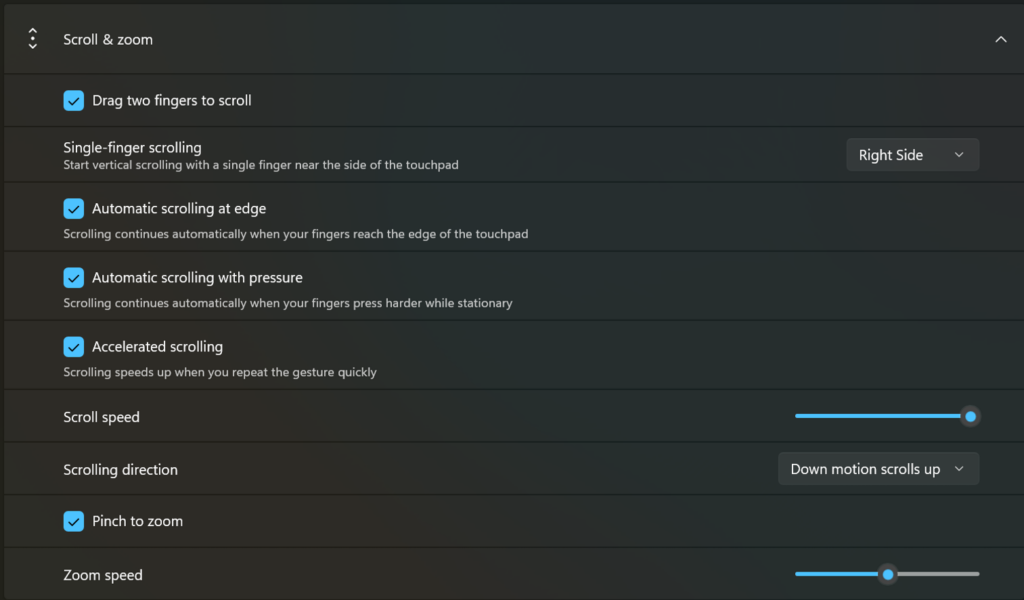 Touchpad improvements bring new gesture capabilities including automatic scrolling, gesture speed controls, accelerated scrolling, and optional single-finger scrolling support.[/caption]
 The redesigned account type selection step — both Individual and Company accounts are now free to register.[/caption]
 Entering a D-U-N-S Number during the Business Details step to instantly retrieve and verify your company information.[/caption]
 Alternative verification via document upload — select from accepted document types if your organization does not have a D-U-N-S Number.[/caption]
 Providing contact details and a business domain email address to verify your employment and speed up account approval.[/caption]
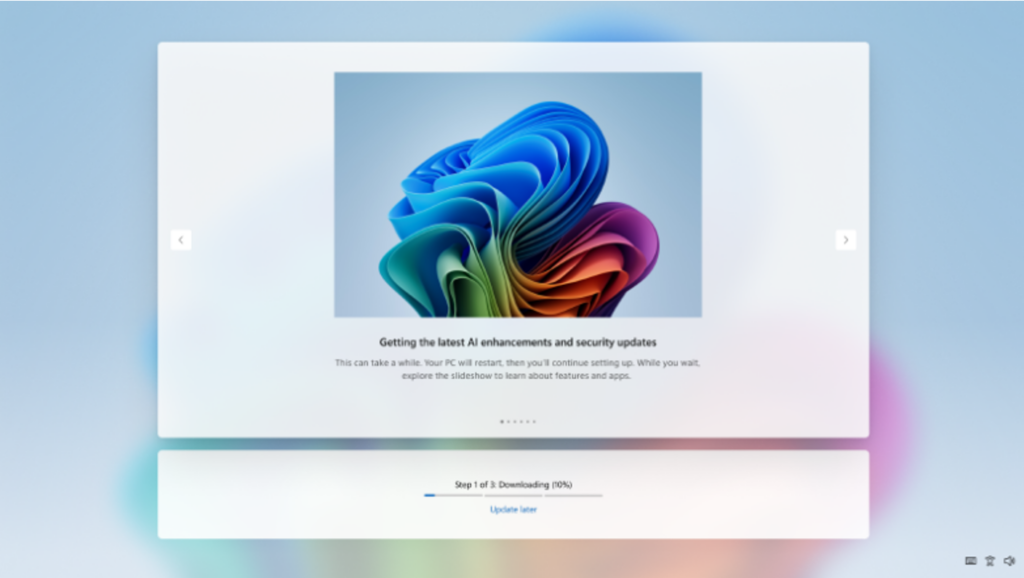 OOBE screen showing ability to update later[/caption]
*Note – this is not applicable to commercial devices where the out of box experience is being
OOBE screen showing ability to update later[/caption]
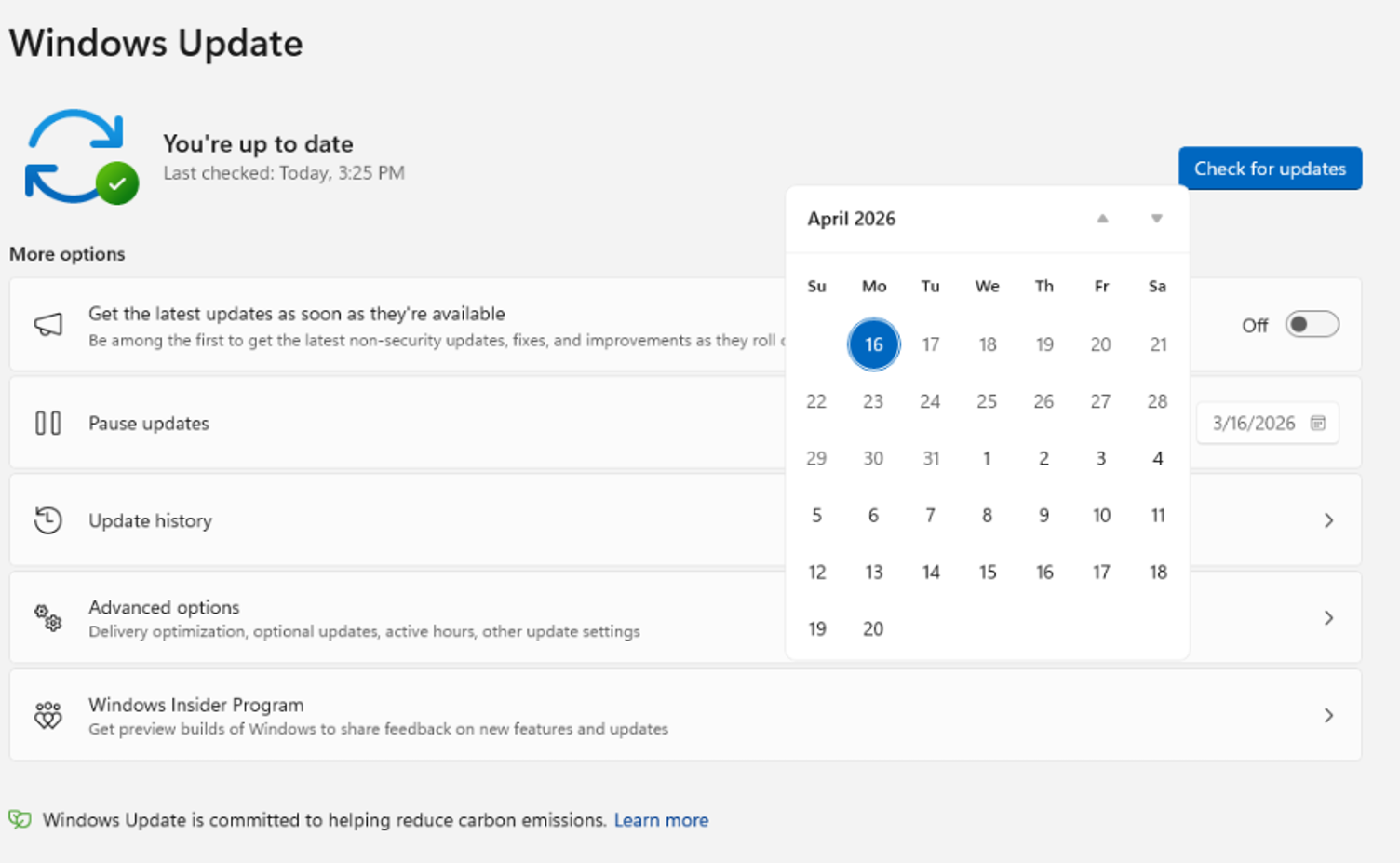
*Note – this is not applicable to commercial devices where the out of box experience is being 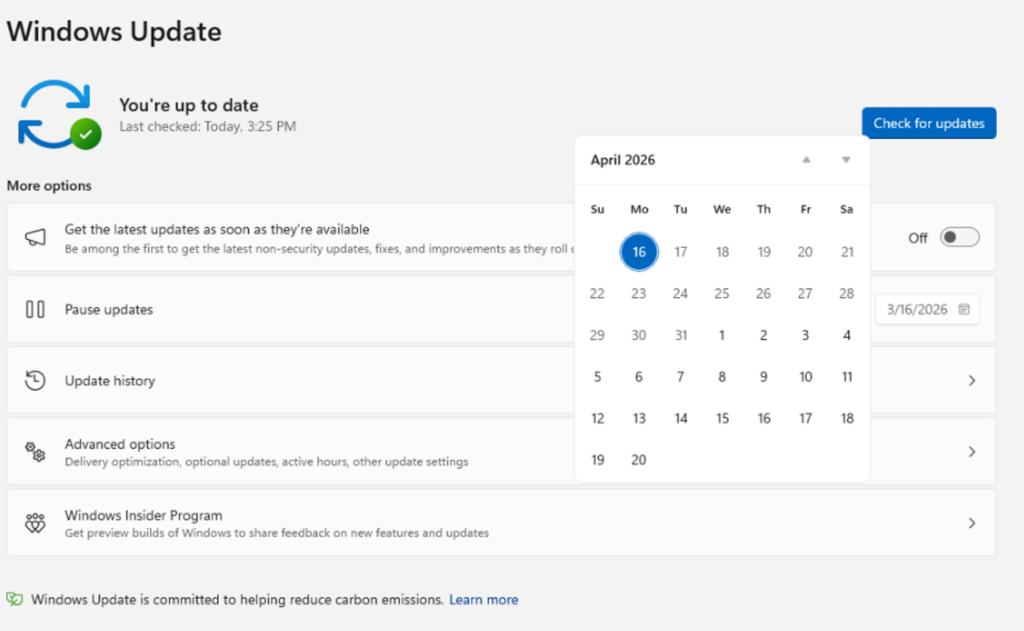 Showing ability in Windows Update to extend update pause[/caption]
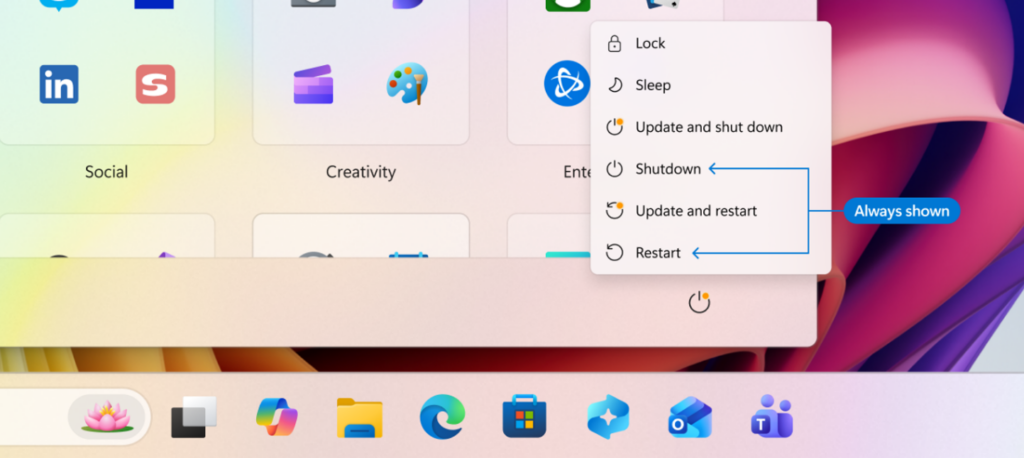 Showing ability to restart and shut down without installing pending updates[/caption]
If you choose Restart or Shut down, Windows will perform exactly that action, without unexpectedly starting an update. If you’re ready to install updates, you can explicitly choose one of the update options.
After a restart, Windows will attempt to restore previously opened applications faster, allowing users to return more easily to what they were working on.
This change is about is about making the Power menu more predictable, so when you need a quick restart or want to power off before heading out, Windows does exactly what you expect.
Showing ability to restart and shut down without installing pending updates[/caption]
If you choose Restart or Shut down, Windows will perform exactly that action, without unexpectedly starting an update. If you’re ready to install updates, you can explicitly choose one of the update options.
After a restart, Windows will attempt to restore previously opened applications faster, allowing users to return more easily to what they were working on.
This change is about is about making the Power menu more predictable, so when you need a quick restart or want to power off before heading out, Windows does exactly what you expect.
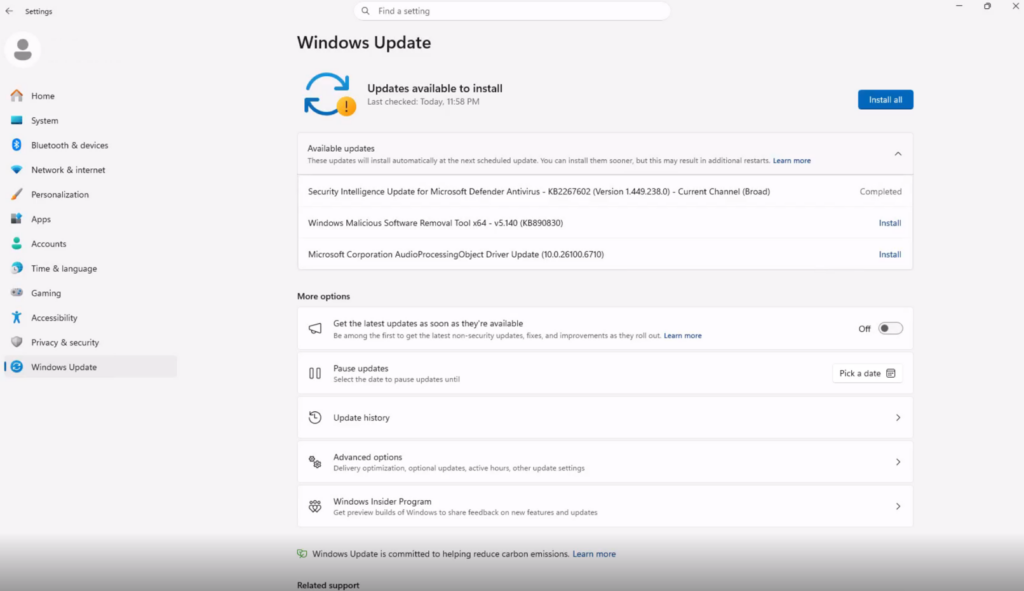 Showing all updates available under Available updates.[/caption]
Updates will download in the background, then will wait for a coordinated installation and restart. This installation and restart will align with the next Windows quality update or other update that you manually approve.
Users can always acquire all or specific updates earlier if desired by initiating download, install, restart (if applicable) for available updates. If none of these actions are taken, updates will be downloaded in the background and applied alongside the next scheduled Windows quality update.
Showing all updates available under Available updates.[/caption]
Updates will download in the background, then will wait for a coordinated installation and restart. This installation and restart will align with the next Windows quality update or other update that you manually approve.
Users can always acquire all or specific updates earlier if desired by initiating download, install, restart (if applicable) for available updates. If none of these actions are taken, updates will be downloaded in the background and applied alongside the next scheduled Windows quality update.
 Support for tenant branding on the Windows 365 Link sign-in screen
As we mark this milestone, we thank our Windows 365 customers and partners for their trust and collaboration. If you’re planning a device refresh for frontline or desk-based workers, consider Windows 365 Link as a more secure, simple-to-manage and cost-effective alternative to traditional desktops. For more on the potential benefits of deploying Windows 365 Link in shared spaces, read the Forrester Consulting study
Support for tenant branding on the Windows 365 Link sign-in screen
As we mark this milestone, we thank our Windows 365 customers and partners for their trust and collaboration. If you’re planning a device refresh for frontline or desk-based workers, consider Windows 365 Link as a more secure, simple-to-manage and cost-effective alternative to traditional desktops. For more on the potential benefits of deploying Windows 365 Link in shared spaces, read the Forrester Consulting study