
 Log in
Meet the new Photos app on Windows 11
Photos hold some of our most meaningful memories: the people we love, the milestones we celebrate, and the everyday moments we want to remember. They connect us to our past and help us share our stories. Finding, editing, and enjoying them on Windows should be simple, wherever they're stored.
As we shared today, we're excited to introduce new Photos experiences on Windows 11, with an all-new Gallery, a new native Editor, and a redesigned Viewer. This is a closer look at those new experiences, which are starting to roll out to Windows Insiders today. Our focus is simple: help you rediscover and organize your collection, give you more capable tools for your favorite shots, and make the everyday experience faster.
At a glance:
 The all-new Gallery brings photos from your PC, OneDrive, and iCloud together in one fast, beautiful place to explore your memories.[/caption]
 On this day brings memories from years past back to you, helping you rediscover moments you might have forgotten.[/caption]
 Find photos of the people you care about, with filters that narrow your collection by who’s in them and where they’re stored.[/caption]
 The all-new native Editor is built around what you want to do, with intuitive tools to crop, enhance, repair, and stylize your photos.[/caption]
 Quickly remove distractions—like a bag in the foreground—with faster processing and higher-quality results, keeping the focus on your subject.[/caption]
 Relight gives you control over your photo’s lighting, with adjustable light sources and one-click presets to correct poor lighting or create a new mood.[/caption]
 The redesigned Viewer puts your photos first, with faster launch times, a cleaner layout, and useful details and actions available when you need them.[/caption]
Photos feel more connected to Windows, too. Open an image directly from File Explorer and it launches into the fast, lightweight new Viewer, where you can quickly flip through the photos on your PC.
The redesigned Viewer puts your photos first, with faster launch times, a cleaner layout, and useful details and actions available when you need them.[/caption]
Photos feel more connected to Windows, too. Open an image directly from File Explorer and it launches into the fast, lightweight new Viewer, where you can quickly flip through the photos on your PC.
- An all-new Gallery: Bring photos from your PC, OneDrive, and iCloud together in one fast, beautiful gallery. Find favorites by describing them in your own words, search or filter for friends and family, relive memories with Moments for your OneDrive photos, and organize albums to share.
- A new native Editor: Bring out the best in a favorite photo with a rebuilt Editor that loads 25% faster1, with intuitive tools to crop, enhance, repair, and stylize your photos, plus HDR, HEIC, and WebP editing. Remove unwanted objects from the background, or use Relight to correct lighting and explore a different look.
- A redesigned native Viewer: Opens photos up to 30% faster1, with a cleaner photo-first design, smoother navigation, improved HDR viewing, expanded file type support, and useful details and actions available when you need them.
An all-new Gallery: Your collection, together
Your photos don't all live in the same place, and you shouldn't have to remember where you saved a picture to start enjoying your collection. The all-new Gallery brings photos and videos from your PC, OneDrive, and Apple iCloud together in one fast, beautiful gallery. Your phone may capture the moment, but your PC gives you the space to see the whole story—and the control to find, organize, and make more of your photos. Browse by date, explore photos by the people in them, organize and share albums, search with natural language, and rediscover your favorite memories, all right on Windows. We've improved app launch and scrolling performance, too. Whether you're opening Photos to find a recent picture or taking your time browsing years of memories, you can get to your collection faster and move through it more smoothly. You can browse online or offline, with photos available on your device ready to enjoy even when you're not connected. [caption id="attachment_180525" align="alignnone" width="1024"] The all-new Gallery brings photos from your PC, OneDrive, and iCloud together in one fast, beautiful place to explore your memories.[/caption]
From your phone to your PC, with OneDrive
OneDrive is a great way to back up the photos and videos on your phone and keep them safer and more accessible anywhere. Turn on Camera Backup in the OneDrive mobile app on iOS or Android to automatically back up your photos and videos. Once saved to OneDrive, they're available on your phone, in the browser, and in Photos on Windows. The familiar ways you explore by searching for friends and family members, the way you organize and share albums, and how you relive memories in OneDrive's web and mobile photo experiences are now available to you on Windows. It's one consistent experience for your photos, wherever you choose to enjoy them. Prefer to keep photos on your PC or use iCloud? You can continue using Photos without signing in to OneDrive to enjoy content stored locally on your device and in iCloud.Your iCloud photos, on your Windows PC
Apple’s iCloud for Windows app brings your iCloud photos and videos into Gallery alongside your local collection, keeping them up to date across your PC and other devices. You can also use File Explorer to download photos and videos for offline access. For sharing, the iCloud Shared Albums app lets you create albums and invite friends and family to contribute photos, videos, and comments, which is a great way to bring everyone’s memories of a trip or celebration together. Set up Photos in iCloud for Windows to get started.Moments that bring you back
Some of the best photos to rediscover are the ones you weren't looking for. For photos saved in OneDrive, Moments finds themes in your library and brings related pictures together into memories throughout the year. It even gives them meaningful names, such as Peaceful Moments, inviting you to revisit a quieter part of a family trip or an everyday scene you might have forgotten. At the end of each season, OneDrive also creates a recap automatically. A summer of family outings, holidays, and small discoveries can be waiting for you when you open Moments, without having to write a prompt or put the collection together yourself. Each memory plays as a slideshow you can watch, share with family and friends, or save as a video. It's a way to enjoy those pictures again and share more of the story behind them. [caption id="attachment_180517" align="alignnone" width="1024"] On this day brings memories from years past back to you, helping you rediscover moments you might have forgotten.[/caption]
Start with the people who matter
The people in your photos are often what make them worth coming back to. With People, familiar faces become a starting point for exploring your collection. Search for photos of the people you care about without remembering a particular date or album. A new filter system helps you narrow your collection by where photos are stored and who’s in them. Looking for photos in OneDrive that feature your child or two specific friends together? Select OneDrive and the person or people you want to see, rather than scrolling through your whole library. And when you want to keep a set of pictures together, Albums make it easy to organize and share them. Gather favorites from a trip or celebration into an album, then share it with the people who were part of it. [caption id="attachment_180516" align="alignnone" width="1024"] Find photos of the people you care about, with filters that narrow your collection by who’s in them and where they’re stored.[/caption]
Organize and share your favorites
With Albums, you can bring your photos together into a collection that tells the story. Organize your favorites around the experiences that matter to you, and when you’re ready to share, albums help friends and family enjoy the highlights. You can also mark individual photos as favorites and revisit them anytime in the dedicated Favorites view.Describe the photo you're looking for
Looking for something specific? Describe it in your own words, such as "a family picnic by the lake" or “sunset at the beach.” Natural-language search in Gallery helps surface photos more quickly. You can start with what you remember, rather than a filename or an exact date. On supported hardware, improved Windows Search also works with photos saved locally in your Pictures Library2.A new native Editor: Built around what you want to do
Once you've found a photo, the next step might be a quick crop, removing a distraction, or trying a different look. We’re focused on making the editing experience faster and more intuitive. Rebuilt from the ground up with WinUI 3, the native Editor is organized around those photo-editing workflows, making it easier to move from an idea to an edit. Your phone is great for quick edits. For more detailed work, the larger display and more precise controls on your PC give you room to refine lighting, framing, and the overall look. The same native Editor is available for photos in Gallery or from anywhere on your PC. The Editor now launches 25% faster1 and offers smoother navigation to help it fit naturally into your workflow, whether you're making a quick adjustment or spending more time on a favorite image. The tools are arranged into four categories, organized around what you want to accomplish:- Crop brings together tools for adjusting framing, composition, and aspect ratio.
- Enhance helps you fine-tune light, color, and the overall appearance of your photo.
- Repair provides tools for correcting flaws and addressing imperfections in your photos.
- Stylize offers creative ways to change a photo's look and feel.
The all-new native Editor is built around what you want to do, with intuitive tools to crop, enhance, repair, and stylize your photos.[/caption]
Edit HDR photos and images from your iPhone
Your photos should keep everything that made them worth capturing, even after editing. Photos now preserves the rich color and contrast of HDR throughout the editing process and lets you edit and save HEIC and WebP images in their original format. Whether you’re enhancing an HDR photo or refining a shot captured on an iPhone, you can now make it your own without compromising its quality or format.Quickly remove distractions
An unwanted object shouldn't distract from a favorite photo. In Repair, you can quickly remove unwanted objects by circling or brushing over them. An improved AI model delivers higher-quality results and faster processing than ever before1, while the simpler interface helps you keep the focus on the parts of the photo that matter. [caption id="attachment_180521" align="alignnone" width="1280"] Quickly remove distractions—like a bag in the foreground—with faster processing and higher-quality results, keeping the focus on your subject.[/caption]
Take control of lighting with Relight
Lighting can change the feel of a photo. In Enhance, Relight gives you control over that lighting after the shot, whether you're correcting poor lighting or exploring a creative effect. We're expanding its availability to all Windows 11 devices. Position up to three light sources, set their colors, and choose a focus point that all the lights automatically aim toward. Brightness and intensity controls let you fine-tune the effect, turning complex lighting adjustments into a visual, intuitive experience. For quicker edits, built-in presets such as golden hour offer ready-made lighting styles you can apply with a single click. [caption id="attachment_180526" align="alignnone" width="1280"] Relight gives you control over your photo’s lighting, with adjustable light sources and one-click presets to correct poor lighting or create a new mood.[/caption]
Get the framing right for sharing
New social media crop templates make it simple to get your photos ready to share. Choose the format for your favorite social network, adjust the framing if needed, and your photo is ready to post in just a few clicks.A redesigned native Viewer: Focus on the photo
We've significantly improved Viewer launch performance with 15% faster startup on average and improvements of up to 30% for HEIC images1, so your photos open faster. The cleaner layout keeps edit, print, and share close at hand, while smooth navigation with the arrow keys helps you move quickly through your collection. We've also improved HDR viewing and expanded file-type support, including SVG files. A single menu keeps navigation and app choices organized without crowding the photo. Select the information button to see useful details alongside the image: the file name, date, camera details, a location map when location data is available, a color histogram, and visual search. Those details are there when you need them and out of the way when you don't. [caption id="attachment_180523" align="alignnone" width="1024"] The redesigned Viewer puts your photos first, with faster launch times, a cleaner layout, and useful details and actions available when you need them.[/caption]
Photos feel more connected to Windows, too. Open an image directly from File Explorer and it launches into the fast, lightweight new Viewer, where you can quickly flip through the photos on your PC.
The everyday improvements matter, too
We're continuing to invest in the fundamentals that make Photos feel fast, dependable, and easy to use. Performance, reliability, and usability matter in every part of the experience, whether you open a single picture or spend time exploring your collection. Just as important is the craft: clear layouts, consistent interactions, and thoughtful details that help the app feel considered from start to finish. Our goal is not simply to add more capabilities, but to make the time you spend with your photos better.One connected photo experience
From organizing a growing collection in Gallery to refining a favorite photo in the Editor and reviewing it in full fidelity in Viewer, these experiences are designed to work together. More room to see your photos and finer control over your edits help you make the most of the time you spend with them. Today, we’re beginning to roll out these new Photos experiences as an update to Windows Insiders on Windows 11, with availability expanding to all Windows 11 users later this year. Your feedback continues to shape this work. Please keep sharing it via Feedback Hub (WIN + F, under Apps > Photos) and thank you for helping us make Photos better!- Based on app performance measurements of Photos under controlled test conditions across a range of Windows 11 devices, including both x64 and ARM64 architectures, compared to Photos Version 2026.11060; actual performance varies by device, configuration, usage, and other factors.
- Learn more about improved Windows Search, including supported file types and languages.


 Windows on Arm is now a
  Applications that still depend on x64 packages can continue to run through Windows emulation, providing a practical transition path while those dependencies add native Arm support.


 GitHub-hosted runners are especially useful for open-source projects because maintainers can add native Windows on Arm CI without operating their own runner infrastructure. A native runner turns Windows on Arm support into a change that can fit into an existing build matrix. It also allows maintainers to test Windows on Arm continuously rather than relying on a one-time build.
"Arm is working with industry partners including Microsoft and community organizers to expand access to native Arm infrastructure and improve upstream support," said Grant Likely, Fellow at CoreCollective and Senior Director at Arm. "Our goal is to make Arm a standard part of how developers build, test and ship software. With the latest Python release, developers can build and run Python natively on Windows on Arm, making it easier to bring their existing workflows to Arm."
GitHub-hosted runners are especially useful for open-source projects because maintainers can add native Windows on Arm CI without operating their own runner infrastructure. A native runner turns Windows on Arm support into a change that can fit into an existing build matrix. It also allows maintainers to test Windows on Arm continuously rather than relying on a one-time build.
"Arm is working with industry partners including Microsoft and community organizers to expand access to native Arm infrastructure and improve upstream support," said Grant Likely, Fellow at CoreCollective and Senior Director at Arm. "Our goal is to make Arm a standard part of how developers build, test and ship software. With the latest Python release, developers can build and run Python natively on Windows on Arm, making it easier to bring their existing workflows to Arm."
 "Developers thrive when their tools just work, which is why a strong and comprehensive Python ecosystem is so important for Snapdragon X Series platforms. Working closely with Microsoft, Anaconda, and ecosystem partners, we continue to advance native support across the Python stack, making it easier for developers to build, test, and deploy applications on Windows on Snapdragon. This further enables developers to take advantage of superior performance, power efficiency, and AI capabilities of Snapdragon powered Windows devices." says Milan Plavsich, VP, Engineering, Qualcomm Technologies, Inc.
 For a deeper look at how WSL containers are built, how they work with WSL, and the architecture behind the platform, see our


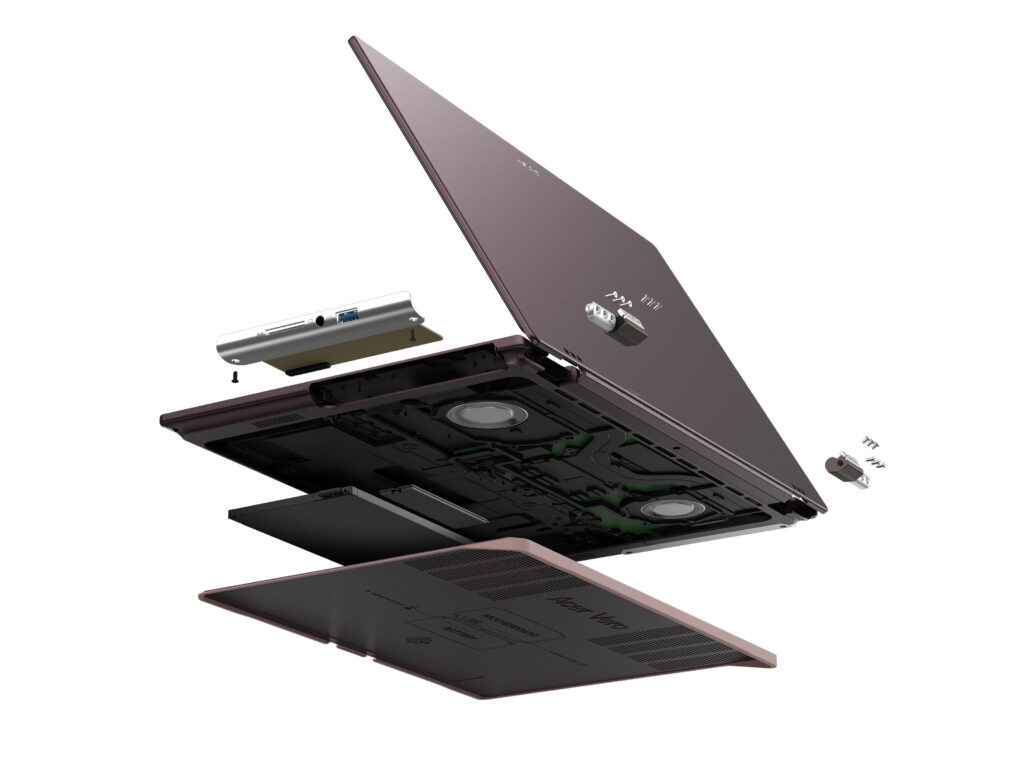 Acer Vero 16[/caption]
Acer’s Windows compute lineup at IFA 2026 also included the
Acer Vero 16[/caption]
Acer’s Windows compute lineup at IFA 2026 also included the 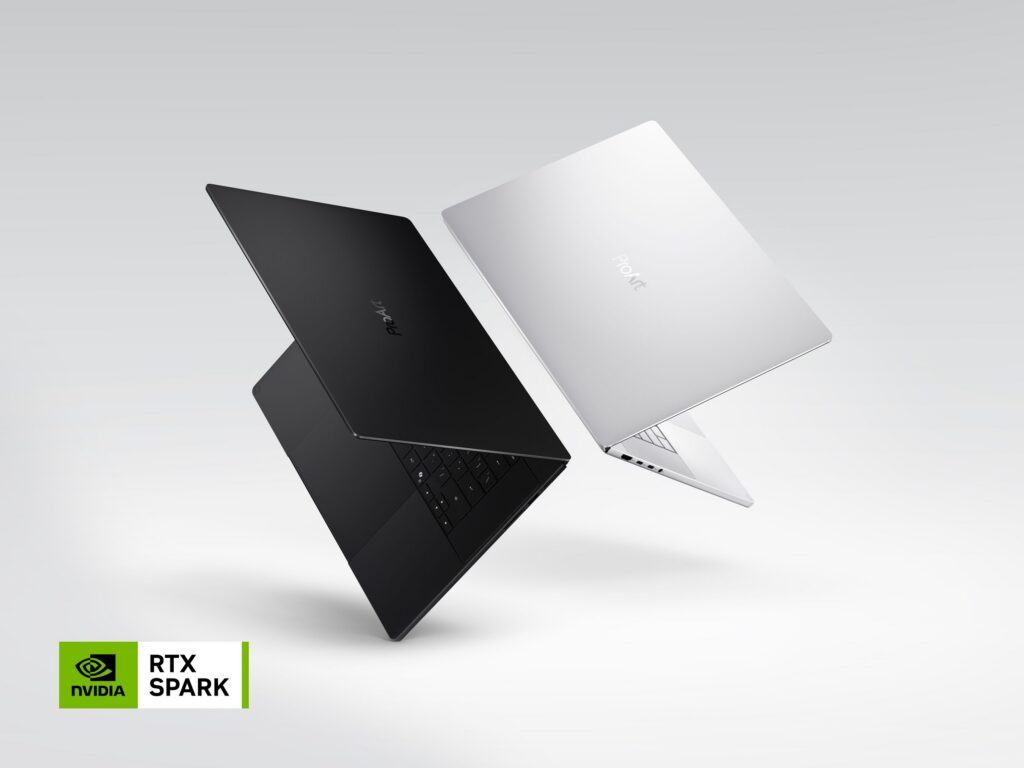 ProArt Laptop (Nano Black & Neo White)[/caption]
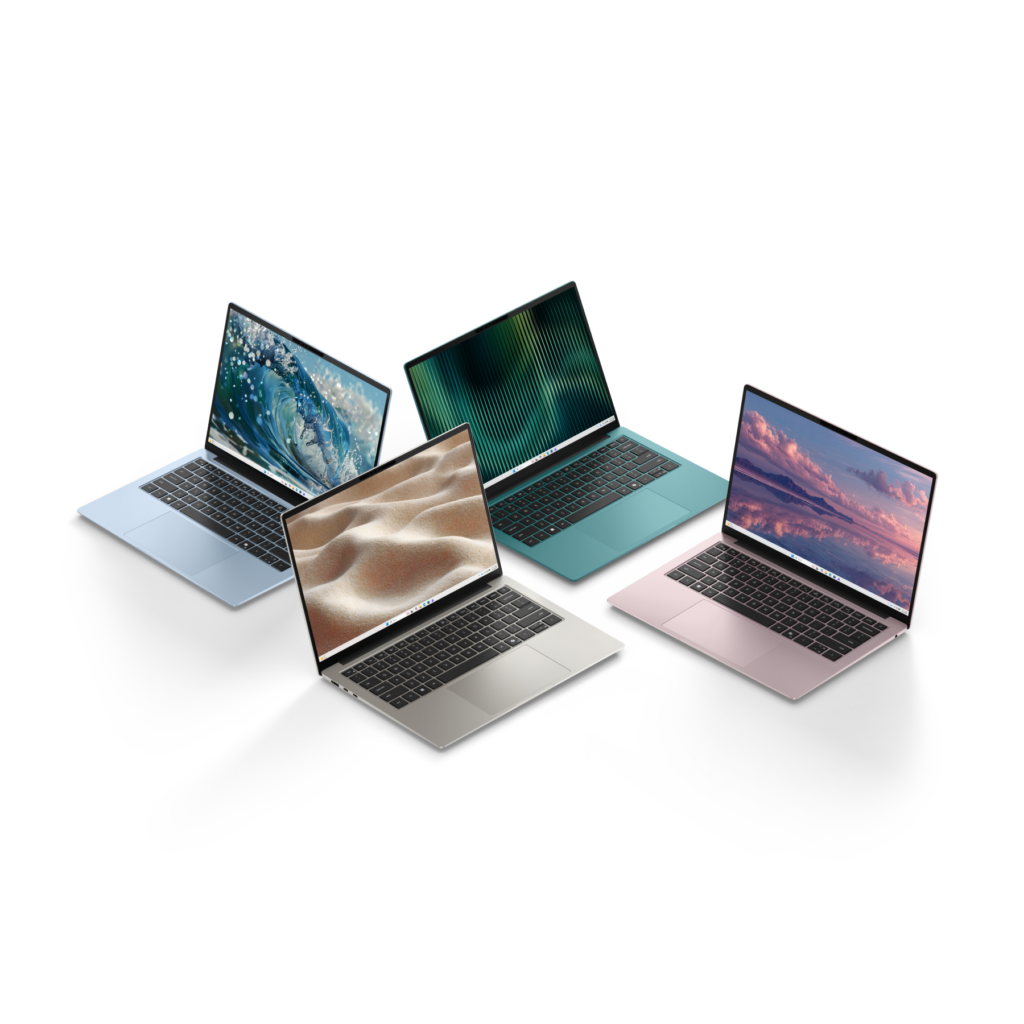 Dell 14S Laptop[/caption]
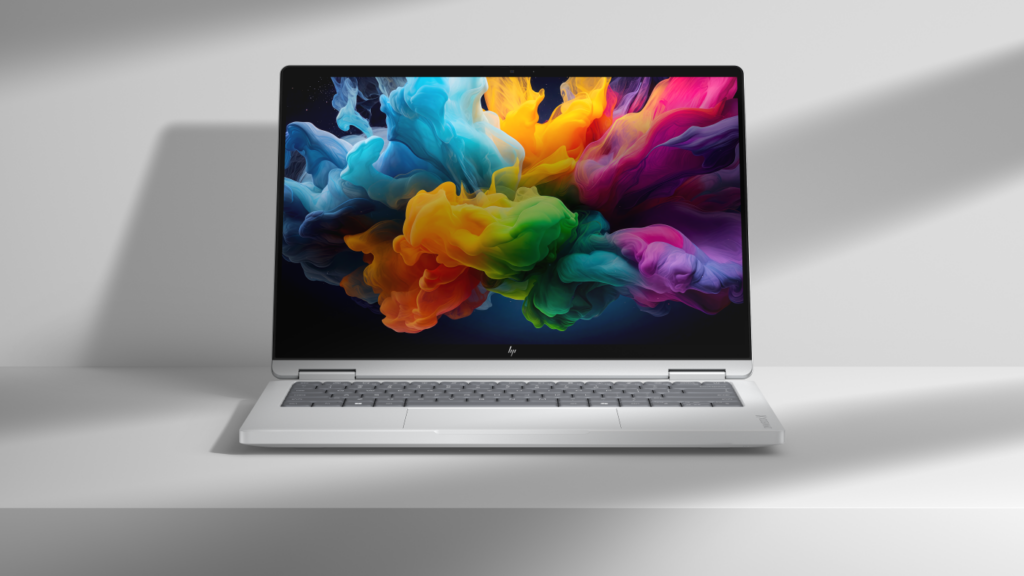 HP OmniBook X 14[/caption]
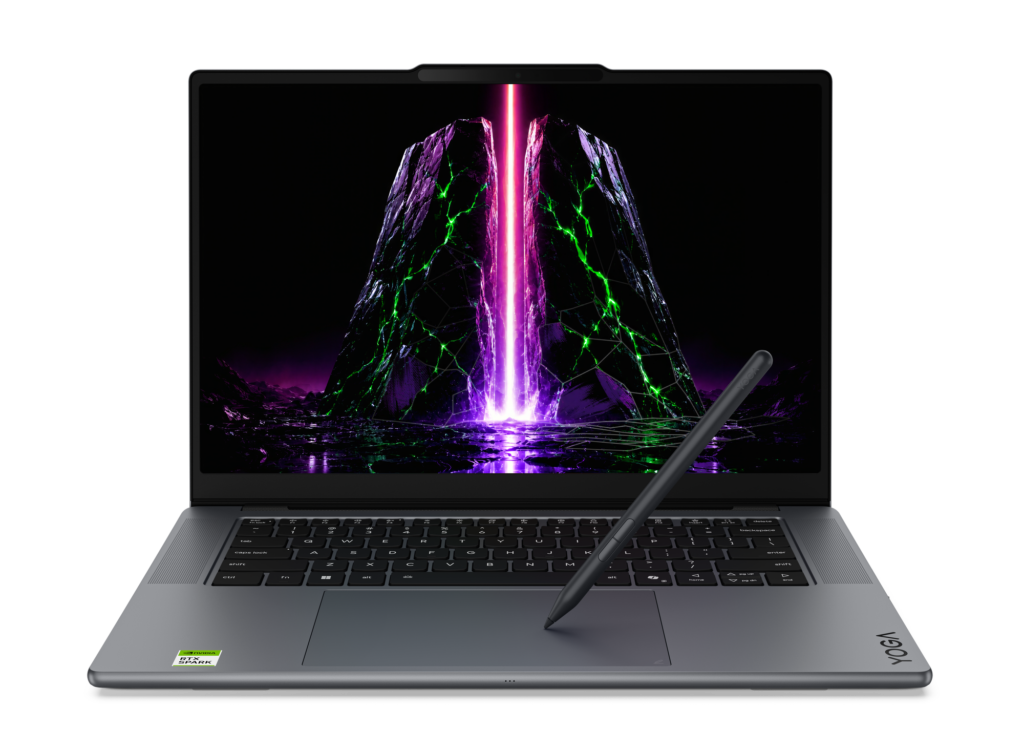 Yoga Pro 9n (15”, 11)[/caption]
For students, families, and everyday users, the new
Yoga Pro 9n (15”, 11)[/caption]
For students, families, and everyday users, the new 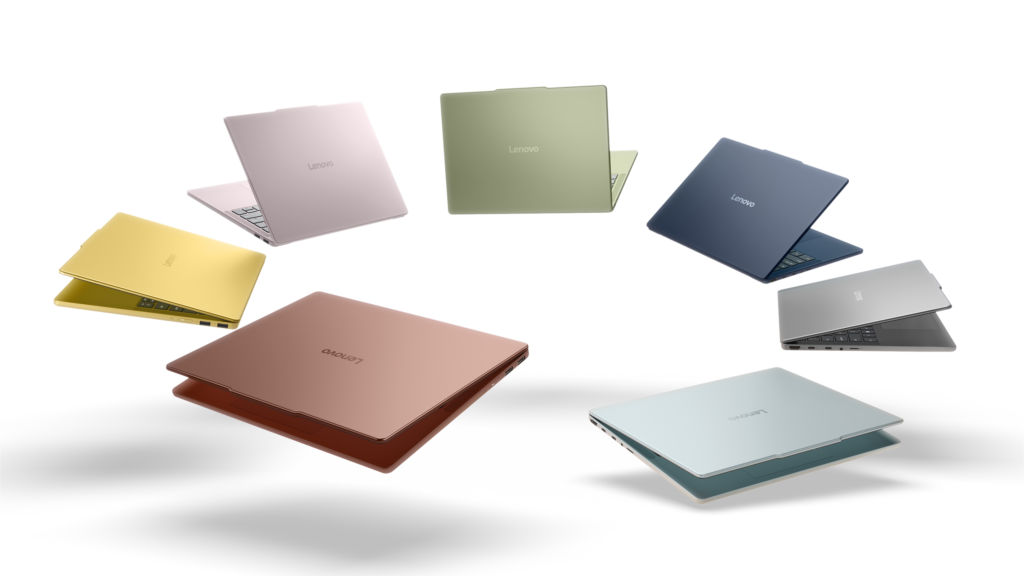 IdeaPad Vibe[/caption]
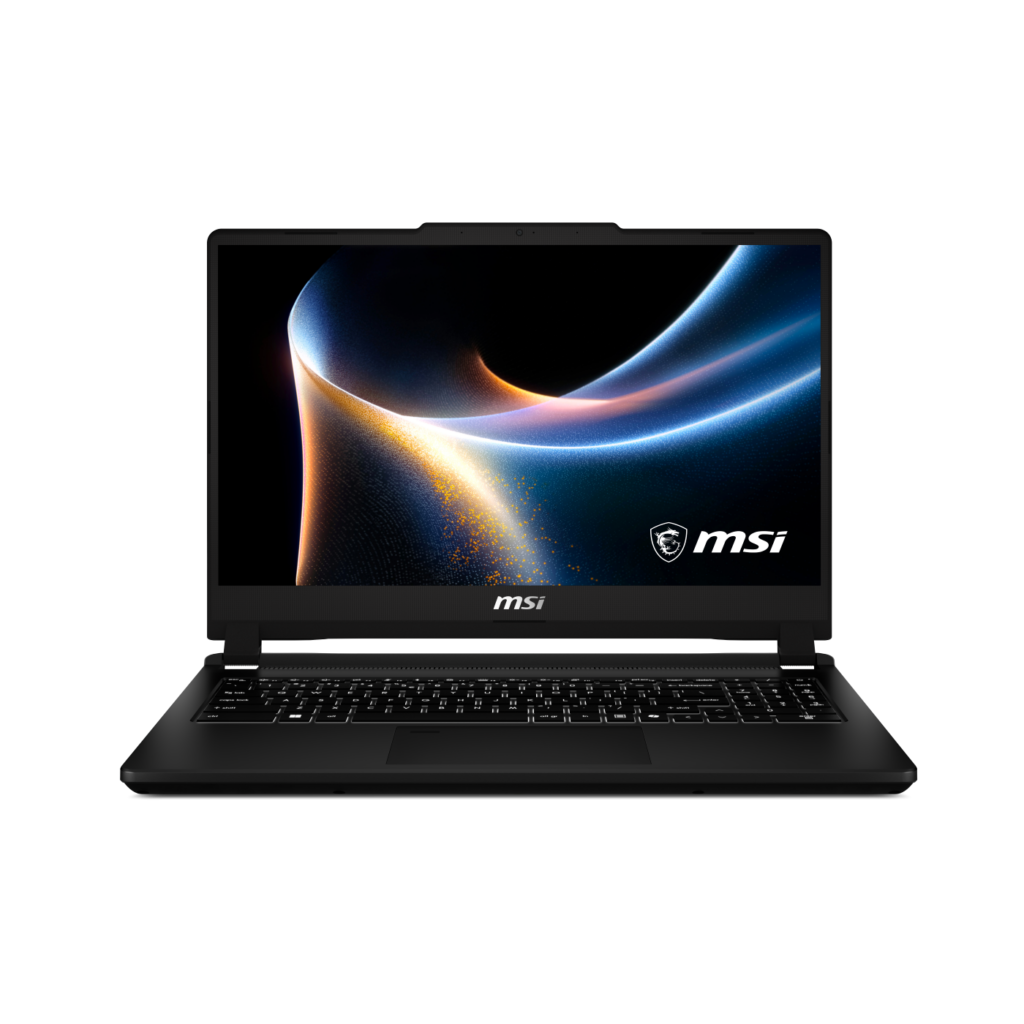 Venture 15[/caption]
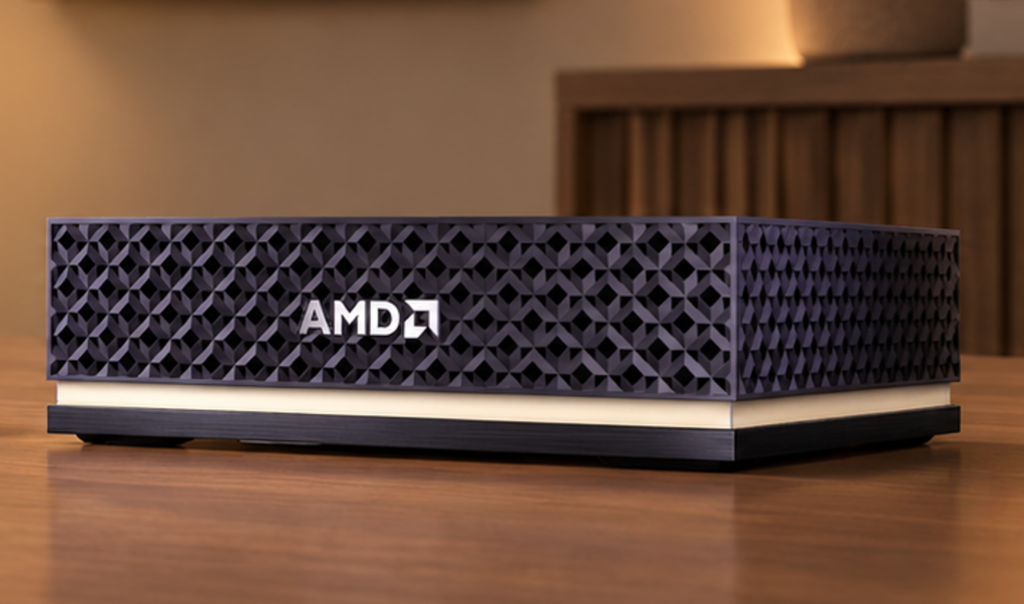 Ryzen AI Halo[/caption]
 NVIDIA RTX Spark Superchip[/caption]


 We’ve also pre-configured Windows Settings for coding across File Explorer, Search, Start, and the Taskbar. File Explorer shows file extensions, hidden files, the full path in the title bar, and the details pane, with long-path support enabled. Recently used files and folders and sync provider tips are turned off for a cleaner workspace. In Search and Start, Command Palette is enabled, while Start menu tips and account notifications are turned off to reduce distractions.
Windows Subsystem for Linux (WSL) has become foundational for running Linux workloads on Windows. Last year we open-sourced WSL. Building on that momentum at Build 2026, we integrated WSL more deeply into Windows with WSL containers to provide a built-in way to create, run, and interact with Linux containers directly on Windows.
Together, with Project Zenith, these choices create a calm, and meaningful starting point for development. Project Zenith is not about prescribing a single workflow. You can continue to configure, extend, and personalize your environment around the tools, languages, and frameworks you prefer. It is about beginning from a better baseline, shaped by the settings and tools developers reach for first, so a new device works with you to accelerate your workflows.
We’ve also pre-configured Windows Settings for coding across File Explorer, Search, Start, and the Taskbar. File Explorer shows file extensions, hidden files, the full path in the title bar, and the details pane, with long-path support enabled. Recently used files and folders and sync provider tips are turned off for a cleaner workspace. In Search and Start, Command Palette is enabled, while Start menu tips and account notifications are turned off to reduce distractions.
Windows Subsystem for Linux (WSL) has become foundational for running Linux workloads on Windows. Last year we open-sourced WSL. Building on that momentum at Build 2026, we integrated WSL more deeply into Windows with WSL containers to provide a built-in way to create, run, and interact with Linux containers directly on Windows.
Together, with Project Zenith, these choices create a calm, and meaningful starting point for development. Project Zenith is not about prescribing a single workflow. You can continue to configure, extend, and personalize your environment around the tools, languages, and frameworks you prefer. It is about beginning from a better baseline, shaped by the settings and tools developers reach for first, so a new device works with you to accelerate your workflows.
 Recent STEM and education apps available on Windows on Arm devices[/caption]
 Recent security apps available on Windows on Arm devices[/caption]
 Recent productivity apps available on Windows on Arm devices[/caption]
 Recent creativity, social media and entertainment apps available on Windows on Arm devices[/caption]
The takeaway is clear: Windows on Arm is no longer defined by potential, but by a rapidly expanding ecosystem of devices with apps available across workloads that customers depend on most. As developers continue to invest in Arm-native experiences and compatibility, customers gain more choices, flexibility, and confidence in adopting the next generation of Windows devices.
As the ecosystem continues to expand, the Microsoft App Assure team is ready to assist software developers interested in bringing their apps to Windows on Arm. Through our
Recent creativity, social media and entertainment apps available on Windows on Arm devices[/caption]
The takeaway is clear: Windows on Arm is no longer defined by potential, but by a rapidly expanding ecosystem of devices with apps available across workloads that customers depend on most. As developers continue to invest in Arm-native experiences and compatibility, customers gain more choices, flexibility, and confidence in adopting the next generation of Windows devices.
As the ecosystem continues to expand, the Microsoft App Assure team is ready to assist software developers interested in bringing their apps to Windows on Arm. Through our 