❌

Lees weergave

Best Apple Deals of the Week: Anker Accessories on Sale Plus AirPods Max 2 for $509 and More

The best Apple deals this week include AirPods Max 2 for $40 off, 2026 MacBook Pro for up to $216 off, and Apple Watch Series 11 for up to $130 off. You'll also find Anker's best charging accessories on sale on Amazon right now, including the new Prime 3-in-1 Wireless Charging Station.

Note: MacRumors is an affiliate partner with some of these vendors. When you click a link and make a purchase, we may receive a small payment, which helps us keep the site running.
Anker


  • What's the deal? Save on Anker charging accessories

  • Where can I get it? Amazon

  • Where can I find the original deal? Right here


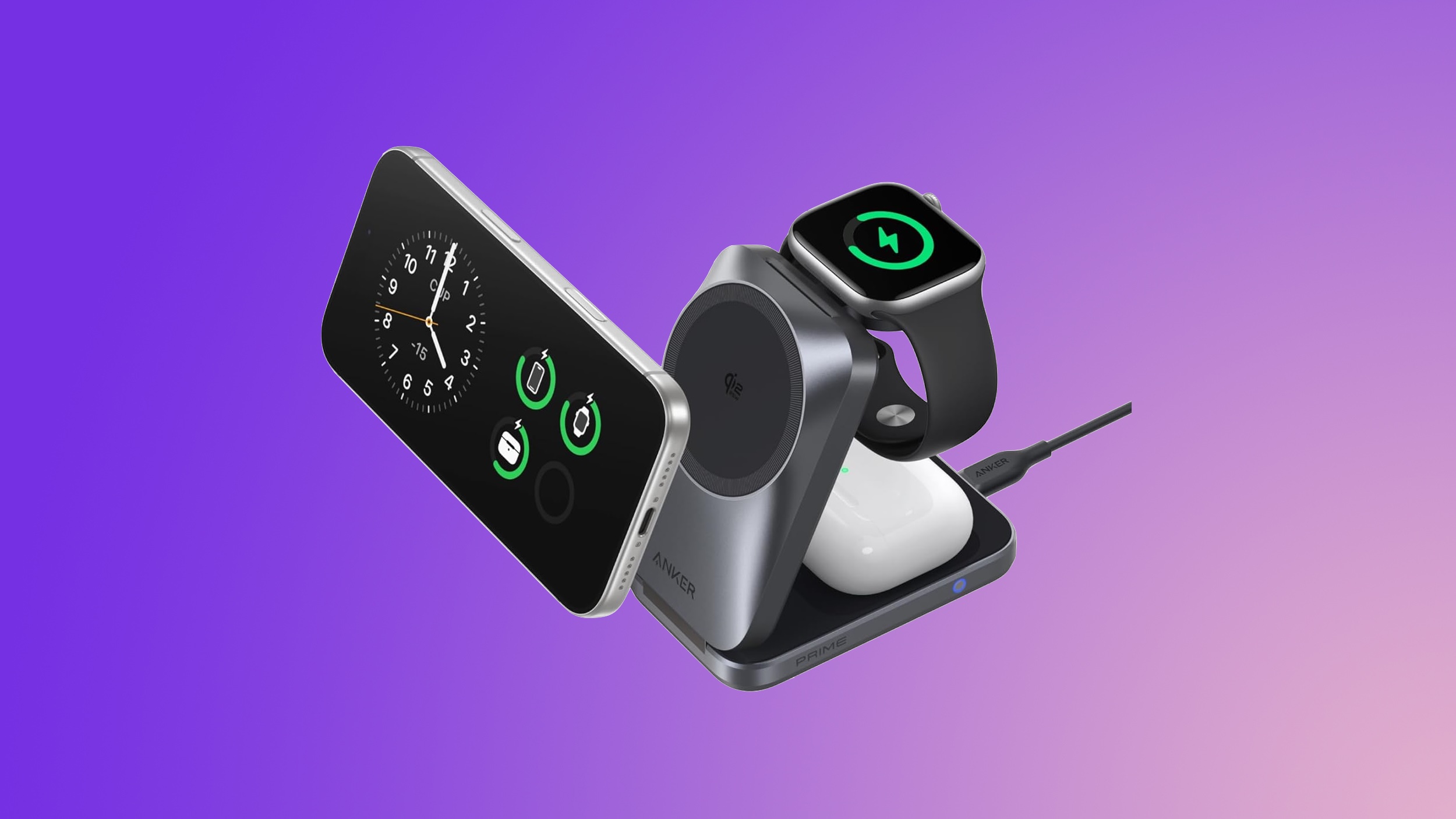
Anker's new Prime 3-in-1 Wireless Charging Station has been marked down to $104.99 on Amazon, down from $149.99. This is one of Anker's newest accessories, and Amazon's sale today is a match of the all-time low price.
AirPods Max 2


  • What's the deal? Take $40 off AirPods Max 2

  • Where can I get it? Amazon

  • Where can I find the original deal? Right here


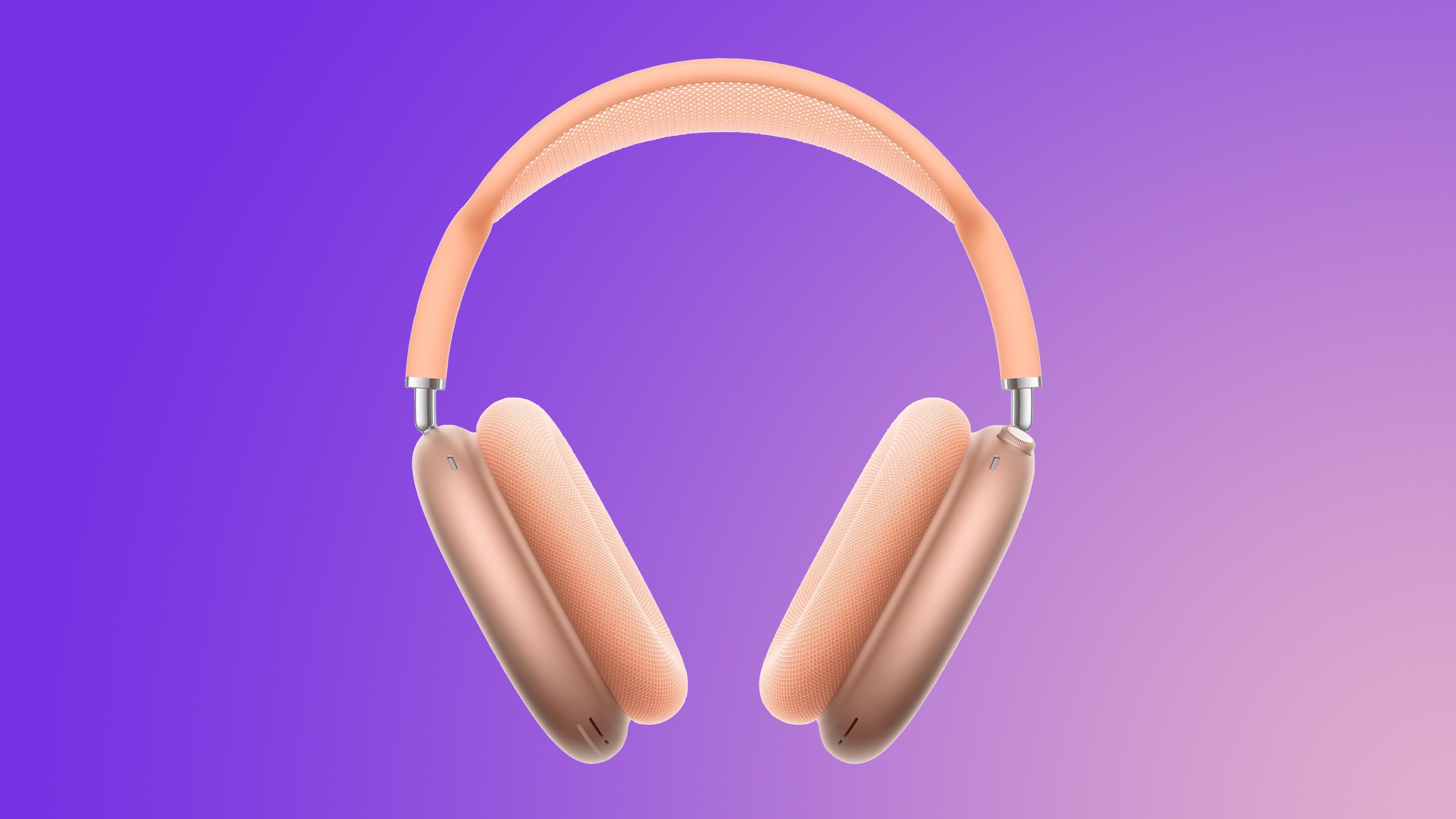
Amazon this week has a record low price on the AirPods Max 2, now available for $509.00, down from $549.00. This sale is available in three colors of the headphones.
MacBook Pro


  • What's the deal? Take up to $249 off M5 Pro/M5 Max MacBook Pro

  • Where can I get it? Amazon

  • Where can I find the original deal? Right here


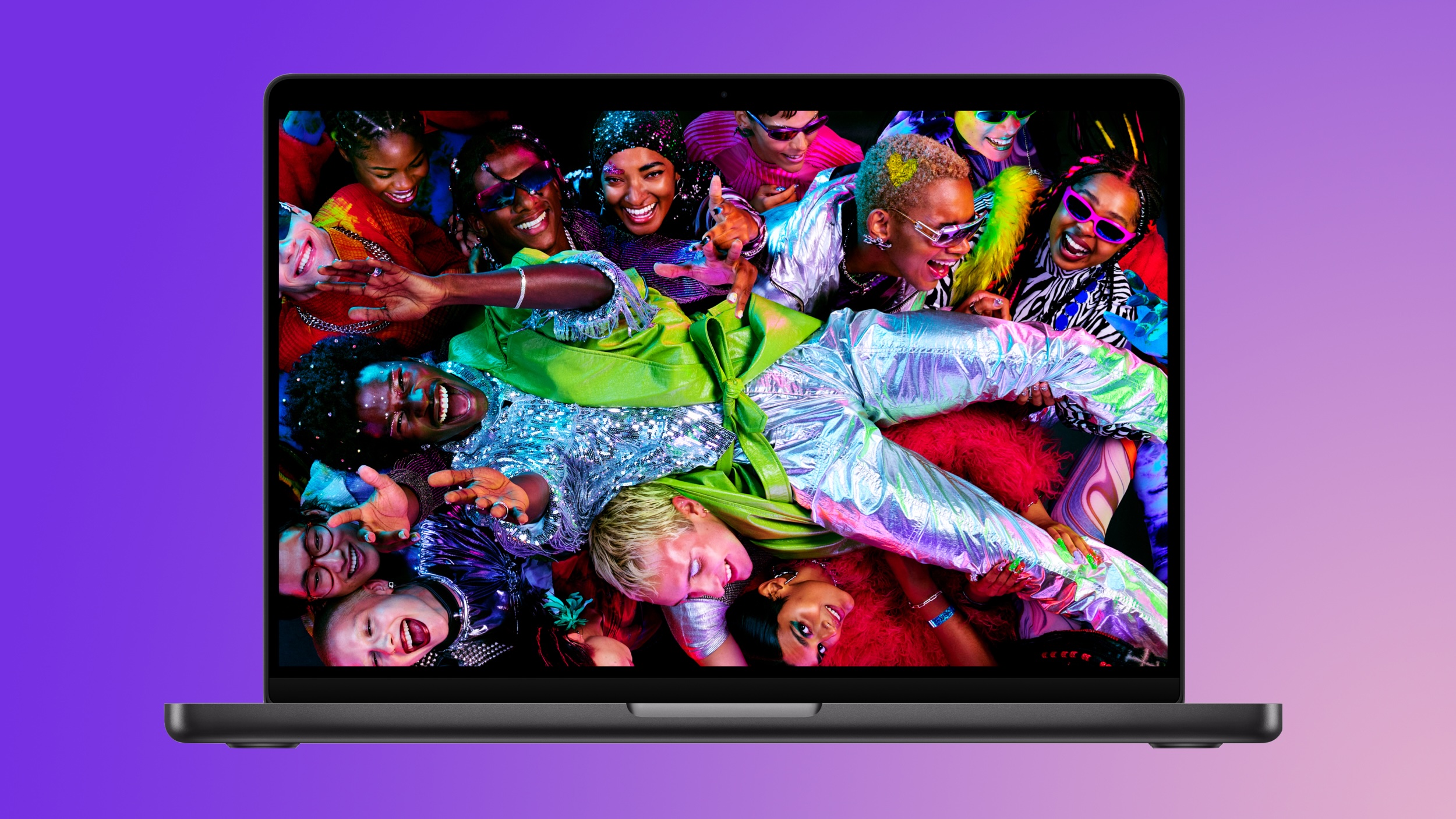
Amazon is offering a few all-time low prices on Apple's M5 Pro/M5 Max MacBook Pro this week, with up to $249 off select models.
Apple Watch Series 11


  • What's the deal? Take up to $130 off Apple Watch Series 11

  • Where can I get it? Amazon

  • Where can I find the original deal? Right here


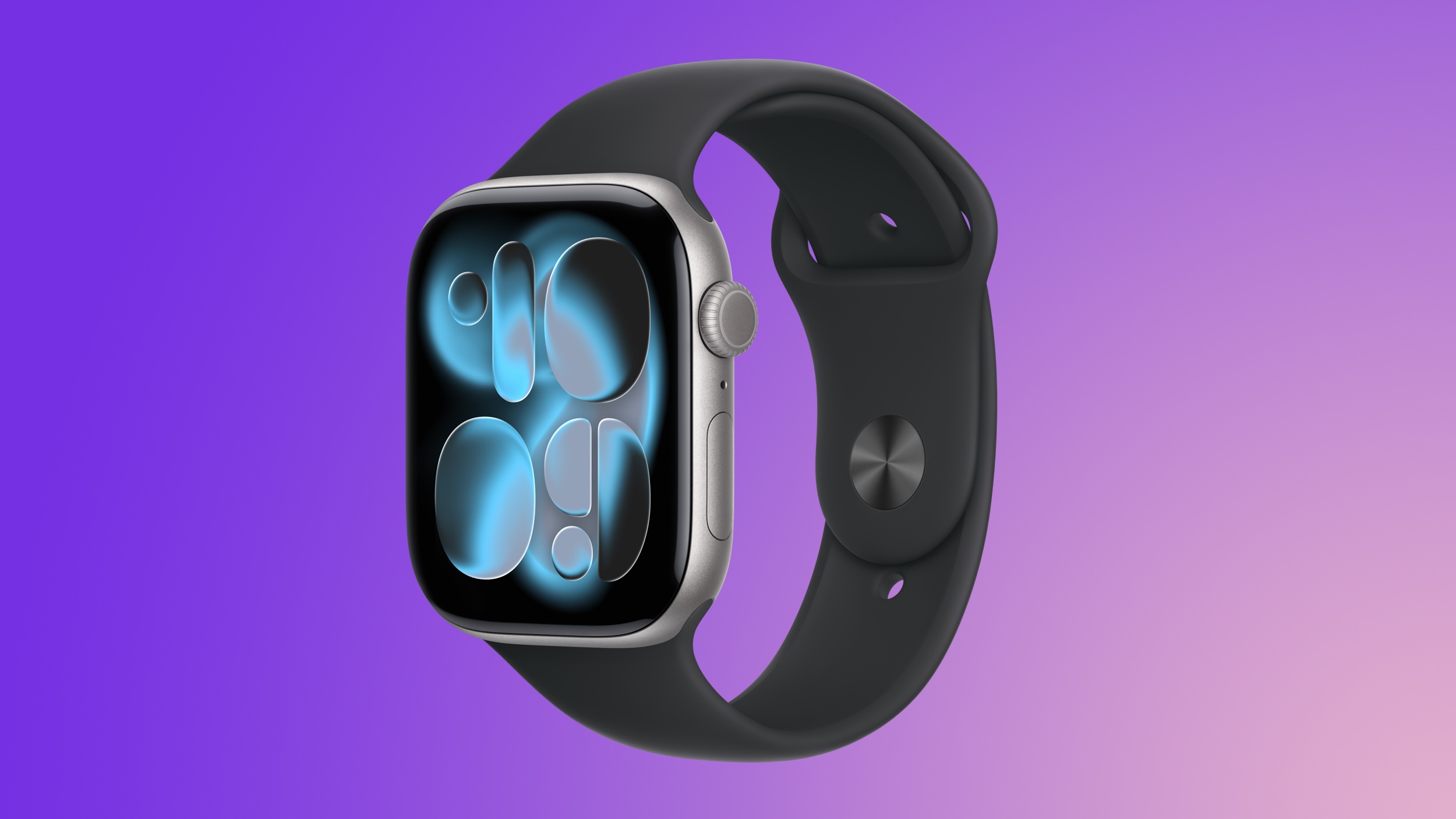
Amazon has all-time low prices on the Apple Watch Series 11 this week, with up to $130 off numerous models of the smartwatch. A highlight of the sale is the 46mm cellular model at $130 off, which is a match of the all-time low price.

If you're on the hunt for more discounts, be sure to visit our Apple Deals roundup where we recap the best Apple-related bargains of the past week.


Deals Newsletter


Interested in hearing more about the best deals you can find in 2026? Sign up for our Deals Newsletter and we'll keep you updated so you don't miss the biggest deals of the season!


Related Roundup: Apple Deals

This article, "Best Apple Deals of the Week: Anker Accessories on Sale Plus AirPods Max 2 for $509 and More" first appeared on MacRumors.com

Discuss this article in our forums
  •  

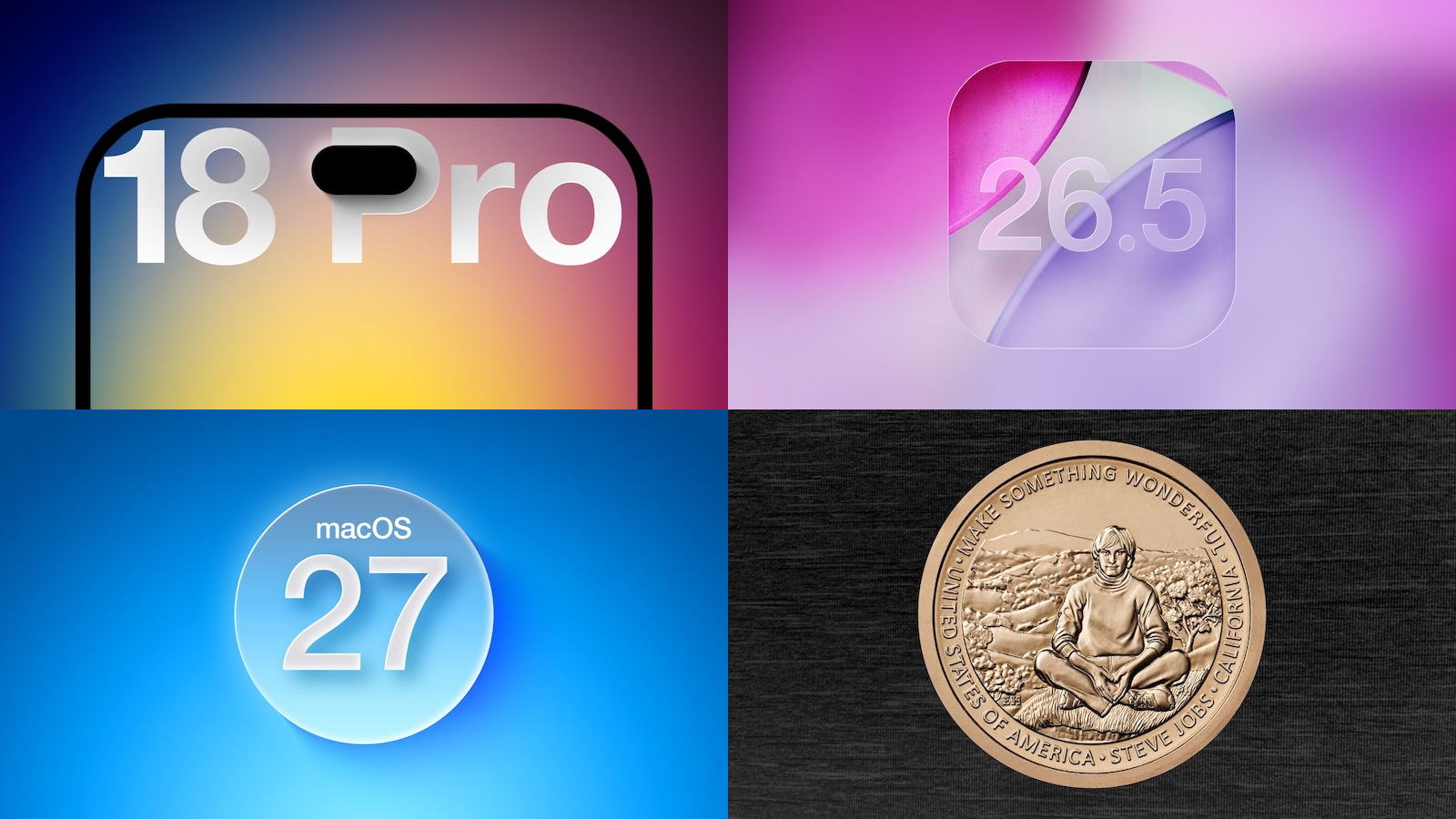
Top Stories: iPhone 18 Pro Rumors, iOS 26.5 Released, and More

WWDC is less than a month away, so the focus of the Apple world is turning toward what we might see in the next major operating system updates, but we're also looking ahead to the busy hardware update season in the fall.


This week also saw a significant change to Apple's education pricing program in some countries, while a new commemorative U.S. coin featuring Steve Jobs made a brief appearance, so read on below for all the details!

Top Stories


11 Reasons to Wait for the iPhone 18 Pro


We're only four months out from the launch of Apple's premium next-generation smartphone lineup, and while we're not expecting a sea change in terms of functionality, there are still several enhancements rumored to be coming to the iPhone 18 Pro and iPhone 18 Pro Max.


Despite cost pressures from industry-wide memory shortages that are forcing some Android smartphone manufacturers to raise prices, one analyst believes Apple will be "aggressive" on pricing with the iPhone 18 Pro models.

iOS 26.5 Features: Everything New in iOS 26.5


Apple this week released iOS 26.5 and related updates to the general public, delivering several new features and dozens of fixes for security issues.


The headline features in iOS 26.5 include a beta of end-to-end encryption for RCS messages exchanged between iPhone and Android users on supported carriers, a new "Suggested Places" section in the Maps app for recommendations based on your location and recent searches, and a new Pride Luminance wallpaper option.

macOS 27: Two More Changes Leaked Ahead of WWDC Next Month


macOS 27 will have a "slight redesign" compared to macOS Tahoe, according to the latest word from Bloomberg's Mark Gurman. In his Power On newsletter this week, Gurman said the design changes will help to improve the readability of macOS Tahoe's Liquid Glass interface.


In addition, Gurman said macOS 27 will have a new Safari feature that can automatically organize browser tabs into groups. This feature, previously revealed by MacRumors, is also expected to be available on iOS 27 and iPadOS 27.

macOS 27 and Apple's other major operating system updates will be revealed during the WWDC keynote on June 8.

Apple Watch Series 12 and watchOS 27: What to Expect Later This Year


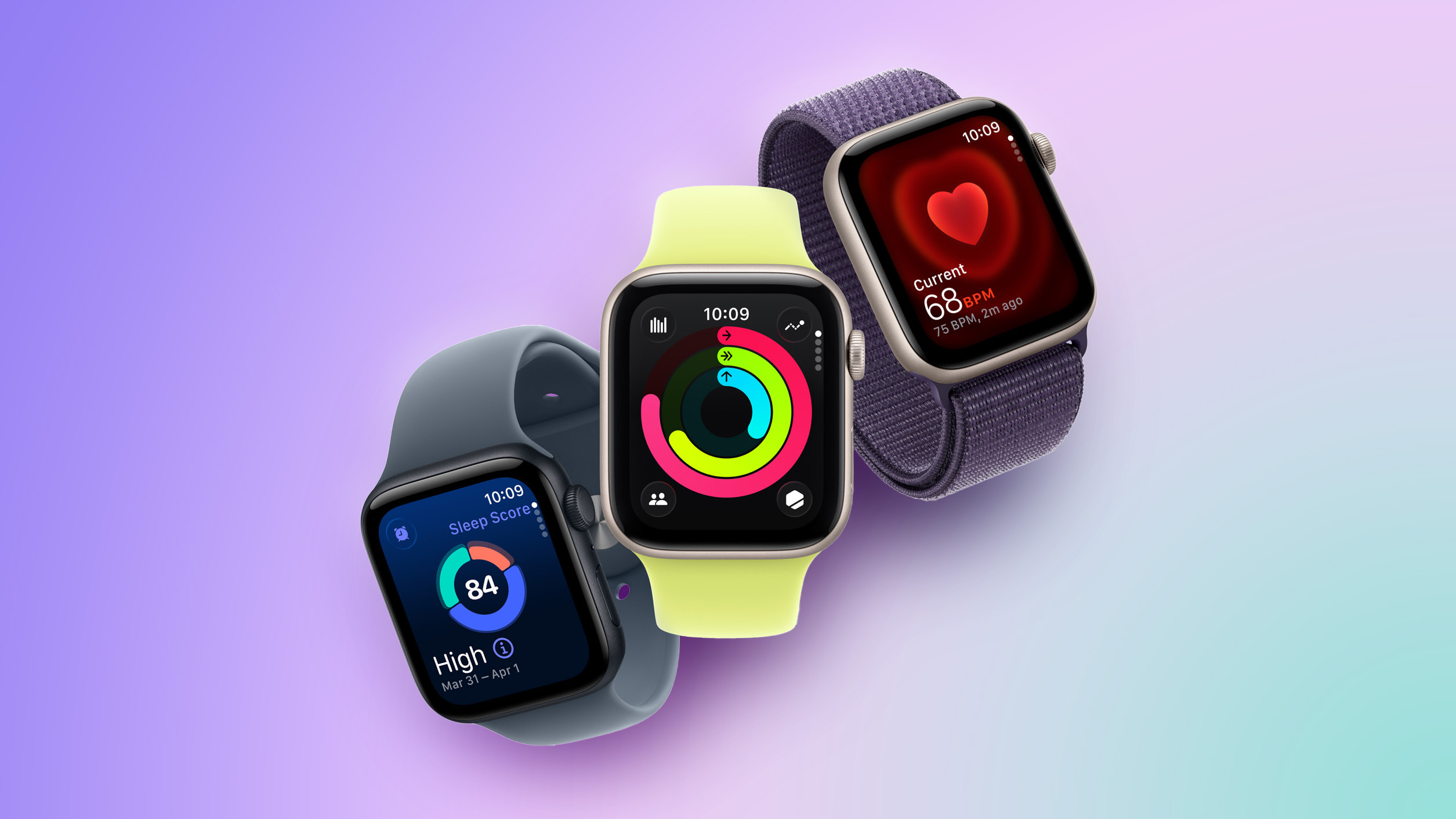
While not too much has been reported about the next Apple Watch models, there are a few rumors about potential design changes and watchOS 27 features.


Apple Watch Series 12 and potentially Apple Watch Ultra 4 models are expected to be released in September, and we recently recapped some of the key rumored hardware and software changes. A new Apple Watch SE is not expected this year, as that model was just updated last year and it typically goes two to three years between refreshes.

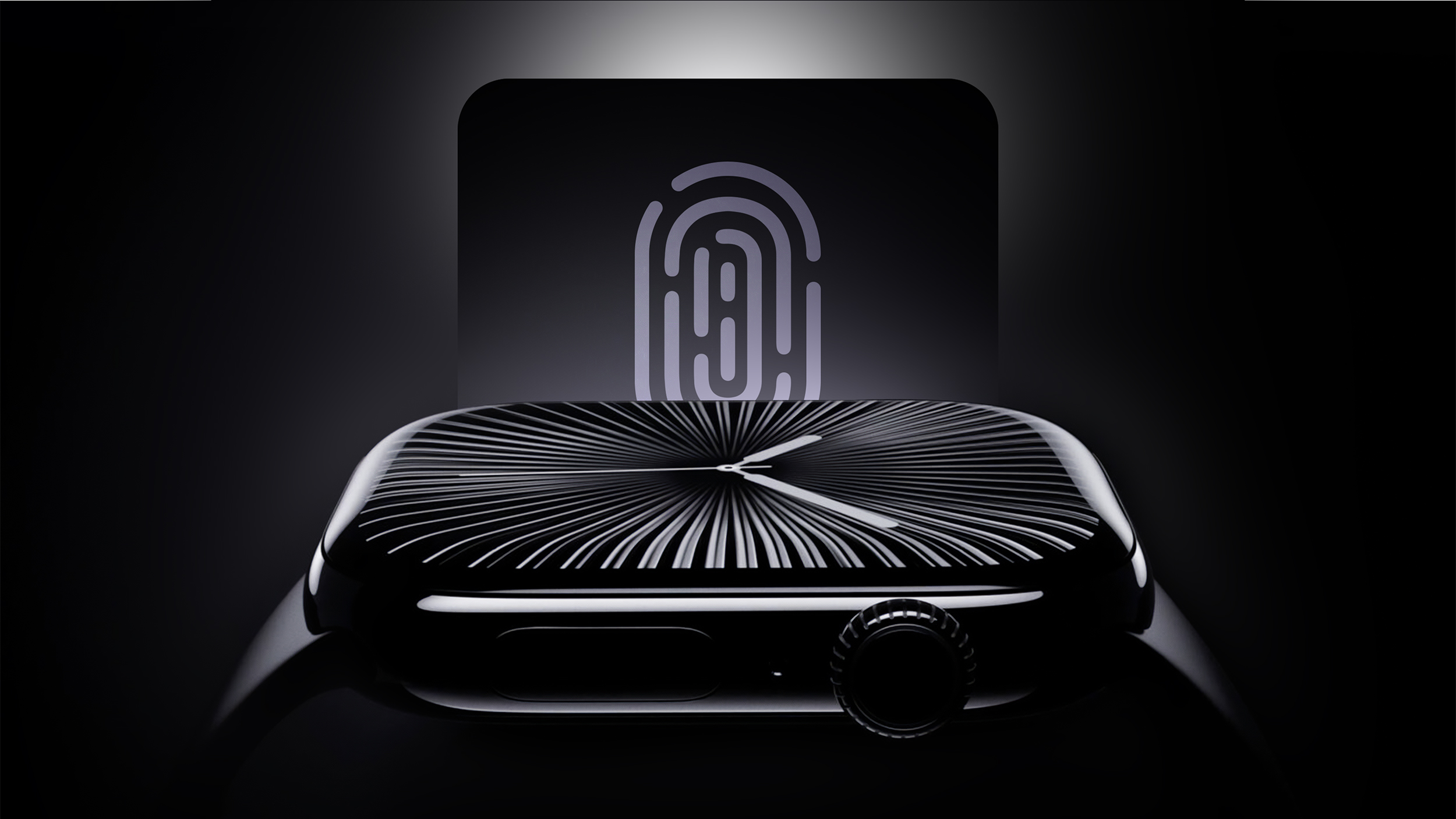
Touch ID is one interesting rumor that has been circulating based on leaked Apple code, but one leaker recently claimed it won't be coming to the next-generation Apple Watch models, so we'll have to wait and see whether it makes an appearance. Otherwise, it seems battery life improvements, new Apple Intelligence and satellite features, and a few other quality-of-life improvements are likely.

Apple Now Requires UNiDAYS Verification for Education Discounts in U.S. and Canada, Adds Apple Watch


Apple has long offered discounted pricing on an array of products to educational customers, but in the U.S. and Canada this has largely been on the honor system outside of the occasional audit.


That changed as of this week, with Apple now requiring education customers in the U.S., Canada, and several other countries to verify their eligibility via the UNiDAYS system that the company has long used in other countries around the world.

On the positive side, Apple Watch is now eligible for education pricing in a number of countries, delivering a roughly 10 percent discount compared to regular pricing.

Steve Jobs U.S. Commemorative $1 Coin Goes on Sale, Immediately Sells Out


The United States Mint this week began selling a new $1 American Innovation Coin featuring Steve Jobs, although the coins sold out within minutes.


The $1 Steve Jobs Coin features a young Steve Jobs in a turtleneck, jeans, and sneakers, sitting in front of the Northern California landscape. Jobs is said to be "captured in a moment of reflection," in which "his posture and expression reflect how this environment inspired his vision to transform complex technology into something as intuitive and organic as nature itself."

The coin is part of the American Innovation $1 Coin Program that has been graudally honoring groundbreaking innovations and innovators from every U.S. state, territory, and the District of Columbia for nearly a decade.

MacRumors Newsletter


Each week, we publish an email newsletter like this highlighting the top Apple stories, making it a great way to get a bite-sized recap of the week hitting all of the major topics we've covered and tying together related stories for a big-picture view.

So if you want to have top stories like the above recap delivered to your email inbox each week, subscribe to our newsletter!
This article, "Top Stories: iPhone 18 Pro Rumors, iOS 26.5 Released, and More" first appeared on MacRumors.com

Discuss this article in our forums
  •  

10 Useful iPhone Tips and Tricks You Might Not Know About

Over the years, the iPhone's operating system has gotten complicated. Apple adds new features with every version of iOS, and many of them aren't always obvious, leading to hidden iPhone capabilities you might not be aware of.


The tips below assume that you have iOS 26 or later installed.

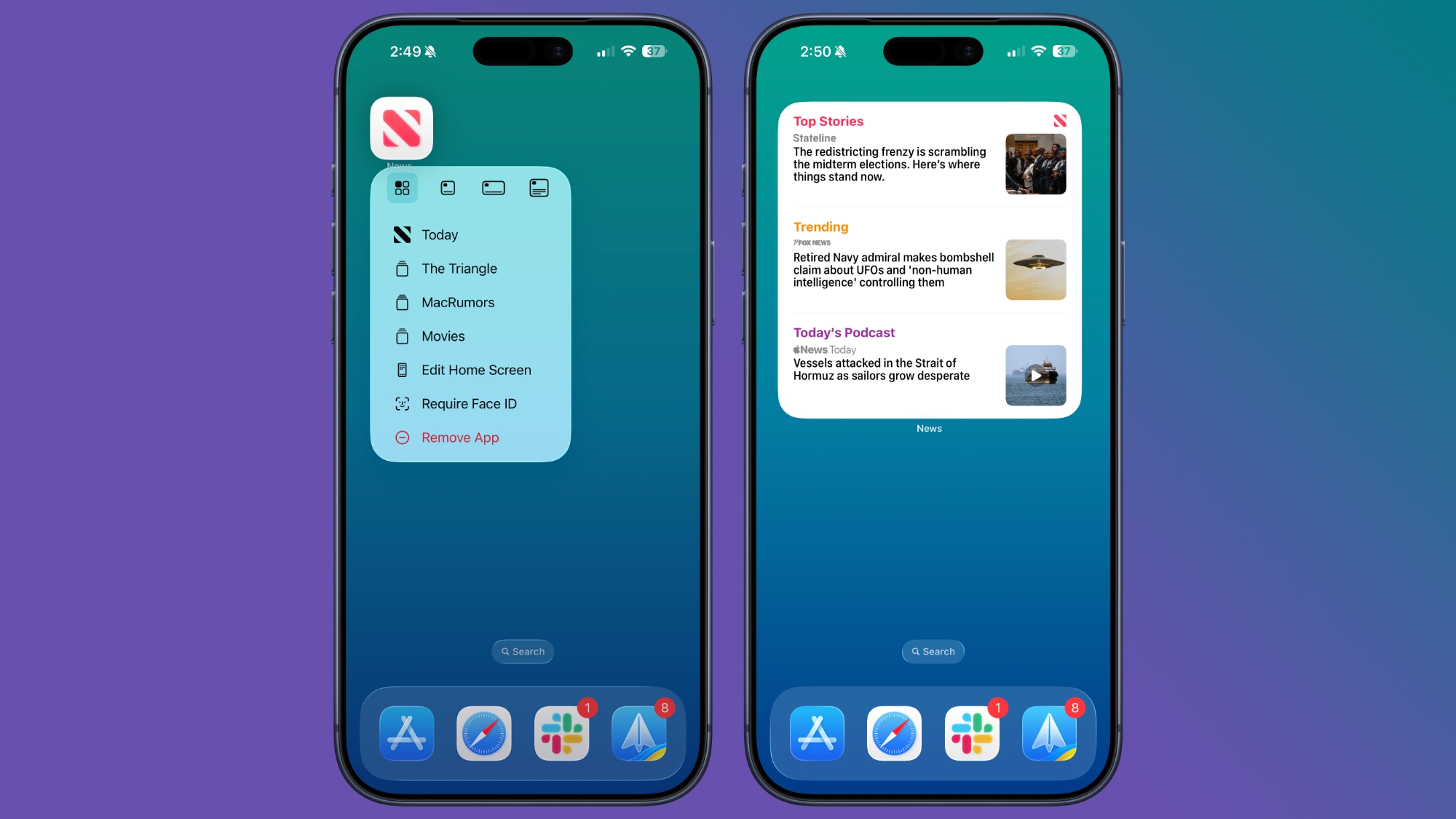
Turn an App Into a Widget


You can turn most app icons into widgets right from the iPhone's Home Screen. Just long press on an app icon, and select one of the squares from the top to choose a widget size. It works with any Apple or third-party app that has a widget option. Long press again and select the top left icon with four squares to turn it back into a standard app icon.


See Where You've Been


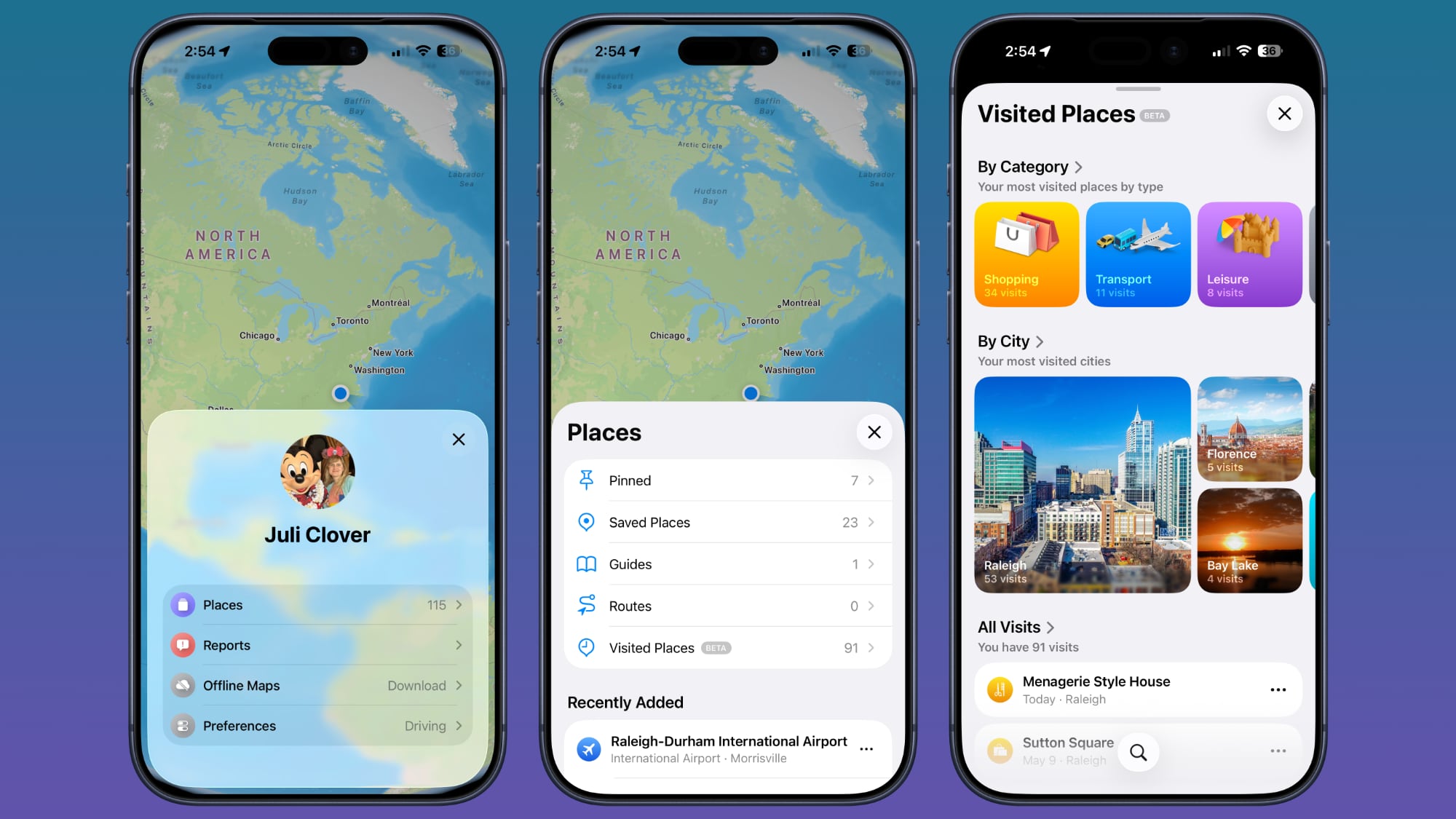
In the Maps app, you can look back at your location history to see places that you've visited. It's useful if you've been on a weekend trip, found a great restaurant, and want to remember where it was the next time you visit.


You can get to this feature by opening up the Maps app, tapping on your profile, selecting Places, and then choosing Visited Places. Places are organized by category like leisure or shopping, and by city.

You can clear your history by scrolling down to the bottom of the interface, or select a period of time for visits to be kept. Go to Settings > Maps > Location > Visited Places to turn it off entirely.

Set Custom Vibrations


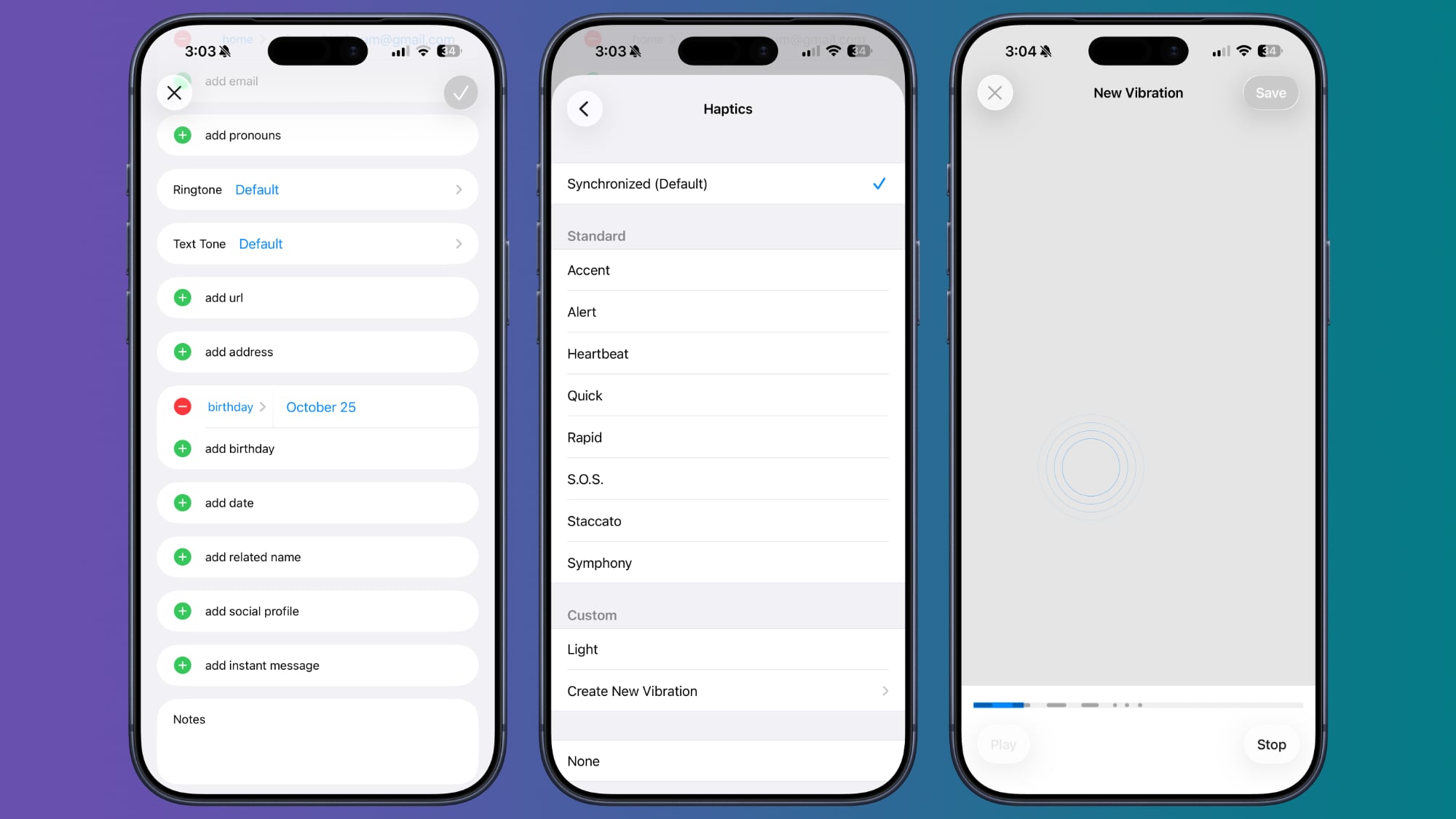
You probably know you can set custom sounds for people that call or text, but you can also do the same thing for vibration patterns if you keep your iPhone on silent all the time, as civilized people do.


Important people you message can each have a different vibration pattern, so you know who is texting without having to look at your phone.

To set a vibration pattern for someone, open up the Contacts app and select them. Tap Edit in the upper right corner, then tap on Text Tone or Ringtone. Tap on Haptics and then select Create New Vibration. From there, you can use taps and presses to make your own vibration patterns.

Customize Your Lock Screen Buttons


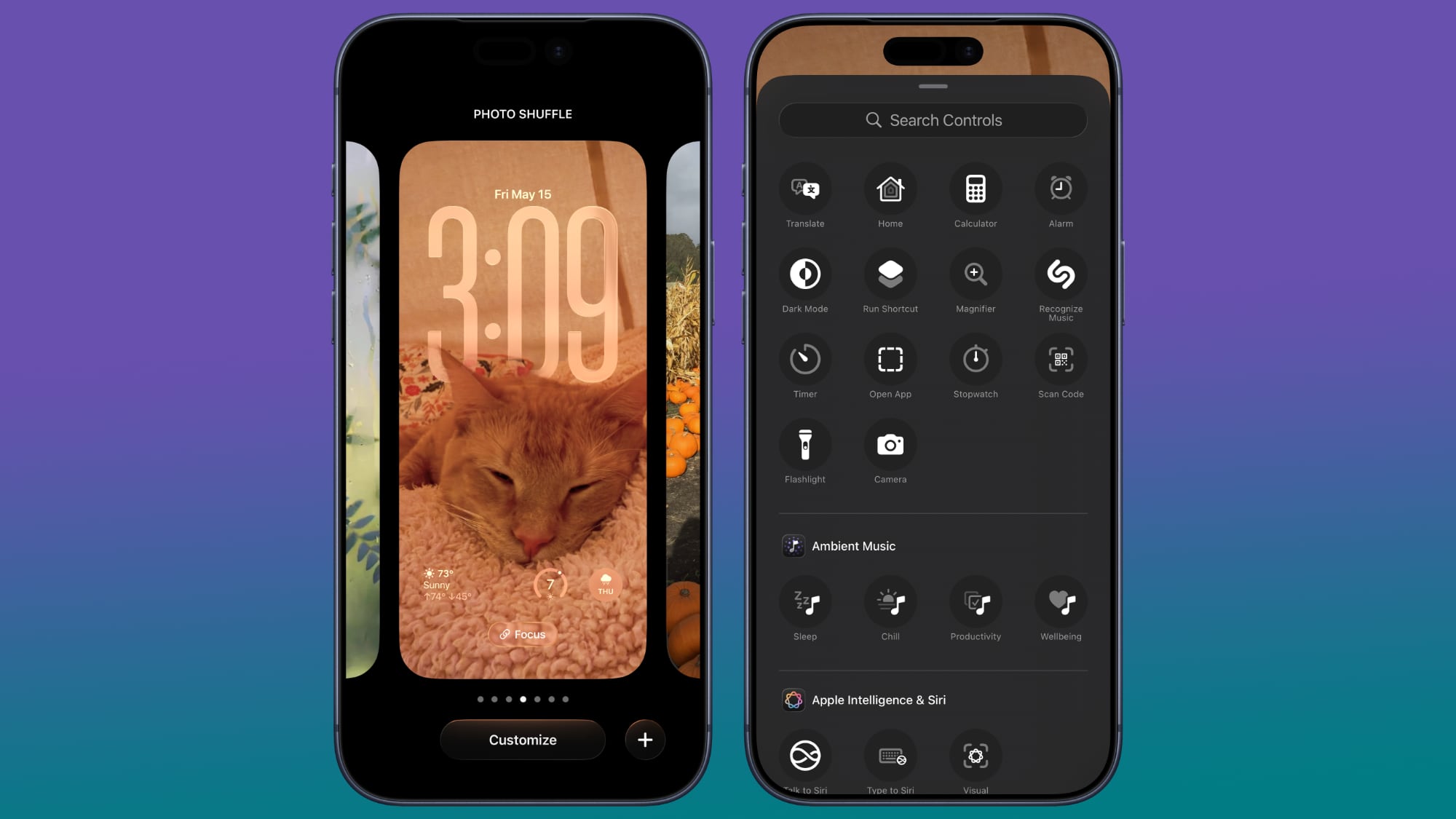
Your Lock Screen buttons don't have to open up the Flashlight and the Camera app. You can set them to any Control Center option, including those from third-party apps.


To do so, go to the Lock Screen and long press. Tap on Customize if you want to edit your current wallpaper and Lock Screen, or the "+" button to make a new one. From there, tap on the "-" button on the apps at the left or right of the screen to remove them, and then tap on "+" to choose something new to add.

Back Tap Gestures


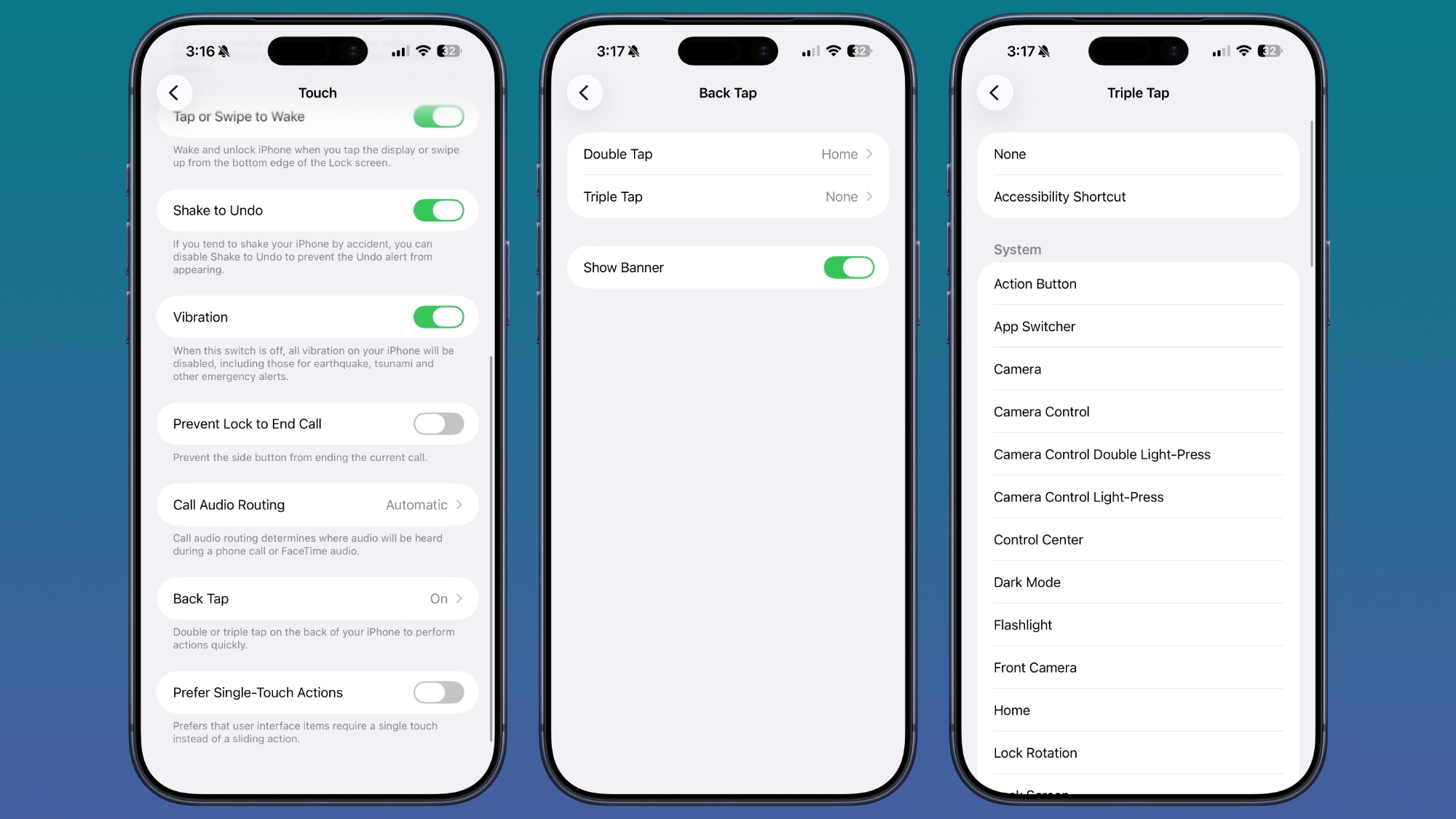
Back Tap has been around for a long time, but it's easy to forget it exists. You can use it to set a tap on the back of the iPhone to do whatever you want, from snapping a screenshot to activating the flashlight. It even works with Shortcuts you've created.


Go to Settings > Accessibility > Touch and then scroll down to Back Tap to set it up. You can set actions for a double tap or a triple tap.

Screenshot a Webpage


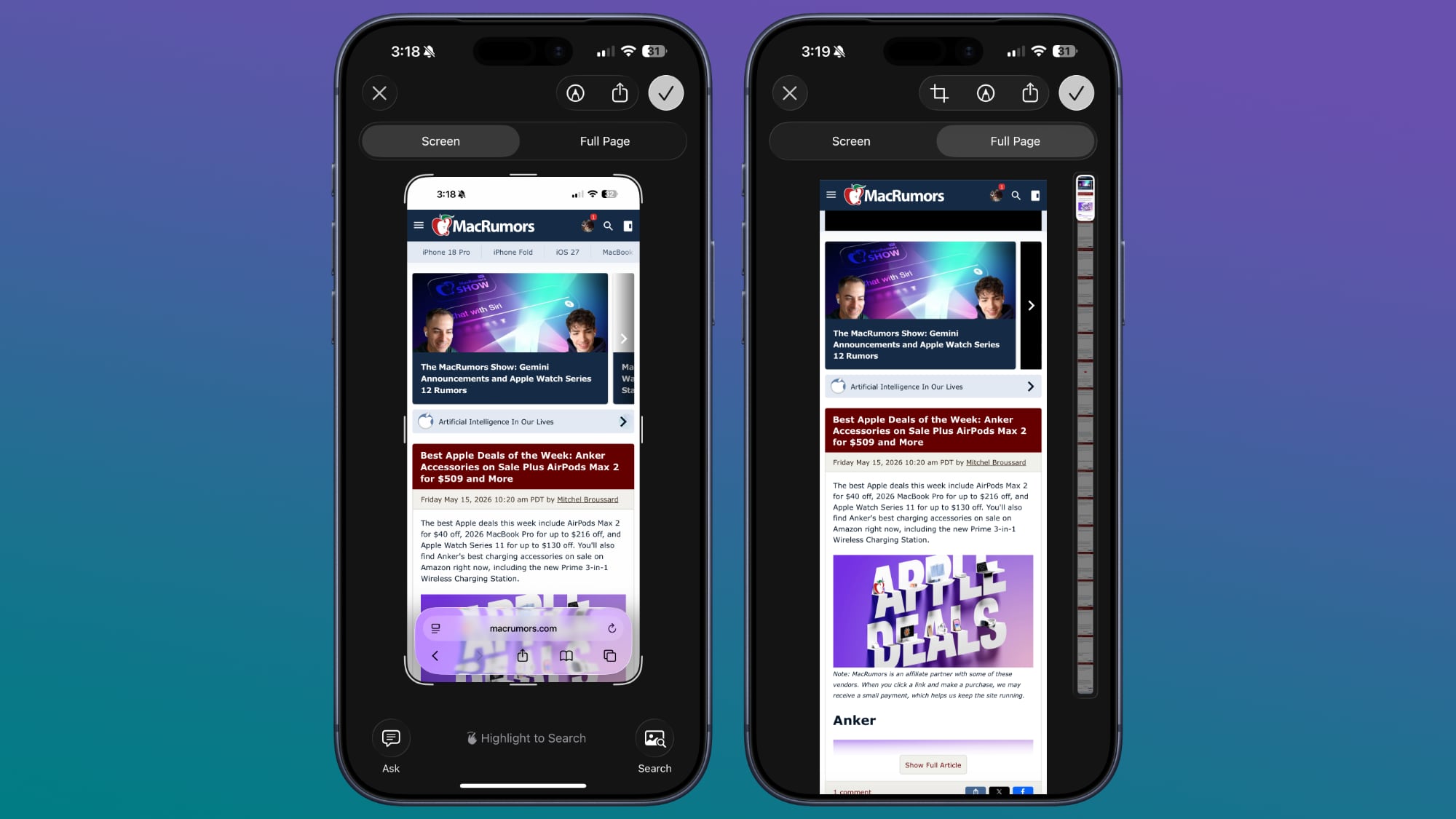
When you press the side button and volume buttons to take a screenshot, the default is a capture of what's currently on your display. If you want to screenshot a whole webpage or a PDF, there is a way to do it. Take the screenshot as normal, then tap it (if you have full-screen previews off). Select "Full Page" at the top of the interface, and then choose where to save your extra long screenshot.


Hide Apps


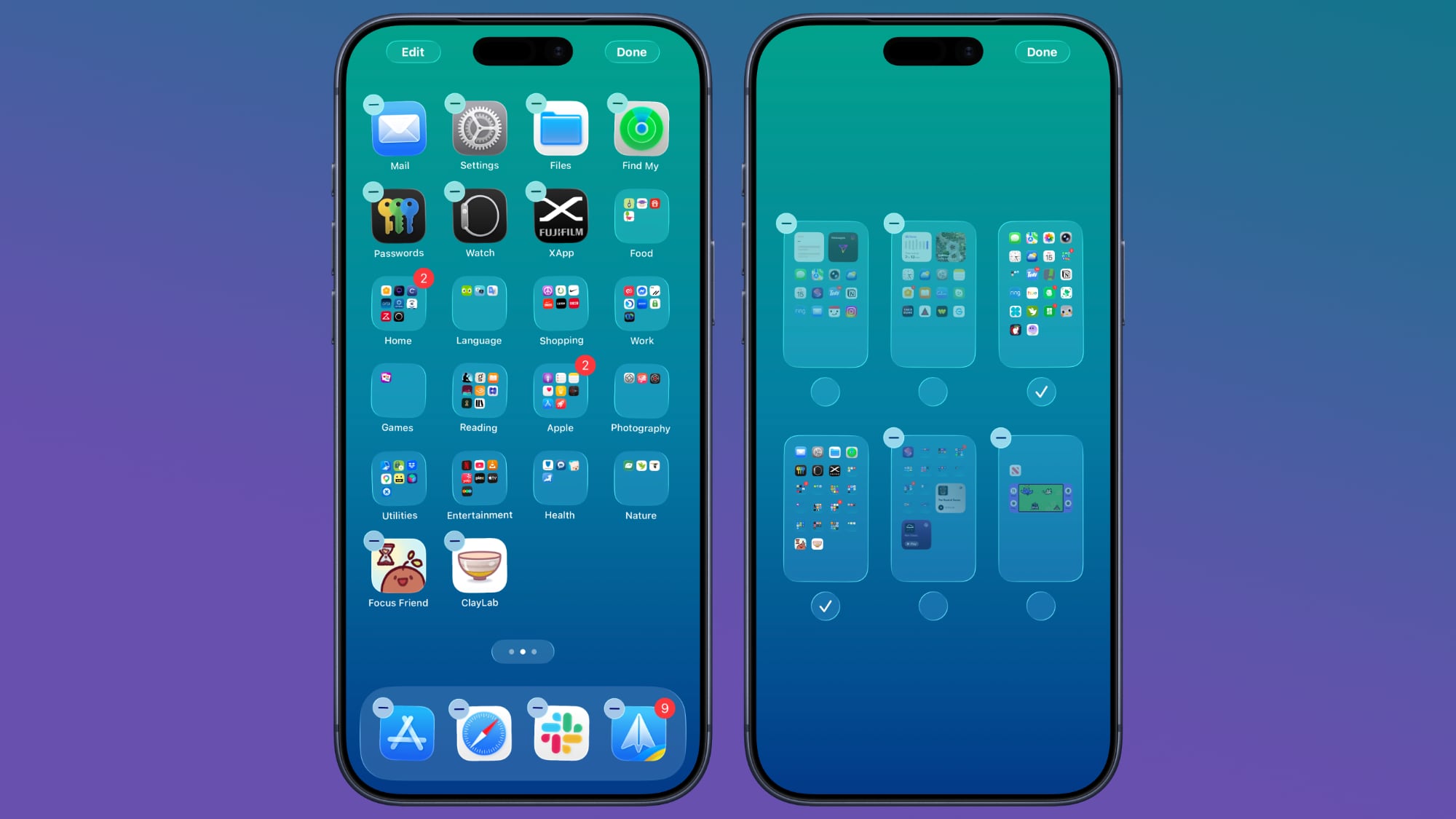
If you have apps that you don't want to show up on the β€ŒHome Screenβ€Œ, you can hide them one by one by long pressing and tapping the Face ID option, or you can hide a whole app page at once. To hide an app page, long press on the β€ŒHome Screenβ€Œ to enter jiggle mode.


Tap on the dots at the bottom of the display, and then select the app page you want to hide from view. Apps hidden this way don't show up in the Hidden folder in the App Library. You can still find them through Spotlight Search and they're visible in their appropriate App Library category. To unhide a page, follow the same steps and tap the checkbox to bring it back.

Quick Set a Timer


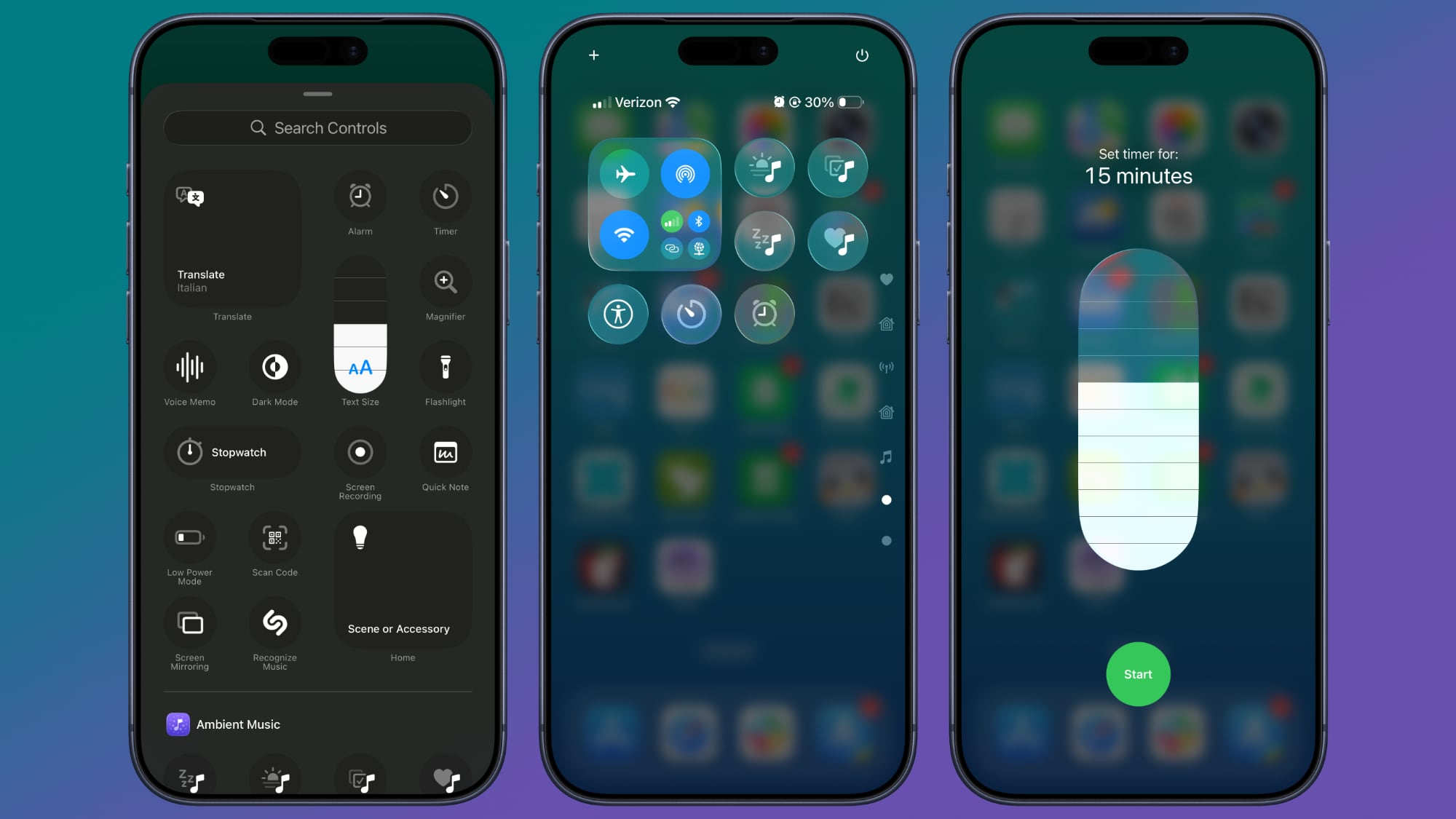
If you add the Timer option to Control Center, you can long press on it to get an easy slider that lets you select an amount of time you want to set it for.


In Control Center, tap the "+" button and then choose Add a Control. Select the Timer icon to add it to Control Center. Long press on the timer, choose an amount of time from the slider, and then tap Start. Times range from two hours to one minute.

Remove Photos Location Data


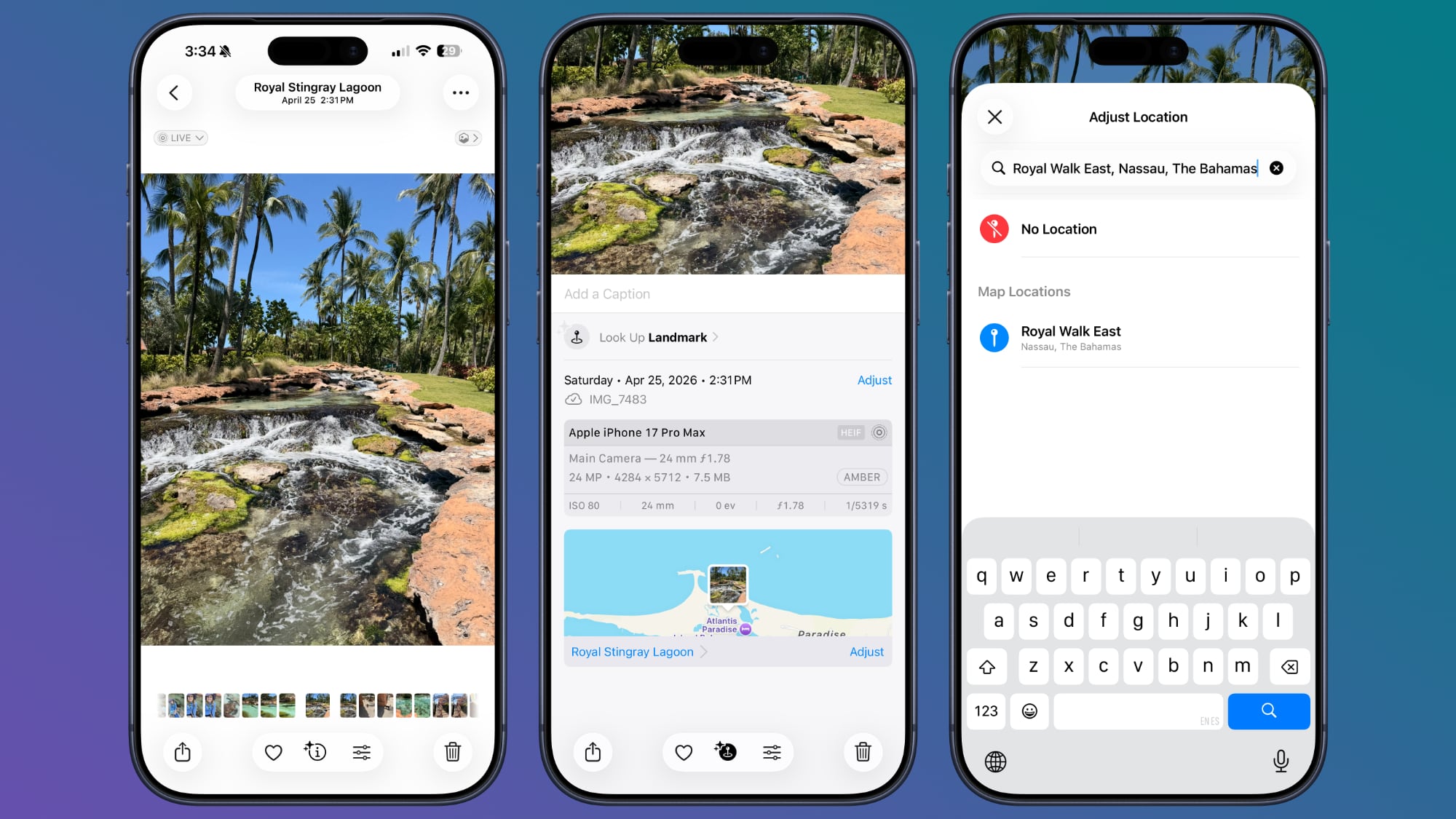
If you're sending a photo to someone, you might want to remove metadata like location first. To do so, select an image in the Photos app, swipe up, and tap on Adjust Location. From there, you can choose No Location.


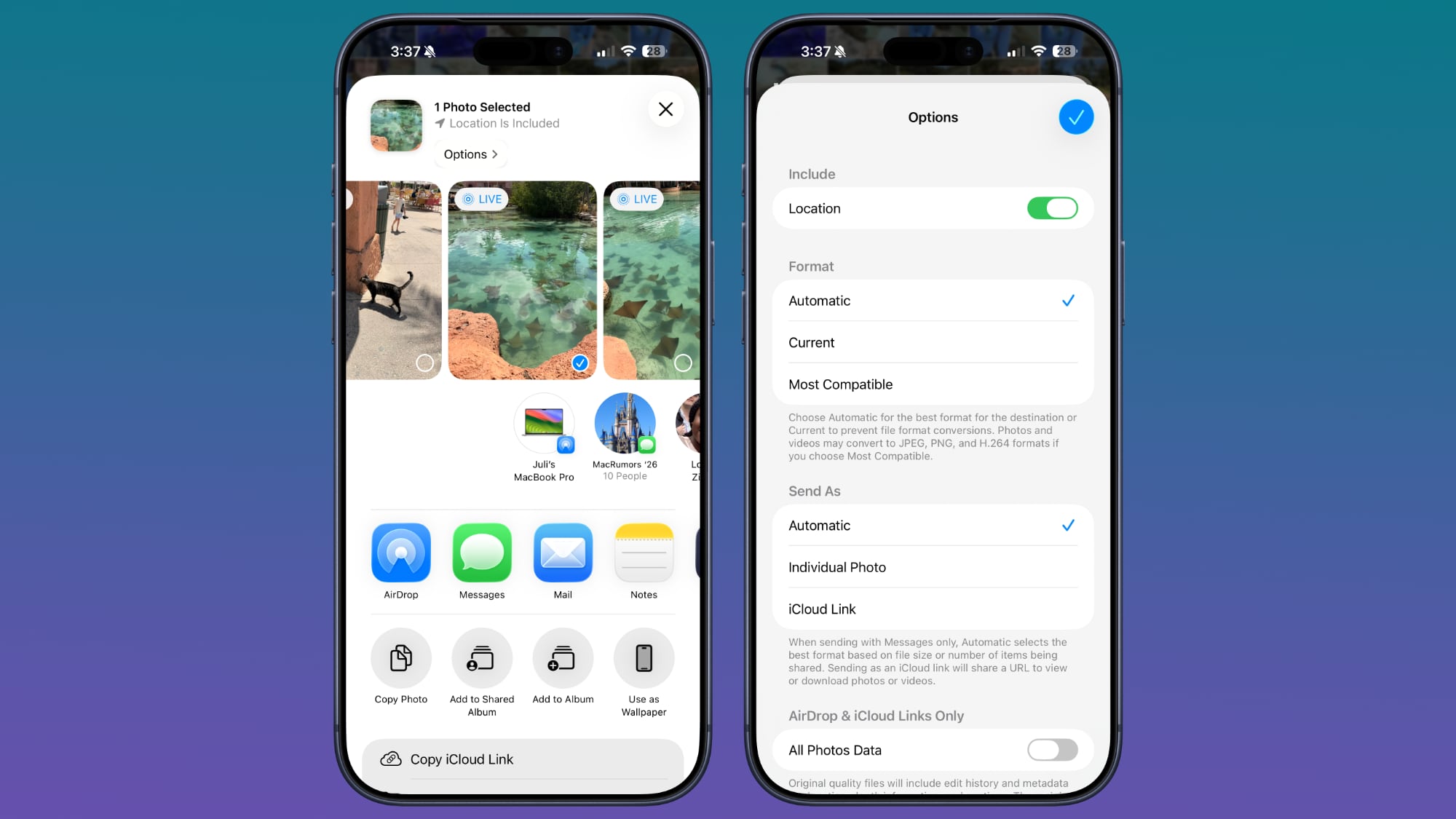
Alternatively, when you go to share a photo, you can turn off metadata there. Select a photo, and tap on the Share button. Tap on Options, and toggle off Location.


Use a Timer to Turn Off Media


You can use timers to control how long music, podcasts, audiobooks, and other media play for, which is useful if you only want to listen for a short period at night.


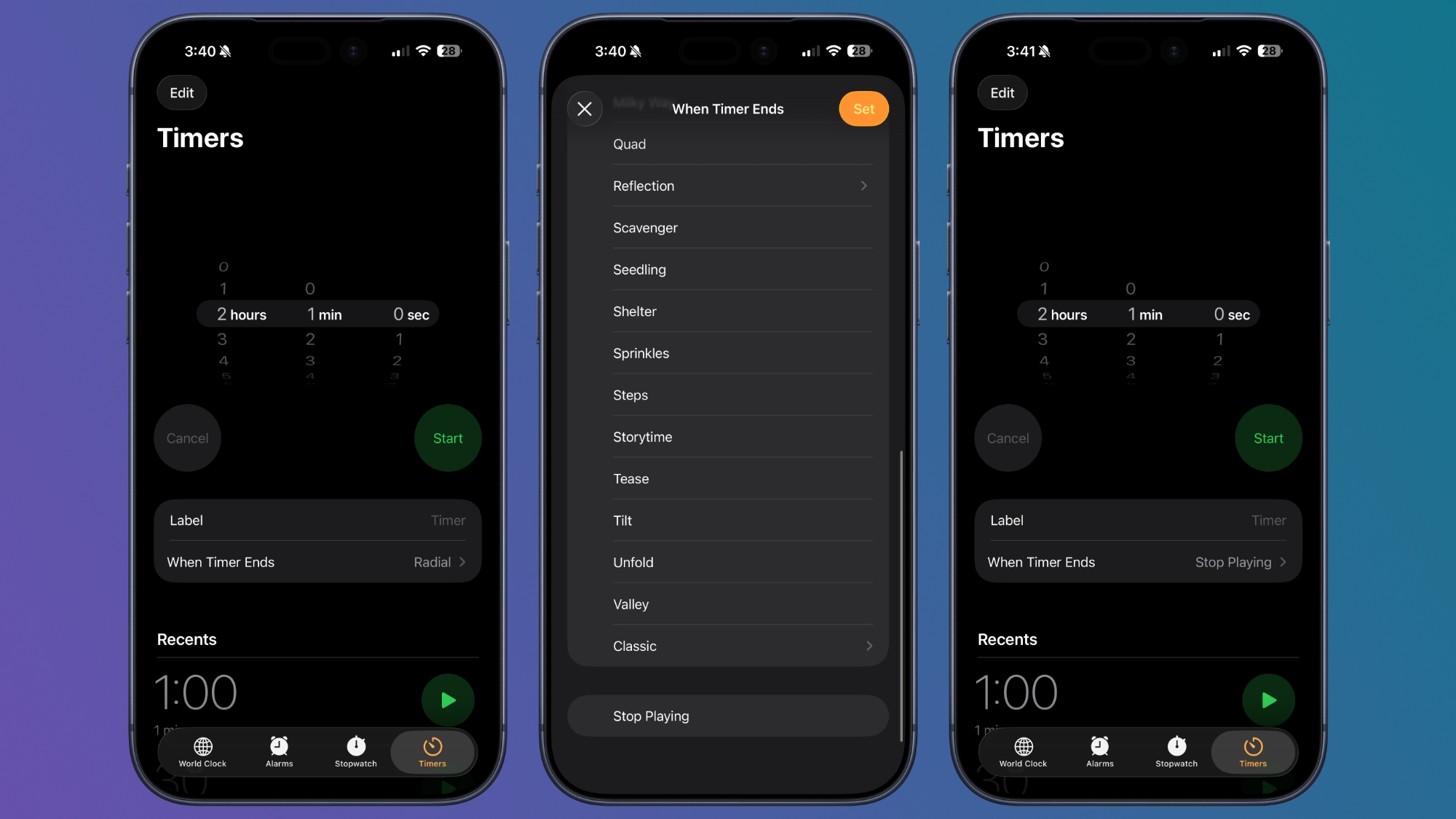
In the Clock app, tap on Timers. Set a time period, and then tap on the When Timer Ends option. Scroll down and select Stop Playing. When your timer goes off, any media you have playing will stop.

More Tips


Have a favorite iPhone tip that most people don't know about? Let us know in the comments below.
This article, "10 Useful iPhone Tips and Tricks You Might Not Know About" first appeared on MacRumors.com

Discuss this article in our forums
  •  
❌