❌

Lees weergave

iPhone 18 Pro Aperture Control Goes Fully Manual in Halide 3.2

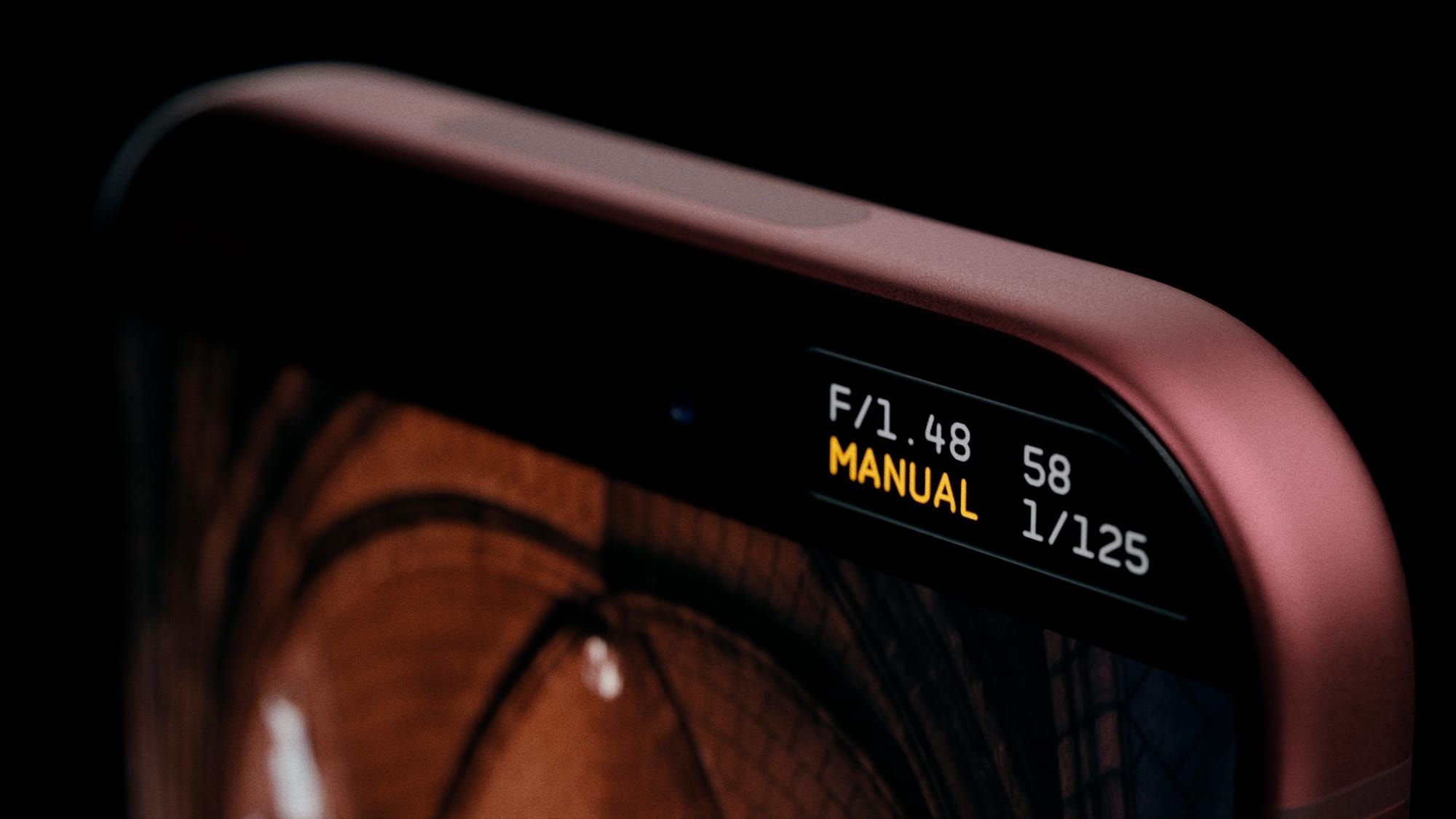
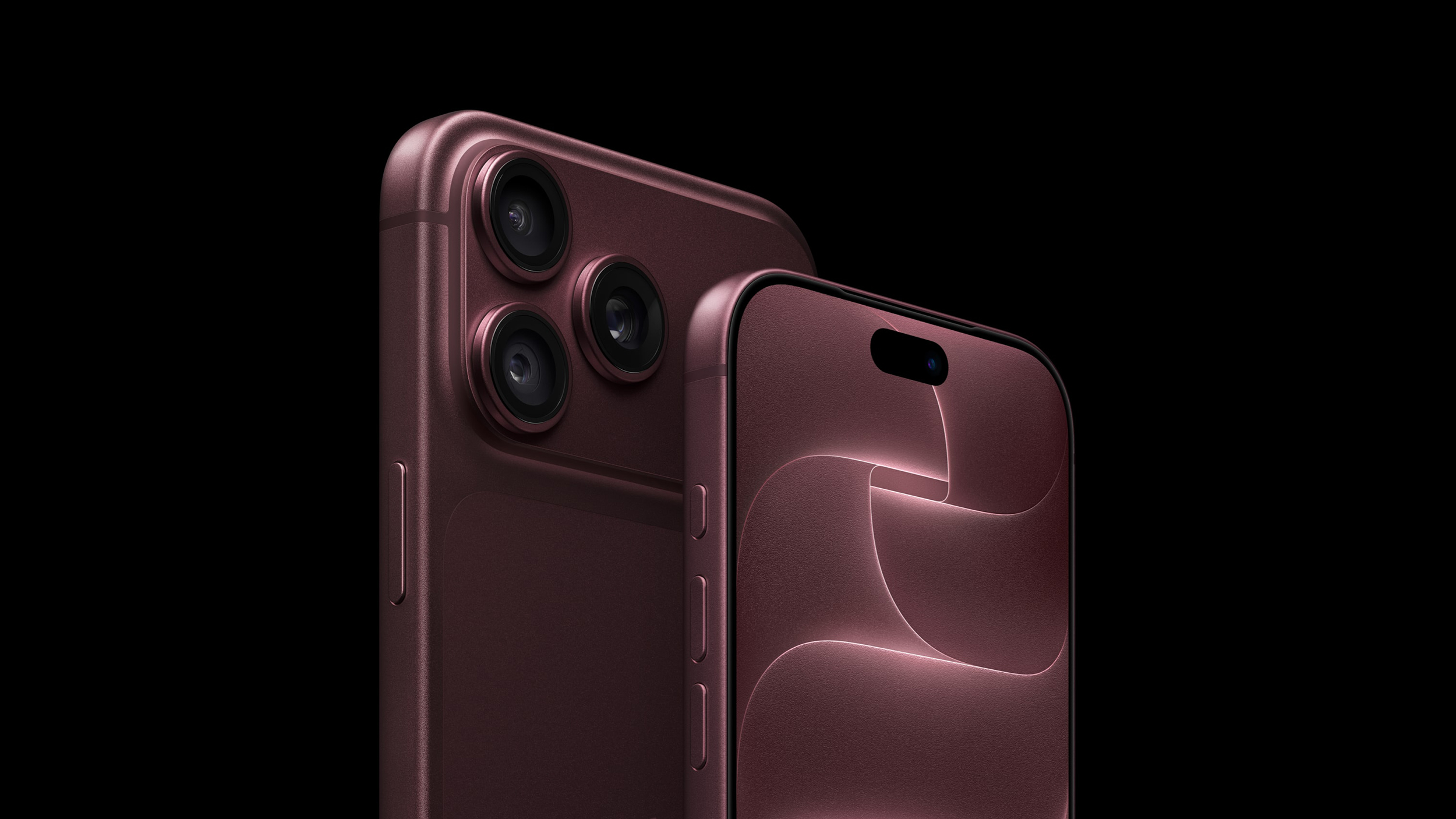
Award-winning camera app Halide Mark III has been updated to version 3.2, bringing dedicated support for iPhone 18 Pro by broadening user control over the device's new variable aperture camera system.


Apple's stock Camera app lets iPhone 18 Pro owners choose from a four-stop variable aperture ranging from Ζ’/1.48 to Ζ’/4.0, delivering around 50 percent better low-light performance and giving users more optical control over depth of field.

Halide 3.2 does away with that four-stop limitation and instead lets you select any Ζ’-stop setting within the camera's full range.

There are two styles of aperture control in the app. The first is Aperture Priority mode, where you can set the Ζ’-stop and the app handles the shutter speed and ISO to properly expose the shot.

The other style is Manual mode, which gives users full control over all three settings. This includes ISO settings – something that Apple's stock Camera app doesn't offer manual control over. Halide has said it is also considering adding f-stop presets in future updates, based on user feedback.

Elsewhere in this update though, Halide 3.2 adds two new film simulations, or photographic looks: Dawn and Quicksilver. Dawn features "filmic warmth in mid-tones and highlights, paired with rich yet gentle shadows and subtle complementary cool colors."

Quicksilver is described as a "high contrast and muted color" that simulates a "silver-retention alternative process." Halide's developers call it an "excellent midpoint between color and stark black-and-white."

Lastly, version 3.2 introduces a new 16:9 aspect ratio shooting mode for those who want to use a wider framing.

Halide 3.2 is available to download on the App Store, and costs $69.99 as a one-time purchase price, or $19.99 for an annual subscription.
Related Roundup: iPhone 18 Pro
Tag: Halide
Related Forum: iPhone

This article, "iPhone 18 Pro Aperture Control Goes Fully Manual in Halide 3.2" first appeared on MacRumors.com

Discuss this article in our forums

  •  

iPhone 18 Pro Sales Jump in China Ahead of iPhone Duo Launch

Sales of iPhone 18 Pro models in China were 12% higher in the three days after launching than sales of iPhone 17 Pro models were during their entire first week last year, according to Counterpoint Research.

The strong start helped Apple claim the top spot in the country's smartphone market for the week of September 14 to 20, handing it a 33% share. But the news could get even better for Apple's China market prospects this month: The iPhone Duo goes on sale October 23, and Chinese consumers have a much stronger appetite for foldable devices compared to the rest of the world.
Related Roundups: iPhone 18 Pro, iPhone Duo
Related Forum: iPhone

This article, "iPhone 18 Pro Sales Jump in China Ahead of iPhone Duo Launch" first appeared on MacRumors.com

Discuss this article in our forums

  •  

Apple TV Still Down for Some Users Following Apple Services Outage

Apple TV appears to be unavailable for some users, following a recent outage of Apple Services that began on September 30.


The original outage took down the App Store, Apple Fitness+, Apple Music, and several other services, but those are all now back online. Only Apple TV is still not working for an unknown number of users.

Apple's System Status page indicates an ongoing issue with Apple TV that started on September 30 at 4:43 p.m. Eastern Time. "Some users are affected," the page says, adding "Apple TV may be unavailable due to scheduled maintenance."

We'll update this article when the situation changes.
Related Roundup: Apple TV
Buyer's Guide: Apple TV (Don't Buy)

This article, "Apple TV Still Down for Some Users Following Apple Services Outage" first appeared on MacRumors.com

Discuss this article in our forums

  •  

Microsoft 365 Work Accounts May Stop Syncing in Apple Mail

From October 1, 2026, Microsoft began disabling Exchange Web Services (EWS) by default in Exchange Online, which will cut off the protocol that Apple's Mail and Calendar apps on Mac still rely on to sync Microsoft 365 work accounts.


The cutoff has been on the cards for a fairly long time, as Microsoft stopped adding new features to EWS back in 2018, while in 2023 it announced that it would start disabling the protocol in Exchange Online from October 2026.

As Microsoft explains in the blog post linked above, organizations that have chosen to keep EWS running aren't affected for now. As for everyone else, the cutoff may not happen all at once. In a recently updated post from June, Microsoft described the change as a "phased rollout," so some Mac users could lose access sooner than others.

It's still possible for IT administrators to restore access. However, Microsoft plans to shut down EWS in Exchange Online permanently on April 1, 2027, and no extensions are currently planned.

As you'd expect, Apple is aware of the situation. In an Apple Platform Deployment support document, the company says it is "actively working with Microsoft" to move Mail, Calendar, Contacts, Notes, and Reminders apps on Mac to the newer Microsoft Graph API in a future macOS 27 update.

Except, that update hasn't arrived yet. Apple skipped macOS 27.1 betas entirely, while release notes for the macOS 27.2 betas have yet to make any mention of Graph support.

Meanwhile, affected organizations can just keep EWS running or move Mac users to a Graph-compatible client, such as Microsoft's Outlook app.

Note that the change will only affect Microsoft's cloud-hosted email server. In other words, companies that run their own Exchange servers aren't affected. Neither will iPhone and iPad be impacted, since they use Exchange ActiveSync rather than EWS.

(Thanks, Jonathan!)
This article, "Microsoft 365 Work Accounts May Stop Syncing in Apple Mail" first appeared on MacRumors.com

Discuss this article in our forums

  •  

Switch Siri AI for ChatGPT on Your Mac

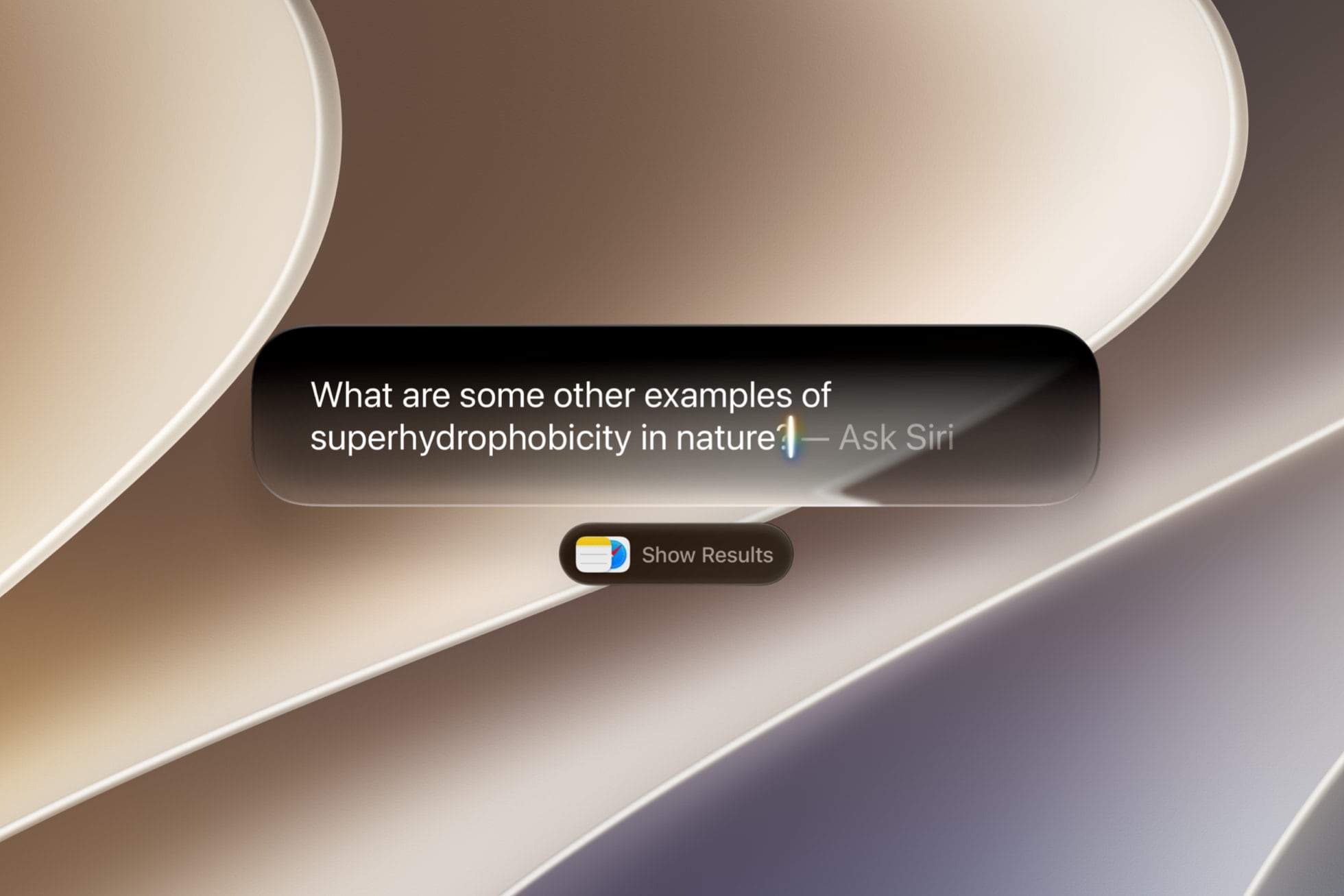
In macOS 27 Golden Gate, Siri AI is a lot smarter than before, so it doesn't always flail and attempt to hand your questions over to ChatGPT. However, if you still prefer OpenAI's chatbot for certain queries, you can still ask for it explicitly.


In macOS Tahoe, Siri would suggest passing a request to ChatGPT when it thought the chatbot could help. In macOS 27 though, ChatGPT only answers when you specifically ask it. There's also no setting that makes ChatGPT your default assistant – as things stand, you need to choose it for each query. Here's how it's done.

Turn On the ChatGPT Extension


  1. Open System Settings.

  2. Click Siri in the sidebar.

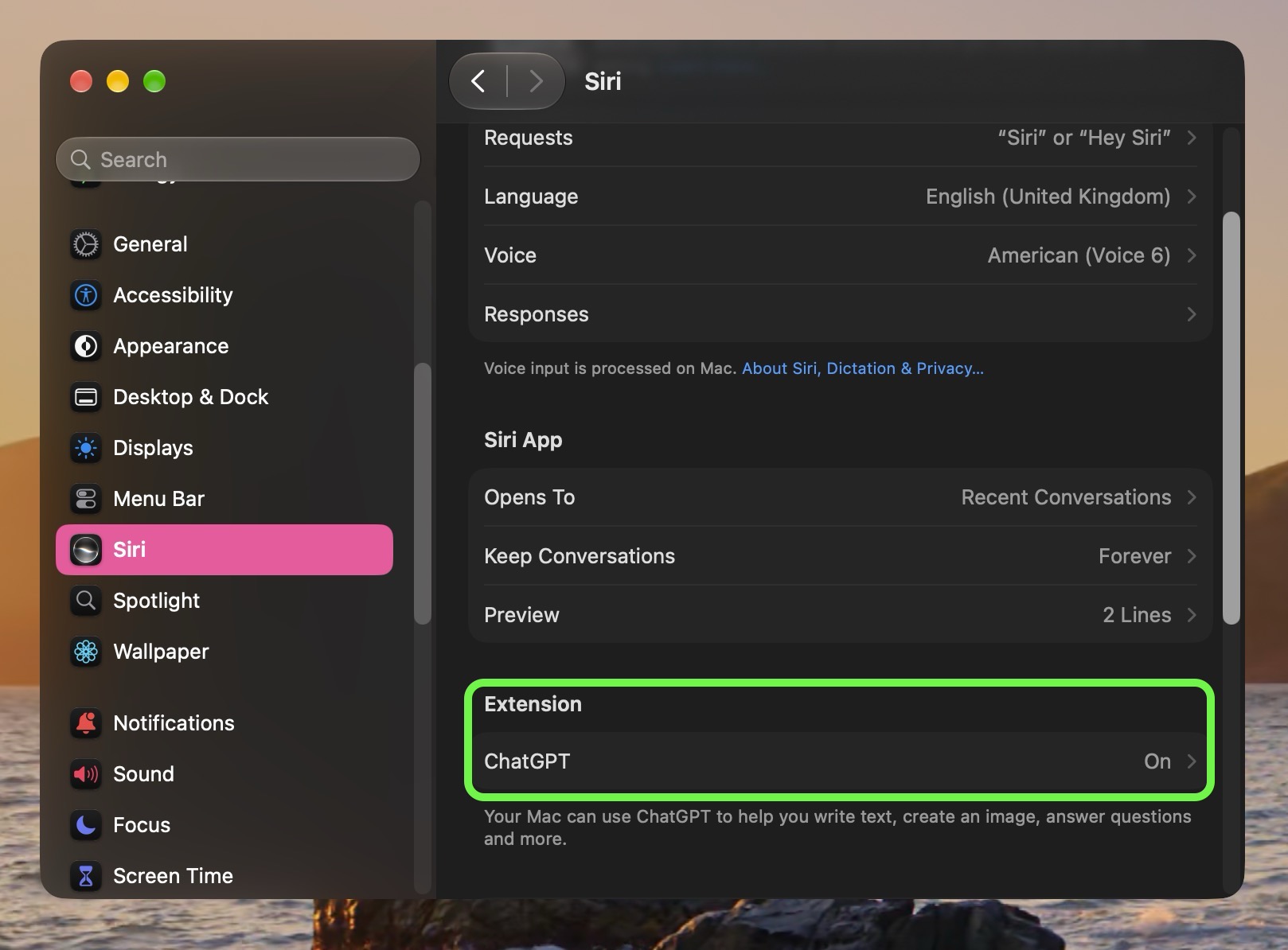
  3. Click ChatGPT under "Extension."
    settings
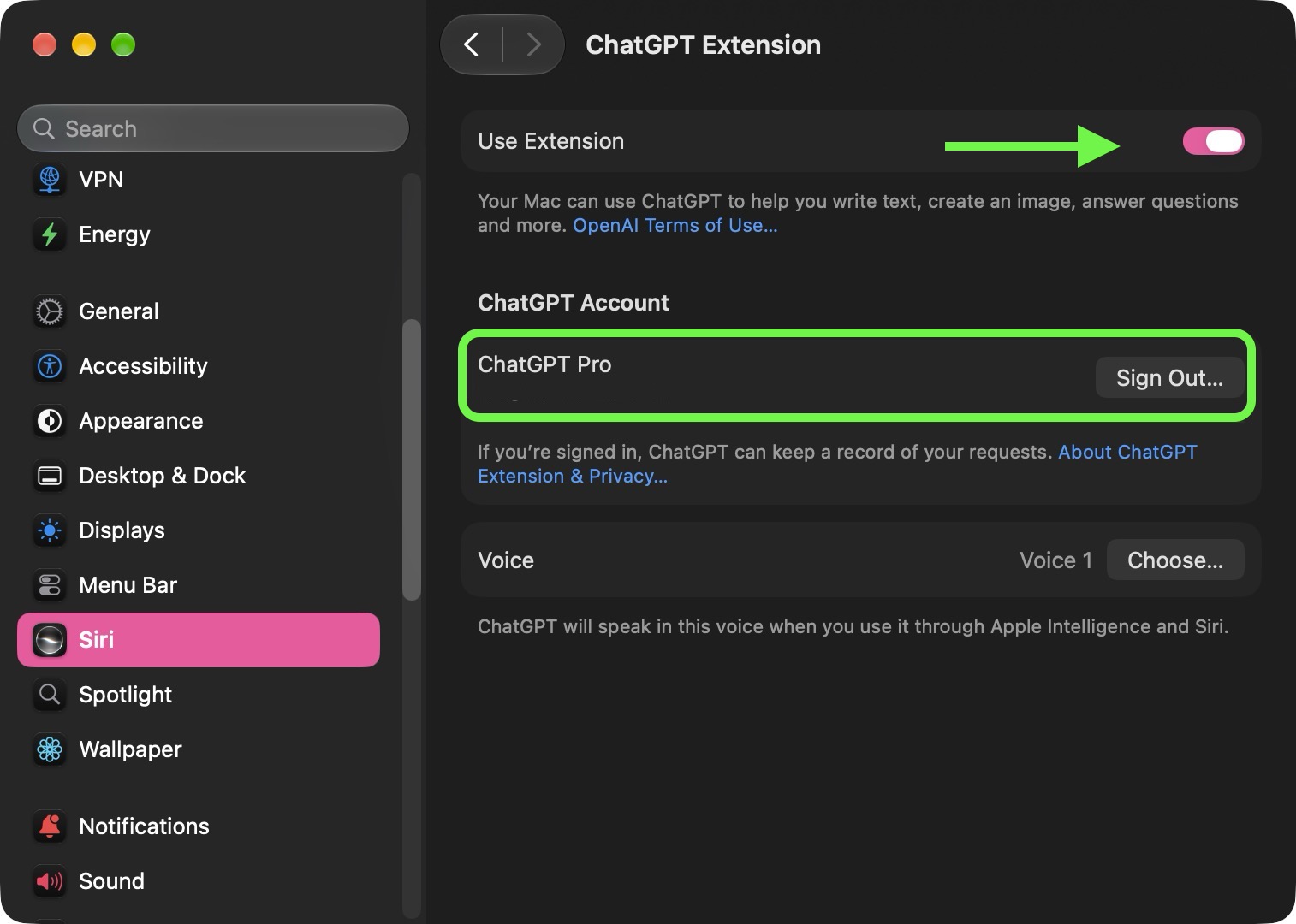
  4. Turn on Use Extension.

  5. Choose whether to sign in with a ChatGPT account.
    settings


If you sign in, your requests are saved to your ChatGPT chat history (OpenAI's privacy policies apply). If you skip sign-in, OpenAI receives nothing tied to your Apple Account and it can't store your requests.

Ask ChatGPT in Search or Ask


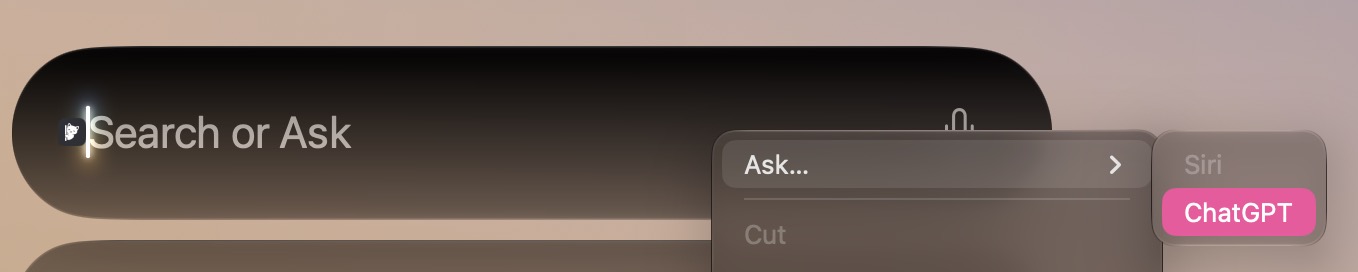
  1. Press Command-Space to open the Search or Ask bar (formerly Spotlight Search).

  2. Right-click (or Control-click) the field.

  3. Choose Ask ➝ Use ChatGPT.

  4. Type your question, then press Enter.
    siri
When an answer comes back, unless there are follow-up questions, the field will switch back to Siri AI for the next query. So if you want to use ChatGPT again, you'll need to manually choose it next time around.

Another way to query ChatGPT directly is to start your spoken Siri request with "ask ChatGPT." The same phrasing works if you type it into the Search or Ask field.

ChatGPT is the only option for now in Golden Gate. Code in macOS 27 suggests that Claude can appear in the same Ask menu, but Apple has yet to make AI provider selection available.
Tags: ChatGPT, Siri

This article, "Switch Siri AI for ChatGPT on Your Mac" first appeared on MacRumors.com

Discuss this article in our forums

  •  

iPhone Duo Gets a Virtual Walkman App Ahead of Launch

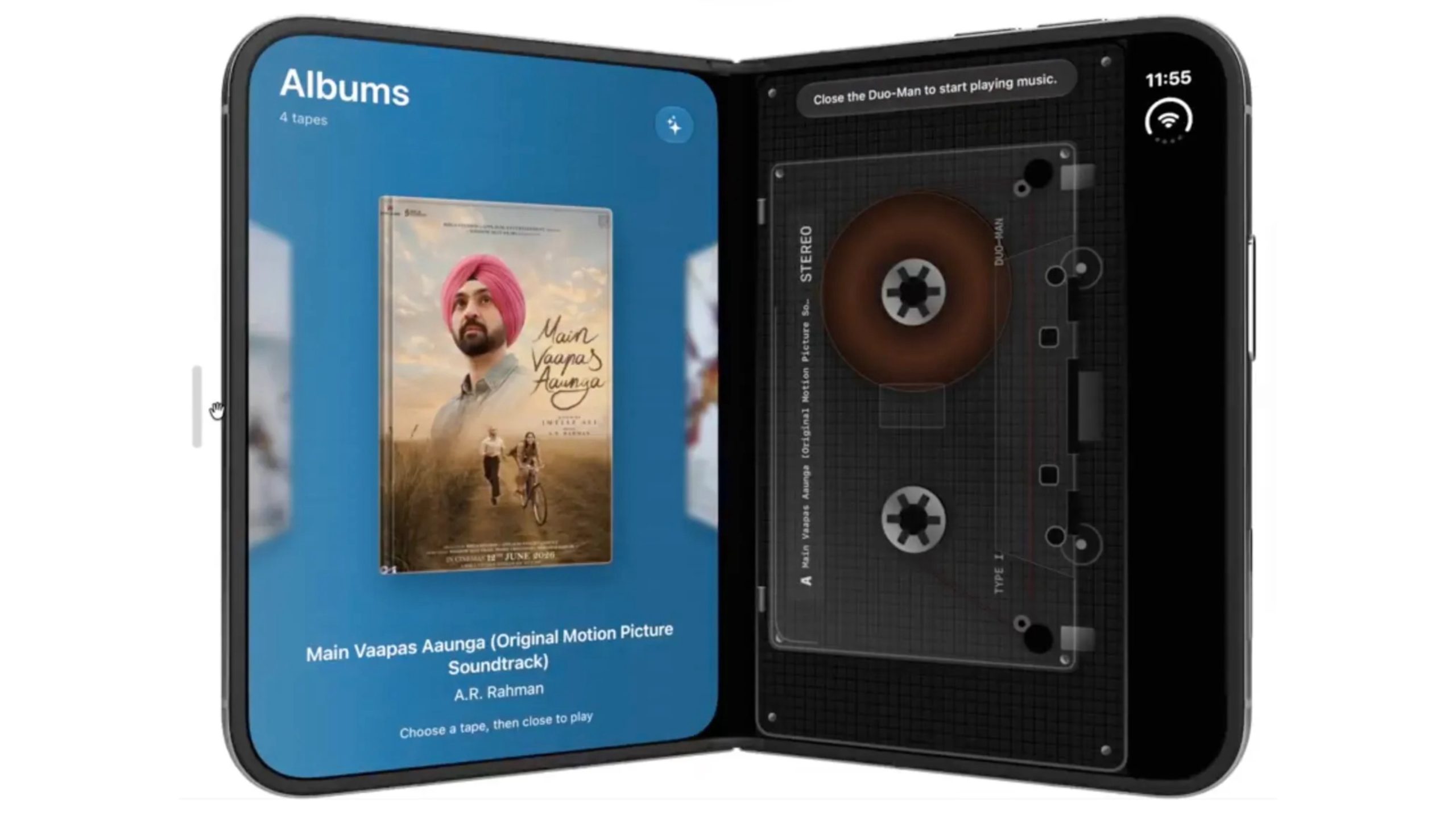
An indie developer has built an app that turns Apple's upcoming iPhone Duo into a virtual Sony Walkman by using the foldable's hinge to mimic the classic cassette player's flip-open door.


Creator Vidit Bhargava is calling the app Duo-Man, which was designed in BitRig's new iPhone Duo development environment. Bhargava's app lets users open the device to pick their music and "insert" a cassette on the 7.6-inch inner display, then snap it shut to start playback, 80s-style.

Bhargava told TechCrunch he wanted to make the experience feel authentic, so he went so far as to record button clicks and static from a real Walkman for use in the app.

Duo-Man won second place at the recent Bitrig hackathon in San Francisco, and his post about the app on X (Twitter) has gained more than 2.1 million views.

Duo-Man offers the complete walkman experience on the iPhone Duo. Open the Duo to pick and 'insert' the cassette, Close the Duo to start listening.

Yes, I actually recorded the button clicks and static noise from a real Walkman!

It was fun making this at @bitrig hacks today. pic.twitter.com/juSrLhofrH

β€” Vidit Bhargava (@viditb) September 27, 2026

The enthusiastic response has led Bhargava to turn the project into a proper release, and the finished app will support Apple Music and local files, as well as an Apple Pencil feature for "rolling" the cassette loop (a common battery-saving Walkman hack). Depending on its popularity, Spotify support may also be on the cards.

No release date has been announced for the app, but we know when the iPhone Duo is coming: Pre-orders begin Friday, October 16, with availability starting October 23.
Related Roundup: iPhone Duo
Related Forum: iPhone

This article, "iPhone Duo Gets a Virtual Walkman App Ahead of Launch" first appeared on MacRumors.com

Discuss this article in our forums

  •  

Apple Ordered to Pay $5.7 Billion Over Haptic Patent Infringement

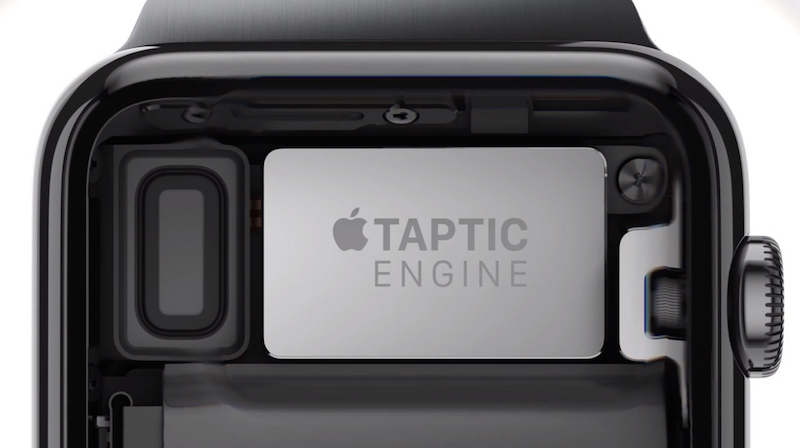
Apple has been ordered to pay $5.7 billion in damages to Taction Technology after a federal jury found it had infringed two of the haptics company's patents, reported CNBC over the weekend.


Taction sued Apple in 2021, arguing that Apple's Taptic Engine in the company's Apple Watches and iPhones uses its inventions without proper license or authority. Apple initially had the case dismissed in 2023, but the Federal Circuit later revived it.

The jury trial began September 14, and seven jurors deliberated for two days after proceedings concluded. They returned on Friday and delivered the verdict in favor of Taction.

"We're happy the jury found for Taction and vindicated its patent rights," the company's lead counsel, Lance Yang, told CNBC. "Taction waited five and a half years for this case to get to trial, so it was a long time coming."

Apple said it intends to appeal the decision.
"While we thank the jury for their consideration, we strongly disagree with today's verdict and the damages awarded, which are entirely unsupported by the facts," Apple told CNBC in a statement. "Apple's Taptic Engine is fundamentally different from Taction's technology, which Taction's own testing of Apple's products confirmed during trial. Apple does not use Taction's technology, and we will appeal."
In Friday's verdict at the U.S. District Court for the Southern District of California, jurors did not find that Apple had infringed the patents willingly.
This article, "Apple Ordered to Pay $5.7 Billion Over Haptic Patent Infringement" first appeared on MacRumors.com

Discuss this article in our forums

  •  

New Vision Pro Headset: Apple Considering Four Different Concepts

Apple is working on a "completely revamped" Vision Pro headset that could go in any of four directions and likely won't arrive before late 2028 or early 2029, according to Bloomberg's Mark Gurman.


Writing in his latest Power On newsletter, Gurman said Apple's Vision team is exploring four concepts for the device, codenamed N224, including designs that offload internal components in a similar way to Meta's latest VR Glasses, which are expected to launch next spring.

An external computing module on Meta's device houses the battery and main processor, and can be clipped to the user's waist. Gurman, who has previewed Meta's headset, says the module is about the same size and weight as the current Vision Pro's battery pack, but with a grippy exterior.

Gurman reports that regardless of the Vision team's work, senior Apple decision-makers still consider the external puck concept as a "poor user experience" and want the company to stick with "something closer to an all-in-one design."

If any of this sounds familiar, that's because Gurman reported in June that Apple was still working on a cheaper, lighter successor to its Vision Pro headset. (The device-in-development is distinct from the long-rumored "Vision Air," which was cancelled last year.)

Apple knows it needs to come up with ways to simplify the design and make something cheaper and lighter, and it is said to be actively exploring ways to reduce the headset's weight by experimenting with plastic, titanium, other metals and various materials.

Still, Gurman has been told the work is on "life support" as the company focuses more on smart glasses, which it aims to release in late 2027. Despite the Vision Pro's most senior leaders "pressing their bosses to keep the category alive, funded and growing at Apple," Gurman says there's still no guarantee a new headset will ever launch.
Related Roundup: Apple Vision Pro
Buyer's Guide: Vision Pro (Neutral)
Related Forum: Apple Vision Pro

This article, "New Vision Pro Headset: Apple Considering Four Different Concepts" first appeared on MacRumors.com

Discuss this article in our forums

  •  

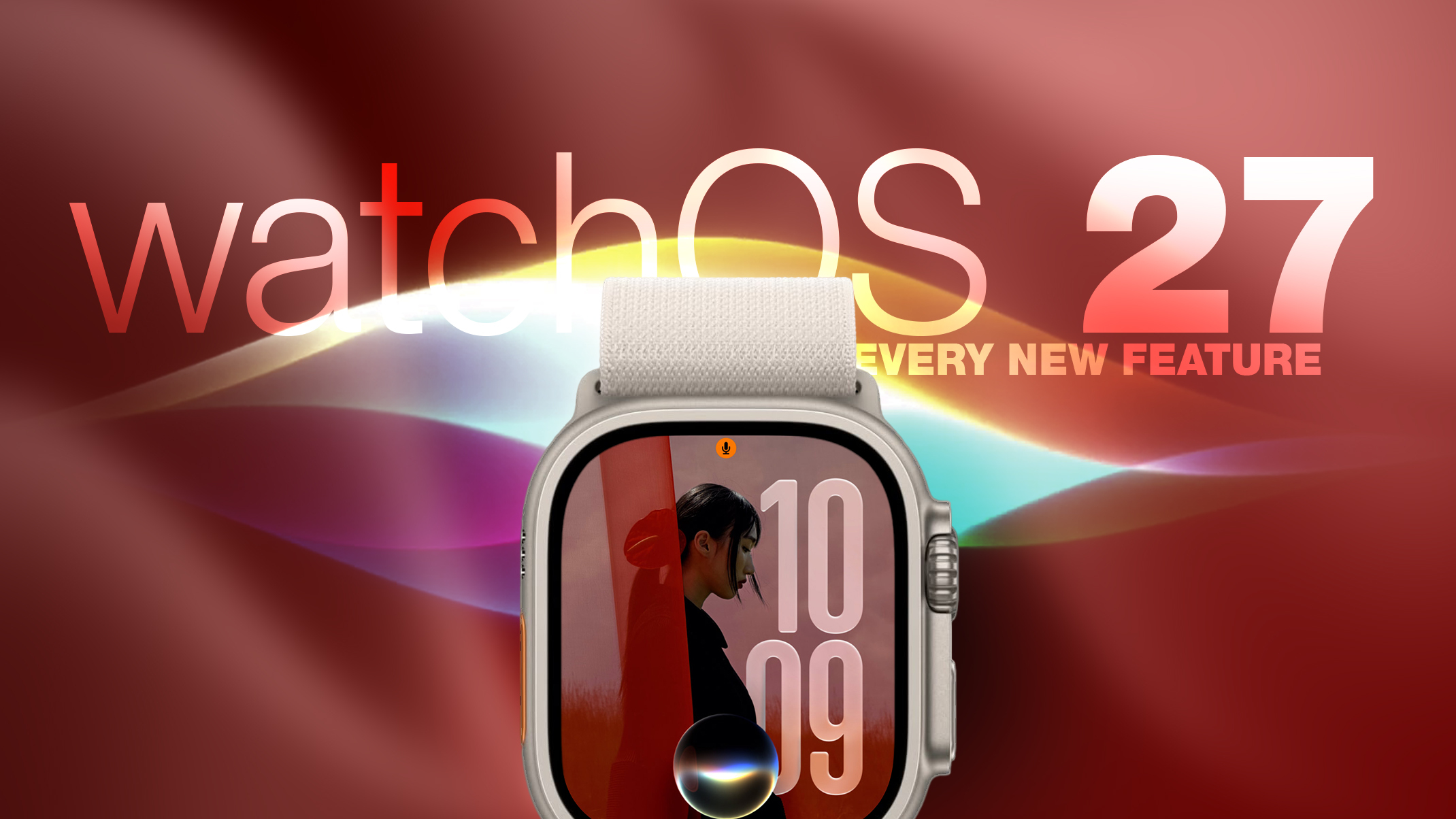
watchOS 27: 12 New Things To Check Out on Your Apple Watch

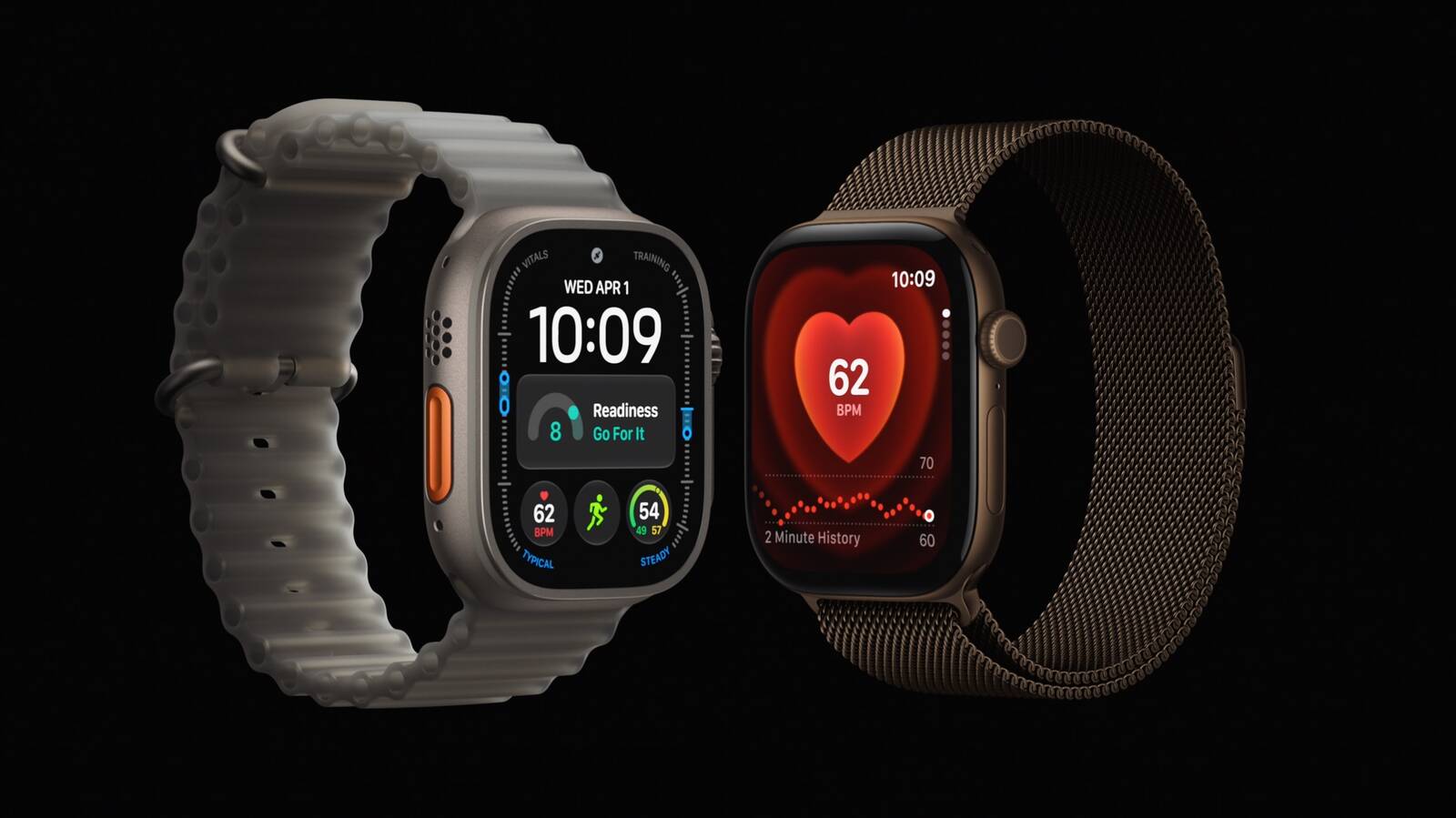
Apple released watchOS 27 on September 14. The features and changes aren't limited to owners of new Apple Watch Series 12 and Apple Watch Ultra 4 models. If you have an Apple Watch model that supports the latest update, here are 12 features and changes to check out after installation.


To do so, open the Watch app on your iPhone, then tap General ➝ Software Update, strap your watch into a charger, and follow the onscreen prompts.

Check Out the Dedicated Siri App


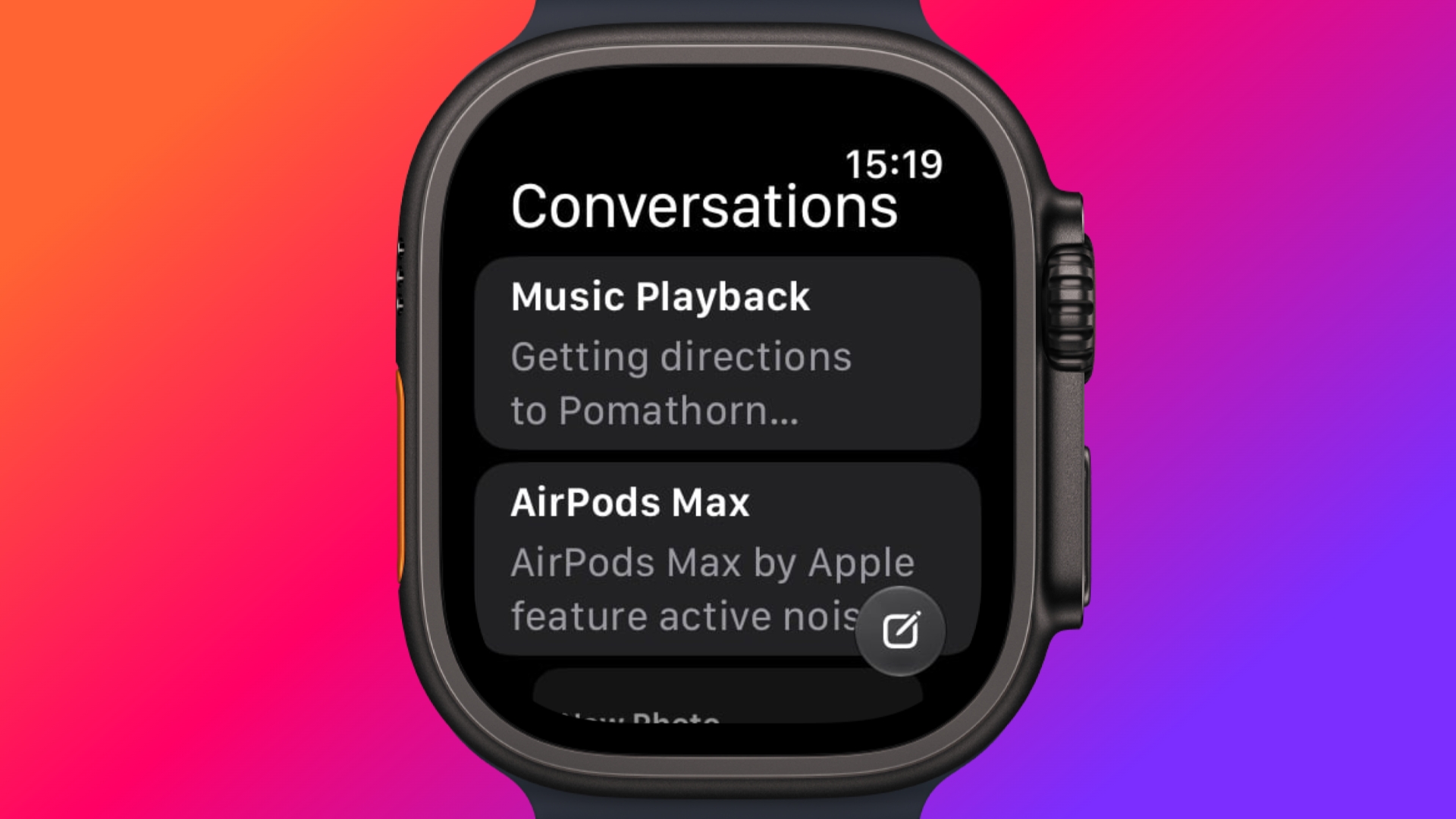
Siri has finally caught up with the AI revolution, and apart from having contextual awareness, it now has an app of its own that collects every conversation in a single view and syncs them privately across your devices over iCloud. Just ask something on your iPhone and you can pick the thread up again on your Apple Watch, as well as pin conversations worth keeping, or even start a new chat directly from your wrist.

Try Siri Modular Watch Face


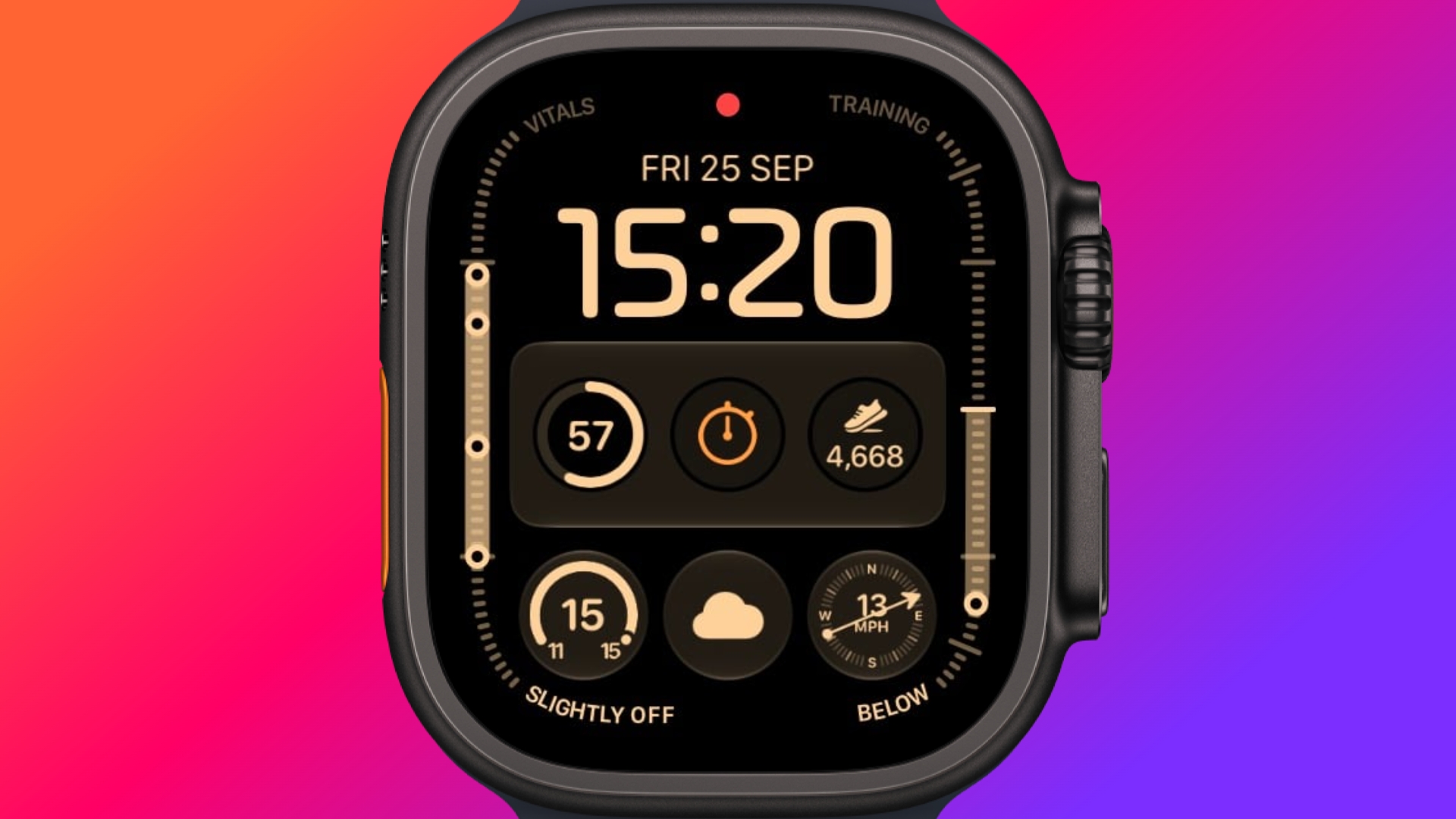
The new Siri watch face is a genuinely useful one. Its rectangular complication shows you whatever sits at the top of your Smart Stack, and it automatically updates through the day based on time, location, and other factors.

The Dynamic App Grid


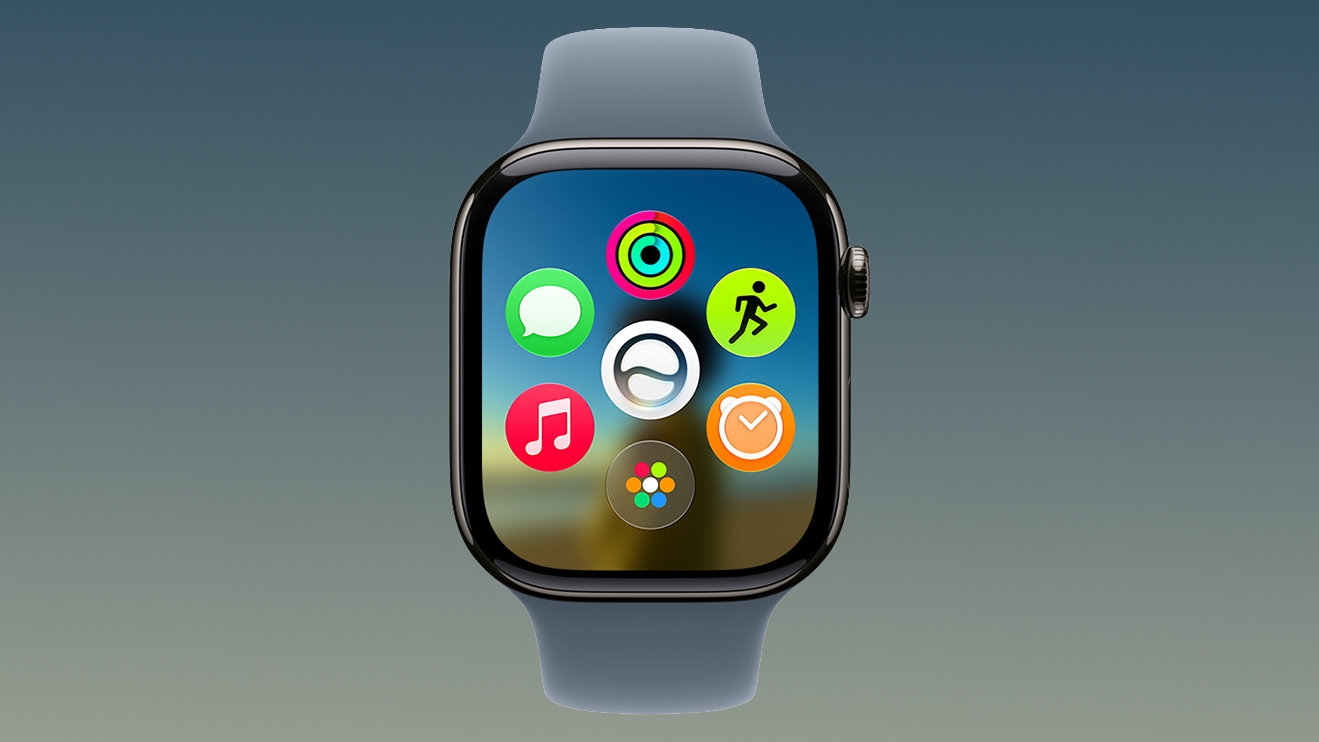
Pressing the Digital Crown no longer produces the honeycomb app view by default. Now, watchOS 27 shows a dynamic grid made up of suggested apps, your most-used apps, and your most recently used ones. The Siri app sits in the middle, but the alphabetical list remains available – simply turn the Digital Crown to navigate through all of your apps.

New Tap Gesture


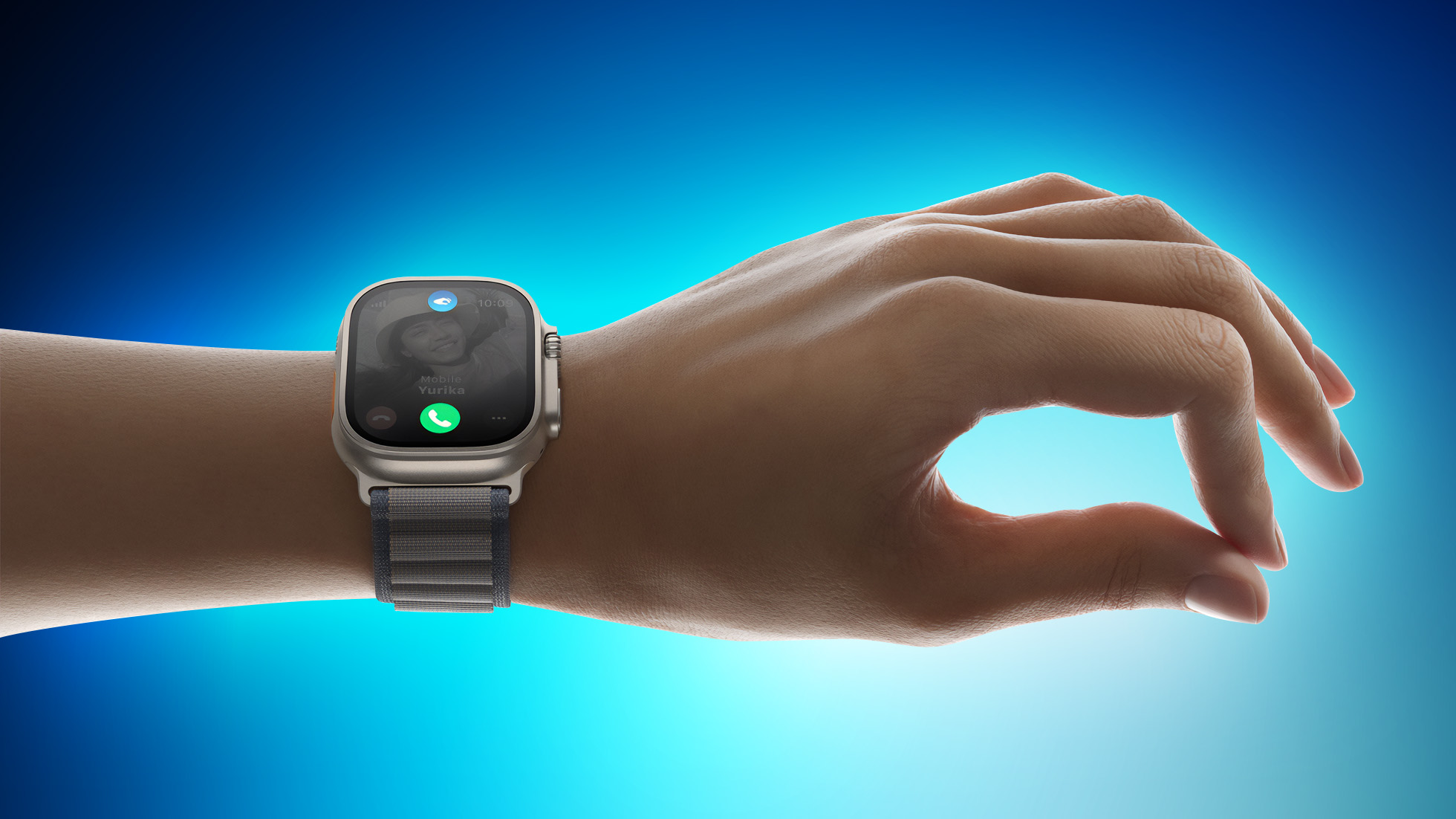
Apple has added a third gesture to Double Tap and Wrist Flick. The new one is simply called Tap. A single tap of your index finger and thumb opens the highlighted widget in the Smart Stack. You can still navigate the Smart Stack with Double Tap and dismiss notifications with Wrist Flick.

Walkie-Talkie Has Been Deleted


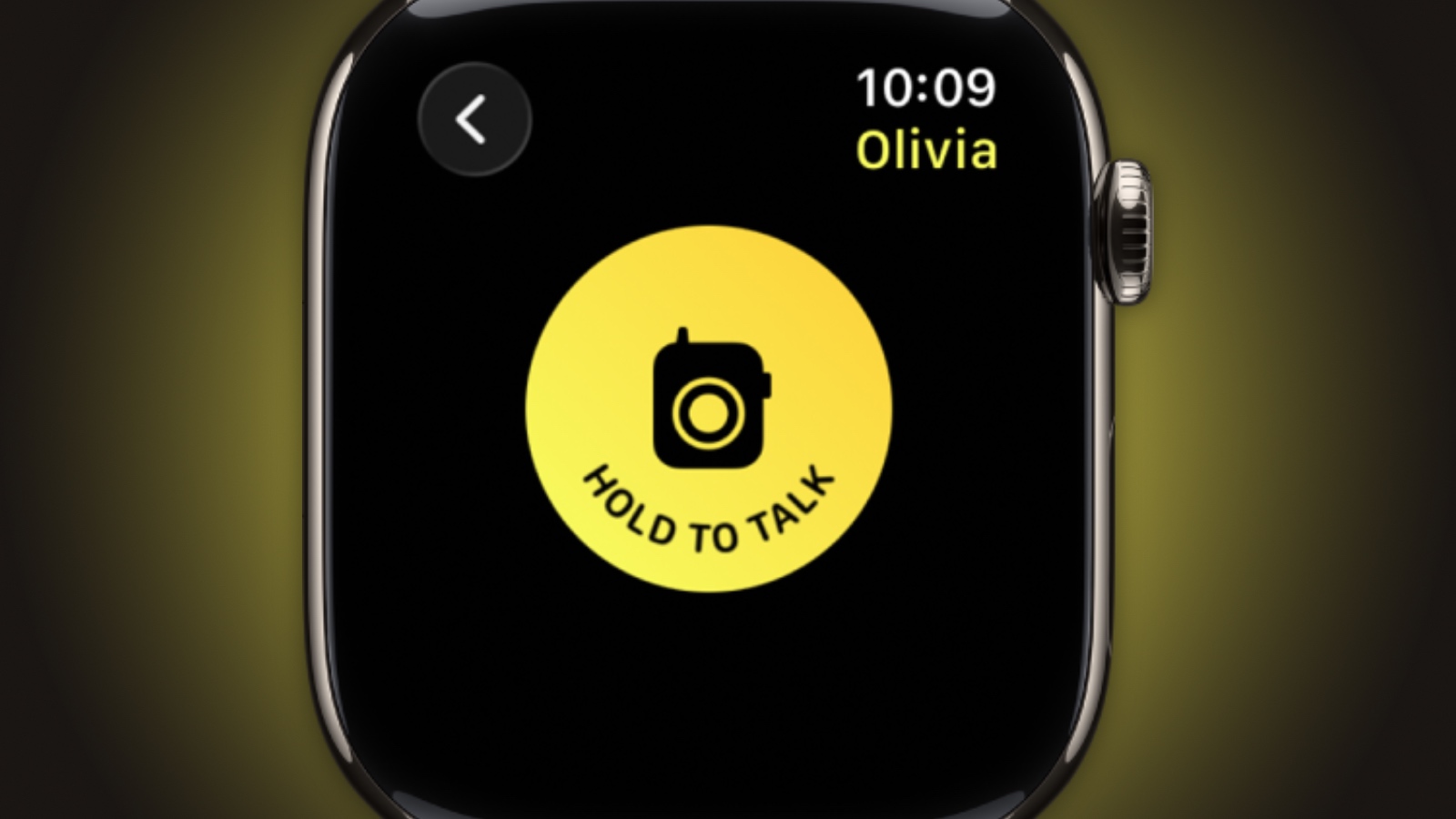
Walkie-Talkie is gone, and not merely hidden. The app is unavailable after updating to watchOS 27 and cannot be reinstalled from the App Store. You can keep the app by staying on watchOS 26, but you won't be able to start a conversation with a contact who has updated.

Live Rewind (Not Yet)


This is the change most likely to catch people out. In watchOS 26 and earlier, a double press of the Digital Crown opens the App Switcher, where you can jump back to the previous app, scroll through recent ones, and swipe to force-quit anything misbehaving.

That's changed in watchOS 27, in which a double press shows the new dynamic app grid instead. The gesture has been reserved for Live Rewind, an upcoming feature (exclusive to Apple Watch Series 12 and Ultra 4) that produces a transcript of the last fifteen seconds of speech in your environment.

Fortunately, the App Switcher will still be available when watchOS 27.2 is released later this year, but it will open with a different gesture. If you're already on the latest beta, simply long press on the bottom of the app that you're in, and that should open the App Switcher.

Find My is Now One App


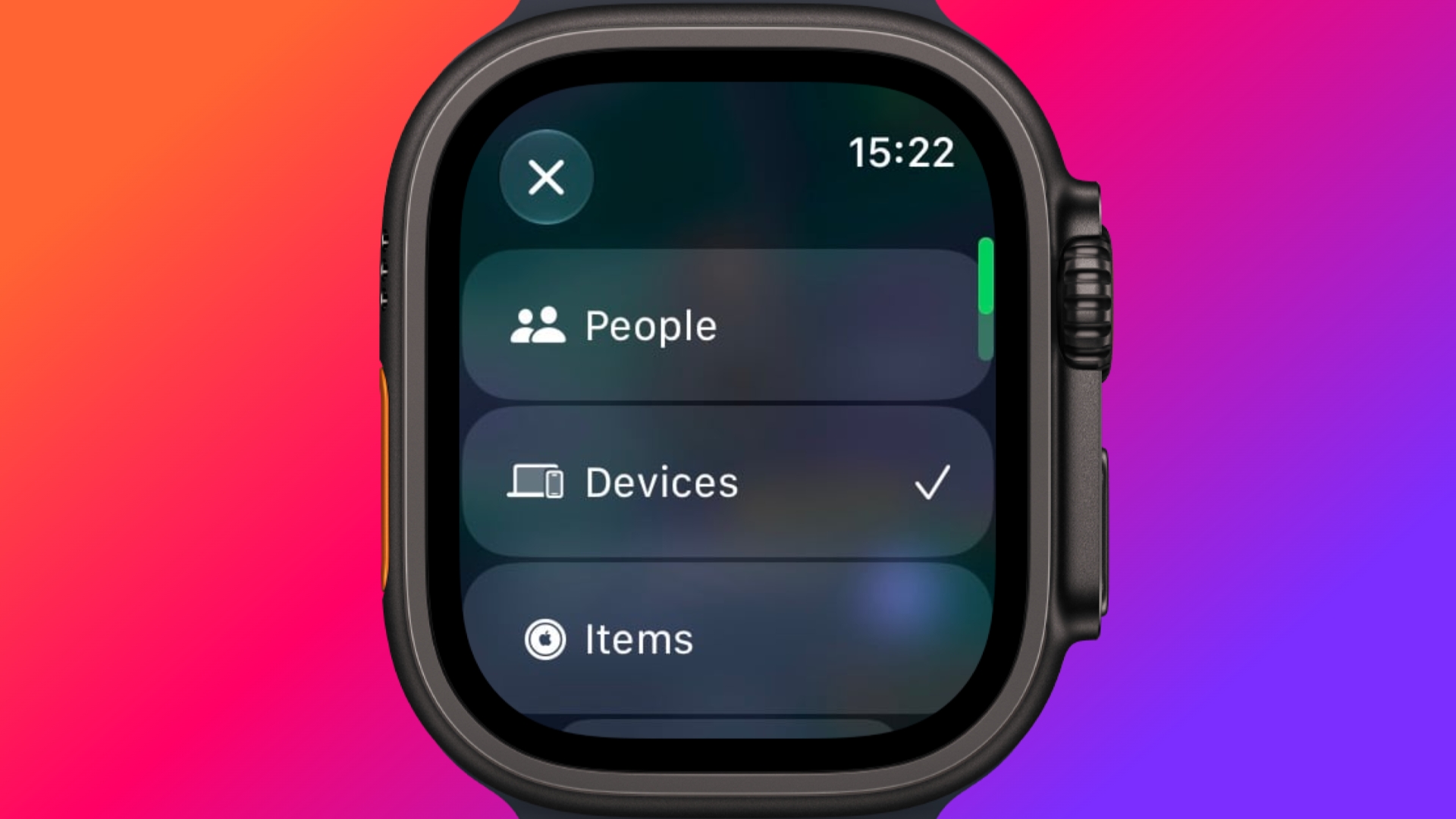
Find Devices, Find Items, and Find People have been folded into a single Find My app with a map-centric layout, which also includes shortcuts for directions and for items nearby.

Workout Buddy No Longer Needs Your iPhone


Introduced in watchOS 26, Workout Buddy previously required your iPhone within range. In watchOS 27, your Apple Watch can run it if Wi-Fi or cellular is available. It also draws new insights from your training history, tracking gradual gains in pace, distance and workout duration, and it now speaks Spanish as well as English.

New Cycle Tracking Features


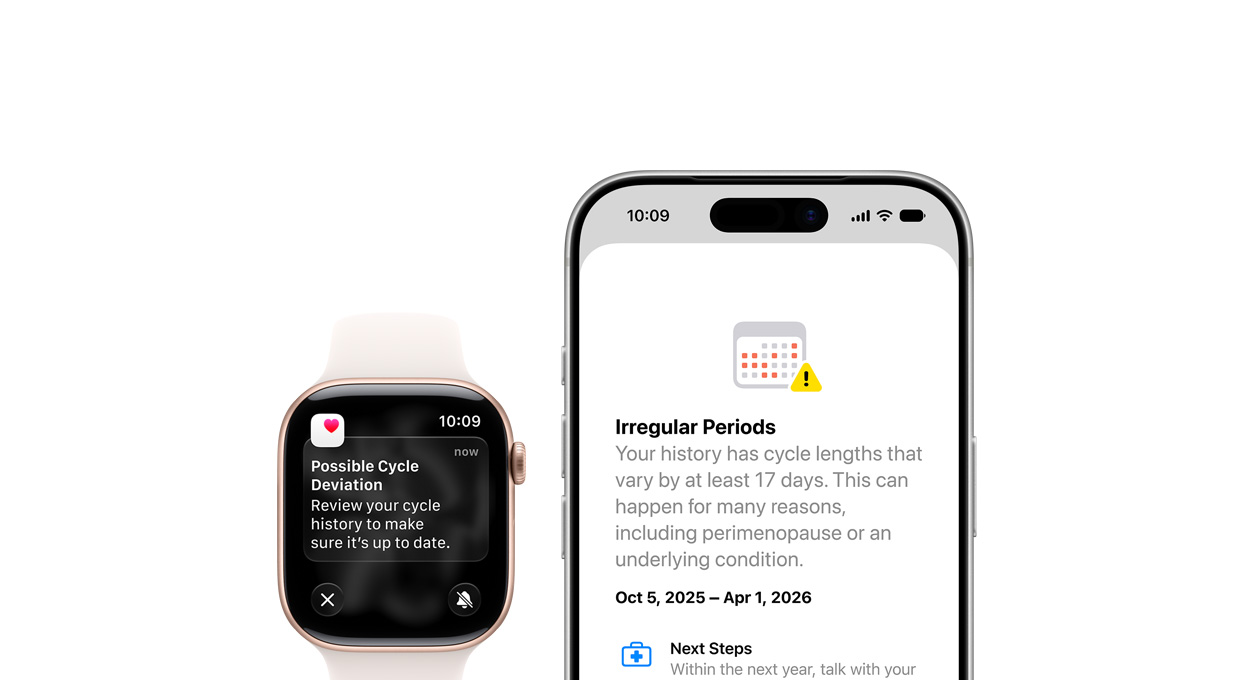
Cycle Tracking in the Health app can now notify you if your logged patterns are suggestive of perimenopause, alongside symptom tracking and educational material. The notifications only draw on your logged cycle history and apply to users aged 40 and over. Apple says the feature is not a method of birth control and is not a diagnosis.

Treadmill Distance Is More Accurate


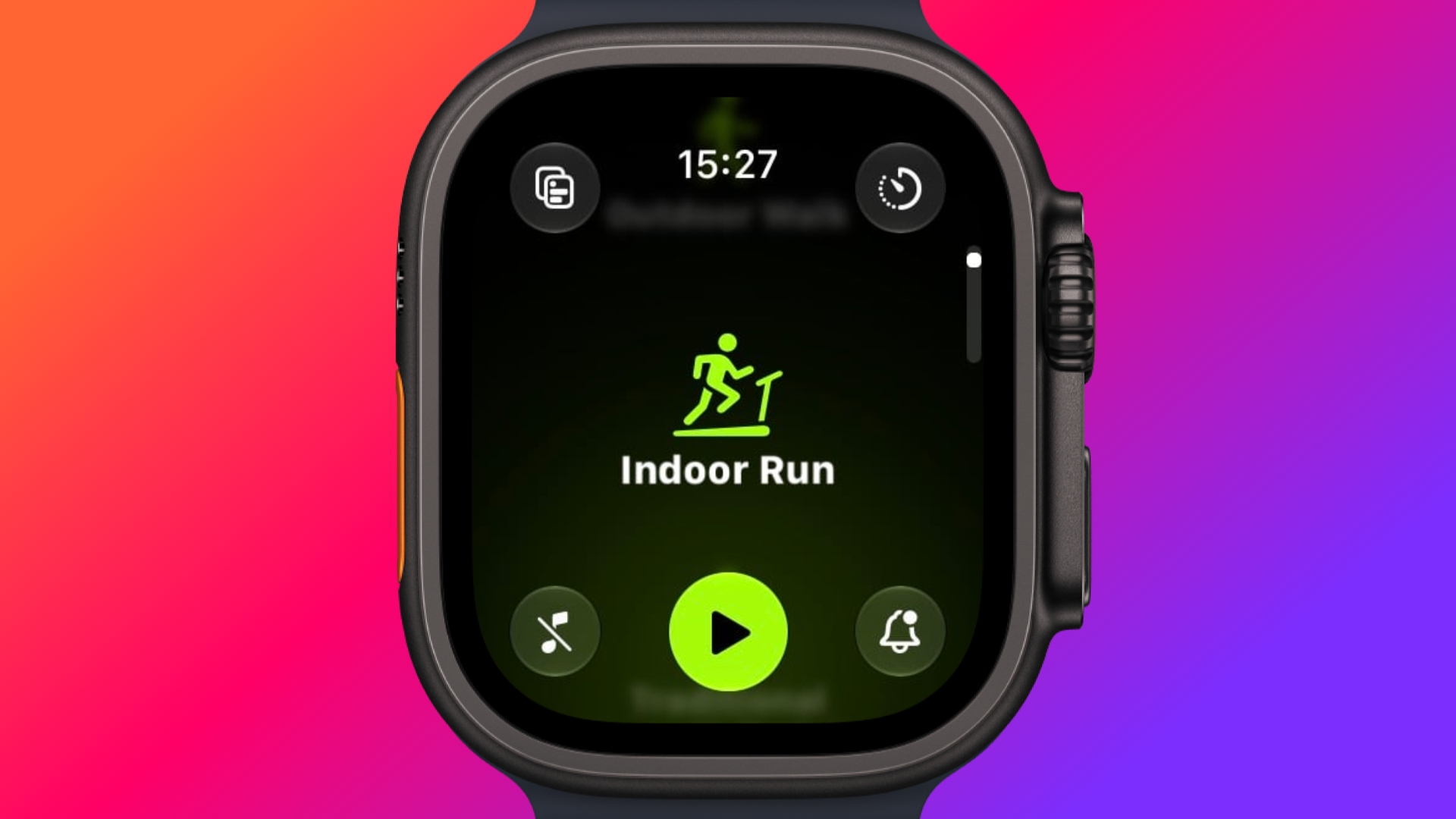
In watchOS 27, new machine learning motion algorithms measure distance more precisely for indoor runs and walks, and Apple says the improvement starts from the first step, as opposed to settling after a few minutes. Fitness route maps are more accurate too, and step counts finally stay in sync between the Fitness and Health apps.

The Smart Stack Gets More to Say


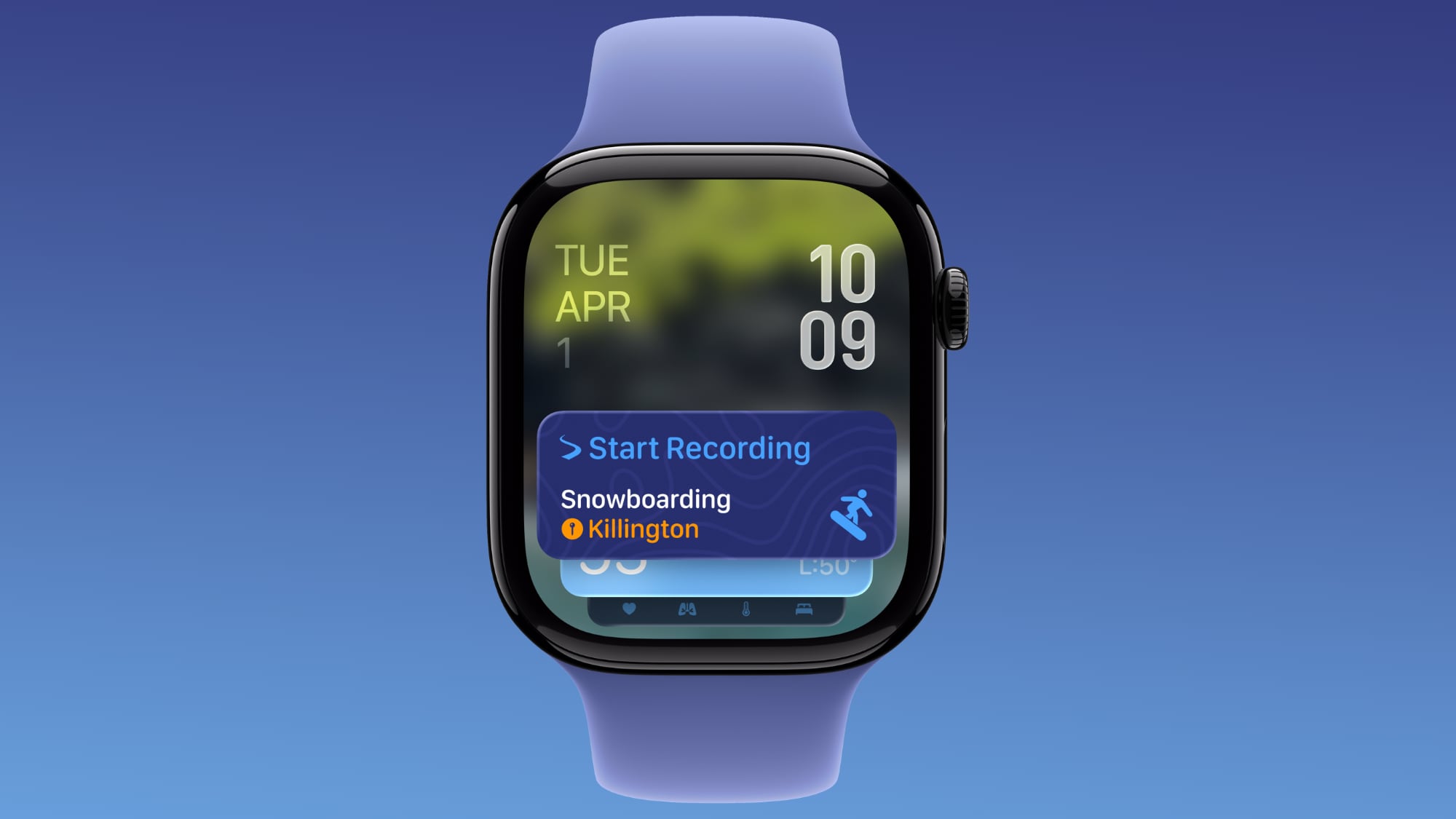
The Smart Stack's contextual suggestions are now a lot smarter. A few examples provided by Apple include new widgets surfacing your parked car's location, a close contact's birthday, a change in your transit card balance, the Noise app immediately after a loud-noise alert, a reminder that Theater Mode is still on, pinned messages, celebrations, and identity cards.

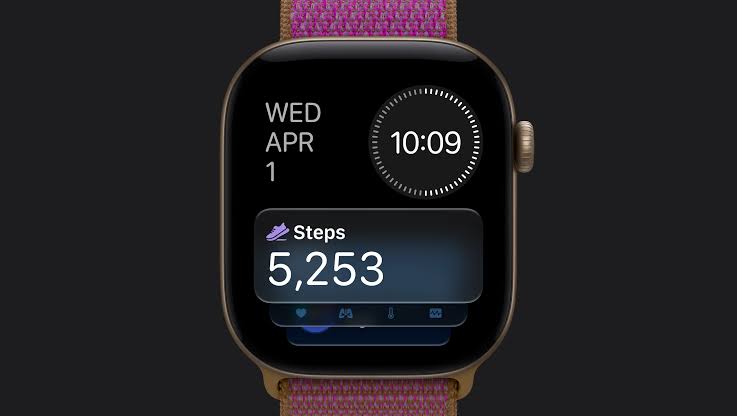
New Models Get a Steps Counter


On Apple Watch Series 12 and Apple Watch Ultra 4, the redesigned pedometer model and S11 chip allow watchOS 27 to provide more accurate step counts. There's also a new Steps complication on the latest models to track your steps in real time, right from your watch face. Will we see the feature come to older devices? Your guess is as good as ours.
Buyer's Guide: Apple Watch (Buy Now)
Related Forum: Apple Watch

This article, "watchOS 27: 12 New Things To Check Out on Your Apple Watch" first appeared on MacRumors.com

Discuss this article in our forums

  •  

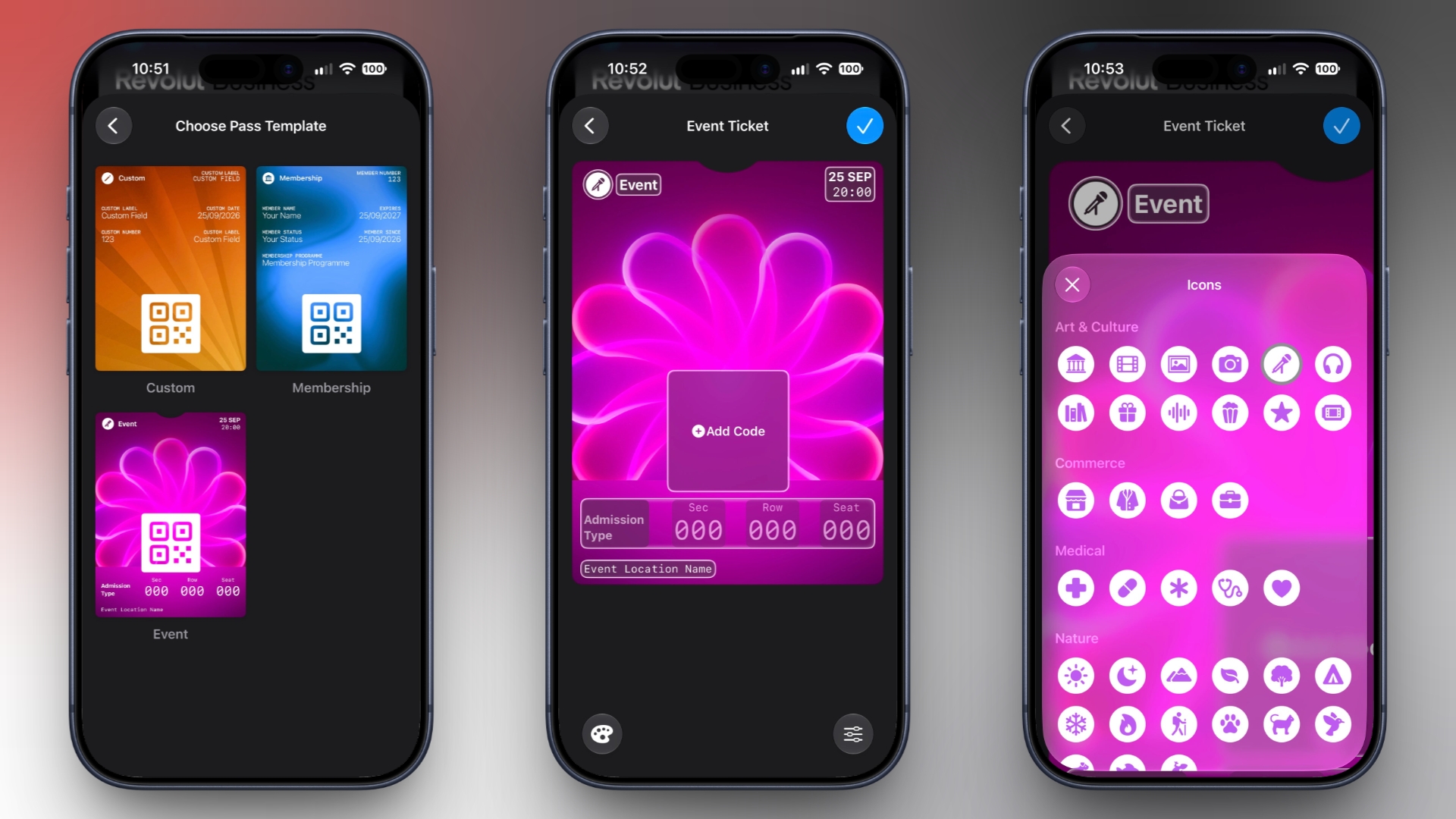
Create a Custom Pass in the Wallet App on iPhone

In iOS 27, Apple's Wallet app lets you create custom passes for things like event tickets, gift cards, loyalty cards, and more. Here's how it works.


If you have a ticket for an event and there's not a digital version available for the Wallet app, you can create one using the physical pass you have. The same goes for other cards, like a membership card, for example.

The Wallet app can use β€ŒVisual Intelligenceβ€Œ to scan your card, and it will match it to a template with corresponding fields that you can tweak before adding it to your Wallet.

Alternatively, you can create the pass manually, choose a template ("Membership," "Event," or "Custom") and then adjust the color and other details. All you need to do then is scan the barcode or QR code from your physical pass.

Each template includes relevant information like name, location, or admission type. There are 12 background colors to choose from, or seven custom backgrounds for categories like theater, music, sports, and movies.

Fields can be added or removed when creating a custom pass, with options like label, date, membership, contact, coupon code, VIN, insurance, and more, so most physical cards should be able to be stored digitally.

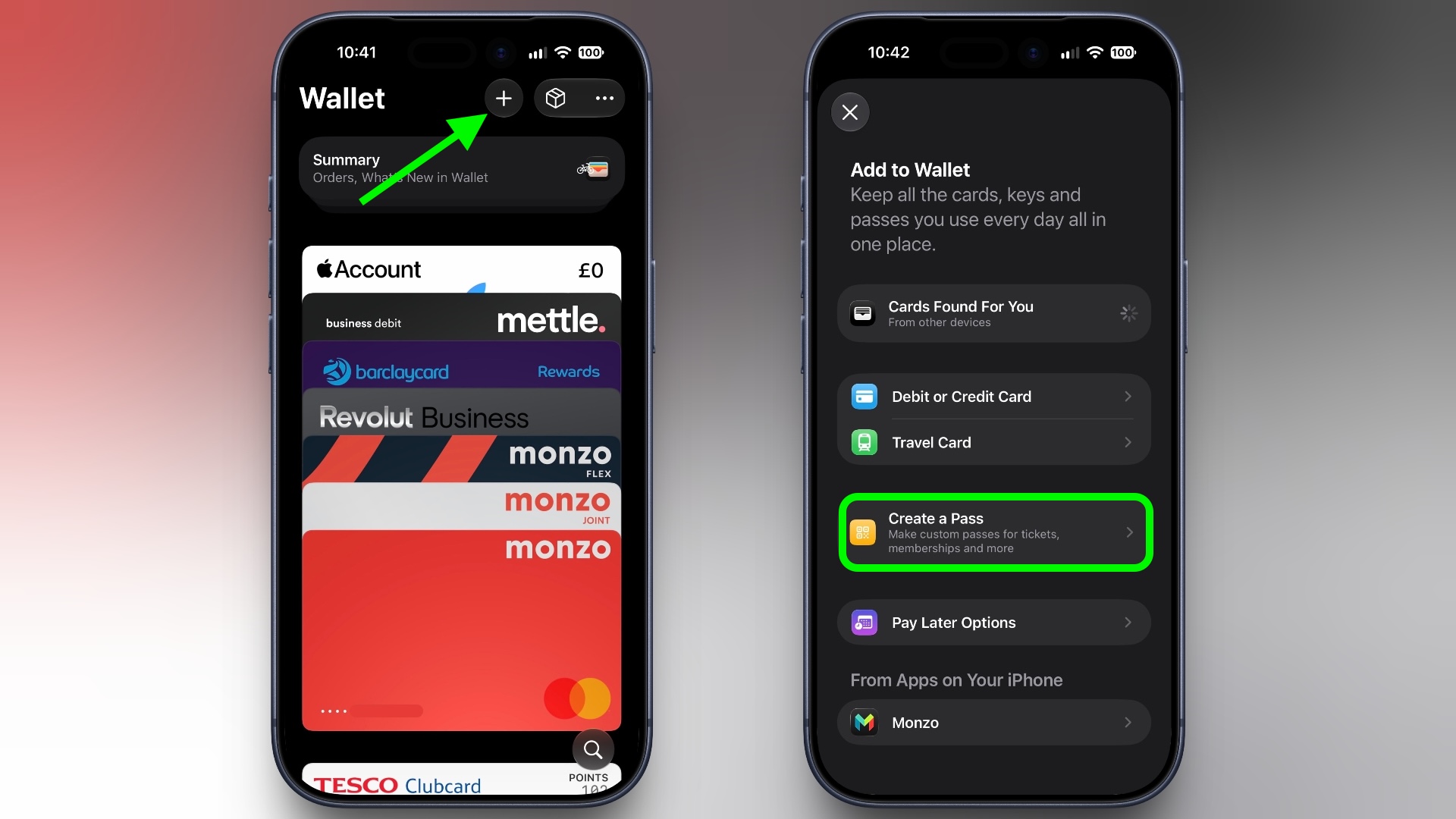
Here's how you create a pass with β€ŒVisual Intelligenceβ€Œ:
  1. Open the Wallet app on your iPhone and tap the + button at the top.

  2. Choose Create a Pass.
    wallet
  3. To let Visual Intelligence scan the pass, tap Continue, then take a photo of it in the next screen.

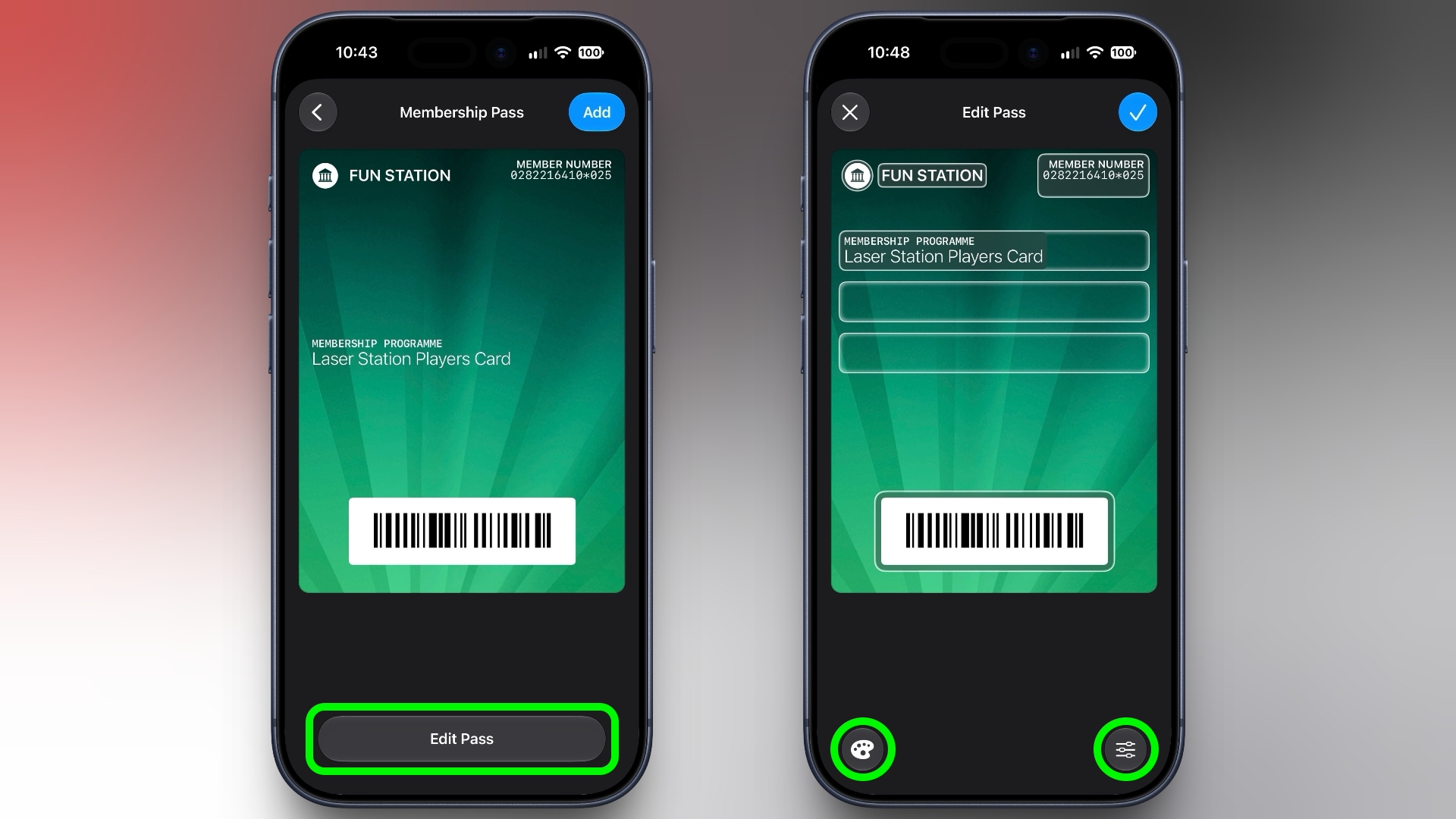
  4. After Visual Intelligence matches the pass to a template, tap Edit Pass.

  5. Use the palette icon in the bottom-left corner to change the look of the pass – you can the background colour, or use an image from your Photos library. Tap the icon in the bottom-right corner to add or remove fields.
    wallet
  6. Tap the blue checkmark at the top when you're done.
Your custom pass will now be added to your Wallet, ready for use. To edit it at any time, simply select it in Wallet, tap the three dots in the top-right corner of the screen, then tap Edit Pass.
This article, "Create a Custom Pass in the Wallet App on iPhone" first appeared on MacRumors.com

Discuss this article in our forums

  •  

How to Check Your Mac's Manufacture Date in macOS 27

If you installed macOS 27 Golden Gate, here's a way to find out when your Mac was manufactured. Apple has restored access to information that effectively disappeared when it randomized its serial numbers a few years ago.


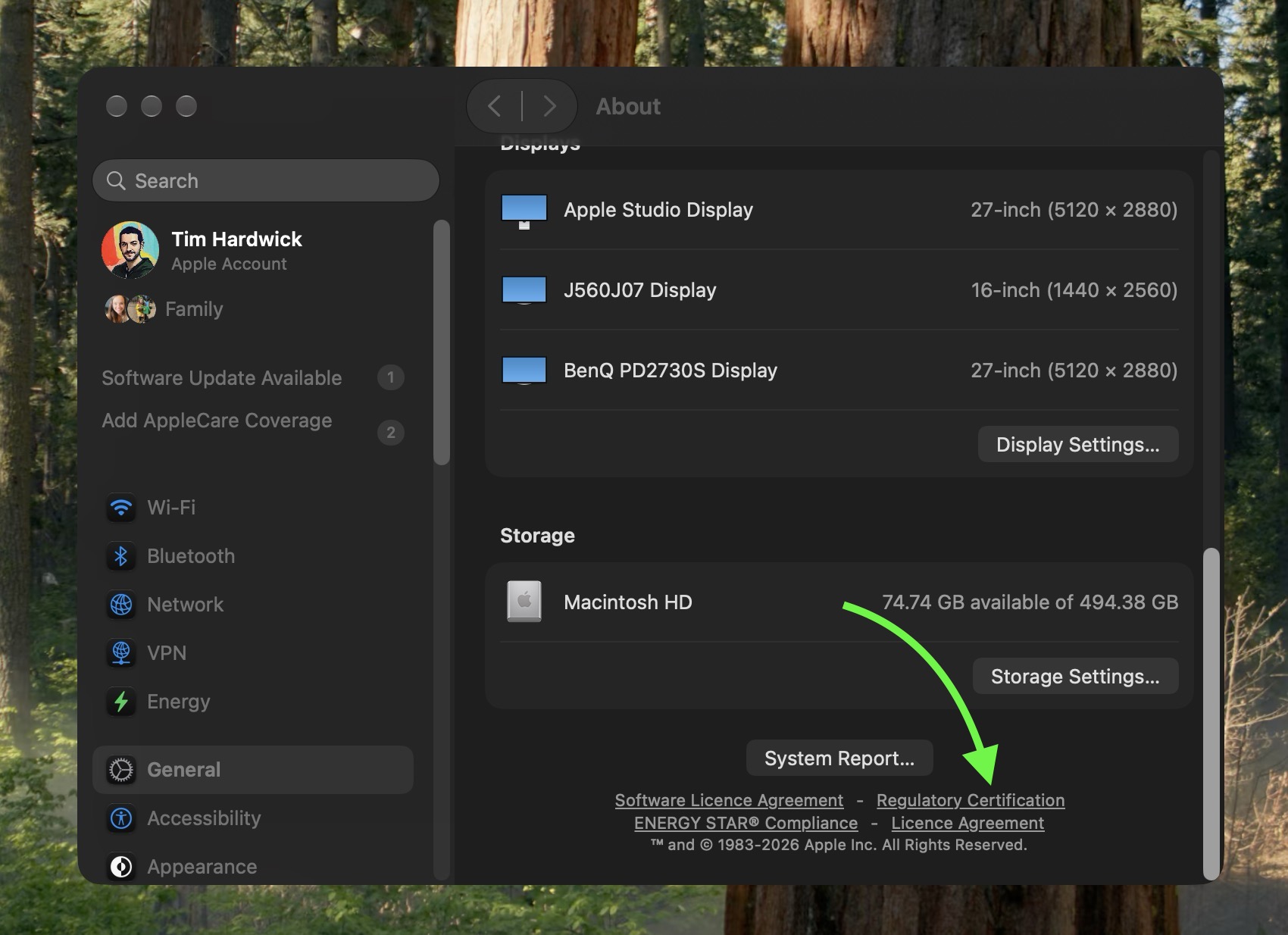
On your Mac, go to System Settings ➝ General ➝ About, then click "Regulatory Certification" under the System Report button. The certificate will show with a new "Date of Manufacture" field at the bottom.

You used to be able to decode the serial number on an Apple device to find out when and where it was made. That changed in 2021, when Apple began adopting randomized serial numbers without encoded manufacturing details.

That left owners of newer Macs with no similarly straightforward way to determine when their machine was made – until macOS 27 arrived.


The spot was made by MacRumors forum member pdfu. Another forum member said that the displayed date they saw on their certificate corresponded to their Mac's logic board rather than the date the complete machine was assembled. That logic board had been replaced though, suggesting that's where the date of manufacture is stored.

The regulatory certification first appeared during the macOS 27 beta cycle and it hasn't, to our knowledge, been highlighted by Apple.
Related Roundup: macOS Golden Gate
Related Forum: macOS Golden Gate

This article, "How to Check Your Mac's Manufacture Date in macOS 27" first appeared on MacRumors.com

Discuss this article in our forums

  •  

Meta Did a 'One More Thing' and It's an AI Tamagotchi

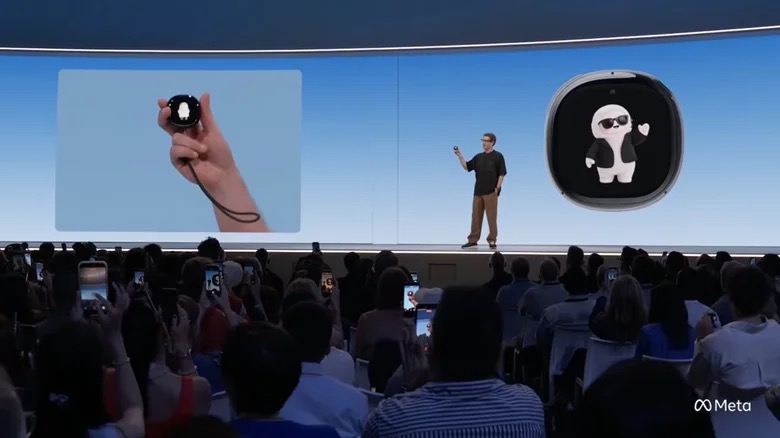
Apple has reportedly shelved plans to launch an AI pendant, while Meta appears to be going all out in the nascent hardware space with a new handheld AI companion. Mark Zuckerberg used his "one more thing" moment at the company's annual Connect event on Wednesday to unveil the Muse Charm, a puck about the size of an Apple Watch featuring a tamagotchi-like, interactive avatar that can be used to chat with the company's Muse AI.

"Muse Charm is a delightful and fun device built for you to talk and interact with your Muse. It brings the power of Muse with a state of the art real-time voice model into a device that fits in your pocket.

"We packed the whole Muse experience, including the whole real-time voice and avatar stack, into something that fits on a keychain and is always available to talk to. You just go ahead and tap here in the fingerprint sensor in the corner, and you can start talking without having to unlock a phone or open an app.

"So if you're not wearing glasses, this is going to be by far the fastest way to talk to your Muse and to show what's going on around you."

We'll have more to share later this year."
That's all we got about the device, which Meta is aiming to have on sale by the holiday season.

Otherwise, Connect was mostly about the company's new Meta VR Glasses. They have a tethered puck for the storage and battery, and the headset is five times lighter than the Meta Quest 3 at 100 grams, with full-color passthrough video support and a 5K display. (For context, M5 Apple Vision Pro weighs 750–800 grams depending on the configuration.)


Meta says the glasses will offer "cinema-grade clarity" with support for Dolby Vision and Dolby Atmos spatial audio, and they can deliver up to three hours of continuous high-resolution media playback on a single charge.

The device runs every game available for Quest headsets, and supports Xbox Cloud Gaming. You can also connect it to a PC or Mac and control things with a virtual keyboard and trackpad on a desk. Meta VR Glasses are set to launch in the spring with a $1,300 starting price.


Meanwhile, in an apparent bid to throw off the "pervert glasses" label, Meta also announced an audio-only version of its Ray-Ban smart glasses. The new model supports media playback and calls, and runs for up to 12 hours on a single charge, while the charging case adds up to 48 hours of battery life. Pre-orders are open and the glasses ship on October 13, starting at $349.

Meta hasn't abandoned its camera-equipped Ray-Ban smart glasses, though. Far from it. The company is refreshing its Ray-Ban Meta with a slimmer design and a button that activates Meta AI. The third-generation model is said to have a longer nine hours of battery life (versus eight on the second-gen model) and a new six-microphone array that the company says can cut out over 90 percent of background noise. The 12MP camera supports 3K video capture, with Dolby Atmos Spatial Audio support coming soon. There are multiple styles to choose from, and prices start at $449.

Meta's AI Glasses are also getting a new FDA-cleared hearing enhancement feature later this year. Users can access it as part of a Meta One subscription, or they can pay a one-time cost of $149. A 30-day free trial will also be available.
Tag: Meta

This article, "Meta Did a 'One More Thing' and It's an AI Tamagotchi" first appeared on MacRumors.com

Discuss this article in our forums

  •  

iPhone Handoff in iOS 27: How It Works, Pricing, and Carrier Support

Apple in iOS 27 introduced iPhone Handoff, a new eSIM feature that allows you to use the same number on two iPhones and seamlessly swap between them. The number is only active on one iPhone at a time, so it's not like having two independently active lines.


It's also different from Apple's existing Handoff feature for continuing an app task on another Apple device. Here's what you need to know about the new iPhone Handoff feature.

What Moves Between the Two iPhones?


When you switch phones with iPhone Handoff, your calls, voicemail, messages (including iMessage, RCS, SMS, and MMS) and Find My location move to the active iPhone. You'll see a "Switched to this iPhone" message on the screen to confirm the change.

Other data synced with iCloud will automatically update across your devices, and third-party apps work across both devices, though some third-party apps may require a separate sign-in or take time to sync. Any banking apps you use may also ask you to approve access on the other device.

What Do You Need for iPhone Handoff?


Both iPhones must be running iOS 27 or later. They'll also need to be:
  • Connected to Wi-Fi

  • Sharing the same Apple Account

  • Using Messages in iCloud for messages sync

  • Signed into FaceTime and iMessage with the same Apple Account
iPhone Handoff works with Dual SIM as long as both eSIMs are from carriers that support iPhone Handoff. Both eSIMs must be set up for iPhone Handoff separately, one at a time. Once set up, both eSIMs switch together simultaneously when you unlock your iPhone.

Which Carriers Support iPhone Handoff?


iPhone Handoff is available through T-Mobile in the United States and Telekom in Germany. Verizon (U.S.) and EE (U.K.) will support iPhone Handoff later this year.

AT&T has so far not committed to supporting iPhone Handoff, with a company spokesperson recently pointing to the carrier's existing eSIM activation and transfer options instead.

How Much Does iPhone Handoff Cost?


T-Mobile is charging customers $5 per month to use iPhone Handoff.

In Germany, Deutsche Telekom is charging €6.95 per month for iPhone Handoff, but only on plans that do not already include multi-SIM functionality. An added multi-SIM costs €6.95 per month (one is included with the current MagentaMobil L plan and two with XL).

No other carriers have announced pricing yet.

How Do You Set It Up?


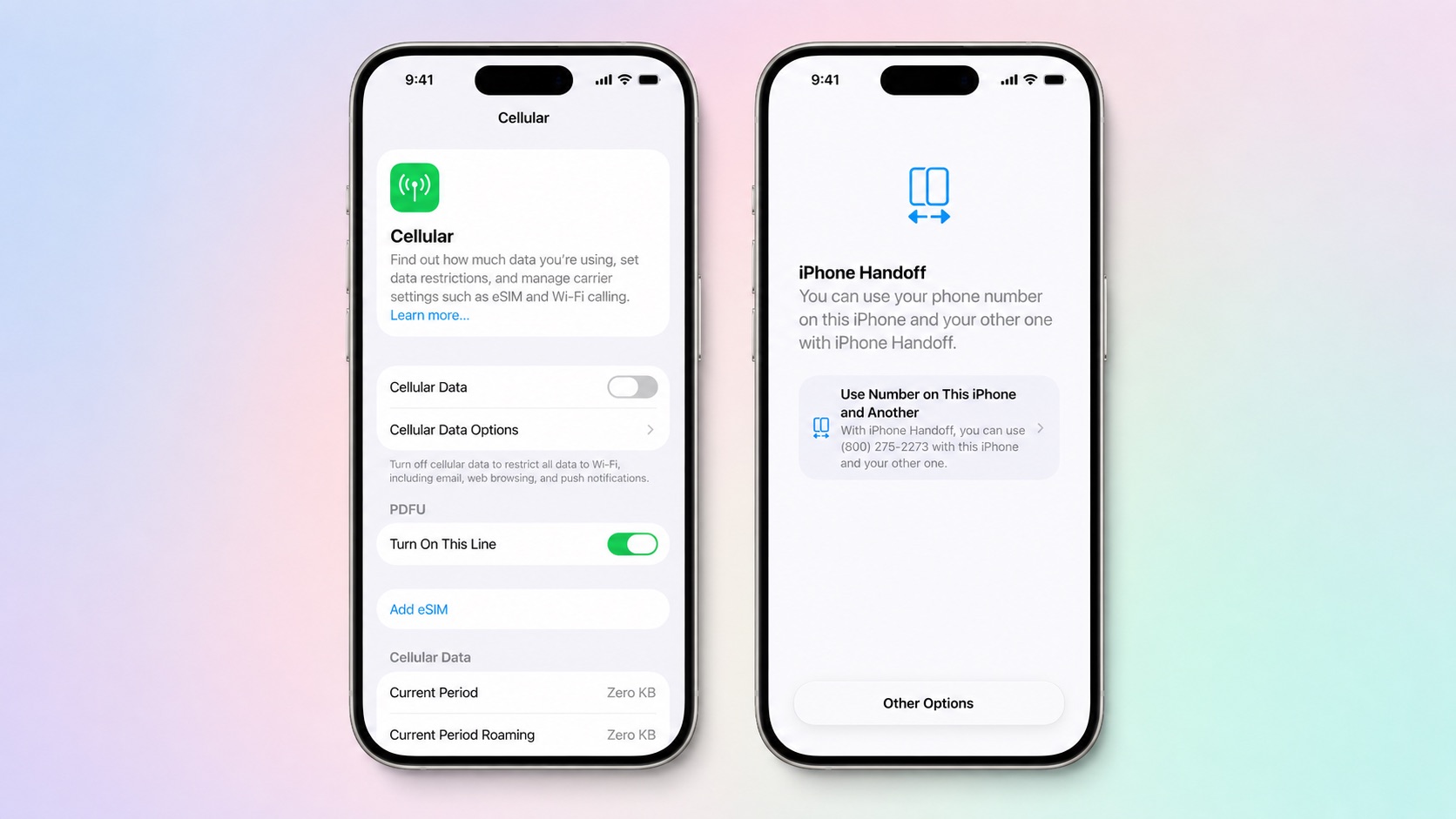
iPhone Handoff can be enabled when setting up a new iPhone. At the "Set Up Cellular" screen, choose "Use Number on This iPhone and Another," then follow the prompts on both phones.

If both iPhones are already set up, open Settings ➝ Cellular on the phone you want to add. Tap Set Up Cellular or Add eSIM, choose Use Number on This iPhone and Another, and follow the prompts. You then get to choose which device is your main iPhone (ideally, the one you use most often) and which is your secondary iPhone.


After setup, unlock either phone to make your number active on it.

What Should You Know Before Switching?


If you have an Apple Watch, it won't switch its pairing to the other device when your phone number moves, so make sure you pair it with the iPhone you expect to use most. Also, some Wallet items, including certain transit passes and IDs, may only work on one device at a time.

Carrier account management and some services like Call Forwarding and Caller ID will remain tied to your main iPhone.

Can I Replace an iPhone That Uses iPhone Handoff?


Yes, but you need to transfer the eSIM from either iPhone to the replacement device. The below steps should be followed while your new iPhone is placed next to your existing devices that use iPhone Handoff.

  1. On your new iPhone (replacement), open the Settings app.

  2. Tap Cellular and then tap Set up Cellular or Add eSIM.

  3. Select an iPhone and tap Continue.

  4. Tap Transfer. (If your carrier doesn't support eSIM transfer from a companion iPhone, you must enroll in iPhone Handoff again: On your iPhone that you are transferring the eSIM from, tap Continue, and follow the onscreen prompts.)

  5. Tap Continue.

  6. Follow the onscreen prompts on both devices.

The eSIM will deactivate on the old iPhone you transferred from.

What If I Want to Stop Using iPhone Handoff?


If you want to stop using iPhone Handoff at any time, you need to contact your carrier. Simply deleting an eSIM from your iPhone may not stop the carrier from charging you for the service.
Related Roundups: iOS 27, iPadOS 27
Related Forum: iOS 27

This article, "iPhone Handoff in iOS 27: How It Works, Pricing, and Carrier Support" first appeared on MacRumors.com

Discuss this article in our forums

  •  

New iPhone Setting Lets Users Shake Off Motion-Sensing Ads

Apple is testing an iPhone setting for users in China that lets them add apps to a list that prevents them from accessing the device's motion sensors. Apple hasn't explicitly said what the setting is in response to, but Chinese apps sometimes show "shake-to-open" ads on launch, and they can be triggered by merely picking up an iPhone, walking, or going over a bump in a car, resulting in unwanted redirects.

Users in China speculate this is why iOS 27.2 beta 2 includes the new "Restrict Motion Data" option in Settings that blocks app access to accelerometer and gyroscope data. For now, the option appears tied to mainland China App Store accounts, and we don't expect it will be available to iPhone users more broadly when iOS 27.2 is released later this year.
This article, "New iPhone Setting Lets Users Shake Off Motion-Sensing Ads" first appeared on MacRumors.com

Discuss this article in our forums

  •  

Apple Intelligence Taking Up 30GB+ on Some Macs Running macOS 27

After you install macOS 27 Golden Gate, Apple automatically downloads a multi-gigabyte AI model to your Mac the next time it's connected to the internet. Unlike previous versions of macOS, you can't prevent it. Siri AI, and by extension Apple Intelligence, are now a mandatory part of your system.


For macOS 27 Golden Gate, Apple says the latest Apple Intelligence features require up to 14GB of on-device storage on Macs with an M3 chip or later and at least 12GB of unified memory, and up to 8GB of storage for other Apple Intelligence-enabled Macs. But in our experience, AI model storage allocation appears to be considerably higher on some Macs than others.

On an M4 Pro Mac mini running macOS 27, for example, MacRumors saw 20.67GB handed over for Apple Intelligence, according to the Storage section in System Settings. ArsTechnica recorded an even higher figure of 22.42GB on an M3 MacBook Air after a fresh installation of macOS 27.0 beta 7. Both of these systems will be using Apple's AFM 3 Core Advanced on-device model, which requires an M3-or-newer Mac with 12GB or more of RAM.

This doesn't explain why Macs that don't meet the minimum requirements for Apple's most advanced model are still losing unusually large amounts of storage to Apple Intelligence. ArsTechnica reported the same screen showed around 14GB on an M1 MacBook Air and a MacBook Neo, and yet both of these models fall into a category for which Apple lists a requirement of up to 8GB.

Other Mac users have posted similar higher-than-expected readings. For example, one Reddit user shared a screenshot from the macOS 27 Release Candidate showing Apple Intelligence gobbled up 30.16GB on their machine. Another user quoted 24.35GB for Apple Intelligence after installing macOS 27 on a MacBook Pro with M3 Pro chip.


Device Apple Intelligence storage
iPhone 18 Pro, iPhone 18 Pro Max, iPhone Duo Up to 14GB
iPhone 17 Pro, iPhone 17 Pro Max, iPhone Air Up to 14GB
Other compatible iPhones: iPhone 15 Pro and Pro Max, all iPhone 16 models, iPhone 17, and iPhone 17e Up to 8GB
iPad with M4 or later and at least 12GB of unified memory; Mac with M3 or later and at least 12GB of unified memory; Apple Vision Pro (M5) Up to 14GB
Other compatible iPad, Mac, and Apple Vision Pro models Up to 8GB
Compatible Apple Watch models Up to 1.5GB on the watch
iPhone 15 and 15 Plus, iPhone 14 and earlier, and iPhone SE Not supported

Figures taken from Apple's support document

Apple's support document does not explain whether its "up to 14GB" requirement is directly comparable with the Apple Intelligence "Storage" category in System Settings, or why some Macs display substantially higher numbers. (For what it's worth, we haven't seen the same ballooning figures on iPhones and iPads running iOS 27 and iPadOS 27.)

It's not just academic, either. While using Apple Intelligence is optional, downloading its on-device models is not. Apple in macOS 27 and iOS 27 removed the toggle to disable Apple Intelligence, so users unequivocally have to set aside space for Apple's models. In an era where memory and storage costs are rising because of AI, the irony of this situation cannot be lost. It doesn't make it any less frustrating, though.

If you're on a Mac, you can check your own reading in System Settings ➝ General ➝ Storage by clicking the information button beside macOS. Let us know your findings in the comments.
This article, "Apple Intelligence Taking Up 30GB+ on Some Macs Running macOS 27" first appeared on MacRumors.com

Discuss this article in our forums

  •  

New Mac Mini and Mac Studio Now Available for Same-Day Pickup at Apple Stores

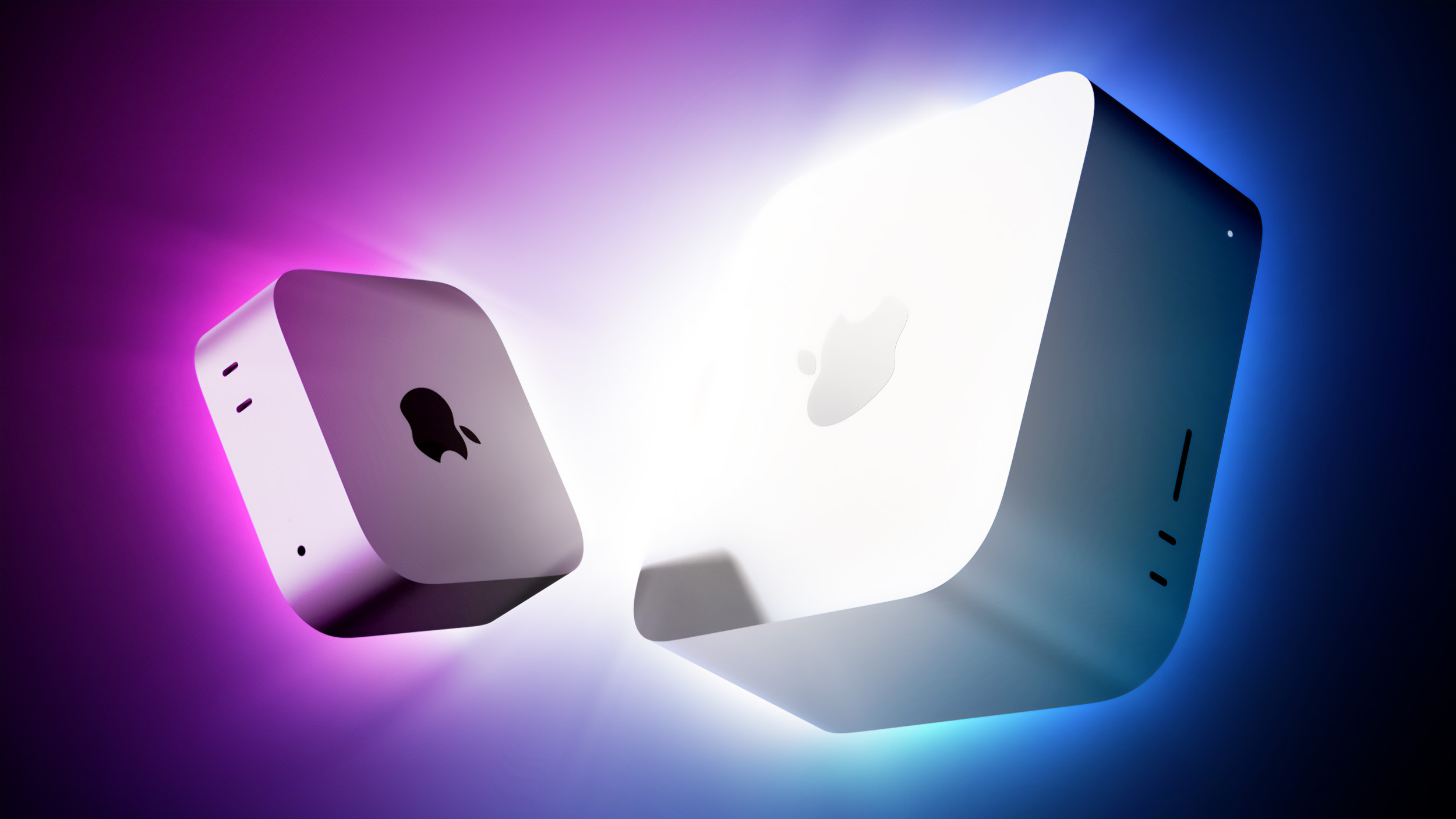
Apple launches its new Mac mini and Mac Studio models today in 30 countries and regions, including the U.S, and same-day pickup is now available at many Apple Store locations.


To order a product with β€ŒApple Storeβ€Œ pickup, add the product to your bag on Apple.com, proceed to checkout, select the "I'll pick it up" option, enter your ZIP code, choose an available β€ŒApple Storeβ€Œ location, and select a pickup date. Payment is completed online, and a valid government-issued photo ID and the order number may be required upon pickup.

Same-day Apple Store pickup is not available for custom Mac configurations with upgraded specifications ordered through Apple's online store.

Our previous coverage:

Mac mini with M6 starts at $899 ($799 for eligible education customers), while Mac mini with M5 Pro starts at $1,699 ($1,599 for eduction). Mac Studio with M5 Max starts at $2,499 ($2,299 for eduction), and Mac Studio with M5 Ultra starts at $5,499 ($5,099 for education).

With Apple Upgrade, eligible customers in the U.S. can also opt to lease a new Mac with monthly payments and upgrade at the end of their lease. More information can be found on the Apple website.
Related Roundups: Mac Studio, Mac mini
Related Forums: Mac Studio, Mac mini

This article, "New Mac Mini and Mac Studio Now Available for Same-Day Pickup at Apple Stores" first appeared on MacRumors.com

Discuss this article in our forums

  •  

Apple Still Working on Anti-Snatching Feature That Locks Stolen iPhones

New references in the latest iOS 27.2 beta show that Apple continues to develop a new feature which will lock your iPhone if it's snatched from your hand by a thief.


As previously reported, the feature will use the gyroscope, accelerometer, and other sensors to determine when an iPhone has been grabbed. It'll also rely on a paired Apple Watch to detect when the iPhone has suddenly moved away from the owner's wrist.

According to new code seen by 9to5Mac, the feature is called "AutoLock" internally, and it can use several different methods to determine whether an iPhone has been snatched from its owner:
  • A sharp acceleration consistent with the phone being snatched.

  • A paired Apple Watch remaining unreachable for a certain period.

  • Loss of connectivity to a paired Apple Watch.

  • Prolonged loss of network connectivity.

  • The device remaining unlocked beyond a certain interval.
There are also references to safeguards to prevent false positives, like as successful biometric authentication, or foreground app activities that could be mistakenly taken as a sign that the iPhone has been snatched.

Additional code also suggests the feature works using a voting system where a potential theft signal can request a lock, while safeguards such as biometrics and familiar locations can veto it.

When the iPhone is yanked from the owner's hand, assuming a successful theft signal, the device will lock and activate Stolen Device Protection to prevent thieves from accessing information on it.

Stolen Device Protection adds extra security to your iPhone when you're away from familiar locations like home or work. It requires biometric authentication for actions like accessing stored passwords or credit cards, and there are built-in hour-long delays for actions like changing an Apple Account password.

Android already has a Theft Detection Lock feature that locks a smartphone in a snatch-and-grab theft situation. It's not clear when Apple's equivalent feature will launch, if at all, but the additional code indicates that Apple is at least still developing it under wraps.
This article, "Apple Still Working on Anti-Snatching Feature That Locks Stolen iPhones" first appeared on MacRumors.com

Discuss this article in our forums

  •  

Apple Quietly Excludes Older iPhones From New Camera Feature

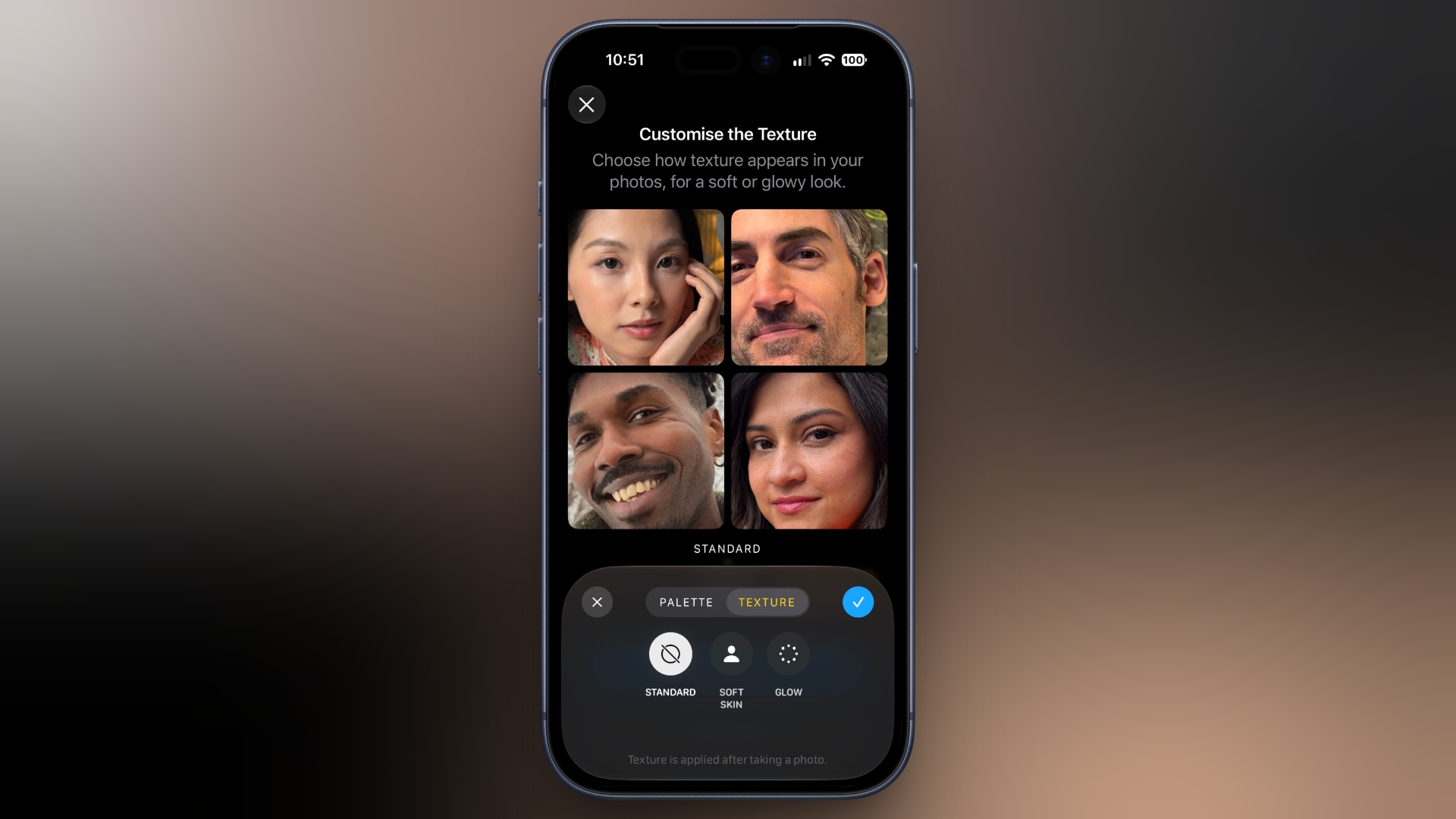
Apple's new Texture and Grain controls for Photographic Styles are not available on iPhones other than the latest iPhone 18 Pro models and upcoming iPhone Duo, despite the company's original wording suggesting otherwise.


When Apple announced the iPhone 18 Pro and iPhone 18 Pro Max earlier this month, its Newsroom press release said the new Texture and Grain controls would be "available in iOS 27 on iPhone models that support the latest generation of Photographic Styles."

That original wording is preserved in copies of Apple's launch-day press release distributed through Business Wire and Notice Nearby. Elsewhere, in Apple's User Guide for iOS 27, devices that support the "latest generation Photographic Styles" are listed as the iPhone 16 series, iPhone 17 series, iPhone Air, and iPhone 18 Pro models.

Apple has since changed the footnote on its iPhone 18 Pro Newsroom announcement. It now says Texture and Grain controls are available "only for photos captured on iPhone 18 Pro models and with the Ultra Wide, Main, and Center Stage cameras on the iPhone Duo."

Apple also states definitively in its iOS 27 User Guide that changing the texture of a photo can be achieved "on iPhone 18 Pro models."

wtf? Apple now says that the texture and grain will NOT be coming to older iPhones

there's no reason why this shouldn't be coming to older iPhones

this is what i despise about Apple. new software camera features almost never make it to older iPhones, even though those are... https://t.co/8FM6MQV01F pic.twitter.com/yiO1nDiuFF

β€” Noah Cat (@Cartidise) September 22, 2026

Whether Apple initially intended to bring the controls to older devices and subsequently changed its plans is unclear, and Apple has not commented on the revision. Either way, the original compatibility information looks like it was published in error.

Photographic Styles are tone presets that adjust the color and warmth of a photo, while preserving skin tones. If you have an iPhone 18 Pro, check out our how-to guide to make the most out of the feature.
This article, "Apple Quietly Excludes Older iPhones From New Camera Feature" first appeared on MacRumors.com

Discuss this article in our forums

  •  

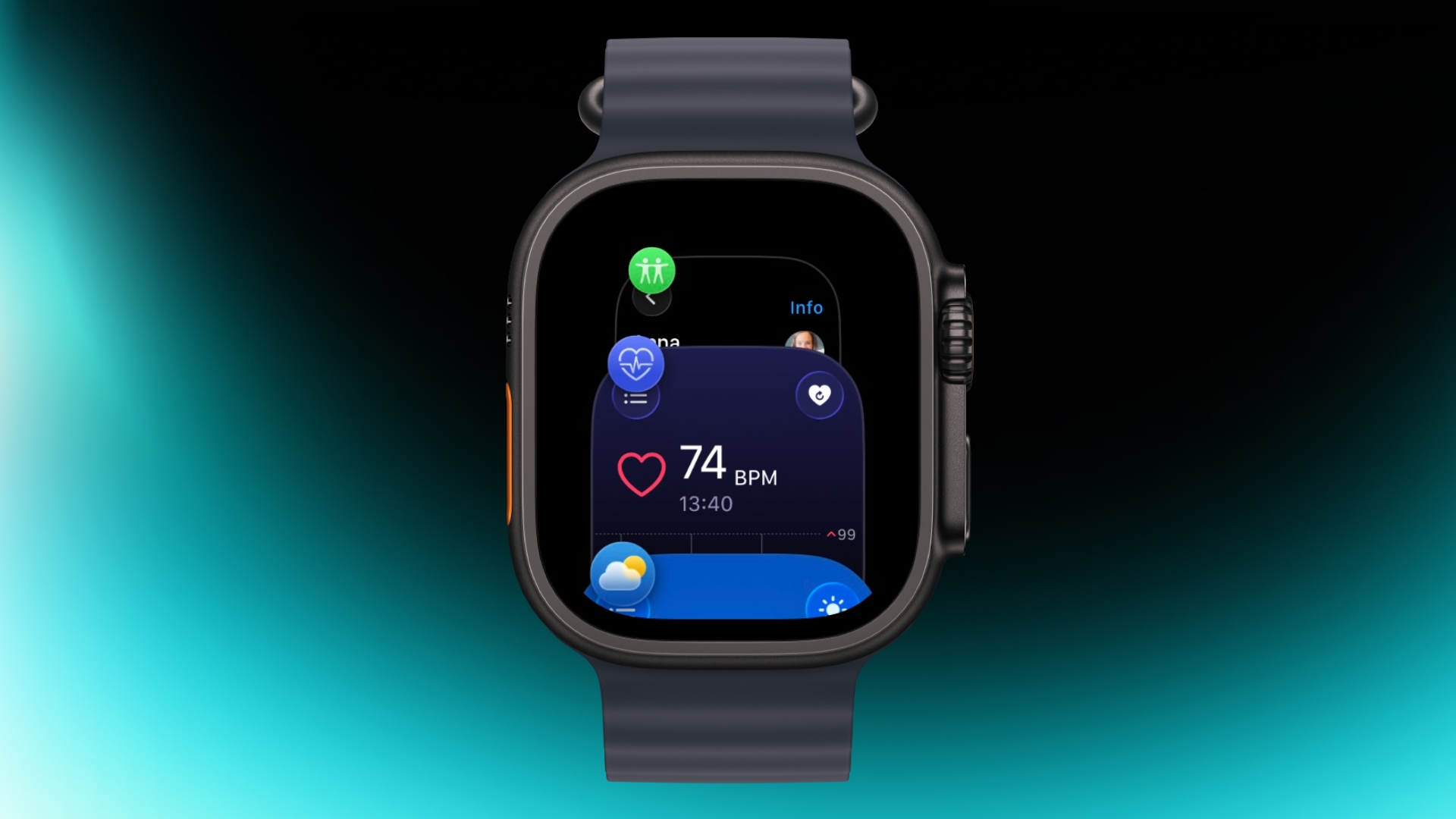
App Switcher Returns in watchOS 27.2 Beta With New Launch Gesture

Apple has apparently listened to user feedback and brought back the App Switcher screen in the latest watchOS 27.2 beta, but accessing it is a little different than before.

watch
In watchOS 26 and earlier versions, a double press of the Digital Crown would bring up the App Switcher, where you could easily switch to the last-used app and view and open other recently used apps. You could also swipe left on a misbehaving app to force close it.

In watchOS 27, the Digital Crown double-press gesture is now reserved for Apple's upcoming new Live Rewind AI feature, so it no longer brings up the App Switcher screen. There were concerns that this meant the App Switcher would be gone for good, but Apple has reinstated it in the second watchOS 27.2 beta, released yesterday.

The gesture for opening it has changed, though.

As shown in the video below, you now access the App Switcher by pressing and holding the bottom of the screen while you're in an app.

Apple has brought back the App Switcher!

On watchOS 26 and earlier, you could access the App Switcher by double-clicking the Digital Crown, then turning the Digital Crown to navigate through your recently used apps. You could also swipe left on an app and tap the "X" button to... pic.twitter.com/G5fa0TeTR9

β€” (@limpless_skelly) September 22, 2026

Apple says Live Rewind, which which offers a transcript of what was said in the last 15 seconds, will be available later this year on Apple Watch Series 12 and Apple Watch Ultra 4.
Related Roundups: watchOS 26, watchOS 27
Related Forum: Apple Watch

This article, "App Switcher Returns in watchOS 27.2 Beta With New Launch Gesture" first appeared on MacRumors.com

Discuss this article in our forums

  •  

Apple Music Hall Spatial Audio Venue Opens in Battersea Power Station

Apple has announced the opening of Apple Music Hall, a state-of-the-art 600-capacity music venue located in London's Battersea Power Station. Apple says it is "designed to connect artists and fans through bespoke, intimate performances unlike anywhere else."


"Apple's deep love for music dates all the way back to the very beginning, from the launch of the iPod to the long-running iTunes Music Festival to the debut of Apple Music," said Oliver Schusser, Apple's vice president of Apple Music and International Content. "Today, with the opening of Apple Music Hall, we are once again taking an unprecedented step further in our commitment to artists and fans by supporting live music in ways only Apple can do."
Apple says the hall incorporates heritage brickwork, fluted arches, and bronze balconies reminiscent of the historic oriel windows, while a giant glass wall "further enhances the visual connection with the historic building, offering a panoramic view of the concourse and the river beyond."

The 38-foot-wide stage can be reconfigured for traditional front-facing sets or more in-the-round experiences, and a 48-speaker spatial sound system is positioned all around the audience. Behind the stage is a dedicated recording and mix studio so that every performance can be captured as a multi-track recording and mixed in Spatial Audio, live or in post-production.


The venue is also hardwired for 16 or more cameras that feed a purpose-built broadcast control room with infrastructure that supports iPhone video capture running in parallel alongside traditional broadcast cameras.

The exhaustive setup means artists can perform a live show, record it in Spatial Audio, create a broadcast-ready mix, and capture multicamera video – all directly in the venue.


Apple says performances out of Apple Music Hall will also be livestreamed globally so fans outside of London can tune in to enjoy shows from their favorite artists. For more information about Apple Music Hall, including tickets for upcoming shows, fans can visit applemusichall.com or follow @applemusichall on Instagram and TikTok.


This article, "Apple Music Hall Spatial Audio Venue Opens in Battersea Power Station" first appeared on MacRumors.com

Discuss this article in our forums

  •  

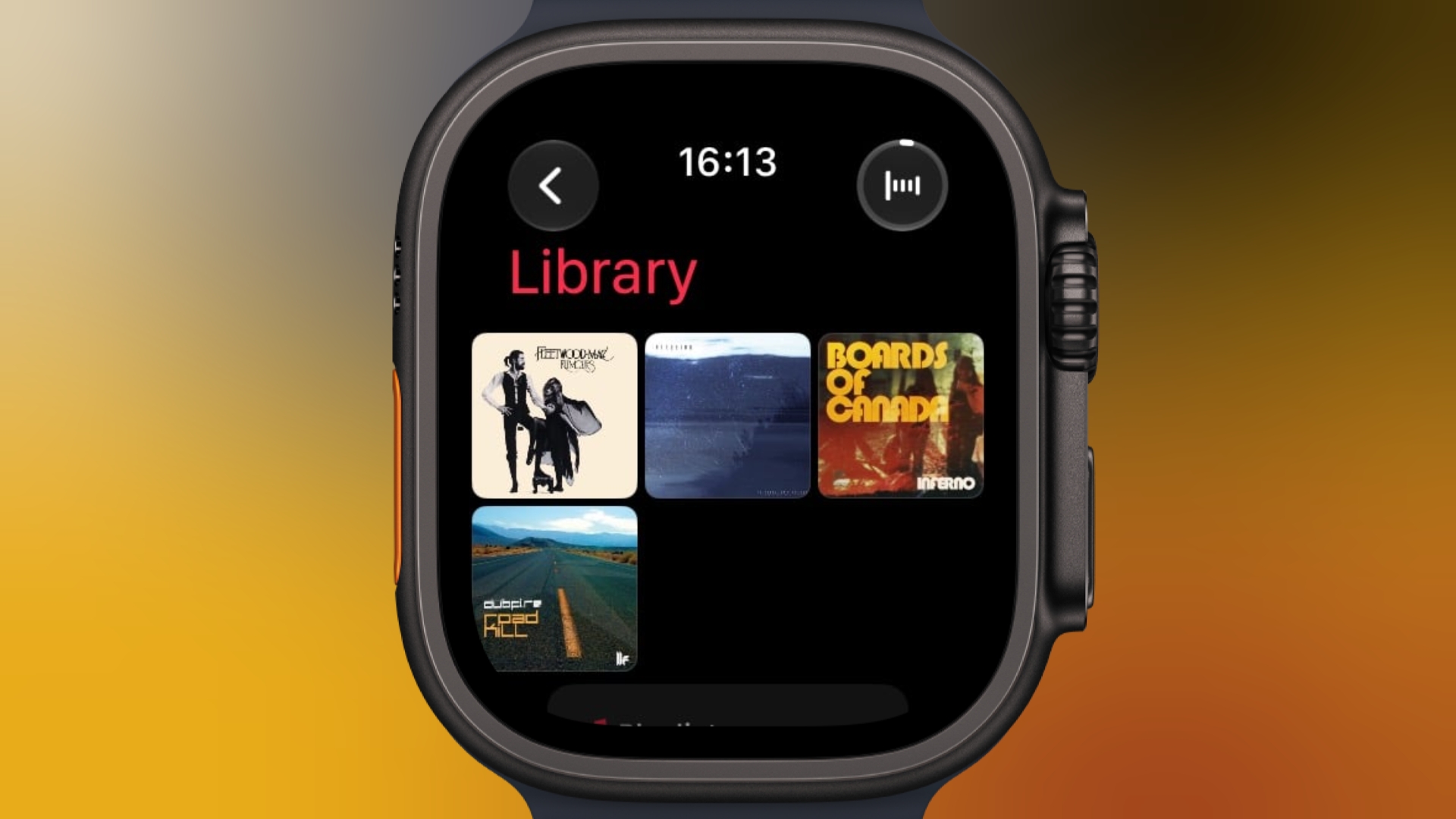
Pin Music to the Top of Your Apple Watch Music Library

If you have an Apple Watch running watchOS 27 and you're an Apple Music subscriber, you can pin music to the top of your library to make it easier to find and play – great for those times when you're in the mood for a specific track, artist, album, or playlist.

In the Music app on your Apple Watch, when viewing a song, tap the three dots next to the song, then tap Pin [item]. You can also do this from the Now Playing screen via the three-dots button. You'll see the same option when viewing playlists, artists, and albums on your watch. To unpin an item from the top of your Library, press and hold the item, then tap Unpin.
Buyer's Guide: Apple Watch (Buy Now)
Related Forum: Apple Watch

This article, "Pin Music to the Top of Your Apple Watch Music Library" first appeared on MacRumors.com

Discuss this article in our forums

  •  

How to Force Quit Apple Watch Apps in watchOS 27

Prior to watchOS 27, the easiest way to force quit Apple Watch apps was by swiping across them in the App Switcher screen, but that's no longer possible because the Digital Crown double-click gesture that got you there is now reserved for Apple's upcoming Live Rewind AI feature. Fortunately, there's still a way to force quit apps in watchOS 27.

From the app you want to quit, press and hold the Side button until the sliders appear. Then simply press and hold the Digital Crown until the watch face appears. You've now quit the app. Quitting an app doesn't save battery power, but it's useful if the app is misbehaving.
Related Forum: Apple Watch

This article, "How to Force Quit Apple Watch Apps in watchOS 27" first appeared on MacRumors.com

Discuss this article in our forums

  •  

Apple Watch Series 12 and Ultra 4 May Have Hidden Flash Storage

Apple is using a 128GB NAND flash die in Apple Watch Series 12 and Ultra 4 models, claims a Chinese hardware researcher, despite both devices officially offering only 64GB of storage. It's unclear why Apple would limit the accessible capacity, but it could conceivably be reserving some of it for intensive sensor data read/writes or as a durability buffer.

Something similar happened with the M4 iPad Pro in 2024, when teardowns indicated that 8GB models actually contained 12GB of physical RAM, with only 8GB made available to the system. Intriguingly, a 128GB NAND storage profile tied to the T8320 chip for the Apple Watch Series 12 and Ultra 4 was discovered earlier this month. Teardowns will hopefully clarify the situation.
Related Forum: Apple Watch

This article, "Apple Watch Series 12 and Ultra 4 May Have Hidden Flash Storage" first appeared on MacRumors.com

Discuss this article in our forums

  •  

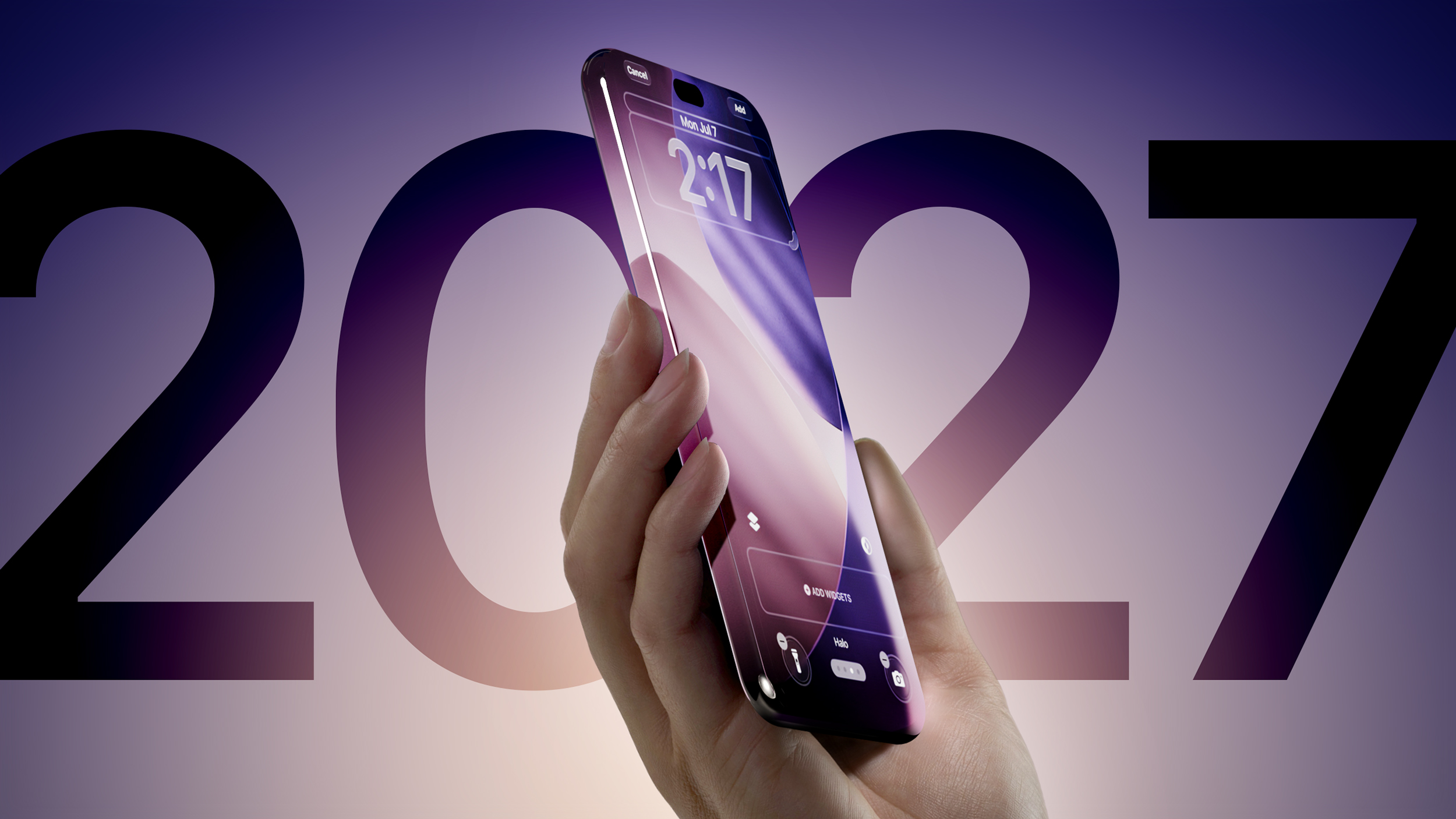
iPhone 20 Pro Display Sizes Leak Ahead of 2027 Launch

Apple's 20th-anniversary iPhone lineup could feature slightly larger displays than the iPhone 18 Pro models, if a new leak shared on Weibo is accurate.


Prolific Chinese leaker Digital Chat Station claims that early iPhone 20 Pro display specifications include a 6.41-inch screen with a resolution of approximately 2,686 Γ— 1,236 pixels, while the iPhone 20 Pro Max is said to have a 6.96-inch display with a resolution of around 2,912 Γ— 1,340 pixels.

For comparison, the iPhone 18 Pro and iPhone 18 Pro Max feature 6.27 inches (rounded to 6.3 inches) and 6.86 inches (rounded to 6.9 inches) respectively. Those figures are measured as a standard rectangle, while the actual viewable area is smaller because of the devices' rounded corners. Meanwhile, the iPhone 18 Pro and 18 Pro Max resolutions are 2,622 Γ— 1,206 pixels and 2,868 Γ— 1,320 pixels, respectively.

The resolution increases track quite closely with the rumored increases in physical display size, suggesting Apple likely plans to keep roughly the same 460 ppi pixel density as the iPhone 18 Pro models. Digital Chat Station previously suggested the 6.96-inch display on the iPhone 20 Pro Max would likely be marketed as a 7-inch panel if it reaches production.

Apple last increased the size of its premium iPhone displays with the iPhone 16 Pro lineup in 2024. The iPhone 16 Pro grew from 6.1 to 6.3 inches, while the iPhone 16 Pro Max increased from 6.7 to 6.9 inches, thanks to slimmer bezels and slightly larger chassis dimensions. The leaked dimensions for the iPhone 20 Pro models suggest only a modest increase in overall screen size, but there could be a good reason for this.

Echoing previous claims, the leaker says Apple is testing a "borderless quad-curved" display design, with the screen curving away on all four sides. We've already seen multiple reports indicating that Apple's 20th-anniversary iPhone could resemble a single, uninterrupted slab of glass where the metal frame bezels are largely hidden during normal use. Bloomberg reported in June that Apple had started ramping up work on two sizes of the 20th anniversary iPhone.

Apple is also rumored to be developing thinner and brighter OLED panels for the devices, along with under-display Face ID and potentially an under-display front-facing camera. However, Digital Chat Station says Apple is now testing a smaller Dynamic Island-style hole-punch design for the iPhone 20 Pro models that sounds similar to the new iPhone 18 Pro models, suggesting Apple may still be testing multiple approaches.

Photo/video quality and concealment issues with the under-screen FaceTime camera on the iPhone Duo offer a timely example of the kind of challenge that Apple is likely facing in its quest to create an uninterrupted display design. Unless it can improve the implementation, a cutout for the front camera may be the compromise Apple has to make for the iPhone 20 Pro models.

Apple is expected to skip an iPhone 19 lineup like it did an iPhone 9 when it jumped from the iPhone 8 to the iPhone X in 2017. The iPhone 20 Pro and iPhone 20 Pro Max are expected to launch in September 2027, following the debut of the regular iPhone 18 earlier in the same year.
This article, "iPhone 20 Pro Display Sizes Leak Ahead of 2027 Launch" first appeared on MacRumors.com

Discuss this article in our forums

  •  

Apple Watch Series 12 and Ultra 4 Owners Report Unexpected Reboots

Some new Apple Watch Ultra 4 and Apple Watch Series 12 owners are reporting the devices are rebooting unexpectedly, and diagnostic logs suggest the crashes are related to the Apple Neural Engine.


Reports have been posted in the MacRumors forums since the new models launched on Friday. Users describe their watches suddenly displaying the Apple logo and restarting while they were interacting with the device, when doing things like using Siri AI, editing watch faces, opening Maps or the App Store, starting phone calls, and recording workouts. Some reboots have even occurred when the watch was apparently idle.

Notably, at least four owners have shared "panic-full" diagnostic logs showing the same Neural Engine timeout. In each case, the Apple Neural Engine appears to hang for around two seconds before a firmware watchdog triggers a kernel panic and forces the watch to restart.

The problem has been reported on both the original watchOS 27.0 build and the day-one update that devices downloaded during the setup process. Some users have experienced reboots despite erasing their watches and setting them up as new, and one Series 12 owner said a replacement unit also suffered the same Neural Engine panic.

Around 30 owners have reported random reboots in the MacRumors forums thread so far. Users have also taken to Reddit and Apple Community Support to share similar experiences, so it looks like the problem is pretty widespread. Apple has yet to acknowledged the issue. Have you experienced the problem on a new Apple Watch Ultra 4 or Apple Watch Series 12? Let us know in the comments.
Related Forum: Apple Watch

This article, "Apple Watch Series 12 and Ultra 4 Owners Report Unexpected Reboots" first appeared on MacRumors.com

Discuss this article in our forums

  •  

iPhone 18 Pro: The New Features You Should Try First

Apple's iPhone 18 Pro and iPhone 18 Pro Max launched today in markets around the world. Keep reading if you're the owner of one of Apple's latest models. Whether you're upgrading from an older iPhone or completely new to Apple, this guide will help you get the most out your new device.


With the first round of pre-ordered iPhones 18 Pro models now being delivered to customers and availability in stores, MacRumors has put together the following series of dedicated how-to articles explaining all the new features to be found on Apple's newest models.

iPhone 18 Pro: Using the New Camera Features


New iPhone Adopters


iOS 27


Forgot to Pre-Order?


For customers who forgot to pre-order one of the new models or simply decided to wait, most configurations ordered online are now estimated for delivery in late September or early October, but the good news is that same-day or next-day pickup is now an option at select Apple Store locations around the world.
Related Roundup: iPhone 18 Pro
Related Forum: iPhone

This article, "iPhone 18 Pro: The New Features You Should Try First" first appeared on MacRumors.com

Discuss this article in our forums

  •  

iPhone 18 Pro: Using the New Variable Aperture Lens

Like the iPhone 17 Pro models, the new iPhone 18 Pro and iPhone 18 Pro Max have three rear cameras – a 48MP Fusion Main lens, an 8x48MP Telephoto lens, and a 48MP Ultra Wide lens. They also share the same focal lengths and resolutions as their predecessors. The big upgrade this year though is the new variable aperture on the Main camera. Let's dive in.


Aperture is what controls how much light enters the lens and hits the sensor. If too little light hits that sensor, images tend to be blurry and/or grainy. To compensate, the shutter has to stay open longer, or it has to turn on Night Mode. The problem with this approach is that the longer the shutter stays open or Night Mode is engaged, the more likely that the imagery will be blurry. Even still photos can lack sharpness and definition.

The solution is to use a variable aperture lens that is physically able to let more or less light in depending on the shot, which in turn allows for variations in shutter speed. The iPhone 18 Pro models can do this automatically, or you can take over the process manually for more stylistic control.

To achieve this, the iPhone 18 Pro and iPhone 18 Pro Max trade a fixed Ζ’/1.78 aperture for a four-stop variable aperture ranging from Ζ’/1.48 to Ζ’/4.0, delivering around 50 percent better low-light performance and giving photographers optical control over depth of field that the iPhone has never offered before.


As mentioned, you can leave the iPhone 18 Pro to do its thing with the new variable aperture, or you can take control of it manually. Here's how it's done:

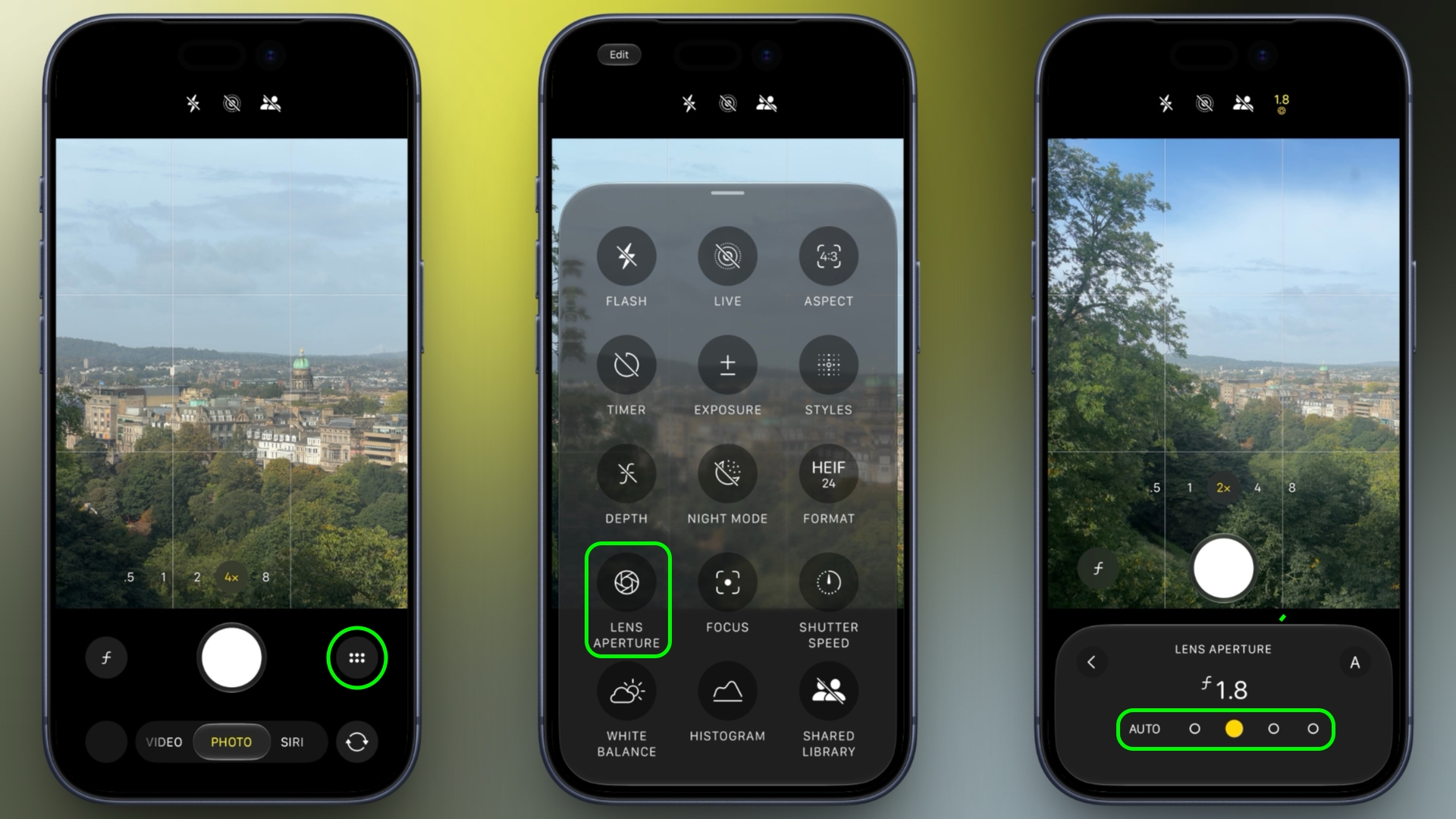
  1. In the Camera app, tap the button with six dots at the bottom-right of the interface.

  2. Select Lens Aperture from the control pane.

  3. Tap one of the four circles to set the aperture: from left to right they range Ζ’/1.48, Ζ’1.8, Ζ’2.8, and finally, Ζ’/4.0.

  4. If you change your mind, tap the Auto button on the left to let the iPhone automatically control the aperture.
variable aperture

Try experimenting with different aperture settings to see how they affect your images. The Ζ’/1.48, for example, produces a more shallow depth of field, while the Ζ’/4.0 will have more of the image in focus.

Just remember that with a variable aperture, the lower the f-number, the wider the aperture and the more light reaches the sensor. That allows the camera to use a faster shutter speed in the same lighting conditions, while also producing a shallower depth of field. By contrast, the higher the f-number, the smaller the aperture, letting in less light but increasing the amount of the scene that can remain in focus. The latter can be useful for landscapes and group shots, for example.
Related Roundup: iPhone 18 Pro
Related Forum: iPhone

This article, "iPhone 18 Pro: Using the New Variable Aperture Lens" first appeared on MacRumors.com

Discuss this article in our forums

  •  

Forgot to Pre-Order iPhone 18 Pro? Apple Store Pickup Available Today at Most Locations

Apple's new iPhone 18 Pro and iPhone 18 Pro Max models are now being delivered to customers worldwide following the pre-order period that began on Saturday, September 12. For those who didn't pre-order, there's now a 3-4 week wait time for iPhone 18 Pro Max models across all storage options and colorways in the U.S. Demand has been less strong for iPhone 18 Pro models, but you're still looking at a 2-3 week wait for any configuration. However, delivery or in-store pickup at select Apple Store locations on launch day is still an option.


As of writing, Apple's online stores in the United States and Canada haven't yet been updated to show pickup availability, but there could be shortages for some configurations, though there could be some variation state by state.

In the U.K., all β€ŒiPhone 18 Pro and iPhone 18 Pro Maxβ€Œ configurations have shipping estimates running into the first and second week of October, respectively, but β€Œsame-day pickup is still available in many regions, but it could depend on the store you choose. Apple Stores in Australia, China, India, Japan, Malaysia, Mexico, South Korea, TΓΌrkiye, and the UAE are also offering same-day pickup options.

To order a product with β€ŒApple Storeβ€Œ pickup, add the product to your bag on Apple.com or in the β€ŒApple Storeβ€Œ app, proceed to checkout, select the "I'll pick it up" option, enter your ZIP or postal code, choose an available β€ŒApple Storeβ€Œ location, select a pickup date, and select a 15-minute check-in window. Payment is completed online, and a valid government-issued photo ID and the order number may be required upon pickup.

β€ŒiPhone 18 Pro models may also be available for walk-in customers at β€ŒApple Storeβ€Œ locations with sufficient inventory, but availability can't be guaranteed. Walk-in customers may be placed into a separate queue with lower priority upon arrival to the store.

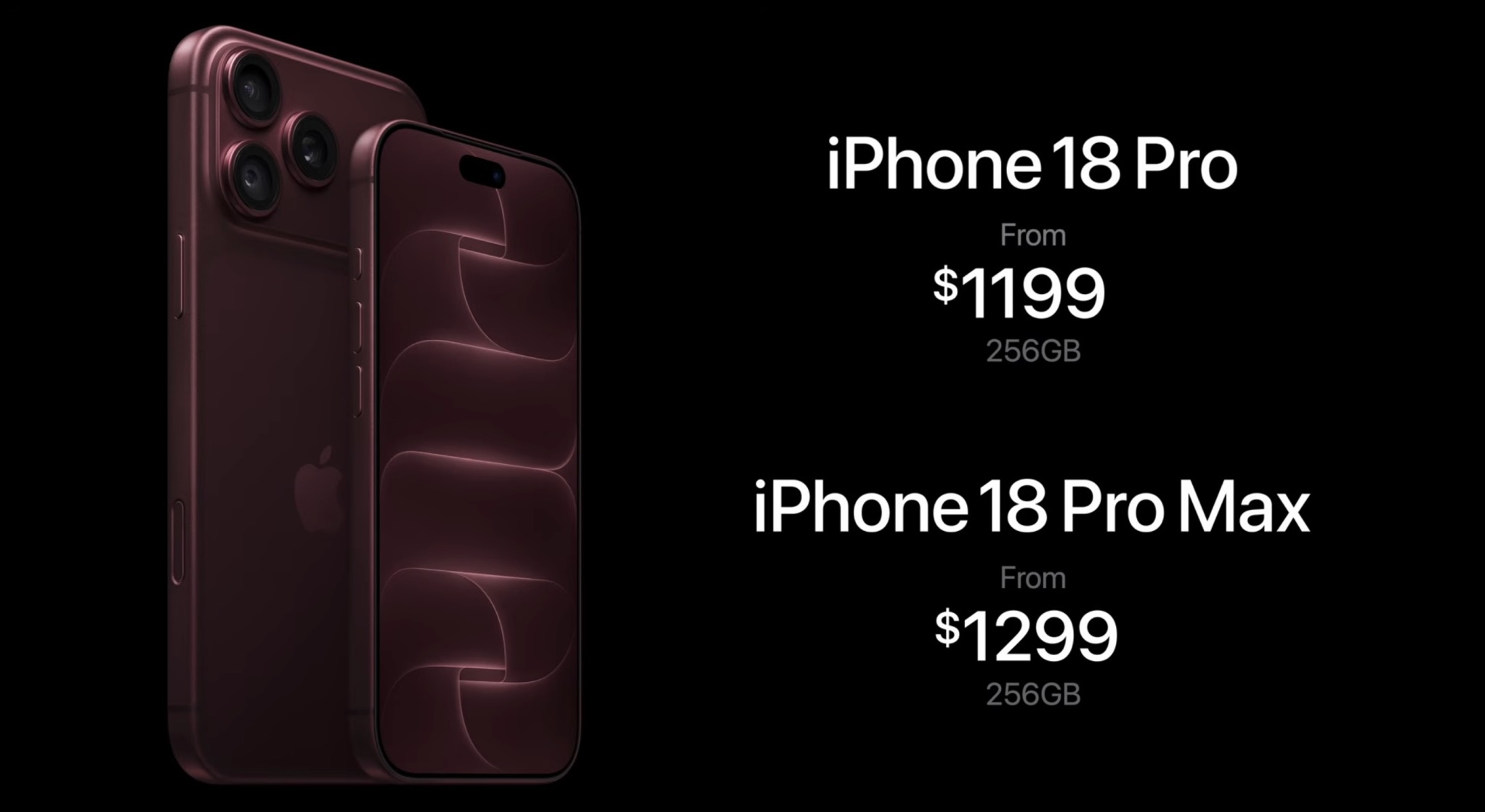
The iPhone 18 Pro starts at $1,199 and the iPhone 18 Pro Max starts at $1,299. Both received a $100 increase over their predecessors, and the increases get steeper the more storage you opt for, with a 1TB iPhone 18 Pro now costing $300 more than a 1TB iPhone 17 Pro did last year.

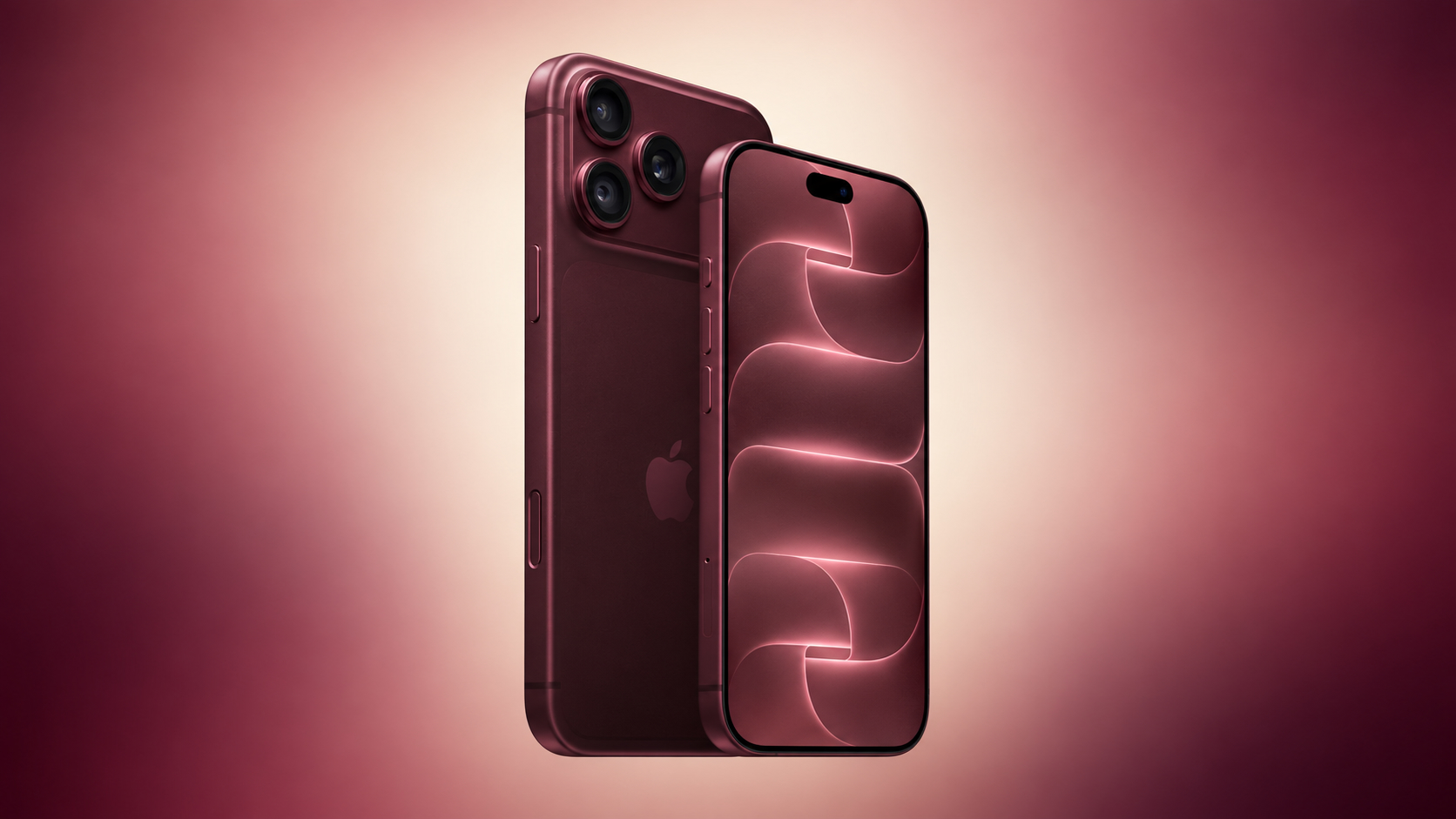
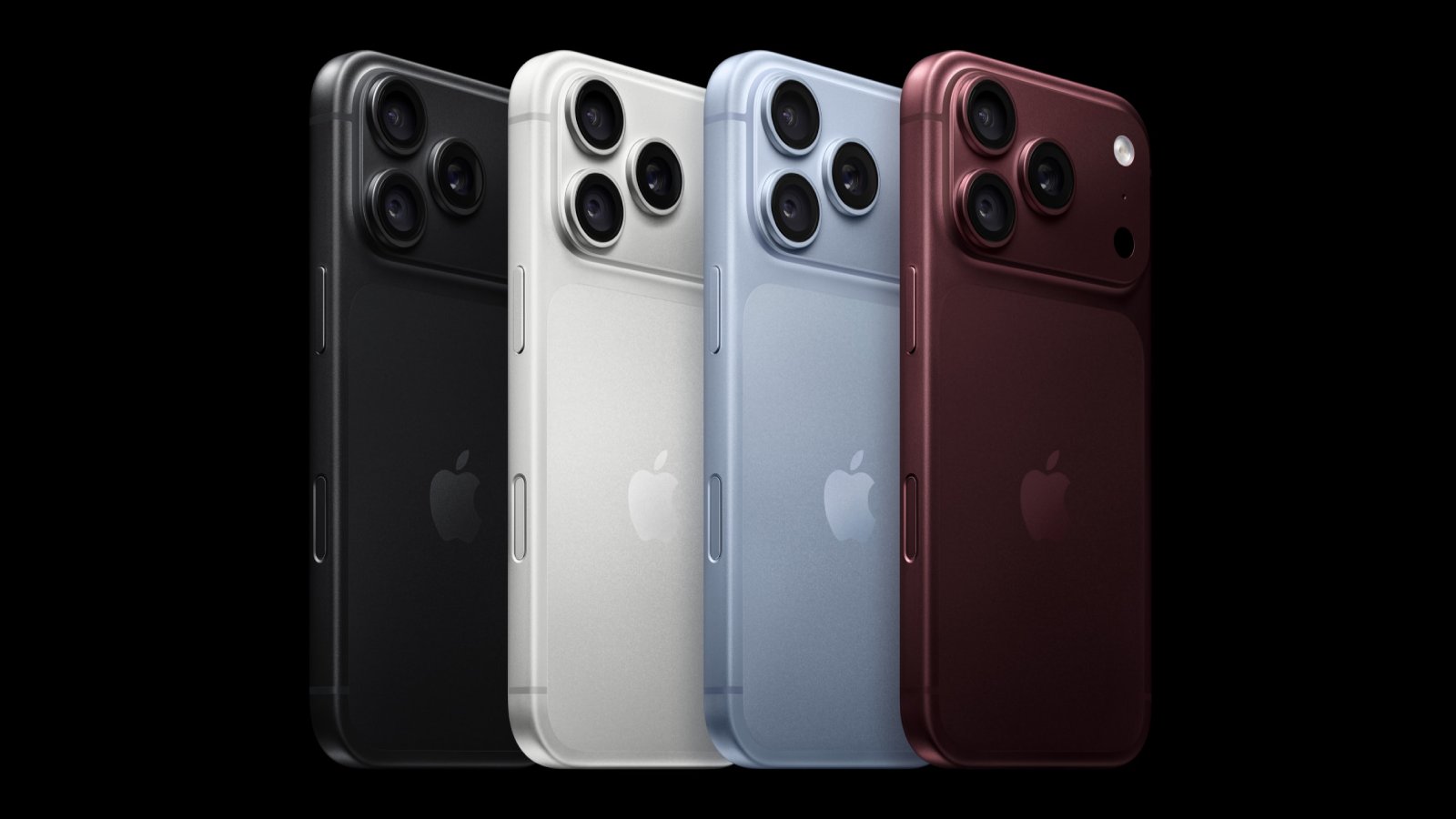
Both phones have the same OLED Super Retina XDR always-on display with ProMotion and the Dynamic Island, the A20 Pro chip, 5G connectivity, a 48 megapixel Pro Fusion camera system, and the same four color options: Burgundy, Glacier Blue, Silver, and Black. Both are also offered in the same four storage tiers, including a 2TB option that is available on the smaller Pro model for the first time.
Related Roundup: iPhone 18 Pro
Related Forum: iPhone

This article, "Forgot to Pre-Order iPhone 18 Pro? Apple Store Pickup Available Today at Most Locations" first appeared on MacRumors.com

Discuss this article in our forums

  •  

50 New macOS Golden Gate Features and Changes Worth Checking Out

Apple released macOS 27 Golden Gate this week, and despite the company's focus this year on refining its flagship operating system, improving performance, and nixing bugs, there are still plenty of new things to explore. There's an overhauled Siri experience, changes across Apple's apps, and much-needed updates across the system interface.



In this article, we've selected 50 new features and lesser-known changes that are worth checking out if you're updating your Mac. Siri AI remains in beta and is initially rolling out in English, and the availability of some features varies by language and region. What do you think of β€ŒmacOS Golden Gate so far? Let us know in the comments.

Siri AI Replaces the Old Siri Experience



In macOS 27, Apple has turned Spotlight into the place to search your Mac or ask Siri AI a question. From the new "Search or Ask" bar, you can hold a conversation with Siri, find relevant information in apps such as Mail and Photos, and take actions in supported apps.

Adjustable Liquid Glass Transparency Slider
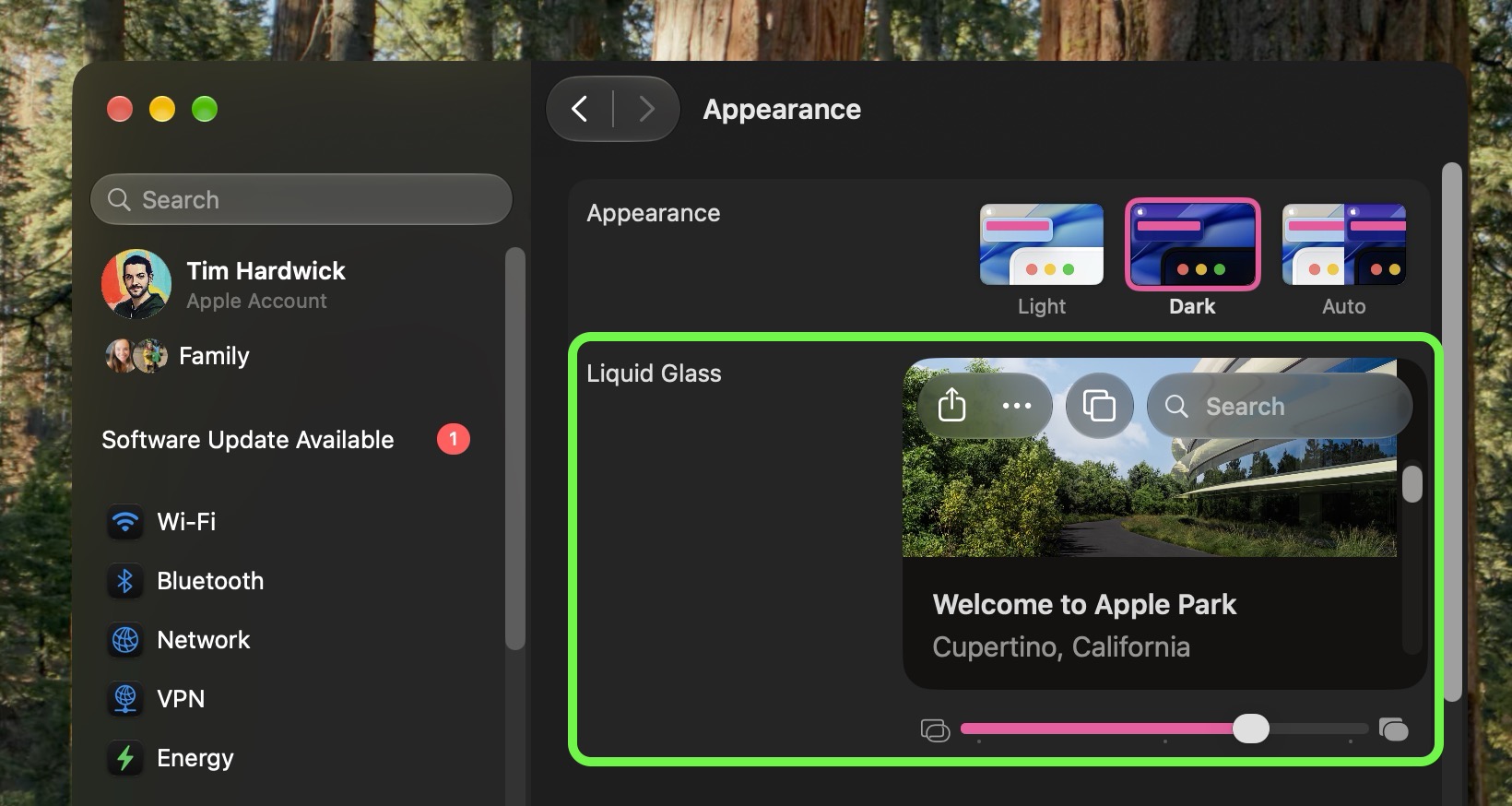


System Settings now has a slider that lets users adjust Liquid Glass from ultra-clear to fully tinted (found in Appearance ➝ Liquid Glass). Apple has also improved contrast and window shadows, standardized macOS toolbars, and made sidebars extend to the edges of app windows. The changes aim to make controls easier to read and active windows easier to distinguish.

Safari's Start Page Can Resume a Browsing Topic



Safari's Start Page has a new Recently Viewed section that brings back your recently closed browsing topics as well as topics open on any of your other devices. It offers a handy way to pick up a search or research session without trawling through your browser history.

Visual Intelligence Comes to the Mac



Visual Intelligence is now available on the Mac. Simply press Shift-Command-Space to select something onscreen, then ask Siri to explain it, translate text, search for similar images, or find related information. Siri can also use what it recognizes to take an action, such as adding the details from an event flyer to your Calendar.

Photos Can Save a Video Frame as a Still Photo
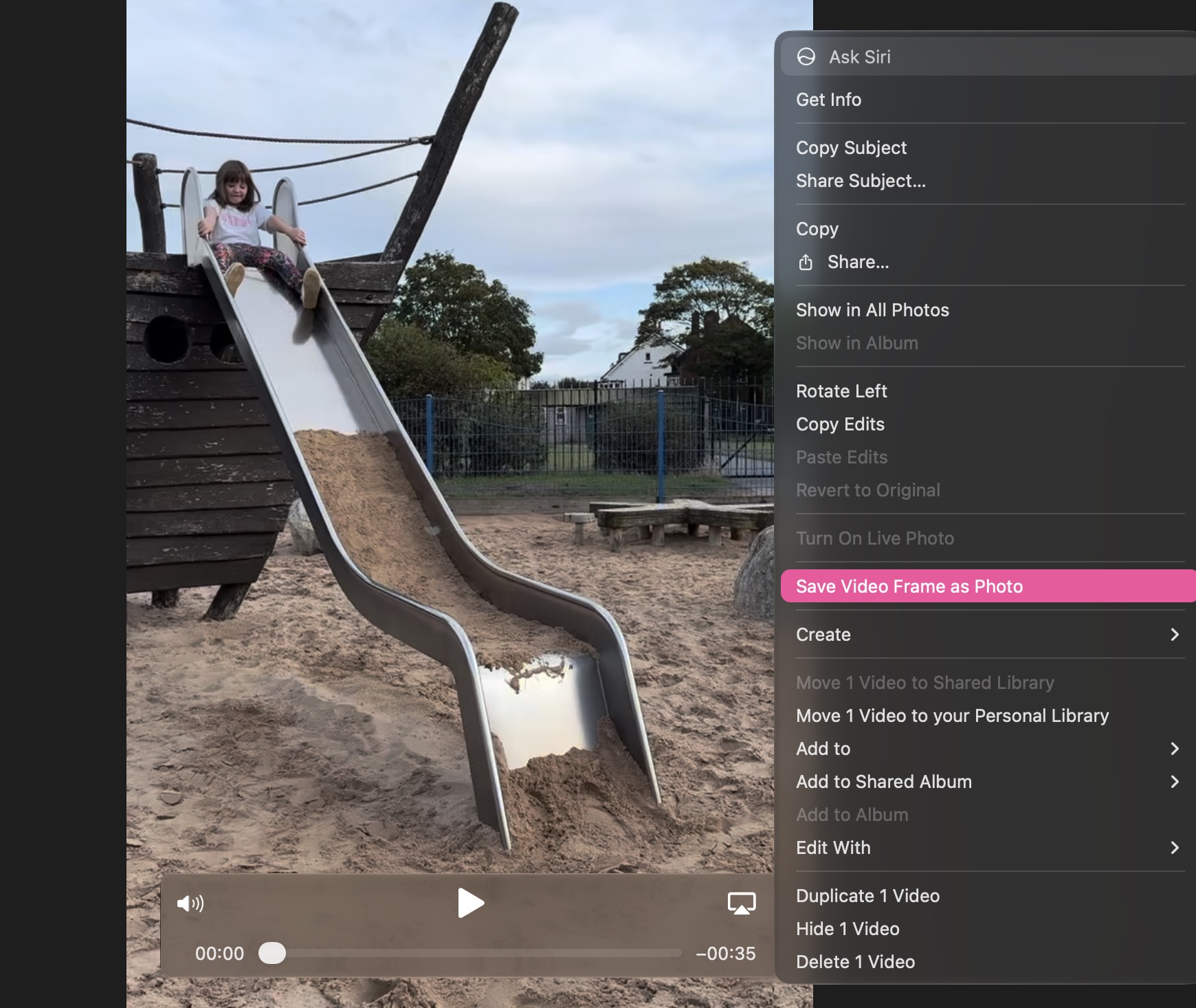


The Photos app can now save a frame from a video as a separate photo. Pause a clip at the moment you want, right-click (or Control-click) it, then choose "Save Video Frame as Photo," and it will add the still image to your library without exporting the entire video.

Past Conversations Are Saved in a New Siri App
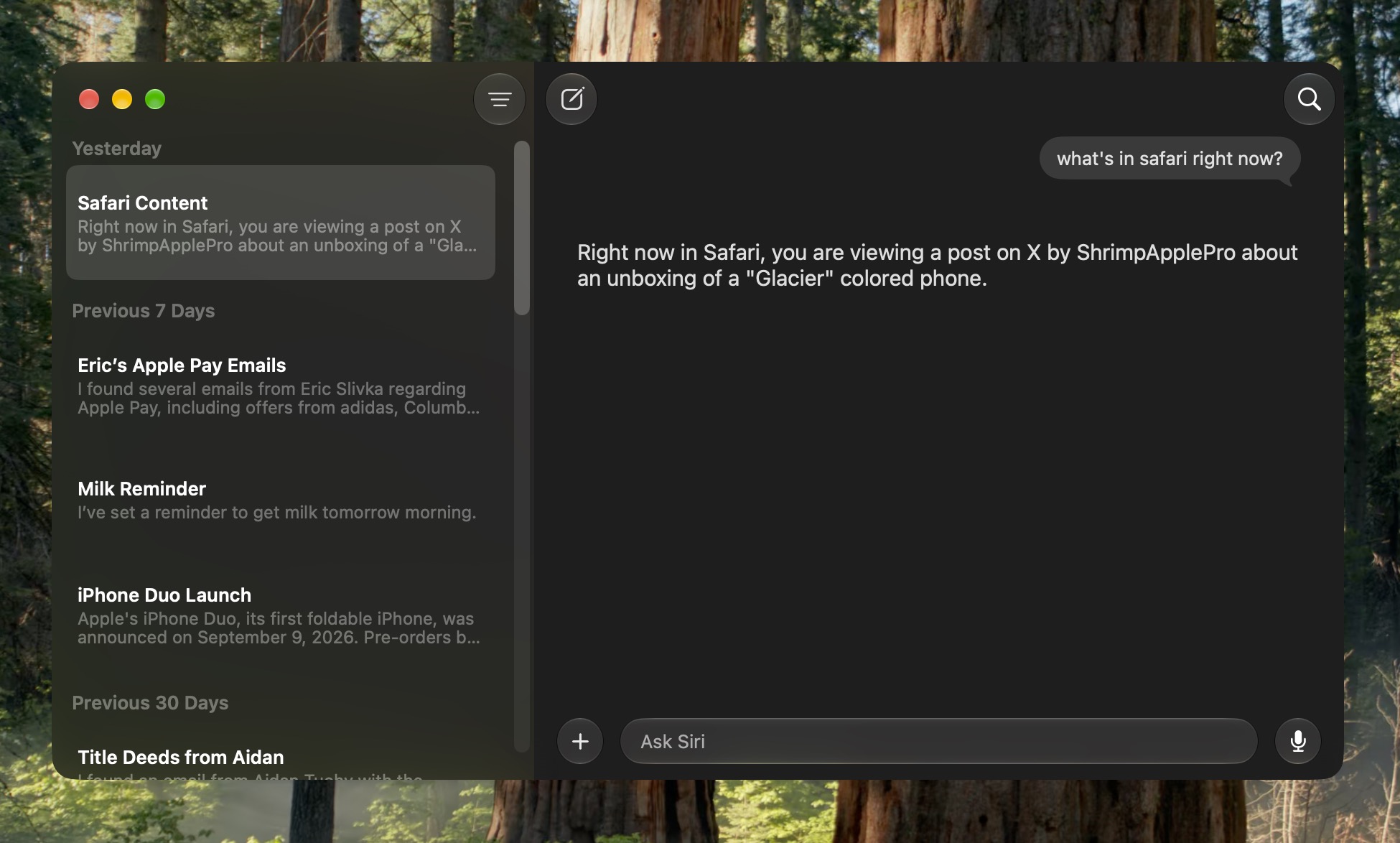


macOS now has a dedicated Siri app where you can start new conversations or revisit past chats you've had with Siri. The app has a card-style interface with details on your most recent chats across all of your devices. You can also use the search button to find conversations, and there's a pin option for ones you revisit frequently. The Siri app is cross-platform and your content syncs across all of your Apple devices.

Shared Albums Go Full Resolution



Previously in Photos, pictures in a Shared Album were automatically reduced to 2,048 pixels on the long edge (except for panoramic photos, which can be up to 5,400 pixels wide). In macOS 27 though, Shared Albums finally support full-resolution photos and videos. But there comes a major trade-off. For years now, Apple has allowed you to store up to 5,000 photos and videos in Shared Albums without impacting your iCloud storage limit. That's no longer the case in Golden Gate.

Non-Apple Users Can Add to Shared Albums
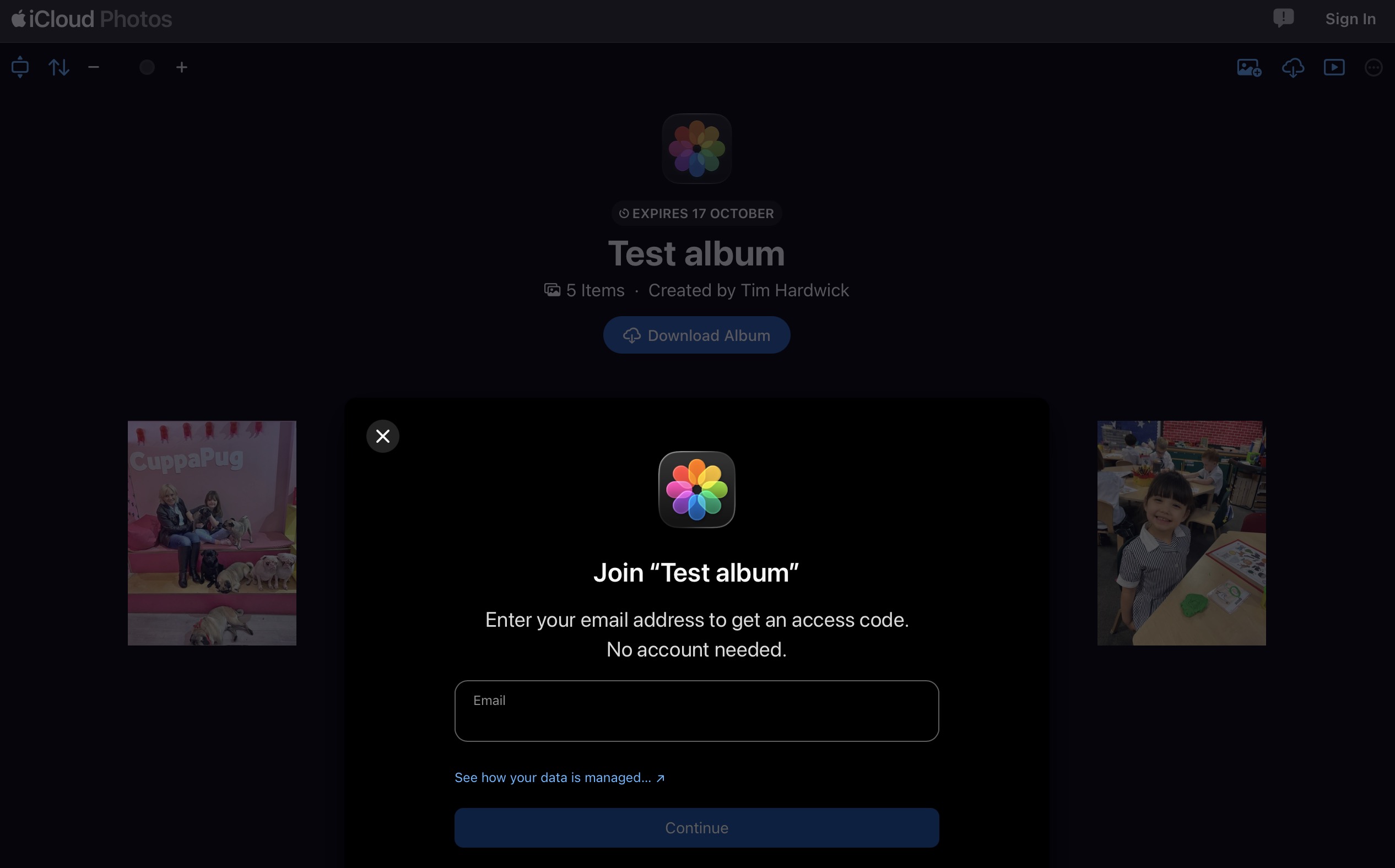


People using Android or Windows can now join and contribute to your Shared Albums through iCloud.com. Users can also set an album to expire after 30 days, filter its photos and videos, review recent activity, and react to images with any emoji. Just remember that if you share an album with someone, what they add to it counts against your iCloud storage limit.

Photos Can Reframe Images
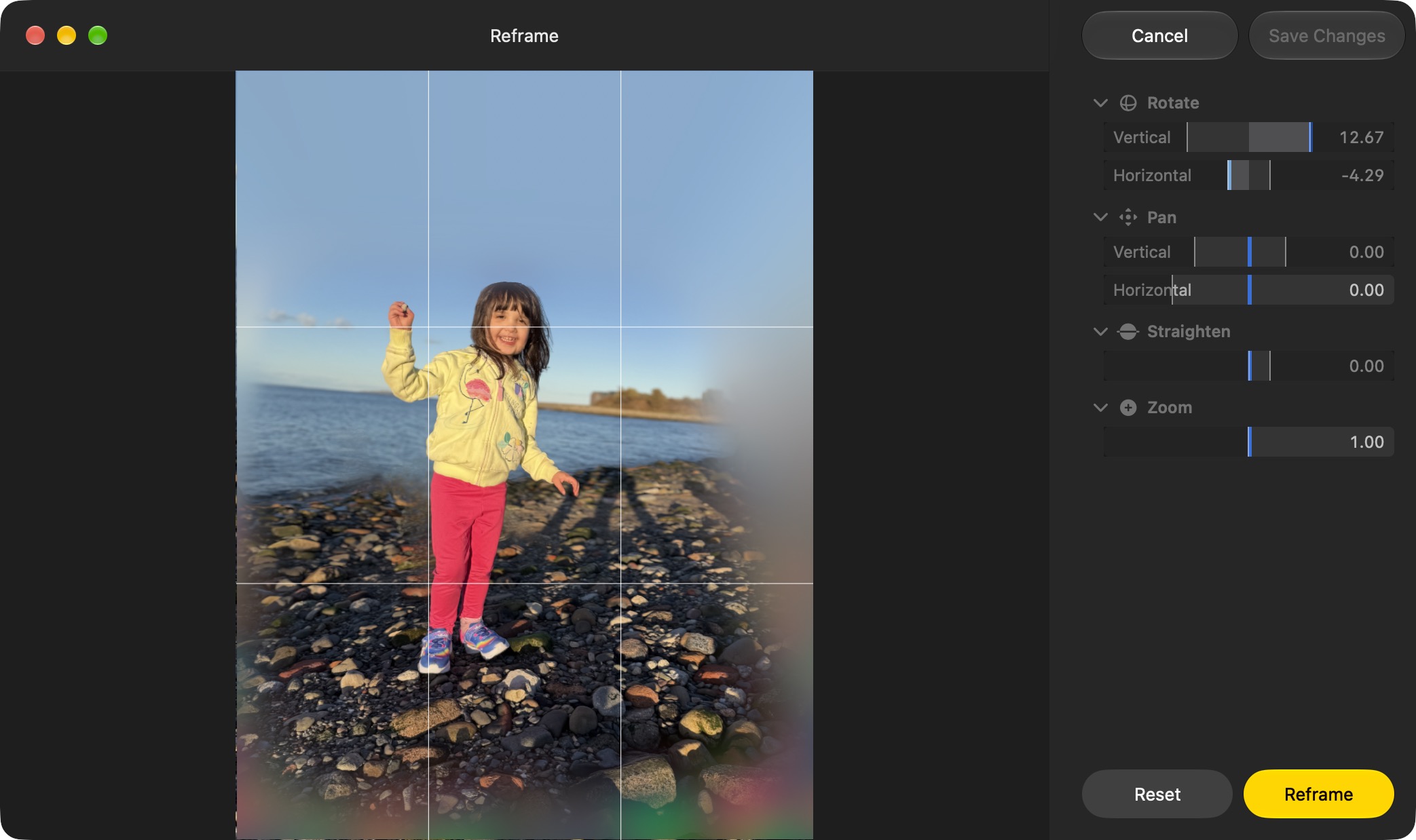


Photos has a new advanced editing tool in macOS 27. Reframe uses information captured with a compatible photo to change its apparent camera angle. It works by combining AI and spatial images so you can change the perspective or composition of a picture.

Photos Can Extend Images
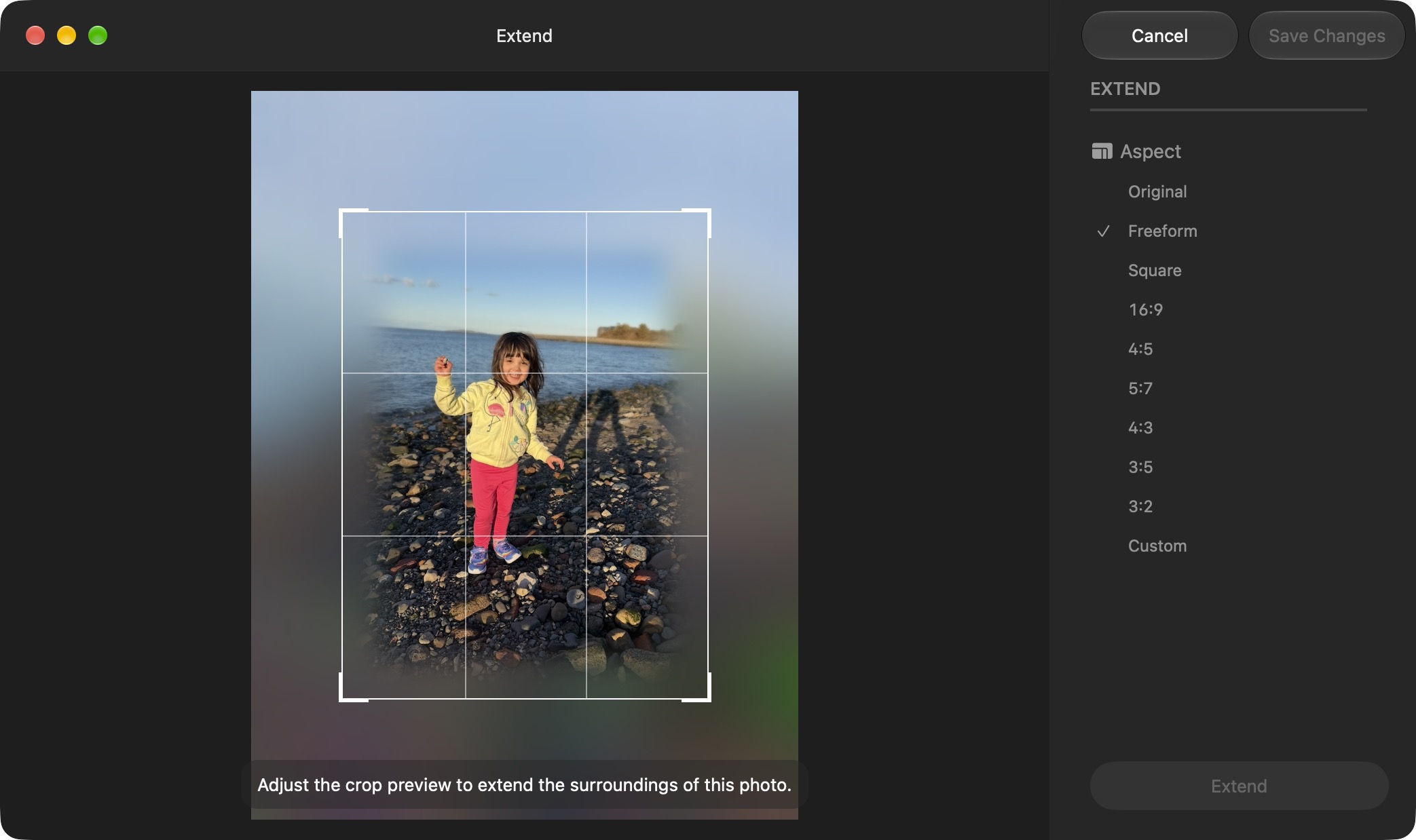


Photos has another new editing feature: Extend lets you change the crop of an image, expanding the borders around content to zoom out a bit or change the photo's composition. It uses generative AI to fill in missing areas, and you can adjust the borders with drag gestures.

Cleaning Up Photos Got a Lot Better
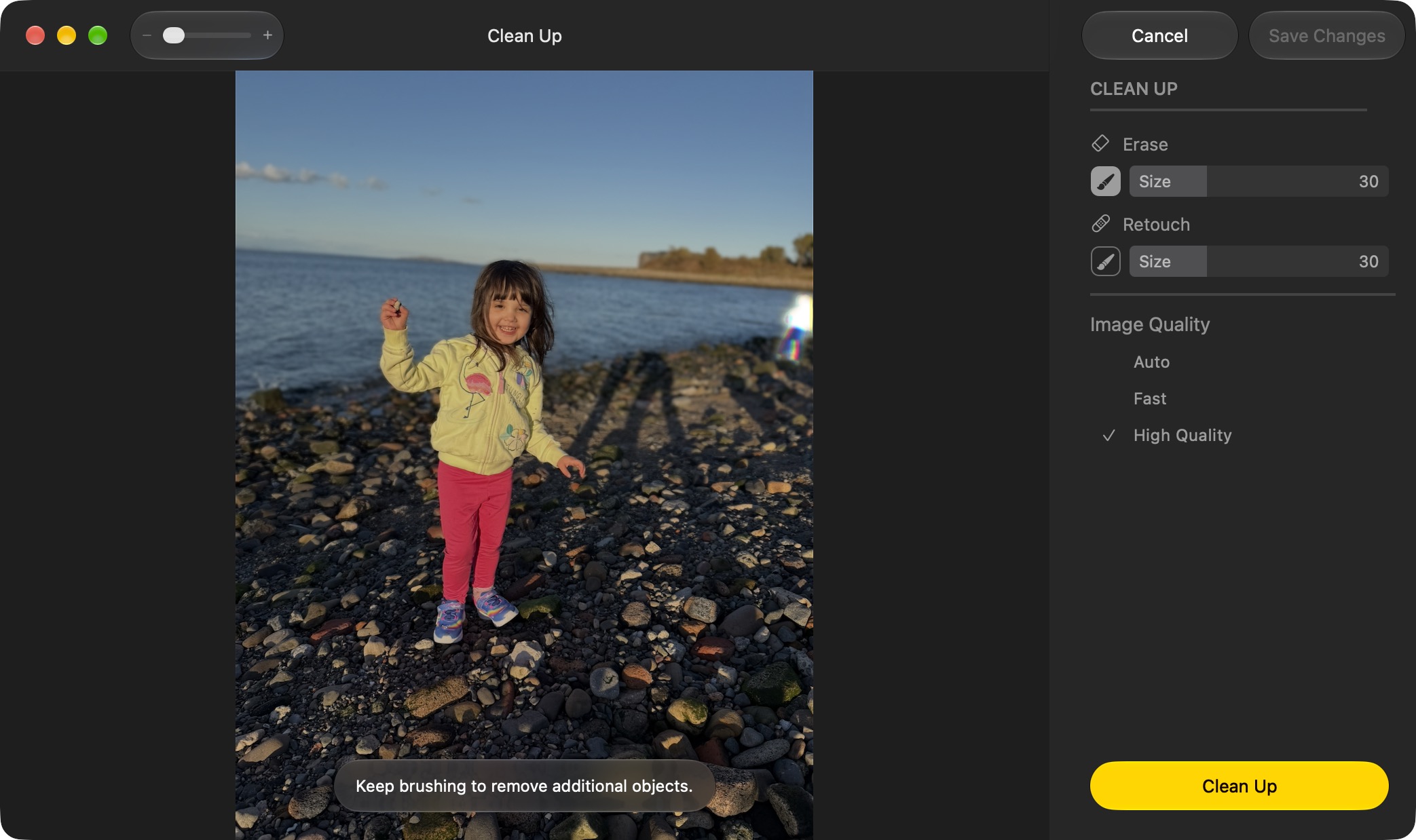


Clean Up now uses new AI models, and it's better at removing objects. The original version of Clean Up was best for small items with little complexity in the surrounding area, but now it can do more work reconstructing backgrounds with generative AI. It also offers Fast, High Quality, and Auto modes. Apple says usage limits may apply.

Swipe Down to Refresh Comes to Mac Apps



The familiar swipe-down-to-refresh gesture comes to Safari, Mail, News, Podcasts, and Calendar on the Mac. Pulling down on content via your trackpad (or with your finger on iPad via Sidecar) causes the app to load the latest information, meaning you don't have to reach for a refresh button or keyboard shortcut.

Mail Search Puts More Relevant Results First
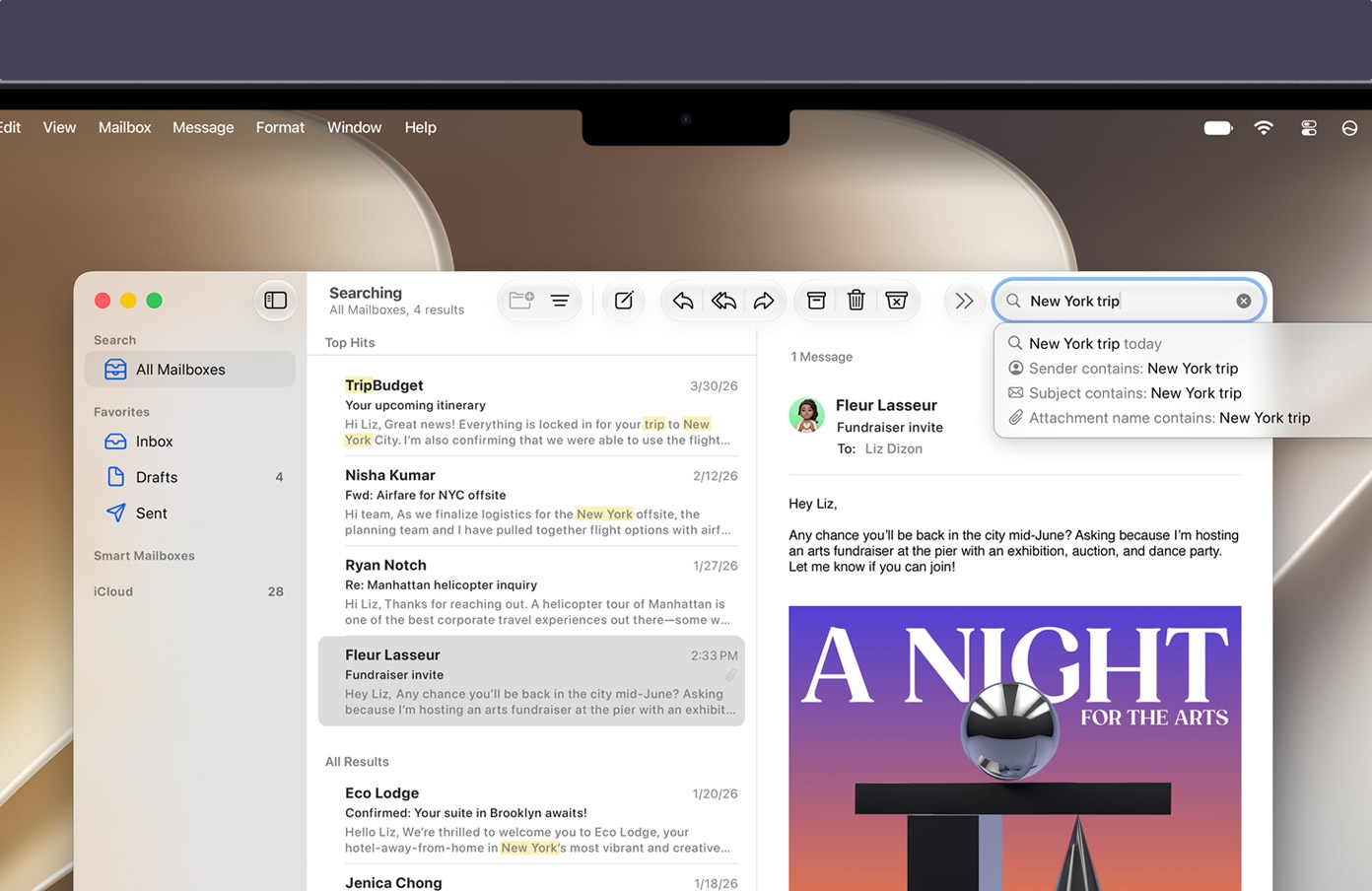


In Mail, search actually works properly in macOS 27. It now ranks messages by relevance rather than relying on matching words and recency. A search for a store, for example, can put an order confirmation ahead of promotional emails from the same sender, even if the order is buried in the inbox.

App Icons Gain More Liquid Glass Detail
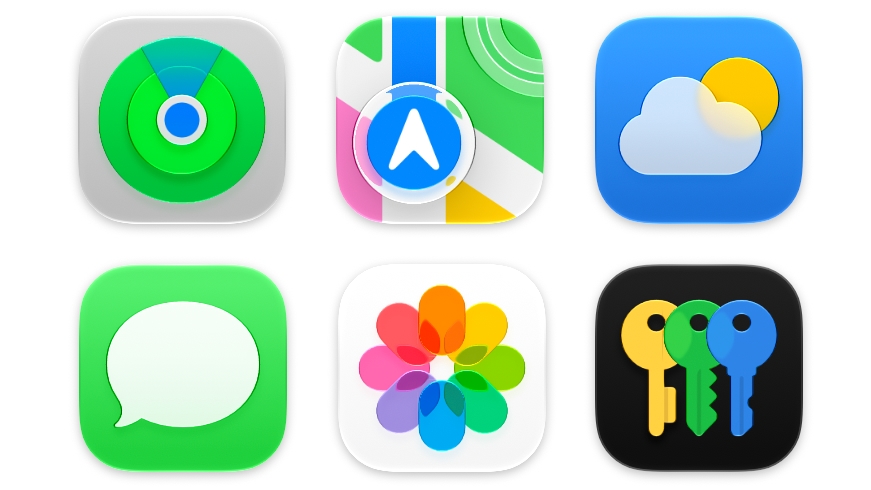


Apple's app icons now have more layers of Liquid Glass, which adds detail and sharper edges across light, dark, clear, and tinted appearances. It's a smaller visual change than the new Appearance slider, but one you'll see throughout the Dock and app grid.

iPhone Mirroring Windows Become Resizable
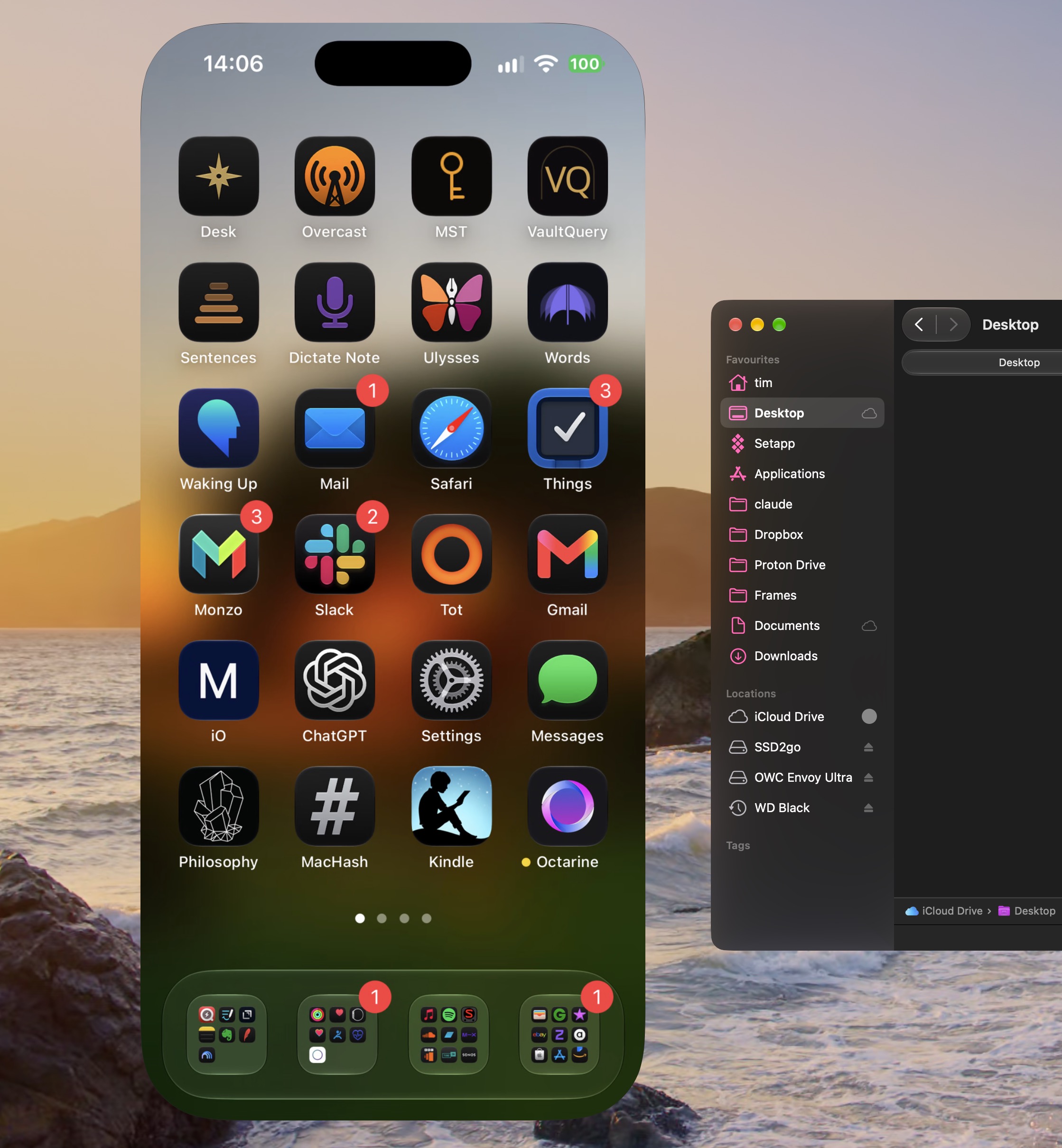


Users can now drag a corner of an iPhone Mirroring window to make it larger or wider. Supported apps can show more information as the window expands, and macOS 27 now also supports playback of protected video in the mirrored window. Bear in mind that individual streaming providers may still restrict what can be mirrored, and iPhone Mirroring remains unavailable in the European Union.

Write With Siri Almost Anywhere
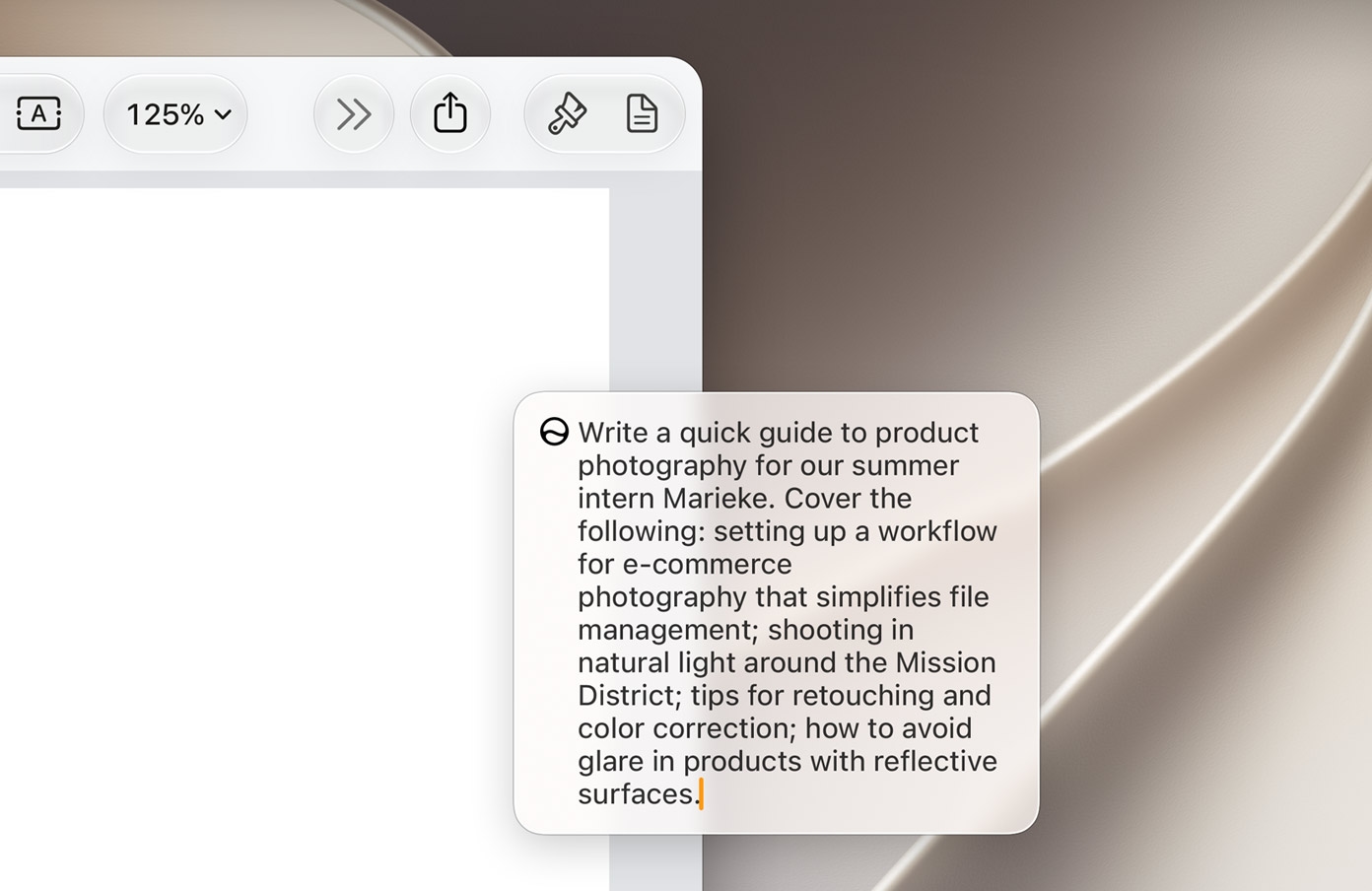


Write with Siri can generate a draft from a description, give feedback on existing text, or make a requested edit, such as shortening a paragraph or changing its tone. It works virtually anywhere you can type, and Apple says it can match your writing style in Mail and Messages.

Photos Adds Keywords and Star Ratings
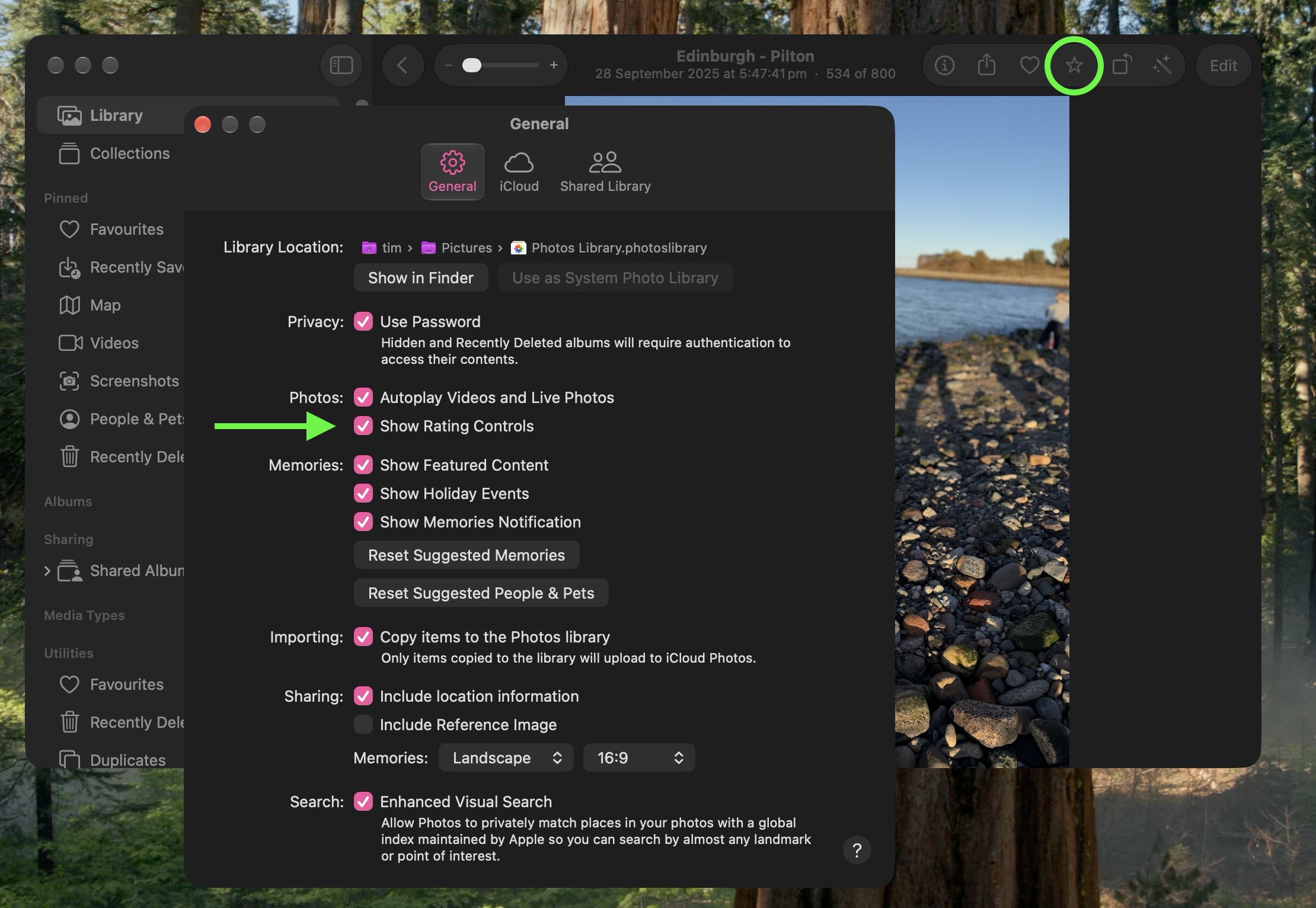


Photos now lets users add keywords and one-to-five-star ratings to both photos and videos. Ratings can also be used as a filter, so it's easier to narrow down a large library to your best shots. Ratings controls are off by default, but you can enable them in Photos' General settings by checking the box next to "Show Rating Controls."

Add Extra-Large Widgets to Desktop
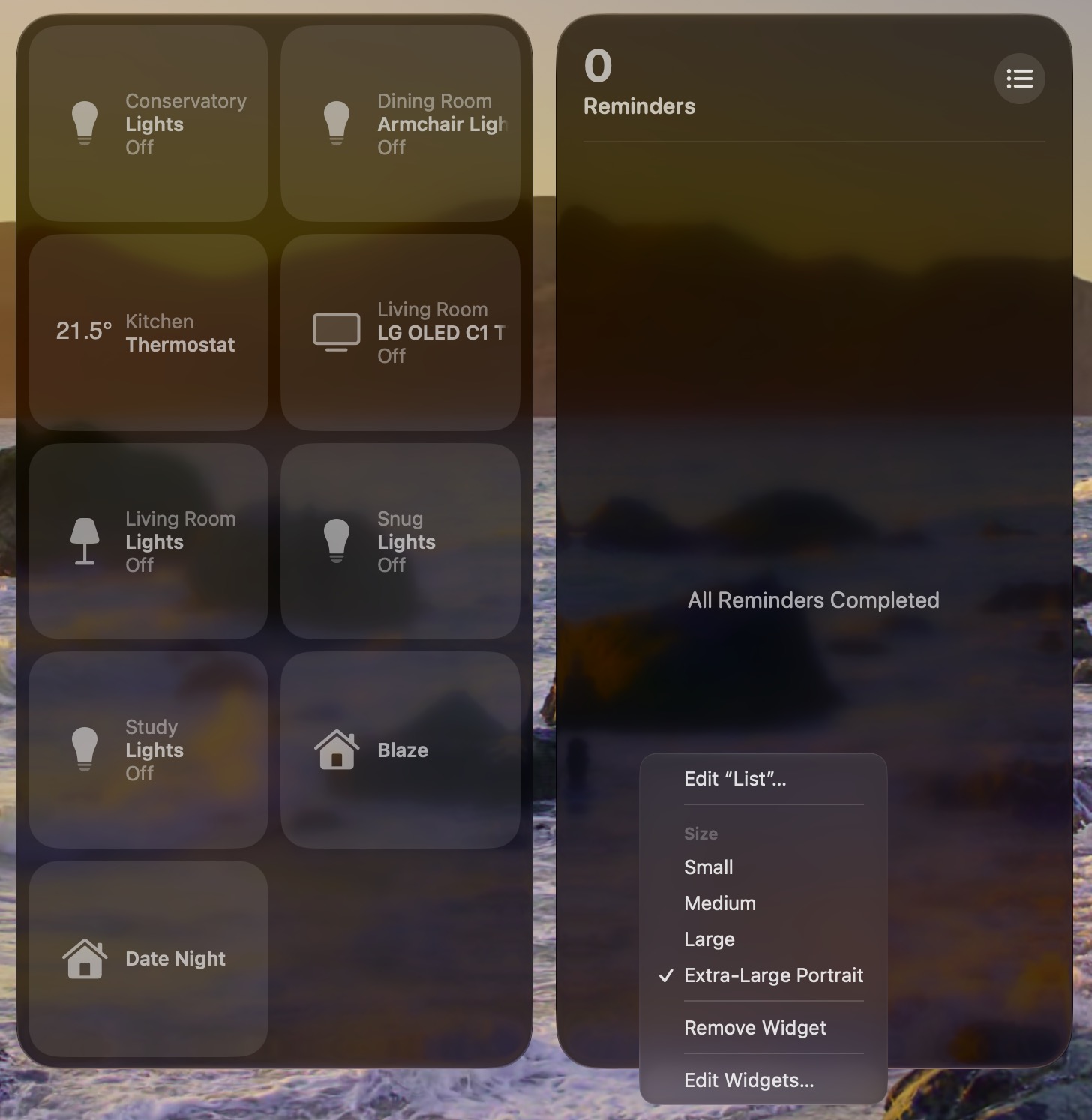


If you have any widgets on your desktop, try right-clicking (or Ctrl-clicking) on them and looking for a new option called Extra-Large Portrait. You can now make widgets take up a lot more screen space, which is useful for things like weather, home, and reminder widgets.

Trade in Siri for ChatGPT
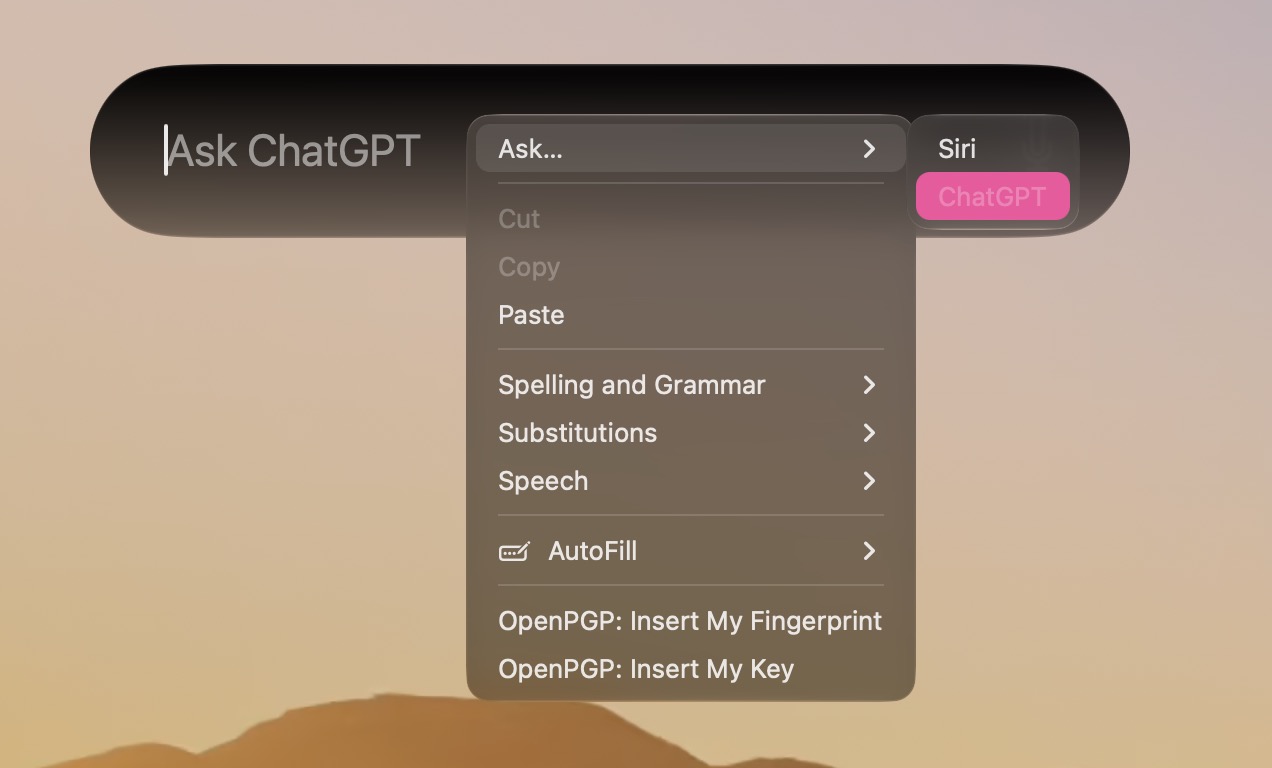


The new Siri app and the "Search or Ask" bar (Command-Space) defaults to the new Siri AI, but you can switch it to ChatGPT if you prefer. Simply right-click (or Ctrl-click) and select "Ask..." From the context menu, and you'll see an option to change to ChatGPT. Note that conversation context doesn't transfer when you switch chatbot providers.

Safari Organizes Pages for You
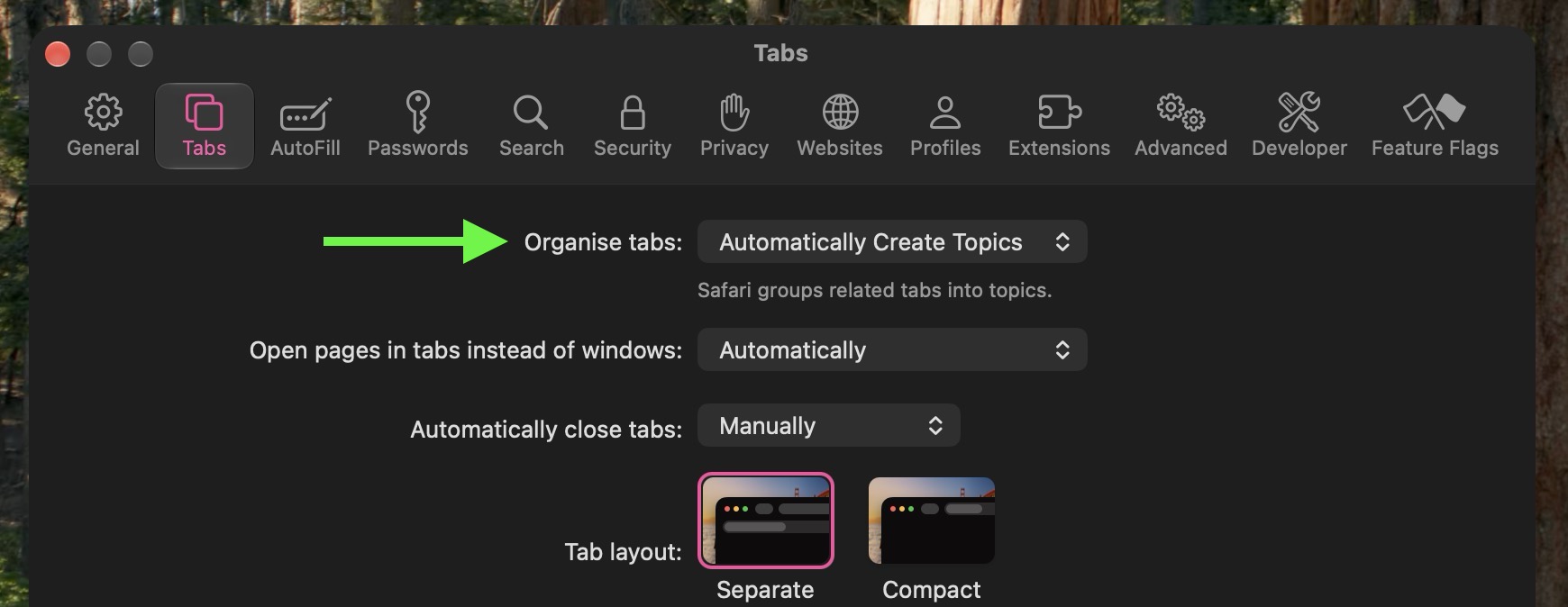


If you have several webpages open with related content, Safari can automatically group these open tabs by topic while keeping any unrelated browsing sessions apart. To enable the feature, open Safari's Settings, select the Tabs section, and choose "Organize Tabs: Automatically Create Topics."

Safari Can Notify You When a Page Changes
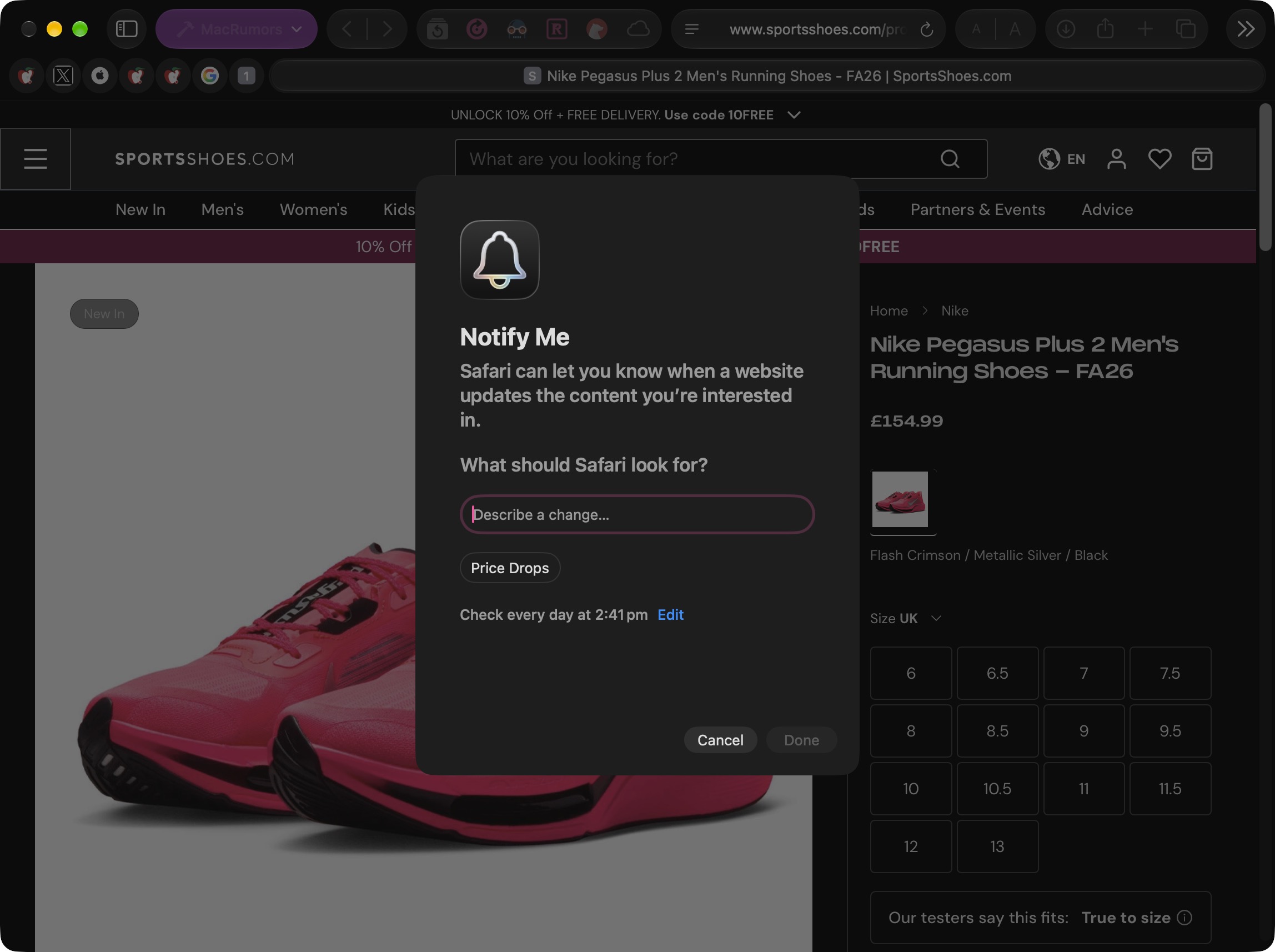


Notify Me is another new Safari feature that enables the browser to watch a webpage for a specific change, such as a product restock or price drop, and alert you when it happens. The feature's monitoring options include daily, weekly, or monthly schedules.

Apple Notes Now Lets You Draw
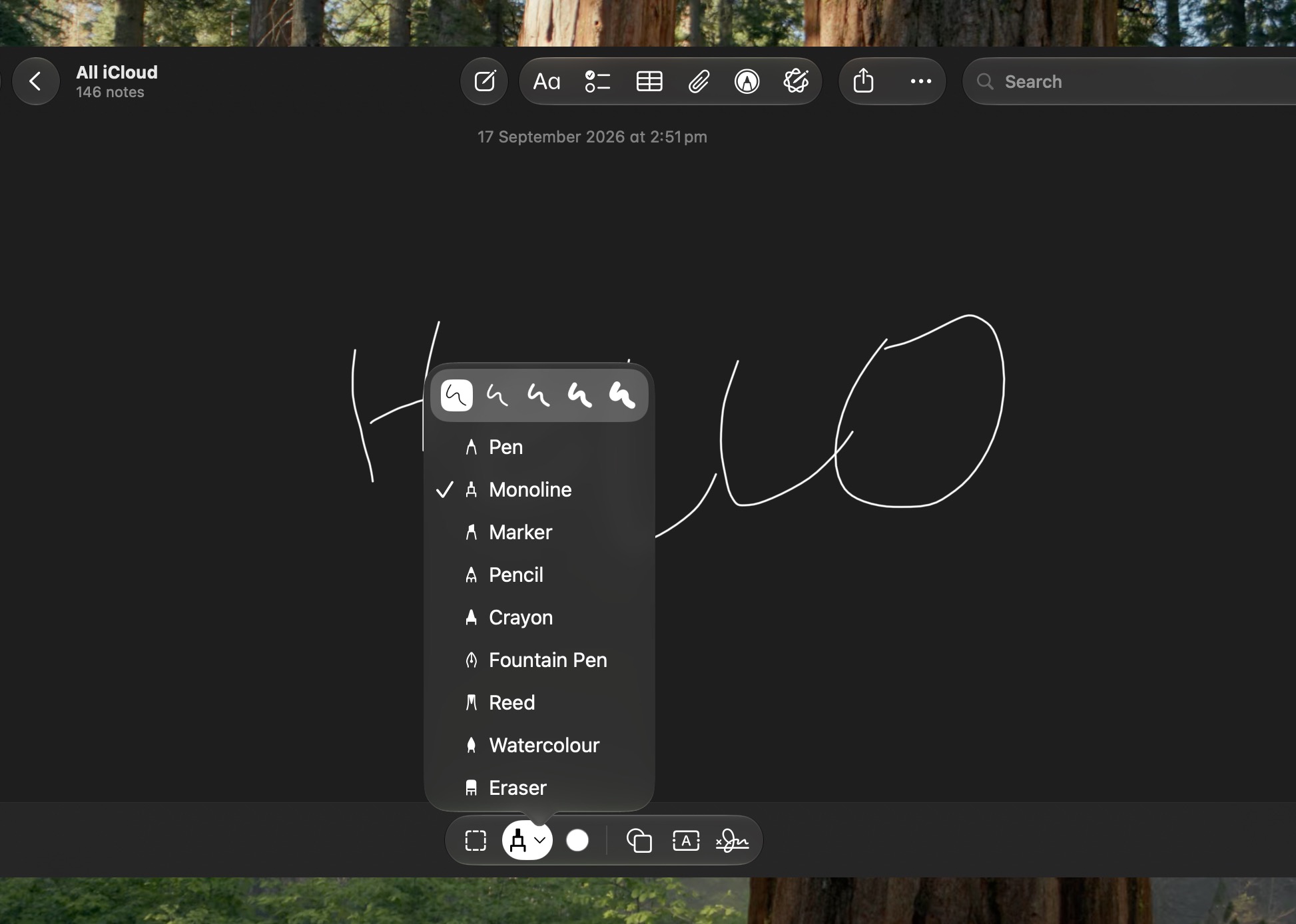


The Continuity feature has allowed you to sketch in the Notes app by opening a virtual drawing board on your iPhone or iPad. But that meant you had to have at least one iOS device linked to your Apple Account. Happily, that's no longer a requirement in macOS 27, which adds a native drawing tool to the Notes app. It includes Pen, Monoline, Marker, Pencil, Crayon, Fountain Pen, Reed, and Watercolor tools.

Video Podcasts Get Better Mac Playback
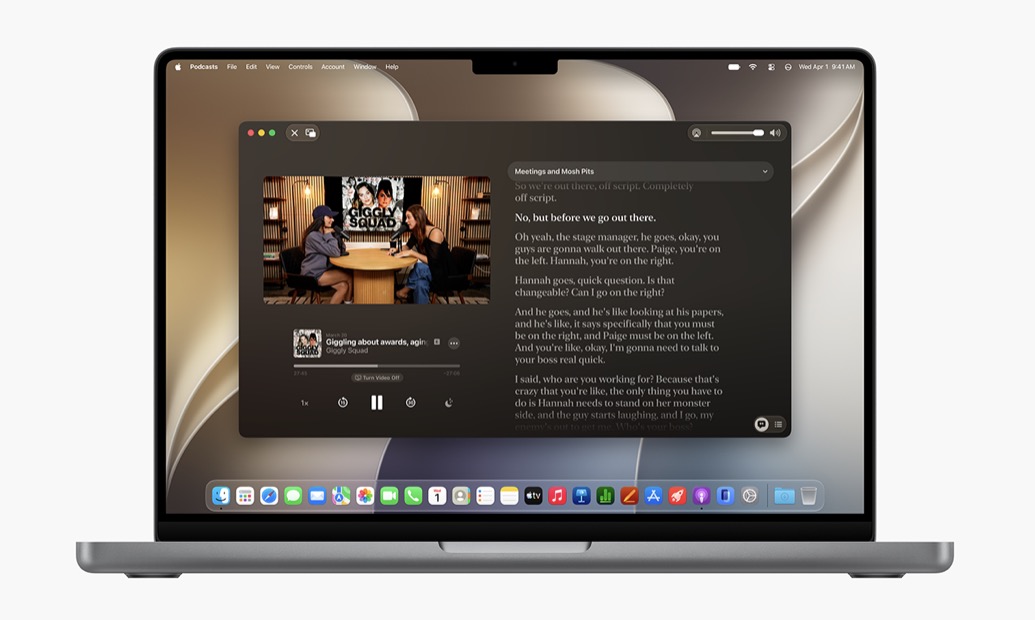


The Podcasts app gives video shows fuller playback controls on the Mac, including Picture in Picture and a download option for offline viewing. You can switch between watching and listening when a show supports video, and the search function in a show's episode list makes older episodes easier to find.

Image Playground Gets More Styles
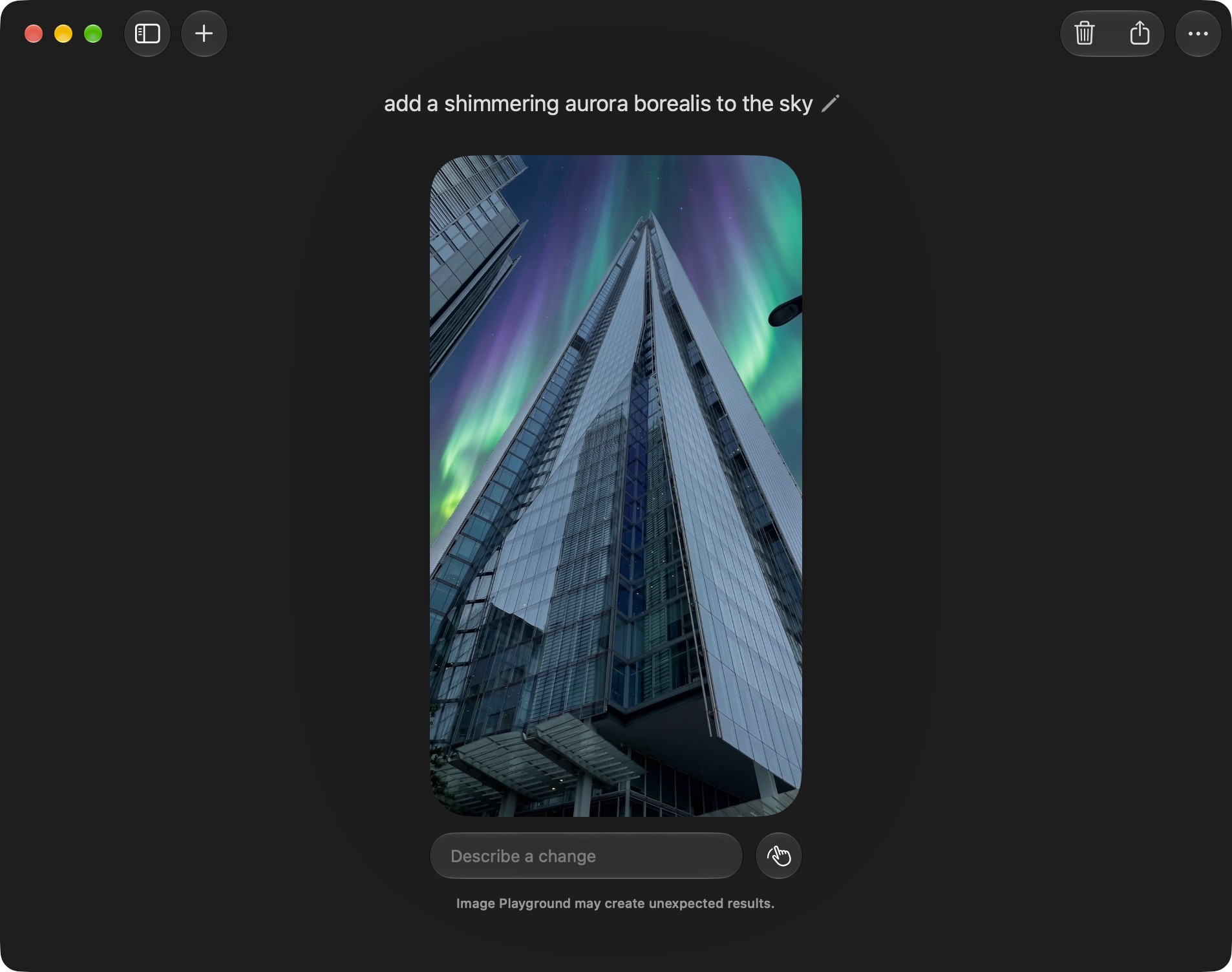


Image Playground has been overhauled to become genuinely useful, and it can now generate pictures in a wider range of styles, including photorealistic images. You can select part of an image and describe how you want it changed, or combine images to create something new. As with other Apple Intelligence features, Apple says usage limits may apply.

New Golden Gate Wallpapers Arrive
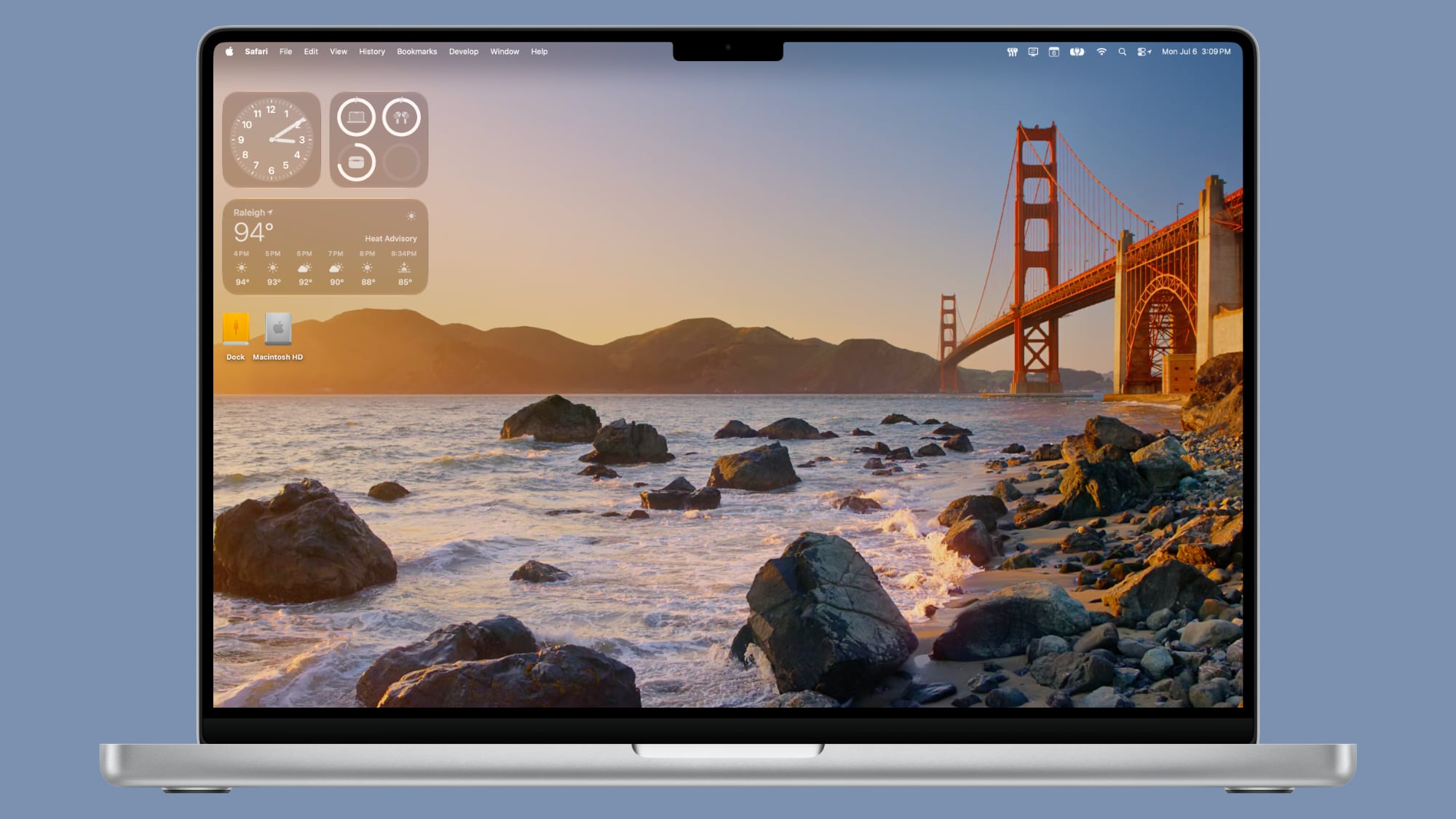


Golden Gate includes Sunset and Night wallpapers featuring San Francisco's Golden Gate Bridge, along with a new abstract wallpaper. The Bridge wallpapers animate when your Mac unlocks and you can also use them as your screen savers.

Safari Can Build Extensions From a Description
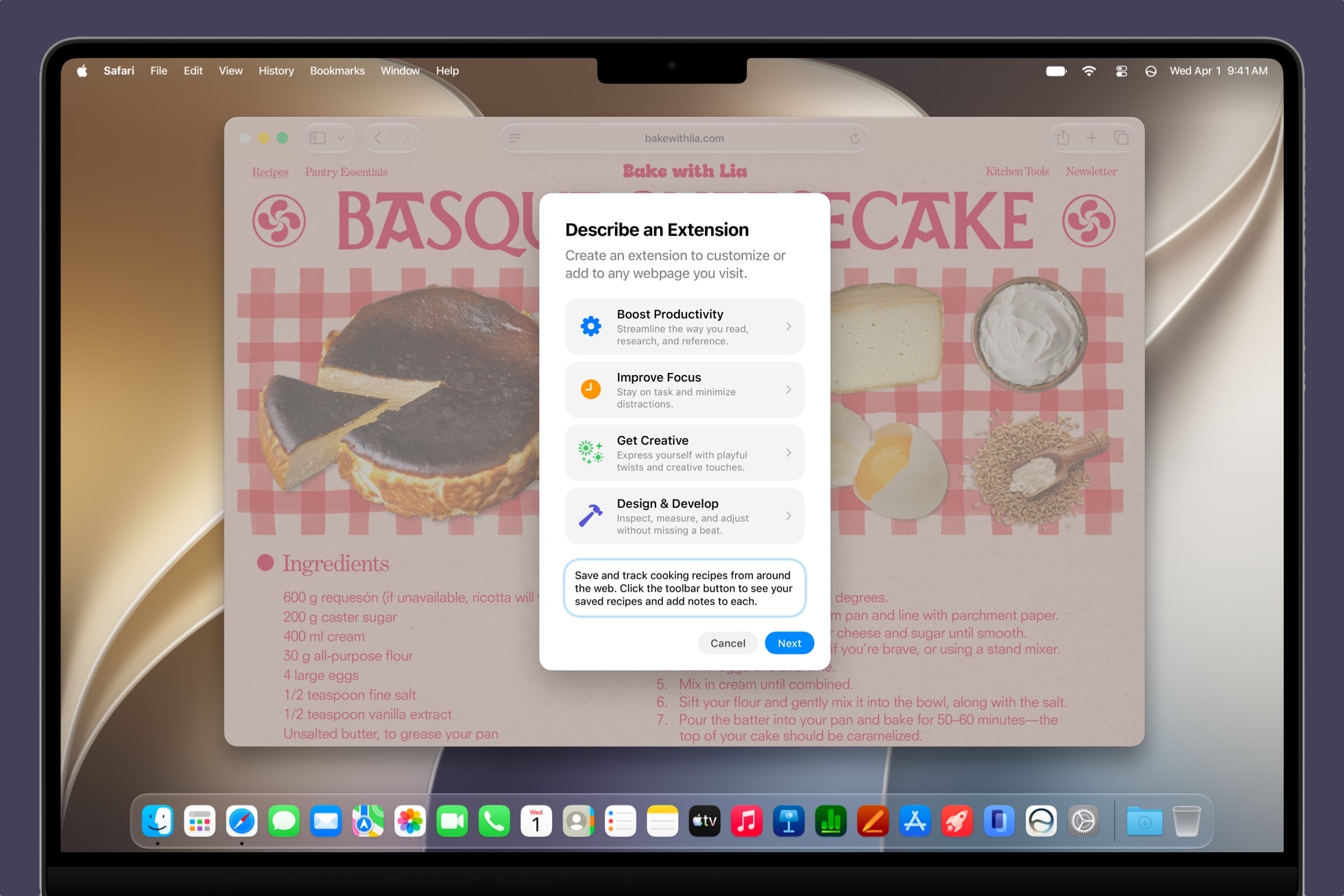


Safari's Create an Extension option lets you describe what you want a browser extension to do in plain language. For example, a request to add a button for saving recipes can become a custom extension without you having to go near a single line of code. Safari also offers suggested prompts for productivity, focus, and design tasks.

Freeform Adds Drawing, Collaborative Folders
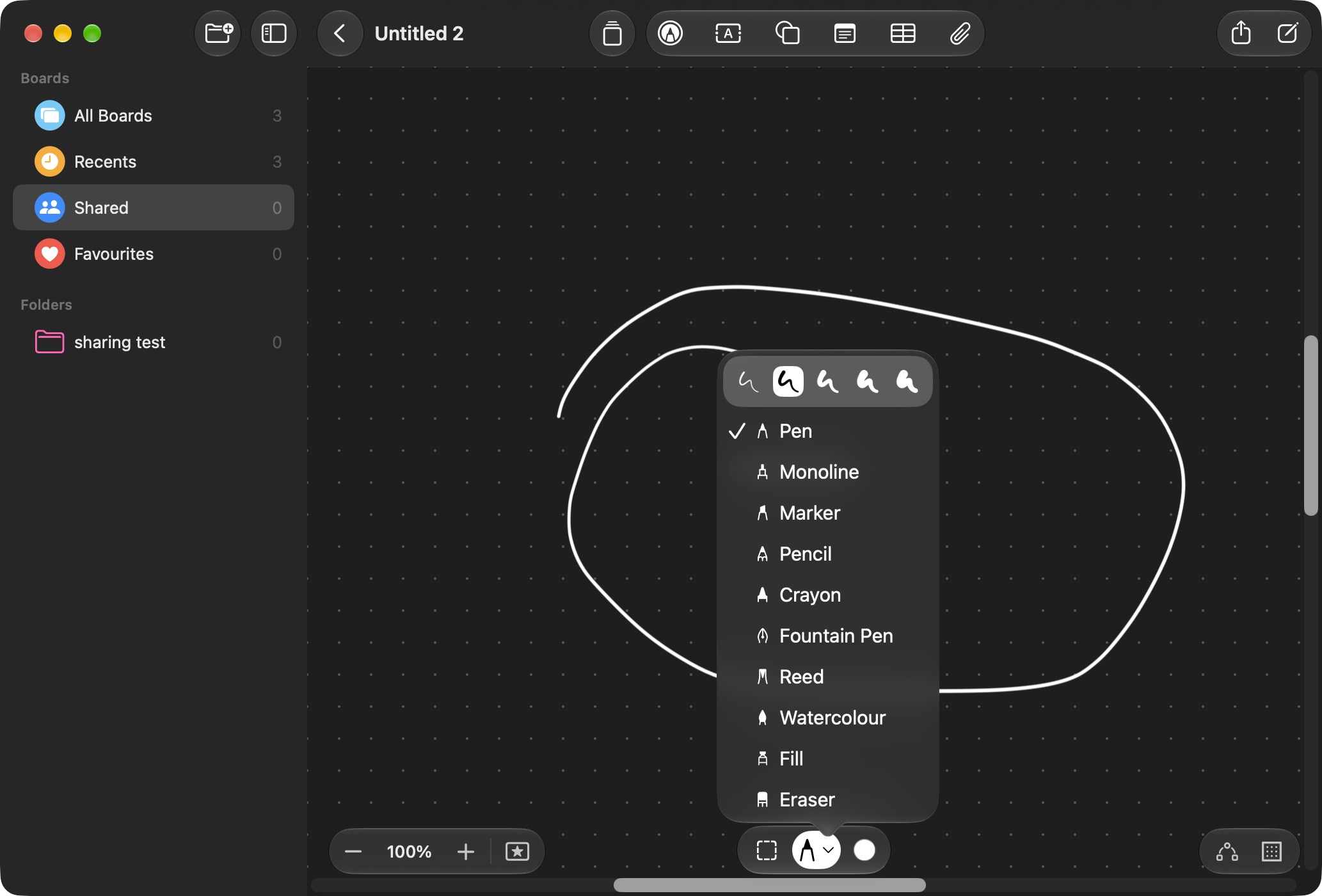


Freeform now supports drawing directly on the Mac, thanks to sketching tools being included in its shared boards. Golden Gate also adds folders for organizing collaborative boards and a canvas that adapts to Dark Mode.

Faster AirDrop and Network Browsing
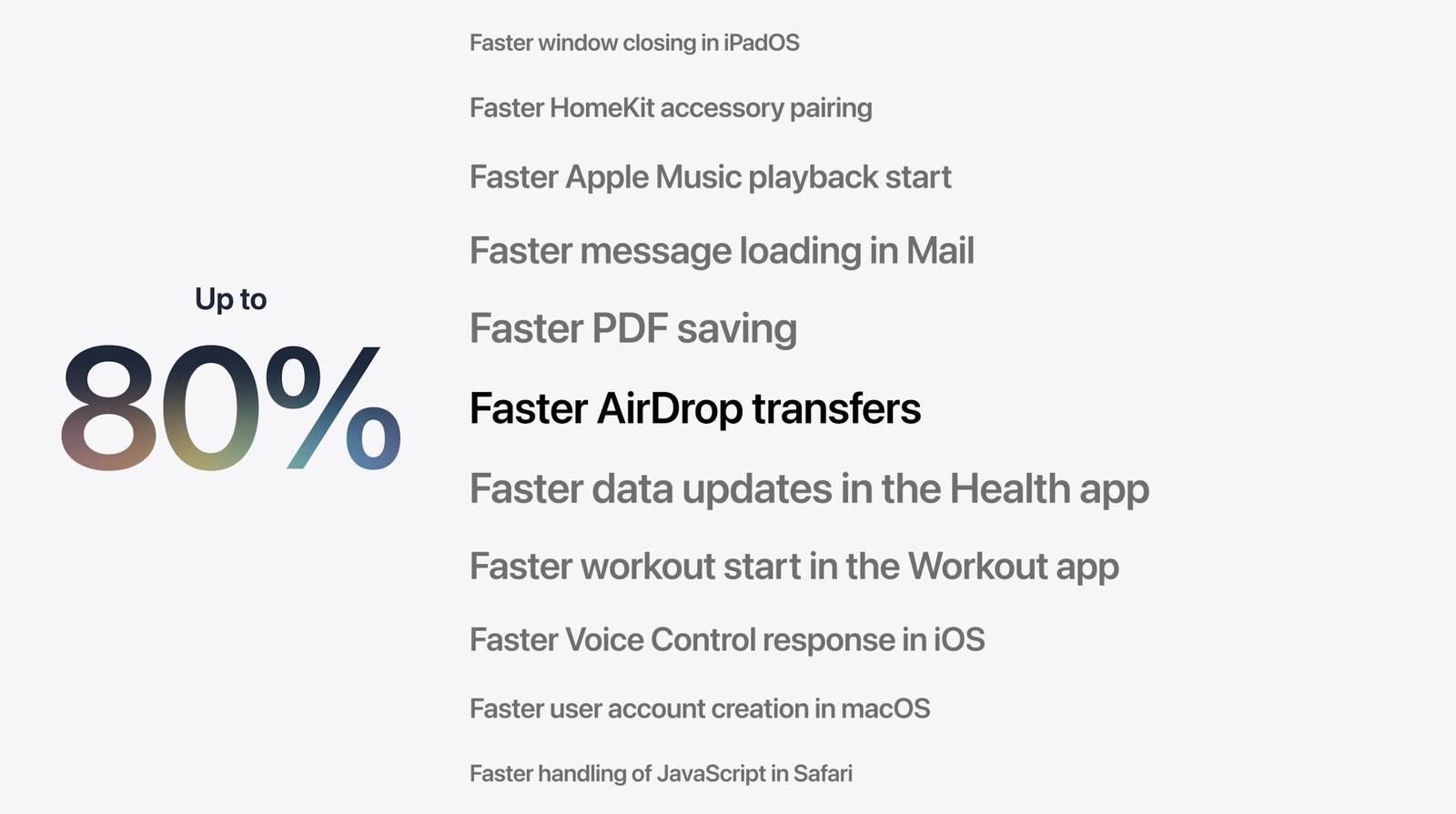


Apple says Golden Gate makes AirDrop transfers and browsing folders on Windows or NAS network shares faster. Safari's Start Page content also loads more quickly, and Mission Control and Spaces animations are smoother.

Calendar Events Can Be Added by Description
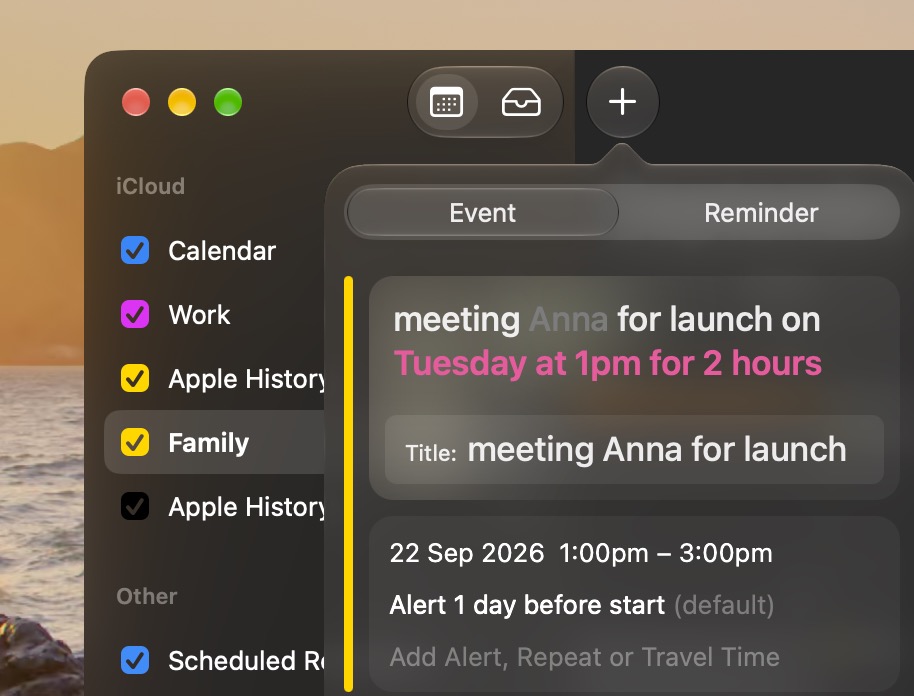


Calendar can now create or edit an event from your plain-language description. You can describe a lunch meeting, change the time and adjust the description to make it a coffee meeting, and Calendar will adjust the event rather than requiring every detail to be edited separately.

Enhanced Maps Flyover



With Flyover, cities like Boston, New York, London, and Chicago include more detailed 3D renderings of their skylines. Apple has enhanced the 3D models for these cities by combining AI and aerial imagery to achieve more detailed and realistic cityscapes.

Slideshows Can Start From Any Photos Album
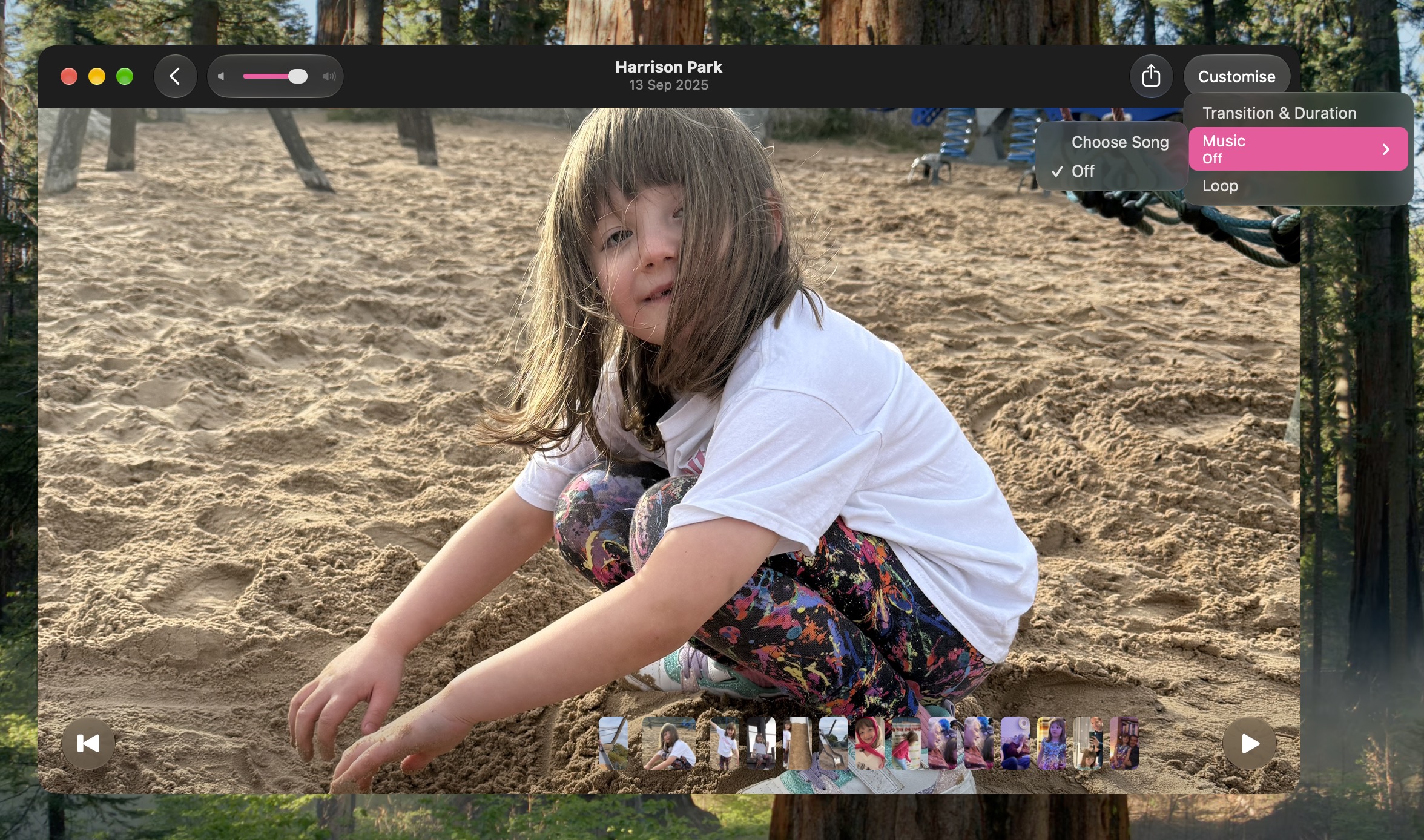


Photos can now create slideshows from any album or collection, rather than limiting them to Memories. You can customize the presentation and save it as a video to keep or share.

Passwords Will (Soon) Auto-Repair Weak Logins
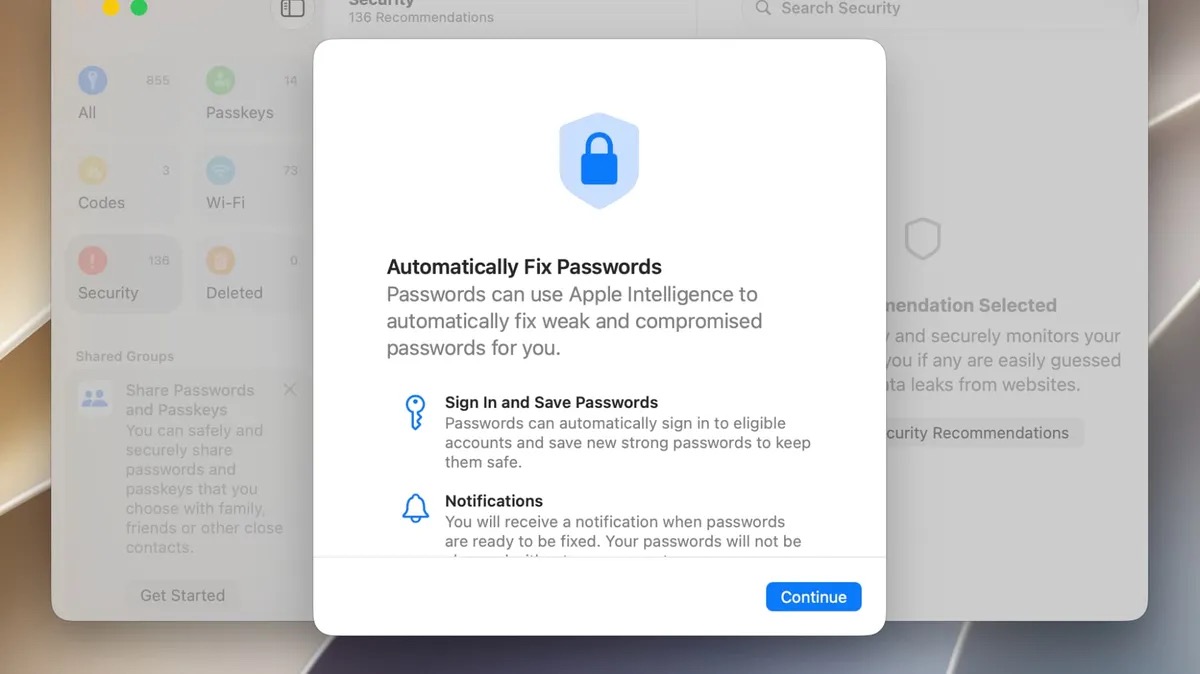


The Passwords app already warns users about weak or compromised logins. Apple says a future software update will let it use Safari to change eligible passwords automatically, replacing a vulnerable login with a stronger one on your behalf.

External Displays Get Better Resolution Support
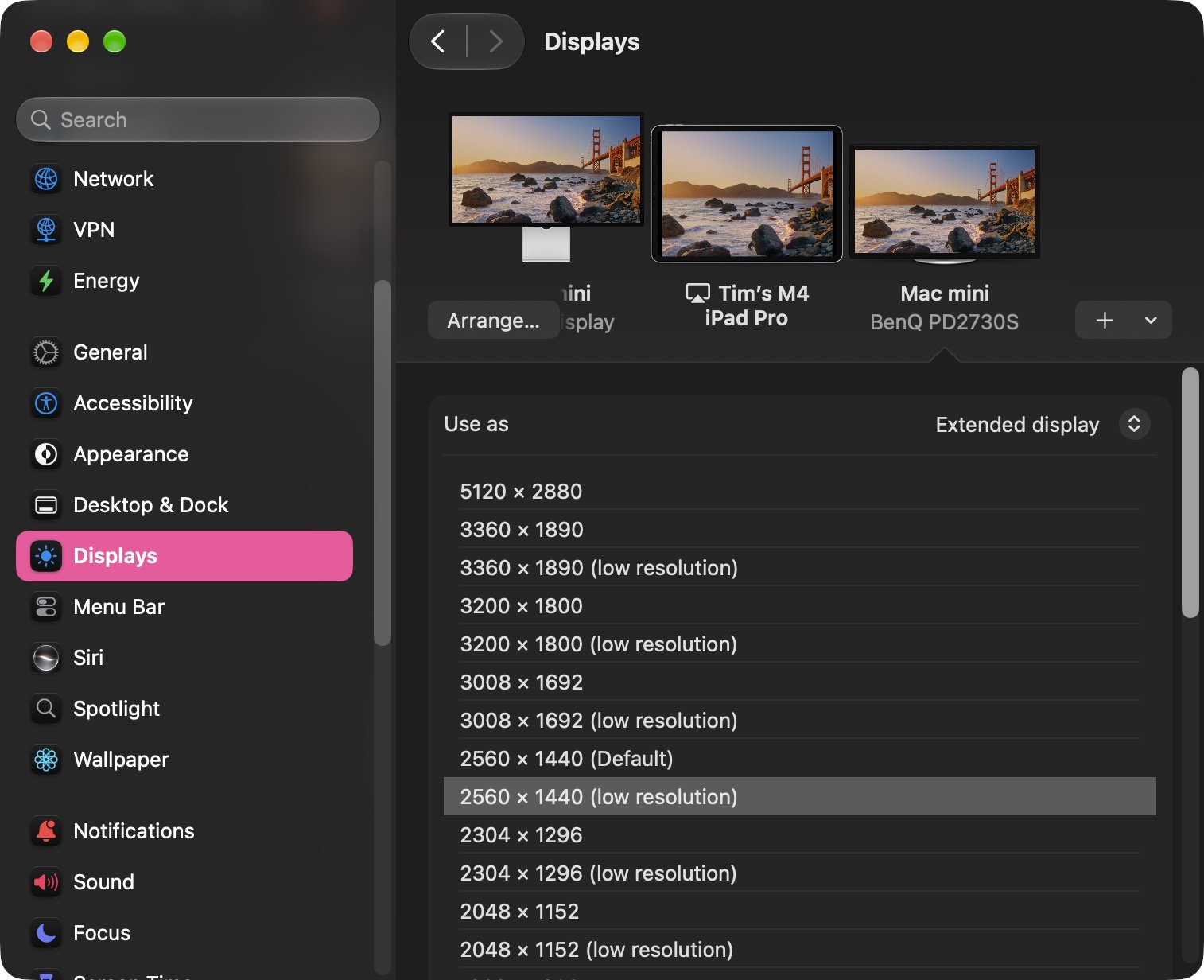


Golden Gate adds more resolution and refresh-rate choices for compatible external displays, including 5K at 120Hz on certain ultrawide screens. Apple also says the Mac does a better job of restoring window positions, Spaces, and screen assignments when a display is unplugged and reconnected.

macOS Suggests Names for Files and Folders
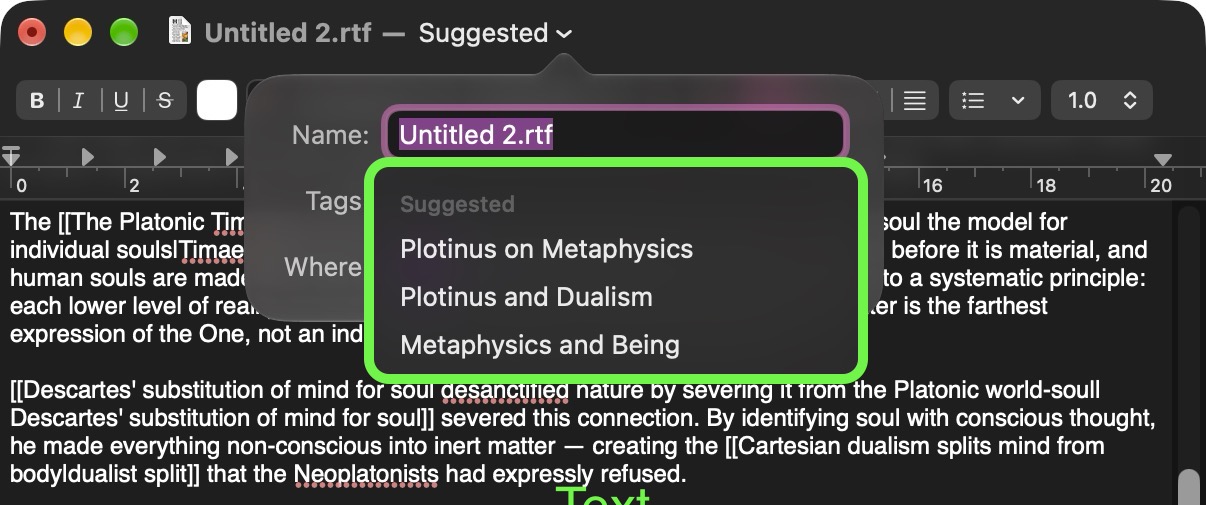


In Finder, TextEdit, and other Apple apps, Apple Intelligence can suggest a name for a file or folder based on its contents. The feature is designed to make saved items easier to recognize later, especially when the original name doesn't give much away about what's inside.

Siri Gains New Expressive Voices
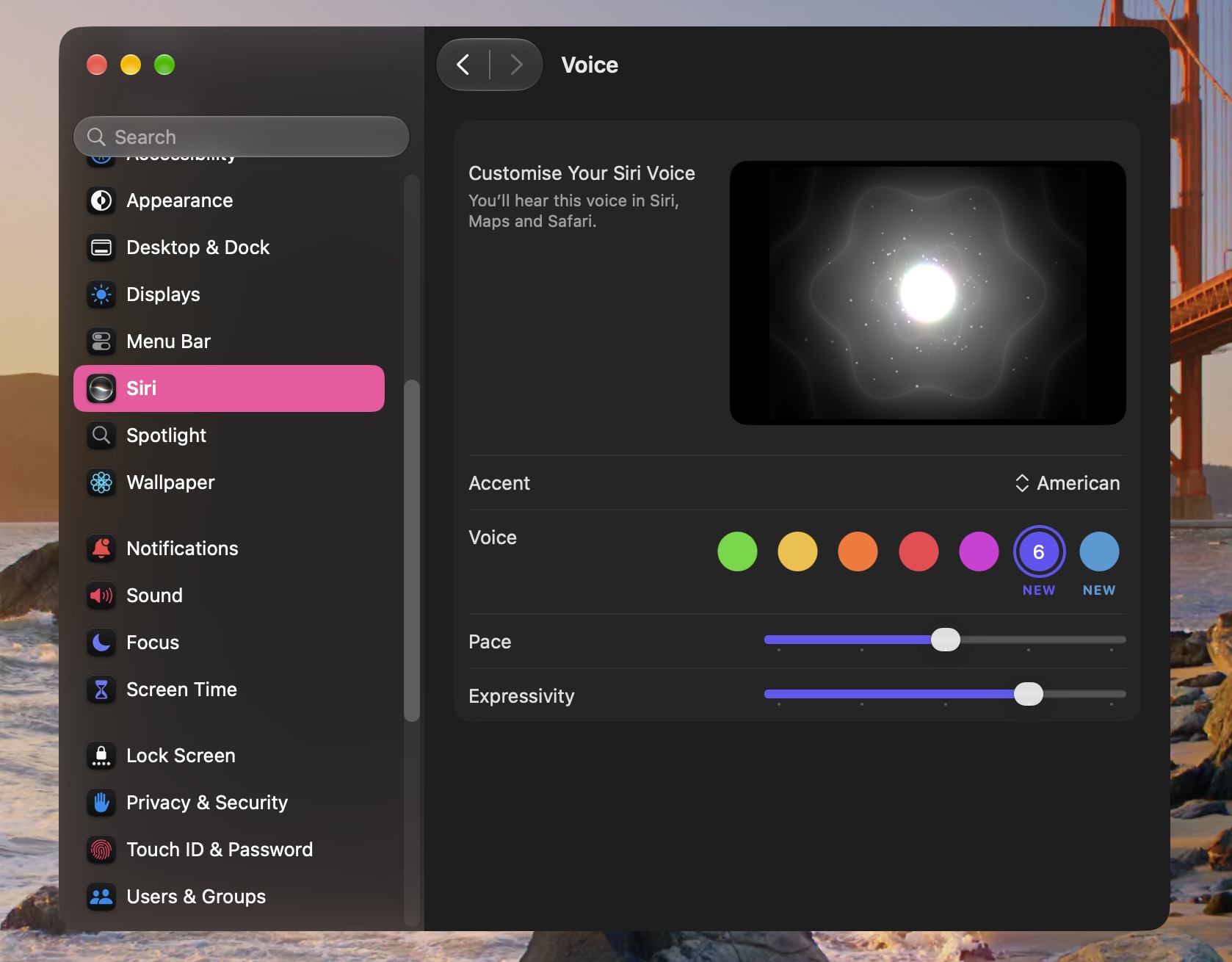


Siriβ€Œ AI now has more expressive voices alongside a big improvement to systemwide dictation accuracy. You can adjust both the expressiveness and pace of β€ŒSiriβ€Œ's voice to your preference with sliders in a new Voice section in System Settings ➝ Siri. Siri's new expressive voices require an M3 or newer Mac with at least 12GB of memory.

Weather's Forecast Views Are Refreshed



Weather in macOS 27 has a more orderly layout, with more room for its hourly and 10-day forecasts. You can also switch between current conditions, precipitation, and wind views, while a new Highlights section calls out notable weather events ahead. Highlights are currently only available in U.S. English.

Create Shortcuts With Natural Language
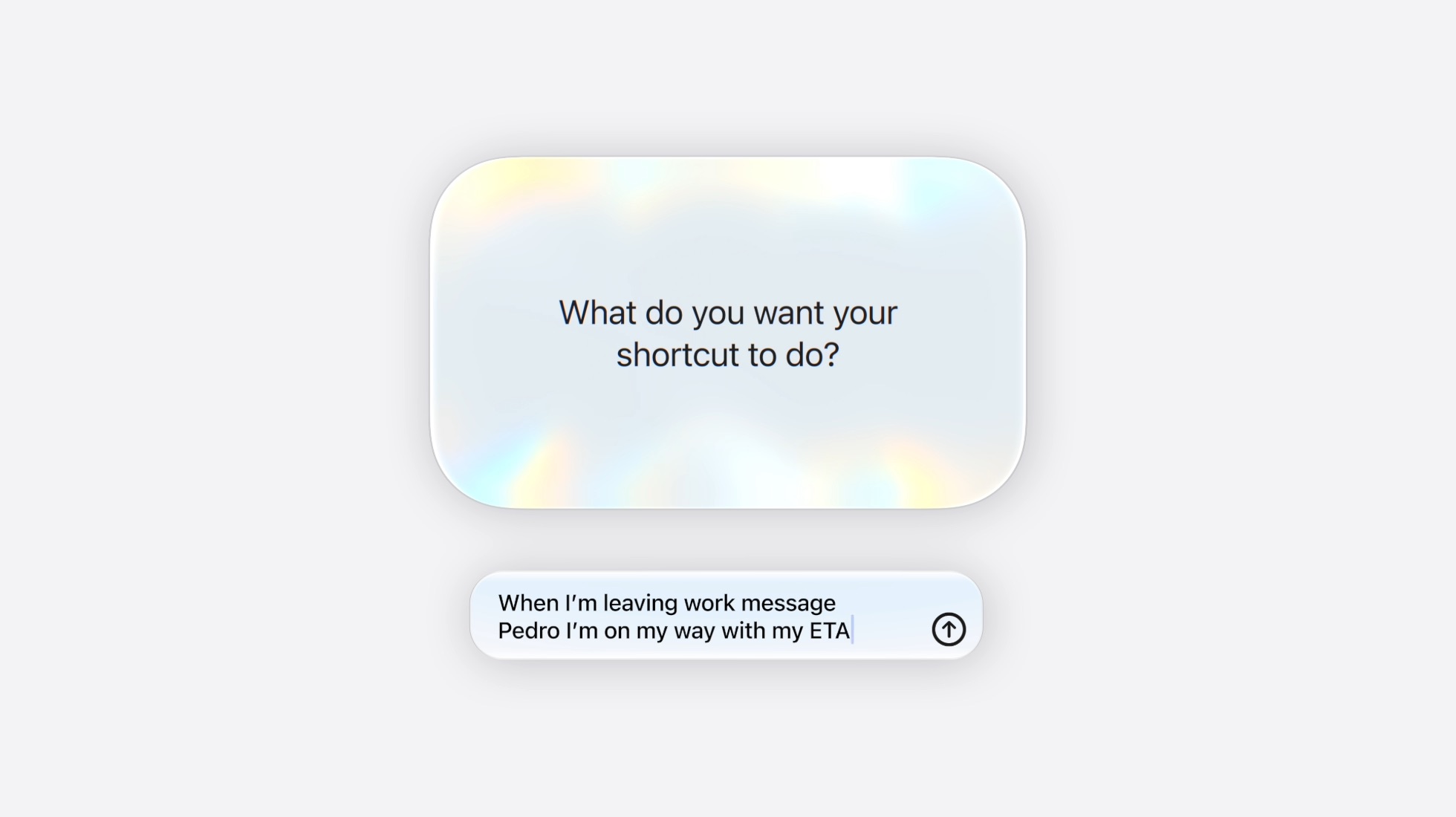


True to this era of AI, Shortcuts can now build you an automation from a plain-language description. You can ask it to assemble a sequence of actions across apps, then test, edit, or refine the result with another description. Apple says usage limits may apply.

Finder Columns Are Easier to Size and Reset
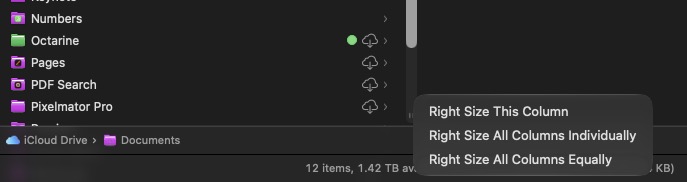


New autosize and reset controls make columns easier to manage in Finder. Right-click (or Control-click) the bottom of a column, and you'll see options to adjust a crowded view without dragging each column boundary into place by hand.

Sidecar Finally Supports Direct Finger Input
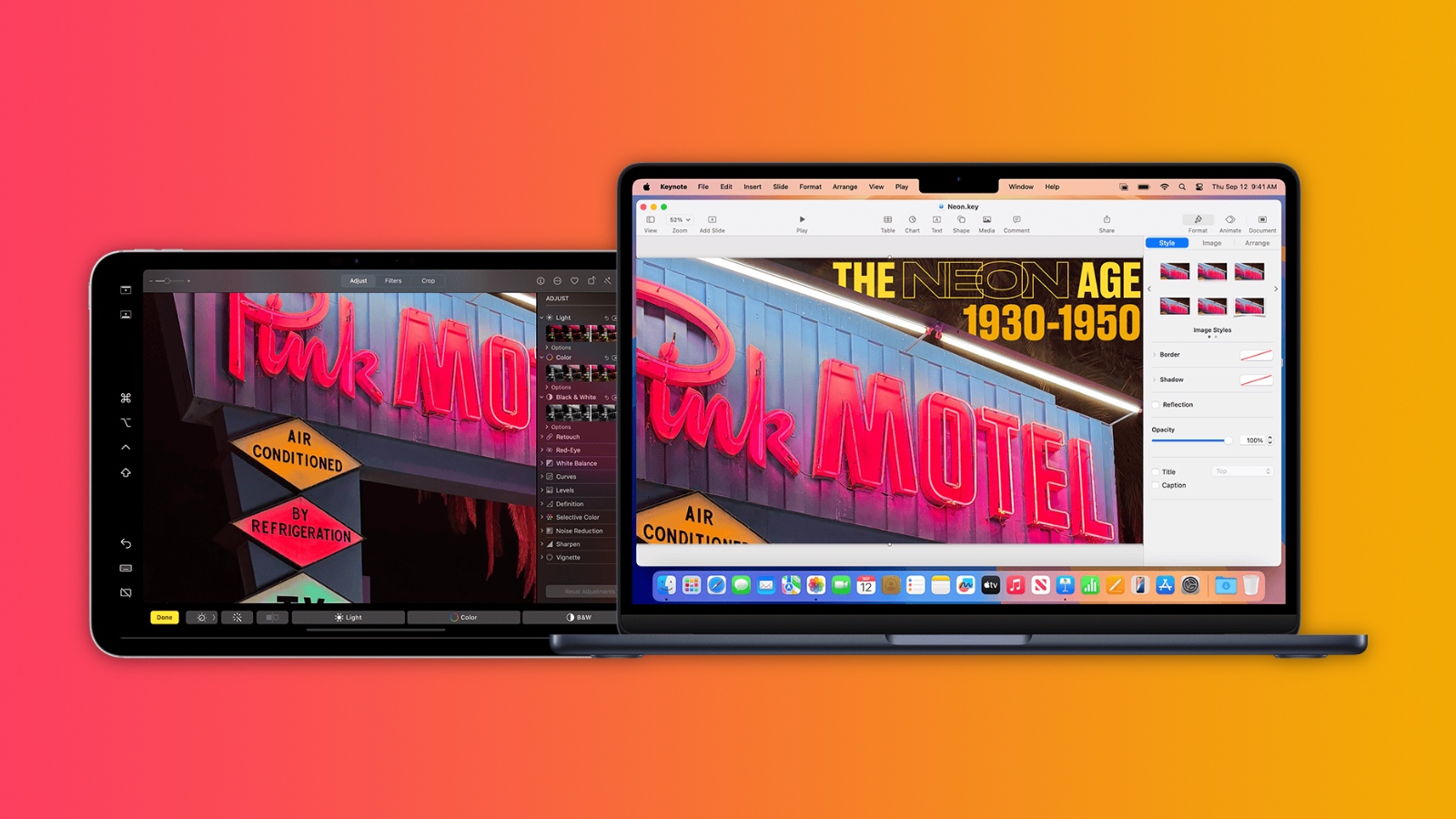


Sidecar now lets you interact directly with the Mac interface on an iPad used as a second display. With a compatible iPad, you can tap controls, scroll with a finger, and use more system gestures instead of relying on your mouse or trackpad.

New Screen Time Controls for Parents
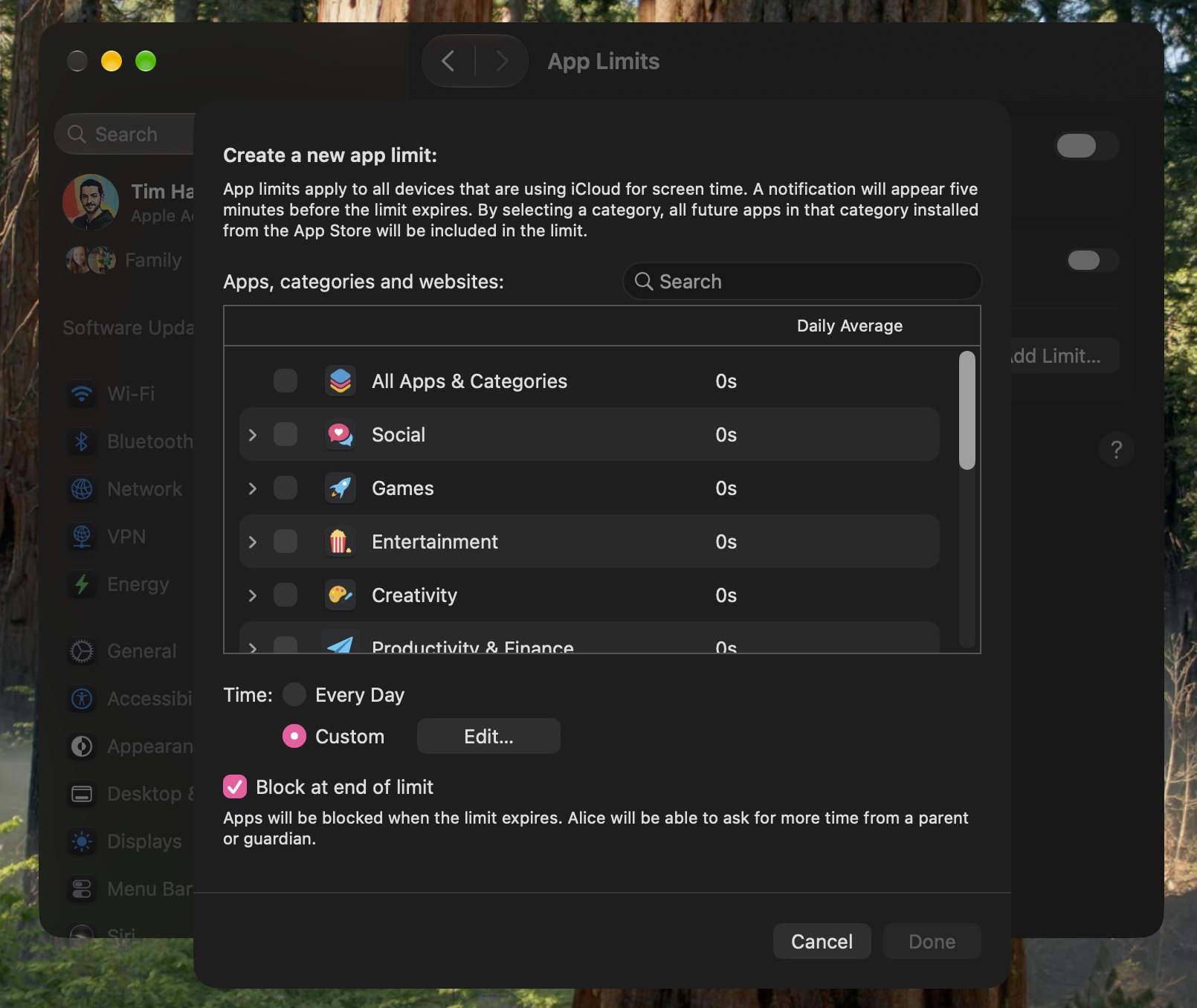


Parents can now set category-level allowances with different schedules by day and time, making controls more flexible than one broad daily limit. Meanwhile, Ask to Browse lets kids ask your permission to visit websites. There are also expanded protections against gore and violence, alongside existing nudity protections.

Make Interface Boundaries Clearer
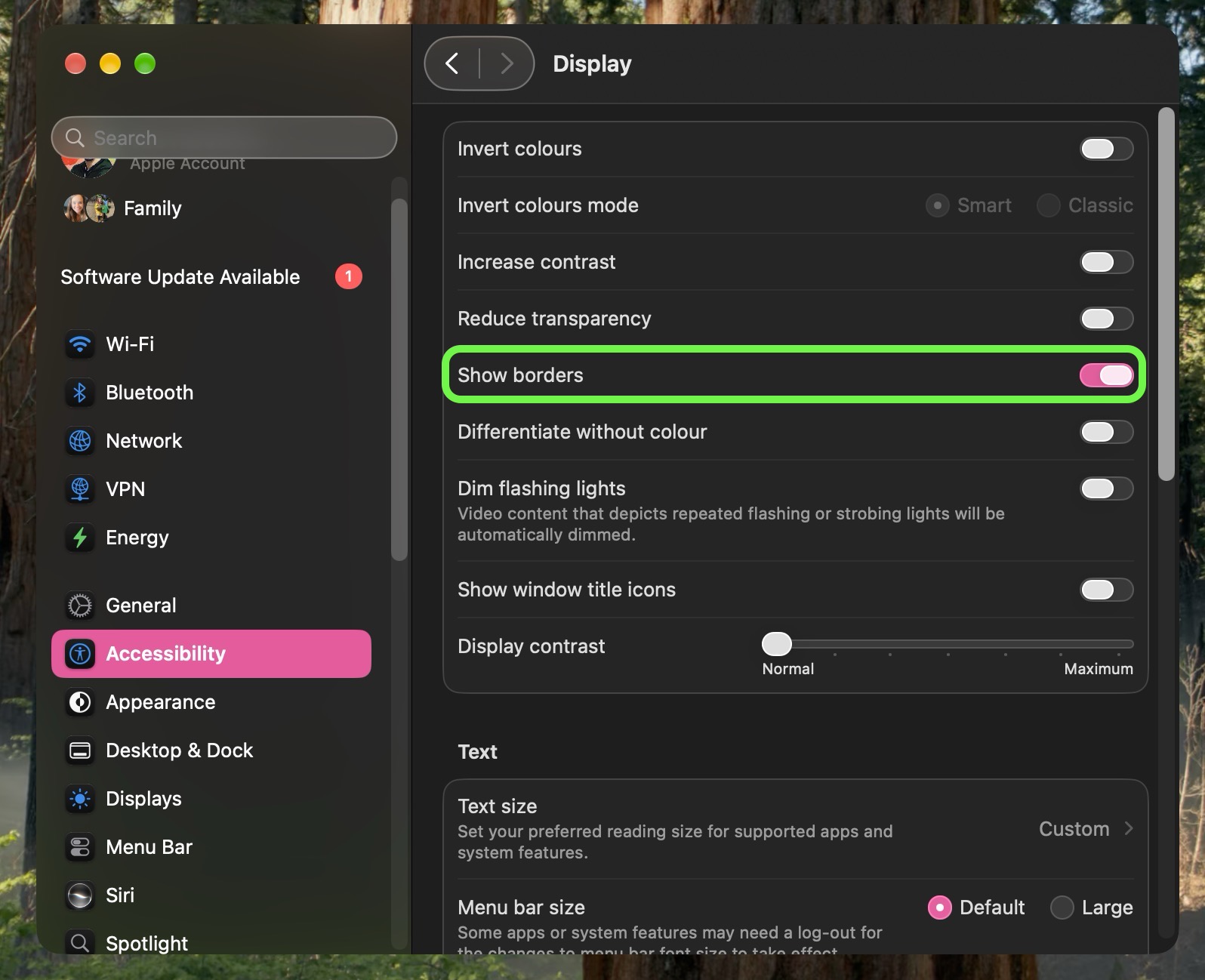


A new Show Borders accessibility option makes the boundaries of macOS interface elements easier to see, in case you could do with some help distinguishing controls and panels where translucent surfaces otherwise blend into the surrounding window.

Widgets Can Update in Real Time
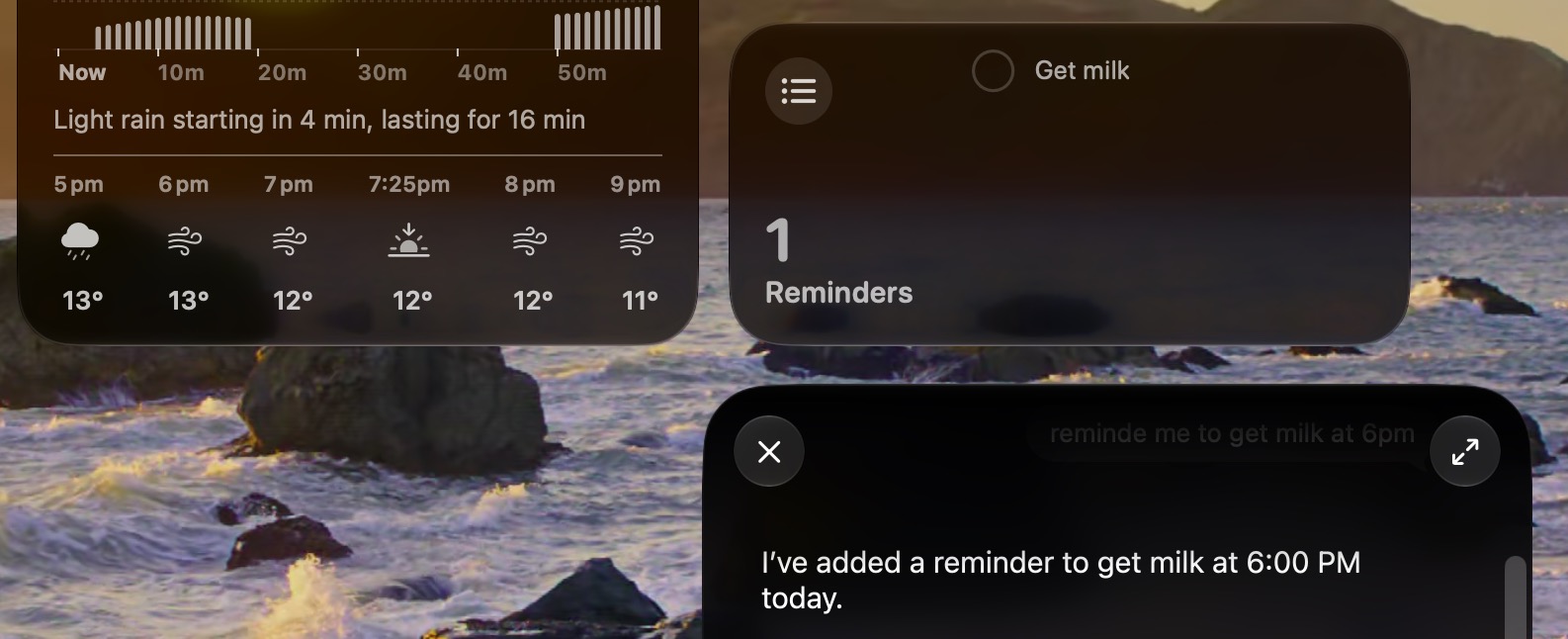


Widgets will now update in real time when their associated app is open, so the information you see on the desktop remains in step with what you see inside the app, instead of you having to wait for a less frequent refresh.

Dock Shows Active Background Processes
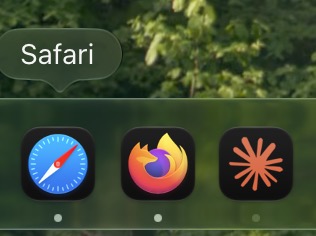


If you quit an app and it is still running a background process, you'll see the indicator beneath its Dock icon turn a light gray. To end the activity, right-click the app's icon and select "Stop Running in Background."

Photos Gains New Utility Collections
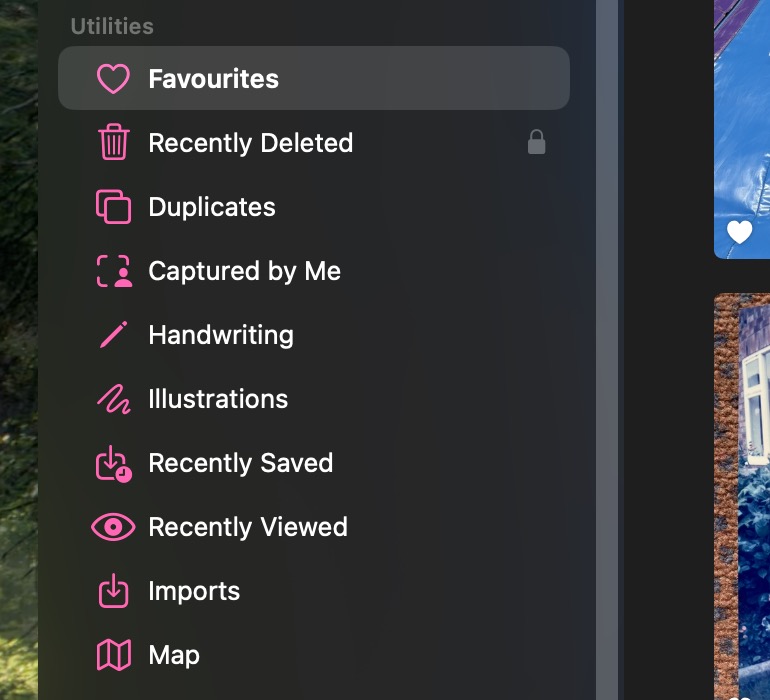


The Photos app now has two Utility collections. "Captured by Me" gathers pictures taken with your current and any previous iPhones, while "Identity Documents" brings together images of passports, driver's licenses, and any similar records you might have.

Intel Macs Miss Golden Gate


If you have a very old machine, there's something you should know: Golden Gate does not run on Intel Macs – it requires Apple silicon (that includes the A-series chip in MacBook Neo). Sorry, Intel users.

Rosetta Support Is Ending
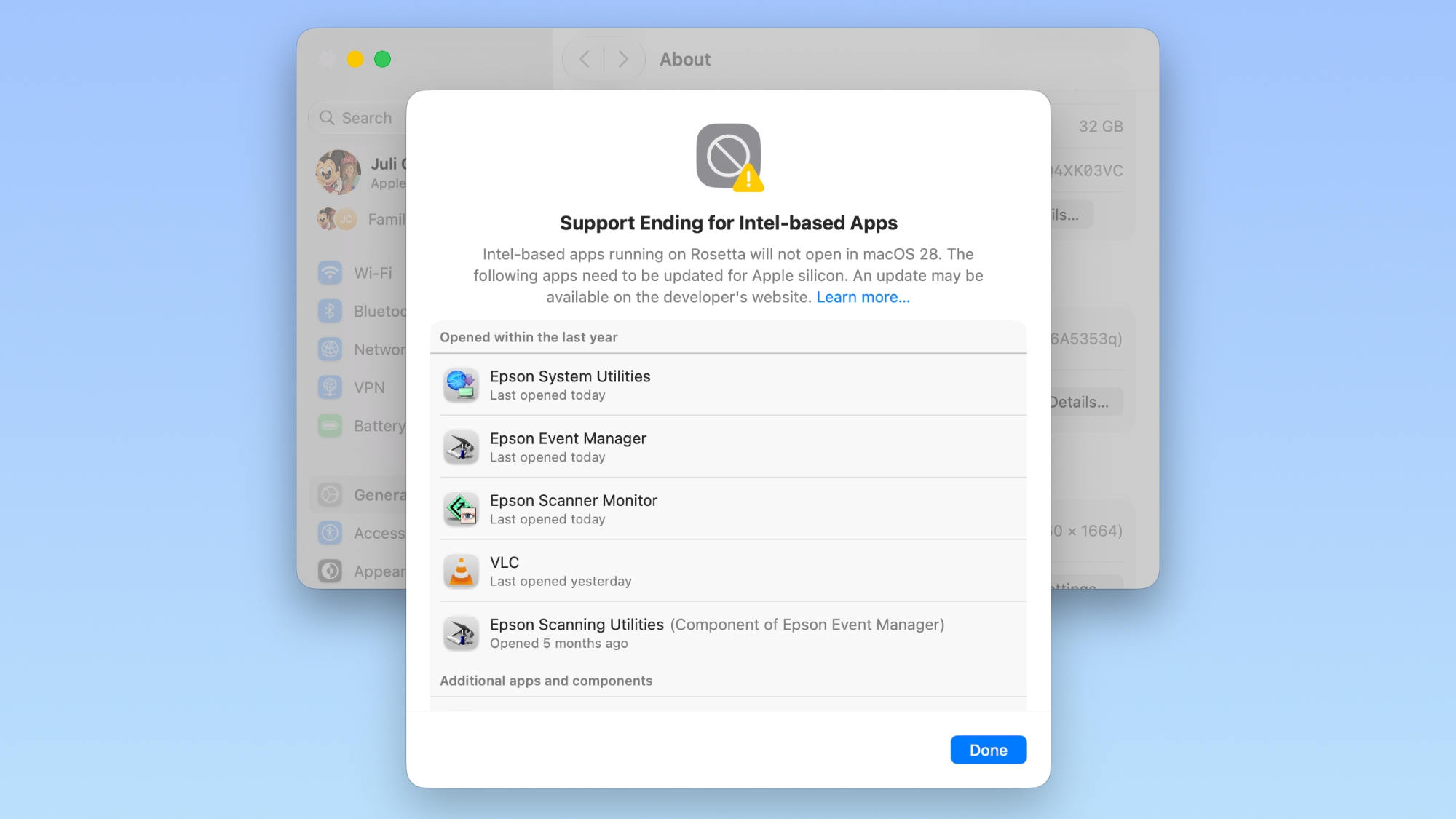


macOS 27 is also the final major release with general-purpose Rosetta support for Intel-only apps on Macs with Apple silicon. Apple says those apps will stop working in the next major release, apart from certain older games.

Smart Replies Can Sound More Like You
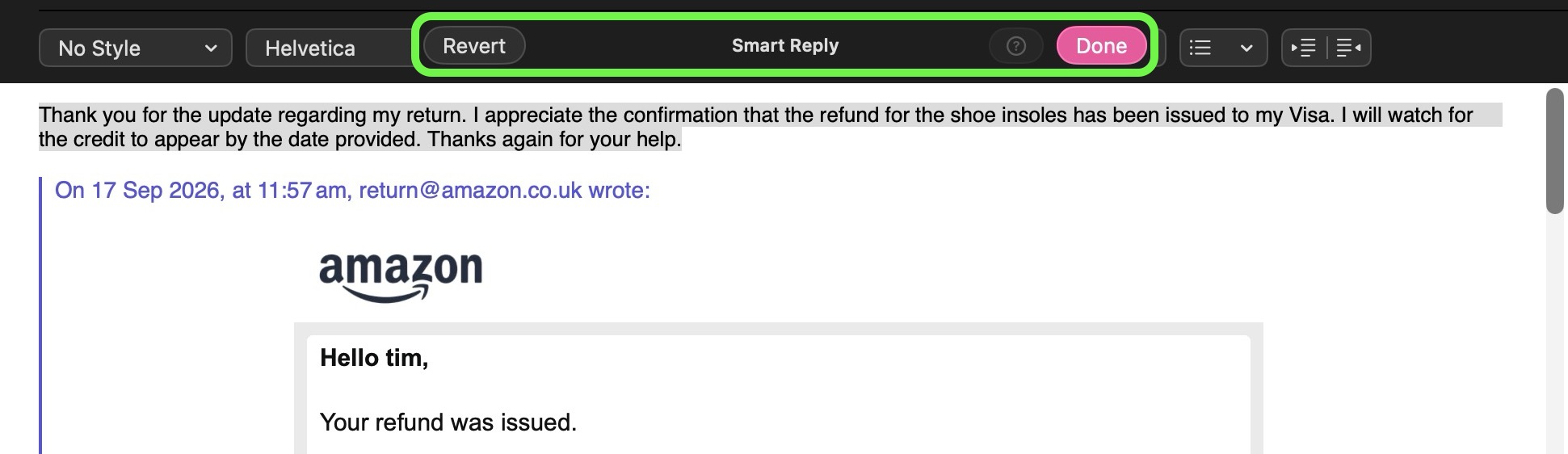


Mail's Smart Replies are able to reflect your usual writing style when they suggest a response, right down to your tone and phrasing, so now a quick reply can sound more like something you would have written yourself. To use a smart reply, click the reply button on an email, click inside the message field, then choose one of the suggested replies generated by Apple Intelligence.

Get Context on a Phone Call
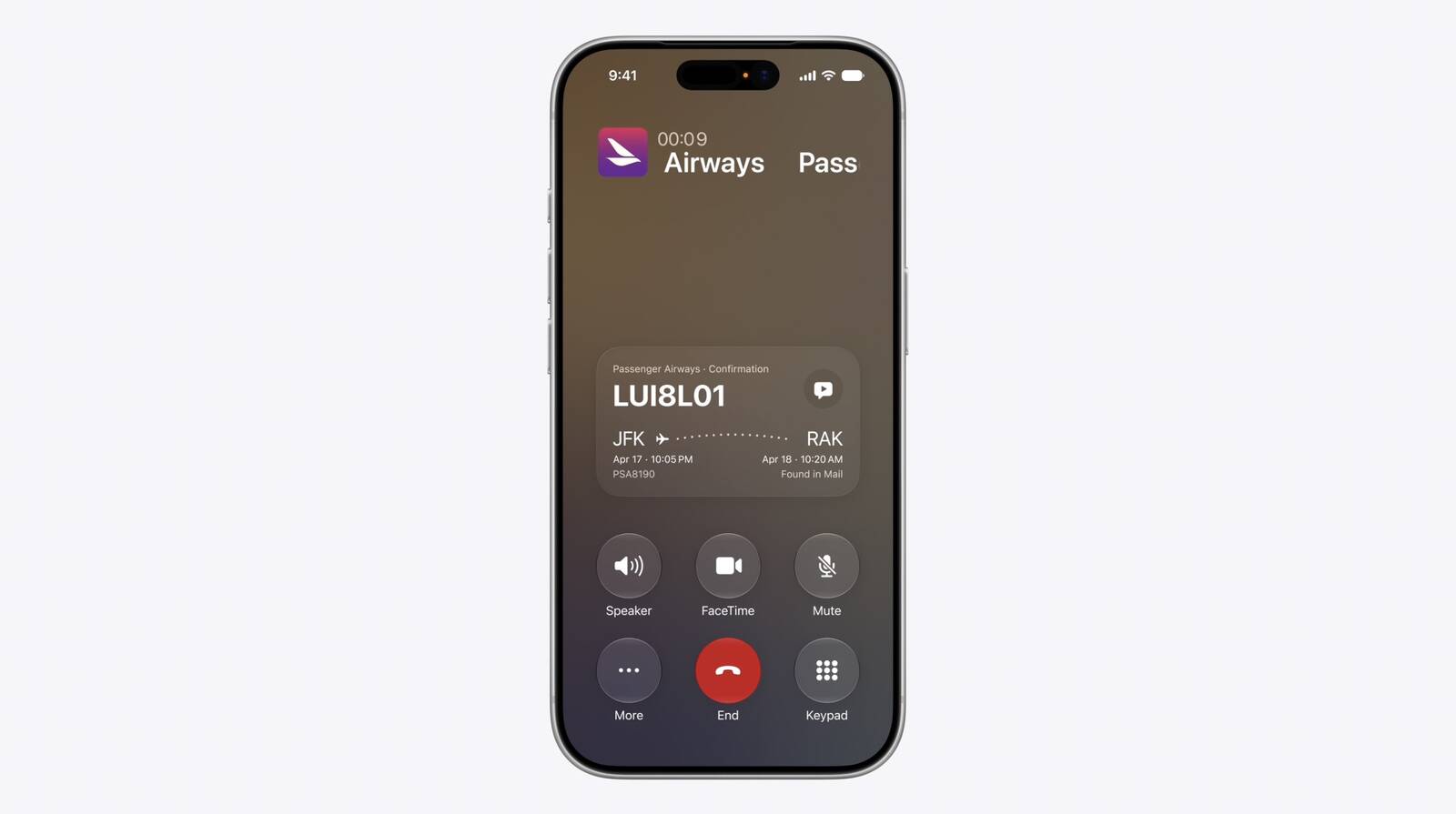


Just like in iOS 27, the Phone app on Mac supports a new Call Context feature. It can surface relevant information from the Mail app. If you call an airline, it might show your confirmation code for an upcoming flight, or your reservation code if you're calling a hotel. It doesn't listen to what you're saying, but instead looks at the number you're calling and links it to details in the Mail app.

Shortcuts Adds Screenshot and Alert Triggers
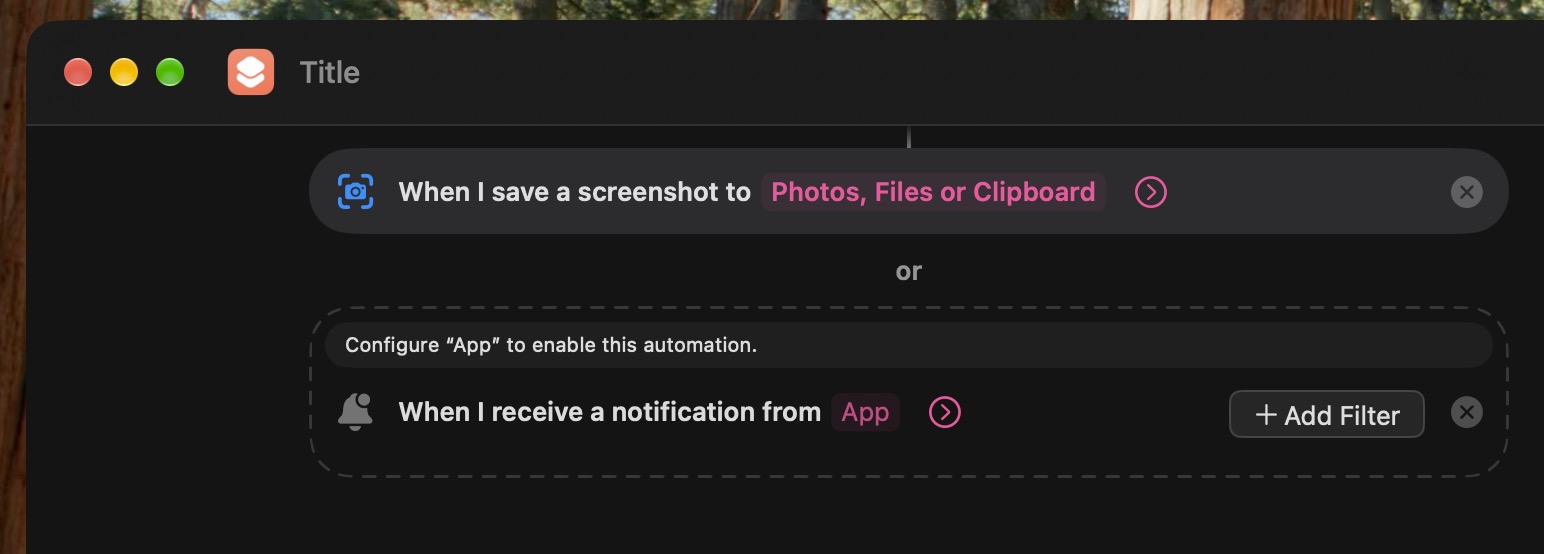


Shortcuts automations can now be triggered simply by taking a screenshot or receiving a notification. The new options add to existing triggers such as time of day, location, and app activity, giving you more ways to start a routine automatically.

Reminders Understands Natural Language
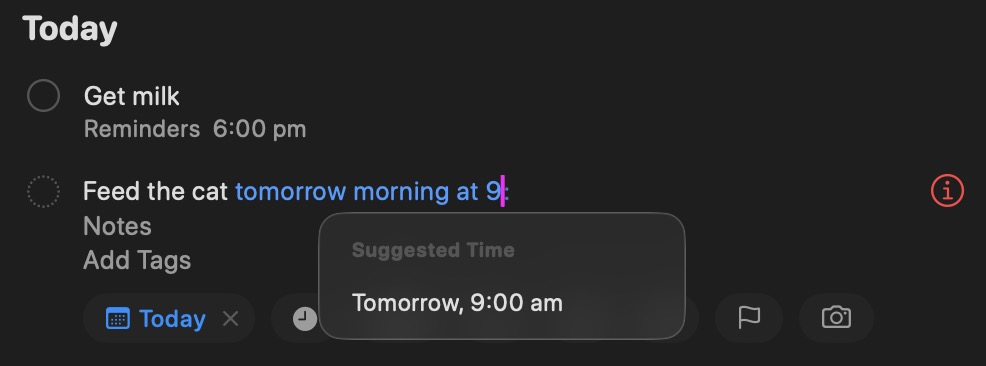


If you enter a natural-language request in Reminders, the app can fill in details you specify such as a date, time, or location, saving you from having to enter each field separately.
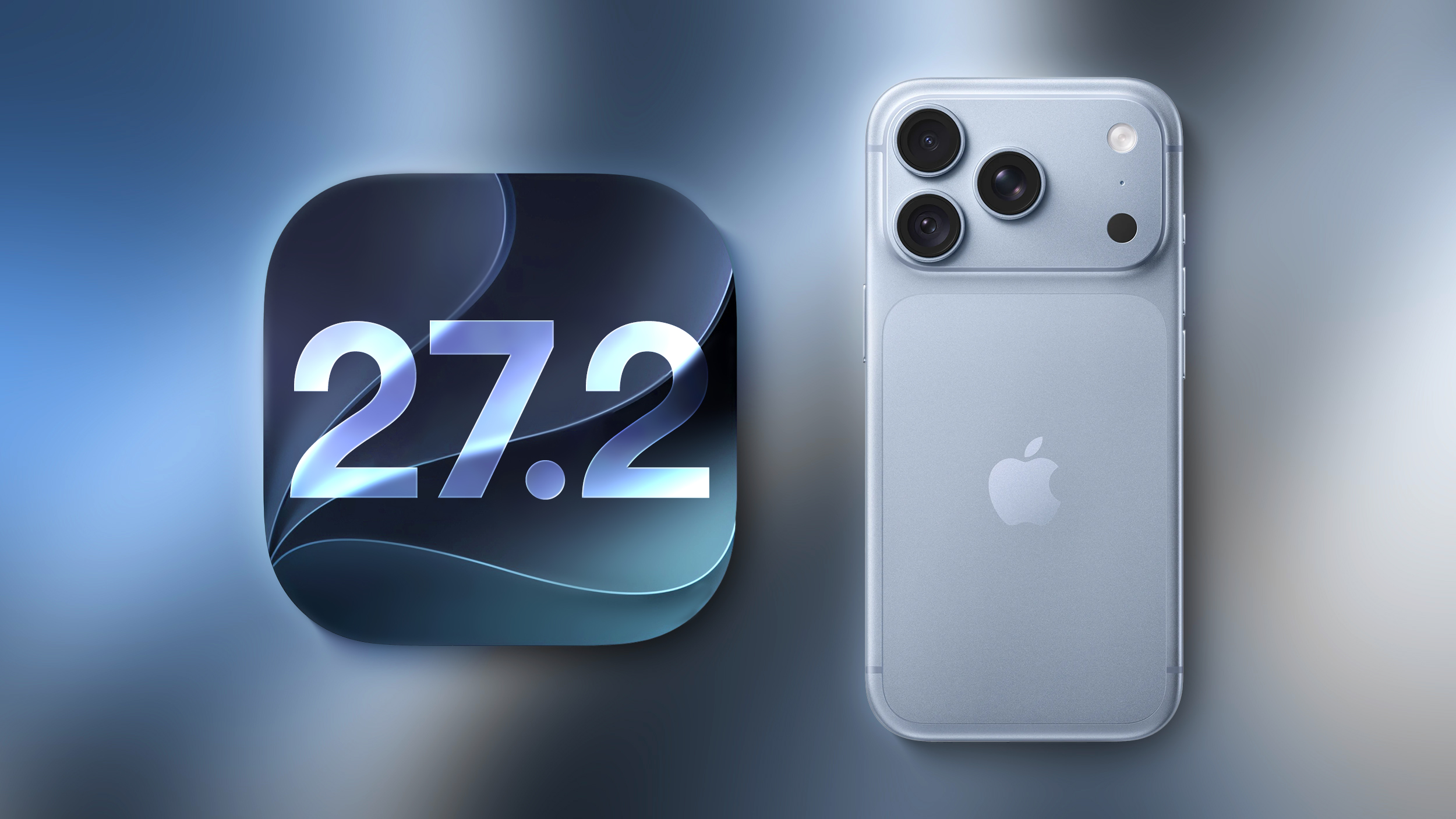
Related Roundup: macOS Golden Gate
Related Forum: macOS Golden Gate

This article, "50 New macOS Golden Gate Features and Changes Worth Checking Out" first appeared on MacRumors.com

Discuss this article in our forums

  •  

Which iOS 27 CarPlay Features Actually Work in Your Car?

In iOS 27, available now, CarPlay gets its biggest update in years, but some features depend on what type of car you have rather than your iPhone model. Some of the biggest additions won't do anything in the vast majority of vehicles on the road today. Here's how the new features pan out.


Works in Any CarPlay Vehicle


  • Custom widgets: In iOS 27, CarPlay is no longer limited to Apple's handful of stock widgets. Any compatible widget from your iPhone's Home Screen can now be added to the CarPlay dashboard. To do so, go to Settings ➝ General ➝ CarPlay, tap your car, then tap Widgets ➝ Add Widgets. You can drag widgets to rearrange them, tap to remove them, and toggle Smart Rotate and Widget Suggestions.


  • Audio scrubbing: The Now Playing screen now has a proper progress bar, allowing you to drag to any point in a song or podcast rather than having to tap skip repeatedly. There's also a persistent mini-player that keeps artwork and controls on screen while you browse.


  • Apple Music Filters: In Apple Music on CarPlay, you can filter your library to sort playlists, albums, artists, and songs by categories like "Favorites" or "All Playlists." Apple says third-party music apps can adopt it too.


  • New wallpapers: New wave designs found in iOS 27 and macOS 27 are now available in CarPlay in 14 color options. In previous years, most of Apple's platforms shipped with their own distinct wallpaper. This year, they all share a design called "Celosia," featuring sweeping, overlapping curves and soft shadows inspired by layered flower petals or folded paper.


  • Maps improvements: Apple extended natural language search to navigation, and that also works with Apple Maps in CarPlay. You can ask Siri for directions that avoid toll roads, highways, and more.


  • Better wireless reliability: Apple says wireless CarPlay connections are more dependable in iOS 27, with improved GPS accuracy and better navigation heading detection. These are phone-side changes, so no new hardware is required.


Needs the Right Car


  • Video apps: Apple made a song and dance about this feature, but it's the one that fewest people can use right now. Video browsing in the CarPlay interface requires automakers to certify AirPlay video integration for the vehicle. In other words, an iOS update alone can't enable it. That makes sense when you think about it – playback only works when the vehicle is parked (it switches to audio if you shift into drive) and the car needs to be able to share its drive state with iOS. As of writing, no manufacturer has announced plans to support the feature.


  • Sharing routes to your car's own screens: Navigation apps can now pass route data to a vehicle's built-in infotainment or digital instrument cluster, including EV charging stops and range. Again though, your car has to support it, so your mileage may vary (no pun intended).


Needs a Supported iPhone


  • Siri AI: The upgraded Siri now handles back-and-forth conversation in the car, while chats sync to the Siri app on your iPhone so you can pick them up later. It does however require an iPhone that supports Apple Intelligence, plus there's a Siri AI waitlist to get access, which you can join on your iPhone in Settings ➝ Siri.


Video apps in Carplay require dedicated vehicle support

One to Watch


Apple has given developers a voice control template that any category of CarPlay app can adopt for voice conversations. But nothing will change until individual app makers make use of it, so expect this to arrive gradually.

Bottom Line


If you have a car with CarPlay and a recent iPhone running iOS 27, you'll immediately be able to take advantage of third-party widgets, audio scrubbing, new wallpapers, and Maps improvements. For video and route sharing, you'll need to wait for your car's manufacturer to add support. iOS 27 was released on September 14 and is available to download now.
Related Roundups: CarPlay, iOS 27, iPadOS 27

This article, "Which iOS 27 CarPlay Features Actually Work in Your Car?" first appeared on MacRumors.com

Discuss this article in our forums

  •  
❌