
 Log in
Announcing new builds for 8 September 2026
Hello Windows Insiders,
Today, we’re releasing new Windows 11 Insider Preview builds to the Beta and Experimental channels.
New builds this week
Select your channel below to view its release notes:
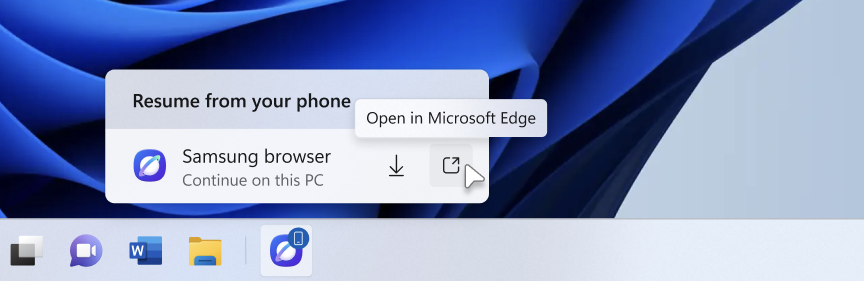 The Resume hovercard provides an option to open the webpage in the PC's default browser.[/caption]
[caption id="attachment_179157" align="aligncenter" width="684"]
The Resume hovercard provides an option to open the webpage in the PC's default browser.[/caption]
[caption id="attachment_179157" align="aligncenter" width="684"]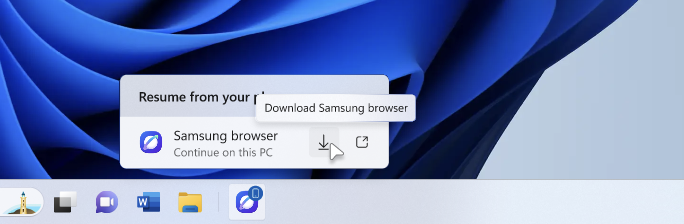 The Resume hovercard provides an option to install the originating phone browser.[/caption]
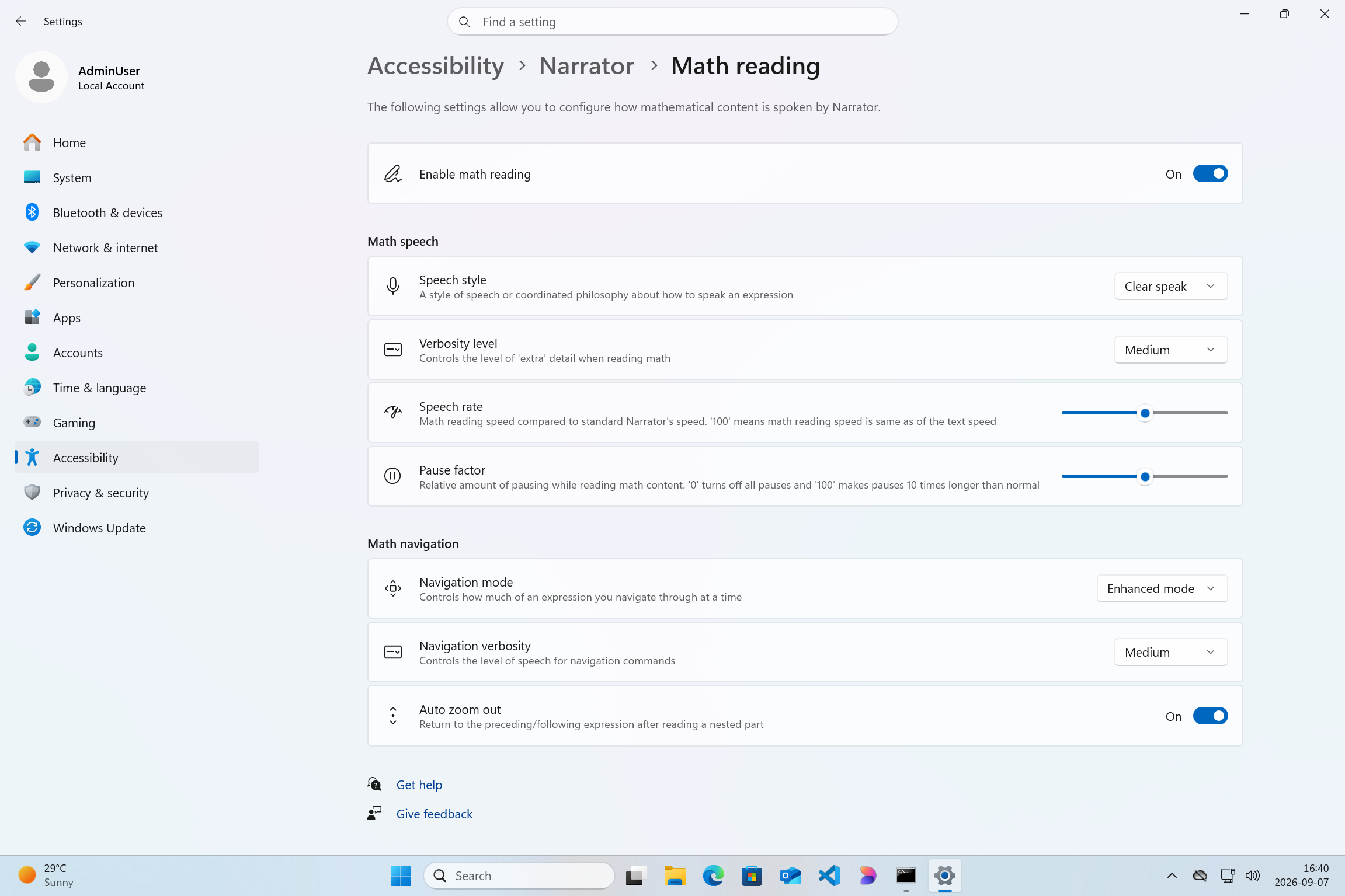 Screenshot of Windows settings page with Narrator Math reading settings page open[/caption]
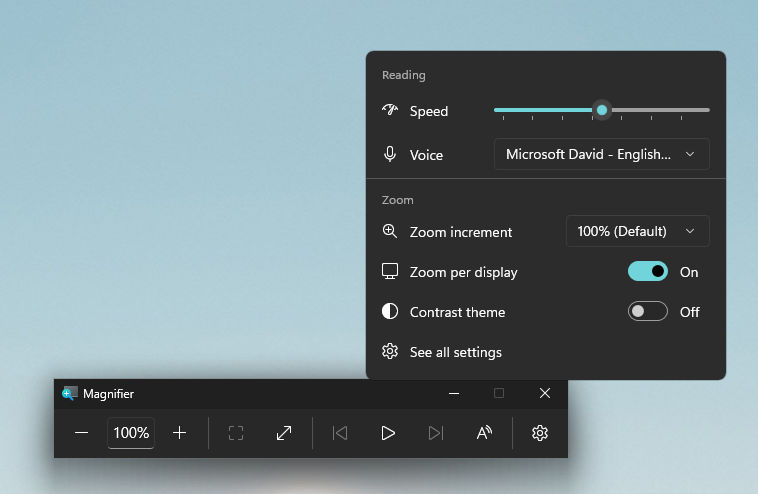 UI showing Magnifier settings with Zoom per display enabled, allowing each monitor to maintain its own zoom level.[/caption]
[caption id="attachment_179160" align="aligncenter" width="1041"]
UI showing Magnifier settings with Zoom per display enabled, allowing each monitor to maintain its own zoom level.[/caption]
[caption id="attachment_179160" align="aligncenter" width="1041"] UI showing Magnifier's multiple display controls, including independent zoom and view locking options.[/caption]
Thanks,
Stephen and the Windows Insider Program team
UI showing Magnifier's multiple display controls, including independent zoom and view locking options.[/caption]
Thanks,
Stephen and the Windows Insider Program team
- Beta: Build 26620.9343
- Experimental: Build 26340.9354
- Beta (26H1): Build 28020.2904
- Experimental (26H1): Build 28120.2912
- Experimental (Future Platforms): Build 29661.1000
Notable new features:
[Cross-device resume improvements]
Release channel: Experimental We're making it easier to continue where you left off on your PC. When you resume a webpage from your phone and the phone's browser isn't installed on your PC, the Resume hovercard now gives you two options: open the page directly in your PC's default browser or install the phone's browser for a native experience. This update helps you continue your work immediately without requiring an app installation first. [caption id="attachment_179156" align="aligncenter" width="864"] The Resume hovercard provides an option to open the webpage in the PC's default browser.[/caption]
[caption id="attachment_179157" align="aligncenter" width="684"] The Resume hovercard provides an option to install the originating phone browser.[/caption]
[Narrator]
Release channel: Experimental Read and explore math equations with Narrator We are adding math reading and navigation support in Narrator, bringing clearer and more natural math experiences to users who are blind or have low vision. Math is at the heart of STEM education and learning, and this update helps students and professionals independently read, understand, and explore equations, formulas, and scientific notations with confidence. Read more in release notes link above. [caption id="attachment_179158" align="aligncenter" width="2303"] Screenshot of Windows settings page with Narrator Math reading settings page open[/caption]
[Magnifier]
Release channel: Experimental Magnifier now understands each of your displays- Every screen keeps its own view, at its own zoom. In earlier versions of Magnifier, zooming in stretched a single magnified view across all of your displays, so one screen's zoom followed you everywhere and screen edges blurred together. With this update, each monitor's boundary is respected, and each monitor can hold its own zoom percentage. Your writing screen can sit at 300% while your reference screen stays at 150%, and the magnified view no longer spills from one display into the next. This matters because different tasks, and different screen resolutions, often call for different levels of magnification to stay comfortable to read. Read more in release notes link above.
UI showing Magnifier settings with Zoom per display enabled, allowing each monitor to maintain its own zoom level.[/caption]
[caption id="attachment_179160" align="aligncenter" width="1041"] UI showing Magnifier's multiple display controls, including independent zoom and view locking options.[/caption]
Thanks,
Stephen and the Windows Insider Program team 



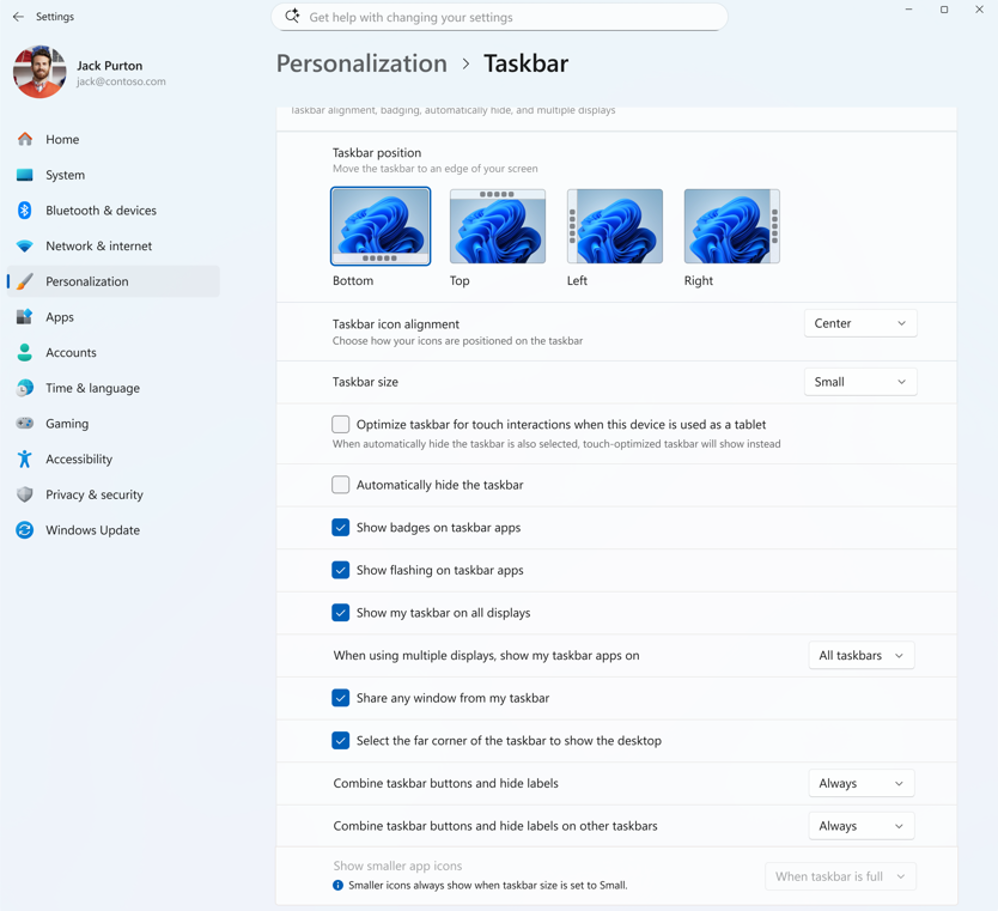
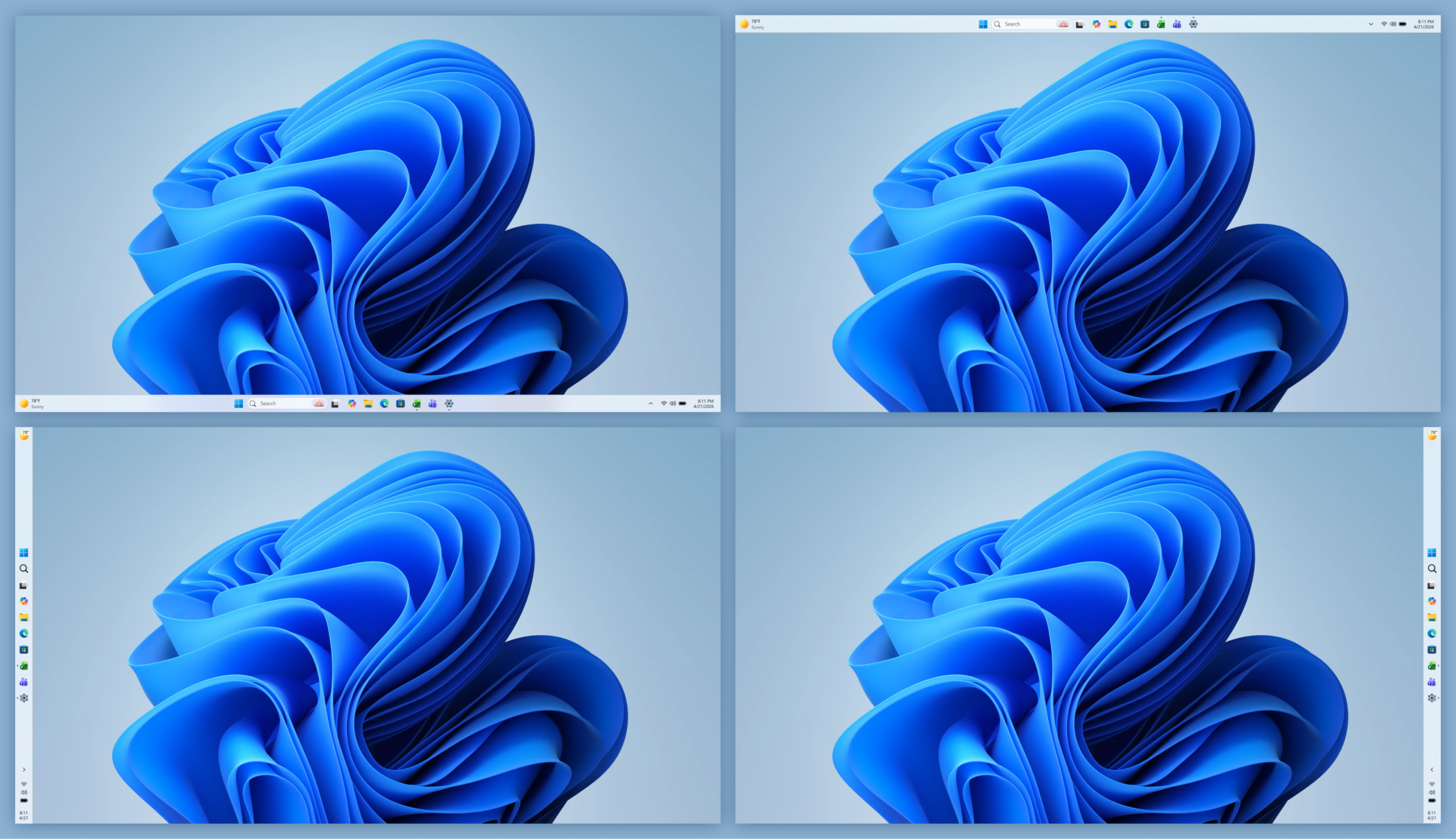
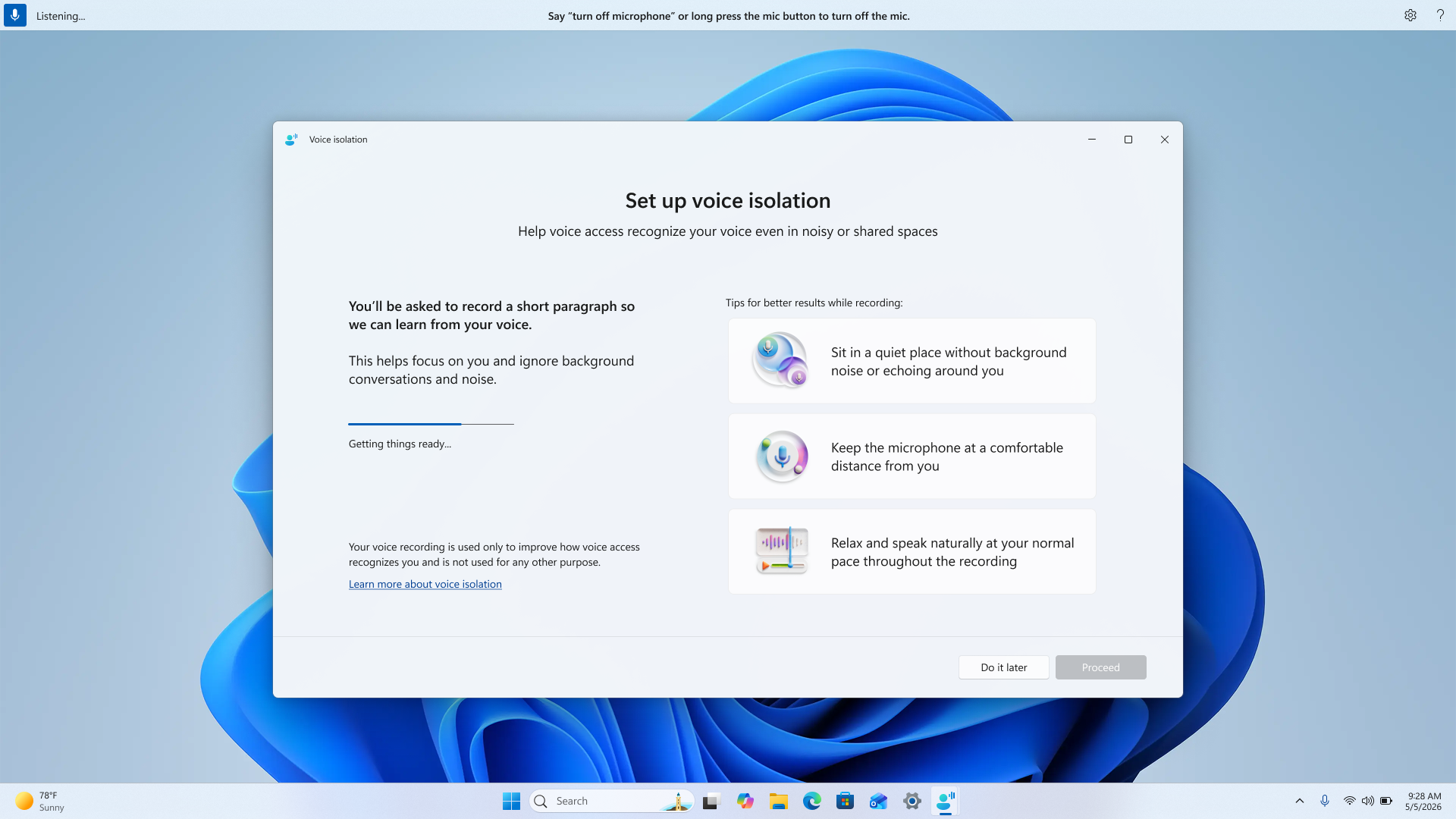
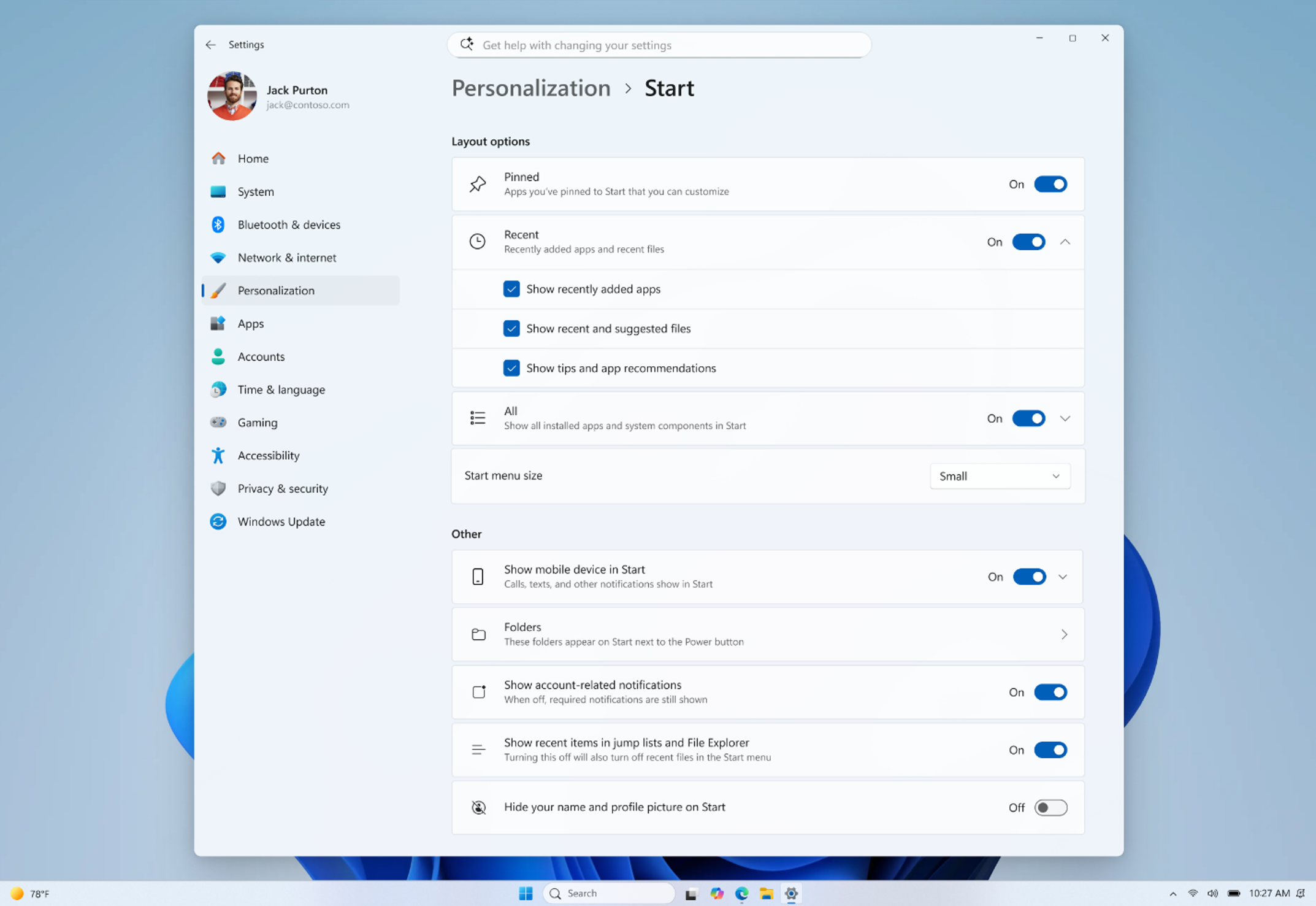

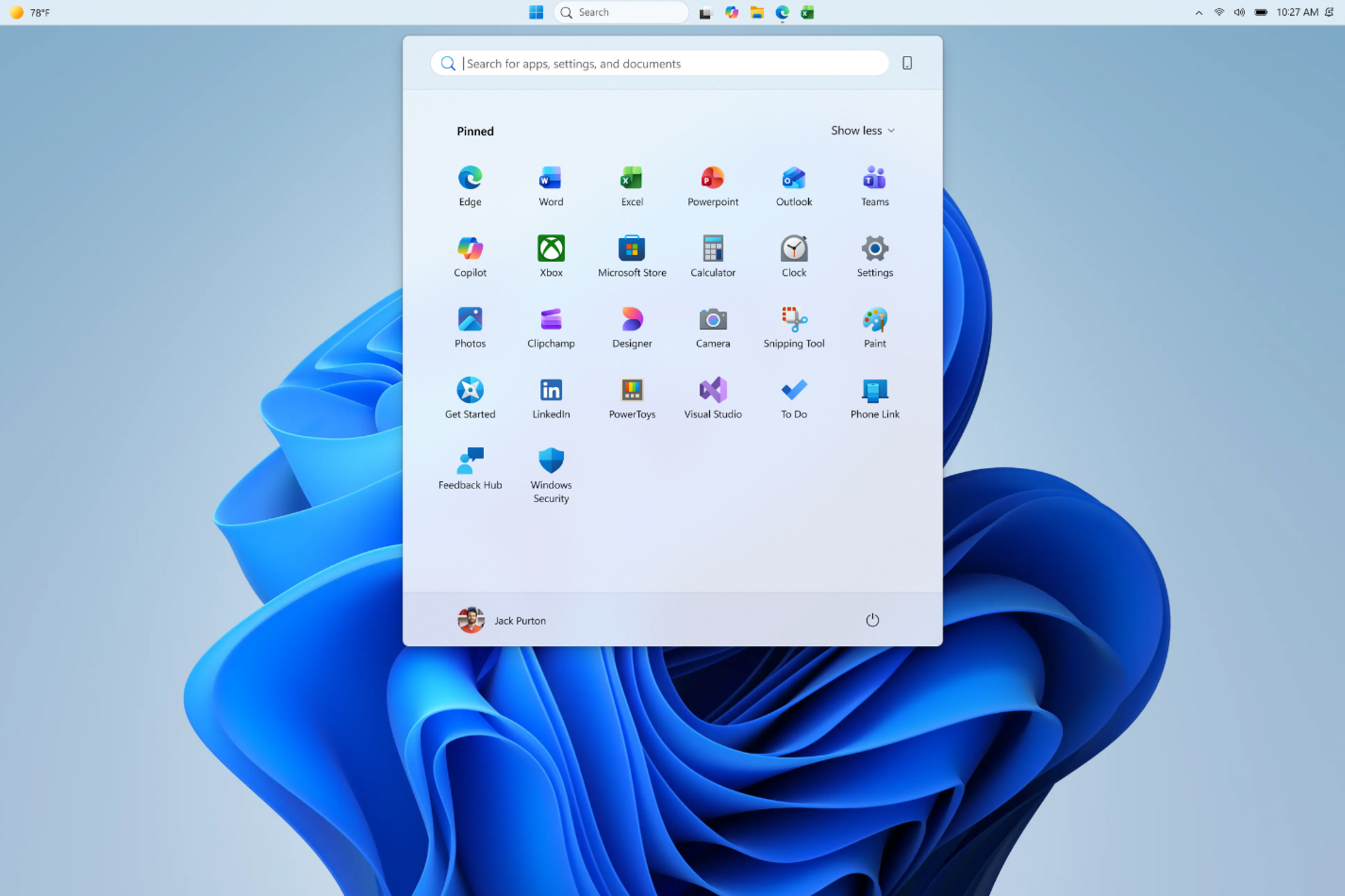
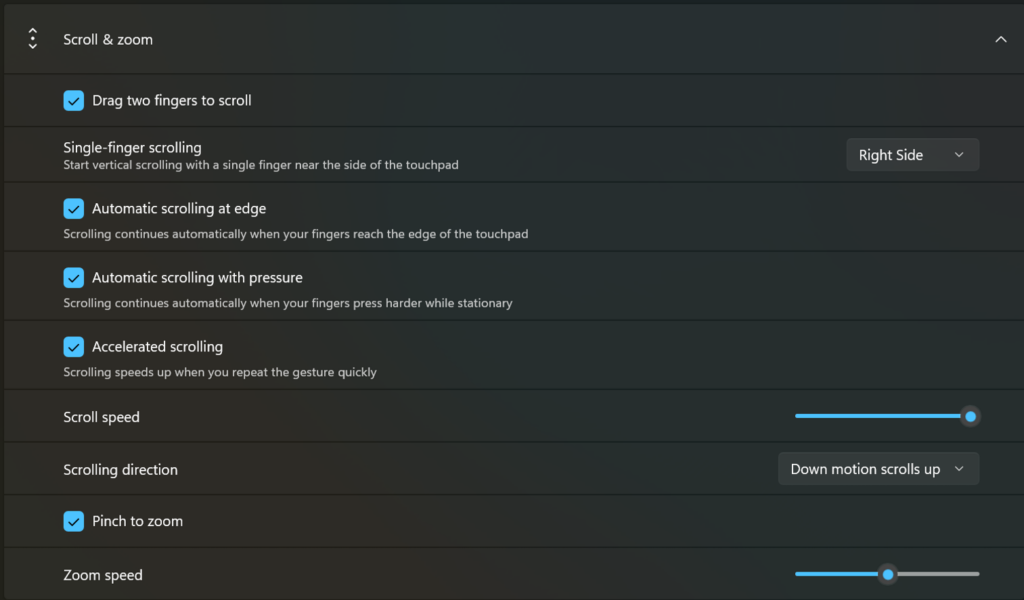 Touchpad improvements bring new gesture capabilities including automatic scrolling, gesture speed controls, accelerated scrolling, and optional single-finger scrolling support.[/caption]
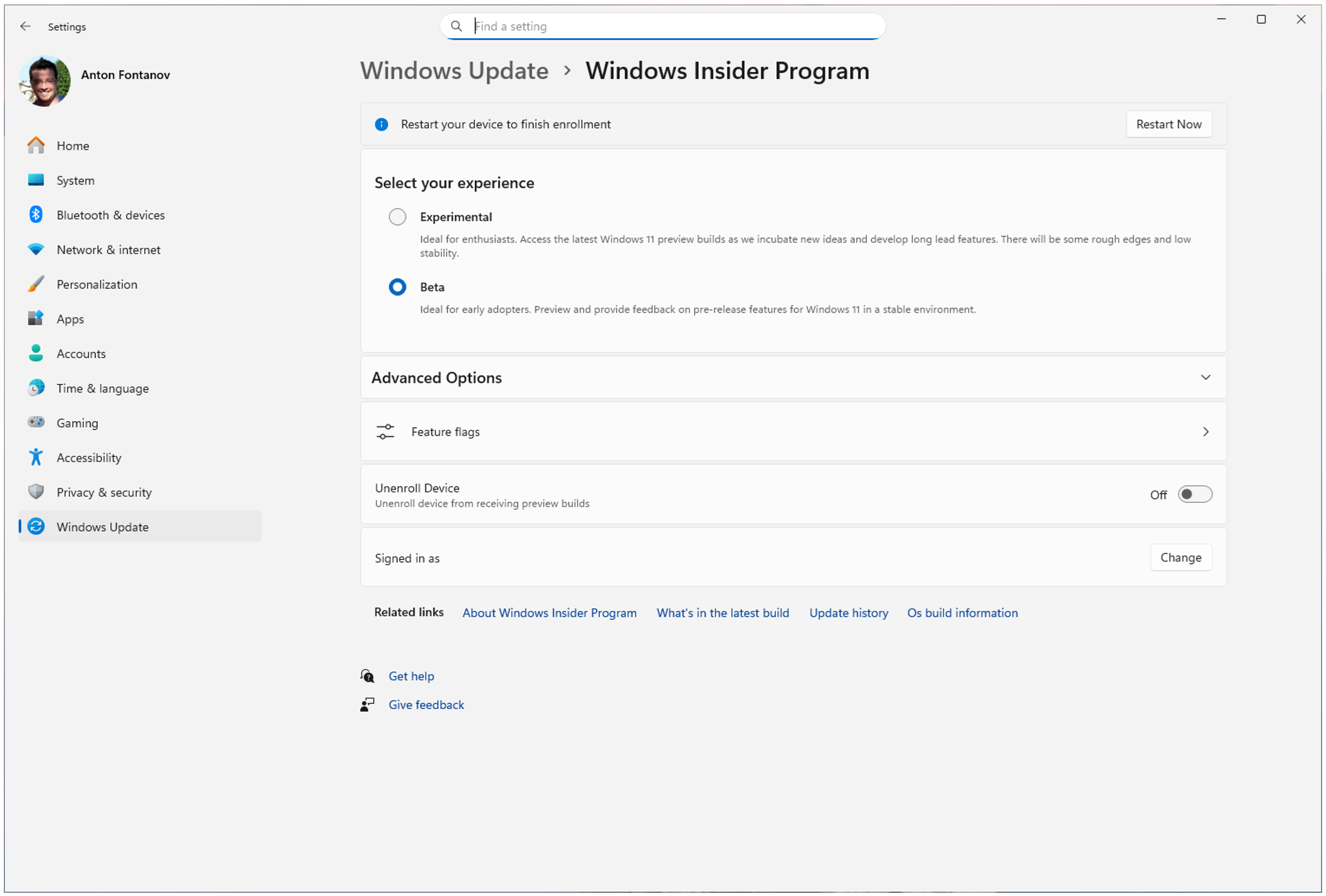
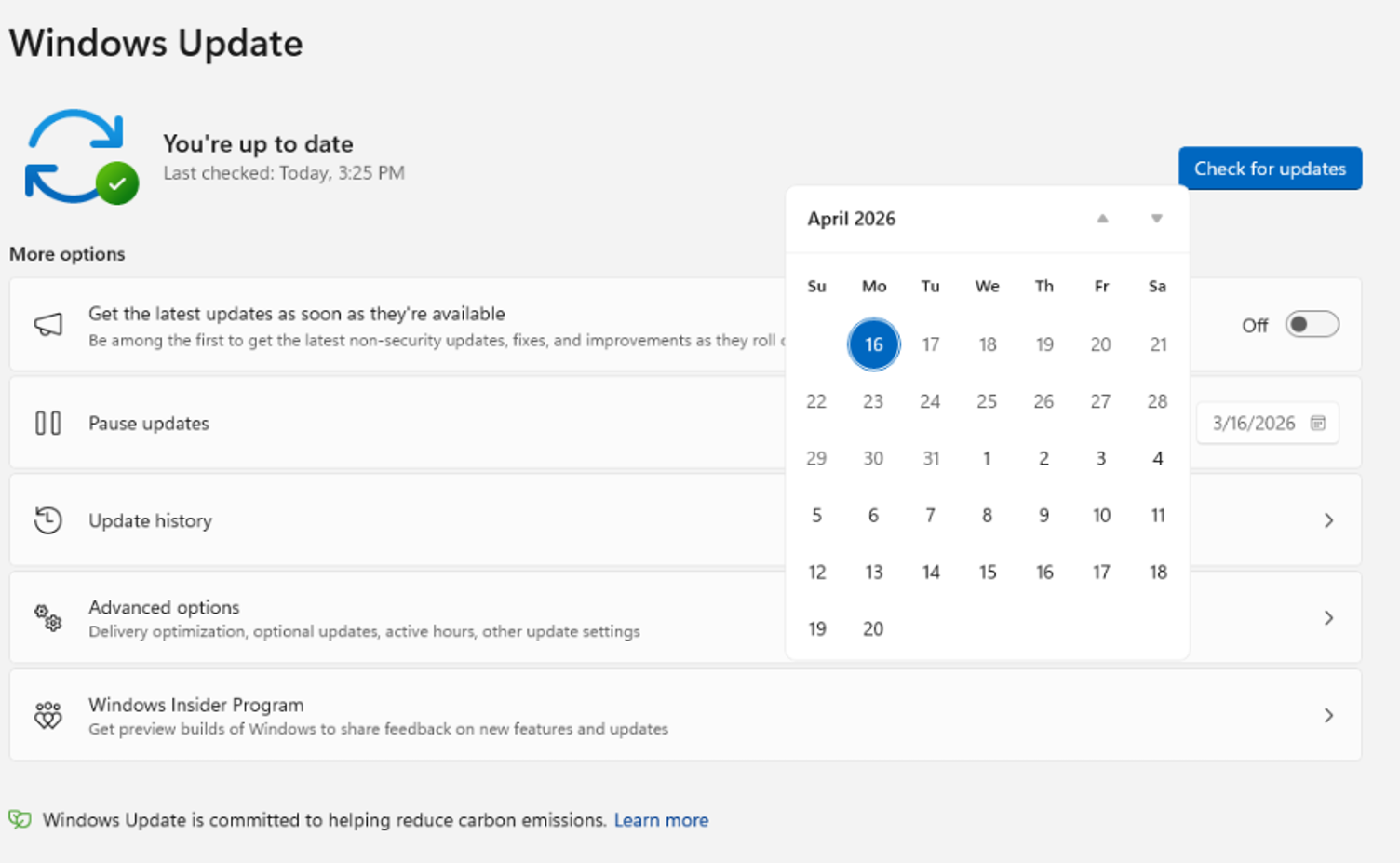
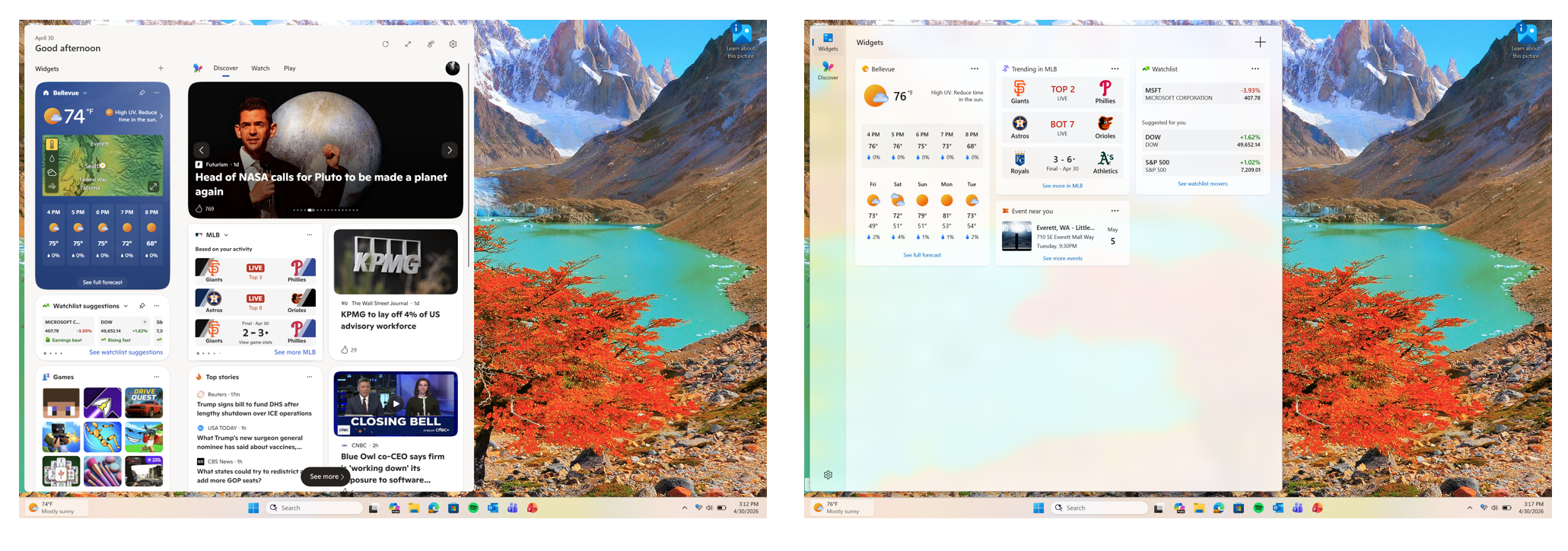
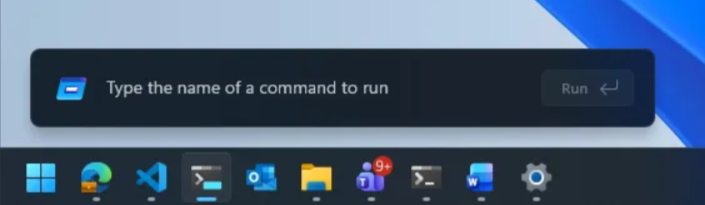
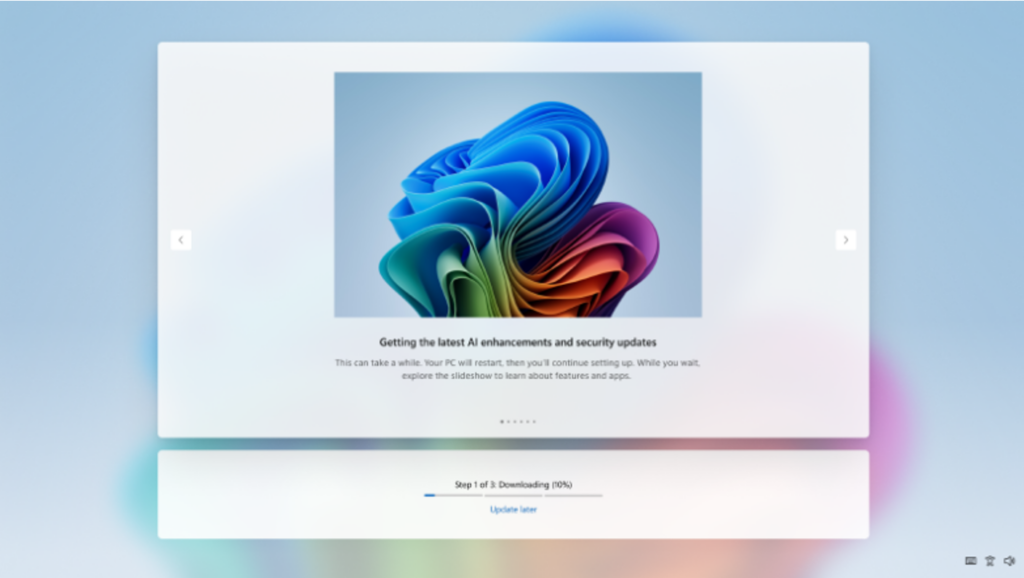 OOBE screen showing ability to update later[/caption]
*Note – this is not applicable to commercial devices where the out of box experience is being
OOBE screen showing ability to update later[/caption]
*Note – this is not applicable to commercial devices where the out of box experience is being 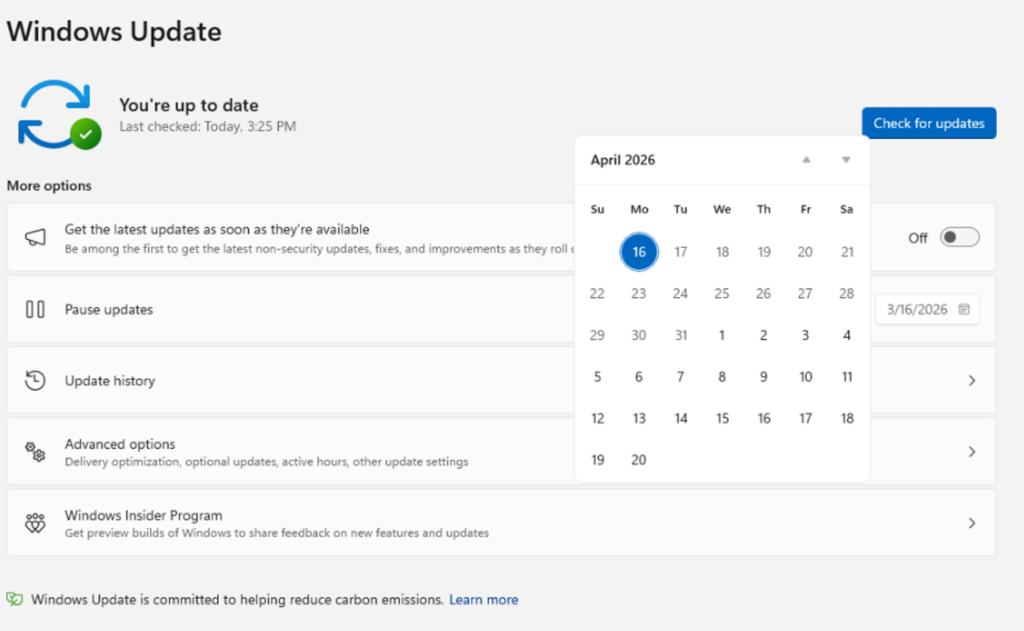 Showing ability in Windows Update to extend update pause[/caption]
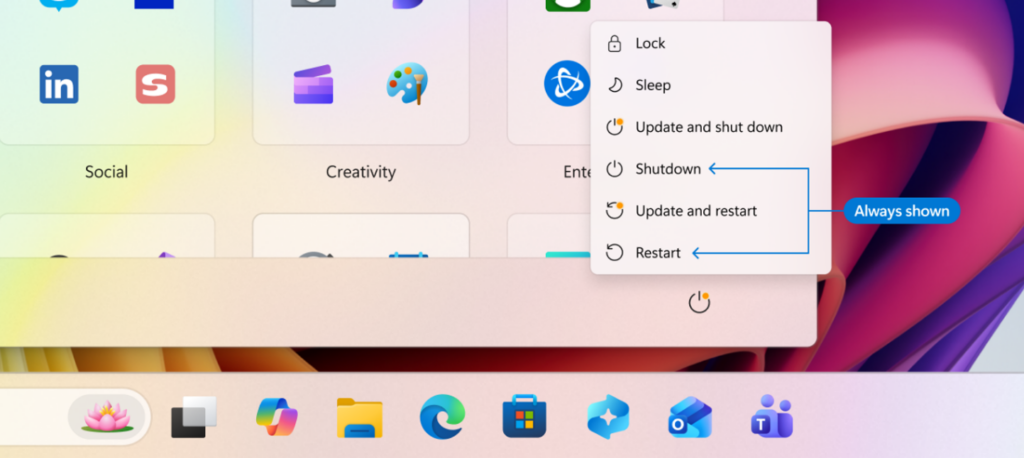 Showing ability to restart and shut down without installing pending updates[/caption]
If you choose Restart or Shut down, Windows will perform exactly that action, without unexpectedly starting an update. If you’re ready to install updates, you can explicitly choose one of the update options.
After a restart, Windows will attempt to restore previously opened applications faster, allowing users to return more easily to what they were working on.
This change is about is about making the Power menu more predictable, so when you need a quick restart or want to power off before heading out, Windows does exactly what you expect.
Showing ability to restart and shut down without installing pending updates[/caption]
If you choose Restart or Shut down, Windows will perform exactly that action, without unexpectedly starting an update. If you’re ready to install updates, you can explicitly choose one of the update options.
After a restart, Windows will attempt to restore previously opened applications faster, allowing users to return more easily to what they were working on.
This change is about is about making the Power menu more predictable, so when you need a quick restart or want to power off before heading out, Windows does exactly what you expect.
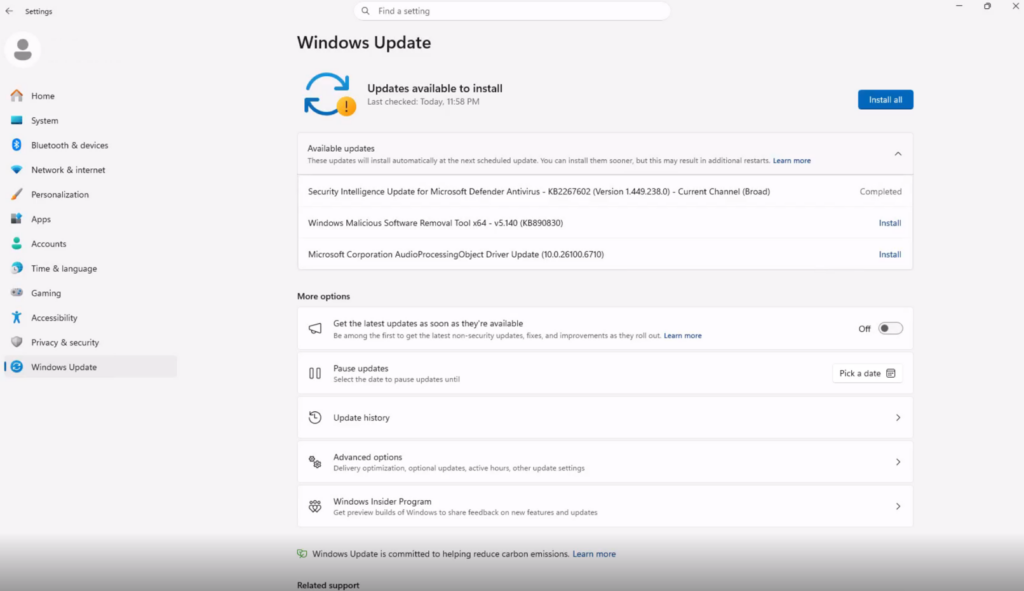 Showing all updates available under Available updates.[/caption]
Updates will download in the background, then will wait for a coordinated installation and restart. This installation and restart will align with the next Windows quality update or other update that you manually approve.
Users can always acquire all or specific updates earlier if desired by initiating download, install, restart (if applicable) for available updates. If none of these actions are taken, updates will be downloaded in the background and applied alongside the next scheduled Windows quality update.
Showing all updates available under Available updates.[/caption]
Updates will download in the background, then will wait for a coordinated installation and restart. This installation and restart will align with the next Windows quality update or other update that you manually approve.
Users can always acquire all or specific updates earlier if desired by initiating download, install, restart (if applicable) for available updates. If none of these actions are taken, updates will be downloaded in the background and applied alongside the next scheduled Windows quality update.
