Log in
Minecraft 26.2-pre-2 (snapshot) Released
26.2 Pre-Release 2 (known as 26.2-pre-2 in the launcher) is the second pre-release for Java Edition 26.2, released on May 28, 2026.
Full changelog: https://minecraft.wiki/Java_Edition_26.2-pre-2

In today's blog, we bring you another piece of the puzzle from the upcoming 1.60 update for both Euro Truck Simulator 2 and American Truck Simulator, which we hope will get our #BestCommunityEver very excited. In this update, we will be introducing the Improved Material System for the interior of selected trucks! Let's take a look.


During the development of Project Road Trip, we implemented a wide range of visual and technical improvements. One of the most significant changes was a redesign of the materials used in vehicle interiors.


"The main goal of the new technology was to bring more light into shadowed areas of vehicle interiors. The previous system struggled to handle indirect lighting in these situations, causing many details to be lost in darkness. The new solution uses multiple variants of dynamic cubemaps, allowing all materials to reflect their surroundings more naturally and respond to ambient light in a more realistic way. Environmental reflections are no longer limited to highly polished metallic surfaces. This change gives interiors significantly greater depth and readability," says our Vehicle Technical Leader, Daniel.
We have also carried out minor adjustments to the global lighting, primarily focused on exposure and contrast balancing, along with subtle visual refinements for bad weather conditions to achieve a more consistent and refined look.


The entire system was designed from the start with the interiors of trucks in both games in mind, so the base games and their existing fleets will gradually benefit from these improvements as well. Throughout the entire process, we kept players with lower-end hardware in mind. We aimed to make the visual improvements as impactful as possible while minimizing the performance cost.


We hope this new feature has you looking forward to the 1.60 update even more, as it brings a major enhancement to these truck interiors and makes the view from the driver's seat better than ever! Please note that the Road Trip vehicles are not releasing with the 1.60 update.


Until next time, be sure to follow us on X/Twitter, Facebook, Instagram, Bluesky, and YouTube for all the latest updates. Don't forget to sign up for our newsletter as well! See you out on the road, and keep on truckin'!

We have just shipped an updated Steam Deck Client to the Stable channel.
General
The 'Legacy Steam Runtime' compatibility tool is now an optional standalone download instead of being bundled with the Steam client.
Fixed an issue where the Steam Workshop would download an older version of an item if there were multiple versions of the item that were marked valid for game beta branch the user opted into.
Fixed a rare case where the Steam Controller welcome dialog could appear while updating the controller's firmware.
Fixed a crash related to the Steam Controller.
Fixed streamable non-Steam games showing in Library when Remote Play is turned off.
Fixed the "View friends list" link in the Big Picture home page opening the older non-QAM version of the friends list.
Fixed some startup movies failing to play.
Fixed option to clear custom backgrounds and logos not showing in library.
Library
Improved EULA scrolling behavior when using a controller.
Settings
Updated the layout and styles for client settings across desktop, Big Picture and controller configuration to improve readability and organization.
Notification settings has been updated to allow changing e-mail, client, and mobile notification preferences in one place.
Directly navigating to a specific settings page (i.e by activating the network icon in the header) will now focus the first setting in that section instead of the settings navigation menu.
Friends & Chat
Friend status will now update much more quickly after waking your device from sleep or toggling network connectivity.
Steam Input
Steam Controller: Minor improvement to gyro micro stutter (ignore clone packets).
You can turn off "Track Pad locking" - by default each trackpad is disabled while the corresponding joystick is either deflected or the joystick's capacitive sensor has been activated. This is to avoid accidental track pad touches when using a joystick. Find the setting in: Settings->Controller->Details->Calibration & Advanced->Trackpad Lockout.
Gyro to Joystick Camera: Defaulted Gyro Deadzone Speed and Gyro Precision Speed to 0 to aide tuning the correct Minimum Joystick Output - these settings would swallow the micro movements needed to check the minimum response to gyro movements. Also: added Minimum Joystick Output slider on the Configurator Quick Settings list.
Added an extra option to Gyro to Joystick Camera - Angle Catchup can be active while gyro ratcheting.
Fixed Gyro to Joystick Camera timing issue - should appear smoother across all controllers.
Removed several configuration options from incompatible inputs. Digital Buttons can no longer be set Press types that require Analog input and Gyro can no longer be set to incompatible Radial Menu or Hotbar. These options will still be available for all compatible inputs.
Fixed detecting the Steam Controller when it is charging on the puck at Steam startup.
Fixed an issue with doubled input when the Steam Controller is charging on the puck.
Fixed FlyDigi Vader 5 Pro in enhanced mode on Linux and macOS.
Fixed "Reset Camera To Horizon" action operating inconsistently in different engines - turn commands chunked into 2 to improve consistency.
Fixed quick settings Left Trackpad to point to correct settings, instead of toward Gyro.
Fixed not being able to use Grip Sense to activate Touch Menus.
Fixed Grip Sense sensor page Grip Range slider, and adjusted explanations.
Added Grip Sense rumble effect to Grip Sense calibration screen.
Fixed an issue where Steam Controller grip thresholds were loaded incorrectly in the device calibration screen.
Fixed an issue preventing the Steam button chord configuration from being edited for the Steam Controller.
Steam Controller Firmware
Fixes for trackpad 'dead zone' issues experienced by some Steam Controllers.
Fixed an issue with occasional stutter on the gyro polling rate.
Fixed IMU failures when using extended rumble.
Fixed an issue where continuous rumble would sometimes break Gyro input.
Remote Play
Added an advanced client option to enable microphone streaming.
Fixed the client disconnecting after a short period of time when doing non-local streaming.
Fixed the Steam Link app not showing the computer as online after pairing in some cases.
Desktop Mode
Fixed a case where dropdown windows and profile hover windows could get stuck on screen.
A new Steam client has been released and will be automatically downloaded.
General
Fixed an issue where the Steam Workshop would download an older version of an item if there were multiple versions of the item that were marked valid for game beta branch the user opted into.
Fixed a rare case where the Steam Controller welcome dialog could appear while updating the controller's firmware.
Fixed streamable non-Steam games showing in Library when Remote Play is turned off.
Fixed some startup movies failing to play in Big Picture Mode.
Fixed option to clear custom backgrounds and logos not showing in library.
Settings
Updated the layout and styles for client settings across desktop, Big Picture and controller configuration to improve readability and organization.
Notification settings has been updated to allow changing e-mail, client, and mobile notification preferences in one place.
In-Game Overlay
Fixed a case where Performance Monitor could over report frame rate if a game erroneously calls NVIDIA APIs to get new frame tokens at a much higher rate than their actual Present frame rate.
Fixed cases where the overlay may not immediately cover the entire screen when first invoked.
Fixed cases where the Big Picture mode overlay notifications may be positioned incorrectly until the overlay is first invoked.
Fixed a rare case where GameOverlayUI64.exe could stop responding and use too much CPU.
Steam Controller Firmware
Fixes for trackpad 'dead zone' issues experienced by some Steam Controllers.
Fixed IMU failures when using extended rumble.
Fixed an issue with occasional stutter on the gyro polling rate.
Fixed an issue where continuous rumble would sometimes break Gyro input.
Steam Input
Steam Controller: Minor improvement to gyro micro stutter (ignore clone packets).
You can turn off "Track Pad locking" - by default each trackpad is disabled while the corresponding joystick is either deflected or the joystick's capacitive sensor has been activated. This is to avoid accidental track pad touches when using a joystick. Find the setting in: Settings->Controller->Details->Calibration & Advanced->Trackpad Lockout.
Gyro to Joystick Camera: Defaulted Gyro Deadzone Speed and Gyro Precision Speed to 0 to aide tuning the correct Minimum Joystick Output - these settings would swallow the micro movements needed to check the minimum response to gyro movements. Also: added Minimum Joystick Output slider on the Configurator Quick Settings list.
Added an extra option to Gyro to Joystick Camera - Angle Catchup can be active while gyro ratcheting.
Fixed Gyro to Joystick Camera timing issue - should appear smoother across all controllers.
Removed several configuration options from incompatible inputs. Digital Buttons can no longer be set Press types that require Analog input and Gyro can no longer be set to incompatible Radial Menu or Hotbar. These options will still be available for all compatible inputs.
Fixed detecting the Steam Controller when it is charging on the puck at Steam startup.
Fixed an issue with doubled input when the Steam Controller is charging on the puck.
Fixed FlyDigi Vader 5 Pro in enhanced mode on Linux and macOS.
Fixed "Reset Camera To Horizon" action operating inconsistently in different engines - turn commands chunked into 2 to improve consistency.
Fixed quick settings Left Trackpad to point to correct settings, instead of toward Gyro.
Fixed not being able to use Grip Sense to activate Touch Menus.
Fixed Grip Sense sensor page Grip Range slider, and adjusted explanations.
Added Grip Sense rumble effect to Grip Sense calibration screen.
Fixed an issue where Steam Controller grip thresholds were loaded incorrectly in the device calibration screen.
Fixed an issue preventing the Steam button chord configuration from being edited for the Steam Controller.
Fixed Steam Controller input in Kingdom Come: Deliverance II.
Linux
The 'Legacy Steam Runtime' compatibility tool is now an optional standalone download instead of being bundled with the Steam client.
Fixed firmware updates failing on systems where libhidapi was not installed.
Fixed a case where dropdown windows and profile hover windows could get stuck on screen.
Fixed a crash related to the Steam Controller on Linux.
Remote Play
Alt-Enter now toggles windowed mode.
Window mode, position, and size are saved between sessions.
Added a windowed mode toggle and 1:1 resize button to the mouse/keyboard overlay menu.
Added an advanced client option to enable microphone streaming.
Fixed the client disconnecting after a short period of time when doing non-local streaming.
Fixed the Steam Link app not showing the computer as online after pairing in some cases.
The Steam Client Beta has been updated with the following changes:
In-Game Overlay
Fixed regression in FPS counter for a small number of games in this beta.
Steam Input
Fixed the size of virtual menus on desktop to match Big Picture Mode.
We have just shipped an updated Steam Deck Client to the Preview/Beta channel.
Desktop Mode
Fixed the size of virtual menus to match Big Picture Mode.
Fixed regression in FPS counter for a small number of games in this beta.
The latest update to Steam Workshop has just wrapped up a beta test period and is now deployed for everyone.
The next time you visit the Steam Workshop for your favorite game, you'll see an updated interface for browsing, searching, and filtering, making it easier and faster to explore and find great user-created mods to enhance your gaming experience.
Read on for details of this update.
The main Workshop page for each game has a fresh new layout, which can be customized by the game's developer.
By default, the page starts off with featuring the most popular mods based on user ratings in the past week.
Next, the page lists the available item tags to quickly browse relevant content, or you can flip through the tabbed section of "Most popular", "Most Subscribed", "Last Updated", and "Most Recent"

In some communities, certain items have become the foundation upon which many other mods are built, so we've added a section to highlight those important cornerstone mods that are required by other items.

And of course if you follow individual Workshop authors, or if your friends have uploaded items for that Workshop, the page will display sections for those too.
We've reworked the browsing and filtering experience to make the whole thing faster and easier.
Applying filters now happens much faster and without a page refresh, so it's easier to keep track of where you are and what has changed as a result of the filters you set.
We've also redesigned the page to make better use of wider screens, allowing more items per row. Now, for most players, you'll find four or five items per row instead of the previous limitations of three.
Saved Searches
When you've applied desired filters to narrow down to a set of interesting mods, you can also save your search query to get back to it quickly from the "Browse" menu.

Powerful search: titles and/or descriptions
Now, the search within Workshop defaults to searching both the title and description fields to find your desired term. You can click the gear icon next to the search field for more options and details on constructing complex search queries to narrow in on exactly what you are looking for.
Filter by required DLC
Some mods only work with content available in specific items of DLC for the game. You can now easily narrow down your searches to exclude items that require DLC that you don't have.

When hovering over any item in the Workshop, you'll find a new magnifying glass icon appear. Clicking that icon will open a new quick view of the item, with key details such as dates, file size, screenshots, description and ways to immediately subscribe, rate, or add to your favorites. Plus, you can use the arrows on left and right of the quick view to quickly browse through the same list of items you opened the quick view from.

In addition to description of the item you are viewing, the quick view panel also includes sections for other items or DLC that are required. You can also easily jump to all of the items that depend on the item you are looking at, as possibly an interesting way to explore some similar kinds of content.
Q. What if I find a bug? How do I give feedback on the changes?
A. Leave us a comment by clicking the 'Discuss' button below.
Q. Do you plan to update other pages in the Workshop?
A. Yes, but we don't have an exact timeline for when. Once we wrap up this beta of the browsing page, we'll have a better idea of scope of work for subsequent pages.
Q. Got any random Workshop trivia?
A. Absolutely, we love random trivia. Did you know...
The mod with the most subscribers, is crashz' Crosshair Generator v3, which has been around since 2014. This mod helps players customize their crosshairs in Counter-Strike and has over 36M subscribers!
The mod that is most depended on by other mod makers: the eloquently-named CBA_A3 for Arma 3 is a toolkit that over 19,000 other mods depend on.
The Steam Workshop has 2,013 items with over 1 Million current subscribers. That is a whole lot of people customizing their gaming experience!
There are 41 different games on Steam that have at least one item in their Steam Workshop with over 1 Million subscribers. Wallpaper Engine, Garry's Mod, Project Zomboid, DayZ, and Counter-Strike 2 make up the top 5 of those.
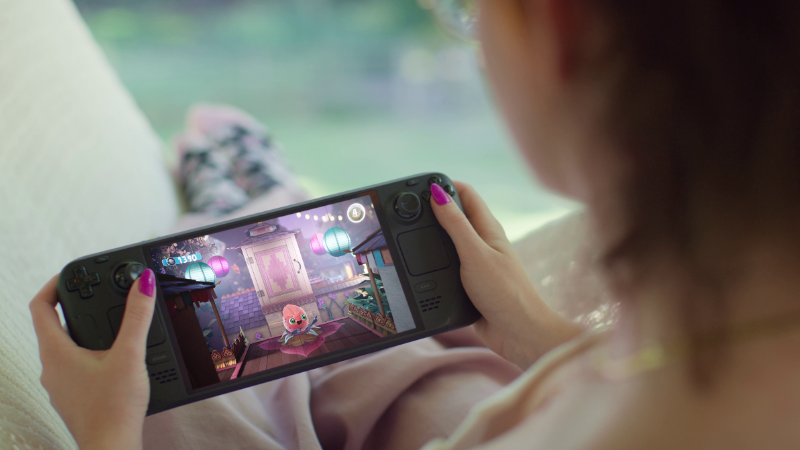
Steam Deck OLED is back in stock, with a price increase for both models due to rising memory and storage costs.
New prices (inclusive of VAT where applicable):
Steam Deck OLED 512GB: Now $789 USD; CAD 1,129; EUR 779; GBP 649; AUD 1,199; PLN 3,279
Steam Deck OLED 1TB: Now $949 USD; CAD 1,349; EUR 919; GBP 779; AUD 1,429; PLN 3,879
Steam Deck itself hasn't changed; these new prices reflect the current state of component costs and other global logistical challenges across the industry as a whole. We’ll keep you updated if anything changes.
Read more about Steam Deck on its product page, and follow the Steam Hardware Blog to stay up-to-date on all Steam Hardware news.
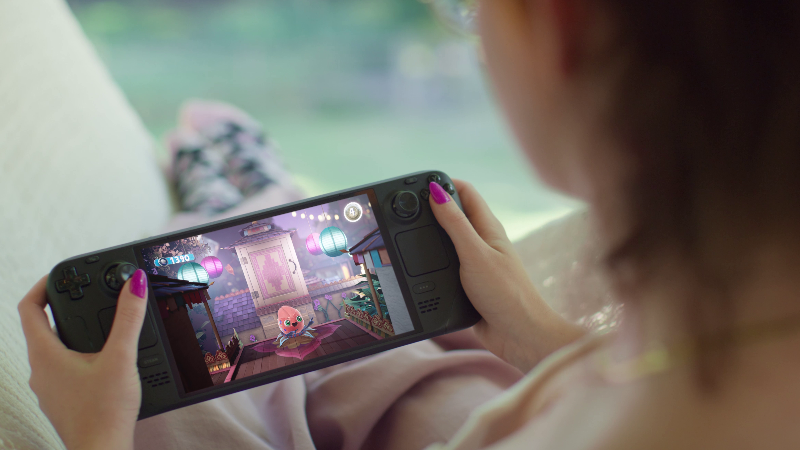
Steam Deck OLED is back in stock, with a price increase for both models due to rising memory and storage costs.
New prices (inclusive of VAT where applicable):
Steam Deck OLED 512GB: Now $789 USD; CAD 1,129; EUR 779; GBP 649; AUD 1,199; PLN 3,279
Steam Deck OLED 1TB: Now $949 USD; CAD 1,349; EUR 919; GBP 779; AUD 1,429; PLN 3,879
Steam Deck itself hasn't changed; these new prices reflect the current state of component costs and other global logistical challenges across the industry as a whole. We’ll keep you updated if anything changes.
Read more about Steam Deck on its product page, and follow the Steam Hardware Blog to stay up-to-date on all Steam Hardware news.
Today, we are excited to share with our community a brand-new feature coming to both Euro Truck Simulator 2 and American Truck Simulator with the upcoming 1.60 update - Game Radio!

For many drivers, music and the open road naturally belong together. Whether you are cruising through the countryside at sunset, hauling cargo across busy interstates, or relaxing during a long night drive, the right soundtrack can completely change the atmosphere of your journey. With Game Radio, we wanted to take that experience much further than a simple music player.
Game Radio is a brand-new in-game radio system designed to deepen immersion, support roleplay, and make every drive feel more authentic. Rather than approaching radio as just another technical feature, we created a collection of stations with their own distinct identities, philosophies, moods, and sounds. This is Game Radio's first chapter - built on music, with more layers planned for the road ahead.
At launch, Game Radio will feature five unique radio stations:
Rust FM
Rust FM is a guitar-driven station bridging five decades of rock, from the psychedelic garage sounds of the late 60s all the way to modern indie. Built for drivers who enjoy raw riffs, extended solos, distortion, and live energy.
This station features, amongst others, Sorry and SASAMI, both on Domino Records. Sorry is a North London indie band whose debut was co-produced by James Dring of Gorillaz fame, while SASAMI is a classically trained French horn player from the Eastman School of Music who scored films and commercials before going solo. Also on the roster: Holiday Ghosts, a DIY duo from Cornwall who record on their own equipment and have built a devoted cult following in the UK underground.
Escape
Escape is for drivers whose nervous systems are stretched thin, a place to slow down, settle in, and find some quiet. Lo-fi textures, jazzy chords, minimal beats. Escape is ideal for peaceful night drives and calm moments behind the wheel.
Escape is also a radio station designed to help content creators, and we are committed to do our best to keep it stream-safe, featuring StreamBeats by Harris Heller, a music library built by a streamer, for streamers. Its music is specifically licensed with streamers in mind, designed to help avoid copyright claims and support content monetization. Players will be able to enable Streamer Mode directly from the game menu.
PUMP IT!
PUMP IT! turns your truck cabin into a dance floor, built on hypnotic beats and precisely engineered production. This station is all about movement and intensity. Don't think it. Just feel it. Featuring Tony Romera, a French producer with official remixes for Calvin Harris and Diplo, and a #1 track on the Beatport Overall Charts, and KIDSØ, a Munich duo known for fully improvised live shows with live visual installations across the European festival circuit.
Pop Gear
Pop Gear runs on hooks, momentum, and dopamine. Designed to capture attention and trigger the irresistible urge for just one more song, the station thrives on the emotional highs of contemporary pop: modern production, catchy melodies, hook after hook. Featuring Palace Winter, a Copenhagen duo the New York Times called "a darkly intoxicating potion," and School of X, a Danish artist whose music moves between orchestral pop and raw electronics.
Roadio
Roadio is dedicated to American roots music that feels grounded, honest, and deeply connected to the spirit of the open road. Inspired by wide landscapes, truck stops, desert highways, and classic Americana, Roadio aims to become the perfect companion for long-distance hauls and quiet moments of reflection. Featuring Bonnie 'Prince' Billy, one of indie folk's most revered voices whose song "I See a Darkness" was covered by Johnny Cash; Grammy nominee and 2021 IBMA Songwriter of the Year Thomm Jutz; and New Zealand singer-songwriter Amber Lynn Nicol.
Game Radio features music from artists across some of the most respected independent labels in the world, including Domino Recording Company, home to Arctic Monkeys, Franz Ferdinand, and Wet Leg, alongside Drag City, Ninja Tune, and independent artists who record and tour entirely on their own terms. Every track was chosen by hand, built to hold up across hundreds of hours of driving.
Game Radio Feature
Game Radio will expand the existing audio experience alongside the current Radio Stream (Online Radio) and Music Player systems, while also bringing a variety of improvements to music selection, user experience, and overall interaction with the in-game audio players.

In-game Widget
While driving, the Audio Player widget will appear above the navigation interface and display detailed playback information, including:
Players will also be able to customize the behavior of the widget through the Widget Options menu (F6), allowing them to tailor how and when radio information appears during gameplay.

Support for Community-Created Stations
We are also excited to support creative possibilities for our modding community. Players will be able to create their own custom radio stations featuring their own music and share them with the community for playback, just like any other mods.
Game Radio has been designed to become part of the driving experience itself. Different stations can completely change the atmosphere of your journey, whether you are hauling cargo through dense urban traffic, crossing remote deserts, or enjoying scenic roads across Europe and North America.
This feature also brings improvements to the existing music and radio systems, creating a more seamless listening experience while driving.

We are incredibly excited to finally begin sharing more about Game Radio with our community, and we look forward to hearing which station becomes your favorite once 1.60 arrives. The stations you hear at launch are the foundation. Music comes first, and there is plenty more we want to build on top of it in the future!
Be sure to follow us on X/Twitter, Facebook, Instagram, Bluesky, and YouTube for all the latest updates. Don't forget to sign up for our newsletter as well! See you out on the road, and until next time, keep on truckin’.

The Steam Client Beta has been updated with the following changes:
General
Fixed option to clear custom backgrounds and logos not showing in library.
In-Game Overlay
Fixed a rare case where GameOverlayUI64.exe could stop responding and use too much CPU.
Steam Input
Fixed Steam Controller input in Kingdom Come: Deliverance II.
Remote Play
Fixed the Steam Link app not showing the computer as online after pairing in some cases.
We have just shipped an updated Steam Deck Client to the Preview/Beta channel.
General
Fixed option to clear custom backgrounds and logos not showing in library.
Remote Play
Fixed the Steam Link app not showing the computer as online after pairing in some cases.
We are happy to bring you another preview from the upcoming Iceland map expansion for Euro Truck Simulator 2, as today, we are taking a closer look at the majestic fjords found in this country!

These glacier-carved inlets are an integral part of the Land of Fire and Ice landscape. They can be found in various locations around the island and are filled with wildlife, towering cliffs, and centuries-old fishing villages.
Capturing Iceland's stunning fjords on our scale presented a unique challenge. In reality, these vast landscapes stretch for kilometers, but at a reduced in-game scale, we needed to carefully balance realism with gameplay so they preserve their breathtaking character and don't lose the sense of grandeur that makes them so iconic.


As a result, players can look forward to routes that faithfully recreate the experience of driving on Iceland's coastline, driving long distances along winding coastal roads to reach the opposite side of a fjord that remains constantly in view, towering majestically beside them the entire journey.
What truly brought these landscapes to life was the presence of water itself. Countless waterfalls, winding streams, tranquil lakes, and bays add a sense of movement and atmosphere to the environment, making Iceland's fjords feel far more vibrant and dynamic than ordinary mountain scenery.


Our map designers also shared some insight into the process behind creating these landscapes. "One of the biggest challenges was modeling and texturing the fjords themselves, which took a considerable amount of time. At the same time, though, it was one of the most enjoyable tasks I've ever had the chance to work on. We also used satellite imagery to better understand how the fjord was formed, so we could design it to look natural even when viewed from different angles and distances," Jan explained.


"At first, the fjords made me feel as if I was looking at another planet. It was hard for me to grasp the sheer scale, size, distance, and shape of these natural formations. But after a while, I began to notice that all the shapes in the rocks have their own logic and continuity. That is exactly the feeling I want to convey to the player who will be driving through these routes. At first glance, they'll be amazed by the size and shape of the fjords, but at the same time, they'll have the chance to look around and understand how the landscape connects," says our map designer, Ashley.


Truckers will encounter a variety of unique locations, each with its own atmosphere. Seyðisfjörður, nestled deep within the bay of the same name, serves as one of the main gateways to Iceland thanks to the ferry connection from Hirtshals in Denmark. Further south in the Eastern Fjords lies Reyðarfjörður, home to an aluminum processing plant depot, while nearby Stöðvarfjörður captures the quiet charm of the Austfirðir region and its coastal settlements.

In the remote and sparsely populated region of the Westfjords, players will drive through Álftafjörður, probably the largest and most imposing fjord featured in this DLC. You will also be able to visit Ísafjörður, a small town built on a narrow headland in Skutulsfjörður, which stands as one of the key economic hubs in the western part of the map.
If you are excited to be trucking in this map expansion, don't forget to support us by adding the Iceland DLC to your Steam wishlist.
Also, remember to give our X/Twitter, Instagram, Facebook, Threads, Bluesky, and TikTok a follow as you'll receive updates from our games straight to your feed. Or subscribe to our newsletter to stay informed. Happy haulin'!

Since the release of the Illinois DLC for American Truck Simulator, we’ve loved seeing all of your screenshots, videos, reviews, and trucking adventures from across the Prairie State. Watching you explore everything Illinois has to offer has been incredibly rewarding for our team, which is why we wanted to shine a spotlight on some of our favourite community content, as shared by you!


BadMae

"The Illinois DLC absolutely blew us away! Chicago is unlike anything we have experienced in American Truck Simulator so far; the scale, skyline, Lower Wacker Drive, Navy Pier, the L train, the Bears stadium, and even the International Trucks headquarters all made the city feel alive and incredibly immersive. What impressed us just as much was how smoothly the map transitions from the busy energy of Chicago into the farmlands, countryside, quarries, and smaller towns that give Illinois so much character. Thornton Quarry is a massive standout, and players who love exploring may want to do some extra hunting around Marion, too! Overall, Illinois easily ranks as one of our favorite ATS states. SCS truly knocked it out of the park, and we cannot wait to see what comes next with South Dakota!" - Christian and Monique, BadMae
RunawayLobster

"Illinois has now become my favorite American Truck Simulator DLC. The hidden beauty spots, the changing environments, and the pure detail and beauty of Illinois blew me away. With a couple of hidden roads I have discovered already, I had not realised how different the scenery would be. I thoroughly enjoyed exploring Illinois and the beauty it had to offer. Hats off to the developers and artists working on this game who, at every opportunity, absolutely blow us away with the attention to detail. Thank you for this great addition to the already incredible American Truck Simulator game!" - RunawayLobster
Prime Simulations

"The Illinois DLC for American Truck Simulator is simply fantastic! To no surprise, SCS Software has once again raised the bar for map DLCs with Illinois - recreating cities, landmarks, industries, and more to an impressive level of accuracy. I had the absolute privilege of exploring the Illinois DLC during its early access phase - exploring every corner of the state! From Chicago to Marion, Quincy to Champaign, and every location in between - I can confidently say that the Illinois DLC is a "must have" for all ATS players - especially those who want to complete the Route 66 corridor! I look forward to exploring the Illinois DLC further and for the future of ATS!" - Prime Simulation
DaSimSimma
"The Illinois DLC already feels like a major step forward for American Truck Simulator, especially with Chicago. The city feels explorable and believable, and honestly, this might be the most detailed urban environment ATS has received yet. There’s a real sense of scale and atmosphere here that reminds me of actually visiting Chicago in real life, and I think that familiarity is part of what makes these newer DLCs feel so immersive. As ATS continues moving closer toward my home region around the Great Lakes, I honestly find myself getting more personally invested in every new state release." - DaSimSimma
Project Sim Racing

"SCS Software delivers yet another masterpiece with the Illinois DLC! The attention to detail and the sheer level of immersion make it an absolute joy to drive through. It’s always an honor to showcase your incredible work to my community." - Project Sim Racing

We’re excited to partner with Western Star Trucks and head back to Bend, Oregon, from June 5th to 8th for the unforgettable Star Nation Experience 2026! Joining us for this incredible all-expenses-paid adventure will be two lucky members of the American Truck Simulator community, who will get the chance to experience the event alongside the Star Nation community and the Western Star team. Ready to meet them?

Nathan is an avid American Truck Simulator player, and full-time Crane Operator and part-time truck driver for a local contractor! His first experience getting behind the wheel of a full sized truck was a 1997 Western Star 4900SF with a CAT C15, and ever since he's been hooked! His passion for trucks and love for Western Star since he was young was what drew him to becoming an avid player of ATS, where he also loves hitting the virtual road with the Western Star 49X!


With the upcoming 1.60 update, we are continuing to refine the widget system in both Euro Truck Simulator 2 and American Truck Simulator based on feedback gathered from our community. Following that, we will be introducing the Job Details Widget, so let's see the changes that will be coming.

Based on the feedback from our #BestCommunityEver and upcoming widget designs, the Job Details Widget will be introduced with the 1.60 update. Its primary purpose will be to enable a new, more immediate, and concise way of displaying relevant job info.


In the current design, this info is spread across multiple screens, most of it displayed as part of Quick Info, which currently shows the place of pick up and delivery, job income, cargo type and weight, the next rest stop, and remaining time to complete the job, which is also displayed under the GPS.
Once added, you'll be able to enable the Job Details Widget through the Widget Options menu (F6). The widget will display key job information, including cargo type and weight, delivery location, job income (colour-highlighted), and the remaining time to complete the job, so players will have this info available immediately without the necessity to pause the game.


In addition, the remaining job time will no longer appear on the GPS and will instead be shown exclusively in the Job Details Widget.
We hope that, through ongoing community feedback, we can continue to refine the widget system and improve the overall player experience.
Until next time, remember to stay tuned for more news from the upcoming 1.60 update by following us on our X/Twitter, Facebook, Instagram, Bluesky, and YouTube. We would also really appreciate it if you could sign up for our newsletter. Keep on truckin'!

A new Steam client has been released and will be automatically downloaded.
Steam Controller Firmware
Address potential charge issue when controller is removed from charging puck.
We have just shipped an updated Steam Deck Client to the Stable channel.
Steam Controller Firmware
Address potential charge issue when controller is removed from charging puck.
We have just shipped an updated Steam Deck Client to the Preview/Beta channel.
General
Fixed some startup movies failing to play.
Steam Input
Fixed Gyro to Joystick Camera stuttering output.
Removed experimental Grip Rumble effects from Gyro Enable Buttons and Grip Sense Activators.
Steam Controller Firmware
Address potential charge issue when controller is removed from charging puck.
Remote Play
Added an advanced client option to enable microphone streaming
Fixed regression treating streaming Big Picture as being unable to capture on desktop
The Steam Client Beta has been updated with the following changes:
General
Fixed some startup movies failing to play in Big Picture Mode.
Steam Input
Fixed Gyro to Joystick Camera stuttering output.
Removed experimental Grip Rumble effects from Gyro Enable Buttons and Grip Sense Activators.
Steam Controller Firmware
Address potential charge issue when controller is removed from charging puck.
Remote Play
Added an advanced client option to enable microphone streaming
Fixed regression treating streaming Big Picture as being unable to capture on Linux
We’re back with another episode of SCS On The Road! This time, our journey took us across the Atlantic to Dublin, Virginia, where members of our team visited the Volvo Trucks Customer Center to get up close and personal with the all-new Volvo VNL. During our visit, we had the opportunity to gather valuable reference materials, learn more about the truck directly from the experts, and even take it for a test drive!

Join Nemiro, Oscar, Ondřej, and Matěj from the SCS Software team as they explore one of Volvo Trucks North America’s newest and most advanced trucks yet. From detailed photography and video references to capturing authentic sounds and interior details, our team worked hard to ensure that every aspect of the all-new Volvo VNL could be recreated as accurately as possible for our players. We’re also excited that players can already experience this truck for themselves, as the all-new Volvo VNL has officially been released for American Truck Simulator. Find out more in our dedicated blog here.
A major part of the trip was also learning more about the design philosophy, technology, and innovations behind the truck itself. We’d like to give a special thank you to Brian Balicki, Head of Design at Volvo Trucks North America, who took the time to share more details about the all-new Volvo VNL and provided fascinating insights into its development and features.
Of course, no SCS On The Road visit would be complete without getting behind the wheel! Our team had the chance to experience the all-new Volvo VNL firsthand during a test drive around the area surrounding the Volvo Trucks Customer Center. Experiencing the truck on the road gave us valuable insight into its handling, driver comfort, visibility, and overall driving feel, all of which helped us better understand how to bring these experiences into our game.
We’d like to extend a huge thank you to everyone at Volvo Trucks North America and the Volvo Trucks Customer Center for welcoming us and making this visit possible. Opportunities like these are invaluable for helping us deliver authentic and immersive trucking experiences to our community.
Make sure to stay connected with all the latest news and upcoming episodes by following us on X, Facebook, Instagram, Bluesky, TikTok, and YouTube, or by subscribing to our newsletter. We look forward to bringing you more SCS On The Road episodes in the future, and until next time, keep on truckin'!

The Steam Client Beta has been updated with the following changes:
Steam Input
Fixed detecting the Steam Controller when it is charging on the puck at Steam startup
Steam Controller: Reverted Trigger's Haptic effect targeting rumble motors.
Settings
Layout improvements and regression fixes related to the new settings changes in the May 13th client beta
Steam Controller Firmware
Fixed an issue with occasional stutter on the gyro polling rate
We have just shipped an updated Steam Deck Client to the Preview/Beta channel.
Steam Input
Fixed detecting the Steam Controller when it is charging on the puck at Steam startup
Steam Controller: Reverted Trigger's Haptic effect targeting rumble motors.
Settings
Layout improvements and regression fixes related to the new settings changes in the May 13th client beta
Steam Controller Firmware
Fixed an issue with occasional stutter on the gyro polling rate
We had an amazing day on May 15, as we organized SCS Fay Day Experience #4! We welcomed fans of our games from all around the world to our office in Prague, where they had the opportunity to meet our team, tour the studio, and get a behind-the-scenes look at how our games are made.

After receiving a huge number of applications for this fourth edition of our SCS Fan Day, we had to narrow the list down to a smaller group of some of our most dedicated fans, including visitors who traveled all the way to Prague from countries such as Brazil.
As always, it turned into an unforgettable experience meeting and chatting with members of our #BestCommunityEver. Once everyone arrived, they took on the challenge of driving on our 4D motion simulator before heading out on a tour of the office. Along the way, we stopped by several departments where our colleagues gave them a behind-the-scenes look at what they are currently working on and how the development process looks at SCS Software.


Later in the afternoon, we hosted a special Q&A session with our developers and CEO Pavel Šebor, where we discussed the community's thoughts on our games and answered plenty of questions from our guests. The session was accompanied by delicious snacks and coffee before we gathered for a group photo, handed out bags filled with SCS merchandise, and unfortunately had to say goodbye - at least until we hopefully meet again someday!


We would like to thank everyone who took part in this year's Fan Day. We hope it was a memorable experience for you, because it was certainly unforgettable for us as well. Your passion, support, and willingness to travel such long distances just to meet us truly means the world to everyone here at SCS Software, and it continues to motivate us every day. We also hope to meet again with everyone who applied but was not selected or was unable to attend this time around.


We hope we will be able to host another Fan Day in the future and meet even more of our amazing fans. Don't forget to give our X/Twitter, Instagram, Facebook, Bluesky, and TikTok a follow, as you'll receive news from any upcoming events straight to your feed, or subscribe to our newsletter to stay informed.

Note: This update is for the Steam Deck Beta and Preview channels, and includes new features that are still being tested. You can opt into this in Settings > System > System Update Channel.
These notes contain all changes since the current stable SteamOS 3.7 release, with the new changes since the previous 3.8.4 Beta noted below
New in 3.8.5
Fixed a bug on Steam Deck OLED where rebooting would occasionally cause a loss of speaker output until rebooted again
Further improvements to video memory management on discrete GPU platforms
Fixed a bug in Desktop Mode causing previously open applications to not be remembered when using the 'Return to Gaming Mode' shortcut to logout
Fixed a regression from previous 3.8 builds causing controls to misbehave after resuming from suspend on the ASUS ROG Ally
Even more stability and security updates
General
Fixed a case where WiFi performance could become degraded until the device was put to sleep or manually reconnected
Fixed excessive trackpad sensitivity on certain early Steam Deck LCD models
Initial support for upcoming Steam Machine hardware
Added support for waking from sleep via connected Steam Controller
Updated Arch system base
Updated graphics driver with performance and stability fixes
Fixed a case where per-app performance settings would intermittently fail to apply when launching a game
Substantially improved speed of future OS updates on high-speed connections
Improved support for the screencasts in Game Mode (e.g. OBS/Discord)
Fixed dropdown menus not appearing in some games
Improved VRR frame pacing
Fixed FSR badge remaining off in the performance overlay, even if it was actually active
Improved support for games that attempt to open PDF files in external viewers
Added missing graphics features needed for titles such as "Crimson Desert"
Fixed an issue affecting certain titles (such as "SpongeBob SquarePants: Titans of the Tide") where the game window could have an incorrect position
Fixed closing certain titles (such as "STAR WARS Jedi: Survivor™") and Starfield resulting in a session crash
Improved support for certain USB racing wheels and USB devices that boot in a non-standard mode
Frequently these are devices that appear as USB storage devices with a driver installer, and must be switched to their normal mode by the OS
Steam Deck controller firmware updates now display update progress on the splash screen
Fixes issue on specific Steam Deck revisions where firmware updates could render the left controller inoperative for that session
Fixes for experimental nested desktop mode
Numerous stability and security updates
Bluetooth
Re-re-enable Bluetooth Wake for Steam Deck LCD
Fix for more spurious wake issues that were present in earlier attempts
Audio
Detect HDMI channel count and expose surround configuration if available
Add a setting to allow using Bluetooth headset mics (Bluetooth playback quality will be worse while capture is active)
Restore internal audio device on reboot if set to "Off" in desktop mode
Increase suspend timeout for HDMI devices so initial audio isn't cut off after a few seconds of inactivity
Fixed a bug with switching input devices when a wired headset is plugged in
Fixed an issue where audio underruns could be experienced after sleep/resume
Accessibility
Added an option to force mono audio output
Desktop Mode
KDE Plasma updated to version 6.4.3 from 6.2.5, and now uses wayland by default
Fixes several cases of reduced performance in Desktop Mode compared to Game Mode
Improved support for rotated displays
Better scale factor out of the box on TVs
Adds support for external HDR displays
Adds support for VRR displays
Adds support per-display scale factor
For more information, see Plasma release announcements
Keyboard layout and language are now obeying Game Mode settings
Improved windowing behavior for games running in Proton
System Firmware
Includes Steam Deck LCD BIOS v133
Security updates
Added "Memory Power Down" setup option
Preliminary support for hibernation
Includes Steam Deck OLED BIOS v114
Security updates
Charging LED now changes color when charge limit is reached, rather than only at 100%
Non-Deck
Improved compatibility with recent Intel and AMD platforms
Greatly improved video memory management on discrete GPU platforms
Fixed a compatibility issue with the SteamOS chainloader that could cause a boot failure on some desktop systems with recent UEFI firmware
Power button short and long presses now supported across a wide variety of devices
Improved controller support for OneXPlayer F1 series, GPD Win 5, GPD Win Mini, Anbernic Win600, OrangePi NEO, and Lenovo Legion Go
Added controller support for OneXPlayer X1 series and Lenovo Legion Go 2
Added system and controller firmware update support for the Lenovo Legion Go 2
Added preliminary charge limiting support for Legion Go, Legion Go S, and Legion Go 2 - currently only accessible in Desktop Mode
Added controller RGB LED color settings for the Lenovo Legion Go 2
Added controller, TDP control, and speaker audio support for the ASUS ROG Xbox Ally series
Reduced handheld controller input latency from 5-8ms to 100-500us
Night mode, color vibrance, and color temperature sliders in Steam now work on Z2E and later AMD APUs
Seamless boot fixes for Z2E and later AMD APUs
Automatically handle internally rotated display for some third-party handhelds
Improved motion control support for handhelds with BMI260 IMUs
SD card reliability improvements for some third-party handhelds, including ASUS ROG Xbox Ally, Legion Go 1, Legion Go S, Legion Go 2, and MSI Claw
Fixed washed out colors for Zotac and OneXPlayer handhelds with OLED
Fixed some GPU hangs on Phoenix APU devices (Tales of Arise, Octopath Traveler II)
Fixed ASUS ROG Ally power consumption from fingerprint reader while shut down
Fixed trackpad losing functionality after sleep/resume on the Legion Go
Fixed spurious wake-ups when using a Logitech Bolt receiver
Developer
Desktop Mode now uses Wayland by default
X11 support may still be selected via Steam developer settings, or via `steamosctl`
Updated Linux kernel to 6.16
Steam now uses steamos-manager to query available desktop sessions and trigger desktop session switching
Added support for setting the desktop password in developer settings
Initial support for running as a Virtual Machine guest (virtio guest drivers)
Added support for third-party devices to trigger the SteamOS boot menu via EFI variable
Added `custom-update` verb to `atomupd-manager` for easier testing of specific builds
System reports now include more audio debug information
Initial support for LAVD CPU scheduler via `steamosctl set-cpu-scheduler lavd`
SteamOS 3.7.25 has just been released for all users with the following changes:
General
Security and stability updates
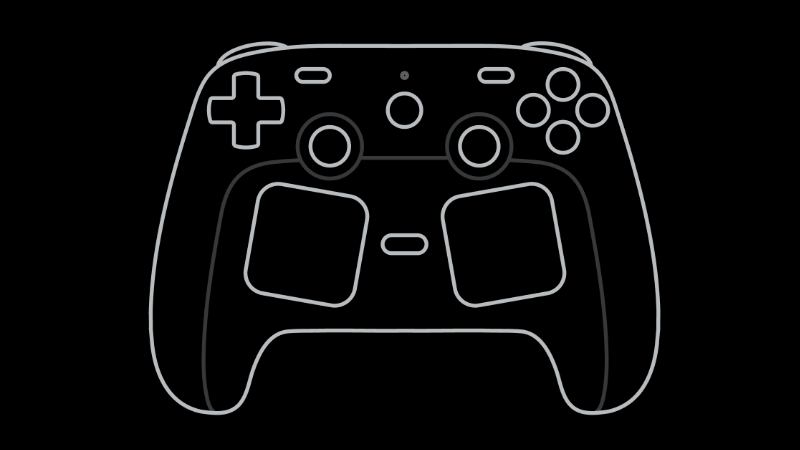
Steam Controller launched on May 4th, with all the inputs you'd expect plus advanced features (like trackpads) that let you game however you like. The trackpads make every game on Steam playable by providing a ton of functionality to play games of all kinds:
-Need to map 20 hotkeys to a virtual menu? No problem.
-Want a giant screen shot button? Sure.
-Looking for a button that automatically delivers your favorite food? Oh, um. It can't do that. But even if you don't need additional in game functionality, the trackpads can also serve as superior cursor control or aiming experience compared to thumbsticks.
We touched on the capabilities of the trackpads briefly in a previous blog post about Steam Input Configurator, but wanted to provide a deeper dive on everything you can do. Here is how to get the most out of the trackpads on your Steam Controller.
There are two primary use cases for the trackpads:
To control a mouse cursor or to aim. This is done two main ways:
As a mouse, you can use it as everything from a simple cursor that navigates UI buttons, to precise aiming in a highly competitive fast paced shooter. Utilizing both trackpads together can provide an even more complete mouse experience. We recommend this as a primary method. For games that do not handle mixed input (mouse/keyboard and gamepad at the same time causing performance issue or flickering input glyphs), set the template to a mouse/keyboard template. If seeing gamepad glyphs are really important, or a mouse/keyboard template will not work we recommend "as a joystick".
As a joystick, it's similar to above but used more often when games struggle with mixed input (mouse/keyboard and gamepad at the same time). This makes the game believe a joystick is being used, but the actual interaction feels like a mouse. This requires a lot of fine tuning to make a good experience.
As a way to provide mapping for various keys, buttons, shortcuts, or system level functionality that isn't possible with a traditional controller. This can be done many ways, but the two most common are:
As a button/button cluster/directional pad: You can assign each trackpad as one big button or each direction on each trackpad to a separate button, which gives you access to 4 more buttons per trackpad that are easy to press.
As a virtual menu: If 4 buttons per trackpad aren't enough (no judgment!), you can create a radial/touch menu so touching a trackpad pulls up a customizable menu with up to 20 options.
The above is not exhaustive (see the below in this guide for all of the options) but it is what we consider to be the most common use cases. This guide will explain how to set these different scenarios up.
In the Steam Input Configurator, when selecting the Trackpad Behavior drop down, you will be presented with the following options:

Here's a breakdown of what each of these options mean:
None - The trackpad will be turned off
As Mouse - The trackpad will emulate a mouse. Note: If you select "As Mouse" and the game you are playing begins flashing controller glyphs and keyboard glyphs rapidly, or even crashing, please try setting the controller config to full mouse and keyboard using the layout templates. If you strongly desire controller glyphs, try "As Joystick" (see below).
Flick Stick - Turns a left/right/down swipe into a rapid, predetermined amount of pixel rotation. Typically used for rapidly turning (90/180 degrees) in competitive games, or for making large scale adjustments when using another input for fine aiming (gyro or other trackpad)
Mouse Region - Set the trackpad to emulate a mouse, but only in a rectangular subsection of the full screen. This can be useful if a game you are playing has a key UI HUD located in the same place the whole game. The dimensions and location of the rectangle are fully customizable.
Joystick - The trackpad will emulate a joystick: Press on the top part of the trackpad and the output will be like a fully deflected thumbstick pressed up.
As Joystick - The trackpad will emulate a mouse, but provide an output like a thumbstick. Works for games that do not handle mouse input and gamepad input at the same time. (Note: You may need to tweak sensitivity or deadzoning settings in the game for best responsiveness.)
Directional Pad or Button Pad - The trackpad will emulate a 4-way directional pad or button cluster (ABXY). Press on the top, bottom, left or right of the trackpad to get a direction, or button. You can map the output of each direction like you map any other button. (Note: Directional Pad includes the capability to press "diagonals" - i.e. top right corner will press Up and Right together)
Single Button - Make the trackpad a giant button by setting it to behave as a single button. Press down on it and get the assigned output.
Directional Swipe - Use directional swipe gesture to provide an output, Swipe Up, Down, Right or Left. You can map the output of each swipe like any other button.
Scroll Wheel - Rotate clockwise or counter clockwise on the trackpad. Great way to emulate the scroll wheel on a mouse to zoom in and out in a RTS game.
Radial Menu - The trackpad will pop up an on-screen menu over the game that can be customized to include whatever output you like.
Touch Menu - Similar to Radial Menu, except it provides selections in a grid format.
Hot Bar - Creates a virtual hot bar: Press down on the trackpad to bring it up; press right or left to cycle through options; then press up to select the item.
Note: For more information on radial menu/touch menu/hot bar, see Getting the most out of your Steam Controller: Virtual Menus.
Many games on PC are intended to be used with a mouse: Older games, deckbuilders, point and click adventures, fast-paced FPS and many puzzle games are great examples of this. The right trackpad is commonly used as a mouse replacement for these types of games. You can build up functionality of a full mouse based on the games you want to play and how you want to play them.
Mouse control - FPS games, or games where you only need to "aim" with the trackpad
Select one of your trackpads to "As Mouse" in the configuration tool. This will make the trackpad behave as a mouse (movements of your thumb will directly move the mouse cursor).


Clicking the gear next to "Behavior" will give you several options:

Options to adjust settings, including:
Sensitivity - The higher the value for sensitivity, the more mouse motion you will see for a given swipe on the trackpad. Adjust this if you think you need to swipe too much (or too little) for how the motion appears in game.
Vertical Sensitivity - Changes the sensitivity ratio between horizontal and vertical motion on the trackpad. In most FPS games, you can move around horizontally forever, but vertically only until looking fully up or down. Because of this, you might prefer much more sensitivity horizontally than vertically.
Invert X/Y output - Toggle these to invert your output. Similar to using a flight stick.
Trackball Mode - In trackball mode, when you swipe and let go, the swipe will have momentum (like a ball rolling) and will continue to move the mouse in that direction for a while. If you prefer the mouse to stop as soon as you release your finger, turn this off.
Adjust these to your preference.

Tips for using in FPS gaming:
Mapping left/right mouse click to the left/right trigger makes the layout feel more like a traditional gamepad layout. Depending on the game making the left trackpad a directional pad as a short cut for various equipment, or a virtual menu to help with inventory management or quick chat events.
Protip: Shooting, jumping, reloading, etc while aiming is important in fast paced FPS games, Mapping A, B, X, Y to R4, R5, L4, and L5 allow you to continue aiming while doing actions typically mapped to the ABXY button cluster.
Mouse + Click - Casual point and click, deckbuilders, etc.
Adding click to mouse control gives you ease of moving a mouse and clicking and dragging. By default the left click behavior for when you set a trackpad "As Mouse" will be pushing the same trackpad in (click). However if a game requires any kind of drag and drop behavior or has small targets, it is advised to map left click to a separate input. In many templates it is set to right trigger.
We have found one of the most interesting ways to do this is to set the opposite trackpad to left and right click. On most templates the left trackpad is set to a directional pad, and we can just leverage that to turn it into a left and right click. In the drop down make sure Directional Pad is selected:

If you just want the trackpad to be left and right click, you will need to disable the up directional and down directional input. You can do this by clicking in the gear settings and then select remove command.


Then map the left directional to left click and the right directional to right click.


With this layout, you can comfortably play any game that requires mouse and clicking/dragging. We've played this way in a lot of deck builders and casual point and click games.

Mouse + Click + Scroll Wheel - Strategy games, RTS, games that need zooming
In many games the mouse scroll wheel is used to do several things, including scrolling through long lists of items or zooming a camera in and out. Building on the directional pad method for left/right click mentioned above, we have found mapping the up direction and down direction to "Scroll Wheel Up" and "Scroll Wheel Down" works well. Click in each box like the previous section, navigate to mouse, and assign scroll wheel up and down.


One important note: if you want it to behave as a continuous scroll, you will need to click the gear icon → Settings → Turn on "Hold to Repeat (Turbo)". You can change the "Repeat Rate" to tune how fast the scroll command repeats


If you need middle mouse click (for rotating or panning), you can set right trackpad click to middle mouse click. Or, if you don't like pressing and dragging at the same time, you can put middle mouse click on one of the grip buttons (L4/L5/R4/R5).

While this above set-up works great for us, you may find a better one for you, Feel free to experiment and share your configurations. That is one of the most exciting parts about how the Steam Input Configurator works - you can map it how you like!
What if I just want more buttons?
If you just want more buttons, you can always set both trackpads to directional pads, button pads, single buttons, or even button swipes. All of these give you the ability to add more easily accessible buttons to your game, up to 8 if you use two trackpads as directional pads.
While you could do this for gamepad buttons, it is also powerful when remapping keyboard keys.
Depending on how many keys you need for a game you have several options. If you only need a couple of keys then setting the trackpad to a "Button Pad" or "Directional Pad" would work as well.
Mapping keyboard keys is similar to how you map other buttons, in this example you can set the left trackpad as a "Directional Pad" and then select "Add Command".

Select Keyboard from the input options and then select the key you would like to emulate.

Many games require a ctrl or shift press for an input, to act as an modifier. One example is in RTS control is often used to select or modify a group. To set an input chord to be control + 1.


Select the settings of the Control Key.

Select "Add Extra Command"


This creates a chord for Ctrl + 1.

Not enough - more buttons please!
If 8 additional buttons aren't enough (we've played MMORPGs, we know how it goes), then virtual menus are another place where the trackpads shine. You can set the trackpad to bring up a virtual menu that can give you quick access to your own custom action menu within a game. Radial menus can have up to 20(!) options built in; touch menus up to 16; and hot bars up to 16.
We have a guide 100% focused on setting these up (Getting the most out of your Steam Controller: Virtual Menus), but wanted to mention it while you're thinking about trackpads:
Radial Menu - A circular menu will pop up on screen that point or move in a direction to select:

Touch Menu - Similar to radial menus, except the outputs are arranged in a grid or list format:

Hotbar - A virtual hot bar that can be navigated and selected, similar to inventory slots in a game:

If the game you want to play already has good controller support, the trackpads can still provide additional functionality. An example is using the trackpads to system level functions, like the volume buttons or capturing a screen shot.
Using Directional Swipes to Change Volume
We've found one intuitive way to change the volume is to use the "directional swipe" trackpad behavior option.
From the trackpad behavior dropdown select Directional Swipe:

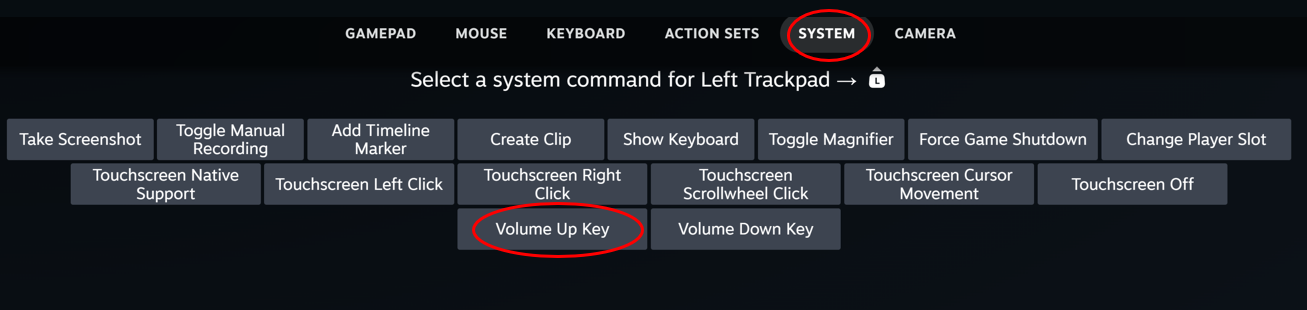
For Swipe Up, select System → then Volume Key Up:
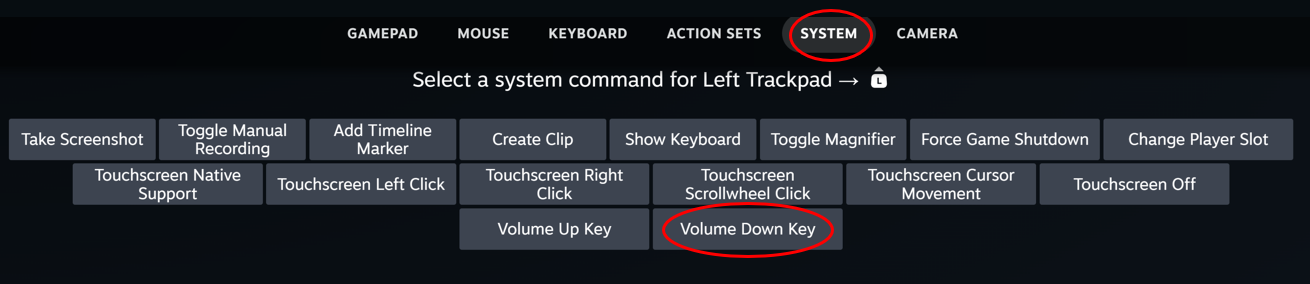
For Swipe Down, select System → Then volume down.
To make the swipes more responsive (move the volume more positions with one swipe): select the gear next to the Directional Swipe drop down and in the Scroll Wheel Mode drop down select Vertical Only.


Using the Trackpad to Invoke the On-Screen Keyboard
Another usage is to bring up the on screen keyboard. This is super handy because interacting with the on screen keyboard, for a controller, can feel challenging. We've designed the trackpads to be a simple and fast way to type.
In the trackpad behavior drop down, select Single Button.

Select Click, "add command." System → Show Keyboard.


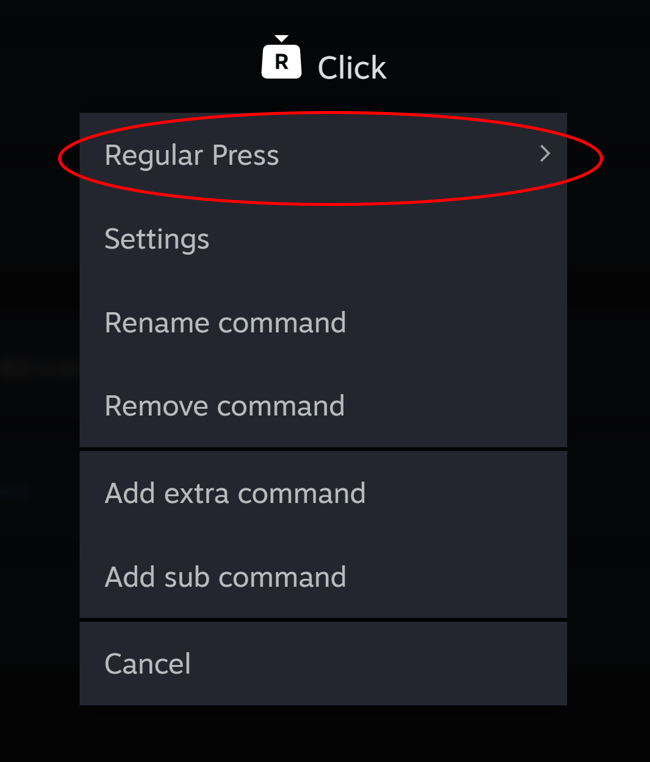
We find this interaction is best while setting the button behavior to "Start Press". Select the gear to the right of "Show Keyboard", select Regular Press and then Select Start Press. This will make the keyboard appear as you press down.

With the power of the two trackpads and the Steam Input Configurator, virtually anything is possible with the Steam Controller. We encourage you to explore different ways to use the trackpads for how you like to play.
Learn more about Steam Controller on its product page, and keep an eye on the Steam Hardware Blog for future how-to guides and closer looks. We also have this video on our official YouTube channel that takes you on a quick-start tour of Steam Controller.