❌

Lees weergave

v0.8.13

What's Changed

  • fix(linux): add a Spanish comment to the desktop entry by @eibidia in #1468
  • fix(agent): let a thumb-wheel swipe fire Volume Up/Down more than once by @4ni1ak in #1455
  • feat(hid): recognise Powerplay receiver 046d:c53a by @FelipeIzui in #1267
  • feat(hid): add G733 battery and power-state support by @d-tatianin in #1601
  • fix(i18n): improve Turkish catalog wording by @volkanncicek in #1415
  • docs(core): clarify persisted device identifier scope by @yuzi-co in #670
  • fix(macos): respect the selected Apple developer directory by @4ni1ak in #1457
  • fix(gui): restore the config-error folder action by @4ni1ak in #1458
  • fix(core): resolve connection transport from live routes by @4ni1ak in #1367
  • feat(gui): add custom actions to the mouse picker by @4ni1ak in #1452
  • fix(gui): show friendly names for Windows app profiles by @4ni1ak in #1463
  • feat(hidpp): implement pointer motion scaling by @Chernicharo in #1347
  • fix(inject): restore macos 27 space swipes by @4ni1ak in #1703
  • fix(hook): identify unbundled macos applications by @4ni1ak in #1469
  • chore: release v0.8.13 by @AprilNEA[bot] in #1716

New Contributors

Full Changelog: v0.8.12...v0.8.13

  •  

v0.8.12

What's Changed

  • test(agent): cover a BLE mouse that wakes as a new node by @kohjunhao in #1649
  • fix(gui): seed the DPI editor from config while the live read is pending by @4ni1ak in #1628
  • fix(hid): recognize Lightspeed receiver 046d:c541 by @hamfield-eu in #1679
  • fix(gui): truncate the function-row key callout's name instead of overflowing by @4ni1ak in #1691
  • fix(gui): wrap the device-enabled caption so the switch stays in the card by @Imbecile6197 in #1670
  • feat(fixture): add an MX Ergo Unifying fixture by @Chernicharo in #1374
  • fix(gui): set text color on mouse pairing passkey click icons by @ZOZiBoi in #1640
  • fix(hidpp): tell another protocol's reports apart from malformed HID++ by @Chernicharo in #1373
  • fix(macos): log the candidate displays when Space state has no match by @4ni1ak in #1694
  • fix(agent): phase horizontal thumb-wheel scroll when smoothing is off by @nredd in #1689
  • feat(i18n): add Czech locale by @Imbecile6197 in #1669
  • fix(core): write config through symlinks instead of replacing them by @FunJim in #1642
  • fix(hook): keep the short budget for tap teardown after a probe break by @TheMedpreneur in #1600
  • fix(i18n): name the real update-check host in the consent dialog by @4ni1ak in #1629
  • fix(agent): restore ring toggle and publish expired sessions by @isleofgreg in #1665
  • fix(gui): scale configuration labels with interface text by @4ni1ak in #1627
  • fix(agent): fall back to focus when the pointer target is unidentified by @kohjunhao in #1648
  • fix(gui): anchor scrollbar overlays in action ring editor and app picker by @lynicis in #1360
  • fix(i18n): track the locale catalogs as build inputs by @zmingxie in #1327
  • fix(gui): wrap the About page's link row instead of clipping it by @crnst8 in #885
  • fix(cli): replace the stale receiver note with a Linux udev hint by @Chernicharo in #1348
  • fix(gui): show wheel controls without adjustable dpi by @minatoaquaMK2 in #1369
  • fix(gui): recognize MX Ergo's DPI slot name for the mouse diagram by @armandodollia in #1391
  • fix(macos): write the scroll point delta last so pixel precision survives by @isleofgreg in #1156
  • chore: release v0.8.12 by @AprilNEA[bot] in #1646

New Contributors

Full Changelog: v0.8.11...v0.8.12

  •  

2026.10: You are here 📍

Home Assistant 2026.10! 🎉

Last week, Nabu Casa dropped: Big Tech ruined the cloud, so we’re renaming ours. Home Assistant Cloud is on its way to becoming Home Assistant Link. Same service, new name. I love that title, by the way. If you haven’t read the story behind it yet, go have a look, and tell us what you think. The change is planned for the December release, so there is still time. 🏎️

Now, I’ll let you in on a secret: I’m an automation person. Dashboards are lovely and I admire everyone who builds a pretty one, but for me, automationsAutomations in Home Assistant allow you to automatically respond to things that happen in and around your home. [Learn more] are what make a smart home actually smart. So you can imagine how happy I am with what’s in this release. One of the most powerful features you never thought you’d need has been sitting in Home Assistant for years: trigger IDs. Give your triggersA trigger is the part of an automation that makes the automation start when something specific happens, for example, when the sun sets, a door opens, or a button is pressed. [Learn more] an ID, and one automation can do the job of two, three, or five. It was also tucked away in a menu, you had to invent the IDs yourself, and then remember which was which. Plenty of you never found it, and that’s on us.

Not anymore. Trigger IDs finally get a proper UI: you check the triggers you want in the condition, and Home Assistant takes care of the IDs behind the scenes. And if you like writing your own IDs in YAMLYAML is a human-readable data serialization language. It is used to store and transmit data in a structured format. In Home Assistant, YAML is used for configuration, for example in the configuration.yaml or automations.yaml files. [Learn more], nothing changes. Those keep working exactly as before. That makes it my favorite of this release. 🧠

Don’t get me wrong, the map is absolutely a cool feature too. Last release, every map in Home Assistant broke overnight when our map provider wanted an API key. We moved to OpenStreetMap, and it turns out that swapping out the map opens a lot of doors: a vector map that stays sharp at every zoom level, redesigned markers, and an overview of where everyone has been. You are here. 📍

There’s more: a tidier profile page, a panel for your Modbus connections, connecting your AI in one click, and 15 new integrationsIntegrations connect and integrate Home Assistant with your devices, services, and more. [Learn more]! 🚀

Enjoy the release!

../Frenck

A huge thank you to all the contributors who made this release possible! And a special shout-out to @googanhiem and @piitaya who helped write these release notes. Also, @grischard, @moryoav, and @RaHehl for putting effort into tweaking its contents. Thanks to them, these release notes are in great shape. ❤️

Cloud becomes Link

In case you missed it, we’re making the move to rename Home Assistant Cloud to Home Assistant Link. Same service, new name.

We’re all pretty annoyed by how Big Tech has been ruining perfectly good smart home devices by making them reliant on the cloud. Ours has never locked anyone in, harvested their data, or turned working devices into e-waste, so a new name was in order. Home Assistant Link is all about being clearer that it does things differently. The change is planned for the December release, so tell us your thoughts before then.

The best link is a fast link. 🏎️ Nabu Casa has been hard at work making remote access even faster across the globe. They recently migrated all of their servers to bare metal and added more servers to boost their coverage of the world. This month, they added a latency checker that pings multiple servers on boot and picks the best connection for you.

A whole new map

Last release, something changed underneath every map in Home Assistant, and we barely mentioned it in the release notes. The map provider we relied on started stamping an “API key required” message across its map images, breaking every map in Home Assistant at once. Instead of hunting for another free tile provider, we switched from pre-rendered map images to vector tiles generated and served by the OpenStreetMap Foundation. Both maps use OpenStreetMap data, but your device now draws the map itself. The new Map tiles integration fetches and caches the tiles through your Home Assistant instance, so your browser does not contact external tile servers directly. Recently viewed parts of the map remain available through a short internet hiccup.

Guillaume Rischard (@grischard), the former chair of the OpenStreetMap Foundation who initiated and led its vector-tile initiative, joined us during the 2026.9 release party.

Swapping out the map underneath opened a lot of doors. This release walks through the first few.

Crisp at every zoom level

The map is drawn entirely on your device, as vectors, instead of being stitched together from pictures. Streets and labels stay sharp at any zoom level, and zooming in and out is smooth. The map also has a dedicated dark style, with colors designed for dark mode. Older devices that can’t render vector maps, like the old tablet on your wall, automatically fall back to the classic map.

Redesigned markers

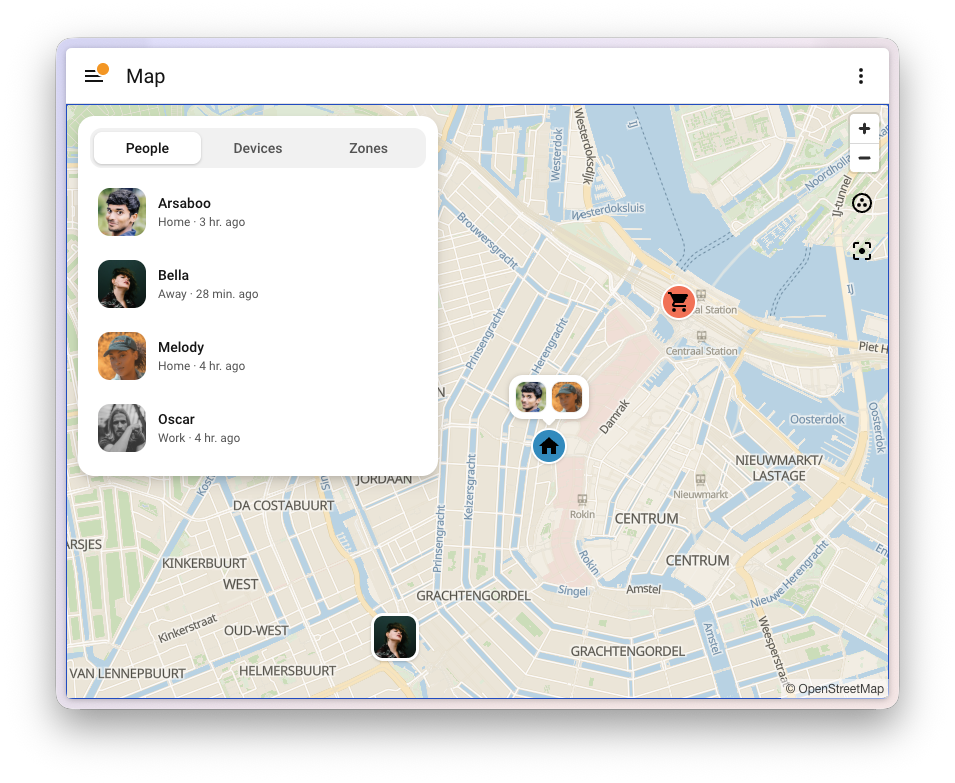
The markers on the map got a complete redesign. People show up with their picture, zonesZones allow you to specify certain regions on a map. They enable zone presence-detection and can be used in automations. For example, to start the vacuum after you left home or start the heating at home when you leave the office. [Learn more] get a marker with their icon in their own color, and everyone in the same zone shares a single bubble on that zone, instead of a pile of markers stacked on top of each other. Zoom out far enough, and bubbles that would overlap merge into one.

Screenshot of the map with the redesigned markers, showing a person with their picture, two people sharing a bubble on the Home zone, and the Supermarket zone with its icon, next to the overview listing everyone on the People tab.

An overview for the Map dashboard

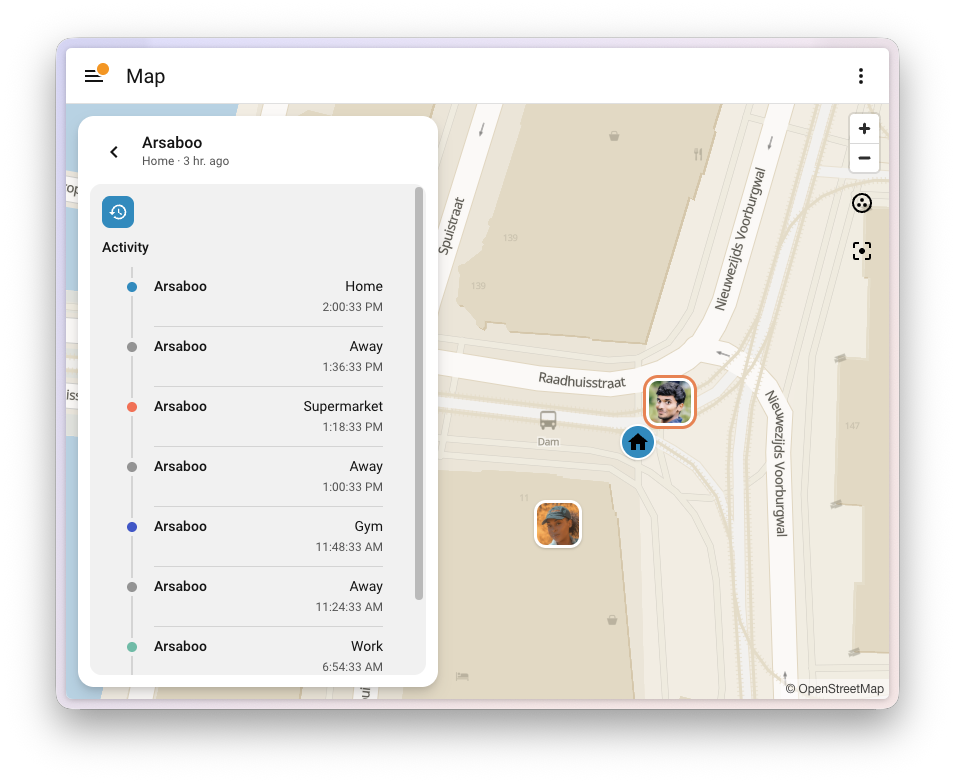
The Map dashboard now comes with an overview, next to the map on a desktop and as a sheet you pull up on your phone. It has three tabs: People, Devices, and Zones. Select someone to see their recent activity, with each stop colored by the zone they were in. Select a zone to see who’s there. On a phone, the map now also fills the whole screen, edge to edge.

Screenshot of the recent activity of a person in the map overview, with each entry marked in the color of its zone.

The same overview shows up when you put a map card in a panel view on your own dashboard.

Zones on the new map

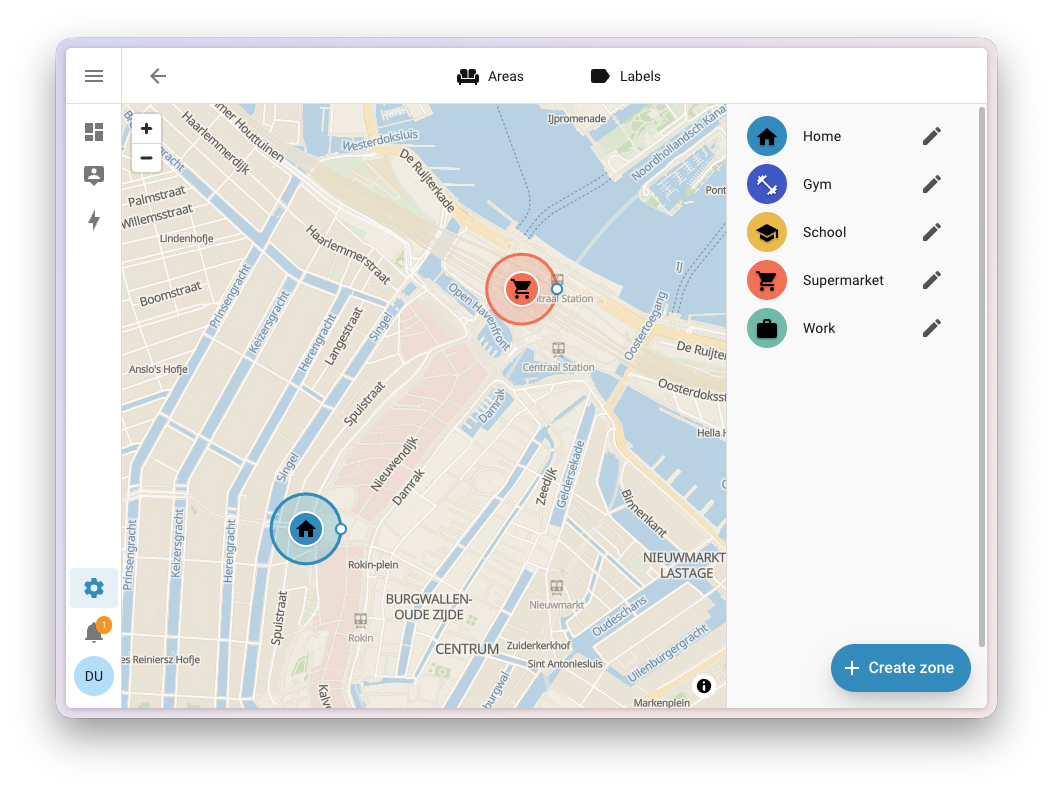
The zone editor in Settings > Areas, labels & zones now uses the same new map. Your zones are sorted alphabetically, with Home always at the top, and they show the same icons and colors you see on the map.

Screenshot of the zone editor on the new map, with the list of zones sorted alphabetically and Home at the top.

The redesign follows an Open Home Foundation design concept for the Map dashboard.

Thanks to @maartenla, @matthiasdebaat, @bramkragten, and @bgoncal; @grischard for initiating vector maps on the OpenStreetMap side and for assisting us; and Paul Norman (@pnorman) for developing Tilekiln and the tile service. Thanks also to the OpenStreetMap Foundation and the MapLibre, Shortbread, and VersaTiles communities.

Like Home Assistant, OpenStreetMap is built in the open by people like you. Spot something in your neighborhood that’s missing or out of date? You can leave a note or edit the map yourself.

A tidier profile page

Select your name at the bottom of the sidebar, and you land on your User profile. Over the years, that page quietly turned into a bit of a junk drawer. Language, theme, date formats, sidebar order, push notifications, keyboard shortcuts: all stacked in one long General tab, with Security as its only neighbor. Everything was there. You just had to scroll past most of it to find the one thing you came for.

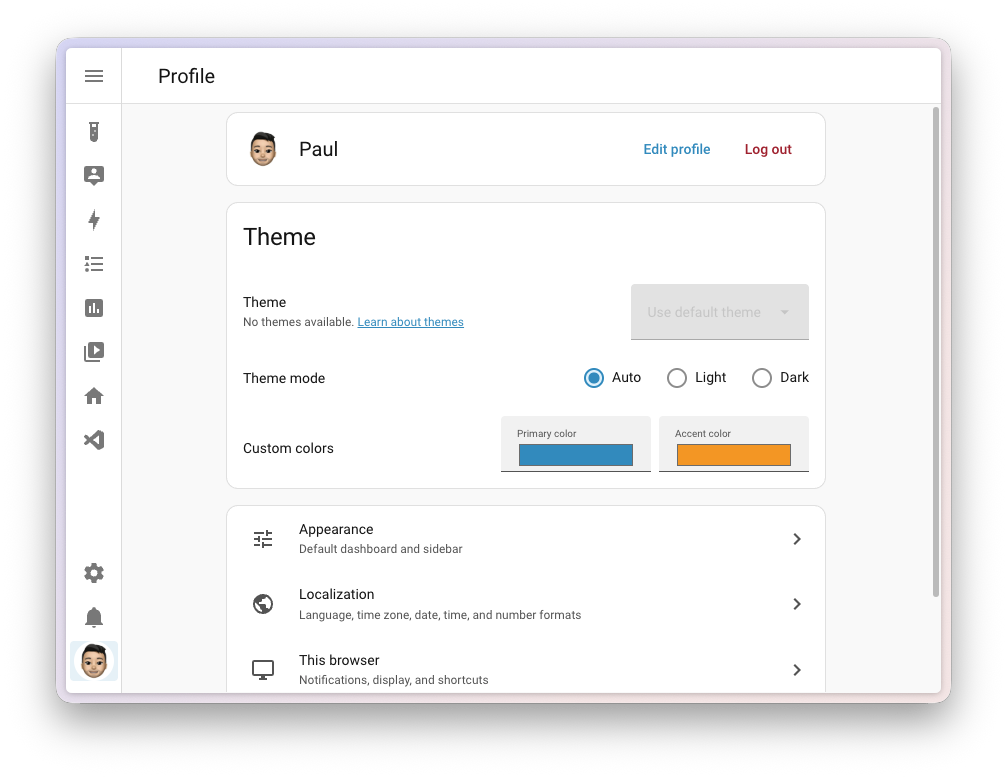
The profile page is now an overview, using the same kind of navigation you already know from Settings. At the top is a card with your account, followed by your Theme, and a short list of sections that each hold a handful of related settings:

  • Appearance: Your default dashboard and the order of your sidebar
  • Localization: Your language, time zone, and how dates, times, and numbers are shown
  • This browser (or This mobile app in the companion app): Notifications, display, and shortcuts for the device you’re using right now
  • Security: Your password, multi-factor authentication, and access tokens

Nothing was taken away. Every setting is still there, just grouped so it’s easier to find. Thanks, @pcan08 and @maartenla!

Screenshot of the redesigned user profile page, showing the account card, the theme picker, and the Appearance, Localization, and This browser sections.

That account card at the top learned a new trick, too. Until now, your own name and picture weren’t actually yours to change. Only an administrator could set them, tucked away in the person settings. Not an administrator, but you wanted a nicer picture of yourself in the sidebar? You had to go ask whoever runs your Home Assistant. A bit odd, for something that is literally your face.

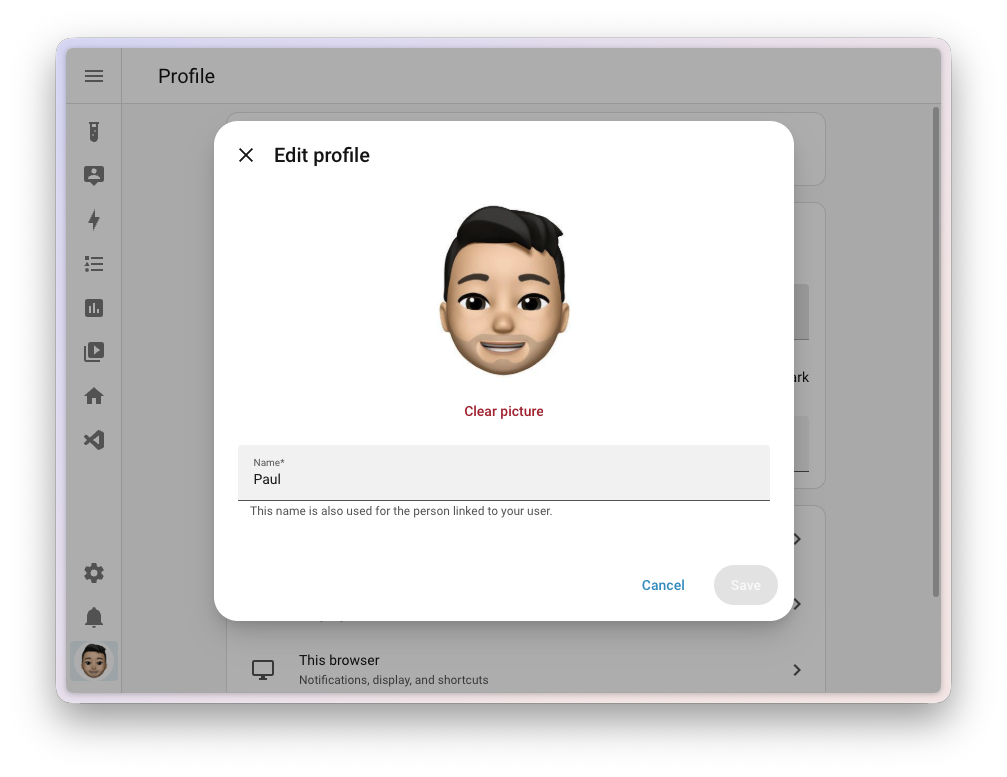
Every user, administrator or not, now has an Edit profile button right next to Log out. Upload and crop a picture, change your name, and save. Your name is used for both your user and the person linked to it, so it’s the same everywhere you show up, from the sidebar to your dashboards and Assist. Your new picture shows up in the sidebar right away.

Screenshot of the Edit profile dialog, with the profile picture, a button to clear it, and a field to change your name.

The best automation feature you never used

Take a look at your automationsAutomations in Home Assistant allow you to automatically respond to things that happen in and around your home. [Learn more], and chances are you’ll find a few that come in pairs. One turns the hallway light on when motion is detected, the other turns it off again when the motion stops. One sends a notification when the washing machine starts, the other when it’s done. Two automations, doing one job.

Home Assistant has had a way to combine those into one for years. Give each triggerA trigger is the part of an automation that makes the automation start when something specific happens, for example, when the sun sets, a door opens, or a button is pressed. [Learn more] an ID, and use the Triggered by conditionConditions check whether something is true at that moment, for example, whether a door is closed. You can use them in automations and scripts. If a condition is not met, the actions that come after it in the same sequence do not run. At the top level of an automation or script, this stops the automation or script. [Learn more] to do something different depending on which trigger fired. It’s one of the most powerful things you can do in the automation editor, and also one of the best-hidden. The trigger ID field sat in the menu of each trigger. You had to come up with an ID, type it in yourself, and then remember which ID belonged to which trigger when you picked them in the condition. Most people never found it, and honestly, we can’t blame them.

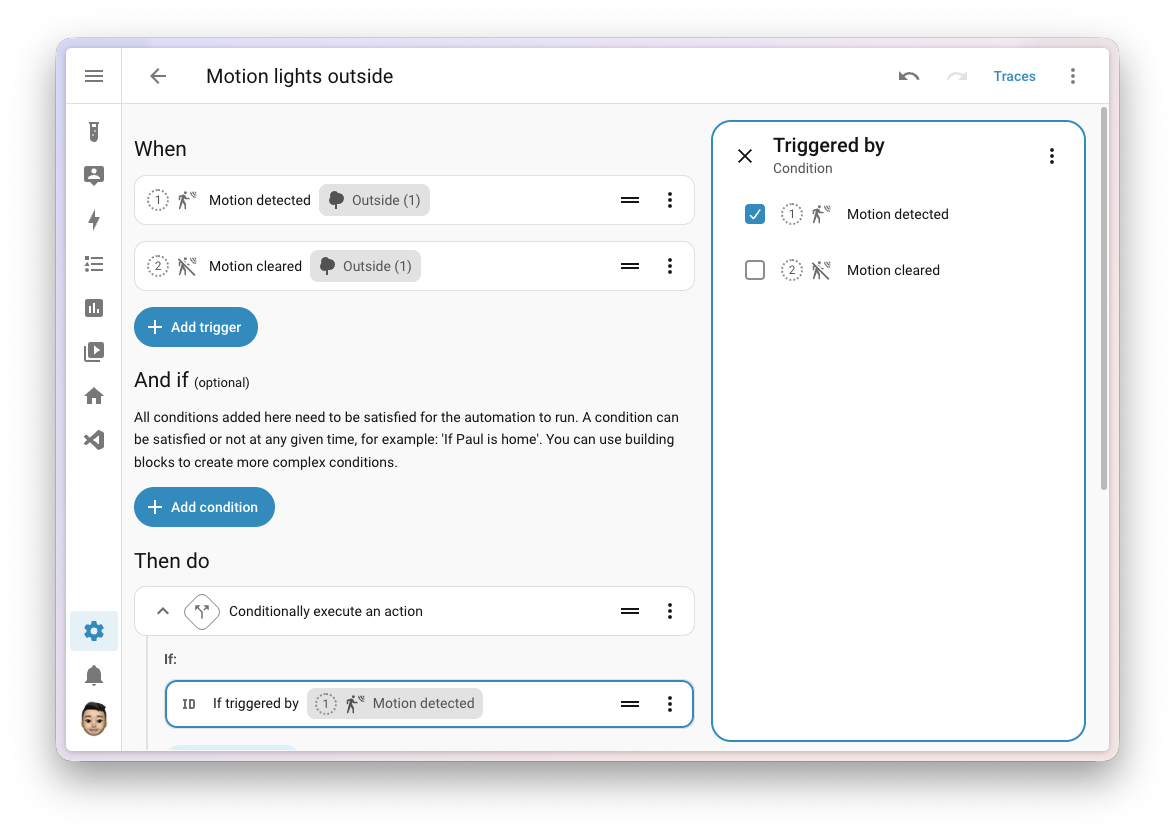
Not anymore. Add a Triggered by condition, and you check the triggers it should match. You see the triggers themselves, not some ID you made up, and each one is numbered by its position in your list, with the same number shown next to the trigger itself. So you always know which one is which. There are no IDs to come up with at all. Home Assistant takes care of those behind the scenes, and cleans up after itself when you remove a trigger.

Screenshot of the automation editor with two numbered triggers, Motion detected and Motion cleared, and a Triggered by condition where the first trigger, Motion detected, is checked.

If you set your trigger IDs yourself in YAMLYAML is a human-readable data serialization language. It is used to store and transmit data in a structured format. In Home Assistant, YAML is used for configuration, for example in the configuration.yaml or automations.yaml files. [Learn more], nothing changes. Those IDs keep working exactly as they did, sharing one ID between several triggers is still fine, and Home Assistant won’t add IDs to your YAML for you. The trigger ID field is gone from the automation editor, because you no longer need it there: to run the same actions for several triggers, check them all in one Triggered by condition.

The editor does keep an eye out for two things, but only in the Triggered by condition. If a condition points to a trigger that no longer exists, it flags it, so you can clear it. And if several triggers share the same ID, it shows a warning with a Fix that gives each trigger its own ID and updates your conditions to match. It’s a suggestion, not a repair, so if sharing an ID is what you want, you can leave it as it is.

This completes an Open Home Foundation roadmap opportunity to make referencing triggers in automations a lot easier. Thanks, @jpbede, @wendevlin, @marcinbauer-ohf, and @nielsrowinbik!

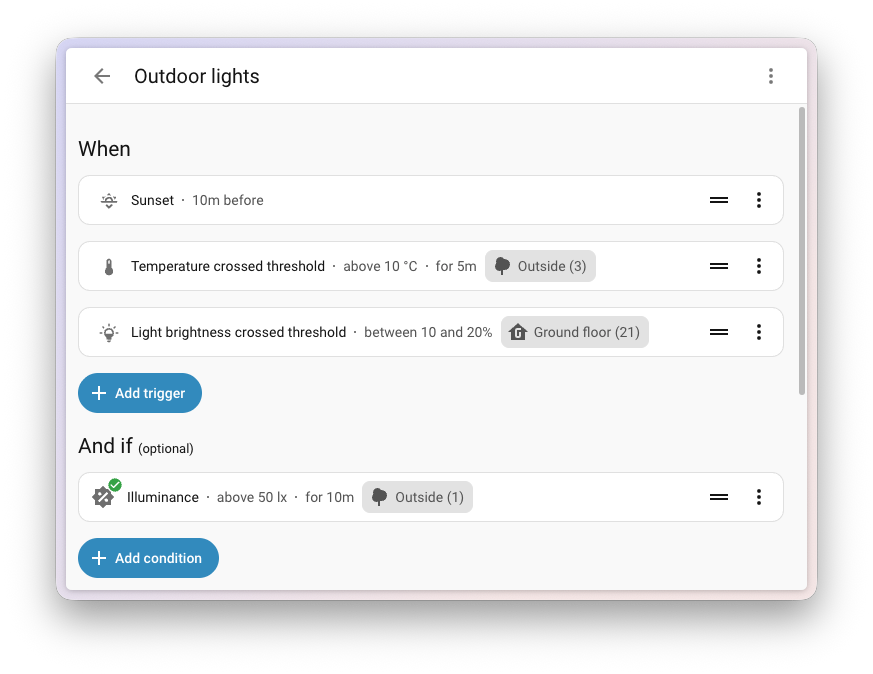
While you’re in the automation editor, you’ll notice your triggersA trigger is the part of an automation that makes the automation start when something specific happens, for example, when the sun sets, a door opens, or a button is pressed. [Learn more], conditionsConditions check whether something is true at that moment, for example, whether a door is closed. You can use them in automations and scripts. If a condition is not met, the actions that come after it in the same sequence do not run. At the top level of an automation or script, this stops the automation or script. [Learn more], and actionsAn action makes Home Assistant do something, for example, turn on a light, send a notification, or activate a scene. Automations and scripts run a list of actions. [Learn more] tell you a bit more at a glance. Each row now shows the details that used to be hidden until you opened it: the threshold a trigger or condition checks for, like “above 10 °C”, how long something needs to stay that way, the offset on a sunrise or sunset, and how long a wait action waits before it gives up. Thanks, @wendevlin and @MindFreeze!

Screenshot of triggers and a condition in the automation editor, each showing its details in the row: 10m before sunset, temperature above 10 °C for 5m, light brightness between 10 and 20%, and illuminance above 50 lx for 10m.

Integrations

Thanks to our community for keeping pace with the new integrationsIntegrations connect and integrate Home Assistant with your devices, services, and more. [Learn more] and improvements to existing ones! You’re all awesome 🥰

New integrations

We welcome the following new integrations in this release:

  • Axle Energy, added by @Herbertmt978
    Bring the grid event schedule of your Axle Energy account into Home Assistant. It tells you whether an upcoming event asks you to import from or export to the grid, and exactly when it starts and ends, so your automationsAutomations in Home Assistant allow you to automatically respond to things that happen in and around your home. [Learn more] can get your home ready in time.

  • Bitvis Power Hub, added by @MandusBorjesson
    Read real-time electricity data from your smart meter using a Bitvis Power Hub, which plugs into the meter’s HAN port. The Power Hub pushes its measurements, like power, voltage, and current per phase, straight to Home Assistant over your local network. No cloud, no pollingData polling is the process of querying a device or service at regular intervals to check for updates or retrieve data. By defining a custom polling interval, you can control how frequently your system checks for new data, which can help optimize performance and reduce unnecessary network traffic. [Learn more].

  • Gree Infrared, added by @Dr-Blank, launching at 🥈 silver quality
    Control a Gree air conditioner using any infrared transmitter you already have set up in Home Assistant, like an ESPHome device with an infrared LED. Add an infrared receiver, and the climateThe Climate entity allows you to control and monitor HVAC (heating, ventilating, and air conditioning) devices and thermostats. [Learn more] entity follows along when someone uses the physical Gree remote. Gree builds air conditioners for many brands, so units sold as Onida, Sinclair, and others work as well.

  • INDI Allsky, added by @TN-1
    Connect your INDI Allsky camera server, an allsky camera system for astrophotography and keeping an eye on cloud cover. You get the latest capture as a camera, plus sensors for sky quality, the number of stars detected, exposure time, and whether it’s night.

  • KACO Modbus, added by @g4bri3lDev
    Connect a KACO new energy solar inverter directly over your local network using Modbus TCP. It shows what the inverter is producing right now, its lifetime energy counter for the Energy dashboard, and what it is doing, without any cloud account or manufacturer portal involved.

  • my-PV, added by @rrooggiieerr
    Control my-PV devices, like the AC•THOR range and AC ELWA 2, which turn your surplus solar power into hot water. Home Assistant talks to them locally and discovers them on your network automatically.

  • OSRAM Infrared, added by @freeDom-, launching at 🥈 silver quality
    Control OSRAM and LEDVANCE RGB lights that come with a 24-button infrared remote, using an infrared transmitter set up in Home Assistant. With an infrared receiver, the lightA light has a brightness you can control, and optionally color temperature or RGB color control. [Learn more] entity also picks up commands from the physical remote.

  • Persang Infrared, added by @Dr-Blank
    Control a Persang Bluetooth speaker using an infrared transmitter set up in Home Assistant, giving you a media player and buttons for its remote functions.

  • SolarEdge Modbus, added by @frenck, launching at 🏆 platinum quality
    Connect to your SolarEdge solar inverter over your own network, using the Modbus TCP interface built into the inverter. No account, no API key, no cloud. Readings arrive every few seconds instead of every few minutes, and keep arriving when your internet connection is down. You can also change the export limit and how your battery charges.

  • Sunsynk, added by @jamesridgway
    Bring your Sunsynk hybrid solar inverter and battery into Home Assistant using your Sunsynk Connect account. You get sensors for solar production, grid import and export, and your battery. Home Assistant can even discover the Sunsynk data logger on your network.

  • Theben Conexa Smart Meter Gateway, added by @mdluhosch
    Read your meter data locally from a Theben Conexa 3.0 smart meter gateway, using its built-in Home Area Network (HAN) interface. No cloud needed.

  • Threema, added by @LukasQ
    Send end-to-end encrypted messages from your automationsAutomations in Home Assistant allow you to automatically respond to things that happen in and around your home. [Learn more] to people on Threema, the privacy-focused messenger that doesn’t need a phone number. It uses the Threema Gateway service, and each person you add as a recipient gets their own notify entity.

  • Vitesy, added by @chemelli74
    Connect the Vitesy Shelfy, an air purifier that lives in your refrigerator. See the air quality and temperature inside your fridge, how often the door was opened, and when the filter needs cleaning or replacing. You can even switch the purifier mode, for example to boost it after a grocery run.

  • Willow, added by @PaxPrz
    Keep an eye on the health of your indoor plants with Willow sensors. Temperature, humidity, soil moisture, and light levels come from the Willow cloud into Home Assistant, ready for your dashboards and automationsAutomations in Home Assistant allow you to automatically respond to things that happen in and around your home. [Learn more]. Your plants can’t tell you they’re thirsty, but now Home Assistant can.

  • Zonneplan, added by @erwindouna
    Get the electricity and gas prices of your Zonneplan contract, a Dutch provider of dynamic energy contracts. Handy for running your appliances when energy is cheapest.

This release also has new virtual integrations. Virtual integrations are stubs that are handled by other (existing) integrations to help with findability. These ones are new:

Noteworthy improvements to existing integrations

It is not just new integrationsIntegrations connect and integrate Home Assistant with your devices, services, and more. [Learn more] that have been added; existing ones keep getting better too. Here are some of the noteworthy improvements this release:

  • Matter added switchesSwitches are things that have two states you can select between, such as turning on or off a socket. [Learn more] to turn the visual and audible alarms of supported leak sensors on or off, like the IKEA KLIPPBOK, and a switch for one-touch locking, so you decide whether a single touch on the keypad of your lock is enough to lock the door. DevicesA device is a model representing a physical or logical unit that contains entities. that measure electrical power now also report the frequency and power factor. Thanks, @wardmatter, @mmmspatz, and @lboue!
  • Tuya supports a lot more devicesA device is a model representing a physical or logical unit that contains entities. this release: two-channel DIN rail energy meters with readings per channel, circuit breakers, EV chargers (with their charging current, charging mode, and session energy), water valves (with water usage and temperature), and the keypad tone and alarm push settings of the Duosmart C30 alarm panel. Three-phase electricity meters now also report reactive power, apparent power, and power factor for each phase. Thanks, @keranm, @tmunzer, @o-borovets, @syl-craft, @ChayoteJarocho, @huangrenwei79, and @epenet!
  • Internet Printing Protocol (IPP) added page counters, so you can keep track of how many pages, impressions, and sheets your printer has gone through, split into color and black and white on printers that report it. Thanks, @brianegge!
  • ESPHome devicesA device is a model representing a physical or logical unit that contains entities. can now open the connection to Home Assistant themselves, so they work even when Home Assistant can’t reach them directly. Turn on the outgoing_connection option on your ESPHome device, and Home Assistant takes it from there, with the same encryption as always. Thanks, @bdraco!
  • HomeKit Bridge can now show your valve entitiesAn entity represents a sensor, actor, or function in Home Assistant. Entities are used to monitor physical properties or to control other entities. An entity is usually part of a device or a service. [Learn more] in the Home app as a faucet, shower head, or sprinkler. How long a valve runs can now also come from any number entity, not just a number helperA helper is a virtual entity you create inside Home Assistant. It is not backed by a physical device. Helpers store values, track state, or do calculations that your automations and dashboards need. [Learn more]. Thanks, @louwii17!
  • Philips Hue added a switch to turn each MotionAware zone on or off, just like you can in the Hue app. Rooms and zones also gained a sceneScenes capture the states you want certain entities to be. For example, a scene can specify that light A should be turned on and light B should be bright red. [Learn more] select, showing which scene (or smart scene) is currently active, and letting you pick another one. Thanks, @marcelveldt and @sliekens!
  • Reolink can now control the pan and tilt lens of cameras that combine multiple lenses in one device, when connected to a Reolink NVR or Home Hub. Thanks, @starkillerOG!
  • Music Assistant announcements can now speak a message, not only play an audio file. The announcement action takes a message and a “text-to-speech”TTS (text-to-speech) allows Home Assistant to talk to you. [Learn more] entity to speak it, while keeping the pre-announcement chime and announcement volume that tts.speak doesn’t offer. The AI search tool can now also search inside artists, albums, and playlists. Thanks, @marcelveldt and @balloob!
  • Roborock wet and dry vacuums now update in real time, so docking or starting a cleaning shows up in Home Assistant right away. The Roborock Q10 can now also clean specific zones, drive to a spot you pick, and report where it is. Thanks, @piitaya and @hmmbob!
  • Z-Wave added three new conditionsConditions check whether something is true at that moment, for example, whether a door is closed. You can use them in automations and scripts. If a condition is not met, the actions that come after it in the same sequence do not run. At the top level of an automation or script, this stops the automation or script. [Learn more] to the automation editor, with proper fields to fill in: check a device’s node status, the value of a configuration parameter, or any other Z-Wave value. Z-Wave triggersA trigger is the part of an automation that makes the automation start when something specific happens, for example, when the sun sets, a door opens, or a button is pressed. [Learn more] got the same treatment. Thanks, @raman325!
  • UniFi Network now reports the battery level and runtime of your UniFi UPS, along with its output power, current, voltage, and power factor. Thanks, @jimstrang!
  • Broadlink now supports the RM5 Plus, which used to fail with a “device not supported” error. Thanks, @DAB-LABS!
  • UniFi Protect now supports the key fob, with an event entityAn event entity represents a momentary occurrence without a lasting state, for example, when you press a doorbell or a button on a remote control. Instead of a state such as on or off, the event entity keeps track of when the last event was detected and its event type, such as a single press or a long press. [Learn more] that fires on every button press, and shows each relay input as its own binary sensorA binary sensor is an entity that reports one of two mutually exclusive states, on or off. The device class determines how those states are labeled in the UI. For example, open/closed for a door or detected/clear for motion. [Learn more]. The API key only mode now also handles motion and smart detections, smart sensors, sirens, relays, and several camera and floodlight settings. Thanks, @sbesh91, @igoraugustynski, and @RaHehl!
  • OpenAI added support for the GPT-6 Astra and GPT-Image-2.5 models. GPT-Image-2.5 Flare is now the default for generating images with AI Task. Thanks, @Shulyaka!
  • SwitchBot Bluetooth added support for the Lock Ultra Max, the Universal Remote, and the RGBICWW Light Bars, and lets you set how fast your SwitchBot curtains move. Thanks, @Onero-testdev and @joostlek!
  • SwitchBot Cloud added support for the Lock Ultra Max. Thanks, @XiaoLing-git!
  • LIFX now supports LIFX lights that connect over ThreadThread is a low-power mesh networking standard that is specifically designed for smart home applications. It is a protocol that defines how devices communicate. [Learn more], and the signal strength sensor works for those lights too. Thanks, @Djelibeybi!
  • Proxmox VE added “update entities”An update entity is an entity that indicates if an update is available for a device or service. [Learn more] for your Proxmox nodes, showing when updates are available and how many Proxmox and other packages are waiting. Installing them from Home Assistant is not possible yet. Thanks, @CoMPaTech!
  • LinkPlay speakers that follow another speaker in a multiroom group now show the title, artist, album, and album art of what’s playing. Each speaker keeps its own volume. Thanks, @MagicMicky!
  • Apple iCloud brings your iCloud calendars and Reminders into Home Assistant. Each calendar shows up as a calendar entityA calendar entity represents a schedule of events coming from a local or external calendar source. It can be used to trigger automations based on the start or end of an event, react to offsets (like 15 minutes before), or retrieve event details through services. [Learn more], and each Reminders list as a to-do list, where you can add, complete, and remove items that sync right back to your Apple devices. Thanks, @FezVrasta!
  • Hikvision added “event entities”An event entity represents a momentary occurrence without a lasting state, for example, when you press a doorbell or a button on a remote control. Instead of a state such as on or off, the event entity keeps track of when the last event was detected and its event type, such as a single press or a long press. [Learn more] that tell you what triggered a smart event: a human, a vehicle, or a pet. Great for getting notified about people at your gate, while ignoring passing traffic. Thanks, @ptarjan!
  • Opower now uses the import and export readings from your meter itself for your grid statistics. Before, grid import was worked out from your net usage, which undercounted it for homes with solar panels, and could even show no import at all on a sunny day. Thanks, @tronikos!
  • TP-Link Omada now shows your Omada controller as a deviceA device is a model representing a physical or logical unit that contains entities., with its status and an “update entity”An update entity is an entity that indicates if an update is available for a device or service. [Learn more] for its firmware. Thanks, @rubempoli!
  • EnergyZero can now use quarter-hourly electricity prices, and added all-in electricity prices next to the market prices. Thanks, @klaasnicolaas!
  • Bosch SHC grew a lot this release. Micromodule shutters, awnings, and blinds now show up as coversCovers are devices such as blinds, garage doors, etc that can be opened and closed and optionally set to a specific position. [Learn more], and there are new switches for child locks, the alarm bypass of door and window contacts, the silent mode of thermostats, the intrusion alarm of the Smoke Detector II, and the settings of the Motion Detector 2, Door/Window Contact II Plus, Micromodule Relay, and Camera Eyes. A new sensor counts the open doors and windows in your home, thermostats show their valve position, and motion detectors now fire an event for every motion. Thanks, @mosandlt!
  • Midea added water heaters, a lock switch, a pump switch for dehumidifiers, a sensor for when the water pump of an air conditioner is running, and salt, AI mode, time remaining, and door warning entities for the appliances that support them. Thanks, @chemelli74, @rokam, @mattrossman, and @peterdey!
  • Teslemetry can now control things locally: your Powerwall over your own network, and your vehicle over Bluetooth. Commands try the local route first and fall back to the cloud, so they are faster, and vehicle commands even work when the car has no connection. Thanks, @Bre77!
  • Peblar chargers can now install firmware updates from Home Assistant, and you can manage the RFID cards and the autocharge vehicles allowed to charge, and authorize a charge session, all from actionsAn action makes Home Assistant do something, for example, turn on a light, send a notification, or activate a scene. Automations and scripts run a list of actions. [Learn more]. Chargers with a buzzer or status light also get selects for the buzzer volume and LED brightness. Thanks, @syphernl and @frenck!
  • MELCloud Home added the outdoor temperature and a switch to put your unit in standby. Thanks, @erwindouna!
  • Universal Devices ISY/IoX added “event entities”An event entity represents a momentary occurrence without a lasting state, for example, when you press a doorbell or a button on a remote control. Instead of a state such as on or off, the event entity keeps track of when the last event was detected and its event type, such as a single press or a long press. [Learn more] for Insteon buttons and keypads, so you can automate on a press, a double press, or a long press. Thanks, @shbatm!
  • LG Infrared air conditioners gained swing modes, switches for the ion generator and auto clean, a select for the energy limit, and buttons for features like Jet mode and Eco mode. Thanks, @Dr-Blank!
  • Samsung Infrared now supports air conditioners. Thanks, @elax46!
  • Weheat added the air outlet temperature, domestic hot water target and control method, the electricity used by the indoor unit, and what your heat pump is doing while it cools. Thanks, @barryvdh!
  • LED Infrared added support for generic 10-key LED candle remotes. Thanks, @tr4nt0r!
  • Collection image gained actionsAn action makes Home Assistant do something, for example, turn on a light, send a notification, or activate a scene. Automations and scripts run a list of actions. [Learn more] to jump to the first, last, next, or previous image in the folder, alongside picking a random one. Thanks, @karwosts!
  • Homevolt added a select to change the battery mode, and controls for the power setpoint and grid import and export limits. Thanks, @Danielhiversen!

Integration quality scale achievements

One thing we are incredibly proud of in Home Assistant is our integration quality scale. This scale helps us and our contributors to ensure integrations are of high quality, maintainable, and provide the best possible user experience.

This release, we celebrate several integrationsIntegrations connect and integrate Home Assistant with your devices, services, and more. [Learn more] that have improved their quality scale:

This is a huge achievement for these integrations and their maintainers. The effort and dedication required to reach these quality levels is significant, as it involves extensive testing, documentation, error handling, and often complete rewrites of parts of the integration.

A big thank you to all the contributors involved! 👏

Now available to set up from the UI

While most integrationsIntegrations connect and integrate Home Assistant with your devices, services, and more. [Learn more] can be set up directly from the Home Assistant user interface, some were only available using YAML configuration. We keep moving more integrations to the UI, making them more accessible for everyone to set up and use.

The following integrations are now available via the Home Assistant UI:

Farewell to the following

Time for a little cleaning, and no, we did not wait for spring! The following “integrations”Integrations connect and integrate Home Assistant with your devices, services, and more. [Learn more] are no longer available as of this release:

  • Dublin Bus has been removed. It relied on the Real-Time Passenger Information API, which the National Transport Authority shut down in September 2020, so it has not worked since. For scheduled departures, the GTFS integration can use the timetable data published by Transport for Ireland.
  • Etherscan has been removed. It relied on version 1 of the Etherscan API, which has been shut down, so its sensors only showed False instead of a balance. To keep tracking a wallet balance, you can use the RESTful sensor with the Etherscan V2 API and your own free API key.
  • Melnor RainCloud has been removed. Melnor discontinued the original RainCloud WiFi Timer in April 2026, and its cloud service no longer responds.
  • Orange and Rockland Utility (ORU) has been removed. The endpoint it relied on stopped returning meter data years ago. Orange and Rockland customers can use the Opower integration instead.
  • Sigfox has been removed. It relied on version 1 of the Sigfox backend API, which Sigfox retired.
  • SolarEdge Local has been removed. It relied on a local web API that SolarEdge disabled in inverter firmware updates starting in 2020. Use the SolarEdge integration, or the new SolarEdge Modbus integration if you want to keep things local.
  • Travis-CI has been removed. It relied on the travis-ci.org API, which Travis CI shut down in June 2021.
  • Zestimate has been removed. Zillow retired the API it relied on, and its replacement is aimed at commercial use, so the integration could not simply be updated.

If you still have any of these in your YAMLYAML is a human-readable data serialization language. It is used to store and transmit data in a structured format. In Home Assistant, YAML is used for configuration, for example in the configuration.yaml or automations.yaml files. [Learn more] configuration, you can remove them.

Other noteworthy changes

There is even more packed into this release. Here are some of the other changes worth a mention:

  • The Home dashboard now shows active alerts too. The alerts you set up for the Security dashboard last release, like a door left open or a smoke detector going off, now also show up right on your Home dashboard, so you don’t miss them. Thanks, @timmo001!
  • Tile cards gained a slider feature for input selects and select entities, so you can slide between options, in the same style as the toggle for input booleans. This was @Jump-333’s very first contribution to Home Assistant. Thanks, and welcome!
  • The Energy dashboard now shows the discharge of each battery separately in the energy usage graph, just like it already did for charging. Thanks, @MindFreeze!
  • Calendar cards can show a button to add an event again, so you can put something on the calendar right from your dashboard, and you pick where the button sits. Thanks, @Phil0L!
  • Lawn mower entities gained a stop action and an idle state, so you can cancel a mower’s current task instead of only pausing it or sending it home. The automation editor has a matching trigger and condition, too. MQTT lawn mowers support it as well, and Husqvarna Automower and Husqvarna Automower BLE mowers already report when they are idle. Thanks, @piitaya, @Thomas55555, and @alistair23!
  • Binary sensor has a new glass break device class. Glass break sensors are treated as security sensors, so they show up on the Security dashboard and in your home security summary. HomematicIP Cloud, SimpliSafe, Z-Wave, and Hive already use it. Thanks, @catellie!
  • Template got two nice additions this release. Thanks, @Petro31!
    • Template entities can now be climate entities, so you can build your own thermostat from other entities. Think of a heat pump or air conditioner that an integration only exposes as a loose collection of switches, sensors, and numbers. Create one as a helperA helper is a virtual entity you create inside Home Assistant. It is not backed by a physical device. Helpers store values, track state, or do calculations that your automations and dashboards need. [Learn more] from the UI, pick templatesA template is an automation definition that can include variables for the action or data from the trigger values. This allows automations to generate dynamic actions. [Learn more] for the current temperature, target temperature, and HVAC mode, and choose the actions that run when you change them. In YAMLYAML is a human-readable data serialization language. It is used to store and transmit data in a structured format. In Home Assistant, YAML is used for configuration, for example in the configuration.yaml or automations.yaml files. [Learn more], you can take it further with fan, preset, and swing modes, and humidity. The template climate documentation has all the details.
    • Binary sensor template helpers now let you set a delay before they turn on or off, right from the UI. Until now, that was only possible in YAMLYAML is a human-readable data serialization language. It is used to store and transmit data in a structured format. In Home Assistant, YAML is used for configuration, for example in the configuration.yaml or automations.yaml files. [Learn more].
  • Templates gained a timedelta_string function, which turns a duration into readable text like “1 hour 30 minutes”, the same way time_since and time_until do. Thanks, @cnotin!
  • Automation traces got a fresh look that matches the automation editor, with the real icon for each triggerA trigger is the part of an automation that makes the automation start when something specific happens, for example, when the sun sets, a door opens, or a button is pressed. [Learn more], conditionConditions check whether something is true at that moment, for example, whether a door is closed. You can use them in automations and scripts. If a condition is not met, the actions that come after it in the same sequence do not run. At the top level of an automation or script, this stops the automation or script. [Learn more], and actionAn action makes Home Assistant do something, for example, turn on a light, send a notification, or activate a scene. Automations and scripts run a list of actions. [Learn more], and a clear view of branches that didn’t finish. Drag the divider to give the graph or the details more room, the step buttons now float on top of the graph, and screen readers describe each step. Thanks, @jpbede!
  • The Z-Wave network map can now show the real mesh. Turn on the new neighbors toggle, and it draws the connections between your devices, not just the routes they use. It’s off by default, because large networks get busy fast. Thanks, @MindFreeze!
  • Calendar events from CalDAV, Local calendar, and Google Calendar now include whether they are confirmed or tentative, so your automationsAutomations in Home Assistant allow you to automatically respond to things that happen in and around your home. [Learn more] can tell the difference. Remote calendar now also leaves out canceled events. Thanks, @1358!
  • Climate fan modes can now be set by voice, through a conversation agent, like “set the fan mode to auto”. Thanks, @synesthesiam!
  • Units keep growing: atmospheres (atm) for pressure, and therms (thm) for energy, the unit many US utilities bill natural gas in. Weather entities can now also report pressure in kilopascals (kPa), which most weather services in Canada use. Thanks, @Bre77, @virtitnerd, and @RussellAult!
  • Password managers, including the one built into Firefox, can fill in your details on the Home Assistant login page again. Thanks, @MindFreeze!
  • On phones with a notch or rounded corners, tables, filter bars, settings cards, headers, and pop-up messages now reach the edges of the screen, while everything you read or tap stays clear of the cutout. Thanks, @bgoncal!
  • Tables, like the ones listing your devicesA device is a model representing a physical or logical unit that contains entities. and entitiesAn entity represents a sensor, actor, or function in Home Assistant. Entities are used to monitor physical properties or to control other entities. An entity is usually part of a device or a service. [Learn more], now show placeholder rows while they load. And if something fails to load, you now see an error, instead of an empty list that looks like you have nothing set up. Thanks, @timmo001!
  • YAML configuration errors now suggest what you probably meant. Mistype command_topci, and the error asks: did you mean command_topic? Error messages also show the path to the file relative to your configuration folder, so they are easier to read. Thanks, @frenck and @emontnemery!

Show a card only when it matters

Dashboards can show or hide a card, badge, or section based on conditionsConditions check whether something is true at that moment, for example, whether a door is closed. You can use them in automations and scripts. If a condition is not met, the actions that come after it in the same sequence do not run. At the top level of an automation or script, this stops the automation or script. [Learn more]: only on a phone, only for a certain user, only when the washing machine is running. Those conditions were always a smaller set than the ones you know from automations.

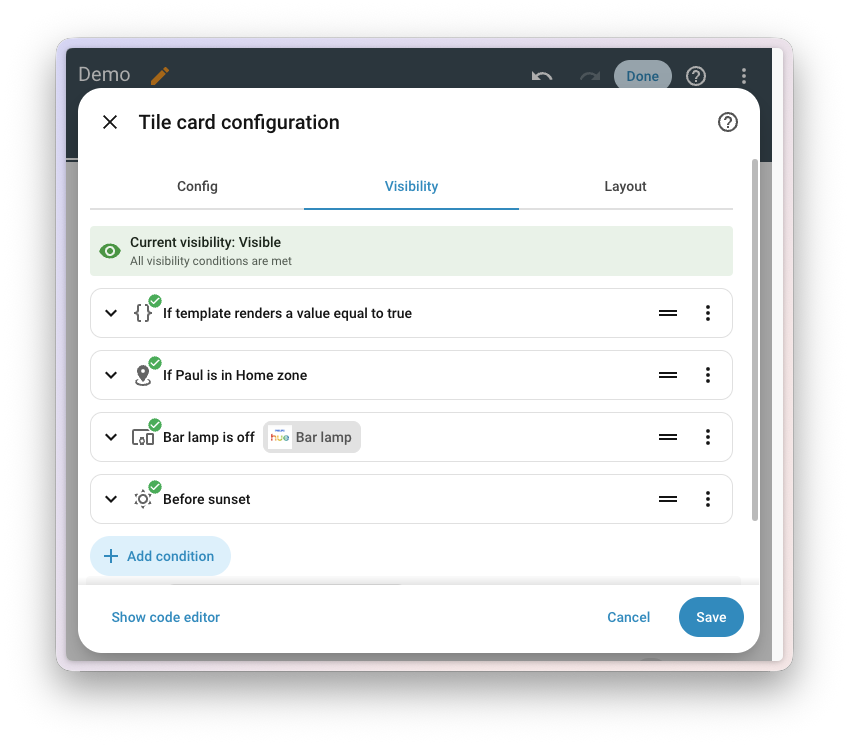
This release, the Visibility tab offers the same conditions as the automation editor, including Template, Sun, Zone, and Device, and the conditions integrations bring along. They sit right next to the ones that only make sense on a dashboard, like Screen and User, and you can mix them freely. Show the garden lights card only after sunset, and only on a phone. Each row now also describes what it checks, just like in the automation editor, and you can drag the rows into a different order. Your existing visibility conditions keep working as they are.

And no more guessing why a card is hiding. The top of the Visibility tab tells you whether the card is visible right now, and each condition shows whether it currently passes. Thanks, @MindFreeze and @timmo001!

Screenshot of the Visibility tab of a tile card, showing that the card is currently visible because all conditions are met, with a check mark on each condition: a template, a zone, a device, and the sun.

A panel for your Modbus connections

Last release, we started modernizing Modbus: integrations that already know how your device talks Modbus, so you pick your device in the UI instead of writing register maps by hand. Those integrations share a single connection to each device, which is great for devices that only accept a few connections at once. It also meant there was no single place to see which integrations were talking to what.

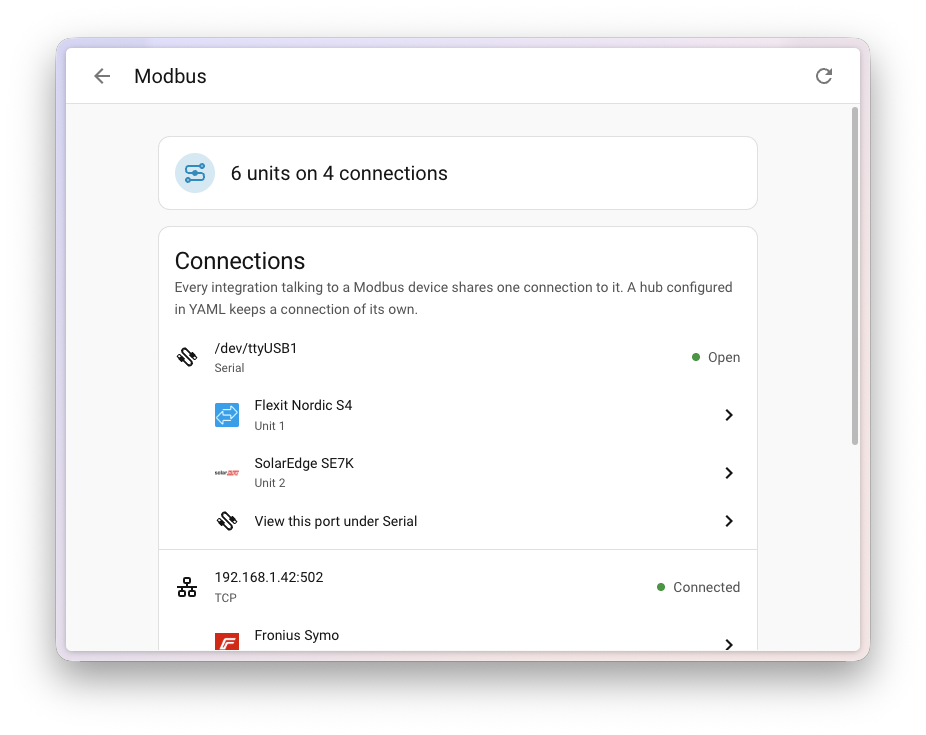
The new Modbus panel under Settings > Connectivity fixes that. It lists every Modbus connection Home Assistant has, serial ports and network gateways alike, along with the devicesA device is a model representing a physical or logical unit that contains entities. on it and the integrations using them. Connections set up in YAMLYAML is a human-readable data serialization language. It is used to store and transmit data in a structured format. In Home Assistant, YAML is used for configuration, for example in the configuration.yaml or automations.yaml files. [Learn more] show up here too. A connection that’s closed isn’t a problem, by the way. It opens again the next time an integration needs it. The Serial panel links straight to it for ports that carry Modbus. Thanks, @balloob!

Screenshot of the Modbus panel, listing a serial port shared by a Flexit and a SolarEdge device, and a network connection to a Fronius inverter.

The list of integrations built this way keeps growing. This release adds two new ones: SolarEdge Modbus, launching straight at platinum, and KACO Modbus, thanks to @g4bri3lDev. STIEBEL ELTRON now shares its connection through the Modbus integration as well, and Sofar climbed all the way to platinum, thanks to @darkrain-nl.

Connect your AI in one click

Home Assistant can act as a Model Context Protocol server, which lets AI apps like Claude, ChatGPT, or Cursor talk to your home. Getting there was a bit of a hunt, though: add the integrationIntegrations connect and integrate Home Assistant with your devices, services, and more. [Learn more], pick which parts of Home Assistant to expose, and then figure out which URL to hand to your AI app.

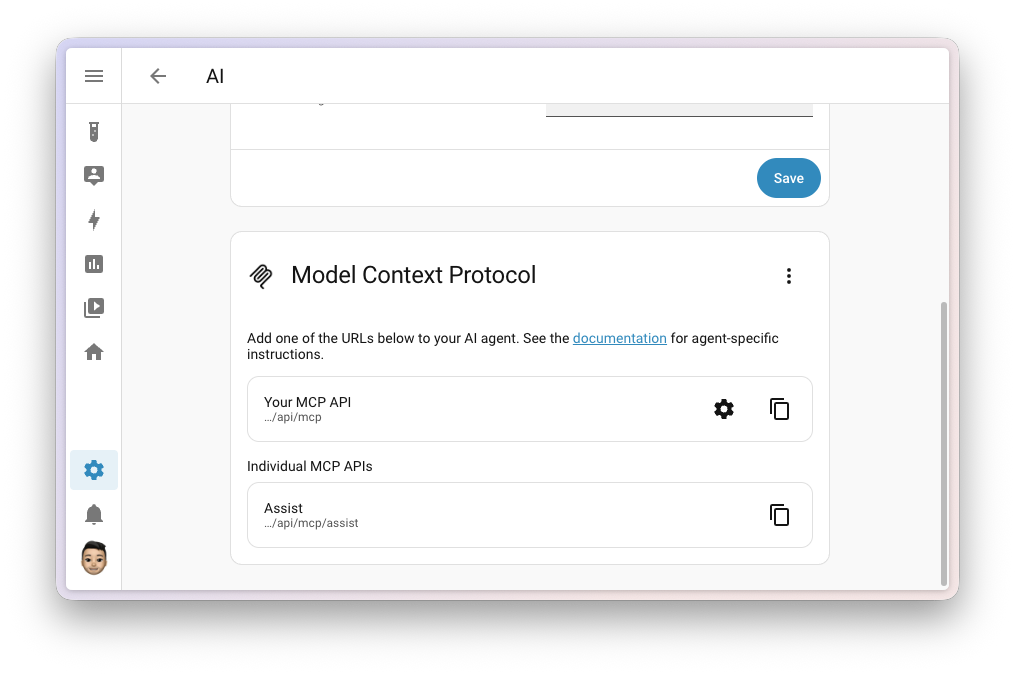
The AI tasks page under Settings > System is now called AI, and it gained a Model Context Protocol card. Turn the server on in a single click, and the card lists the URLs to paste into your AI app, each with a button to copy it. New setups expose everything Home Assistant has to offer, including anything added later, and only allow administrator accounts to connect. You can change both whenever you like, without removing and re-adding the integration.

Screenshot of the AI settings page with the new Model Context Protocol card, listing the URLs to add to your AI agent, each with a button to copy it.

It also works the other way around. Apps that run their own MCP server are now discovered automatically by the Model Context Protocol integration, so connecting Home Assistant to them only takes a confirmation.

And your AI got a lot better at finding music. Ask it to play something, and instead of blindly playing the first search result, it now gets a list of results and picks the best match. It can even search inside an artist, album, or playlist to find that one specific song. Search itself improved along the way: artists, albums, and playlists from Music Assistant can now be searched inside, just like results from Jellyfin and Squeezebox, local media now finds matching folders too, and Radio Browser puts the 100 most popular stations first.

Thanks, @balloob!

If your home runs on KNX, your AI can now dig into that too. The KNX integration brings its own set of AI tools, which you can hand to your conversation agent, or to your AI app through the Model Context Protocol server. Ask about the group addresses, devices, and functions in your ETS project, go through the history of telegrams on your bus, or decode a value you don’t recognize. It can even read and write values on the bus directly. Thanks, @martinhoefling!

Name an entity after its device

Some entitiesAn entity represents a sensor, actor, or function in Home Assistant. Entities are used to monitor physical properties or to control other entities. An entity is usually part of a device or a service. [Learn more] are the whole point of their deviceA device is a model representing a physical or logical unit that contains entities.. Calling the smoke sensor of a smoke detector “Smoke detector Smoke detected” doesn’t help anyone. Integrations already give their main entity the name of the device, but if you wanted to do the same for another entity, there was no clean way to do it. If you cleared its name, it jumped right back to the name the integration gave it.

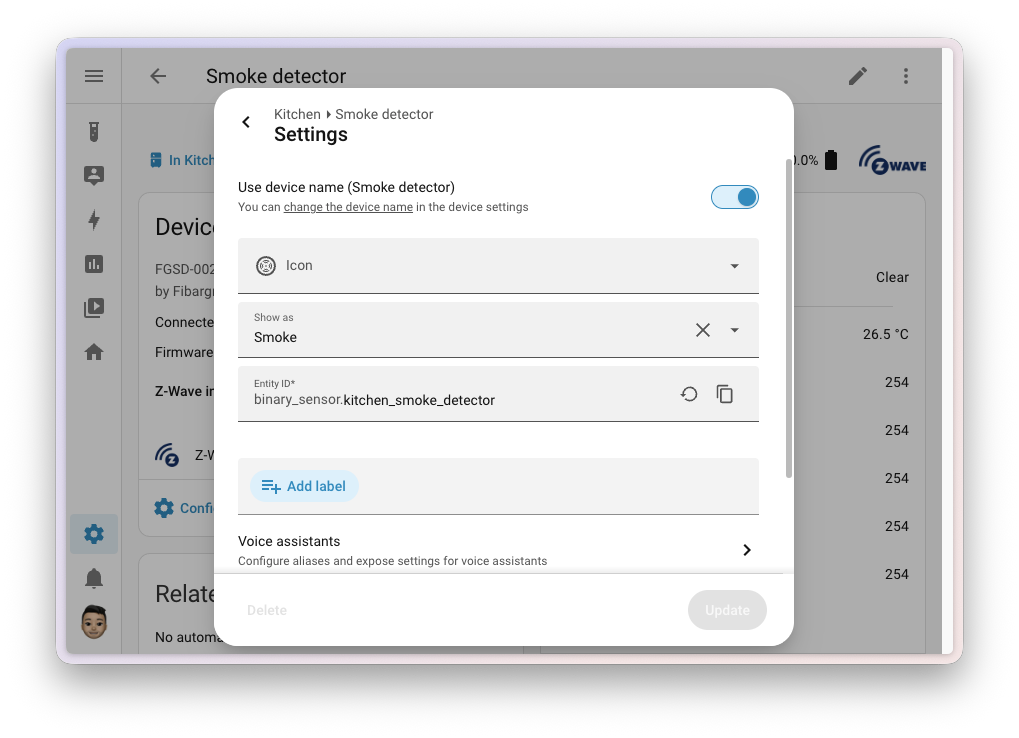
The entity settings now have a Use device name switch. Turn it on, and the entity goes by the name of its device. The switch also shows you what that device name is, with a link to rename the device if you’d like. Turn it off, and you’re back to the entity’s own name, filled in with the default from the integration. If you change your mind, a restore button takes you back to the default. Thanks, @piitaya and @matthiasdebaat!

Screenshot of the entity settings for a smoke detector, with the Use device name switch turned on and the name field hidden.

Timers, one tap away

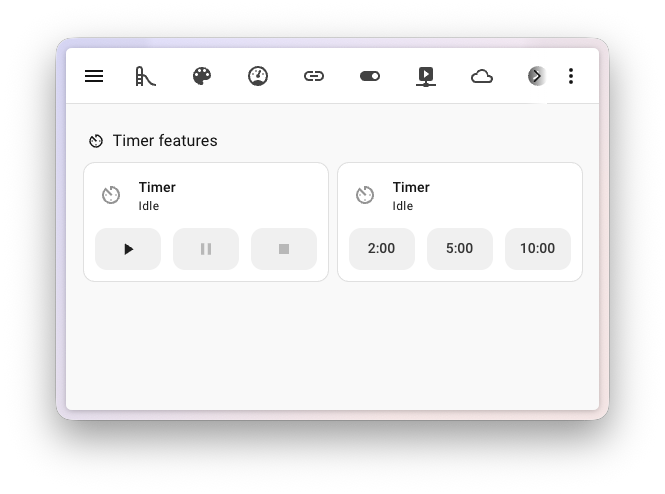
Timer helpersA helper is a virtual entity you create inside Home Assistant. It is not backed by a physical device. Helpers store values, track state, or do calculations that your automations and dashboards need. [Learn more] are now a lot easier to control from your dashboard. Tile cards have two new features for them: Timer actions adds buttons to start, pause, and cancel a timer (and optionally finish it), and Timer presets starts a timer with a preset duration in a single tap. Presets show up as a row of buttons, or as a dropdown, handy for a longer list. You manage the presets from the timer itself: open its more info dialog and select Edit presets from the menu.

That more info dialog got a fresh look too, and when a timer finishes, you’ll see a small animation. Thanks, @maartenla!

Screenshot of two tile cards for a timer, one with the timer actions buttons to start, pause, and cancel it, and one with a row of preset buttons for 2, 5, and 10 minutes.

Patch releases

We will also release patch releases for Home Assistant 2026.10 in October. These patch releases only contain bug fixes. Our goal is to release a patch release once a week, aiming for Friday.

2026.10.1 - October 10

2026.10.2 - October 16

Need help? Join the community

Home Assistant has a great community of users who are all more than willing to help each other out. So, join us!

Our very active Discord chat server is an excellent place to be, and don’t forget to join our amazing forums.

Found a bug or issue? Please report it in our issue tracker to get it fixed! Or check our help page for guidance on more places you can go.

Are you more into email? Sign up for the Open Home Foundation Newsletter to get the latest news about features, things happening in our community, and other projects that support the Open Home straight into your inbox.

Backward-incompatible changes

We do our best to avoid making changes to existing functionality that might unexpectedly impact your Home Assistant installation. Unfortunately, sometimes it is inevitable.

We always make sure to document these changes to make the transition as easy as possible for you. This release has the following backward-incompatible changes:

Authentication

The deprecated legacy mode of the Home Assistant authentication provider has been removed. Usernames are now always handled in their normalized form: lowercase, and without spaces at the start or end. If Home Assistant showed you a repair about usernames that are not normalized, change those usernames to match.

(@gjohansson-ST - #175613) (Authentication documentation)

easyEnergy

The hours_priced_equal_or_lower and hours_priced_equal_or_higher sensors are now named Periods priced equal or lower and Periods priced equal or higher, and no longer have h as their unit of measurement. Their values count price periods, not hours.

If you have “templates”A template is an automation definition that can include variables for the action or data from the trigger values. This allows automations to generate dynamic actions. [Learn more] or dashboard cards that rely on the unit of these sensors, update them to handle a count without a unit. The values, entity IDs, and unique IDs are unchanged, so automationsAutomations in Home Assistant allow you to automatically respond to things that happen in and around your home. [Learn more] that only compare the numbers need no changes.

(@klaasnicolaas - #181431) (easyEnergy documentation)

EnergyFlip

EnergyFlip shut down the API version the integration used, so the integration has moved to the new version. The new API no longer provides the additional electricity measurements, so only the current power sensor remains for electricity.

(@DieEneSchrodinger - #179723) (EnergyFlip documentation)

EnergyZero

The hours_priced_equal_or_lower electricity sensor is now named Periods priced equal or lower, and no longer has h as its unit of measurement. Its value counts price periods, not hours.

If you have “templates”A template is an automation definition that can include variables for the action or data from the trigger values. This allows automations to generate dynamic actions. [Learn more] or dashboard cards that rely on the unit of this sensor, update them to handle a count without a unit. The value, entity ID, and unique ID are unchanged, so automationsAutomations in Home Assistant allow you to automatically respond to things that happen in and around your home. [Learn more] that only compare the number need no changes.

(@klaasnicolaas - #181492) (EnergyZero documentation)

Google Sheets

Reading an empty worksheet now returns {"range": [[]]} instead of {"range": []}. If you have automationsAutomations in Home Assistant allow you to automatically respond to things that happen in and around your home. [Learn more], scriptsA script is a saved list of steps that runs when you start it, for example, from a dashboard, with Assist, or from an automation. Unlike an automation, a script has no triggers, so it doesn’t start by itself. [Learn more], or “templates”A template is an automation definition that can include variables for the action or data from the trigger values. This allows automations to generate dynamic actions. [Learn more] that check for an empty worksheet, update them to match.

(@JamieMagee - #181692) (Google Sheets documentation)

Google Wifi

The uptime sensor is deprecated and will be removed in a future release. Use the new last restart sensor instead.

(@EReaso - #177525) (Google Wifi documentation)

IoTaWatt

Reactive power sensors now use the reactive power device class, which changes their unit of measurement from VAR to var. You have these sensors if an output on your IoTaWatt is configured with the unit VAR.

If such a sensor has recorded long-term statisticsHome Assistant keeps statistics for sensors that have a state class, such as measurement, total, or total increasing. Every 5 minutes, it saves short-term statistics, which are deleted after 10 days by default. Every hour, it saves long-term statistics, which are never deleted automatically. The Energy dashboard and statistics cards use them. [Learn more], Home Assistant creates a repair about the changed unit after the update. Pick the offered option to update the statistics to the new unit. No data is lost. In return, these sensors are now shown as reactive power, and you can display them in mvar, var, or kvar.

(@agners - #180913) (IoTaWatt documentation)

Libre Hardware Monitor

Libre Hardware Monitor versions older than 0.9.5 are no longer supported. If you run an older version, update Libre Hardware Monitor to keep using the integration.

(@Sab44 - #181928) (Libre Hardware Monitor documentation)

Linode and Tank Utility

The Linode and Tank Utility integrationsIntegrations connect and integrate Home Assistant with your devices, services, and more. [Learn more] have been disabled and no longer start.

Both depend on Python libraries that have not been maintained for years (the Linode one was last updated in 2018, the Tank Utility one in 2023) and no longer work with current Python packaging tools. Keeping them running meant holding back those tools for every other integration, so they have been switched off instead.

If you use either integration, you can remove it from your configuration. If the underlying libraries are updated, or replaced with maintained alternatives, the integrations can be activated again. Community contributions to make this happen are very welcome.

(@frenck - #182842) (Linode documentation) (Tank Utility documentation)

Mealie

Mealie 3.2 or newer is now required. Version 3.2 was released in September 2025, and the Mealie appApps are additional standalone third-party software packages that can be installed on Home Assistant OS. [Learn more] and official container are already well past it, so most of you don’t need to do anything. If your Mealie server runs an older version, update it before you update Home Assistant.

(@andrew-codechimp - #180609) (Mealie documentation)

MQTT

The mqtt.publish and mqtt.dump actions now require an administrator account, just like mqtt.reload already did.

AutomationsAutomations in Home Assistant allow you to automatically respond to things that happen in and around your home. [Learn more], scriptsA script is a saved list of steps that runs when you start it, for example, from a dashboard, with Assist, or from an automation. Unlike an automation, a script has no triggers, so it doesn’t start by itself. [Learn more], and scenesScenes capture the states you want certain entities to be. For example, a scene can specify that light A should be turned on and light B should be bright red. [Learn more] that publish on their own are not affected, because they run without a user context. What changes is a call a non-admin user makes themselves: from a dashboard button, from the developer tools, or by starting a script or automation by hand. Those now fail with “Unauthorized”. If a non-admin user needs to be able to publish, let the automation run on its own trigger instead of having that user start it.

(@frenck - #182045) (MQTT documentation)

OpenEVSE

The Charging status sensor now reports a fixed set of states in snake_case, such as charging, not_connected, and gfci_self_test_failure, instead of the raw values from the charger, such as Charging or not connected. If you have automationsAutomations in Home Assistant allow you to automatically respond to things that happen in and around your home. [Learn more] or scriptsA script is a saved list of steps that runs when you start it, for example, from a dashboard, with Assist, or from an automation. Unlike an automation, a script has no triggers, so it doesn’t start by itself. [Learn more] that check for the old values, update them to match the new ones.

(@firstof9 - #180329) (OpenEVSE documentation)

Proxmox VE

The Uptime sensor of nodes, virtual machines, and containers now shows a timestamp of when it started, instead of the time since it started in seconds. If you have automationsAutomations in Home Assistant allow you to automatically respond to things that happen in and around your home. [Learn more], scriptsA script is a saved list of steps that runs when you start it, for example, from a dashboard, with Assist, or from an automation. Unlike an automation, a script has no triggers, so it doesn’t start by itself. [Learn more], or “templates”A template is an automation definition that can include variables for the action or data from the trigger values. This allows automations to generate dynamic actions. [Learn more] that use the number of seconds, update them to work with the timestamp.

(@erwindouna - #169704) (Proxmox VE documentation)

Rejseplanen

Rejseplanen now uses version 2.0 of the Rejseplanen API, which requires an API key. You can apply for an API key with Rejseplanen Labs. The integration is now set up from the UI instead of YAMLYAML is a human-readable data serialization language. It is used to store and transmit data in a structured format. In Home Assistant, YAML is used for configuration, for example in the configuration.yaml or automations.yaml files. [Learn more].

All extra attributes have been removed from the sensors. If you have “templates”A template is an automation definition that can include variables for the action or data from the trigger values. This allows automations to generate dynamic actions. [Learn more] or dashboard cards that use them, you need to update them.

(@Jawar19 - #152200) (Rejseplanen documentation)

Sofar

Sofar inverters that report no energy meter no longer get these six energy sensors: Load consumption today, Load consumption total, Import energy today, Import energy total, Export energy today, and Export energy total.

They never held real readings on those inverters. The inverter itself marks those values as invalid, and on a PV-only inverter, Load consumption total simply repeated the solar generation total. If you used these sensors on your Energy dashboard, or in “templates”A template is an automation definition that can include variables for the action or data from the trigger values. This allows automations to generate dynamic actions. [Learn more] or automationsAutomations in Home Assistant allow you to automatically respond to things that happen in and around your home. [Learn more], remove them. Hybrid inverters and PV inverters with a meter keep all six.

(@darkrain-nl - #181729) (Sofar documentation)

State conditions

State conditionsConditions check whether something is true at that moment, for example, whether a door is closed. You can use them in automations and scripts. If a condition is not met, the actions that come after it in the same sequence do not run. At the top level of an automation or script, this stops the automation or script. [Learn more] that combine the for option with a state attribute, a list of states, or a state taken from another entity now fail validation. These combinations don’t support a duration, so you get an error when the configuration is checked, instead of a condition that doesn’t do what you expect.

(@emontnemery - #174083)

Synology DSM

The synology_dsm.reboot and synology_dsm.shutdown actions now require an administrator account.

AutomationsAutomations in Home Assistant allow you to automatically respond to things that happen in and around your home. [Learn more] and scriptsA script is a saved list of steps that runs when you start it, for example, from a dashboard, with Assist, or from an automation. Unlike an automation, a script has no triggers, so it doesn’t start by itself. [Learn more] that run on their own triggers are not affected, because they run without a user context. What changes is a call a non-admin user makes themselves: from a dashboard button, from the developer tools, or by starting a script or automation by hand. Those now fail with “Unauthorized”. If a non-admin user needs to be able to restart or shut down the NAS, let the automation run on its own trigger instead of having that user start it.

(@frenck - #182050) (Synology DSM documentation)

Telegram bot

When you pass a directory_path to the telegram_bot.download_file action, that directory now has to be in your allowlist_external_dirs. If the action starts failing, add the directory to your configuration:

homeassistant:
  allowlist_external_dirs:
    - /media/telegram

If you leave out directory_path, nothing changes. Files are still saved to the telegram_bot folder in your configuration directory, without an allowlist entry.

(@frenck - #182460) (Telegram bot documentation)

Teslemetry

Vehicles that stream their data no longer get the entitiesAn entity represents a sensor, actor, or function in Home Assistant. Entities are used to monitor physical properties or to control other entities. An entity is usually part of a device or a service. [Learn more] that can only be updated by pollingData polling is the process of querying a device or service at regular intervals to check for updates or retrieve data. By defining a custom polling interval, you can control how frequently your system checks for new data, which can help optimize performance and reduce unnecessary network traffic. [Learn more]. Updating those required a paid API call, which most people did not expect.

(@Bre77 - #181351) (Teslemetry documentation)

UniFi Network

You can no longer reconfigure the UniFi Network integrationIntegrations connect and integrate Home Assistant with your devices, services, and more. [Learn more] by adding the same site again through Add integration. Use the dedicated Reconfigure option of the integration instead.

(@robinsiep - #182201) (UniFi Network documentation)

UpCloud

The option to configure the pollingData polling is the process of querying a device or service at regular intervals to check for updates or retrieve data. By defining a custom polling interval, you can control how frequently your system checks for new data, which can help optimize performance and reduce unnecessary network traffic. [Learn more] interval has been removed from UpCloud. The integration now always polls every 60 seconds. If you had set a longer interval, this means more API calls: a 300 second interval, for example, becomes five times as many calls.

If you need a different update frequency, you can set your own polling interval.

(@KingLizard1020 - #181327) (UpCloud documentation)

Xbox

The Subscribed to Xbox Game Pass binary sensorA binary sensor is an entity that reports one of two mutually exclusive states, on or off. The device class determines how those states are labeled in the UI. For example, open/closed for a door or detected/clear for motion. [Learn more] has been removed, because it never worked. The Xbox API always reported false, whether you or your friends were subscribed to Game Pass or not.

(@tr4nt0r - #182734) (Xbox documentation)

If you are a custom integration developer and want to learn about changes and new features available for your integration: Be sure to follow our developer blog. The following changes are the most notable for this release:

All changes

Of course, there is a lot more in this release. You can find a list of all changes made here: Full changelog for Home Assistant Core 2026.10.

  •  

NVIDIA Driver 617.42

Release Highlights:
Although GeForce Game Ready Drivers and NVIDIA Studio Drivers can be installed on supported notebook GPUs, the original equipment manufacturer (OEM) provides certified drivers for your specific notebook on their website. NVIDIA recommends that you check with your notebook OEM for recommended software updates for your notebook.

Game Ready for Call of Duty: Modern Warfare 4
This new Game Ready Driver provides the best gaming experience for the latest new games and updates supporting DLSS and RTX technologies including Call of Duty: Modern Warfare 4, STAR WARS: Galactic Racer, Dragon’s Dogma 2: Dark Arisen, Microsoft Flight Simulator 2024, and Valor Mortis.

Fixed Gaming Bugs
  • Assassin's Creed Shadows may crash to desktop after extended gameplay after updating to driver 616.56 [6685219]

Fixed General Bugs
  • N/A

Learn more in our Game Ready Driver article here.

Game Ready Driver

  •  

Big Tech ruined the cloud, so we’re renaming ours

Big Tech ruined the cloud, so we’re renaming ours

From ever-increasing subscription prices to outages and data harvesting: we don’t like what the cloud has come to represent. So we’re redefining what an online service should be: private, optional, and free from lock-in or walled gardens.

That’s why today Nabu Casa is renaming Home Assistant Cloud to more accurately describe what the service actually does, and to better reflect our values. Allow us to introduce:

Home Assistant Link

I’m Carl, Vice President of Commercial at Nabu Casa. You probably know us as the folks making all that sleek, highly optimized Home Assistant hardware. Beyond hardware, we also manage and run Home Assistant Link, and as one of the Open Home Foundation’s commercial partners, we’re here to help fund all their amazing work. We feel pretty passionately about the word cloud, and we’d love to explain how the old name never fit, and why Link finally does.

Created for the community

Home Assistant began with a group of core developers working nights and weekends alongside their regular jobs to create the platform – a good recipe for burnout, and one that has ended plenty of similar open source projects. So in 2018, we founded Nabu Casa and created Home Assistant Cloud to make sure that didn’t happen.

Home Assistant Cloud set out to make Home Assistant easier for more people to use, starting with a problem many of you had: reaching your Home Assistant when you’re not at home, without having to spend a weekend on it. It was also built to make Home Assistant’s development sustainable.

The intent was never to just ask for donations, but to build an optional service that benefited the community and funded the work at the same time. The majority of profits from subscriptions now fund the Open Home Foundation. That money supports everyone working on Home Assistant – from salaried staff to volunteers – keeping the project sustainable. That shift took Home Assistant from a passion project to one that could invest back into its community, and one that could stick around for the long haul.

A breath of fresh air

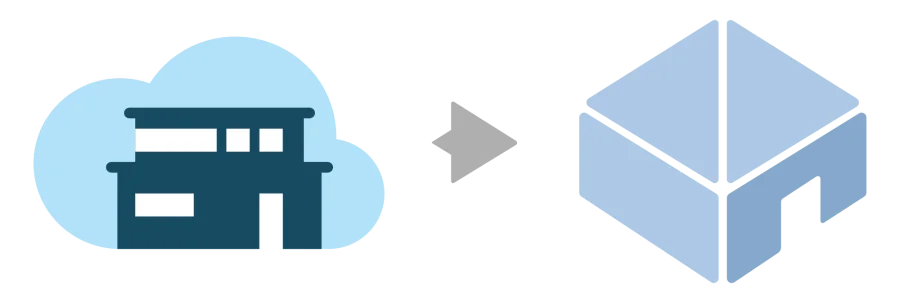
The Nabu Casa logo without the word cloudWe even took it out of the Nabu Casa logo… did we take this too far? 🤔

We had a service that we and the community loved, but the name just didn’t feel right. For example, there were times when Paulus, founder of Home Assistant and President of the Open Home Foundation, was on stage saying “don’t buy products that require the cloud to work,” then in the next breath having to explain how Home Assistant Cloud is different, despite the name. That created unnecessary friction.

It also caused confusion, since some new users thought (and continue to think) Home Assistant Cloud is a way to run Home Assistant in the cloud. This has never been the case, because we believe Home Assistant should always be run locally, in your home.

Big Tech has given the cloud a bad name, and while Link does run online, it is very different from other cloud-powered smart home services:

Home Assistant Link A Big Tech cloud
Optional: your smart home will still work without it, lights and all. Required: all or most features won’t work without it.
No lock-in: you can use this service or someone else’s, and you’ll never be stuck. A walled garden: you’ll be locked into that one service, and all its outages or price increases.
Your data’s private: your data is yours, and will always stay that way. Your data’s monetized: you’re the product, and your data is used for ads, AI training, and sometimes sold to third parties.
Funds a nonprofit: Nabu Casa contributes the majority of profits from subscriptions to the Open Home Foundation, supporting their fight for privacy, choice, and sustainability. Funds investors first: profits flow to shareholders, debt repayment, and a bunch of other stuff first, and funding developers is an afterthought.

Your subscriptions help sustain Home Assistant, but we’ve been clear from the beginning that you do not need Link to use the platform. We hate what Big Tech has done to smart devices, turning them into paperweights when they drop support. Thermostats that can’t be scheduled or cameras that can’t detect motion, giving the smart home a bad reputation and making a mountain of e-waste. By not using Link, you’ll miss out on some extras, but that’s all they are: extras. And if you do use Link but have to unsubscribe, your smart home will keep working.

Big Tech treats your data as a commodity and a tool for mass surveillance: sold to advertisers, used to train AI, and dealt to third parties for the best price. We think this is morally bankrupt. That’s why when you use Home Assistant Link, your data is encrypted, and only you have the key. Neither Nabu Casa nor the Open Home Foundation want your data, and we work hard to never have an opportunity to see it.

This is what tech serving people looks like: data that’s yours, and a smart home that answers to you – not corporate shareholders.

Choose your own path

Many of you build DIY projects to customize your setup, and Home Assistant isn’t going anywhere on that front. But for those who’d like a simpler approach, Link makes using Home Assistant easier, opening up the local and private smart home to more people. For example, connecting to Alexa and Google Home can be complex to set up yourself, but Link allows you to… ahem… link them to Home Assistant without the hassle. Not having the time or know-how shouldn’t be a barrier to using the platform, and Link ensures it isn’t.

On top of things that can only be done online, there are other features that just work better with Link’s connected services. For instance, online speech-to-text tends to be faster, supports more languages, and is more reliable than self-hosted alternatives. Likewise, Link offers a way to store a backup online, so your data is always recoverable while remaining private. Plus, if you run into trouble with a feature, we have real humans you can contact to help you out. You heard that right. A real person.

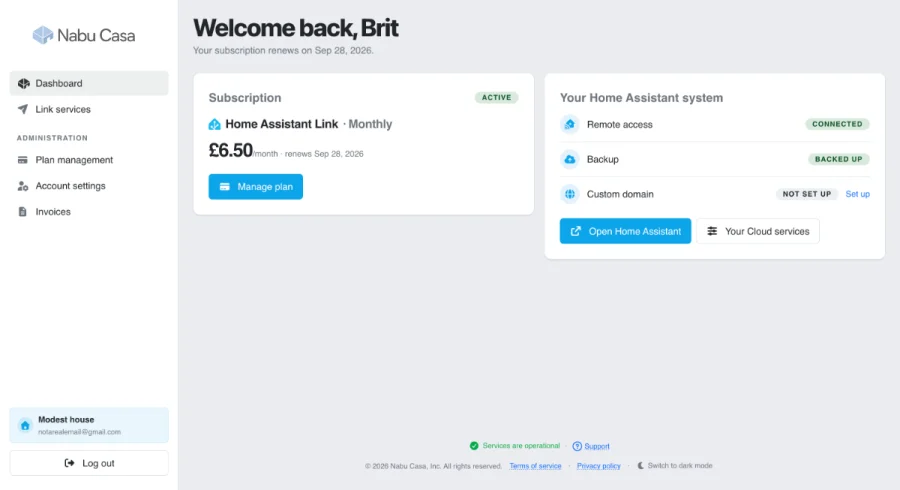
The new Nabu Casa account pageSee everything at a glance on our new account page.

We’re also constantly improving the service and are now working to add new features. You may have noticed the new, easier-to-use account page, the speech-to-text Labs test, or the new settings page in Home Assistant with a setup wizard. What you probably won’t notice is the massive backend update to improve the responsiveness of your remote access (we’ve migrated to a new bare-metal setup that always tries to get you on the closest server, and it’s fast 🏎️). Most importantly, these updates let us add new security features, account management tools, and more.

What’s in a name?

In the end, our actions speak louder than product names, and we’ll continue to run a subscription that’s about privacy, transparency, and not locking users in, all the while supporting the development of Home Assistant.

Whenever features get renamed, we always come to you, the community, first. Even though this is a service from Nabu Casa, Home Assistant is a community project, and we value your opinion and thoughts. Love the new name? Something we didn’t consider? We’re all ears. We intend to make the name change official in the December 2026.12 release, so please provide all your feedback well before then! 👇

  •  

v0.8.11

What's Changed

  • fix(macos): press Back and Forward as the frontmost app's menu item by @AprilNEA in #1622
  • chore(nix): update flake.lock by @AprilNEA[bot] in #1217
  • fix(agent): recognize an overlay tenant by any image we ever shipped by @AprilNEA in #871
  • feat(linux): add verified release installer by @AprilNEA in #1109
  • ci(nix): only run Nix CI on flake and packaging changes by @davidbudnick in #1250
  • fix(macos): confirm desktop switches with private space APIs by @AprilNEA in #1586
  • fix(macos): drive the device-I/O gate from powerd instead of workspace notifications by @AprilNEA in #1323
  • fix(core): match Actions Ring layouts with the per-app selector by @AprilNEA in #643
  • chore: release v0.8.11 by @AprilNEA[bot] in #1637
  • fix: clear the lints rustc 1.99 raises on untouched code by @AprilNEA in #1638
  • chore: release v0.8.11 by @AprilNEA in #1643
  • chore: release v0.8.11 by @AprilNEA in #1644

Full Changelog: v0.8.10...v0.8.11

  •  

v0.8.10

What's Changed

  • feat(keyboard): key controls by HID++ control ID, fix Keys tab and Fn-lock by @AprilNEA in #1604
  • fix(macos): keep the hook from hearing the keys OpenLogi posts by @AprilNEA in #1618
  • fix(gui): unpair a forgotten receiver device so it stays deleted by @AprilNEA in #1617
  • fix(macos): press shortcut keys where the active layout types them by @guslipkin in #948
  • feat(core): add a Super modifier and make Win/Meta name it by @sungyongcho in #1387
  • fix(agent): re-arm a crash respawn instead of going dormant by @AprilNEA in #1619
  • fix(hook): give the macOS tap's capability probes their own watchdog budget by @hyspacex in #1282
  • fix(hook): give the callback watchdog the same watched-time rule by @AprilNEA in #1624
  • chore: release v0.8.10 by @AprilNEA[bot] in #1616

New Contributors

Full Changelog: v0.8.9...v0.8.10

  •  

v0.8.9

What's Changed

  • fix(gui): swap the thumb-wheel volume preset labels onto the pairing they describe by @4ni1ak in #1436
  • fix(hook): stop the GNOME frontmost observer leaking a socket per renewal by @sungyongcho in #1418
  • fix(gui): rebuild the agent's launchd registration when its job is gone by @raphaeljostan in #1303
  • fix(hook): hit-test the window under the pointer through AppKit by @pseudoseed in #1568
  • chore: release v0.8.9 by @AprilNEA[bot] in #1599

New Contributors

Full Changelog: v0.8.8...v0.8.9

  •  

v0.8.8

What's Changed

  • feat(hid): recognise Nano receiver 046d:c534 (MK270, MK295) by @4ni1ak in #1456
  • fix(agent): divert a single-bound gesture button by @pseudoseed in #1569
  • fix(gui): restore per-app profile removal and add reset controls by @AprilNEA in #1580
  • fix(gui): prefer firmware codename over catalog name for M650 variants by @4ni1ak in #1366
  • refactor(gui): simplify variant name correction ownership by @AprilNEA in #1585
  • chore: release v0.8.8 by @AprilNEA[bot] in #1573

New Contributors

Full Changelog: v0.8.7...v0.8.8

  •  

NVIDIA Driver 617.14

Release Highlights:
Although GeForce Game Ready Drivers and NVIDIA Studio Drivers can be installed on supported notebook GPUs, the original equipment manufacturer (OEM) provides certified drivers for your specific notebook on their website. NVIDIA recommends that you check with your notebook OEM for recommended software updates for your notebook.

Game Ready for CONTROL Resonant, Gears of War: E-Day, The Witcher 3: Wild Hunt – Remastered & AION 2
This new Game Ready Driver provides the best gaming experience for the latest new games supporting DLSS and RTX technologies including CONTROL Resonant, Gears of War: E-Day, The Witcher 3: Wild Hunt – Remastered and AION 2.

Fixed Gaming Bugs
  • Judgement/Lost Judgement/ Virtua Fighter 5 R.E.V.O. may fail to launch after updating to driver 616.56 [6681537]

Fixed General Bugs
  • No picture on Samsung Odyssey G95NC monitor when connected via HDMI after updating to R615 drivers [6771206]
  • Certain monitors may not wake from sleep when connected via DisplayPort after updating to R615 drivers [6757568]

Learn more in our Game Ready Driver article here.

Game Ready Driver

  •  

v0.8.6

What's Changed

  • refactor(gui): split app_icon around an AppIconExt trait by @AprilNEA in #1422
  • fix(gui): hold a config reload until the agent connects by @AprilNEA in #1416
  • refactor(ipc): own the client handshake once and guard it with ast-grep by @AprilNEA in #1424
  • refactor(core): name the process roles, host profiles, and environment knobs once by @AprilNEA in #1426
  • refactor(ipc,cli): bound the handshake once and give the CLI one agent door by @AprilNEA in #1427
  • refactor(core): build every worker runtime in one place by @AprilNEA in #1428
  • refactor(core): spell the app bundle's layout once by @AprilNEA in #1429
  • docs(infra): add openlogi workflow skills by @AprilNEA in #1409
  • docs(infra): refine agent guidance and diagnostic workflows by @AprilNEA in #1485
  • refactor(cli): give the command modules that carry code a file of their own by @AprilNEA in #1494
  • refactor(hidpp): split the pending-request queue and the mock channel out of channel.rs by @AprilNEA in #1495
  • refactor(hook): split the macOS backend by responsibility by @AprilNEA in #1496
  • refactor(hook): split the Linux backend into the evdev hook and the foreground watcher by @AprilNEA in #1497
  • chore: drop an unused dependency, a dead parameter, and stale docs by @AprilNEA in #1487
  • refactor(gui): let state mutators own their events and views share one relevance filter by @AprilNEA in #1505
  • refactor(gui): give write-on-release sliders one component by @AprilNEA in #1506
  • refactor(ipc): own the observe loop's connection state in one Observer by @AprilNEA in #1507
  • perf(gui): resolve each device's assets once per asset generation by @AprilNEA in #1508
  • refactor(gui): say what the state types are by @AprilNEA in #1509
  • refactor(core): give the key vocabulary one owner by @AprilNEA in #1488
  • refactor(core): give seven copied decisions one owner each by @AprilNEA in #1489
  • refactor(xtask): spell xtask's waits and its bundle builder in the workspace's vocabulary by @AprilNEA in #1490
  • ci(windows): run the tests on Windows by @AprilNEA in #1491
  • refactor(device): drop the capture paths nothing calls and type the session errors by @AprilNEA in #1500
  • refactor(core): split the config module by concern by @AprilNEA in #1511
  • refactor(device): split the inventory and probe modules by responsibility by @AprilNEA in #1512
  • refactor(device): call durations that bound a wait timeouts by @AprilNEA in #1513
  • refactor(device): run gesture and keyboard capture through one session skeleton by @AprilNEA in #1501
  • refactor(device): share one pending-restore token between capture and host switch by @AprilNEA in #1502
  • refactor(agent): run the capture watchers on one harness and name the device-access handles by @AprilNEA in #1503
  • refactor: say what eight identifiers are by @AprilNEA in #1517
  • refactor(camera): suffix the macOS backends like the other platforms' by @AprilNEA in #1518
  • refactor(gui): move the F-key geometry into function_row/key_points.rs by @AprilNEA in #1525
  • refactor(agent): move the device list and re-apply plan into orchestrator/devices.rs by @AprilNEA in #1526
  • refactor(gui): split the AppState tests by what they exercise by @AprilNEA in #1527
  • refactor(inject): run scripts and workflows once, over four platform hooks by @AprilNEA in #1529
  • refactor(core): split the config tests by what they exercise by @AprilNEA in #1530
  • refactor(device): split the inventory and gesture capture tests by what they exercise by @AprilNEA in #1531
  • refactor(agent): split the orchestrator tests by what they exercise by @AprilNEA in #1532
  • refactor(hidpp): split the channel tests by what they exercise by @AprilNEA in #1533
  • refactor(device): move the host-switch session's tests to host_switch/tests.rs by @AprilNEA in #1535
  • refactor(agent): move the button runtime's worker loop into button/worker.rs by @AprilNEA in #1536
  • refactor(inject): break the macOS injector into scroll, browser and SPI modules by @AprilNEA in #1537
  • refactor(gui): move the mouse view's binding labels and tests out of view.rs by @AprilNEA in #1538
  • refactor(gui): move the camera panel's row builders into controls/rows.rs by @AprilNEA in #1539
  • feat(gui): detect and display installation sources by @AprilNEA in #1515
  • docs(gui): mend the desktop crate's intra-doc links by @AprilNEA in #1541
  • chore: release v0.8.6 by @AprilNEA[bot] in #1481

Full Changelog: v0.8.5...v0.8.6

  •  

v0.8.5

What's Changed

  • fix(gui): resolve depot metadata named only by the manifest by @4ni1ak in #836
  • docs(gui): adopt upstream gpui kit skills by @AprilNEA in #1400
  • fix(linux): keep the generated systemd unit out of the user's tier by @AalmanSadath in #796
  • fix(hidpp): stop HID++ replies landing on the wrong request by @isleofgreg in #1286
  • feat(gui): enable supported button gestures by @juan-apa in #1167
  • fix(gui): restore stacked card layout under gpui-kit 0.6 by @AprilNEA in #1408
  • chore: release v0.8.5 by @AprilNEA[bot] in #1399

Full Changelog: v0.8.4...v0.8.5

  •  

v0.8.4

What's Changed

  • feat(i18n): migrate catalogs to semantic TOML keys by @AprilNEA in #1169
  • perf(i18n): avoid copying borrowed translations by @AprilNEA in #1184
  • fix(i18n): polish supported locale copy by @AprilNEA in #1180
  • fix(i18n): localize DPI steps and correct count labels by @AprilNEA in #1292
  • fix(i18n): polish Brazilian Portuguese profile and settings copy by @uricholiveira in #1276
  • fix(i18n): refine French asset and control descriptions by @didlawowo in #1278
  • fix(hid): keep pairing phase after device selection by @AprilNEA in #1181
  • refactor(gui): model camera preview lifecycle states by @AprilNEA in #1182
  • refactor(agent): consolidate capture manager slots by @AprilNEA in #1183
  • docs(linux): fix the Debian install command and the bug form's platform note by @AalmanSadath in #791
  • docs: add Russian README translation by @MonteNegroX in #1039
  • Fix typo in installation guide by @mikevankuik in #1189
  • fix(i18n): correct mistranslations in the Spanish catalog by @eibidia in #1315
  • feat(i18n): Updated French README.md file by @DimitriDR in #1271
  • fix: add Debian runtime dependencies by @MauricioSilv in #1249
  • fix(hook): normalize Windows cursor position to DIP scale by @fly530 in #1246
  • fix(agent): restore diverted HID++ controls on a clean shutdown by @4ni1ak in #1106
  • refactor(hook): type windows cursor dpi normalization by @AprilNEA in #1318
  • fix(linux): declare F13-F20 in uinput key capabilities by @costantinoai in #1224
  • fix(core): stop seeding Back/Forward with a divertable default by @litityum in #1225
  • fix(agent): fence queued pairing discovery after selection by @AprilNEA in #1320
  • fix(agent): avoid capture recovery deadline busy loops by @AprilNEA in #1321
  • test(gui): cover camera preview lifecycle by @AprilNEA in #1322
  • fix(gui): place Windows actions ring correctly across mixed-DPI monitors by @AprilNEA in #1319
  • fix(gui): stop linking SMAppServiceErrorDomain so macOS 13 and 14 can launch by @AprilNEA in #1324
  • feat(hid): add hardware-aware mock device record and replay by @AprilNEA in #1165
  • test(agent): cover native and browser side-button profiles by @AprilNEA in #1325
  • fix(macos): bind Safari navigation to press-time process by @foleykyle01 in #1082
  • fix(camera): surface startup failures and retry preview by @yuzi-co in #1069
  • chore(gui): upgrade to gpui kit 0.6.1 and published pre adapters by @AprilNEA in #1338
  • feat(hid): add rgb-effects lighting and receiver routing by @LuisUrrutia in #351
  • fix(gui): keep update consent buttons visible by @AprilNEA in #1398
  • fix(linux): preserve gesture capture across receiver probes by @yvvlee in #1043
  • chore: release v0.8.4 by @AprilNEA[bot] in #1179

New Contributors

Full Changelog: v0.8.3...v0.8.4

  •  

NVIDIA Driver 616.92

Release Highlights:
Although GeForce Game Ready Drivers and NVIDIA Studio Drivers can be installed on supported notebook GPUs, the original equipment manufacturer (OEM) provides certified drivers for your specific notebook on their website. NVIDIA recommends that you check with your notebook OEM for recommended software updates for your notebook.

Game Ready for 007 First Light, Active Matter, Aniimo & WARDOGS
Game Ready Driver which provides the best gaming experience for 007 First Light’s Path Tracing Update as well as the latest new games and updates supporting DLSS and RTX technologies including Matter, Aniimo, PUBG, and WARDOGS.

Fixed Gaming Bugs
  • N/A

Fixed General Bugs
  • Intermittent flicker may be observed in browsers when navigating to certain websites [6673430]
  • Fixed an issue where virtual displays could not be created after updating to driver 616.56 [6674464]
  • Remote Desktop Protocol (RDP) sessions may display a black screen after updating to driver 616.56 [6687328]

Learn more in our Game Ready Driver article here.

Game Ready Driver

  •  

NVIDIA Driver 616.64

Release Highlights:
Although GeForce Game Ready Drivers and NVIDIA Studio Drivers can be installed on supported notebook GPUs, the original equipment manufacturer (OEM) provides certified drivers for your specific notebook on their website. NVIDIA recommends that you check with your notebook OEM for recommended software updates for your notebook.

Game Ready for NBA 2K27
This new Game Ready Driver provides the best gaming experience for NBA 2K27 featuring DLSS 5 3D-Guided Neural Rendering as well as the latest new games supporting DLSS and RTX technologies including Onimusha: Way of the Sword.

Fixed Gaming Bugs
  • N/A

Fixed General Bugs
  • N/A

Learn more in our Game Ready Driver article here.

Game Ready Driver

  •  

2026.9: There's room on this bus

Home Assistant 2026.9! 🎉

I’ll be honest: Modbus has never been the flashiest part of Home Assistant. It quietly powers solar inverters, heat pumps, and energy meters, but only if you’re comfortable hand-writing your own register map in YAML, a real wall that’s kept a huge category of devices out of reach. This release finally makes room on the bus: integrations that already know how a device talks over Modbus, sharing a single connection instead of fighting over it, so you simply pick your device in the UI like anything else in Home Assistant. It won’t show up in a screenshot, but modernizing Modbus is hands-down my favorite change this release. 🔧

I’m also really looking forward to jumping on the new Cloud voice processing myself and putting it through its paces. We’re a household with a non-English main language, and if you’ve ever run a private voice assistant in one, you know exactly how fast accents and background noise trip things up. This new speech-to-text engine specifically targets those pain points, so I’m very curious to see how it holds up against my own accent. 😉

And there’s plenty more: active alerts and favorites for the Security dashboard, a shared Sources panel for History and Activity, Activity that finally explains why something changed, a brand new network map for Matter, charts you can now navigate by keyboard and sound, and 13 new integrations! 🚀

One more thing before you dive in: we’re at IFA Berlin this weekend! It’s one of the largest consumer electronics expos out there, running September 4 to 8, 2026, and the Open Home Foundation has its own booth in the Smart Home hall: Hall 1.2, stand 1.2-153. If you’re around, come find us and say hi. 👋

Enjoy the release!

../Frenck

A huge thank you to all the contributors who made this release possible! And a special shout-out to @googanhiem and @piitaya who helped write these release notes. Also, @Diegorro98, @jan-tdy, @RaHehl, and @farmio for putting effort into tweaking its contents. Thanks to them, these release notes are in great shape. ❤️

Home Assistant Cloud

Home Assistant Cloud is an essential part of funding the Open Home Foundation. We’re so thankful for all the support from our subscribers, and from the start we’ve always been clear: this isn’t just a donation to Home Assistant, we want it to provide real benefits to subscribers. Together with Nabu Casa, we’ve been constantly working to make Cloud better, and here are some useful recent additions.

Seeing through the Cloud

A new addition that should help security-conscious Home Assistant Cloud subscribers is the ability to better see who is attempting to log into your instance. In the past, they all looked like local requests, and you may have seen the 127.0.0.1 invalid login attempt message, which wasn’t that helpful. Now the proper IP address gets passed through, so whether that’s you mixing up your passwords when logging in, or some bot trying their luck, you’ll now know better where it’s coming from.

A side benefit of this change is that it’s now possible to use IP banning to make it harder for these malicious actors, which was added to the UI in the previous release. In conjunction with setting up multi-factor authentication (2FA) in Home Assistant, you can add a little extra peace of mind to your home, but that’s not the only Cloud benefit being improved this month.

Test the new voice processing

When we launched Home Assistant Voice Preview Edition, a good amount of the community jumped into running their own private voice assistants in their homes. Building something to rival big tech is still a work-in-progress, but every year we get closer. Today, we’re again asking for our Cloud subscribers to help us test another awesome step forward.

Our friends at Nabu Casa are testing a new speech-to-text engine for Home Assistant Cloud, and it significantly improves the three common places voice processing gets tripped up: accents, background noise, and non-English languages. Many of us around the Foundation have been using it and finding it works great with our sometimes unique accents even in noisy environments.

There are several big changes under the hood, including switching to a new provider Soniox, so it needs to be tested. You’ll still get the same privacy guarantee of no logging, storing, or training on your audio. It’ll be available to test via Labs, with the normal caveat that it may not be a permanent addition, so provide your feedback on the Labs page if it’s the right step forward.

If you’re a Home Assistant Cloud subscriber, you can toggle this on right now by heading to Settings > System > Labs. If you’re not a subscriber, there is a 31-day trial. Speaking of which, there are some big improvements on signing up coming as well.

Float in to be a Cloud subscriber

Signing up for Home Assistant Cloud now begins on a clearer start page: one obvious button to Start your free trial, and a link to Sign in if you already have an account. It also finally shows what you would actually be getting. The old page left you to guess what was behind that button, which, fair enough, didn’t help anyone. Now the features are listed right there, before you even start the trial.
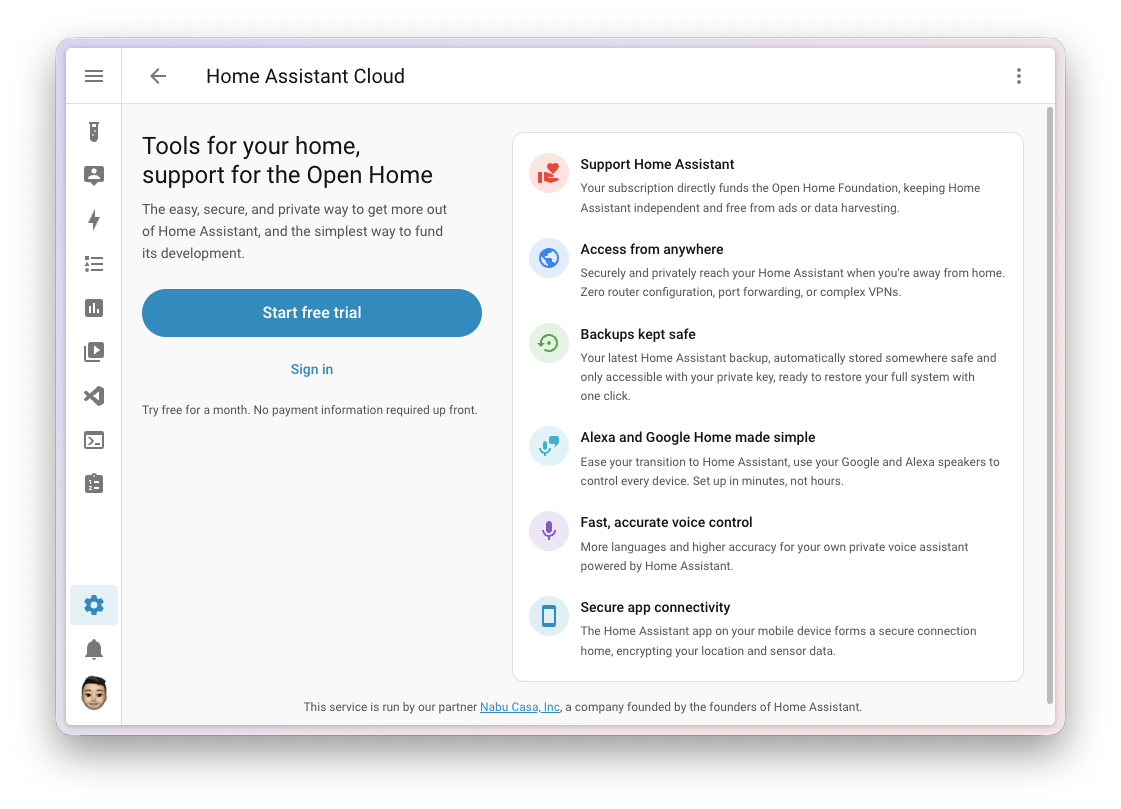
Screenshot of the redesigned Home Assistant Cloud start page, with a button to start a free trial, a link to sign in, and an overview of what Home Assistant Cloud offers.

Now confirming your email will automatically log you in to Home Assistant Cloud, so you can immediately set up remote access, voice, and backupsHome Assistant has built-in functionality to create files containing a copy of your configuration. This can be used to restore your Home Assistant as well as migrate to a new system. The backup feature is available for all installation types. [Learn more]. No more logging in after signing up! And as always, the one-month trial requires no payment details.

Home Assistant Cloud is built and run by Nabu Casa, a commercial partner of the Open Home Foundation. Every subscription funds the foundation directly, and with it, the full-time development of Home Assistant, this release included. 😊

In return, you get secure remote access with no port forwarding or VPN, encrypted off-site backupsHome Assistant has built-in functionality to create files containing a copy of your configuration. This can be used to restore your Home Assistant as well as migrate to a new system. The backup feature is available for all installation types. [Learn more] ready to restore your whole system the moment you need them, faster and more accurate speech-to-text and text-to-speech for your own voice assistant, native Amazon Alexa and Google Assistant support, and more. It’s all built with the same respect for your privacy as Home Assistant itself: no ads, no data harvesting, just a service that keeps Home Assistant independent.

If you have been thinking about a subscription, there has never been an easier moment to try it.

Active alerts and favorites for the Security dashboard

The built-in Security dashboard is getting more love, and this release adds two things people kept asking for, both managed from the same editor.

The new Active alerts section only shows up when something actually needs your attention, like a door left open or a smoke detector going off. You choose which entitiesAn entity represents a sensor, actor, or function in Home Assistant. Entities are used to monitor physical properties or to control other entities. An entity is usually part of a device or a service. [Learn more] can trigger it, and how serious each one is, as an Alert or a Warning, so a window left open doesn’t get the same red treatment as an actual smoke alarm. Nothing going on? The section stays out of the way entirely.

Right alongside it, a new Favorites section lets you pin the entities you check most, so your most important doors, locks, or sensorsSensors return information about a thing, for instance the level of water in a tank. [Learn more] sit at the top of the dashboard instead of wherever they happen to fall.
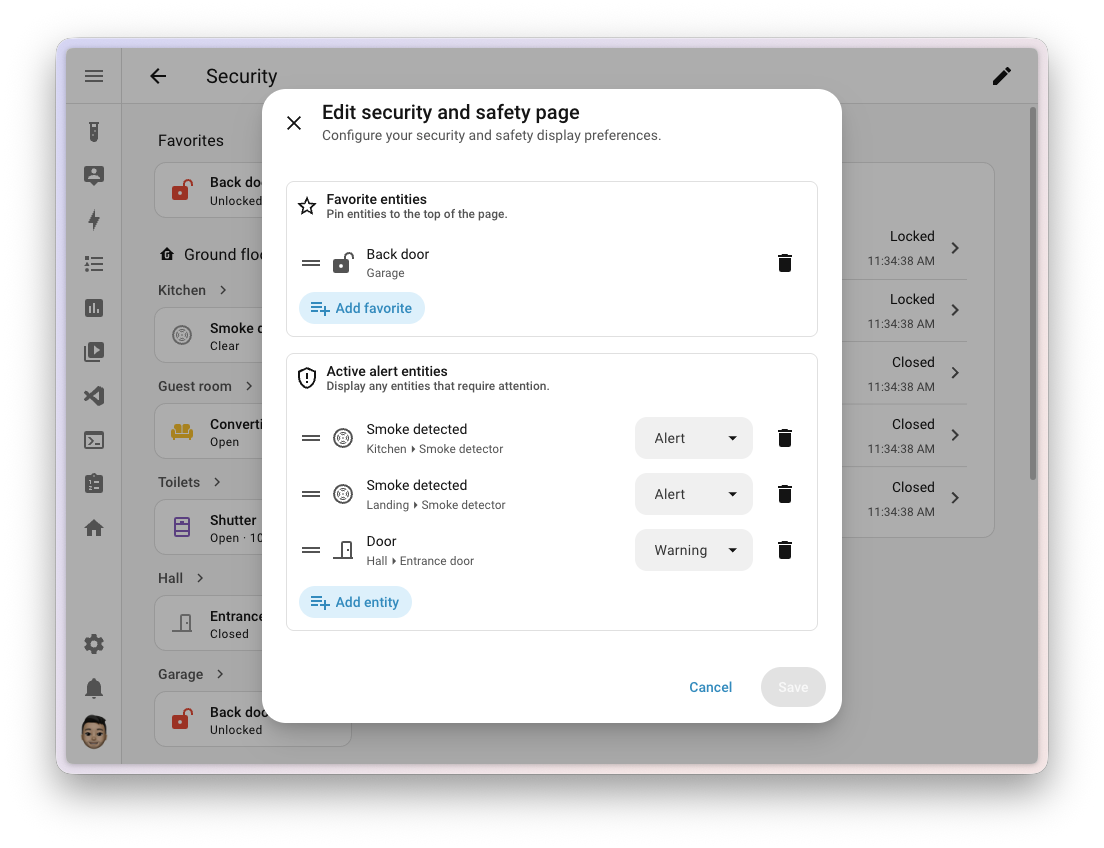
Screenshot of the Security dashboard editor, showing the favorite entities and the active alert entities with their severity levels.

This started as a community-designed concept from @ricardoantoniocm, right down to the severity colors and the pulsing animation for anything that needs attention. It’s part of an Open Home Foundation roadmap opportunity to bring severity to the Security dashboard, and there’s more to come: surfacing these same alerts on the Home dashboard is still on the list for a future release.

A new Sources pane for History and Activity

Browsing and finding what you’re looking for in History and Activity can be daunting, so… we made it better! Both pages now share a single Sources panel on the left side that merges target picking (floorsA floor in Home Assistant is a logical grouping of areas that are meant to match the physical floors in your home. Devices & entities are not assigned to floors but to areas. Floors can be used in automations and scripts as a target for actions. For example, to turn off all the lights on the downstairs floor when you go to bed. [Learn more], areasAn area in Home Assistant is a logical grouping of devices and entities that represents a room or space in your home, such as the living room, kitchen, or garage. [Learn more], devicesA device is a model representing a physical or logical unit that contains entities., and entitiesAn entity represents a sensor, actor, or function in Home Assistant. Entities are used to monitor physical properties or to control other entities. An entity is usually part of a device or a service. [Learn more]) with filtering by domainEach integration in Home Assistant has a unique identifier: The domain. It is often shown as the first part (before the dot) of entity IDs., device class, and integrationIntegrations connect and integrate Home Assistant with your devices, services, and more. [Learn more], so you can narrow a whole area down to, say, just its motion sensors. The panel docks to the side and opens automatically on wider screens, and tucks away as a pull-up sheet on narrower ones. Whatever you filter on is remembered the next time you come back.
Screenshot of the History page with the new Sources panel open, showing three areas selected and filtered down to temperature sensors, with their chart on the right.

The two pages still behave the way they always have, on purpose: History waits for you to pick something before it draws a chart, since showing everything at once wouldn’t be very useful (or fast in that regard 😅). Activity keeps showing everything by default, and you can narrow it down with filters alone, no target required.
Screenshot of the Activity page with the new Sources panel open, filtering activity down to the lights in the office.

A couple of smaller improvements come along for the ride: the date range picker is now a single pill with previous and next arrows, and long entity names on the History timeline draw above their bar and truncate to fit, instead of being cut off. Always nice to see the attention to detail.

This follows an Open Home Foundation design discussion on giving History and Activity a shared layout.

From what changed to why it changed

Open Activity and you can see exactly what changed: a light turned on, a door unlocked, a blind closed. What you couldn’t see was why. Figuring that out meant guessing which automationAutomations in Home Assistant allow you to automatically respond to things that happen in and around your home. [Learn more] was responsible, opening it, digging into its trace, and working backward to the entityAn entity represents a sensor, actor, or function in Home Assistant. Entities are used to monitor physical properties or to control other entities. An entity is usually part of a device or a service. [Learn more] that actually triggered it. It got harder still after a recent redesign of the log rows, which traded the sentence that used to explain where an entry came from for showing an entity’s area and device instead, so even that small hint disappeared.

Selecting any row in Activity now opens a details dialog that lays out the full story, read top to bottom: what started it (a person, a state change, a schedule, an integrationIntegrations connect and integrate Home Assistant with your devices, services, and more. [Learn more], or a restart), the automationsAutomations in Home Assistant allow you to automatically respond to things that happen in and around your home. [Learn more] or scriptsA script is a saved list of steps that runs when you start it, for example, from a dashboard, with Assist, or from an automation. Unlike an automation, a script has no triggers, so it doesn’t start by itself. [Learn more] it passed through, and finally the entity’s own change. Every step in that chain is clickable, opening the entity behind it or, for automations, its trace directly. Timestamps go down to the millisecond, so even events that landed in the same second keep their correct order.
Screenshot of the Activity details dialog for a light, showing the presence sensor and the automation that triggered its state change, with millisecond timestamps.

Insights into your Matter world

Zigbee (through ZHA), Z-Wave, and Bluetooth have shown you a map of how their devices connect to each other for a while now. 🗺️ MatterMatter is an open-source standard that defines how to control smart home devices on a Wi-Fi or Thread network. [Learn more] never got the same treatment in Home Assistant, even though the data existed all along, just not here: the Matter Server has its own working network map, tucked away in a separate web interface most people never open.

The Matter panel now has a Show map button that brings that same picture right into Home Assistant, using the same graph experience you already know from the other protocols. It shows the full picture: which devices talk over ThreadThread is a low-power mesh networking standard that is specifically designed for smart home applications. It is a protocol that defines how devices communicate. [Learn more] and which over Wi-Fi, which ones are routers or “border routers”A Thread border router forwards data packets between your local network and the Thread network. This enables smart home devices within a Thread network to communicate with IPv6-capable devices in your local network. A Thread border router is connected to your network either via Wi-Fi or Ethernet and uses its radio frequency (RF) radio to communicate with the Thread mesh network. In case of Matter, the data that is forwarded is encrypted. Examples of Thread border routers are the Nest Hub (2nd gen), the HomePod mini, and the Home Assistant Connect ZBT-2 together with the OpenThread Border Router app. [Learn more] versus battery-powered end devices, and the path from Home Assistant to each one. Border routers and access points are named from things you’d actually recognize, like their network host name or Wi-Fi network name, instead of a serial number. Link color tells you the transport, Thread or Wi-Fi, and the thickness and direction reflect the signal strength on each side of the connection.
Screenshot of the Matter network map, showing Home Assistant connected to Thread border routers, a Wi-Fi access point, and end devices.

If your Matter server is a bit older and doesn’t support this yet, the page tells you so instead of just failing, so you know to update rather than assume something’s broken.

This closes out an Open Home Foundation roadmap opportunity to bring Matter’s network map in line with the other protocols.

New tile card features

The tile card keeps gaining more ways to control an entityAn entity represents a sensor, actor, or function in Home Assistant. Entities are used to monitor physical properties or to control other entities. An entity is usually part of a device or a service. [Learn more] without opening its more-info dialog, and this release adds three, all from the same contributor.

Lights get a new Light effect feature, so you can pick and preview an effect, like Rainbow, directly from the tile.
Screenshot of two light tile cards with the Light effect feature, each showing an effect selector.

Vacuums get a new Vacuum fan speed feature, so you can switch between fan speeds, like min, medium, high, or max, right alongside the existing start, stop, and dock commands.
Screenshot of two vacuum tile cards with the Vacuum fan speed feature, each showing a fan speed selector.

And the existing Target humidity feature, previously limited to humidifiers, now also works with ClimateThe Climate entity allows you to control and monitor HVAC (heating, ventilating, and air conditioning) devices and thermostats. [Learn more] entities that support humidity control, using the step size your device reports instead of a fixed one.
Screenshot of the target humidity feature on a tile card for a thermostat, with a humidity slider.

All three come with matching tile card suggestions, so Home Assistant offers to add them automatically when they make sense for an entity.

Thanks to @pcan08 for all three!

One more tile card fix: with the Feature position set to Inline, only the first feature used to show up, and the rest were silently dropped. Now the first one sits next to the entity name as before, and the others appear below it in two columns.
Screenshot of two tile cards with the feature position set to Inline, showing one feature next to the name and more features below it.

Thanks to @JulianHock for that one!

Modernizing Modbus

Modbus devices, like solar inverters, energy meters, and heat pumps, have long been supported in Home Assistant through the YAMLYAML is a human-readable data serialization language. It is used to store and transmit data in a structured format. In Home Assistant, YAML is used for configuration, for example in the configuration.yaml or automations.yaml files. [Learn more]-based Modbus integration, where you hand-write a register map for your device yourself. That still works and isn’t going anywhere, but it puts the burden of understanding a device’s protocol on every user. This release lays the groundwork for a different way: integrations that already know how a device talks over Modbus, so you pick your device in the UI, the same as any other integration.

The first integrations built this way are already here: Fronius gained optional Modbus TCP (SunSpec) support, adding per-string solar data — current, voltage, power, and lifetime energy for each MPP tracker — that its existing local HTTP API doesn’t expose. It shares its connection with anything else talking to the same inverter, which matters in practice: some Fronius models only accept a handful of simultaneous Modbus sessions. Sofar Inverter Modbus and Flexit are built the same way.

For the full story, including the new standalone modbus-connection library and how to build your own integration on top of it, read Modernizing Modbus in Home Assistant on the developer blog. Underneath, it talks to devices through tmodbus, a modern, fully typed Modbus library.

Thanks to Paulus (@balloob) for pushing this forward, @wlcrs for tmodbus, the library it’s built on, @farmio for Fronius, @darkrain-nl for Sofar Inverter Modbus, and @troelde for Flexit!

Integrations

Thanks to our community for keeping pace with the new integrationsIntegrations connect and integrate Home Assistant with your devices, services, and more. [Learn more] and improvements to existing ones! You’re all awesome 🥰

New integrations

We welcome the following new integrations in this release:

  • Besen, added by @moryoav
    Connect Besen EV chargers to Home Assistant over Bluetooth Low Energy, using Home Assistant’s built-in Bluetooth support or an ESPHome Bluetooth proxy. It works with the Besen BS20 charging station and other Besen chargers that use the same protocol.

  • Collection image, added by @karwosts
    Turn a folder from a media source into a dynamic image entity. Home Assistant picks a random picture from the folder, so you can show a changing image on a dashboard or use it as a view background.

  • Flow-it, added by @albertogeniola
    Monitor and control your Flow-it ventilation system from Home Assistant. Adjust the fan speed, switch between preset modes such as Auto and Boost, and bring it into your automations alongside your other smart home devices. The integration connects to the device on your local network and supports automatic discovery.

  • Hot Spring, added by @Moustachauve, launching at 🏆 platinum quality
    Monitor and control a Hot Spring spa equipped with the HotSpring Connected Spa Kit 2 module, directly over your local network.

  • ISEO Argo BLE, added by @FezVrasta
    Control an ISEO Argo Bluetooth smart lock, common on armored doors in Italy and Switzerland, syncing its access log into the Home Assistant logbook and managing its users through actions. Home Assistant appears to the lock as its own gateway, polling it locally over Bluetooth.

  • LibreNMS, added by @mib1185
    Bring your LibreNMS network monitoring instance into Home Assistant. This initial release adds a binary sensor for the online status of each monitored device, with alerts and more sensor data planned for later.

  • NexBlue, added by @nexblue-maintainer
    Connect a NexBlue EV charger account to Home Assistant. It discovers the chargers on your account and provides read-only sensors for charging state, power, session and lifetime energy, and other electrical and diagnostic values. Charging controls are planned for a future release.

  • Ridder HortiMaX Pro, added by @wildekek
    Bring measurements from a Ridder HortiMaX Pro greenhouse controller into Home Assistant, including temperatures, humidity, vent and screen positions, irrigation volumes, and energy use. The integration is read-only, so your growing decisions stay fully in the controller’s hands. It’s the same kind of controller running the greenhouses at Amsterdam’s Hortus Botanicus, one of the oldest botanical gardens in the world, which we visited earlier Read the full story in our newsletter.

  • Samsung TV via ExLink, added by @balloob, launching at 🥈 silver quality
    Control Samsung TVs through their RS-232 serial port, which Samsung markets as ExLink, using a serial cable, a USB-to-serial adapter, or an ESPHome-based serial proxy. Talking directly to the TV’s serial port makes control fast and reliable, and it also works with TVs that lack smart features or a network connection.

  • Silla Prism, added by @ebaschiera
    Monitor a Silla Prism EV wallbox over its local MQTT API, with sensors for charging status, power, current, voltage, and session and lifetime energy. Setup only needs the MQTT topic your Silla app already shows you. Charging controls are planned for a future release.

  • Sofar Inverter Modbus, added by @darkrain-nl
    Connect a Sofar Solar inverter to Home Assistant over Modbus TCP, either directly or through a Modbus TCP bridge. Setup automatically detects your inverter model, and it works with both PV-only and hybrid inverters with battery storage.

  • Specialized Turbo, added by @JamieMagee
    Connect a Specialized Turbo e-bike over Bluetooth Low Energy, covering the TCU1 and TCX1 through TCX4 models, with detailed ride and battery telemetry. Encrypted bikes can sign in through your Specialized account or use a manually entered key, and Home Assistant manages the Bluetooth connection itself without storing your password.

  • Tonewinner, added by @emma-sg, launching at 🥈 silver quality
    Control Tonewinner AV processors, receivers, and amps over an RS-232 serial connection, using a USB-to-serial adapter or an ESPHome-based serial proxy.

This release also has new virtual integrations. Virtual integrations are stubs that are handled by other (existing) integrations to help with findability. These ones are new:

Noteworthy improvements to existing integrations

It is not just new integrationsIntegrations connect and integrate Home Assistant with your devices, services, and more. [Learn more] that have been added; existing ones keep getting better too. Here are some of the noteworthy improvements this release:

  • Tuya added support for the HCDD device category, covering chasing tape lights, so these RGB LED strips can be controlled like any other light. Thanks, @AnthonyZavala!
  • Shelly cameras are now fully supported, with a camera platform, motion detection, and a privacy switch to disable the lens. The Wall Display XL also gained its own motion sensor, and climate entities now report the correct heating and cooling status when a thermostat’s relay output is wired inverted. Thanks, @bieniu!
  • HomeKit Device gained duration, fault, and low battery sensors for more HomeKit accessories, so you can see how long a valve has been running, catch a failing accessory, and get a heads-up before a battery-powered sensor drops offline. Thanks, @nijel!
  • LG webOS TV added a switch to turn off just the screen while keeping the sound running, handy if you want to keep listening without the picture. Thanks, @darkrain-nl!
  • Reolink gained floodlight on/off schedule times, a button to synchronize the camera’s clock, a select to choose the anti-flicker frequency, and the ability to enable or disable the tamper alarm. Thanks, @Lukkasss and @starkillerOG!
  • Roborock brought dock controls, such as starting mop washing, drying, or emptying, to V1 vacuums. Thanks, @piitaya!
  • Google Gemini added a thinking budget option for Gemini 2.5 models and a thinking level option for Gemini 3 models, so you can tune how much the model reasons before it responds. Thanks, @mxwmnn!
  • Home Connect gained new event sensors, including short and long presses of the Favorite button on hobs and hoods, and a setpoint temperature option for air conditioners. Thanks, @Diegorro98!
  • Tado lets you choose which heating circuit serves a zone, handy in homes with more than one circuit, like a mix of underfloor heating and radiators. Thanks, @PeterLinuxOSS!
  • SwitchBot Cloud now supports the Permanent Outdoor Lights string lighting and the Curtain4 curtain motor, so you can control them from Home Assistant alongside the rest of your SwitchBot devices. Thanks, @XiaoLing-git!
  • KNX weather and select entities can now be created directly from the KNX panel in the UI, and YAML-defined entities can be given an explicit unique ID instead of relying on the auto-generated one. YAML entities can now also be assigned to devices. Thanks, @farmio and @martinhoefling!
  • Proxmox VE added a button to pause a VM, handy for freeing up resources for a moment, for example while another job needs the extra headroom, without fully shutting the VM down. Thanks, @erwindouna!
  • HomematicIP Cloud added a carbon dioxide sensor for supported devices, so you can trigger ventilation or an air purifier automation when CO2 levels creep up in a room. Thanks, @lackas!
  • VIZIO SmartCast now supports Crave portable speakers, with a battery level sensor and a charging binary sensor. Thanks, @raman325!
  • Environment Canada radar images can now be smoothed for a less blocky picture and extended with a short-term forecast, so you can see rain or snow coming before it actually arrives. Thanks, @michaeldavie!
  • MikroTik gained switches to turn Ethernet and Wi-Fi interfaces on or off, a select to set the PoE output mode, a binary sensor for interface connectivity, and more sensors, including a fix for incorrect voltage readings on the netPower 16P. Thanks, @chemelli74!
  • Mealie added actions to update and delete mealplan entries, so you can manage next week’s dinners from an automation or script instead of opening the app. Thanks, @andrew-codechimp!
  • Portainer added a Docker event entity, so container lifecycle changes reach Home Assistant immediately instead of waiting for the next update cycle. Thanks, @erwindouna!
  • Transmission added a sensor for available disk space, so you can get a warning before your download folder fills up. Thanks, @Eniot666!
  • Honeywell Lyric added a schedule status sensor, so you can tell at a glance whether your thermostat is following its schedule or someone put it on a temporary hold. Thanks, @clutch2sft!
  • Teslemetry added a rear defroster binary sensor, so you can automate it on a cold morning, and a cover entity for the Cybertruck’s tonneau, so you can open and close the bed cover from Home Assistant. Thanks, @Bre77!
  • IOmeter added entities for three-phase electricity meters, so homes with a three-phase connection get accurate readings for every phase instead of just the total. Thanks, @torben-iometer!
  • Modern Forms added support for breeze mode, which varies the fan speed to mimic a natural breeze. Thanks, @wonderslug!
  • Midea grew substantially this release, with new fan, humidifier, light, and switch controls, select and number entities to configure your appliance, buttons for common actions, and a full dust filter alert binary sensor. Thanks, @chemelli74!
  • Subaru added binary sensors for doors, windows, and the hood or tailgate, per-door lock status, EV plug and charging state, and vehicle health warning lights. Thanks, @jpettitt!
  • Anova cook time sensors now suggest hours as the displayed unit, making long cook times easier to read. Thanks, @goetzc!
  • iZone now shows the supply and return air temperatures of your ducted system, so you can spot a struggling compressor or a clogged filter before it becomes a bigger problem. Thanks, @Swamp-Ig!
  • Imou added a select entity to change night vision mode and volume, and a binary sensor for door and window contacts. Thanks, @Imou-OpenPlatform!
  • OpenEVSE added switches for solar PV divert, so you can charge from surplus solar power, the current shaper, which limits charging to protect your home’s electrical service, and a manual override to force charging on or off. Thanks, @firstof9!
  • Green Planet Energy added a get_prices action to fetch electricity prices for a given period, handy for building your own price charts or automations that react to tomorrow’s rates. Thanks, @petschni!
  • Vistapool added time entities for the three filtration schedule intervals, so you can adjust when your pool pump runs directly from Home Assistant instead of the Vistapool app. Thanks, @fdebrus!
  • ToGrill added a button to silence the alarm, handy when your food has reached temperature and you’d rather not walk over to the grill to quiet the beeping. Thanks, @thumbnail!
  • Watergate added a switch to turn the Sonic device’s automatic leak shut-off on or off. Thanks, @adam-the-hero!
  • IntelliClima added a binary sensor that reports when the filter needs cleaning. Thanks, @dvdinth!
  • Lyngdorf rounded out its debut with number entities for lip sync and channel trims, a remote entity to drive the processor’s on-screen menus, selects for RoomPerfect position and voicing, sensors for the active input and streaming source, and now-playing information with transport controls for models with a streaming module. Thanks, @fishloa!
  • Harbor Sleep added a select entity to set the camera’s night mode to Auto, On, or Off, so you can control it from Home Assistant instead of the Harbor app. Thanks, @Lash-L!
  • NeoPool added a pool light entity, plus an options flow to opt in to it, since the controller can’t detect whether a light is actually wired to the relay. Thanks, @svasek!
  • UniFi Protect can now be set up with just an API key from your UniFi OS Console, no local user account required. Select API key only (limited feature set) when adding the integration, or switch an existing entry over at any time. This first usable piece of the public API migration covers the alarm panel, cameras with their streams and snapshots, and lights. Sensors, switches, events, and media browsing are not available in this mode yet, and more platforms follow as they move over. Thanks, @RaHehl!

Integration quality scale achievements

One thing we are incredibly proud of in Home Assistant is our integration quality scale. This scale helps us and our contributors to ensure integrations are of high quality, maintainable, and provide the best possible user experience.

This release, we celebrate several integrationsIntegrations connect and integrate Home Assistant with your devices, services, and more. [Learn more] that have improved their quality scale:

This is a huge achievement for these integrations and their maintainers. The effort and dedication required to reach these quality levels is significant, as it involves extensive testing, documentation, error handling, and often complete rewrites of parts of the integration.

A big thank you to all the contributors involved! 👏

Now available to set up from the UI

While most integrationsIntegrations connect and integrate Home Assistant with your devices, services, and more. [Learn more] can be set up directly from the Home Assistant user interface, some were only available using YAML configuration. We keep moving more integrations to the UI, making them more accessible for everyone to set up and use.

The following integrations are now available via the Home Assistant UI:

Farewell to the following

Time for a little cleaning, and no, we did not wait for spring! The following “integrations”Integrations connect and integrate Home Assistant with your devices, services, and more. [Learn more] are no longer available as of this release:

  • VLC has been removed. It required direct access to your system’s audio hardware, which only worked on the deprecated Home Assistant CoreHome Assistant Core is the Python program at the heart of Home Assistant. It is part of all installation types. It can be installed standalone (without Home Assistant Supervisor) as a container using Docker (this is typically referred to as the Home Assistant Container installation type). For development, Core can also be run using a Virtual Environment (previously referred as the Home Assistant Core installation type). For production setup, the Home Assistant Core installation type is deprecated. installation method. This does not affect the separate VLC via Telnet integration, which remains available on any installation method.

Other noteworthy changes

There is even more packed into this release. Here are some of the other changes worth a mention:

  • Settings gained a new Connectivity page that groups Matter, Zigbee, Z-Wave, KNX, MQTT, Thread, Bluetooth, Serial, Infrared, Radio frequency, Insteon, and Tags behind a single entry, instead of listing each one directly in the settings menu. Every existing link keeps working, and Voice assistants moved down to join it as the settings root’s short second group. Thanks, @balloob!
  • Template got some more love this release. Thanks, @Petro31!
    • Custom attribute templates were added to alarm control panel, button, cover, device tracker, fan, image, light, lock, number, select, switch, update, and weather entities, alongside the binary sensor, event, sensor, and vacuum platforms that already supported them.
    • The attributes option is now fully templatable, cutting down on repeated Jinja2 templates.
    • Trigger-based template entities now support a per-entity conditions option. When set, the conditions block all updates to the entity it’s attached to.
  • Button triggers can now also fire from button helpers, alongside physical device buttons. Thanks, @abmantis!
  • Automation traces now show which entities, devices, and areas each step targeted, the same way the automation editor already does, instead of baking that information into the step’s own description. Thanks, @piitaya!
  • Cover open, close, and set position actions gained an optional speed parameter, so covers that support multiple speeds can be told how fast to move, not just where to. Thanks, @wollew!
  • The restart confirmation dialog now lists the automations and scripts currently running, instead of a vague warning that some might be interrupted. The list updates live as they start and stop. Thanks, @karwosts, @MindFreeze, and @NoRi2909!
  • The Energy dashboard now labels individual devices with their device name, not just the bare entity name, so devices that share a generic sensor name like Energy are easy to tell apart across the graphs, sankeys, and configuration list. Thanks, @MindFreeze and @silamon!
  • Dashboards gained a Background tab in their detail editor, so you can set a dashboard’s background straight from the UI instead of needing YAML. Thanks, @timmo001!
  • Searching the media browser now also reaches media players with their own library, such as Music Assistant, Sonos, Squeezebox, and Jellyfin, instead of only searching media sources. Thanks, @marcelveldt, @bramkragten, and @silamon!

Golden hour, blue hour, and polar sun automations

Rebuilding automationsAutomations in Home Assistant allow you to automatically respond to things that happen in and around your home. [Learn more] around the sun has been a slow-burn project, and this release wraps it up. 2026.7 replaced the old, offset-heavy sun triggerA trigger is the part of an automation that makes the automation start when something specific happens, for example, when the sun sets, a door opens, or a button is pressed. [Learn more] with dedicated ones for sunrise, sunset, solar noon, solar midnight, dawn, dusk, and elevation changes, plus matching conditionsConditions check whether something is true at that moment, for example, whether a door is closed. You can use them in automations and scripts. If a condition is not met, the actions that come after it in the same sequence do not run. At the top level of an automation or script, this stops the automation or script. [Learn more] like is up, is night, and twilight. 2026.8 then added a time-based offset option to those triggers, the same way the calendar trigger already works, so you can fire an automation a set amount of time before or after a sun event.

This release adds the last of it to the Sun integration: four new conditions and eight matching triggers for golden hour, blue hour, midnight sun, and polar night. Golden hour and blue hour are the warm and cool light either side of sunrise and sunset, handy for automations that match your lighting to the mood outside, or close the blinds before direct sun hits a room. Each one can be limited to morning, evening, or either.

Farther from the equator, midnight sun and polar night cover the more extreme stretches of the year: the sun staying above the horizon for a full day around midsummer, or below it for a full day around midwinter. Both now have their own condition and start and end triggers too, so automations that only make sense at high latitudes finally have something to hook into.

Thanks, @emontnemery!

Accessibility for charts!

Making Home Assistant work for everyone isn’t a one-off project for us, it shows up release after release. Better color contrast and clearer buttons landed in 2025.8, clearer status indicators for people who can’t rely on color alone arrived in 2026.7, and this release, it’s charts’ turn.

Charts render straight to a single image, which means every data point on them has been invisible to screen readers and unreachable by keyboard. If you rely on either, a chart in Home Assistant might as well not have been there at all.

That changes this release. Tab into a chart and it becomes a real focus stop: the arrow keys walk you through it point by point, and a live region announces the time and value of each one to your screen reader. Press H at any point to bring up a list of every shortcut, styled to match your own theme.

Here’s the best part: as you move through a chart, Home Assistant also plays a short tone for each point, rising and falling with the data. You don’t just hear the individual numbers, you hear the shape of the whole trend, like a little melody. 🎵 It plays for anyone navigating a chart by keyboard, not only people using a screen reader, since there is no reliable way to know who needs it, so it’s on for everyone.

This works on your line and bar charts, including the device breakdown on the Energy dashboard. A few more specialized ones, like timelines, sankey diagrams, and network graphs, aren’t covered yet.

Thanks to @MindFreeze for bringing this to charts!

Serial and MQTT panels

Serial joins the other protocol panels under Settings > Connectivity, the same recognition infrared and radio frequency got over the last two releases. Once anything is using a serial port, whether that’s a USB dongle like a Zigbee or ThreadThread is a low-power mesh networking standard that is specifically designed for smart home applications. It is a protocol that defines how devices communicate. [Learn more] radio, or an appApps are additional standalone third-party software packages that can be installed on Home Assistant OS. [Learn more] talking to one, the new Serial page lists it.

It splits what it finds into three groups: ports actually in use by an integration or app, ports that are connected but not used by anything, and ports something expects but that aren’t currently plugged in. A status banner at the top gives you the numbers at a glance, so if a stick has come loose or an app lost its connection, you see it the moment you open the page instead of hunting through logs.
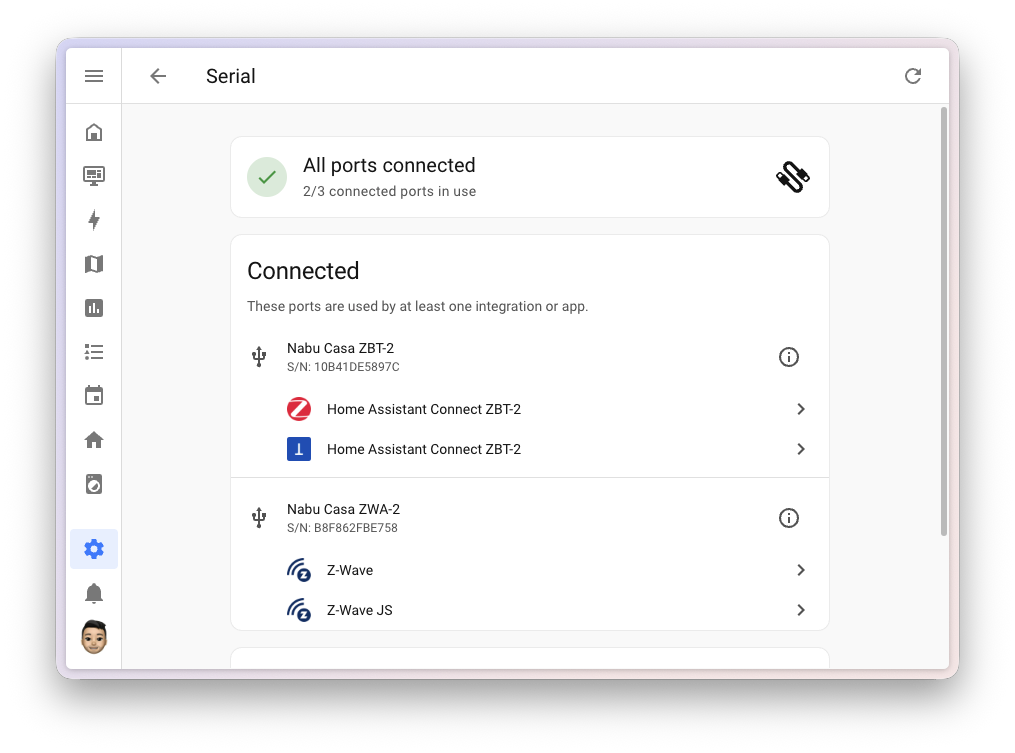
Screenshot of the new Serial panel, with a status banner at the top and the connected serial ports, showing which integrations and apps use each one.

This rounds out the trio planned in an Open Home Foundation roadmap opportunity: serial, infrared, and radio frequency all have their own place in Settings now.

Thanks to @puddly, who built this end to end, panel and all!

MQTT got a settings page of its own this release too, sitting right alongside Serial and Bluetooth in Connectivity instead of hiding its tools behind the integration’s options. A status banner at the top shows whether the broker is online and how many devices it’s found, with quick links to the devices and entities on your network. Discovery options and the broker connection settings each get their own row instead of sharing one options flow, and a new Publish a packet tool lets you send a test message, topic, QoS, and retain flag included, straight from the page, with a code editor for the payload. The topic subscribe view also now formats incoming messages as code, with a copy button. Thanks, @jbouwh!

How full is your network storage?

The Storage page in Settings has always shown which network shares you have connected, like a NAS for backupsHome Assistant has built-in functionality to create files containing a copy of your configuration. This can be used to restore your Home Assistant as well as migrate to a new system. The backup feature is available for all installation types. [Learn more] or media, but not how full each one actually was, so there was no early warning before one quietly ran out of room.

Each active mount now gets a small usage bar and a “{used} of {total} used” line. Rows appear immediately, and each bar fills in as soon as its own request comes back, so one slow or unreachable share never holds up the rest of the list. The bar also changes color as it fills, amber past 85% used and red past 95%, so you get a heads-up before you actually run out of space. A mount that’s currently unreachable just shows no usage bar; it already gets its own warning treatment.
Screenshot of the Network storage section on the Storage page, listing three network mounts with usage bars, one of them nearly full and shown in red.

Thanks to @MindFreeze and @silamon for keeping an eye on this!

Patch releases

We will also release patch releases for Home Assistant 2026.9 in September. These patch releases only contain bug fixes. Our goal is to release a patch release once a week, aiming for Friday.

2026.9.1 - September 5

2026.9.2 - September 11

2026.9.3 - September 18

2026.9.4 - September 27

Need help? Join the community

Home Assistant has a great community of users who are all more than willing to help each other out. So, join us!

Our very active Discord chat server is an excellent place to be, and don’t forget to join our amazing forums.

Found a bug or issue? Please report it in our issue tracker to get it fixed! Or check our help page for guidance on more places you can go.

Are you more into email? Sign up for the Open Home Foundation Newsletter to get the latest news about features, things happening in our community, and other projects that support the Open Home straight into your inbox.

Backward-incompatible changes

We do our best to avoid making changes to existing functionality that might unexpectedly impact your Home Assistant installation. Unfortunately, sometimes it is inevitable.

We always make sure to document these changes to make the transition as easy as possible for you. This release has the following backward-incompatible changes:

Flexit Nordic (BACnet)

The deprecated fireplace mode switch entity has been removed. If you have automationsAutomations in Home Assistant allow you to automatically respond to things that happen in and around your home. [Learn more] or scriptsA script is a saved list of steps that runs when you start it, for example, from a dashboard, with Assist, or from an automation. Unlike an automation, a script has no triggers, so it doesn’t start by itself. [Learn more] that use switch.<device>_fireplace_mode, use the climate.set_preset_mode action on the Flexit climate entity with preset_mode: fireplace instead.

(@magnusoverli - #179272) (Flexit Nordic (BACnet) documentation)

KNX

KNX exposes no longer send an entity’s first value to the KNX bus. Previously, this depended on timing: if the entity already had a value when the expose was set up, nothing was sent, but if the value arrived later, it was sent to the bus right away.

Now, both cases behave the same way. The first value is adopted locally without sending a telegram, but stays available for read requests and periodic sending. Later value changes are still sent as before.

To send the first value right away, turn on Send on initialization for the expose in the KNX panel, or set send_on_init: true in your YAML configuration.

(@Kolbi - #178793) (KNX documentation)

LLM APIs

LLM tool names are now prefixed with the domain of the integration that offers them. For example, GetLiveContext becomes homeassistant__GetLiveContext and HassTurnOn becomes intent__HassTurnOn. If you have a custom prompt that names a tool directly, update it to use the new prefixed name.

(@balloob - #179938)

Persistent Notification

Updating a persistent notification that already exists now triggers an update_type of updated instead of added. If you have an automationAutomations in Home Assistant allow you to automatically respond to things that happen in and around your home. [Learn more] that triggers on an update_type of added to catch every new or changed notification, add updated to the list of types it triggers on.

(@davidlang42 - #171067) (Persistent Notification documentation)

UniFi Protect

The smart detection switches (for example Detections: Person, Detections: Vehicle, and the audio alarm toggles) are no longer hidden while recording is disabled. They now stay available and follow the same public API as the other camera configuration switches. Their entity IDs and what happens when you toggle them are unchanged.

(@RaHehl - #174963) (UniFi Protect documentation)

UniFi Protect 7.2.105 or newer is now required. On an older version, the integration stops setting up and tells you to update. Update UniFi Protect, then reloadApplies the changes made to Home Assistant configuration files. Changes are normally automatically updated. However, changes made outside of the front end will not be reflected in Home Assistant and require a reload. the integration.

(@RaHehl - #179954) (UniFi Protect documentation)

Update

Installing an updateAn update entity is an entity that indicates if an update is available for a device or service. [Learn more], skipping an update, and clearing a skipped update now require an administrator account. These are configuration-level actions, so they are now restricted to admins, like other sensitive actions in Home Assistant.

AutomationsAutomations in Home Assistant allow you to automatically respond to things that happen in and around your home. [Learn more] are not affected, because they run without a user context. A scriptA script is a saved list of steps that runs when you start it, for example, from a dashboard, with Assist, or from an automation. Unlike an automation, a script has no triggers, so it doesn’t start by itself. [Learn more] runs in the context of the user who started it, so a script that installs or skips an update now fails when a non-admin user starts it. Trigger it from an automation instead, or start it as an admin.

(@balloob - #178232) (Update documentation)

Vacuum

The deprecated battery_level property has been removed from the base vacuum entity. All core vacuum integrations were already migrated in Home Assistant 2026.8. If a custom integration still sets this property, it no longer reports a battery level; add a separate battery sensor instead.

(@gjohansson-ST - #175682) (Vacuum documentation)

Z-Wave JS

The Z-Wave actions to manage lock users and credentials (set_user, delete_user, delete_all_users, set_credential, delete_credential, and delete_all_credentials) now require an administrator account.

(@balloob - #177300) (Z-Wave JS documentation)

If you are a custom integration developer and want to learn about changes and new features available for your integration: Be sure to follow our developer blog. The following changes are the most notable for this release:

All changes

Of course, there is a lot more in this release. You can find a list of all changes made here: Full changelog for Home Assistant Core 2026.9.

  •  
❌