Normale weergave
Introducing Surface Laptop Ultra: Made for world makers
Introducing a powerful new chapter for Windows PCs, accelerated by NVIDIA RTX Spark
“NVIDIA and Microsoft share a vision that agents are the future of personal computing,” said Jeff Fisher, senior vice president of personal computing at NVIDIA. “RTX Spark combines NVIDIA's full technology stack with Microsoft Windows and is purpose-built for creators, gamers and AI developers in the personal AI era.”
Taking Windows to the next level on RTX Spark
Performance and power management
To get the most out of Windows on RTX Spark’s powerful, heterogeneous architecture, we implemented workload profile scheduling (WPS) and optimized it for RTX Spark, enabling the Windows scheduler to more efficiently scale workloads across all 20 cores. Whether you’re checking your email or running an agent locally to debug code, the Windows scheduler on RTX Spark will ensure you get the best performance and efficiency out of your CPU. We also worked with NVIDIA to enable the Microsoft Power and Thermal Framework (MPTF) on RTX Spark, to maximize performance and power on the go. MPTF standardizes one of the most complex parts of a modern PC and will enable RTX Spark based PCs to deliver industry-leading power efficiency while staying cool under intense workloads. Beyond its industry-leading performance per watt for creative, AI and gaming workloads, RTX Spark is positioned to take advantage of our advancements to DirectX 12, including support for neural rendering and optimized ray tracing performance, and has been tuned to maximize the performance of its Blackwell GPU, making it one of the best places to play on Windows. In addition, Microsoft and NVIDIA have worked to unlock the power of the GPU for local AI workloads through Windows ML, enabling AI developers to leverage TensorRT natively in Windows.Unified memory optimizations
To realize the potential of up to 128GB of unified memory on RTX Spark, we have focused on improving how Windows supports unified memory systems, starting with a new higher, smarter limit on total system memory accessible by the GPU. This updated limit increases the memory available to the GPU on high-memory systems, unlocking the ability to load larger local AI models or render more complex projects. Memory intensive workloads across powerful creator apps, AI workloads and games put a variety of demands on the system and require a versatile memory system to achieve peak performance. In addition to increasing the memory available to the GPU, we are also enhancing how Windows manages page sizes in shared memory regions on unified memory systems. These changes ensure that larger memory pages are available for greater performance on heavier workloads, while giving developers the flexibility to optimize for the needs of their memory workloads between CPU and GPU.Prism emulation enhancements
Prism, our emulator for running 32-bit and 64-bit x86 apps on Windows on Arm, will also be present and optimized for RTX Spark powered PCs. Prism ensures apps run well on these devices even if those apps haven't been built for the Arm architecture. We have continued to enhance the Prism emulator with additional performance and compatibility features, building on the Prism optimizations delivered last year that added support for the AVX/AVX2 instruction set extensions. Prism has been tuned for the microarchitecture of RTX Spark and when combined with the raw power of the silicon, unlocks great performance for developers, creators and gaming workloads running under emulation.Windows quality investments
This year, we've been laser focused on raising the bar on performance, reliability and craft across Windows 11. As the Windows foundation strengthens, we are also pushing forward on this next era of Windows computing and delivering meaningful improvements to system performance that will benefit all Windows 11 PCs including these new PCs powered by RTX Spark. This includes changes like more fluid and responsive app interactions by moving many core Windows experiences to the WinUI3 framework and elevating the Windows Subsystem for Linux (WSL) experience, along with baseline reliability improvements across the operating system and more control and personalization, including alternate taskbar positions. These quality-focused updates will continue to roll out throughout the year.
Delivering a better platform for agents with Windows on RTX Spark
This week at Microsoft Build, you will see how we are optimizing the Windows platform for building and running agents securely with OS-enforced identity, containment and manageability. With a powerful GPU and up to 128 GB of unified memory, RTX Spark will be great hardware to build and run agentic workloads locally, with security and containment features designed to help protect users.
NVIDIA is bringing NVIDIA OpenShell to Windows, built on new Windows security and containment primitives. Hermes Agent and OpenClaw will be integrating OpenShell and these new Windows primitives inside of their Windows application. This enables customers to run agents and integrate them into developer and creative workflows, with the performance headroom to reason over large contexts without round-tripping to the cloud.
Control is a fundamental principle for AI on Windows. You choose when and how agents act on your behalf, with controls to help provide visibility into what they can access.
Enabling the Windows ecosystem for RTX Spark
From the app developers optimizing their software for this architecture, to our OEM partners building these new powerful PCs, the Windows ecosystem has come together to ensure RTX Spark delivers a complete, performant experience from day one.App ecosystem growth
PC ecosystem adoption
Windows and RTX Spark bring to life the most powerful and efficient thin-and-light PCs with all-day battery life1, optimized for developers and creators who need to trust that they can power through advanced workflows, in a portable package. These PCs will join the Copilot+ PC category, with powerful NPUs for local AI processing in addition to the GPU, unlocking rich AI-powered experiences. Beginning this Fall, RTX Spark will power a full range of Windows laptops and small form factor desktop PCs, starting with Microsoft Surface, ASUS, Dell, HP, Lenovo and MSI.Introducing Surface Laptop Ultra
- ASUS: The ASUS ProArt P16 and ASUS ProArt P14 combine powerful AI performance with slim and lightweight designs built for creators on the go. Available in 16-inch and 14-inch models with elegant Nano Black and new Neo White color options, the laptops feature ASUS Lumina Pro OLED displays and exceptional all-day battery life for premium creative experiences anywhere.
- Dell Technologies: The XPS 16 Creator Edition delivers serious GPU power built for creative work with smoother playback on 4K timelines, faster exports and a more seamless experience with AI tools. The Tandem OLED display with True Black HDR 600 ensures your visuals look exactly as intended. Add in a built-in SD card reader and HDMI port, and you've got a machine that's as capable in the field as it is back at your desk.
- HP Inc.: The HP OmniBook Ultra 16and HP OmniBook X 14 laptops are built for creators, gamers and AI developers, providing powerful local AI performance and experiences that help users accelerate workflows.
- Lenovo: The Lenovo Yoga Pro 9n marries Lenovo Yoga's creator-focused features with NVIDIA's newest chip to deliver a laptop that is portable, powerful and can last for extended periods away from an outlet.
- MSI: The Prestige N16 Flip AI+ combines a premium thin-and-light 2-in-1 design, a 16-inch UHD+ Tandem OLED display, NVIDIA AI acceleration and a 99.9Wh battery. It delivers immersive visuals, advanced AI experiences, and exceptional mobility for creators, professionals and gamers.
Scaling the power of Windows to NVIDIA DGX Station
Today's announcement is an important step on our journey to unleash the full power of Windows to NVIDIA silicon, from powerful laptops to data center class workstations. Together with NVIDIA, we’re scaling Windows from RTX Spark through to DGX Station for Windows, up to a trillion-parameter AI supercomputer powered by the NVIDIA GB300 Grace Blackwell Ultra Desktop Superchip, later this year. This unlocks breakthrough AI performance on Windows, the platform enterprises trust for manageability, security and compatibility, with seamless access to the Linux AI ecosystem through Windows Subsystem for Linux (WSL). With NVIDIA GB300‑class capability on Windows, we are making a step‑function leap in performance, fundamentally changing where advanced AI work can happen – enabling developers and organizations to run frontier‑class models and agentic workloads locally that were previously primarily available in the cloud or data centers. Pairing the GB300 Superchip with an additional NVIDIA RTX PRO™ Blackwell Workstation GPU enables developers to combine frontier AI compute with ray-traced visualization and simulation in a single deskside system — delivering the performance needed for agents to perceive, simulate and interact with the physical world. By bringing AI on‑device, organizations can keep data close and shape how it’s used to meet their own compliance and data boundary requirements, complementing cloud workloads. This shift opens new possibilities, lowers the barrier to experimentation, and makes unmetered, always‑available AI compute a native part of Windows workflows. We are building toward a future where Windows provides a unified foundation for AI, from the device in your hands to the infrastructure behind it. Stay tuned over the next couple of days. We look forward to sharing more on our vision of Windows for developers at Microsoft Build. 1 Based on internal testing of pre‑release units. Battery life varies significantly based on usage, settings and other factors.Windows quality update: May
Making Taskbar and Start more personal
Improving driver quality, reliability, and security with the Driver Quality Initiative (DQI), and Cloud Initiated Driver Recovery
In March, we committed to delivering a smoother, more dependable Windows experience with our ecosystem of partners. Drivers are a critical part of that work. Drivers sit at the heart of Windows, connecting the OS to silicon, components, and peripherals. With thousands of partners contributing to tens of thousands of active driver families, improving driver quality is essential to making Windows more reliable over time. At WinHEC 2026, we introduced the Driver Quality Initiative (DQI), a comprehensive effort designed to improve driver quality, reliability, and security across Windows. We also rolled out new changes with Cloud Initiated Driver Recovery to improve how drivers are validated, delivered, and maintained. By catching issues earlier, targeting updates more precisely, and enabling automatic recovery when needed, devices can stay reliable over time with fewer disruptions and a better path back to a known-good state. This is part of our ongoing work with partners to make Windows more dependable over time.File Explorer improvements across reliability, readability and usability
[embed]https://youtu.be/gZUDEBbZSp4[/embed] Building on last month’s improvements, we made several updates to File Explorer across reliability, readability, and usability, including the Address Bar, file size formatting, keyboard navigation, and renaming. The Address Bar now supports paths containing double backslashes and quotation marks, such as C:\Users\user or "C:\Users\user", improving compatibility with more of the paths people paste or type into File Explorer. We also improved reliability of the Address Bar suggestion dropdown so it consistently closes after an item is selected. In Details view, file sizes now use appropriate units like KB, MB, and GB instead of KB-only, making them easier to read at a glance. We also improved keyboard navigation in File Explorer context menu flyouts. We also fixed multiple renaming issues, including one where text could be repeatedly selected while renaming items in folder views, and another where updated names with case-only changes were not immediately reflected in folder views across local and cloud storage. These are small details, but they show up in places people use all day. The goal is fewer broken paths, clearer information, and File Explorer interactions that behave more predictably. These updates also began rolling out earlier this month in the Experimental Channel.Making Windows easier to use with voice input, touch, and more personalization
[caption id="attachment_178981" align="aligncenter" width="1024"]Build next week!
Next week is Microsoft Build, where we’ll share more about what we’re doing to elevate the developer experience across the Windows platform. We’ve got a lot in store, so tune in for the keynote at 9:30am PT on Tuesday. Earlier today, we also shared the first episode of Inside Windows, a podcast where Pavan Davuluri, Executive Vice President, Windows & Devices, sits down with members of the team to share more insight into the work and people behind Windows. I was honored to be the first guest and talk through some of the work we’ve been focused on over the past several months. For those attending our meetup next week in San Francisco, I look forward to meeting you and hearing how we can keep improving the Windows Insider experience, particularly for developers. More to come next week! MarcusAnnouncing new builds for 29 May 2026
- Beta: Build 26220.8544
- Experimental: Build 26300.8553
- Experimental (26H1): Build 28020.2207
- Experimental (Future Platforms) – Including Canary 29500 series: Build 29599.1000
- Please note: We have identified an issue internally causing crashes on AMD machines supporting System Guard, meaning these devices in WIP will not be offered this week's Experimental (Future Platforms) build. This should be fixed by the next flight.
Notable new features:
[Start menu]
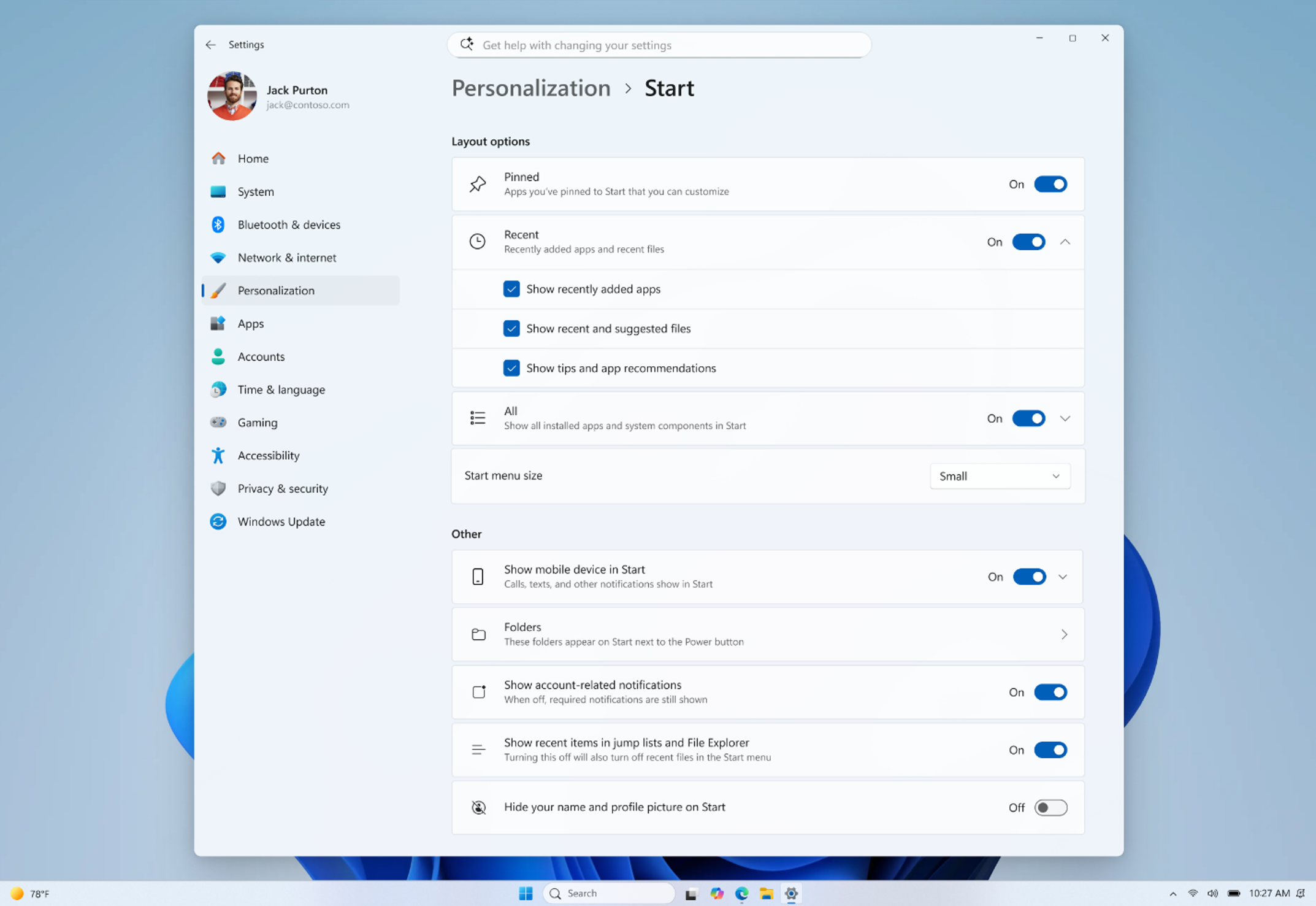
Release channel: Experimental This update brings a number of improvements for the Start menu as first outlined in the Making Taskbar and Start more personal Insider blog. This includes:- Renamed "Recommended" section to "Recent" in Start and Settings page
- Section-level toggles to independently show or hide Pinned, Recommended, and All.
- Choose between a small and large Start menu, in addition to "Automatic (default)" setting option that's already available today
- The option to hide your name and profile picture in Start
- Redesigned Start menu settings page
[Windows Search]
Release channel: Experimental, Beta We're improving Windows Search results:- Search by Substring: Files with compound names or content (e.g., MeetingNotesApril, ProjectStatusReport) are now easily discoverable by typing “april” or “status”.
Announcing new builds for 22 May 2026
New builds this week
Today we are releasing new Windows 11 Insider Preview Builds. As a reminder, all Insiders can find the release notes for your device based on the new channel system, even if you haven’t moved yet. This is to make finding build information as easy as possible during the transition. See your channel release notes here:- Beta: Build 26220.8491
- Experimental: Build 26300.8497
- Experimental (26H1): Build 28020.2149
- Experimental (Future Platforms) – Including Canary 29500 series: Build 29595.1000
Notable new features:
[Accessibility – screen tint]
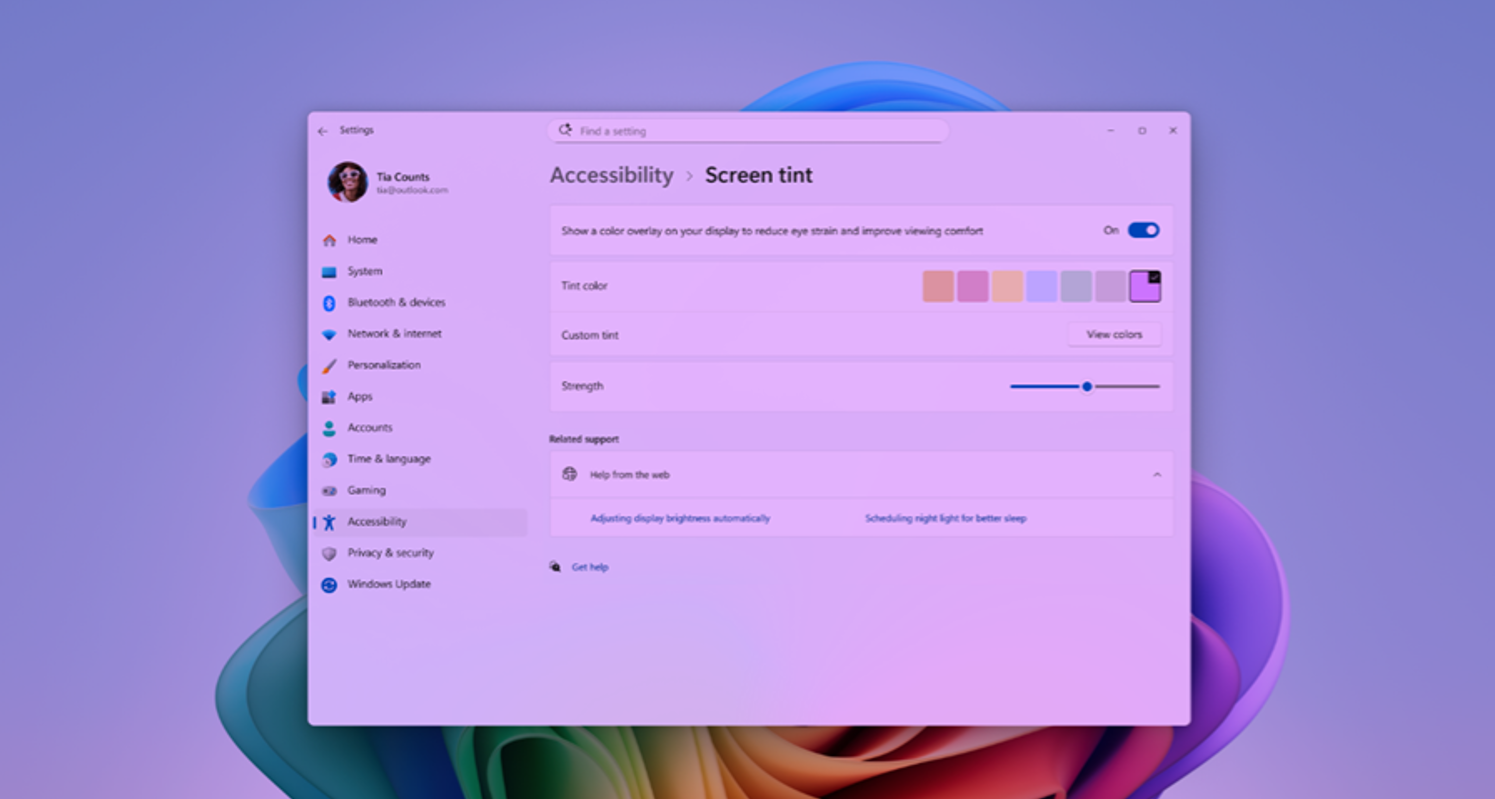
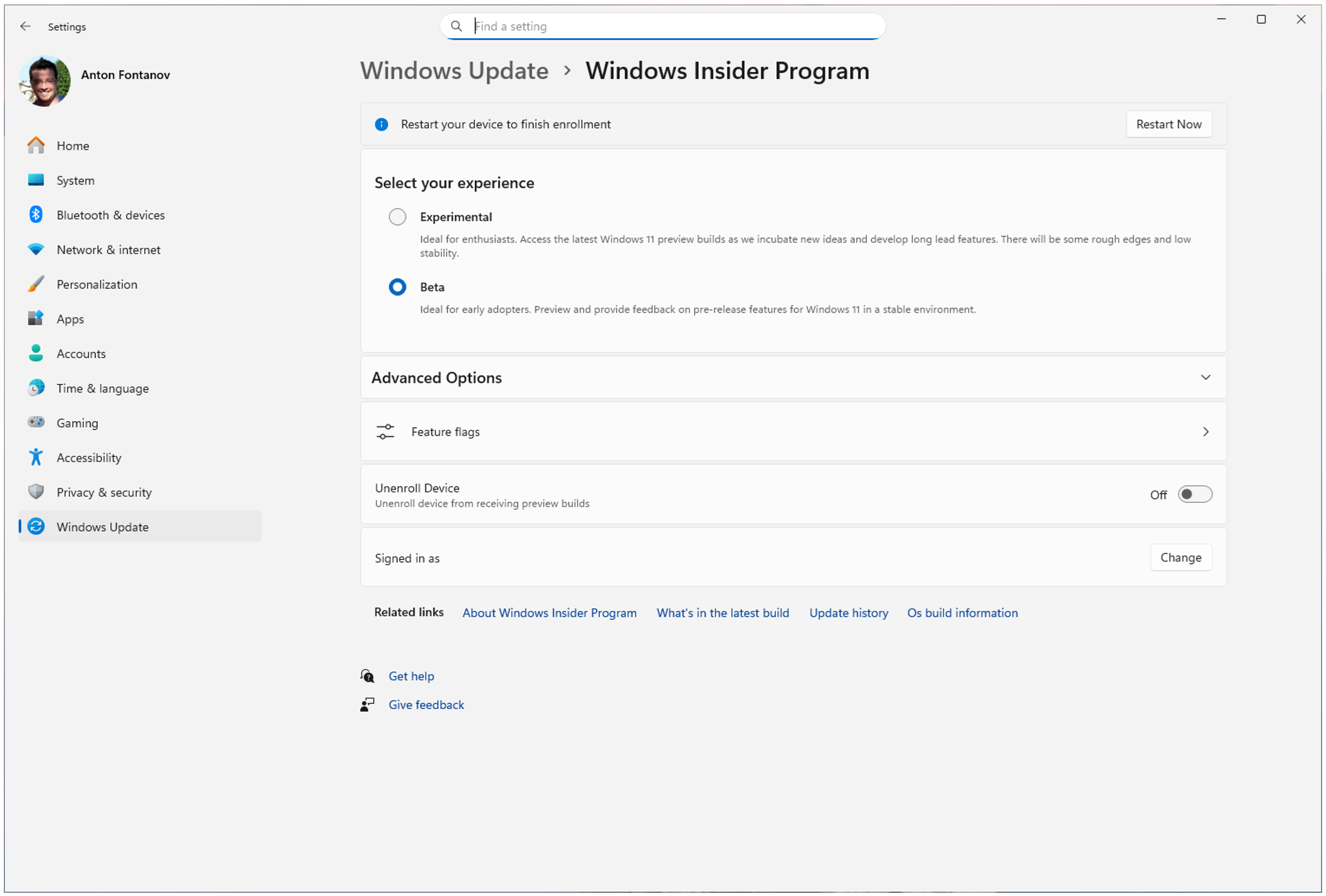
Release channel: Experimental New Accessibility setting – screen tint We're introducing screen tint, a new accessibility setting that applies a color overlay across your entire display, softening its intensity so it's easier on your eyes throughout the day. If bright, saturated screens leave you with tired or sensitive eyes by the end of a long session, screen tint can help. [caption id="attachment_178980" align="aligncenter" width="1024"][Narrator]
Release channel: Experimental Braille displays now connect instantly with Narrator We are making refreshable braille displays easier to use in Windows. Narrator now supports displays that use the HID standard — an open industry standard for braille displays. If your display supports HID, simply connect it via USB and start reading — true plug-and-play with no additional setup required. For Bluetooth, pair your HID braille display in Settings > Bluetooth & devices just like any other accessory, and you can work wirelessly without being tethered to your PC.[Voice Isolation in Voice Access]
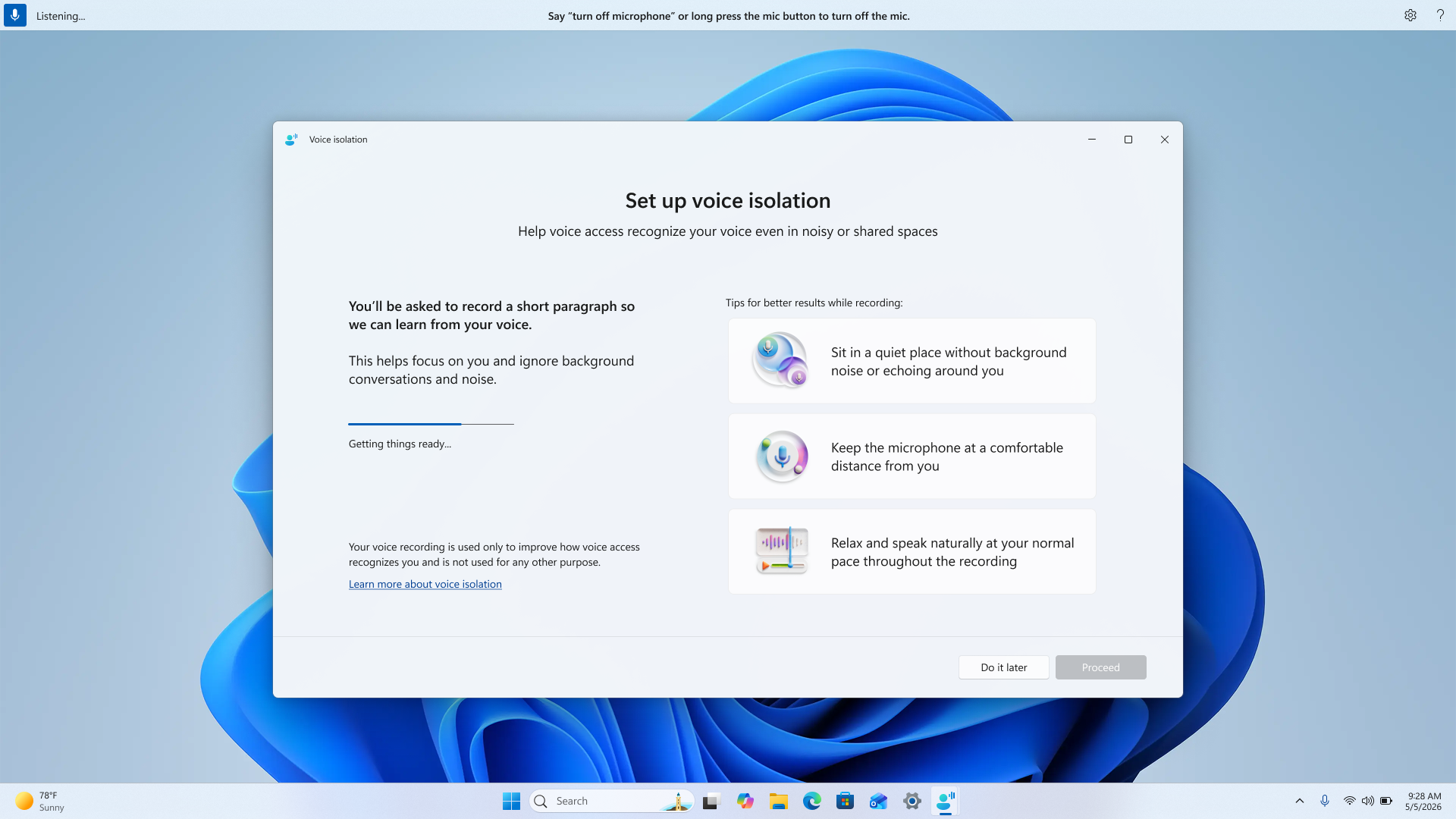
Release channel: Experimental We're introducing Voice Isolation, a new option in Voice Access that helps it focus on your voice, even when others are speaking nearby. Whether you're in a shared office, an open floor plan, or at home with family around, Voice Isolation filters out other voices and background noise so Voice Access can better understand you. All processing happens privately on your device. [caption id="attachment_178981" align="aligncenter" width="1024"]New in Edge for Business: AI for work, safe from day one
- Agentic browsing with Copilot (limited preview)
- AI across tabs to move from information to decisions
- Deliver AI securely—without losing control
- Protect against shadow AI in the browser
- Join the limited preview
Introducing agentic browsing with Copilot in Edge for Business
Agentic browsing lets Copilot complete multi-step tasks on approved sites, with IT controls and user oversight. Business users across your organization often spend time on repetitive, multi-step work in the browser—filling out forms, navigating sites to complete tasks, and pulling information across tabs. It's exactly the kind of work people want to shortcut. Available today in limited preview, agentic browsing with Copilot in Edge for Business brings multi-step task completion into a managed enterprise experience. Copilot can navigate pages, fill in information, and complete workflows—helping users save time without turning to unsanctioned AI. https://www.youtube.com/watch?v=mQv0EBvj2nI For IT, enabling Copilot to browse doesn't mean giving up control: you decide when to turn it on and exactly where it can run. You enable it through its own policy and is scoped to sites you designate, so you can roll it out deliberately. Purview continues to enforce data protection policies, such as copy/paste of sensitive data, while Copilot browses. For users, clear visual indicators show when Copilot is taking action, and they can pause or stop it at any time. For sensitive actions such as entering passwords or credit card numbers, Copilot pauses for user input. IT admins can request to join the limited preview. Available worldwide with a Microsoft 365 Copilot license, excluding the European Economic Area.Quickly move from tabs to decisions
Beyond agentic browsing, we're expanding AI capabilities that help users get oriented faster, pull together information across tabs, and get to an answer—right in the flow of work.Copilot-inspired new tab page
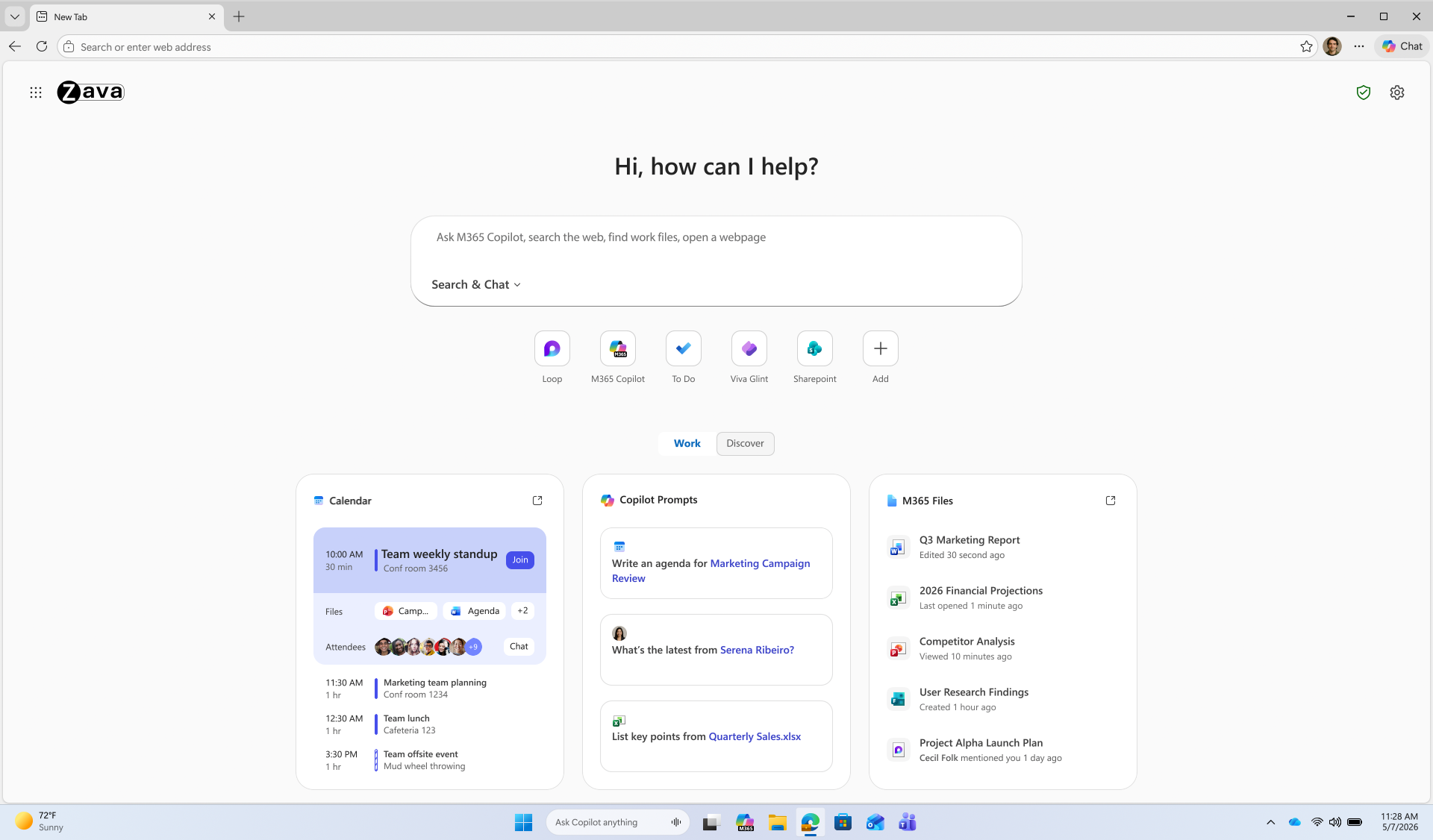
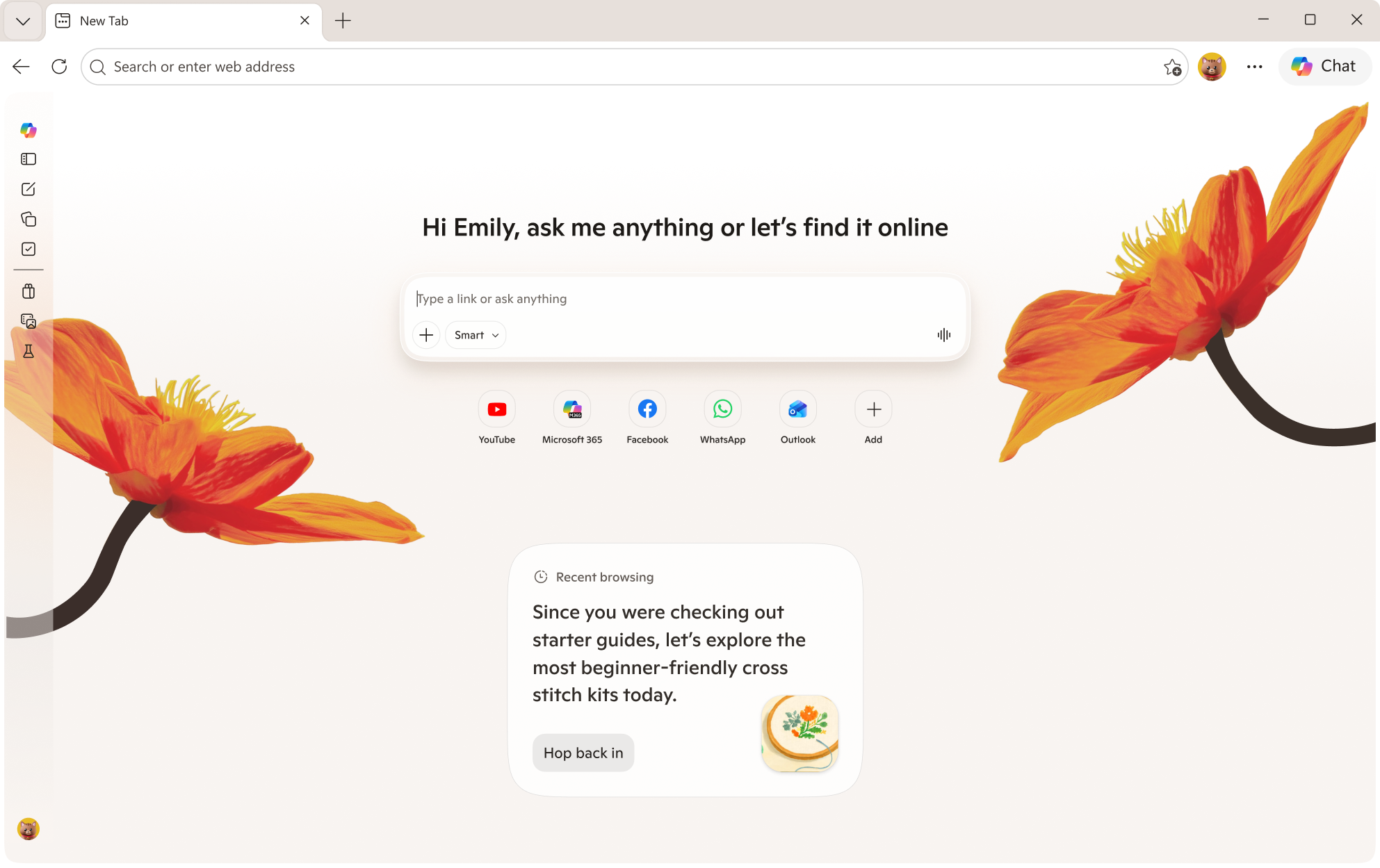
The Copilot-inspired new tab page brings calendar, files, and prompts into one work dashboard—generally available on desktop and mobile. Every day starts the same way: users open the browser, review their calendar, and track down files. A reimagined new tab page brings calendar, files, and Copilot prompts into one view, reducing the need to switch between tools. An intelligent box enables chat and search from one entry point, while work cards surface upcoming meetings, Microsoft 365 files, and suggested Copilot prompts for quick action. The experience becomes even more personalized with a Microsoft 365 Copilot license. Generally available today on desktop and mobile. Learn how to configure.Multi-tab reasoning and YouTube summarization
Multi-tab reasoning and YouTube summarization are now available on mobile, in addition to desktop, turning open tabs and videos into quick takeaways. Users live in tabs—jumping between docs, web pages, and videos just to piece together an answer. Multi-tab reasoning and YouTube summarization help turn that scattered information into quick answers, without adding yet another tool. Multi-tab reasoning analyzes open tabs to generate comparisons, summaries, and insights. For example, users can compare product specs across tabs, summarize vendor documentation, or pull key differences from multiple pages into one answer. And because it's Edge for Business, Purview policies exclude sensitive content from reasoning. https://www.youtube.com/watch?v=X87JA-sPz2Y When users only need a few key answers from a 15-minute video, YouTube summarization pulls out the takeaways and even answers questions—whether they're reviewing a product demo, an industry presentation, or a webinar. Learn how to configure multi-tab reasoning and YouTube summarization.Deliver AI securely—without losing control
Edge for Business offers an IT-managed system of controls for AI—policies, tenant protections, and data protection enforcement—available from day one. AI in the browser is moving fast, and IT teams are under pressure to deliver new capabilities without becoming the team that slows everyone down. Most organizations don't want an "all or nothing" switch—they want to adopt AI in stages without changing their security posture or creating new exceptions. With Edge for Business, our mission is to offer AI experiences with enterprise-grade security and controls built-in from day one — through a system of controls that provides differentiated compliance and security for AI. That's what you should expect from an industry-leading secure enterprise browser. Edge for Business is the only major enterprise browser that protects company data in AI by enforcing data protection in the browser and keeping sensitive interactions within the tenant. Protections you rely on, such as blocking copy/paste, continue to be enforced on AI-assisted workflows. And because Microsoft 365 Copilot includes enterprise data protection, prompts, responses, and files stay within your tenant and are not used to train models. These protections apply natively when users sign into Edge for Business with an eligible Entra ID, no extensions required. A single policy enables AI features like summarization and multi-tab reasoning to help you get started quickly. For advanced AI, Copilot Mode is evolving into granular controls—so you can enable each feature individually instead of through a single toggle, making it easier to pilot and deploy advanced AI with more predictable outcomes. Existing configurations are honored for organizations that previously enabled Copilot Mode. The result: you can roll out AI on your terms—enabled by policy and fully under IT control. https://www.youtube.com/watch?v=9KFId0FzSfMProtect against shadow AI in the browser
Purview data protections in Edge for Business can audit or block sensitive prompts and uploads on common consumer AI apps and redirect users to Copilot for protected work AI. What happens when users don't follow rules and use unsanctioned AI? Organizations need the ability to audit prompts and block sensitive uploads, especially on consumer AI tools. With Edge for Business, consumer AI doesn't have to be a gap. Shadow AI protections powered by Purview bring inline data loss prevention into the browser for the most common AI apps. Purview analyzes prompts and file uploads: when sensitive data is detected, the action is audited or blocked. Users receive a clear, policy notification and are redirected to Microsoft 365 Copilot, where enterprise data protection and DLP policies apply. These protections work on managed and unmanaged devices when users are signed into Edge for Business with their eligible Entra ID. Requires Microsoft 365 E5; pay as you go pricing applies. Learn more. https://www.youtube.com/watch?v=JIDs57MAXOoGet started
IT admins can request to join the limited preview for agentic browsing in Edge for Business to experience how it works in a managed environment. Edge for Business plays a key role in delivering AI securely—where users already work and where controls are already in place. Request to join the limited preview for agentic browsing in Edge for Business to evaluate the experience and help shape what comes next.Note: learn more about Microsoft 365 Copilot availability here.
Introducing new Surface devices built for business and AI acceleration
"At Flagstar, we're focused on equipping our teams with technology that's secure, flexible and ready for the next wave of AI. Surface brings together the hardware, security and Microsoft ecosystem in a way that just works, giving our teams the confidence to run AI-powered workflows on device while staying protected and productive wherever they are." — Jason Pope, Chief Technology Officer, Flagstar Bank
We have always believed that the hardware people use enables businesses and teams to achieve more. Surface was created to set the standard for what a premium Windows PC can be, and that standard has never been higher. Today, we are proud to announce the next generation of the Surface for Business portfolio, the new Surface Pro for Business and Surface Laptop for Business powered by Intel Core Ultra Series 3 processors are available today in select markets, delivering world-class performance and AI on the edge to accelerate productivity. Powered by Intel's next‑generation Core Ultra Series 3 architecture, the new Surface Laptop for Business and Surface Pro for Business deliver a meaningful leap in graphics performance, delivering up to 35% more graphics performance than MacBook Air with M5[1], and more than 90% faster performance than Laptop 5[2] on select configurations with Intel Core Ultra X7. From analyzing complex information to presenting to customers or creating content on the go, the Intel Core Ultra Series 3 GPU enables work to move in real time, delivering the sustained, fluid performance leaders expect from a premium business PC, without compromising mobility, battery life or security. Whether your teams are in the boardroom, at a customer site or working from anywhere, these AI PCs are built to perform at the speed of business. Later this year, we will extend the Surface for Business portfolio with models featuring the Snapdragon X2 processors, delivering up to 80% faster local AI inferencing than before[3] and uncompromising battery life[4].
The new Surface Laptop for Business 13-inch is the most portable Surface Laptop, available starting today in select markets in 16GB and 24GB configurations starting at $1,499 (MSRP), with an 8GB configuration coming later this year starting at $1,299.99 (MSRP). With on-device AI processing, Wi-Fi 7[5] and a removable Gen 4 SSD designed for enterprise serviceability, it brings the full Surface experience to the entry-premium tier without asking IT or employees to trade off performance and productivity for portability.
- Security and trust are fundamental and should be built into every aspect of a device.
- Innovative devices are the platform that enables organizations to move faster with hybrid AI to accelerate workflows, productivity and end-to-end management.
- Intentional, functional and human centered design is imperative for hardware that supports how businesses work, with PCs that are built with a focus on reliability, sustainability and repairability features designed to keep employees productive and in their flow.
For the first time ever on a Surface device, we are introducing an optional integrated privacy screen with anti-glare. Built directly into select configurations of the 13.8-inch display of our Surface Laptop for Business, this software driven visual privacy filter helps protect sensitive information from unintended viewers and can be centrally managed by IT or activated instantly by employees with a single keystroke. Once activated, the privacy screen provides immediate protection from prying eyes without the need of a third-party physical screen protector. Designed from the ground up as part of our security‑by‑design approach, this innovation is made possible only by the tight integration of Surface hardware and software.
Surface allows us to run AI where learning happens, on the device itself. The future of AI is not everything going to the cloud; it's AI at the edge." — Eric Sedore, AVP and Chief Technology Officer, Syracuse University
For organizations building and deploying enterprise AI applications, Surface is also the reference platform for Windows AI APIs and the Foundry platform. Surface is purpose-built for developers who need a trusted, consistent hardware baseline, helping to enable on-device AI processing that can help offload everyday workloads from the cloud and optimize overall AI infrastructure costs at scale. Surface for Business does not just transform the experience for employees, it transforms the experience for IT. From UEFI to browser, it can be managed through Microsoft Intune. Every device in this portfolio is built to support the end-to-end Microsoft stack: Microsoft Intune, Windows Autopilot and the Surface Management Portal give IT administrators a single, unified plane to provision devices at scale, enforce policies and manage the full device lifecycle including zero-touch deployment that gets people productive from day one.[7] When the hardware, the operating system, the management platform and the productivity suite are all built and optimized by Microsoft, the result is not just operational efficiency, it’s a level of assurance and confidence that benefits the end-customers and businesses.XBOX Player Voice: A simpler way to share feedback
Improving Windows quality: Making Taskbar and Start more personal
Bringing more personalization to the taskbar
The taskbar is where your PC experience comes to life. Just like a well-organized workspace, having it tailored to your needs helps you stay productive, so we’re introducing more ways to customize it.Taskbar positions
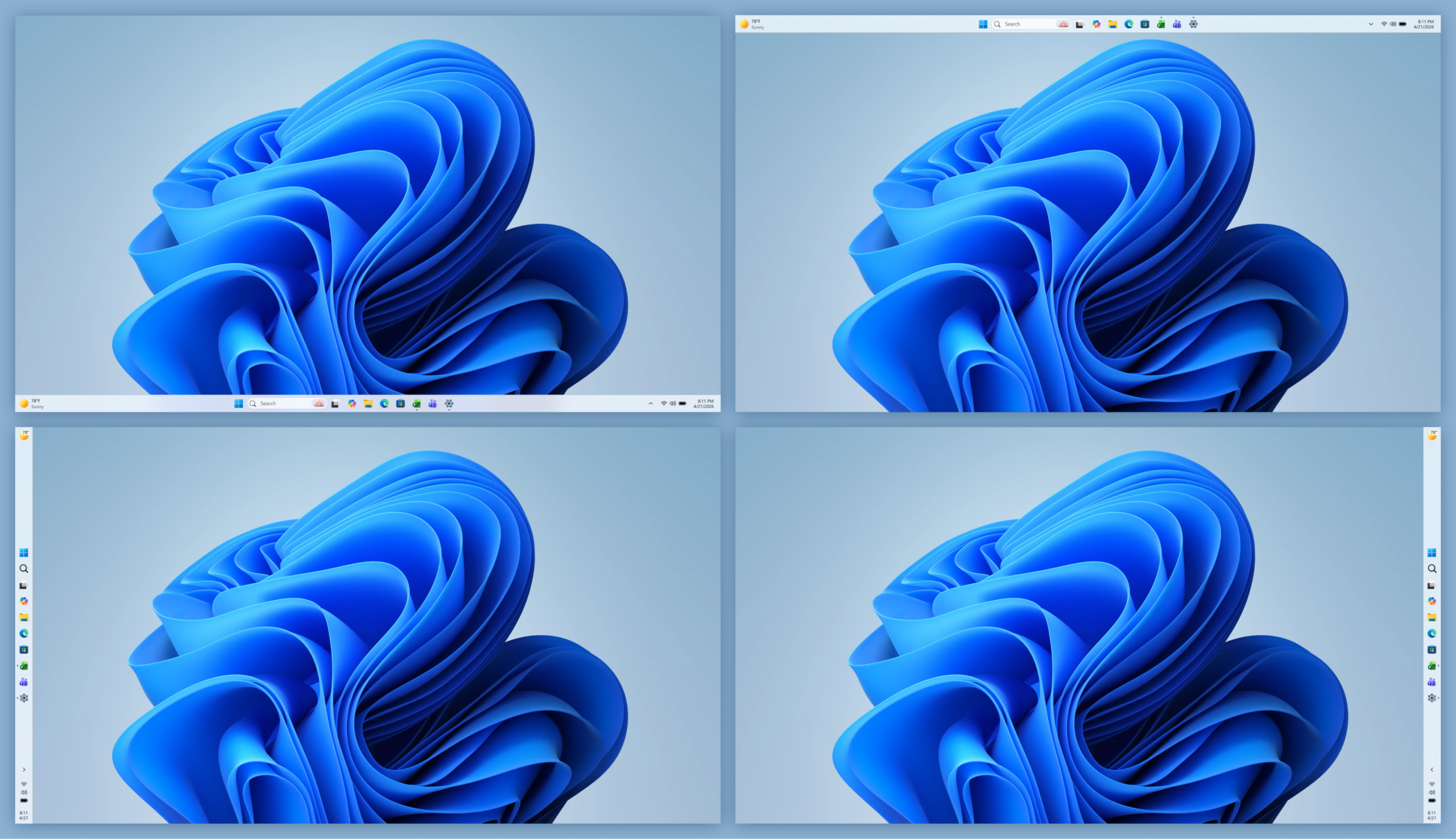
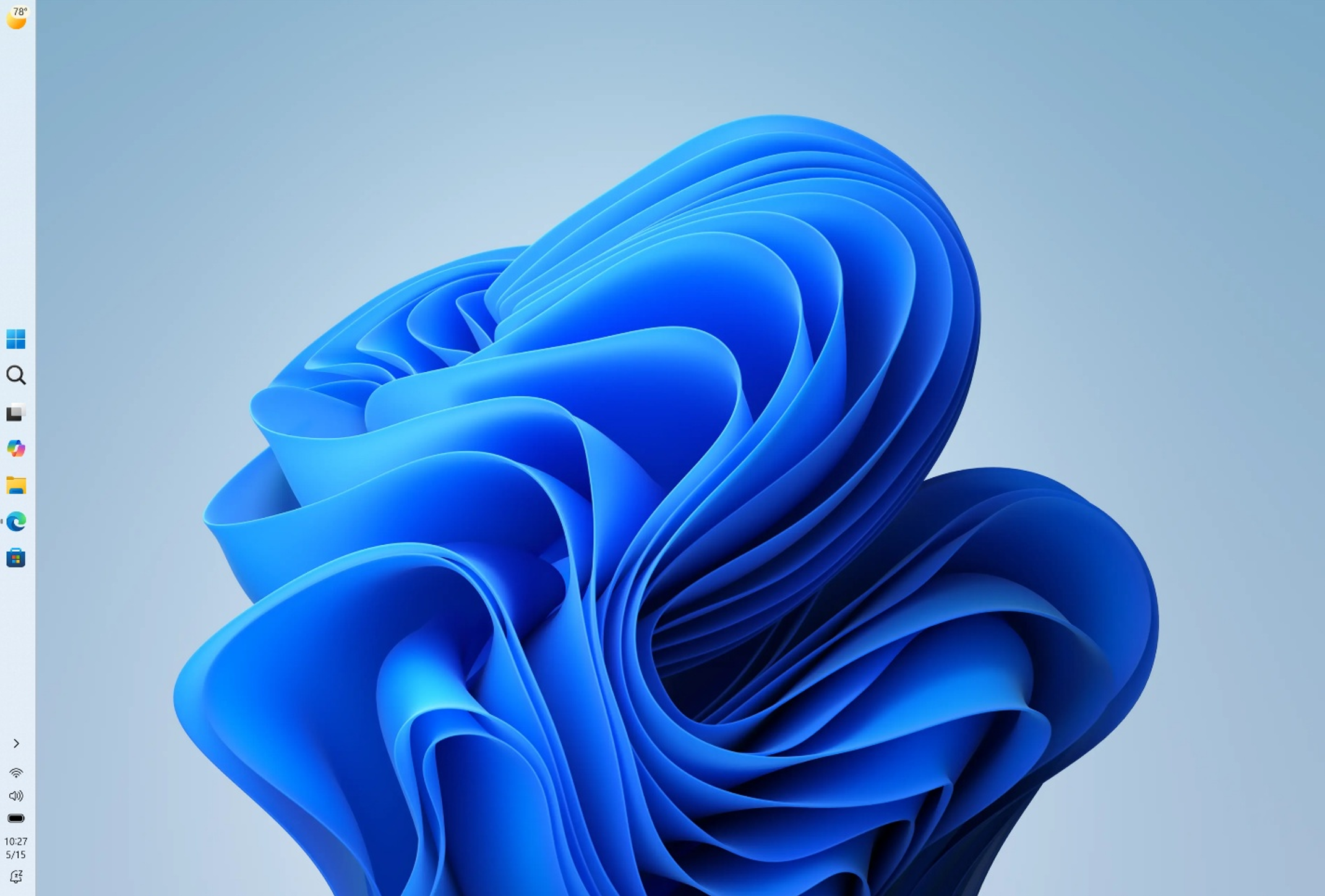
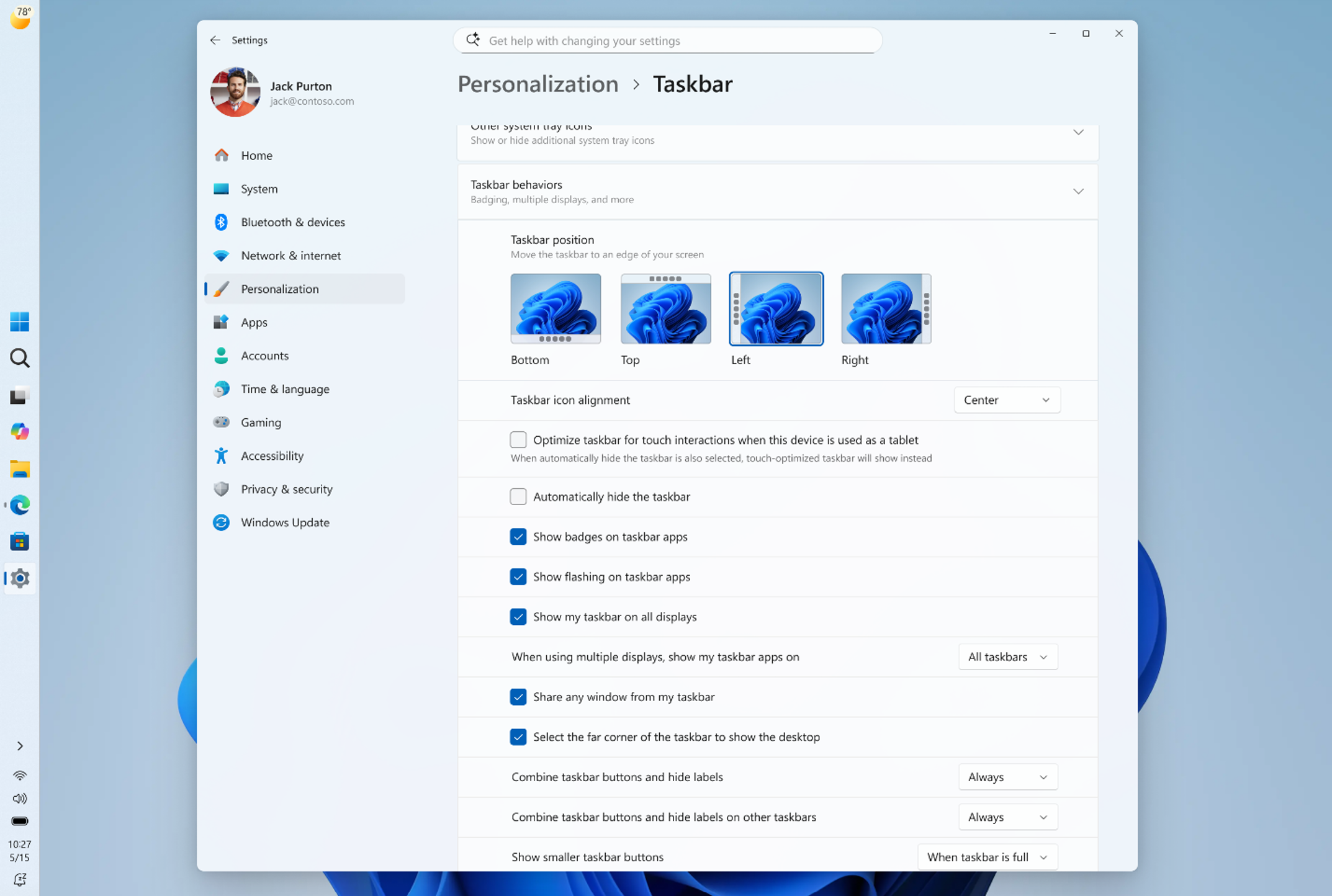
Location, location, location. The ability to move the taskbar to the top or sides of the screen has been one of the most requested features, and we are bringing it to Windows 11. Starting today, Windows Insiders in the Experimental channel will be able to:- Position the taskbar on any edge of the screen: Top, bottom, left, or right (see figure 1).
- Choose icon alignment for every taskbar position: Top-aligned or centered when the taskbar is on the left or right, and left-aligned or centered when the taskbar is on the top or bottom.
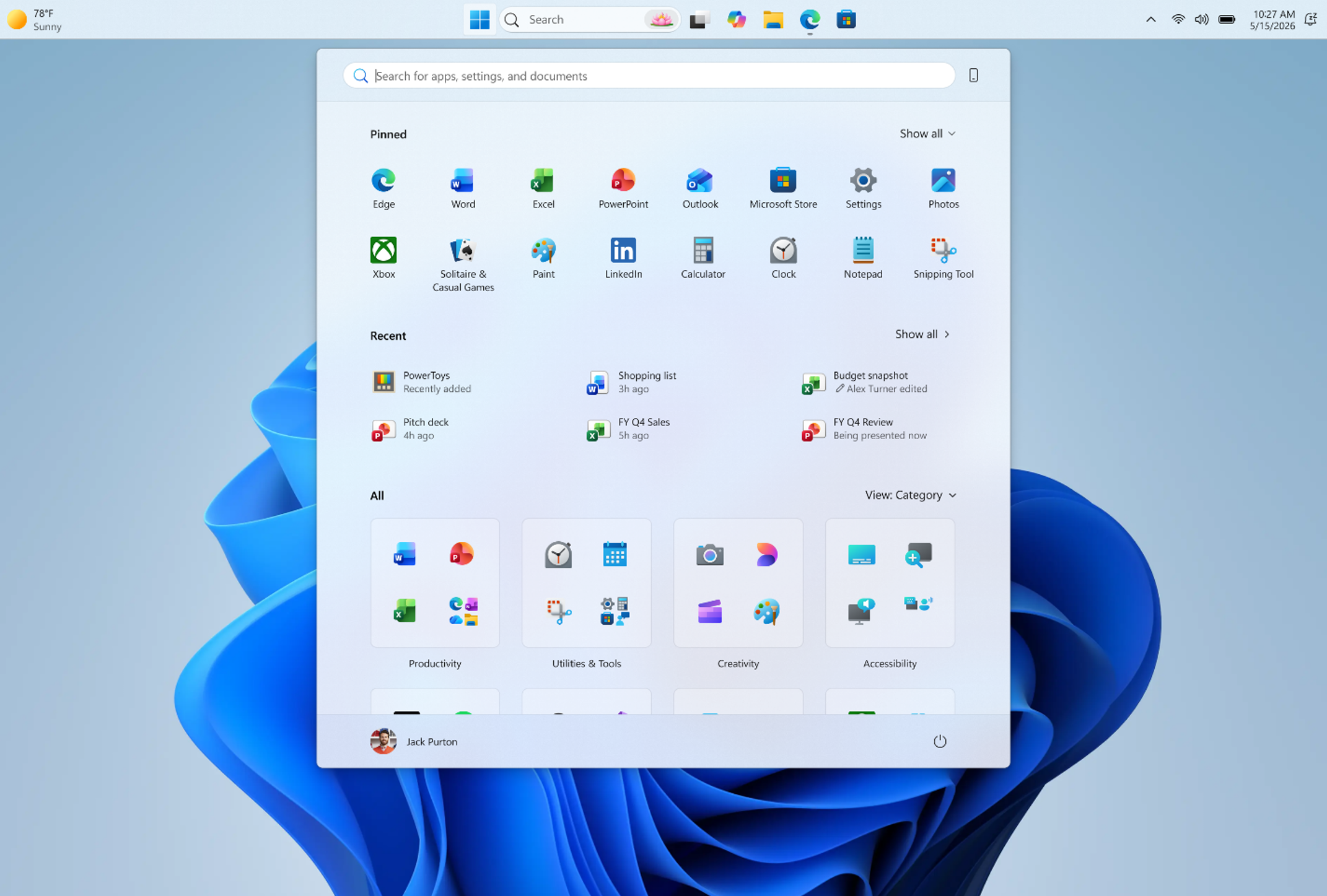
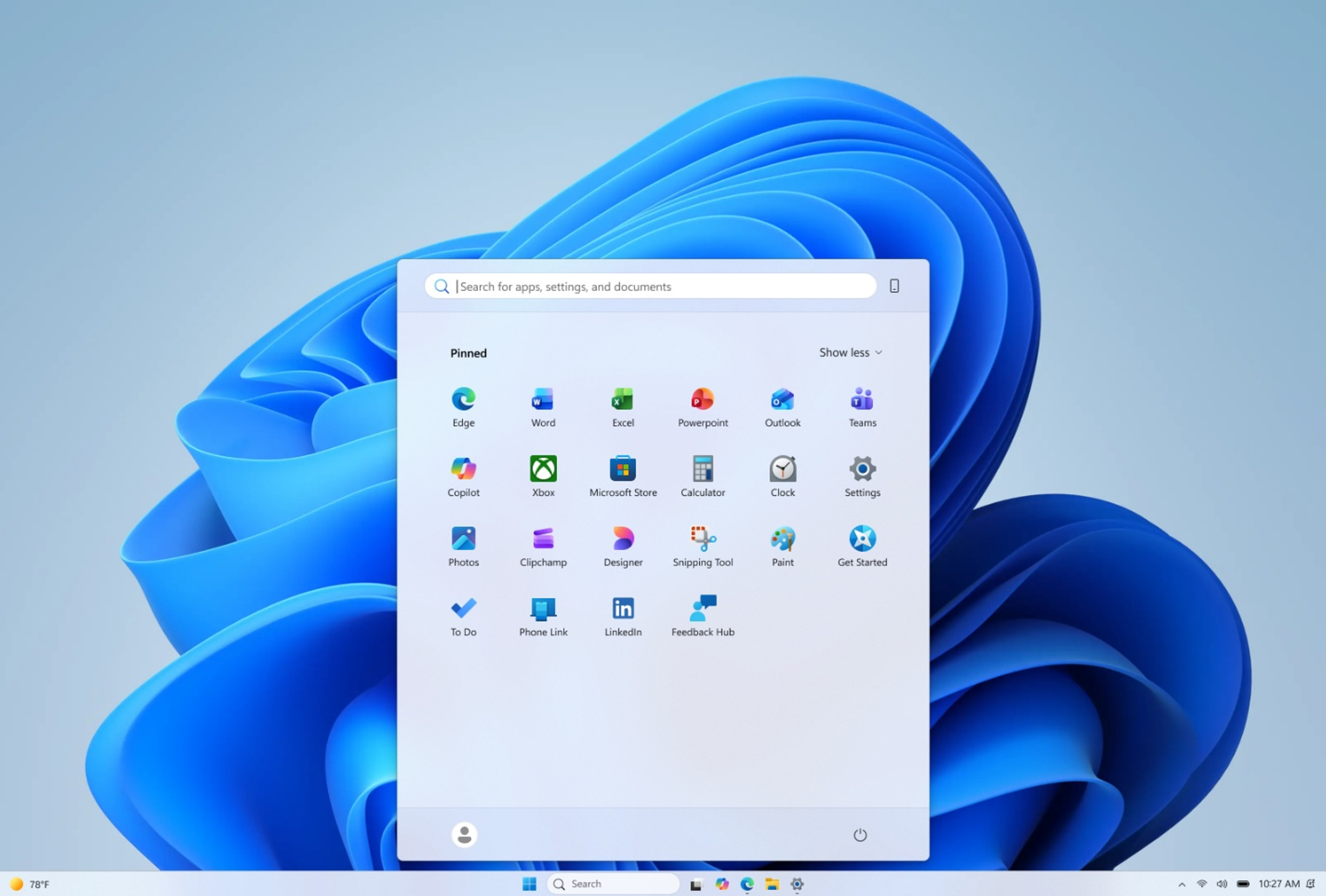
- Use Start, Search, and other flyouts relative to the taskbar location: For example, when the taskbar is on the top, Start opens from the top (see figure 2).
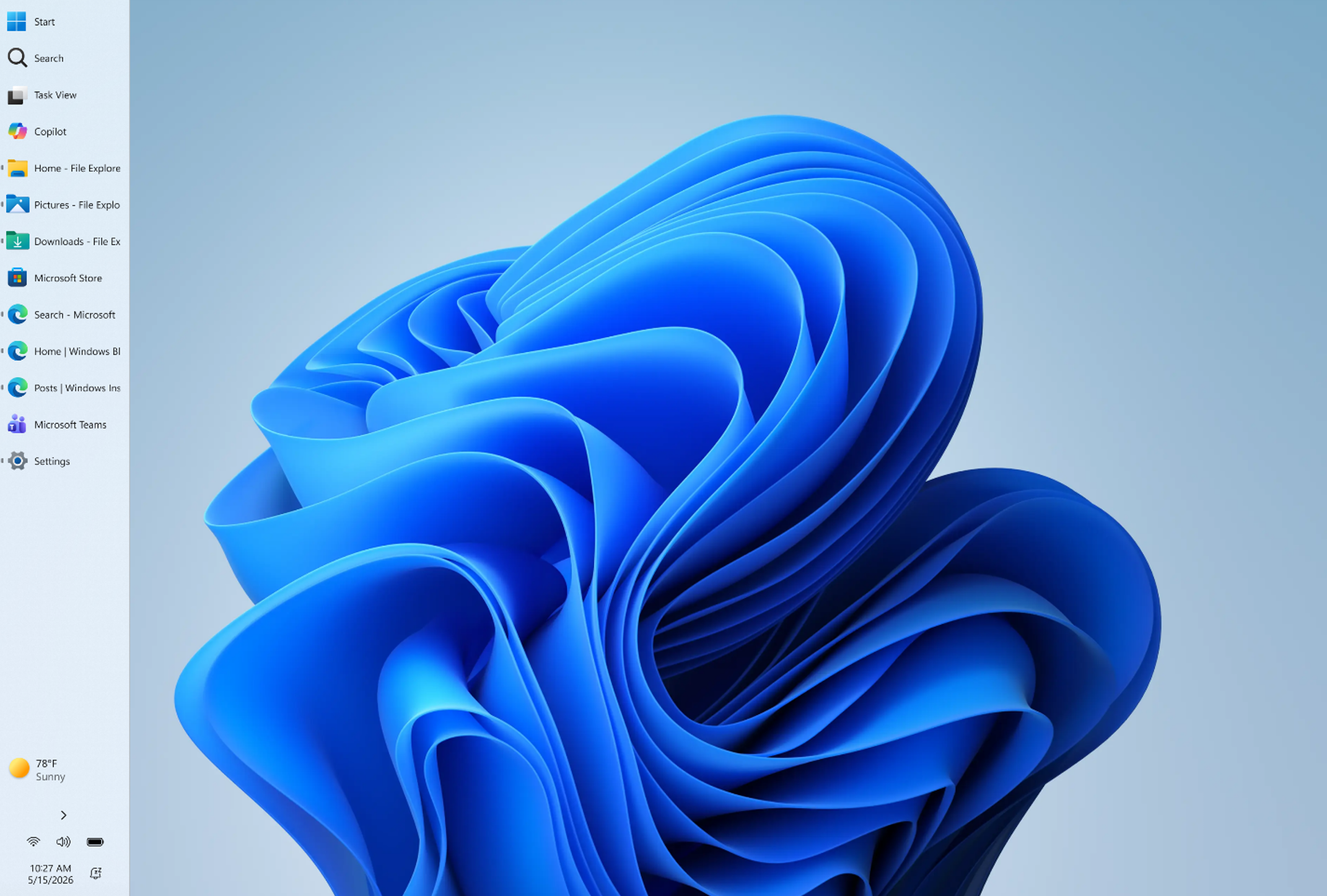
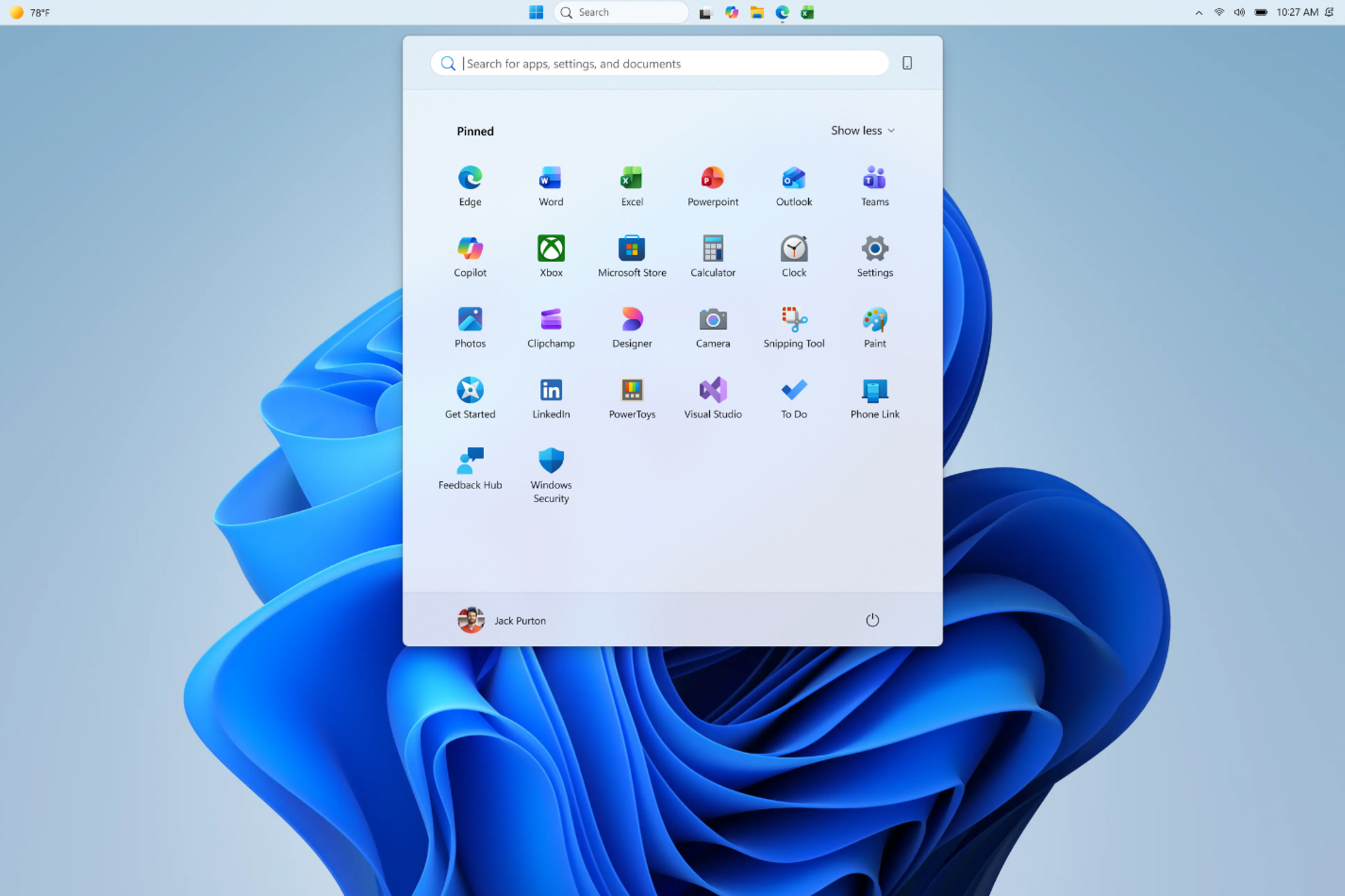
- See every window at a glance: When using a vertical taskbar with “Never combine” taskbar buttons and show labels enabled, each app window appears as a separate labeled button, making it easier to identify and switch between windows (see figure 3).
- Auto-hide and tablet-optimized taskbar are not yet supported in alternate positions.
- Touch gestures for alternate positions are still in progress.
- Search boxes are not yet supported in alternate positions and will appear as a search icon for now.
Smaller taskbar
Windows 11 introduced a roomier taskbar to support more states and features while also improving touch targets. On smaller screens, that extra height can take away from your usable workspace. We are adding the option to switch to a more compact taskbar for times when every pixel counts. With this update, when small taskbar is enabled, you get smaller icons, a shorter taskbar, and more vertical space for your apps (see video below). No restart or sign-out is required. This experience is rolling out today in the Experimental channel. To change your taskbar size, go to Settings > Personalization > Taskbar > Taskbar behaviors > Show smaller taskbar buttons. When set to Always, both the icons and the taskbar height become smaller. [embed]https://youtu.be/pvE2gyWnVHA[/embed]Putting you in control of Start
There is a unique Start for everyone, whether you want a minimal experience with just your pinned apps, quick access to recent files, everything in one place, or something in between. We are making changes in two areas to support this. First, we are giving you easier ways to shape your Start menu. Second, we are improving the quality of what appears there by default.More control over your layout
Today, customizing Start can require navigating multiple settings in different places. Turning off the Recommended section involves toggling several settings, and clearing pinned apps means unpinning them one by one. We are simplifying this experience. Over the coming weeks, Insiders will get:- Section-level toggles to independently show or hide Pinned, Recommended, and All. One toggle per section that is simple and clear.
- A separate control for file recommendations. Today, turning off Recommended in Start also turns off jump lists and recent files in File Explorer. With this change, you can disable file recommendations in Start without affecting recent files in other places.
- Start menu size settings that let you choose your preferred size. Today, Start adapts to your display. With this update, you can choose Small or Large so your preference stays consistent across displays whenever possible.
- The option to hide your name and profile picture in Start for added privacy when sharing your screen, presenting, or streaming.
Improving recommendation quality
We are also improving the content that appears in this section for people who choose to keep it on. We are renaming Recommended to Recent to better reflect what the section primarily shows, including recently installed apps and recently used files. We are keeping recently installed apps visible, as this remains one of the primary ways people discover newly installed apps alongside the Microsoft Store. Both users and developers have told us this visibility is important. In addition, we are improving file relevancy. We are refining which files appear and how they are ordered to reduce less relevant items and better reflect what you have been working on.What’s next
Everything described will roll out to Windows Insiders in the Experimental channel over the coming weeks, including several in today's flight. We have talked about earning trust through steady and visible progress. Start and taskbar are where that trust is tested most, every time you sit down at your PC. Please share your feedback in Feedback Hub by pressing WIN + F. The Windows Insider community plays a critical role in shaping Windows, and as these features become available, we encourage you to explore them and share what is working and what is not. This work is ongoing, and our goal is to build it together with you. Thanks, Diego Twitter (X): @bacadd LinkedIn: Diego Baca | LinkedIn [caption id="attachment_178962" align="aligncenter" width="1024"]Announcing new builds for 15 May 2026
New builds this week
Today we are releasing new Windows 11 Insider Preview Builds. As a reminder, all Insiders can find the release notes for your device based on the new channel system, even if you haven’t moved yet. This is to make finding build information as easy as possible during the transition. See your channel release notes here:- Beta: Build 26220.8474
- Experimental: Build 26300.8493
- Experimental (26H1) – Including Canary 28000 series: Build 28020.2134
- Experimental (Future Platforms) – Including Canary 29500 series: Build 29591.1000
Notable new features:
[Taskbar improvements]
Release channel: Experimental Alternate Taskbar Position You can now change the position of taskbar on your screen. In Settings > Personalization > Taskbar > Taskbar Behaviors, you can select the side of the screen you want your taskbar on: bottom, top, left, or right. In these other positions, tooltips, flyouts, and animations will still come from the taskbar, and most customization settings like small taskbar and never combine taskbar icons will work with all locations. [caption id="attachment_178963" align="aligncenter" width="1024"][Widgets]
Release channel: Experimental As we continue to make Widgets feel less distracting, we’ve made a small but meaningful visual update to taskbar badging. For those that have taskbar badging on, the badge color will now match your Windows accent color instead of always appearing red, reducing the sense of urgency that something needs your immediate attention. We’re also testing out quieting down a user’s experience based on their level of engagement. For example, a user who highly engages with Widgets likely have their settings set to a state that works best for them, as compared to a user who barely engages with it and would benefit from having the experience quieted down with taskbar badging turned off as it is for new users who experience it as quiet by default.[Windows Search Box]
Release channel: Experimental We've started making changes to make Windows Search Box more relevant, starting with making it easier to find your files and apps:- Files and apps more reliably appear ahead of web suggestions when your content is a stronger match
Announcing new Release Preview builds for 14 May 2026
- Windows 11 version 24H2/25H2:
Build 26100.8514/Build 26200.8514Build 26100.8521/26200.8521(KB5089573) - Windows 11 version 26H1:
Build 28000.2173Build 28000.2176 (KB5089570)
Raising the bar together. Introducing the Driver Quality Initiative at WinHEC 2026
“Great platforms aren’t built in isolation. Platform quality depends on early, honest collaboration across OEMs, ODMs, silicon partners and IHVs. WinHEC brings engineers together with Microsoft to align early, solve real problems and deliver higher‑quality solutions for our shared customers” — Syam Poluri, Distinguished Engineer, Dell Technologies
Raising the bar on quality takes all of us.
Drivers sit at the heart of every Windows experience. They connect the OS to the silicon, components and peripherals that make Windows one of the most versatile platforms in the industry. Today, thousands of partners contribute to tens of thousands of active driver families across the Windows install base. When drivers are high quality, customers experience reliable, secure, performant devices. When drivers fail, customers experience it as a device problem, regardless of where the root cause sits.- Architecture: We are heavily investing in hardening kernel mode drivers and enabling the third-party kernel mode driver transition to either user mode driver or Microsoft authored class drivers. This is to ensure higher driver security, reliability and resiliency. User-mode driver investments include performance updates to PCIe devices with DMA support as well as Wi-fi stack (coming soon). Class driver investments include Soundwire Device Class for Audio (SDCA), introduction of the I3C class driver, NCM USB ethernet class driver as well as continuous enhancements to existing first-party class drivers on Windows 11.
- Trust: We are raising the bar for trusted partners and trusted drivers, including stronger partner verification, expanded automated analysis and updated Windows Hardware Compatibility Program requirements.
- Lifecycle: We are improving driver lifecycle management through better Windows Update catalog hygiene, including deprecating outdated or low-quality drivers, advancing SBOM alignment and enabling faster issue analysis through driver symbols.
- Quality Measures: We are expanding how driver quality is measured beyond crashes to include stability, functionality, performance, and power and thermal impact, giving partners clearer signals to improve the real customer experience.
“Delivering high-quality drivers and resilient platforms isn’t owned by any one company—it’s a shared commitment. Through our close collaboration with Microsoft, AMD is focused on building a culture of joint accountability to ensure security, stability and predictable performance for our customers at scale.” — David Harmon, Director, Software Engineering, AMD
What we did at WinHEC
Day 1 opened with a keynote presentation featuring our Windows leadership team, organized around three themes: navigating the evolving landscape, raising the bar on Windows 11 quality and the future vision for Windows. The keynote set the tone for the days ahead. We were candid about where we are, clear about where we're going and explicit about the partnership required to get there. From there, attendees broke out into workshops, with sessions spanning five tracks:- End-to-end driver quality — covering the full lifecycle from authoring and validation through publishing, and post-release health
- Platform fundamentals — power, thermal and storage fundamentals that define everyday device experience
- Exceptional device experiences — delivering best-in-class quality across media and display, camera, audio, connectivity and peripherals
- Windows Server — platform direction, reliability and the evolving requirements for modern datacenter and edge deployments
- Ecosystem advancement — end-to-end security, co-engineering tools, manufacturing and AI hardware innovation.
“At Acer, we believe that continuous innovation and collaboration are the engines that drive the technology industry forward. On display at WinHEC, Windows stands out as an innovative platform that brings together partners across a broad range of expertise. The Microsoft conference is where innovation, technology and domain experts come together to unlock the true value of platform engineering.” — Mark Yang, Associate Vice President of Compute Software Technology, Acer Inc.
"The customers ASUS serves — gamers, creators, students and professionals — each demand a different kind of Windows device. WinHEC is where ASUS and Microsoft engineers go deep on the platform fundamentals that make those very different devices share the same quality bar, generation after generation." — Justin Yo, Software Associate VP, ASUSTeK Computer Inc.
What we heard from partners
A few themes came through clearly in our conversations across the two days:- Quality is a shared priority. Across silicon, OEM and IHV partners, the message was consistent — driver and platform quality is central to the customer experience, and the ecosystem is ready to invest.
- Innovation thrives on a strong foundation. When the fundamentals are solid, partners can invest more confidently in differentiated experiences, AI-powered capabilities and next-generation hardware, knowing the platform will support them. The energy around what becomes possible when quality is a given, not a variable, was one of the most exciting themes of the week.
- There is real appetite for this kind of engagement. Partners told us repeatedly that the combination of roadmap clarity and hands-on technical depth is exactly what the ecosystem needs at this moment and going forward.
- Transparency matters. Partners welcomed the open methodology behind driver quality metrics, the phased rollout of lifecycle states and the commitment to incentive-based distribution as the right model for moving forward together.
"The best customer experiences are built on the foundation of strong partner collaboration. WinHEC is where that work happens — engineers from HP and Microsoft aligning early, solving real problems and ensuring that what we ship together actually works for the people who depend on it every day. That kind of direct, honest partnership across the ecosystem raises the bar for everyone." — Deepak Patil, Senior Vice President, Personal Systems Engineering, HP Inc.
Looking ahead
WinHEC 2026 was an important step, but it's the start of the work, not the end. In the months ahead, we will keep investing in the fundamentals that matter most to customers: reliability, security, performance, compatibility and quality. We’ll also keep collaborating with OEMs, silicon partners, IHVs, ODMs and the broader hardware ecosystem through the Windows Resiliency Initiative, the new Driver Quality Initiative and the work we do together every day. To everyone who joined us in Taipei this week, from our CPU, GPU and silicon partners; display, camera, audio and networking teams; IBVs, ODMs and OEMs; to the peripheral and component engineers who make the breadth of Windows possible — thank you. The depth of engagement, the willingness to work together in the room, and the shared commitment to quality made this week what it was. The work we do together over the coming year will define the Windows experience for more than a billion users. We couldn't be more energized about what we're going to build. — Robin and IanNew updates to Edge across desktop and mobile
New updates to the Edge mobile app
Today, we're bringing the experiences you love on Edge desktop to the Edge mobile app so you can get more done wherever you go. Juggling tabs on your phone used to mean endless swiping and tab hopping. Not anymore. With your permission, Copilot in Edge can reason across your open tabs. Just ask a question and it pulls from your tabs to compare details, surface answers, and help you decide without the back-and-forth. https://www.youtube.com/watch?v=Q9itnNYyhGc Previously available only on desktop, Journeys is now available on the Edge mobile app3. Journeys makes it easier to pick up where you left off and resume your projects by, with your permission, organizing your browsing history into meaningful topics – with summaries and suggested next steps – so you can quickly get back to planning that dog-friendly camping adventure or that piece of clothing you can't stop thinking about. https://www.youtube.com/watch?v=it6NFi4PO30 Sometimes the fastest way to get help is to just ask. With Vision and Voice, available to everyone on desktop and now in the Edge mobile app, you can, with your permission, share your screen and talk through what you're looking at — hands-free. Ask questions, get explanations, or think through a decision out loud. It's like having a second pair of eyes wherever you are. When Copilot is active, you'll always see clear visual cues so you know when it's taking an action, helping, listening, or viewing. We are also bringing Edge desktop's redesigned new tab page to the Edge mobile app to streamline how you get your day started, making it easier to jump right into what you need to get done. Bringing together chat, searching, and browsing in one clean starting point, Edge keeps you moving forward. https://www.youtube.com/watch?v=S7CT_HiWFysStay in your flow
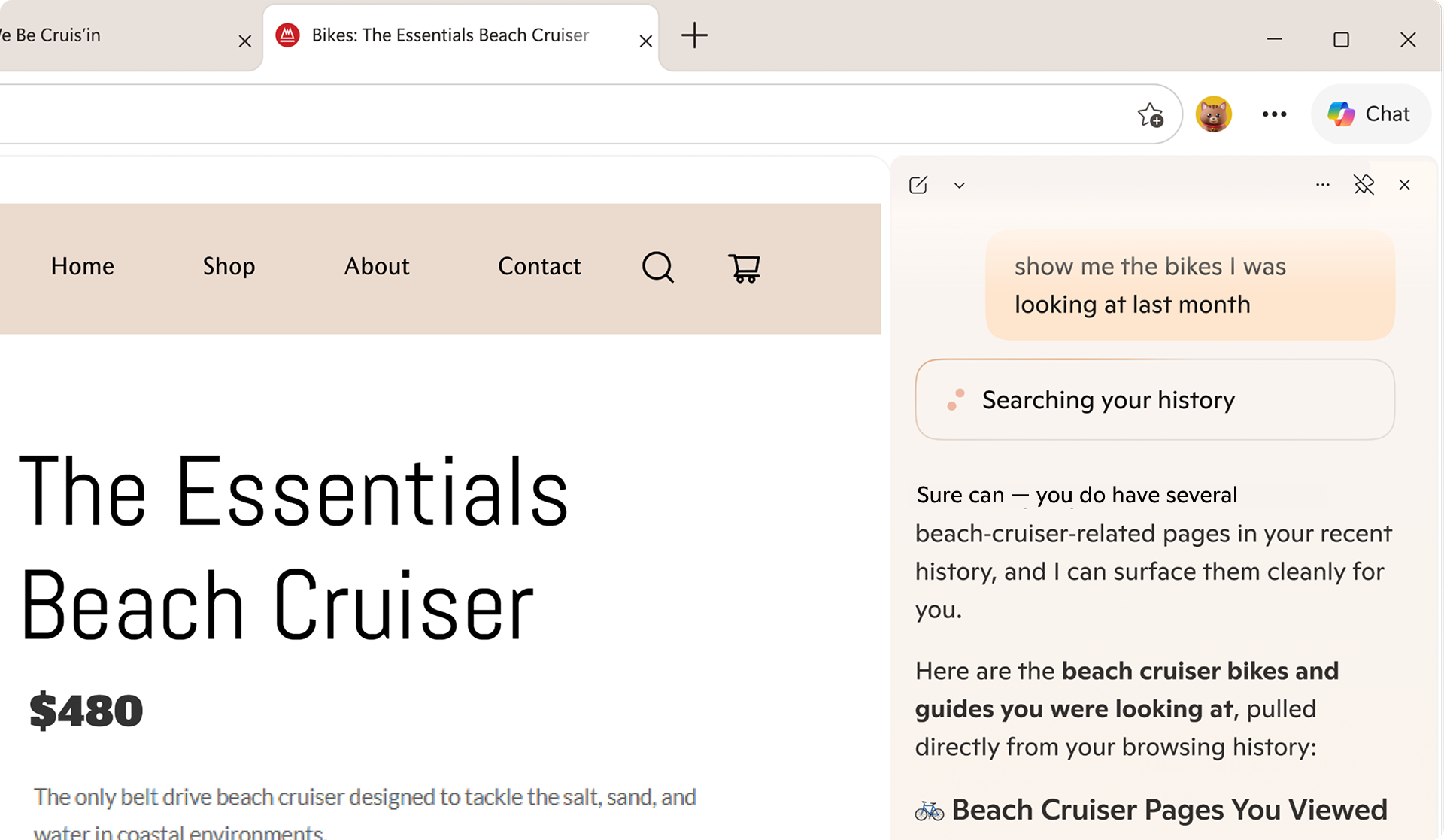
Life doesn't happen in one tab. Now available to everyone, Copilot can pull context from your open tabs to surface relevant information and help you make decisions with less effort to keep you moving forward— without having to leave the page you're on. No setup required. Just click the Copilot icon in the top right corner and ask Copilot to compare options across tabs, explain what matters, and get clear answers. Take planning your next trip to Napa — comparing wineries, restaurants, and routes across a dozen tabs is the hardest part. Copilot in Edge, with your permission, reads across every tab you have open, so you can compare options, surface what matters, and make decisions with less tab-hopping. https://www.youtube.com/watch?v=Ls6dRaxSL28 With your permission, Copilot can also use your browsing history to deliver more relevant, higher-quality answers — like finishing up your shopping, returning to a thread you were following, or picking up research you started days ago. Copilot builds on what you've already seen so you spend less time switching and more time staying in your flow. Now, with long-term memory on desktop and mobile, Copilot not only builds on what you've seen but also can reference your past chats to provide more relevant help. You're always in control of what Copilot can access.Built to keep you moving forward
Sometimes getting started is the hardest part. The redesigned new tab page, now available for everyone to try, brings together chat, search, and web navigation in one place so you can effortlessly explore the web. It's also where all your Journeys live, so it's easy to jump back in and keep going.New tools to boost your productivity
Whether you're cramming for finals, writing a research paper, or understanding a complex topic, Edge has new built-in tools to help you focus, learn faster and get more done without ever leaving your browser. Study and Learn mode helps you get started breaking down topics into guided study sessions, interactive quizzes, and more to supplement your learning. To get started, simply type into Copilot in Edge "Quiz me on this topic" when you have a webpage open or locate the mode dropdown at the bottom left of the input box on the redesigned new tab page and select "Study and Learn mode." Write with confidence, right where you are. Writing assistant5 gives you extra help by generating drafts, rewriting for clarity, or adjusting tone right where you're already typing in Edge. Just look for the blue dot the next time you're writing to get help in the moment. https://www.youtube.com/watch?v=m9__zGC-miQ Turn your browsing into a study session with Copilot quizzes. Easily generate quizzes, flashcards, and guided sessions based on what you're reading so you can test yourself as you go, right in your browser. https://www.youtube.com/watch?v=4j3chZtjQvc Finally, you can now turn your tabs into a podcast6. Whether you're catching up on research or exploring something new, now you can listen, learn, and keep moving without missing a beat. Podcasts in Edge is available in English markets.You choose what you need
We're making it easier to shape your experience on the web. At any time, you can select which experiences you want or leave off the ones you don't. Just head to aka.ms/CopilotinEdge or Edge Settings to customize your experience anytime. With Copilot in Edge, your data stays yours. Microsoft only collects what's needed to improve your experience—or what you choose to provide via Personalization settings. Copilot follows Microsoft's trusted privacy standards, meaning your information is never shared without your permission. Your browser data is protected under the Microsoft Privacy Statement.Tell us what you think
Copilot features are available in all Copilot markets4 on Edge for Windows and Mac and the Edge mobile app today. We're excited to bring you these Copilot features directly to your Edge browser7 and want to hear from you. To get started, visit aka.ms/CopilotinEdge and give us your feedback. If you're excited to share more ideas and connect with others, consider joining our Discord channel. 1 Existing Copilot Mode users will continue to receive priority access to new features through Copilot in Edge Preview. Users may change this anytime in Edge Settings. As part of retiring Copilot Mode, Copilot Actions, previously available in Limited Preview, is now available as Browse with Copilot on Edge desktop for Microsoft 365 Premium Subscribers in the U.S. only. Usage limits apply. 2 Journeys on Edge desktop is available only in all English markets (en-US, en-GB, en-CA, en-AU, en-NZ, en-IN, en-SG). 3 Journeys on Edge mobile is available in the U.S. only. 4 Vision, Voice, multi-tab context, long-term memory, Copilot quizzes, and the redesigned new tab page are available in all Copilot markets across desktop and mobile. 5 Writing assistant is available in the U.S. only. 6 Podcasts is available in all Copilot markets in English only. Must be signed in with a Microsoft Account to generate a podcast. Subscribers to Microsoft 365 Personal, Family, and Premium have access to extended usage. Learn more. 7 Usage limits apply to certain Copilot features. Availability of Copilot features subject to change.Xbox and Discord partnership bringing more benefits to players
Announcing new builds for 8 May 2026
- Beta (Including Beta Channel): Build 26220.8370
- Experimental (Including former Dev Channel): Build 26300.8376
- Experimental (26H1) – Including former Canary 28000 series: Build 28020.2075
- Experimental (Future Platforms) – Including Canary 29500 series: Build 29585.1000
Notable new features:
[Touchpad]
Release channel: Experimental We’re adding new gesturing-related functionality to precision touchpads in Settings. The new features should be widely available across applications, with the exception that WinUI3-based UI requires new WinAppSDK versions for complete functionality - we're in the process of bringing the necessary changes to versions 1.8 and 2.0.- Scroll / zoom speed: control the baseline speed for these gestures
- Automatic scrolling: scrolling continues indefinitely without lifting your fingers. Activate by either bringing your fingers near the edge of the touchpad while scrolling, or holding them still and pressing harder (requires hardware support).
- Accelerated scrolling: repeatedly scrolling increases their speed, allowing quick traversal of long documents.
- Single-finger scrolling: perform a vertical scroll with a single finger starting from the left or right side of the touchpad.
[EDU Licensing]
Release channel: Experimental Beta Channel Free upgrade path to Windows 11 Pro Education for K-12 Windows Insiders in K–12 education environments can now experience a seamless upgrade path from Windows 11 Home to Windows 11 Pro Education edition—at no additional cost. This enables educational organizations to procure Windows 11 Home devices, upgrade them to Windows 11 Pro Education, and bring devices under school management. See release notes for more information. Thanks, Stephen and the Windows Insider Program teamAn inside look at Stranger Than Heaven reveals locations and Snoop Dogg’s role
-
Windows Blog
- Publish to Microsoft Store as a company—now with free registration and faster onboarding
Publish to Microsoft Store as a company—now with free registration and faster onboarding
What’s new in company onboarding?
Free registration
The $99 onboarding fee for company developer accounts has been removed, lowering the barrier to get started on the Microsoft Store.Sign up using your work account (Microsoft Entra ID)
Based on common feedback from developers, you can now sign up using your organization’s work account—streamlining onboarding and helping associate your developer account with your company’s organizational identity from the start.Faster, more transparent onboarding experience
A redesigned step‑by‑step onboarding flow with clearer requirements, upfront validation and real‑time status updates to help reduce friction and common errors. Many verification checks are completed automatically, with timely feedback and email notifications to help you stay informed and take the next steps when needed. [caption id="attachment_57784" align="alignnone" width="1024"]How to get your organization ready to publish faster
To help you move quickly from account creation to app submission, here are a few best practices to prepare your organization before starting onboarding:Have your D-U-N-S Number ready
Use your D-U-N-S Number to quickly retrieve your business details and expedite business verification, helping you complete onboarding faster. If your organization already has one, you can look it up here: https://www.dnb.com/duns-number/lookup.html. If not, you can request one for free here: https://www.dnb.com/duns-number/get-a-duns.html. [caption id="attachment_57785" align="alignnone" width="1024"]No D-U-N-S Number? Upload supporting documents
If your organization does not have a D-U-N-S Number, you can upload supporting documents for business verification, which may take longer due to manual review. Keep your documents ready in advance. Accepted documents include company formation documents (such as articles of incorporation), government-issued business licenses or registration certificates, official government registry records, and tax or stock exchange filings. [caption id="attachment_57786" align="alignnone" width="1024"]Use a business domain email in contact details
Provide an email address associated with your organization’s domain (e.g., name@yourcompanydomain.com) to help verify your employment and speed up onboarding. Using a mismatched domain will require you to upload additional verification documents later for domain verification. [caption id="attachment_57787" align="alignnone" width="1024"]Keep an eye on email notifications
You’ll receive email updates on your verification status. Review them and act—the faster you respond, the sooner you can complete verification and onboarding. When submitting documents, make sure to upload valid and accurate documents to avoid delays. Verification appeals are limited (up to three attempts), so submitting the right documents upfront can help you complete onboarding faster.Why publish to the Microsoft Store?
As the Windows developer platform continues to evolve—powered by Copilot+ PCs, AI innovation, and a growing ecosystem of developers and partners—the Microsoft Store offers a trusted and flexible path to reach over 250 million monthly users. Developers can publish a wide range of app types, including Win32 (.NET WPF and WinForms), UWP, PWA, .NET MAUI and Electron, without modifying existing code. Apps are securely discoverable through Windows Search and can be distributed across enterprise environments using tools such as Microsoft Intune. Developers also benefit from flexible commerce options—including the ability for non‑game apps to use their own in‑app commerce system and retain 100% of revenue—while MSIX packaging enables Microsoft‑hosted distribution, free signing and automatic updates to reduce operational overhead.Ready to publish?
Get started by opening your account at storedeveloper.microsoft.com.-
Windows Blog
- With latest world update, Microsoft Flight Simulator shines light on aerial firefighting
With latest world update, Microsoft Flight Simulator shines light on aerial firefighting
Microsoft Flight Simulator 2024 releases largest sim update yet
Windows quality update: Progress we’ve made since March
Making the Windows Insider Program easier to navigate, with more control of the features you want
[caption id="attachment_178861" align="aligncenter" width="1024"]Less disruption from Windows Update
[caption id="attachment_178902" align="aligncenter" width="1024"]Simplifying AI experiences across inbox apps
Last month we said we would reduce where Copilot shows up across Windows, focusing on bringing AI where it’s most valuable. You’re seeing those changes roll out. In Snipping Tool and Photos, we've removed the “Ask Copilot” button entirely. And in Notepad, we've replaced the generic Copilot icon with a clearer "Writing Tools" label that better describes what it does. This is part of a broader shift to make AI in Windows more intentional and realign the experiences to those that provide the most value to users, and you’ll see us continue to be deliberate about where Copilot shows up, with fewer more curated experiences. These changes have been gradually rolling out through Microsoft Store updates over the past month.Delivering improvements to make File Explorer faster and more dependable
File Explorer is a go-to tool for hundreds of millions of people across diverse workflows. It is an experience customers depend on to be functional, and we want to make it loved. We’re making foundational architectural improvements and rolling them out incrementally to reduce hangs, improve responsiveness, polish, and drive consistent gains in performance. In parallel, we’re addressing long-standing user feedback with targeted improvements that make day-to-day experiences more stable and reliable. This has included fixes to deliver smoother, more responsive launch and navigation, making the Home experience more stable with fewer jarring transitions and improved visual polish, including sharper thumbnails. These improvements have already begun to roll out in the Experimental channel, with several rolling out in today’s flights.More control over widgets and feed experiences
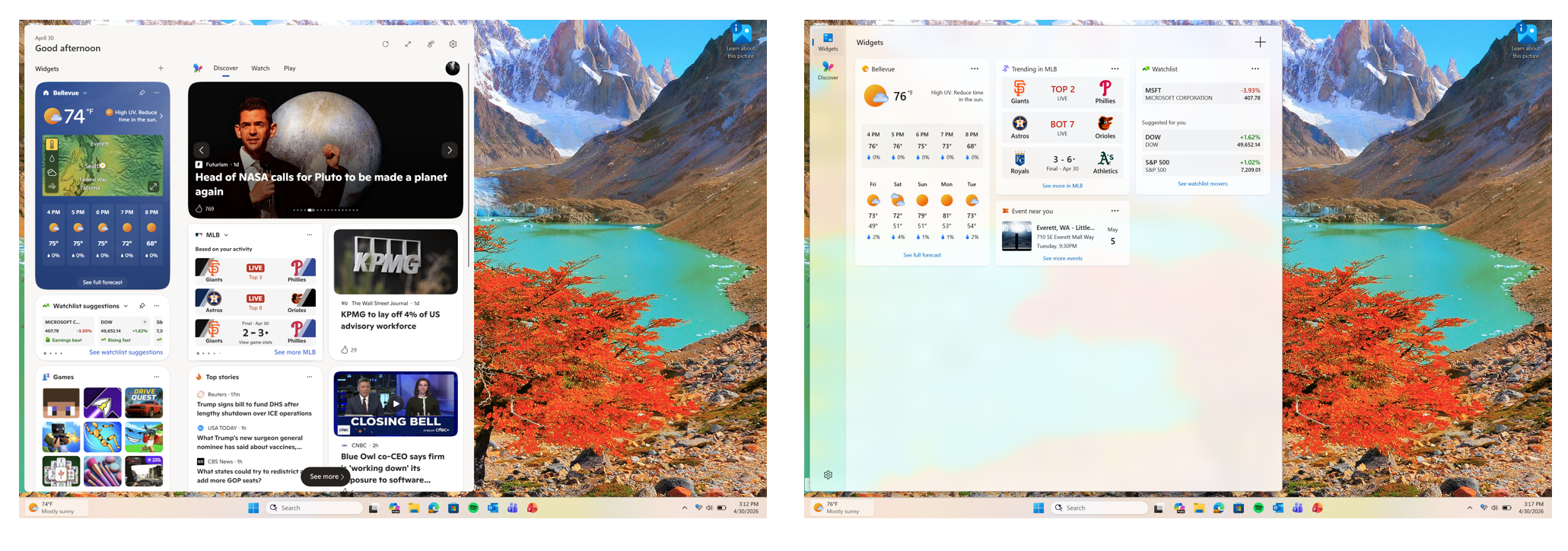
One of the areas we’re looking at closely across the operating system is the idea of “calm”. When you’re designing an experience for over a billion users, what are the right defaults that are easy, simple, and limit distractions? One of the most significant areas we’re addressing this is in Widgets and the Discover feed to make them quieter by default. We're changing default settings for launching and badging so you have more control over when these experiences show up and when they're allowed to seek your attention. When notifications do surface, we're setting a higher bar to make sure they're meaningful. We're also continuing to separate Widgets and the Discover feed into more distinct destinations, with calmer defaults that give you more control of what you choose to see. These improvements are rolling out today in the Experimental channel. We’ll soon also be reducing the default set of Widgets on lock to just Weather, putting customers in more control of curating the Widgets they want to see on lock. [caption id="attachment_178928" align="aligncenter" width="2061"]Improving system performance
As part of our commitment to making Windows more responsive and consistent, we have also been making progress on system performance across several areas of the operating system. We have been actively investigating and pursuing memory savings across the system. Widgets is one of the areas we’re focused on, leveraging device characteristics and user behavior patterns to optimize memory for our users. This includes things like a smaller default memory footprint, giving back memory faster when not in use, putting the user in more control of pre-launch, and limiting pre-launch on devices with lower memory capacity. Several of these changes are beginning to roll out to Windows Insiders today and we will be sharing more of our improvements in Widgets and in other areas over the coming months. We have been improving responsiveness across key OS and app launch experiences. In mid-March, we began rolling out targeted performance/power tuning improvements for the most frequently used OS and app scenarios. While we continue to tune these policies for improvements, these optimizations accelerate app launch and core shell scenarios like the Start menu, Search, Action Center, and more. One other cool update was work the team recently did to update the Windows scheduler. By better handling processor power states (C-states), we improve user-perceived responsiveness in everyday use. This optimization is beginning to become available in retail for customers.What’s ahead
We know there’s a lot of excitement for Taskbar customization – and that’s coming soon. We’re actively refining the experience to ensure it meets our quality bar before broader preview. I’m excited to share more on that work later this month, including how we’re improving Taskbar and Start, as well the work underway to enhance Search. Since March, we’ve also been traveling to various cities to meet with Windows Insiders, listen to feedback, and share how we’re thinking about the future of the program– first in Seattle and last week in New York. The team and I are excited to continue connecting with you at our upcoming meetups taking place in Hyderabad, Taipei, San Francisco and London in the months ahead. If you’re interested in attending, register here! The commitments we made in March reflect our focus on delivering real performance, reliability and craft improvements to Windows 11 throughout this year. With Microsoft Build next month, we’ll have more to share on how we’re making Windows even better for developers. Looking forward to seeing you there! For a complete view of what’s shipped in each build, check the latest release notes on the new Windows Insider Program Documentation Hub. Please keep the feedback coming. MarcusAnnouncing new builds for 1 May 2026 and extending ISO support
Extending ISO download support
One of the areas of feedback we received was that many of you like to use ISOs to install your builds. We’ve heard you, and are committing to releasing ISOs available to download alongside regularly scheduled builds across all versions of the Beta and Experimental channels. To find ISOs for Windows Insider Preview Builds, see the Windows Insider Preview Downloads page. [Update 5/6/2026: Thank you for the great feedback regarding ISO availability. For clarity, we aim to release ISOs the week following their build flighting]New builds this week
Today we are releasing new Windows 11 Insider Preview Builds. As a reminder, all Insiders can find the release notes for your device based on the new channel system, even if you haven’t moved yet. This is to make finding build information as easy as possible during the transition. See your channel release notes here:- Beta (Including Beta Channel): Build 26220.8340
- Experimental (Including Dev Channel): Build 26300.8346
- Experimental (26H1) – Including Canary 28000 series: Build 28020.1921
- Experimental (Future Platforms) – Including Canary 29500 series: Build 29580.1000
Notable new features:
[Run dialog update]
Release channel: Experimental We’re rolling out a refreshed Run dialog experience designed to bring a more modern look and improved usability. This update introduces updated visuals and a cleaner interface, along with new controls that make it easier to manage the experience from within Settings. The refreshed Run dialog is currently available as an opt-in experience for Windows Insiders on the Experimental channel, where you can enable it by going to Settings > System > Advanced and turning on the new Run dialog option. See the Dev blog announcement for more information.New run dialog
[Feedback Hub app update]
Release channel: Experimental, Experimental (26H1), Experimental (Future Platforms) Thanks Windows Insiders that have been sharing feedback about the Feedback Hub – we’re now rolling out version 2.2604.301.0. This update contains a number of improvements based on what you’ve been telling us, including:- Generally improved reliability.
- More tweaks to improve general design fit and finish, accessibility, and localization.
- The Community feedback section for non-English now allows you to switch view to English if you’d prefer.
- Collection titles and Official responses now will be automatically translated in top languages.
- The file upload limit when submitting feedback is back up to 500mb.
- Improved upvote and comment count accuracy for feedback.
[Widgets is quiet by default]
Release channel: Experimental We’re working to make Widgets feel less distracting and overwhelming by making the experience quiet by default. To do this, we’re testing a new set of default settings designed to reduce unexpected alerts and visual interruptions. These changes include:- Disabling Open on hover by default
- Turning off taskbar badging by default
- Opening to widgets experience on first launch
- Limiting taskbar alerts until you choose to open and engage with the Widgets experience
-
Windows Blog
- Windows 11 PC gamers: Xbox mode rolls out and ROG Xbox Ally updates include Auto SR preview
Windows 11 PC gamers: Xbox mode rolls out and ROG Xbox Ally updates include Auto SR preview
Your Windows update experience just got updated
More control
Updates are an important part of keeping your PC secure and running smoothly. But at the wrong time, they can also critically break your flow. To make this a better experience, we are focused on giving you more control of updates in four key ways:- Skip updates immediately during the out of box experience (OOBE)
- Extend update pauses as many times as you need
- Always-available options to shut down and restart without updating
- More insights on available updates so you can make more informed installation decisions
1. Skip updates immediately during OOBE
Earlier this year, we added the control to immediately skip updates during device setup—giving you the option of landing on the desktop faster and getting updates later or getting updates right away and landing on a PC that has all the latest features and fixes. If you choose to skip updates, the latest features and security updates won’t be available until you take the update(s). With immediate choice built into setup, you decide when updates happen. [caption id="attachment_178903" align="aligncenter" width="1024"]2. New controls for pausing updates
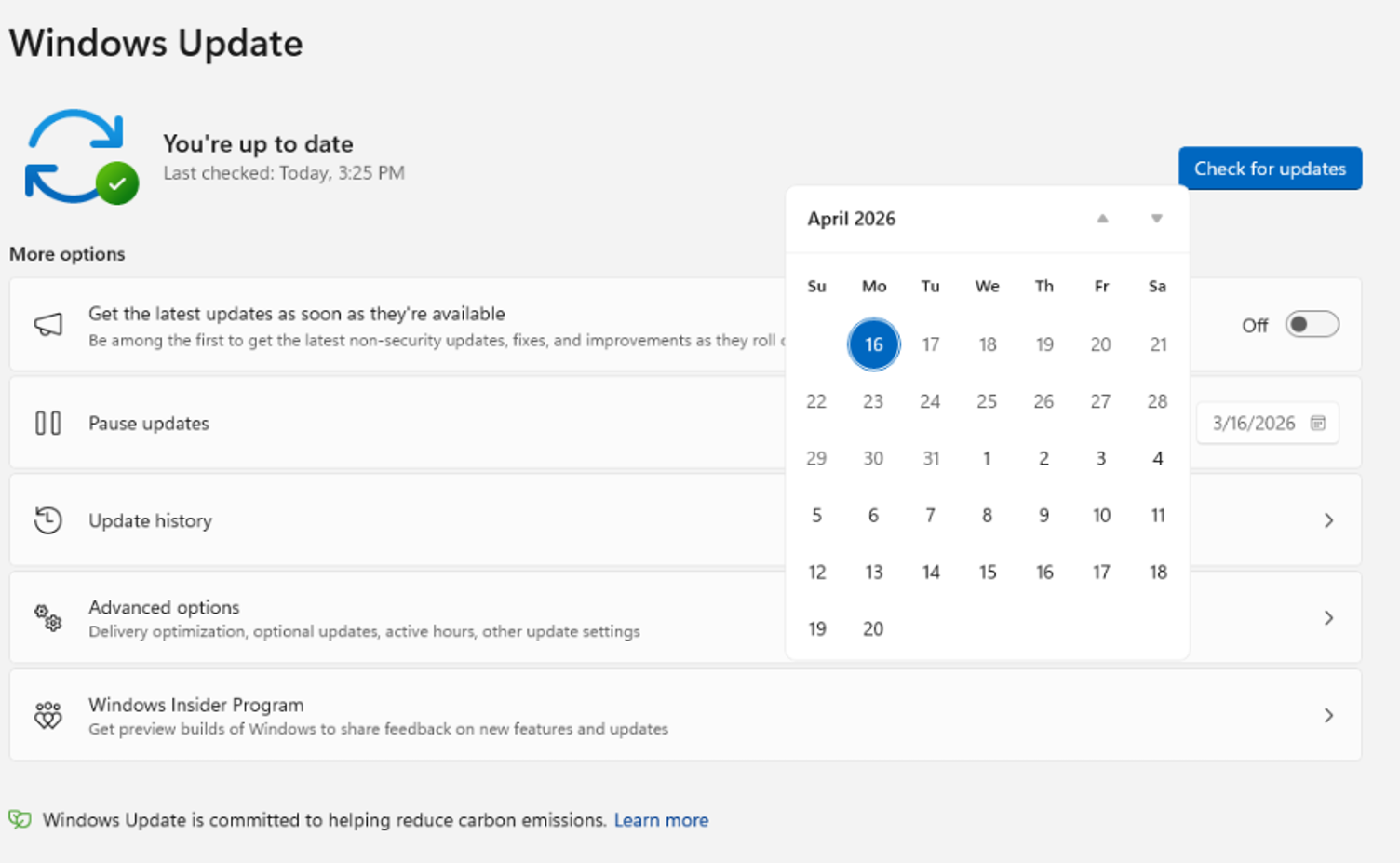
The Pause updates experience for Windows Update now puts you more in control. First, with a new calendar experience, you can choose a specific day of the month you want to pause until, up to 35 days, enabling you to plan around expected travel, conferences, exams, or even just busy weeks. When 35 days just isn’t long enough, we are also enabling you to extend the pause end date as many times as you need. This means you can now re-pause for up to 35 days at a time, with no limits on how many times you can reset the pause end date. [caption id="attachment_178902" align="aligncenter" width="1024"]3. Shutdown, Restart on your terms
Restarting or shutting down your PC should always be simple, predictable, and on your terms – even with updates waiting to be installed. We’re improving this experience by clearly separating power actions from update actions. With this change, the Power menu will always show the standard Restart and Shut down options, meaning you will always have a choice to just restart or shut down your device without having to install the pending update. At the same time, update‑specific choices like Update and restart and Update and shut down will still be available when applicable. This gives you four clear options—and full control over what your device does next. [caption id="attachment_178904" align="aligncenter" width="1024"]4. More insights on available updates
One of the key pieces of feedback after moving to simplified update titles at the end of 2025 was an ask to better understand driver updates. Often, driver updates would have similar, if not identical, titles. To help provide you with more insights, we have added the device class to the driver title - ensuring pending or installed driver updates clarify whether they apply to display, audio, battery, extension, HDC, or other applicable driver update classes.Fewer disruptions
There are few things more frustrating than sitting down to use your computer, only to find that it requires an update. Worse, is when this happens multiple times in a given month. We know this has been a major pain point for Windows users, so as of today, we’re unifying the update experience to reduce the number of reboots you see every month. We are starting by coordinating driver, .NET, and firmware updates to align with the monthly quality update, reducing update experience to a single monthly restart. Windows quality updates include monthly security updates, emergency out-of-band (OOB) updates, and optional non-security updates if initiated by the user. For Windows Insiders in Experimental and Beta you will note weekly updates, Persistent Seekers in retail will see bi-monthly updates, and retail users who have not opted to get any updates early will see monthly reboots. For users checking out the Settings > Windows Update page, you will see all of these updates collapsed into a single Available updates section. [caption id="attachment_178914" align="aligncenter" width="1024"]Keeping you secure, by default
In line with Microsoft's Secure Future Initiative, Windows is grounded in keeping devices secure by design and secure by default, getting Windows devices onto the latest security update shortly after its released. However, we know sometimes users hit issues when attempting to take these security updates due to bandwidth constraints and update failures. Over the last few months, we have made steady progress in reducing the download and overall time it takes to apply a Windows update and will continue to work toward reducing overall update time over the course of this year. These improvements are particularly impactful for devices that spend less time online or in areas with poor connectivity, leading to higher rates of update success. Further, we are ensuring devices stay secure by default through automatic recovery for update failures – taking additional steps in the background to help the update complete successfully without user intervention. This means your device will automatically attempt to recover from installation failures in real time – causing some updates to take longer to complete, but ensuring they have a higher success rate.Stay protected, with more flexibility
Updates are a critical part of helping keep your device secure and protected, and with these changes you now have more flexibility to take these updates on your terms. As always, we recommend taking these updates shortly after they are released to keep your device and your data secure. We are excited for these changes to reduce disruption and provide you with more control to all now be available, with many beginning to roll out to devices in the Dev Channel and the new Experimental channel today, which also starts rolling out today. We will have more to share around how these features will light up for commercial customers and the controls that will be available for admins around them soon. None of this would have been possible without your feedback, so please keep it coming! Thank you! Aria Twitter (X): @AriaUpdatedWe’re moving to Experimental and Beta! Announcing new builds for 24 April 2026
- Beta Channel > Beta
- Dev Channel > Experimental
- Canary Channel 28000 series > Experimental (26H1)
- Canary Channel 29500 series > Experimental (Future Platforms)
Transition timeline
To ensure quality and reliability of the program changes, we will be rolling out the changes in a phased approach. Starting today, we will begin moving users in the Dev Channel to Experimental. Delivering on our promise to allow Insiders in Experimental to enable new experiences before they roll out to your device, if you are in the Dev Channel and do not see the new Experimental channel UI, you can enable it yourself by going to Settings > Windows Update > Windows Insider Program > Feature flags and toggling on the new experience. We will continue this rollout over the next few weeks, expanding to Canary Channel 28000 series to Experimental (26H1), Canary Channel 29500 series to Experimental (Future Platforms) and Beta Channel to the new Beta experience. We will announce when we begin starting the rollout for these channels.Changes to the Beta experience
Based on your feedback to have clearer definitions between channels, we have committed to updating how we use the new Beta experience to reflect what is coming to retail in the following weeks. With this, there will be a realignment of experience when Beta Channel Insiders move to the new Beta experience. While Beta Channel Insiders can generally expect a similar experience after this transition, some may notice feature changes. Although these feature differences will be minor, users who are looking for the best continuity of all existing features should consider moving from the existing Beta Channel to Dev Channel, in preparation for the move to Experimental. While users can still move from Beta to Experimental after the changes are implemented on your device, moving beforehand ensures the best continuity of experience for those features.Updating WIP build information communications
We will also be changing how we publish the update information for each build, moving to the Windows Insider Program Documentation Hub. Moving release notes to this site provides additional benefits including:- Easier navigation between different channel and build release notes
- Dark and light mode support
- Better localization support
- Enhanced deep linking capabilities
New builds this week
With that, today we are releasing new Windows 11 Insider Preview Builds. Starting today, all Insiders can find the release notes for your device based on the new channel system, even if you haven’t moved yet. This is to make finding build information as easy as possible during this transition. See your channel release notes here:- Beta (Including Beta Channel): Build 26220.8283
- Experimental (Including Dev Channel): Build 26300.8289
- Experimental (26H1) – Including Canary 28000 series: Build 28020.1873
- Experimental (Future Platforms) – Including Canary 29500 series: Build 29576.1000
From clay to keyboard and controller: The making of Double Fine’s Kiln
Diablo IV: Now with more ways to customize builds and playstyles
Engineering secure passkey sync in Microsoft Password Manager
Architecture overview
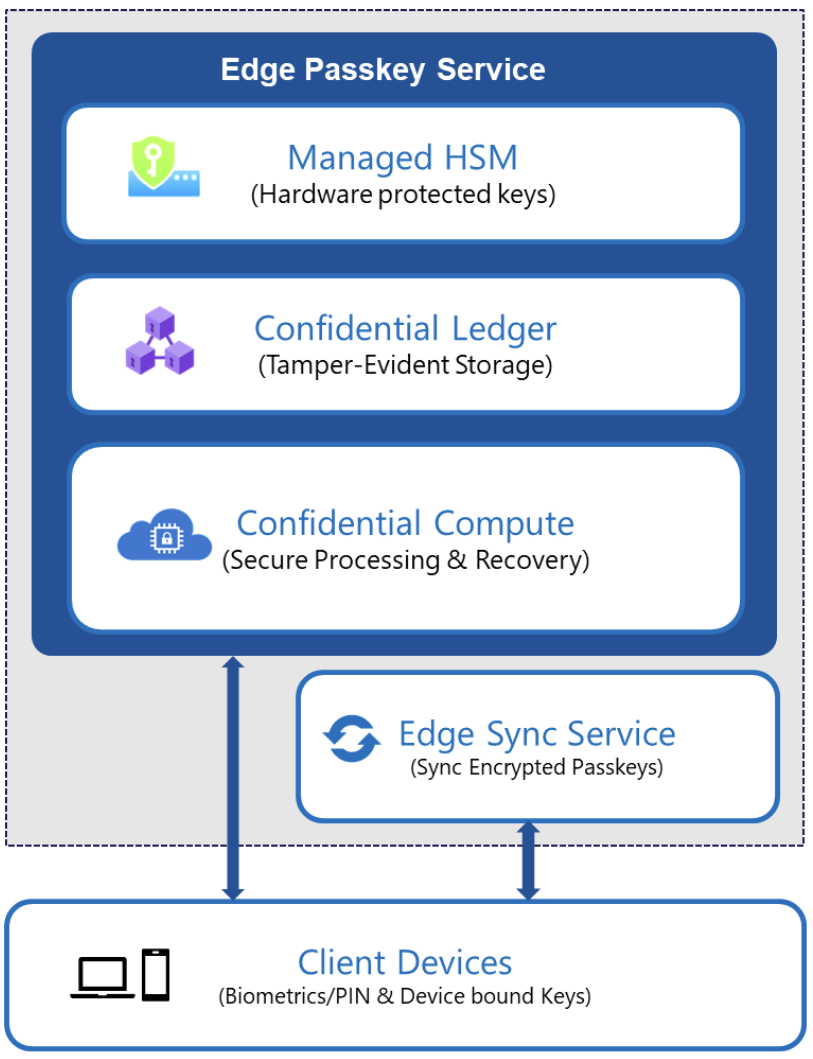
Passkey syncing in Microsoft Password Manager is built on a layered architecture that's designed to securely enable roaming credentials. The system applies multiple independent protections across the boundaries between compute (where sensitive operations are processed), key management, storage, and device authorization. At a high level, passkey syncing in Microsoft Password Manager combines:- Confidential computing for sensitive passkey operations.
- Hardware-rooted key protection for service-side encryption keys.
- Tamper-evident recovery storage for secure activation and recovery.
- Encrypted synchronization across registered devices.
Confidential compute for passkey operations
Sensitive passkey operations, including credential creation, assertion, and recovery validation, execute inside the Azure confidential computing environments backed by hardware isolation. This ensures that:- Cryptographic material is processed inside protected memory.
- The host environment cannot inspect sensitive cryptographic material (such as passkeys and encryption keys) while in use.
- Only attested service code can access protected encryption keys.
Hardware-rooted key protection
Encryption keys that safeguard synced passkeys are protected using Azure Managed HSM. Access to these keys is restricted through attestation-based secure key release mechanisms. Before keys are released, the execution environment is verified using Microsoft Azure Attestation, ensuring that key material is only accessible within trusted confidential workloads and is not released to non-confidential environments. This provides a hardware-rooted trust anchor for service-side encryption operations. Passkeys are encrypted before synchronization and handled within authorized, hardware-isolated environments.Secure registration and recovery
Microsoft Password Manager enables cross-device activation through a secure, auditable registration and recovery process. This process requires authentication via a user-defined knowledge factor (PIN), with all protections enforced within confidential computing boundaries. Recovery operations are validated within the confidential computing environment to ensure strong integrity guarantees. Recovery attempts are enforced using a securely maintained retry counter and associated recovery metadata, both recorded in a tamper-evident Azure Confidential Ledger. This prevents counter manipulation and rollback attempts. To protect against malicious brute-force attempts on the low-entropy PIN, the system enforces a fixed limit on consecutive incorrect attempts. Once this limit is reached, the system enters a lockout state. Recovery from lockout requires resetting the PIN through a secure flow that is initiated from a trusted device and authenticated via the user's Microsoft account. This design ensures that recovery mechanisms do not weaken the protections applied to synced passkeys.Building for the passwordless future
Passkeys represent a major step forward in authentication. In Microsoft Password Manager, we've engineered a sync system that balances strong security protections with seamless cross-device usability. By combining confidential computing, hardware-backed key protection, and device-bound authorization, Microsoft Password Manager delivers secure passkey roaming built to withstand modern threats. These protections are designed as independent layers that collectively safeguard passkeys throughout their lifecycle. Synced passkeys are a strong step forward in our passwordless journey, bringing the simplicity and security of phishing-resistant sign-in to users. We're excited to continue this journey with new capabilities and experiences ahead.Windows 365 Link: One year of the simple, secure, purpose-built Cloud PC device
- Support for pairing Bluetooth® devices during the out-of-box experience, so you can use a wireless keyboard and mouse to set up the device
- Support for tenant branding including setting a custom wallpaper, logo and name on the sign-in screen, so you can provide a tailored experience for your users
- Support for unique peripherals via USB redirection with no endpoint configuration required (GA) and ability to configure specific USB devices via centralized IT Admin controls (Public Preview)
- Support for visibility into pending updates directly on the sign-in screen and ctrl+alt+del screen, so users know when updates are available
Announcing Windows 11 Insider Preview Build 28020.1863 (Canary Channel)
What’s new in Canary Build 28020.1863
Changes and Improvements gradually being rolled out with toggle on*
- This update includes a small set of general improvements and fixes that improve the overall experience for Insiders running this build on their PCs.
[General]
- Fixed an issue that prevented some apps from signing in due to a false report of no internet connectivity.
Reminders for Windows Insiders in the Canary Channel
- These builds can be unstable and may be released with limited documentation. Join Windows Insider – Get early access to Windows 11 features & updates
- Many features in the Canary Channel are rolled out using Control Feature Rollout technology, starting with a subset of Insiders and ramping up over time as we monitor feedback to see how they land before pushing them out to everyone in this channel.
- The desktop watermark shown at the lower right corner of the desktop is normal for Windows Insider pre-release builds.
- Some features may show up in the Dev and Beta Channels first before showing up in the Canary Channel.
- For Windows Insiders who want to be the first to get features gradually rolled out to you, you can turn ON the toggle to get the latest updates as they are available via Settings > Windows Update*. Over time, we will increase the rollouts of features to everyone with the toggle turned on. Should you keep this toggle off, new features will gradually be rolled out to your PC over time once they are ready.
- Some features in active development we preview with Windows Insiders may not be fully localized and localization will happen over time as features are finalized. As you see issues with localization in your language, please report those issues to us via Feedback Hub.
- To get off the Canary Channel, a clean install of Windows 11 will be required. As a reminder - Insiders can’t switch to a channel that is receiving builds with lower build numbers without doing a clean installation of Windows 11 due to technical setup requirements.
- Check out Flight Hub for a complete look at what build is in which Insider channel.