Normale weergave

Announcing new builds for 8 May 2026

8 Mei 2026 om 21:13
Hello Windows Insiders, We continue to expand the rollout of the new WIP changes to those channels already announced. We have not yet begun moving Insiders in Canary 29500 Series Channel or Beta Channel to the new WIP experience just yet, although we expect this to happen in the coming weeks. As a reminder, if you are in the Beta Channel and looking for best continuity of all existing features, we encourage you to consider moving to the Dev Channel prior to taking the new Beta experience. See the WIP changes rollout blog for more information. New builds this week Today we are releasing new Windows 11 Insider Preview Builds. As a reminder, all Insiders can find the release notes for your device based on the new channel system, even if you haven’t moved yet. This is to make finding build information as easy as possible during the transition. See your channel release notes here: For those on other specific build versions, here are today’s new builds and release notes:
  • Experimental (26H1) – Including former Canary 28000 series: Build 28020.2075
  • Experimental (Future Platforms) – Including Canary 29500 series: Build 29585.1000
As a reminder, you can always find your build number in the watermark on bottom right-hand corner of your desktop.

Notable new features:

[Touchpad]

Release channel: Experimental We’re adding new gesturing-related functionality to precision touchpads in Settings. The new features should be widely available across applications, with the exception that WinUI3-based UI requires new WinAppSDK versions for complete functionality - we're in the process of bringing the necessary changes to versions 1.8 and 2.0.
  • Scroll / zoom speed: control the baseline speed for these gestures
  • Automatic scrolling: scrolling continues indefinitely without lifting your fingers. Activate by either bringing your fingers near the edge of the touchpad while scrolling, or holding them still and pressing harder (requires hardware support).
  • Accelerated scrolling: repeatedly scrolling increases their speed, allowing quick traversal of long documents.
  • Single-finger scrolling: perform a vertical scroll with a single finger starting from the left or right side of the touchpad.
[caption id="attachment_178947" align="alignnone" width="1024"]Touchpad improvements bring new gesture capabilities including automatic scrolling, gesture speed controls, accelerated scrolling, and optional single-finger scrolling support. Touchpad improvements bring new gesture capabilities including automatic scrolling, gesture speed controls, accelerated scrolling, and optional single-finger scrolling support.[/caption]

[EDU Licensing]

Release channel: Experimental Beta Channel Free upgrade path to Windows 11 Pro Education for K-12 Windows Insiders in K–12 education environments can now experience a seamless upgrade path from Windows 11 Home to Windows 11 Pro Education edition—at no additional cost. This enables educational organizations to procure Windows 11 Home devices, upgrade them to Windows 11 Pro Education, and bring devices under school management. See release notes for more information. Thanks, Stephen and the Windows Insider Program team
  •  

Windows quality update: Progress we’ve made since March

1 Mei 2026 om 19:40
Hello Windows Insiders I’ve now spent the past two months in this expanded role leading the Windows Insider Program. Two themes have stood out in my conversations with you. First, you want more transparency. You want to see what we’re doing, understand our decisions, and see progress through shipping. Second, a shared sense of pride. We want to be proud of what we build, and as Insiders, you’re proud to be the first to guide us with your feedback. When we get it right, we celebrate together. When we don’t, you push us to improve. We want Insiders to feel that same connection to what we’re building. Over the next few months, you’ll see us laser focused on the improvements we’re shipping. My ask of you: try the experiences, pressure test them, and let’s keep building a product we are proud of. Below are a few of the top improvements we’ve started rolling out to Windows Insiders over the past month, including some experiences rolling out in today’s flights.

Making the Windows Insider Program easier to navigate, with more control of the features you want

[caption id="attachment_178861" align="aligncenter" width="1024"]Newly updated Windows Insider Settings screen showing the new Experimental and Beta channels Newly updated Windows Insider Settings screen showing the new Experimental and Beta channels[/caption] Everything starts with Windows Insiders. Before a feature or improvement reaches general availability, we deliver it to you first. Last week, we began rolling changes to make the Windows Insider Program easier to navigate, simpler to understand, and with more control to try the features you want. With these changes, we're moving to two primary channels, Experimental and Beta, with clearer expectations for what each offer. In Beta, we're ending controlled feature rollouts (CFR), so when we announce a feature and you take the update, you'll have it. In Experimental, we're also adding new feature flags, so you can choose which features to try. We’re also making it easier to move between channels or leave the program without a clean install. Alongside these changes, we've continued improving Feedback Hub to reduce friction when sharing feedback, with recent updates focused on more consistent window behavior, easier navigation, and accessibility improvements. See our Windows Insider experience blog post for the full breakdown of channel changes, feature flags, and how to switch channels. For more information on the transition over the next month and how to access the new changes, read last week’s Windows Insider blog.

Less disruption from Windows Update

[caption id="attachment_178902" align="aligncenter" width="1024"]Showing ability in Windows Update to extend update pause Showing ability in Windows Update to extend update pause[/caption] The theme is simple: fewer disruptions, more clarity, more control. This update moves Windows toward a single monthly restart by consolidating OS, .NET, and driver updates, and gives you more flexibility to time updates around your schedule. We've also made changes to the Power menu so you'll always see the standard Restart and Shut down options without having to install a pending update first. You decide when updates happen, not the other way around. These improvements are available in the Experimental channel. See our Windows Update blog post for more on how unified updates, improved pause controls, and the new Power menu work together to keep you in control.

Simplifying AI experiences across inbox apps

Last month we said we would reduce where Copilot shows up across Windows, focusing on bringing AI where it’s most valuable. You’re seeing those changes roll out. In Snipping Tool and Photos, we've removed the “Ask Copilot” button entirely. And in Notepad, we've replaced the generic Copilot icon with a clearer "Writing Tools" label that better describes what it does. This is part of a broader shift to make AI in Windows more intentional and realign the experiences to those that provide the most value to users, and you’ll see us continue to be deliberate about where Copilot shows up, with fewer more curated experiences. These changes have been gradually rolling out through Microsoft Store updates over the past month.

Delivering improvements to make File Explorer faster and more dependable

File Explorer is a go-to tool for hundreds of millions of people across diverse workflows. It is an experience customers depend on to be functional, and we want to make it loved. We’re making foundational architectural improvements and rolling them out incrementally to reduce hangs, improve responsiveness, polish, and drive consistent gains in performance. In parallel, we’re addressing long-standing user feedback with targeted improvements that make day-to-day experiences more stable and reliable. This has included fixes to deliver smoother, more responsive launch and navigation, making the Home experience more stable with fewer jarring transitions and improved visual polish, including sharper thumbnails. These improvements have already begun to roll out in the Experimental channel, with several rolling out in today’s flights.

More control over widgets and feed experiences

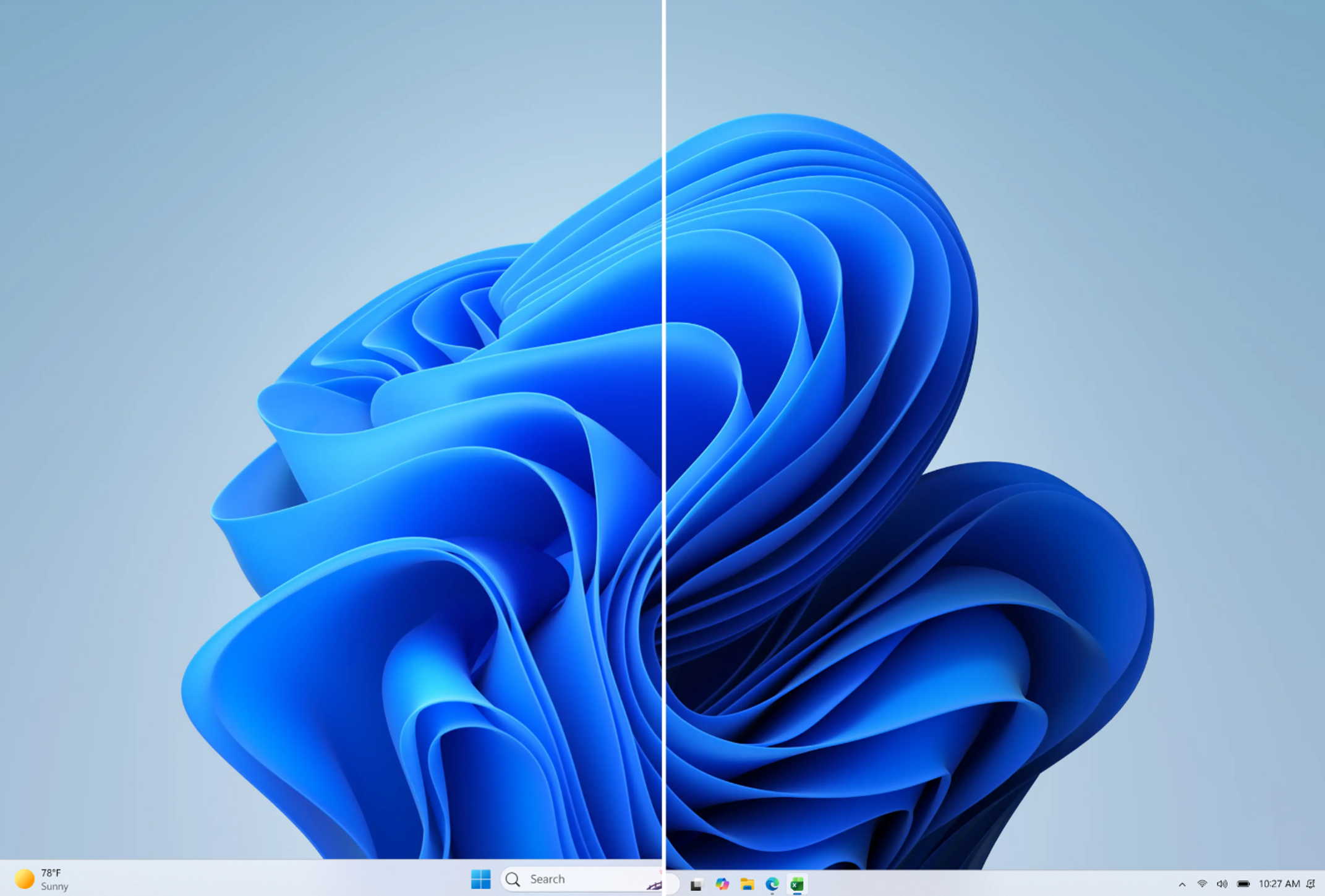
One of the areas we’re looking at closely across the operating system is the idea of “calm”. When you’re designing an experience for over a billion users, what are the right defaults that are easy, simple, and limit distractions? One of the most significant areas we’re addressing this is in Widgets and the Discover feed to make them quieter by default. We're changing default settings for launching and badging so you have more control over when these experiences show up and when they're allowed to seek your attention. When notifications do surface, we're setting a higher bar to make sure they're meaningful. We're also continuing to separate Widgets and the Discover feed into more distinct destinations, with calmer defaults that give you more control of what you choose to see. These improvements are rolling out today in the Experimental channel. We’ll soon also be reducing the default set of Widgets on lock to just Weather, putting customers in more control of curating the Widgets they want to see on lock. [caption id="attachment_178928" align="aligncenter" width="2061"]Comparing the old widget experience (left) with the new experience (right) Comparing the in-market widget experience (left) with the new experience (right)[/caption]

Improving system performance

As part of our commitment to making Windows more responsive and consistent, we have also been making progress on system performance across several areas of the operating system. We have been actively investigating and pursuing memory savings across the system. Widgets is one of the areas we’re focused on, leveraging device characteristics and user behavior patterns to optimize memory for our users. This includes things like a smaller default memory footprint, giving back memory faster when not in use, putting the user in more control of pre-launch, and limiting pre-launch on devices with lower memory capacity. Several of these changes are beginning to roll out to Windows Insiders today and we will be sharing more of our improvements in Widgets and in other areas over the coming months. We have been improving responsiveness across key OS and app launch experiences. In mid-March, we began rolling out targeted performance/power tuning improvements for the most frequently used OS and app scenarios. While we continue to tune these policies for improvements, these optimizations accelerate app launch and core shell scenarios like the Start menu, Search, Action Center, and more. One other cool update was work the team recently did to update the Windows scheduler. By better handling processor power states (C-states), we improve user-perceived responsiveness in everyday use. This optimization is beginning to become available in retail for customers.

What’s ahead

We know there’s a lot of excitement for Taskbar customization – and that’s coming soon. We’re actively refining the experience to ensure it meets our quality bar before broader preview. I’m excited to share more on that work later this month, including how we’re improving Taskbar and Start, as well the work underway to enhance Search. Since March, we’ve also been traveling to various cities to meet with Windows Insiders, listen to feedback, and share how we’re thinking about the future of the program– first in Seattle and last week in New York. The team and I are excited to continue connecting with you at our upcoming meetups taking place in Hyderabad, Taipei, San Francisco and London in the months ahead. If you’re interested in attending, register here! The commitments we made in March reflect our focus on delivering real performance, reliability and craft improvements to Windows 11 throughout this year. With Microsoft Build next month, we’ll have more to share on how we’re making Windows even better for developers. Looking forward to seeing you there! For a complete view of what’s shipped in each build, check the latest release notes on the new Windows Insider Program Documentation Hub. Please keep the feedback coming. Marcus
  •  

Announcing new builds for 1 May 2026 and extending ISO support

1 Mei 2026 om 19:10
Hello Windows Insiders, Today we are expanding the rollout of the new Windows Insider experience improvements to Canary Channel 28000 series devices, which will begin to move to Experimental (26H1). As a reminder, this does not change your current version of Windows, just bringing you the latest improvements to the Windows Insider experience.

Extending ISO download support

One of the areas of feedback we received was that many of you like to use ISOs to install your builds. We’ve heard you, and are committing to releasing ISOs available to download alongside regularly scheduled builds across all versions of the Beta and Experimental channels. To find ISOs for Windows Insider Preview Builds, see the Windows Insider Preview Downloads page. [Update 5/6/2026: Thank you for the great feedback regarding ISO availability. For clarity, we aim to release ISOs the week following their build flighting]

New builds this week

Today we are releasing new Windows 11 Insider Preview Builds. As a reminder, all Insiders can find the release notes for your device based on the new channel system, even if you haven’t moved yet. This is to make finding build information as easy as possible during the transition. See your channel release notes here: For those on other specific build versions, here are today’s new builds and release notes: As a reminder, you can always find your build number in the watermark on bottom right-hand corner of your desktop.

Notable new features:

[Run dialog update]

Release channel: Experimental We’re rolling out a refreshed Run dialog experience designed to bring a more modern look and improved usability. This update introduces updated visuals and a cleaner interface, along with new controls that make it easier to manage the experience from within Settings. The refreshed Run dialog is currently available as an opt-in experience for Windows Insiders on the Experimental channel, where you can enable it by going to Settings > System > Advanced and turning on the new Run dialog option. See the Dev blog announcement for more information. New rundialog

New run dialog

[Feedback Hub app update]

Release channel: Experimental, Experimental (26H1), Experimental (Future Platforms) Thanks Windows Insiders that have been sharing feedback about the Feedback Hub – we’re now rolling out version 2.2604.301.0. This update contains a number of improvements based on what you’ve been telling us, including:
  • Generally improved reliability.
  • More tweaks to improve general design fit and finish, accessibility, and localization.
  • The Community feedback section for non-English now allows you to switch view to English if you’d prefer.
  • Collection titles and Official responses now will be automatically translated in top languages.
  • The file upload limit when submitting feedback is back up to 500mb.
  • Improved upvote and comment count accuracy for feedback.
Please keep the feedback coming! If you want to share any thoughts, you can file them in the Feedback Hub under Apps > Feedback Hub.

[Widgets is quiet by default]

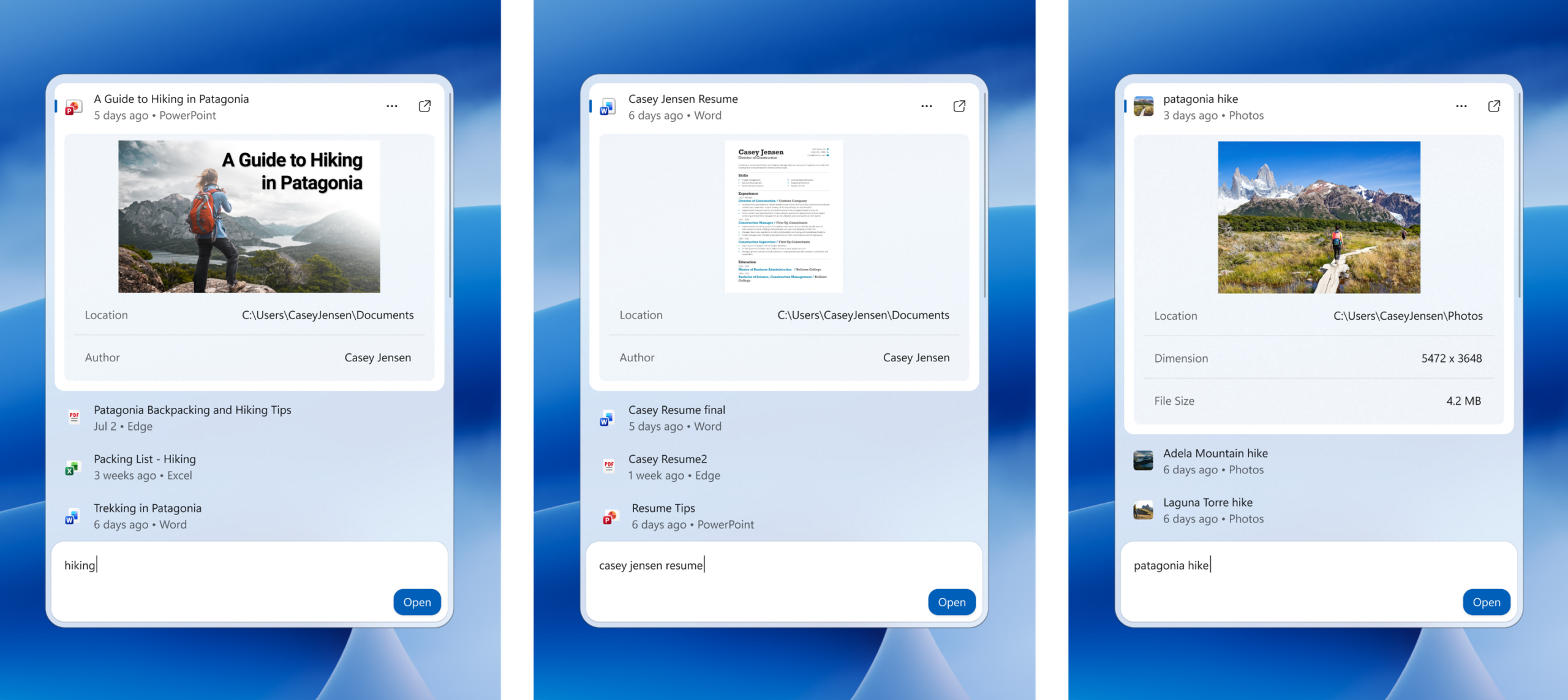
Release channel: Experimental We’re working to make Widgets feel less distracting and overwhelming by making the experience quiet by default. To do this, we’re testing a new set of default settings designed to reduce unexpected alerts and visual interruptions. These changes include:
  • Disabling Open on hover by default
  • Turning off taskbar badging  by default
  • Opening to widgets experience on first launch
  • Limiting taskbar alerts until you choose to open and engage with the Widgets experience
If you prefer more proactive updates, you can easily turn features like taskbar badging back on through Widgets settings. Thanks, Stephen and the Windows Insider Program team
  •  

Your Windows update experience just got updated

24 April 2026 om 19:30
Hey Windows Insiders, Today, we’re excited to share some improvements to the Windows Update experience that are now starting to roll out. These improvements are the direct result of your feedback. We are continually reading the feedback submitted about the Windows update experience. Personally, I’ve had the opportunity to read over 7,621 direct verbatims over the last few months. Across this feedback there are two key themes that persistently pop out: disruption caused by untimely updates and not enough control over when updates happen. The changes we’re rolling out today are focused on giving Windows users more control over their PC experience, while keeping devices secure by design and by default. Let’s get into what’s new!

More control

Updates are an important part of keeping your PC secure and running smoothly. But at the wrong time, they can also critically break your flow. To make this a better experience, we are focused on giving you more control of updates in four key ways:
  1. Skip updates immediately during the out of box experience (OOBE)
  2. Extend update pauses as many times as you need
  3. Always-available options to shut down and restart without updating
  4. More insights on available updates so you can make more informed installation decisions

1. Skip updates immediately during OOBE

Earlier this year, we added the control to immediately skip updates during device setup—giving you the option of landing on the desktop faster and getting updates later or getting updates right away and landing on a PC that has all the latest features and fixes. If you choose to skip updates, the latest features and security updates won’t be available until you take the update(s). With immediate choice built into setup, you decide when updates happen. [caption id="attachment_178903" align="aligncenter" width="1024"]OOBE showing ability to update later OOBE screen showing ability to update later[/caption] *Note – this is not applicable to commercial devices where the out of box experience is being managed or in select cases where updates are required for the device to be functional.

2. New controls for pausing updates

The Pause updates experience for Windows Update now puts you more in control. First, with a new calendar experience, you can choose a specific day of the month you want to pause until, up to 35 days, enabling you to plan around expected travel, conferences, exams, or even just busy weeks. When 35 days just isn’t long enough, we are also enabling you to extend the pause end date as many times as you need.  This means you can now re-pause for up to 35 days at a time, with no limits on how many times you can reset the pause end date. [caption id="attachment_178902" align="aligncenter" width="1024"]Showing ability in Windows Update to extend update pause Showing ability in Windows Update to extend update pause[/caption]

3. Shutdown, Restart on your terms

Restarting or shutting down your PC should always be simple, predictable, and on your terms – even with updates waiting to be installed. We’re improving this experience by clearly separating power actions from update actions. With this change, the Power menu will always show the standard Restart and Shut down options, meaning you will always have a choice to just restart or shut down your device without having to install the pending update.  At the same time, update‑specific choices like Update and restart and Update and shut down will still be available when applicable. This gives you four clear options—and full control over what your device does next. [caption id="attachment_178904" align="aligncenter" width="1024"]Showing ability to restart and shut down without installing updates Showing ability to restart and shut down without installing pending updates[/caption] If you choose Restart or Shut down, Windows will perform exactly that action, without unexpectedly starting an update. If you’re ready to install updates, you can explicitly choose one of the update options. After a restart, Windows will attempt to restore previously opened applications faster, allowing users to return more easily to what they were working on. This change is about is about making the Power menu more predictable, so when you need a quick restart or want to power off before heading out, Windows does exactly what you expect.

4. More insights on available updates

One of the key pieces of feedback after moving to simplified update titles at the end of 2025 was an ask to better understand driver updates. Often, driver updates would have similar, if not identical, titles. To help provide you with more insights, we have added the device class to the driver title - ensuring pending or installed driver updates clarify whether they apply to display, audio, battery, extension, HDC, or other applicable driver update classes.

Fewer disruptions

There are few things more frustrating than sitting down to use your computer, only to find that it requires an update. Worse, is when this happens multiple times in a given month. We know this has been a major pain point for Windows users, so as of today, we’re unifying the update experience to reduce the number of reboots you see every month. We are starting by coordinating driver, .NET, and firmware updates to align with the monthly quality update, reducing update experience to a single monthly restart. Windows quality updates include monthly security updates, emergency out-of-band (OOB) updates, and optional non-security updates if initiated by the user. For Windows Insiders in Experimental and Beta you will note weekly updates, Persistent Seekers in retail will see bi-monthly updates, and retail users who have not opted to get any updates early will see monthly reboots. For users checking out the Settings > Windows Update page, you will see all of these updates collapsed into a single Available updates section. [caption id="attachment_178914" align="aligncenter" width="1024"]Showing all updates available under Available updates. Showing all updates available under Available updates.[/caption] Updates will download in the background, then will wait for a coordinated installation and restart. This installation and restart will align with the next Windows quality update or other update that you manually approve. Users can always acquire all or specific updates earlier if desired by initiating download, install, restart (if applicable) for available updates. If none of these actions are taken, updates will be downloaded in the background and applied alongside the next scheduled Windows quality update.

Keeping you secure, by default

In line with Microsoft's Secure Future Initiative, Windows is grounded in keeping devices secure by design and secure by default, getting Windows devices onto the latest security update shortly after its released. However, we know sometimes users hit issues when attempting to take these security updates due to bandwidth constraints and update failures. Over the last few months, we have made steady progress in reducing the download and overall time it takes to apply a Windows update and will continue to work toward reducing overall update time over the course of this year. These improvements are particularly impactful for devices that spend less time online or in areas with poor connectivity, leading to higher rates of update success. Further, we are ensuring devices stay secure by default through automatic recovery for update failures – taking additional steps in the background to help the update complete successfully without user intervention. This means your device will automatically attempt to recover from installation failures in real time – causing some updates to take longer to complete, but ensuring they have a higher success rate.

Stay protected, with more flexibility

Updates are a critical part of helping keep your device secure and protected, and with these changes you now have more flexibility to take these updates on your terms. As always, we recommend taking these updates shortly after they are released to keep your device and your data secure. We are excited for these changes to reduce disruption and provide you with more control to all now be available, with many beginning to roll out to devices in the Dev Channel and the new Experimental channel today, which also starts rolling out today. We will have more to share around how these features will light up for commercial customers and the controls that will be available for admins around them soon. None of this would have been possible without your feedback, so please keep it coming! Thank you! Aria Twitter (X): @AriaUpdated
  •  

We’re moving to Experimental and Beta! Announcing new builds for 24 April 2026

24 April 2026 om 19:27
Hello Windows Insiders, Today is the day we’re beginning to move to the new Experimental and Beta channels as announced earlier this month.  As a reminder, most Insiders, those who are in the Dev and Beta channels today will transition to the new channels over time as follows:
  • Beta Channel > Beta 
  • Dev Channel > Experimental
For those in the Canary Channel, you will also be transitioned to specific versions of the Experimental channel, depending on whether you are in the 28000 series Canary channel or took the optional 29500 series update. The transition takes place as follows:
  • Canary Channel 28000 series > Experimental (26H1)
  • Canary Channel 29500 series > Experimental (Future Platforms)

Transition timeline

To ensure quality and reliability of the program changes, we will be rolling out the changes in a phased approach. Starting today, we will begin moving users in the Dev Channel to Experimental. Delivering on our promise to allow Insiders in Experimental to enable new experiences before they roll out to your device, if you are in the Dev Channel and do not see the new Experimental channel UI, you can enable it yourself by going to Settings > Windows Update > Windows Insider Program > Feature flags and toggling on the new experience. We will continue this rollout over the next few weeks, expanding to Canary Channel 28000 series to Experimental (26H1), Canary Channel 29500 series to Experimental (Future Platforms) and Beta Channel to the new Beta experience. We will announce when we begin starting the rollout for these channels.

Changes to the Beta experience

Based on your feedback to have clearer definitions between channels, we have committed to updating how we use the new Beta experience to reflect what is coming to retail in the following weeks. With this, there will be a realignment of experience when Beta Channel Insiders move to the new Beta experience. While Beta Channel Insiders can generally expect a similar experience after this transition, some may notice feature changes. Although these feature differences will be minor, users who are looking for the best continuity of all existing features should consider moving from the existing Beta Channel to Dev Channel, in preparation for the move to Experimental. While users can still move from Beta to Experimental after the changes are implemented on your device, moving beforehand ensures the best continuity of experience for those features.

Updating WIP build information communications

We will also be changing how we publish the update information for each build, moving to the Windows Insider Program Documentation Hub. Moving release notes to this site provides additional benefits including:
  • Easier navigation between different channel and build release notes
  • Dark and light mode support
  • Better localization support
  • Enhanced deep linking capabilities
We will still announce when we’re releasing new builds here on the Windows Insider blog and will link to each build’s release notes in the Windows Insider Program Documentation Hub. We will also highlight some of the more notable new features coming into WIP for the first time in the blog, but Insiders should check the release notes for more detailed build information.

New builds this week

With that, today we are releasing new Windows 11 Insider Preview Builds. Starting today, all Insiders can find the release notes for your device based on the new channel system, even if you haven’t moved yet. This is to make finding build information as easy as possible during this transition. See your channel release notes here: For those on other specific build versions, here are today’s new builds and release notes: As a reminder, you can always find your build number in the watermark on bottom right-hand corner of your desktop. Thanks, Stephen and the Windows Insider Team
  •  
❌